


Python Articles
Freelancing as a Python Developer: Getting Your First Client
Common Python Mistakes Beginners Make And How to Fix Them
Python Best Practices: Writing Clean, Maintainable Code Like a Pro
How to Build a Python Developer Portfolio That Gets You Hired


Get In Touch For Details! Request More Information
Check Python Version in CMD, Terminal & VS Code (All OS Guide 2026)
Jul 27, 2026 9 Min Read 8430 Views
(Last Updated)
Is your Python code failing because of a missing feature, or are you unknowingly running it on the wrong Python version? Many issues with package installation, syntax errors, and environment conflicts trace back to an incorrect or unexpected Python version.
To Check Python Version in CMD, Terminal, or VS Code is a simple step that confirms compatibility, avoids setup issues, and keeps your development environment stable.
This guide covers the exact commands for Windows CMD, PowerShell, Mac Terminal, Linux Terminal, and VS Code, how to check the version from inside a running script, what to do if the version showing looks wrong, and how to tell Python 2 and Python 3 apart.
Table of contents
- TL;DR Summary
- What Is CMD and How It Interacts with Python?
- Difference Between System-Wide Python and Virtual Environment Python
- Prerequisites Before Checking Python Version in CMD
- Ensuring Python Is Installed on Windows
- Verifying Python Is Added to System PATH
- Opening Command Prompt Correctly
- Check Python Version Using python --version
- Check Python Version in PowerShell, Mac Terminal, and Linux Terminal
- Check Python Version Using python -V
- Difference Between --version and -V
- When to Use This Command
- Common Output Patterns
- Check Python Version Using py --version (Windows Launcher)
- What Is the Python Launcher
- Why py Works Even When python Fails
- Identifying the Default Python Version
- Check All Installed Python Versions on Windows
- Check Python Version Inside an Interactive Shell
- Check Python Version for a Specific Installation
- Check Python Version Inside VS Code
- Check Python Version Inside a Python Script (sys.version)
- Check if Python 2 or Python 3 Is Installed — Commands Differ
- Which Python Version Should You Use in 2026?
- Common Errors When Checking Python Version in CMD
- Python Version Showing Wrong — How to Fix
- Python Version vs pip Version in CMD
- Best Practices for Managing Python Versions on Windows
- 💡 Did You Know?
- Conclusion
- FAQs
- Why Does CMD Show a Different Python Version Than Expected?
- How to Set a Default Python Version on Windows?
- Can Multiple Python Versions Coexist Safely?
TL;DR Summary
- To Check Python Version in CMD on Windows, run python –version, python -V, or py –version.
- On Mac and Linux Terminal, use python3 –version, since python alone may not be mapped to Python 3.
- Inside VS Code, the active interpreter version shows in the bottom status bar, or run python –version in the integrated terminal.
- If the version shown looks wrong, it’s almost always a PATH order issue or an inactive virtual environment, not a broken installation.
- As of 2026, Python 3.10 through 3.14 are actively supported; Python 3.9 and earlier, along with all of Python 2, are end-of-life and should not be used for new projects.
What Is CMD and How It Interacts with Python?
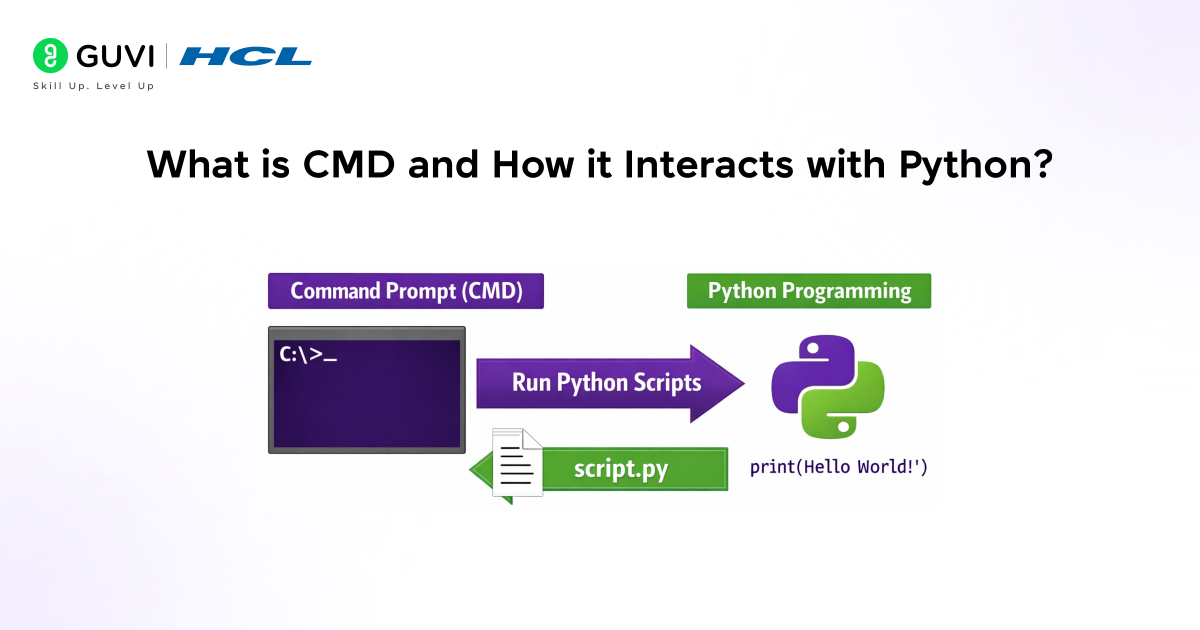
Understanding how to Check Python Version in CMD starts with understanding CMD itself. Command Prompt, commonly called CMD, is a Windows command-line interface used to run system commands, scripts, and programs directly through text input.
When Python is installed, CMD interacts with it through environment variables, mainly the PATH setting, which tells the operating system where the Python executable lives. Typing python, python –version, or py triggers Windows to locate the corresponding interpreter and run it.
This interaction determines which Python installation runs, how scripts launch, and which version gets used when multiple Python environments exist on the same system.
Difference Between System-Wide Python and Virtual Environment Python
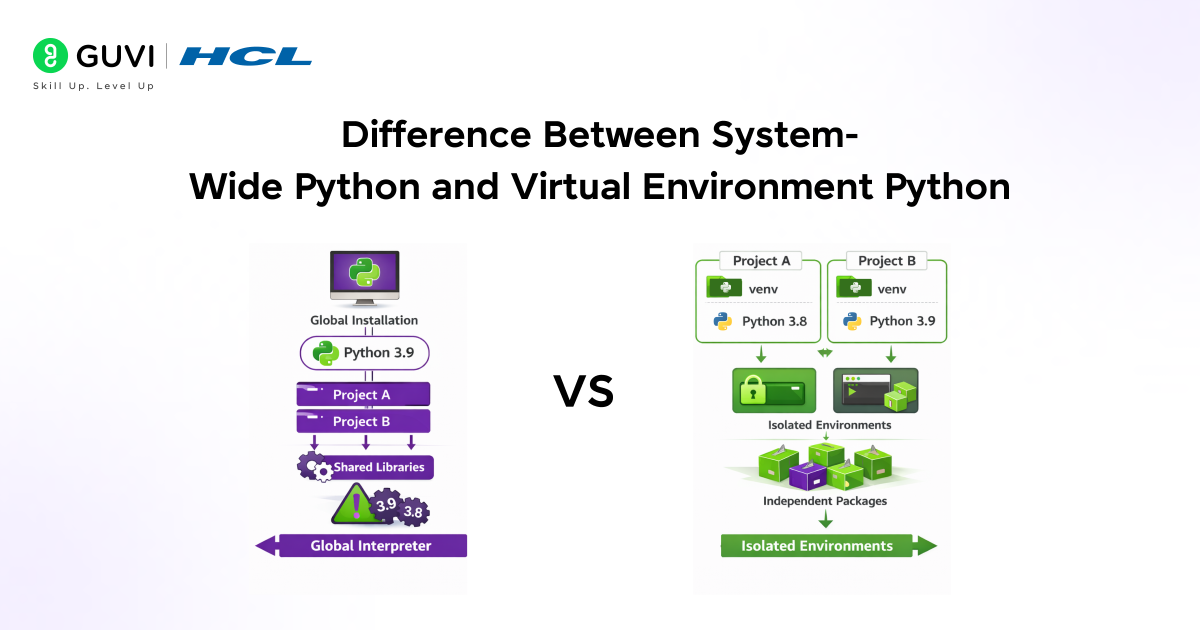
Before you Check Python Version in CMD, it is important to understand which Python installation the command line is interacting with, since system-wide and virtual environment setups can report different versions and affect how commands behave.
| Factor | System-Wide Python | Virtual Environment Python |
|---|---|---|
| Scope | Installed globally on the operating system | Isolated to a specific project or directory |
| Installation location | System directories shared by all projects | Project-specific folder created using venv or similar tools |
| Package management | Packages are shared across all projects | Packages are isolated per project |
| Risk of conflicts | High risk of version and dependency conflicts | Low risk due to isolation |
| Python version control | Usually fixed to one system version | Can target a specific Python version |
| Use case | General scripting and system-level tasks | Application development and project-based work |
| Impact on other projects | Changes affect all projects using system Python | Changes affect only the active environment |
| Best practice | Avoid for complex projects | Recommended for development and production workflows |
Prerequisites Before Checking Python Version in CMD
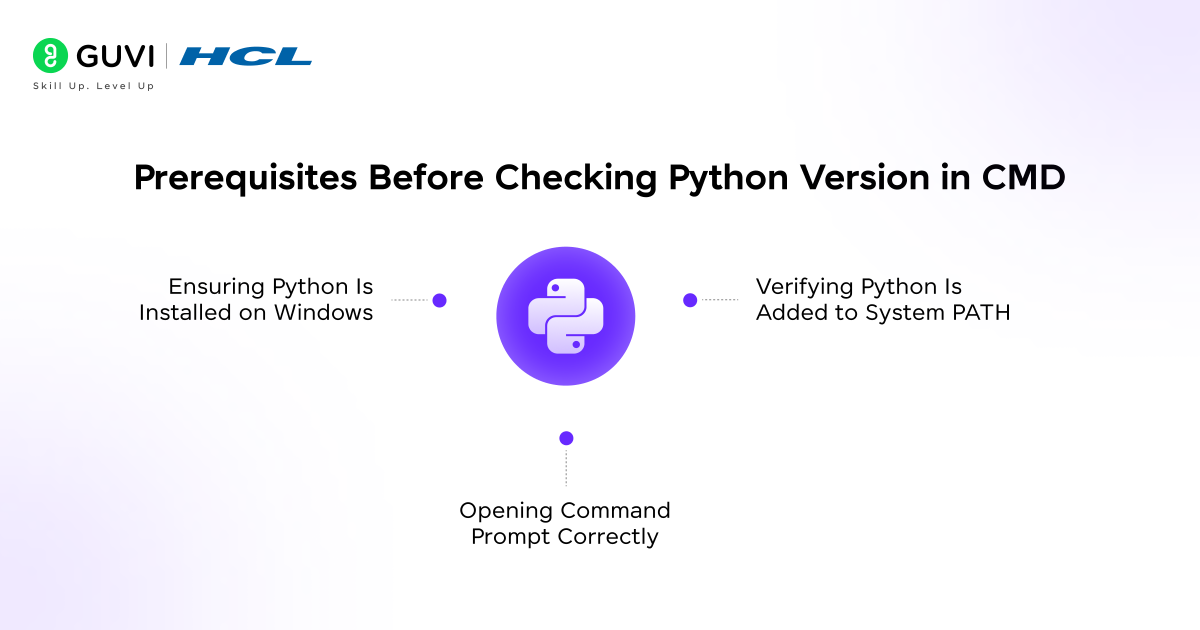
1. Ensuring Python Is Installed on Windows
This is the first prerequisite before you Check Python Version in CMD successfully. Python must be installed on the system before any version check can succeed.
A valid installation places the Python interpreter (python.exe) on disk, typically under the Program Files directory or a user-specific location.
Without an installed interpreter, CMD cannot execute Python commands or return version details.
2. Verifying Python Is Added to System PATH
PATH configuration is central to how you Check Python Version in CMD without errors. The system PATH variable allows CMD to locate the Python executable without requiring a full file path. If Python is not added to PATH, commands like python –version will fail even if Python is installed.
PATH configuration determines which Python installation CMD resolves when multiple versions exist, which is exactly why this matters so much when you Check Python Version in CMD.
3. Opening Command Prompt Correctly
Command Prompt should be opened as a standard user for most checks. Administrative privileges are only required for installation or PATH changes, not for version verification. CMD can be launched through the Start menu, Run dialog, or Windows Terminal.
Want to strengthen your Python fundamentals beyond environment setup and version checks? Explore HCL GUVI’s Python Hub to build a solid foundation in core Python concepts, practical workflows, and real-world coding practices that help you avoid common setup and compatibility issues.
Check Python Version Using python –version
- Command Syntax Explanation
This is the most direct command to Check Python Version in CMD. The –version flag requests the interpreter to print its version information and exit immediately. This command executes without starting an interactive session, making it the fastest way to Check Python Version in CMD.
python --version- Expected Output Format
The output follows a simple format that includes the Python major, minor, and patch version.
Python 3.13.2- Handling Cases Where No Output Appears
If CMD returns no output or an error stating that Python programming is not recognized, Python may not be installed or may not be available in PATH. In such cases, alternative commands or explicit paths should be used.
Check Python Version in PowerShell, Mac Terminal, and Linux Terminal
Everything covered so far has focused on how to Check Python Version in CMD specifically on Windows. Since PowerShell, Mac, and Linux each handle this slightly differently, here’s the exact command for every other environment.
Windows PowerShell:
python --versionIf PowerShell doesn’t recognize python, use the Python Launcher instead:
py --versionMac Terminal:
python3 --versionLinux Terminal:
python3 --versionWhy Mac and Linux use python3 instead of python: on many Mac and Linux systems, python either points to an old Python 2 install or doesn’t exist at all, while python3 reliably points to the active Python 3 interpreter. Windows generally maps python directly to Python 3, since Python 2 hasn’t shipped with Windows installers in years.
Check Python Version Using python -V
Difference Between –version and -V
Both are valid ways to Check Python Version in CMD, but they differ in clarity, intent, and usage context. The –version flag is the explicit, long-form option designed for readability and is commonly used in documentation, troubleshooting guides, and automated environment checks.
The -V flag is a concise shorthand that produces the same output and exits immediately without launching the interactive shell. The uppercase form is mandatory, since lowercase -v enables verbose mode.
Across modern Python releases on Windows, both flags return identical version information when you Check Python Version in CMD this way.
python -VWhen to Use This Command
The -V option is suitable for quick, manual checks in CMD or lightweight scripts where brevity matters. It is often used by experienced developers during rapid environment validation and behaves consistently across Windows systems when Python is correctly resolved through PATH or the Python Launcher.
Common Output Patterns
The output displays only the Python version number in a standardized format, including major, minor, and patch levels. It does not include compiler details, build timestamps, or environment-specific metadata, which keeps the output clean and predictable for scripting and logging purposes.
Check Python Version Using py –version (Windows Launcher)
What Is the Python Launcher
This is a third distinct way to Check Python Version in CMD on Windows specifically. The Python Launcher (py) is a Windows-specific utility installed with the official Python.org installer.
It acts as a version selector rather than a direct interpreter and identifies Python installations registered in the Windows registry. The launcher supports version qualifiers and configuration files, which allows precise control over which Python interpreter is invoked.
Why py Works Even When python Fails
This is exactly why the launcher remains reliable when other ways to Check Python Version in CMD fail. The launcher does not depend on the system PATH variable to resolve Python executables.
Instead, it reads registry entries created during installation, which allows it to locate Python even when PATH is missing, incorrectly ordered, or overridden by installations such as the Microsoft Store distribution.
Identifying the Default Python Version
This is one more nuance worth knowing when you Check Python Version in CMD using the launcher. When the launcher is executed without specifying a version, it resolves the default Python interpreter based on user-level and system-level configuration rules.
This default may differ from the interpreter returned by the python command.
py --versionCheck All Installed Python Versions on Windows
The Python Launcher can list every Python version detected on the system, including multiple major and minor releases and their architectures.
py -0This is another reliable way to Check Python Version in CMD across every installation on a machine. The output identifies parallel installations such as Python 3.9, Python 3.10, and Python 3.12, along with 32-bit or 64-bit builds.
Reviewing this information helps prevent accidental execution of an unintended interpreter and supports accurate version selection during development and testing.
Check Python Version Inside an Interactive Shell
This is another way to Check Python Version in CMD without any flags at all. Running the python command without flags starts the interactive interpreter resolved by CMD using PATH precedence or launcher rules if applicable.
pythonThe first line displayed in the interactive shell includes the Python version number, build date, compiler used, and system architecture. This is one more way to Check Python Version in CMD, confirming exactly which interpreter is running and helping diagnose compatibility issues.
Check Python Version for a Specific Installation
This is the most explicit way to Check Python Version in CMD when multiple installations exist. Specifying the full path ensures that a particular Python installation is queried directly.
C:\Python312\python.exe --versionUsing explicit paths to Check Python Version in CMD eliminates ambiguity when multiple Python versions are installed. This approach is recommended for debugging environment issues or validating production setups.
Once you have verified your Python version and environment setup, the next step is building strong Python fundamentals that prevent version-related issues in real projects. Enroll in our Python course to gain an industry recognised certification at an affordable fee, learn through 100 percent online and self-paced lessons, and get full lifetime access to all content to build reliable, production-ready Python skills with confidence.
Check Python Version Inside VS Code
VS Code offers another way to Check Python Version in CMD-adjacent workflows, without needing a separate terminal command each time.
Method 1: Status bar. Open any Python file in VS Code. The active interpreter’s version appears in the bottom-right corner of the status bar (for example, “Python 3.13.2 64-bit”). Clicking it lets you switch to a different installed interpreter.
Method 2: Integrated terminal. Open the integrated terminal (Ctrl + ` on Windows/Linux, Cmd + ` on Mac) and run the same commands covered above to Check Python Version in CMD-equivalent fashion right inside your editor:
python --versionMethod 3: Command Palette. Press Ctrl+Shift+P (or Cmd+Shift+P on Mac), type “Python: Select Interpreter”, and press Enter. This shows every Python installation VS Code has detected, along with its version, letting you pick the correct one for your project.
Check Python Version Inside a Python Script (sys.version)
Sometimes you need more than just to Check Python Version in CMD manually, you need it programmatically, from inside running code.

import sys
print(sys.version)
Sample output:
3.13.2 (main, Jun 10 2026, 14:22:10) [MSC v.1938 64 bit (AMD64)]This is a more detailed way to Check Python Version in CMD-style contexts from inside a script. This includes the full build string: version number, build date, and compiler details. If you only need the clean version number for comparisons in code, use sys.version_info instead:
import sys
print(sys.version_info)
# Output: sys.version_info(major=3, minor=13, micro=2, releaselevel='final', serial=0)

if sys.version_info >= (3, 10):
    print("Running Python 3.10 or newer")
This pattern is especially useful when a script needs to behave differently depending on the Python version it’s running under, for example, enabling a newer syntax feature only when available.
Check if Python 2 or Python 3 Is Installed — Commands Differ
Knowing how to Check Python Version in CMD for both Python 2 and Python 3 matters, since Python 2 reached its official end-of-life in January 2020 and some legacy systems still have it installed.
Checking for Python 2 specifically:
python2 --versionChecking for Python 3 specifically:
python3 --versionChecking the ambiguous python command:
python --versionThis is exactly why you should Check Python Version in CMD-style Terminal commands explicitly rather than assume. On older Linux distributions, plain python sometimes still resolves to Python 2.
On modern Windows and most current Mac and Linux setups, python resolves to Python 3, but this isn’t guaranteed everywhere.
The safest habit: always use python3 explicitly on Mac and Linux, and verify with py -0 on Windows, rather than assuming what the bare python command points to on any given machine.
Which Python Version Should You Use in 2026?
Once you Check Python Version in CMD and see the result, it helps to know if that version is actually current.
As of 2026, the actively supported Python release lines are 3.10, 3.11, 3.12, 3.13, and 3.14, with 3.14.6 being the latest stable point release. Python 3.9 and every version before it, including all of Python 2, has reached end-of-life.
This guidance applies whether you Check Python Version in CMD on Windows or Terminal elsewhere.
For new projects: use the latest stable release your key libraries officially support, currently Python 3.12 or 3.13 offer the best balance of new features and broad library compatibility.
For learning and coursework: any actively supported version (3.10 and above) is fine; the core language differences that matter for beginners are minimal across these versions.
For production systems still on Python 3.10: start planning a migration now. Python 3.10 reaches end-of-life on October 31, 2026, after which it stops receiving security updates entirely.
Avoid for anything new: Python 3.9 and below, and definitely Python 2, both are unsupported and accumulate unpatched security vulnerabilities the longer they stay in use.
Common Errors When Checking Python Version in CMD
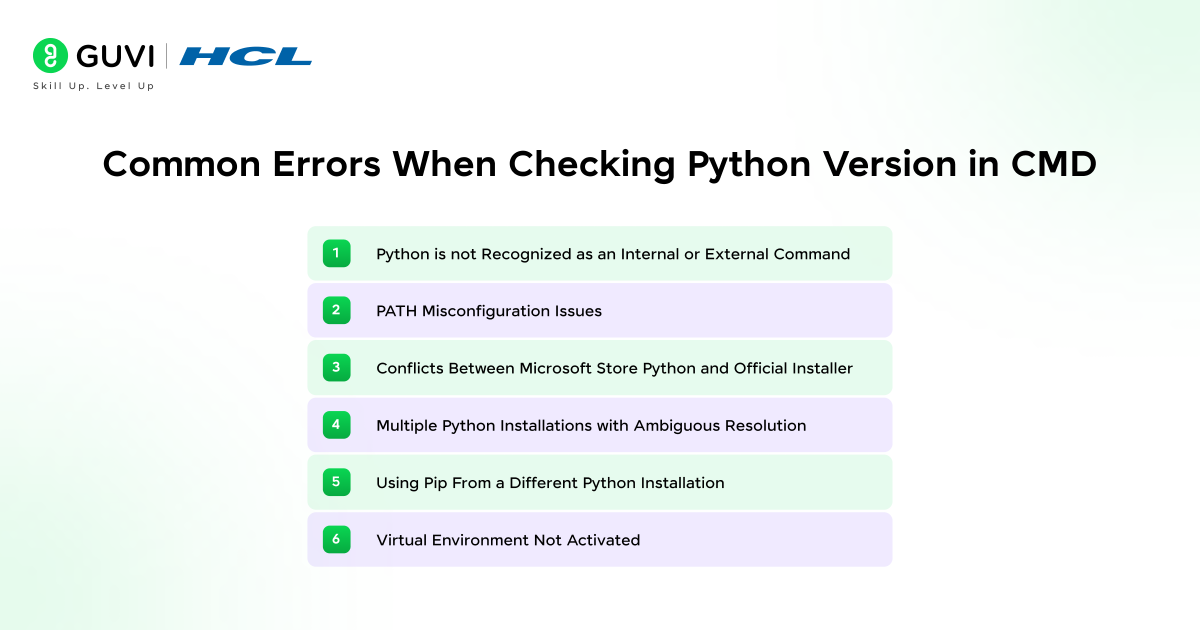
‘python’ Is Not Recognized as an Internal or External Command: This is one of the first errors people see when they try to Check Python Version in CMD for the first time. This error occurs when the Python executable is missing from the system PATH or Python is not installed. CMD cannot resolve the python command without a valid PATH entry pointing to python.exe.
PATH Misconfiguration Issues: This is one of the trickiest issues to debug when you Check Python Version in CMD. Incorrect PATH order can cause CMD to resolve an unintended Python version. Older installations or stale paths may appear earlier in PATH, leading to version mismatches and unexpected behavior during execution.
Conflicts Between Microsoft Store Python and Official Installer: This Windows-specific quirk confuses many people trying to Check Python Version in CMD for the first time. The Microsoft Store version registers Python differently and may intercept the python command. This conflict often results in CMD launching a different version than the one installed via python.org. The Python Launcher reduces this ambiguity.
Multiple Python Installations With Ambiguous Resolution: This ambiguity is exactly why you should Check Python Version in CMD explicitly rather than guess. When several Python documentation versions are installed without clear management, CMD may resolve different interpreters depending on PATH changes, user context, or system updates. This makes version checks unreliable unless explicitly verified.
Using pip From a Different Python Installation: This is exactly why you should Check Python Version in CMD alongside pip, not instead of it. Running pip without confirming its associated Python interpreter can produce misleading results. Pip may install packages for a different Python version than the one returned by python –version.
Virtual Environment Not Activated: This is one of the most common mistakes when you Check Python Version in CMD inside a project folder. Checking the Python version without activating a virtual environment reports the system interpreter instead of the project-specific one. This often leads to confusion during development and debugging.
Python Version Showing Wrong — How to Fix
This is one of the most common frustrations when you Check Python Version in CMD: you know you installed a newer version, but the terminal keeps reporting an older one.
Step 1: Check PATH order. This is the first thing to check whenever you Check Python Version in CMD and see something unexpected. Multiple Python installations often exist on the same machine, and whichever one appears first in PATH wins. On Windows, check via System Properties → Environment Variables. On Mac/Linux, run echo $PATH and look at the order of directories.
Step 2: Check for an active virtual environment. This step matters just as much as the basic command to Check Python Version in CMD. If a virtual environment is activated, the version shown reflects that environment’s Python, not your system-wide install. Run where python (Windows) or which python3 (Mac/Linux) to confirm which executable is actually resolving.
Step 3: Check for the Microsoft Store Python conflict (Windows only). The Microsoft Store version registers itself differently and can intercept the python command ahead of your official python.org installation. Using the Python Launcher (py) sidesteps this conflict entirely.
Step 4: Restart your terminal. PATH changes don’t apply to already-open terminal windows. Close and reopen CMD, PowerShell, or Terminal after making any changes.
Step 5: Use the explicit full path if all else fails. This bypasses PATH resolution entirely and confirms exactly which installation you’re querying when you Check Python Version in CMD one final time:
C:\Python313\python.exe --versionPython Version vs pip Version in CMD
- Difference Between Python and pip Versions
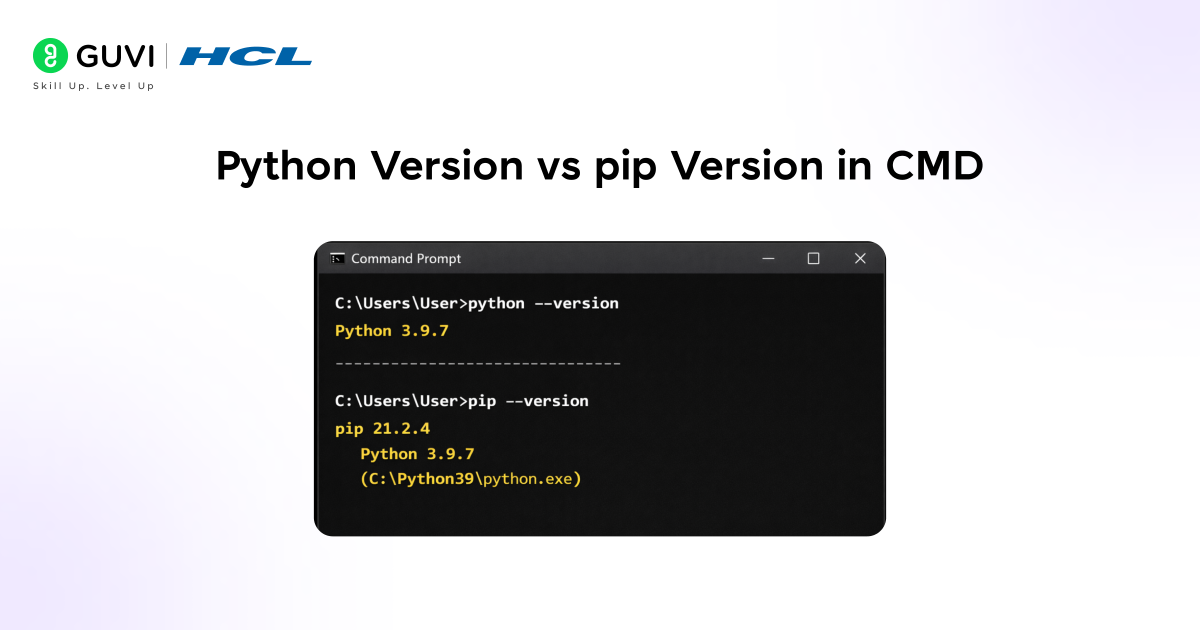
Understanding this difference matters once you Check Python Version in CMD and also need to verify pip. The Python version identifies the interpreter that executes code and defines the available language features and runtime compatibility.
The pip version refers to the package management tool bundled with a specific Python interpreter and determines how external libraries are installed, upgraded, and removed.
This is exactly why the result of pip –version matters as much as when you Check Python Version in CMD. Each Python installation maintains its own pip executable, configuration, and site-packages directory.
As a result, pip version output also reveals which Python installation it is associated with, helping prevent accidental package installation into the wrong environment.
- Checking pip Version Correctly
The pip version output includes the Python version and path it is associated with, which helps verify alignment between interpreter and package manager.
pip --versionThis confirmation prevents accidental package installation into the wrong environment.
Best Practices for Managing Python Versions on Windows
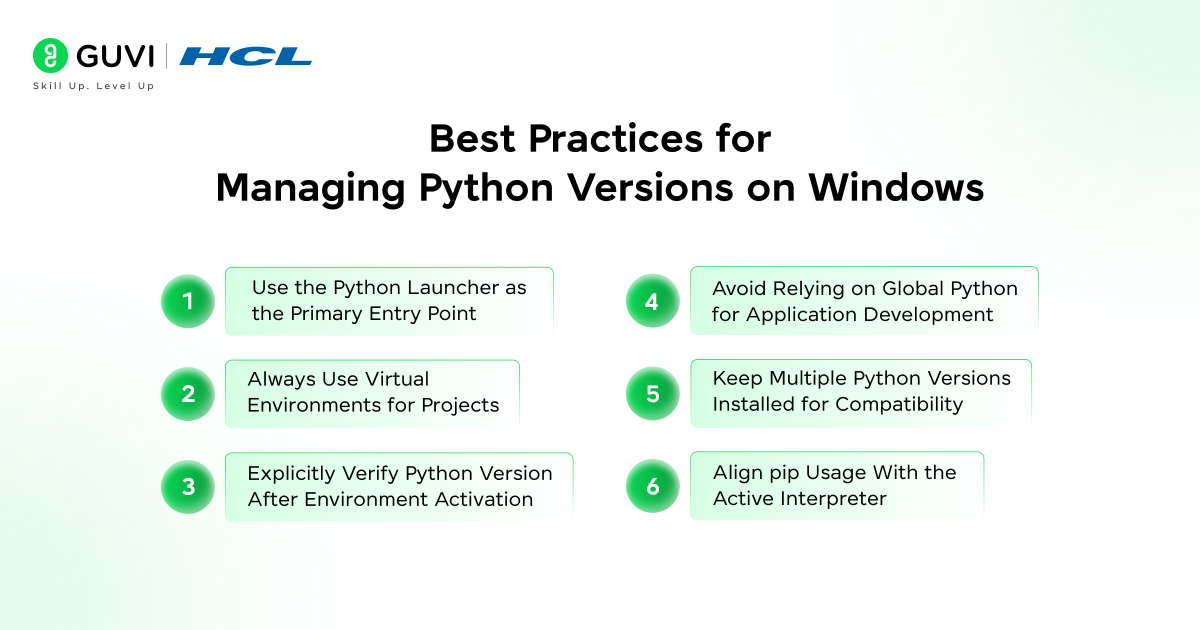
- Use the Python Launcher as the Primary Entry Point
The Python Launcher reliably selects the correct interpreter even when PATH is misconfigured. It provides consistent behavior across multiple installations.
- Always Use Virtual Environments for Projects
Virtual environments isolate dependencies and interpreter versions per project. This prevents Python library conflicts and supports reproducible builds across systems.
- Explicitly Verify Python Version After Environment Activation
Confirm the Python version immediately after activating a virtual environment. This ensures the expected interpreter is in use before installing packages or running scripts.
- Avoid Relying on Global Python for Application Development
System-wide Python installations should be reserved for basic tooling. Project development should always occur within isolated environments to reduce risk.
- Keep Multiple Python Versions Installed for Compatibility
Maintaining multiple Python versions allows testing across releases without uninstalling existing setups. This approach supports legacy applications and forward compatibility.
- Align pip Usage With the Active Interpreter
Use pip only after verifying the active Python interpreter. This prevents dependencies from being installed into unintended environments.
💡 Did You Know?
- The Python Launcher (py) was introduced through PEP 397 to solve version-conflict problems on Windows, allowing developers to run commands like py -3.11 or py -3.13 to select an exact Python version without modifying PATH.
- Python 2 officially reached end-of-life on January 1, 2020 and no longer receives security updates, yet it is still used in some legacy servers and embedded systems that depend on older applications.
Conclusion
Knowing how to Check Python Version in CMD, Terminal, or VS Code is a foundational step for any Python developer, as it prevents compatibility issues, dependency conflicts, and unexpected runtime behavior.
Using reliable commands, understanding common errors, and following sound environment management practices ensures consistent execution across systems.
Whether you Check Python Version in CMD on Windows, Terminal on Mac and Linux, or inside VS Code, verifying versions early supports stable development workflows.
FAQs
Why Does CMD Show a Different Python Version Than Expected?
This happens due to PATH resolution order, multiple installed interpreters, inactive virtual environments, or conflicts with the Microsoft Store version of Python.
How to Set a Default Python Version on Windows?
The safest approach is to configure the Python Launcher to target a default version. PATH-based overrides should be handled carefully to avoid breaking other tools.
Can Multiple Python Versions Coexist Safely?
Yes, Windows fully supports parallel Python installations. Proper use of the Python Launcher and virtual environments allows safe coexistence without conflicts.
Success Stories

About the Author
Jebasta
I translate the language of data into stories that anyone can understand. As a writer with a data science background, I simplify analytics, AI, and decision-making so beginners and enthusiasts can confidently explore the world of data.
View all posts by Jebasta
Connect with me @








Did you enjoy this article?