


Artificial Intelligence and Machine Learning Articles
AI/ML Skills Gap 2026: Why Companies Can't Find Job-Ready Talent
20 AI/ML Interview Questions Recruiters Can Use Without a Tech Background - Best Guide
How Industry-Backed AI/ML Bootcamps Are Changing the AI/ML Hiring Pipeline - Best Guide 2026
From IT Support to AI Engineer: A Realistic Career Switch Guide 2026


Get In Touch For Details! Request More Information
Using Claude for Data Extraction from PDFs and Tables
Aug 17, 2026 5 Min Read 331 Views
(Last Updated)
Most data workflows are blocked not by analysis complexity but by the unglamorous problem of getting data out of PDFs reliably. Traditional libraries like PyPDF2 and pdfplumber handle clean text-based PDFs reasonably well but fail on scanned documents, complex table layouts, and merged cells. Claude PDF extraction solves these cases by understanding document structure visually and semantically rather than parsing raw bytes, making it practical for the messy real-world documents most teams actually deal with.
Table of contents
- Quick TL;DR
- When to Use Claude for PDF Extraction vs Traditional Libraries
- What You Need Before Starting
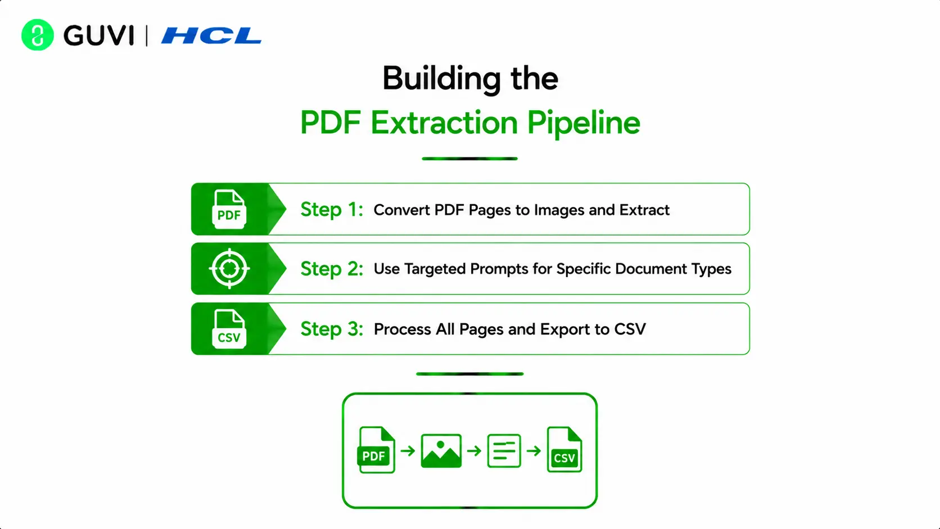
- Building the PDF Extraction Pipeline
- Step 1: Convert PDF Pages to Images and Extract
- Step 2: Use Targeted Prompts for Specific Document Types
- Step 3: Process All Pages and Export to CSV
- Conclusion
- FAQ
- What is Claude PDF extraction?
- Why convert PDFs to images before sending to Claude?
- What PDF types does Claude handle better than traditional libraries?
- How do I get consistent JSON output from Claude PDF extraction?
- How do I handle multi-page PDFs with the Claude API?
- What DPI should I use when converting PDF pages to images?
Quick TL;DR
Claude PDF extraction refers to using the Claude API to pull structured data from PDF documents and tables automatically, converting unstructured content like invoices, research reports, financial statements, and data tables into clean, usable formats like JSON, CSV, or structured dictionaries. Claude handles complex layouts, merged cells, multi-column tables, and mixed text-and-table documents that traditional PDF parsing libraries struggle with.
When to Use Claude for PDF Extraction vs Traditional Libraries
Choosing the right tool for PDF extraction depends on your document type and complexity.
| Scenario | Traditional Libraries | Claude API |
| Clean, text-based PDFs with simple layout | Fast, cheap, reliable | Unnecessary overhead |
| Scanned or image-based PDFs | Requires separate OCR setup | Handles directly |
| Complex multi-column tables | Often fails or misorders | Handles reliably |
| Merged cells in tables | Usually breaks | Understands structure |
| Mixed text and table content | Inconsistent extraction | Parses holistically |
| Tables spanning multiple pages | Rarely handled correctly | Understands continuation |
| Handwritten annotations | Not supported | Partial support |
| Extracting specific fields by meaning | Requires custom rules | Natural language instruction |
Use traditional libraries for high-volume, simple, text-based PDF processing where cost per document matters most. Use Claude when document complexity, layout variability, or accuracy requirements make traditional parsing unreliable.
Read More: Create And Edit Files with Claude in One Click
What You Need Before Starting
Before building a Claude PDF extraction pipeline, have these ready:
- An Anthropic API key from console.anthropic.com
- Python 3.8 or above installed
- The anthropic and pdf2image libraries installed
- Poppler installed on your system for pdf2image to convert PDF pages to images
- A sample PDF with tables to test against
Install the Python dependencies:
pip install anthropic pdf2image pillow pypdf
Poppler installed for pdf2image to convert PDF pages to images:
Ubuntu: sudo apt-get install poppler-utils
macOS: brew install poppler
PDF was developed by Adobe in 1993 to preserve visual appearance across systems, not to store structured data. This is why extraction has always been difficult: the format encodes visual positioning of text rather than semantic structure, making intelligence-based interpretation like Claude’s essential for complex layouts.
Building the PDF Extraction Pipeline
Step 1: Convert PDF Pages to Images and Extract
Converting PDF pages to images before sending to Claude is more reliable than passing raw PDF bytes, particularly for scanned documents and complex layouts where visual structure contains information that raw text extraction loses.
import anthropic

import base64

import json

import os

import io

from pdf2image import convert_from_path

client = anthropic.Anthropic(api_key=os.environ.get("ANTHROPIC_API_KEY"))

def extract_pdf_page(pdf_path, page_number=0, prompt=None, dpi=200):

    if prompt is None:

        prompt = """Extract all data from this document page.

Identify any tables and return their content as structured JSON.

Return only valid JSON, no other text."""

    pages = convert_from_path(pdf_path, dpi=dpi)

    page = pages[page_number]

    buffer = io.BytesIO()

    page.save(buffer, format="PNG")

    image_data = base64.standard_b64encode(buffer.getvalue()).decode("utf-8")

    response = client.messages.create(

        model="claude-sonnet-4-6",

        max_tokens=4096,

        messages=[

            {

                "role": "user",

                "content": [

                    {

                        "type": "image",

                        "source": {

                            "type": "base64",

                            "media_type": "image/png",

                            "data": image_data

                        }

                    },

                    {"type": "text", "text": prompt}

                ]

            }

        ]

    )

    raw = response.content[0].text

    try:

        return json.loads(raw), len(pages)

    except json.JSONDecodeError:

        clean = raw.strip()

        if "```" in clean:

            clean = clean.split("```")[1].lstrip("json").strip()

return json.loads(clean), len(pages)According to IDC, organizations waste an average of 21 percent of their productivity on document-related challenges including manual data extraction. For data-intensive industries like financial services, legal, and healthcare, this figure is significantly higher, making automated PDF extraction one of the highest-ROI automation investments available to operations teams.

Step 2: Use Targeted Prompts for Specific Document Types
Generic prompts produce inconsistent output structures. Use document-specific prompts with explicit JSON schemas for reliable downstream parsing.
Want to build the Python and data skills to automate real extraction workflows and develop production-ready data pipelines? Explore HCL GUVI’s Data Science Course, designed to help you go from raw unstructured data to clean, deployable data systems.
Invoice extraction prompt:
INVOICE_PROMPT = """Extract all data from this invoice and return as JSON:

{

    "invoice_number": "",

    "invoice_date": "",

    "vendor_name": "",

    "total_amount": "",

    "line_items": [

        {"description": "", "quantity": "", "unit_price": "", "total": ""}

    ]

}

Return only valid JSON. Use empty string for fields not found."""
Financial statement prompt:
FINANCIAL_PROMPT = """Extract all financial data from this statement as JSON:

{

    "statement_type": "",

    "period": "",

    "currency": "",

    "tables": [

        {

            "table_name": "",

            "headers": [],

            "rows": [{"label": "", "values": []}]

        }

    ]

}

Preserve all numerical values exactly as shown including negatives."""
Step 3: Process All Pages and Export to CSV
For multi-page PDFs, iterate through every page and combine results. To export extracted table data as CSV:
import csv

import io as csv_io

def extract_full_pdf(pdf_path, prompt=None):

    first_page, total_pages = extract_pdf_page(pdf_path, 0, prompt)

    all_pages = [{"page": 1, "data": first_page}]

    for i in range(1, total_pages):

        page_data, _ = extract_pdf_page(pdf_path, i, prompt)

        all_pages.append({"page": i + 1, "data": page_data})

    return all_pages

def table_to_csv(table_data):

    output = csv_io.StringIO()

    writer = csv.writer(output)

    writer.writerow(table_data.get("headers", []))

    for row in table_data.get("rows", []):

        writer.writerow(list(row.values()) if isinstance(row, dict) else row)

    return output.getvalue()
Call extract_full_pdf with any of the targeted prompts above, then pass individual table objects from the result to table_to_csv to save them as separate CSV files.
Conclusion
Claude PDF extraction solves the document parsing problem that blocks data workflows across financial services, legal, and operations teams working with complex real-world PDFs that traditional libraries handle inconsistently.
The three-step pipeline in this guide, converting pages to images, using document-specific JSON prompts, and processing multiple pages with CSV export, covers the majority of production extraction use cases without additional infrastructure.
FAQ
What is Claude PDF extraction?
It is the use of the Claude API to extract structured data from PDF documents by converting pages to images and using Claude’s vision capabilities to interpret document layout and content with natural language prompts.
Why convert PDFs to images before sending to Claude?
Image conversion preserves the visual layout information that defines table structure, column relationships, and content order, which is lost when extracting raw text bytes from PDFs, particularly for scanned documents and complex layouts.
What PDF types does Claude handle better than traditional libraries?
Scanned PDFs, complex multi-column tables, merged cells, tables spanning multiple pages, mixed text-and-table layouts, and documents where visual structure differs from raw text extraction order.
How do I get consistent JSON output from Claude PDF extraction?
Provide an explicit JSON schema template in your extraction prompt with all expected fields defined, instruct Claude to return only valid JSON, and implement cleanup parsing to handle occasional code fence wrapping in the response.
How do I handle multi-page PDFs with the Claude API?
Convert each page separately using pdf2image, process each page through the extraction function individually, and combine the reslts into a single structured output keyed by page number.
What DPI should I use when converting PDF pages to images?
200 DPI produces a good balance between image quality and file size for most documents. Use 300 DPI for documents with small text or fine table borders where lower
Success Stories

About the Author
Vishalini Devarajan
An Aerospace Engineer turned content writer, I focus on making complex concepts easy to understand through well-structured, reader-friendly blogs. Whether it’s a technical topic or a non-technical one, I love creating content that is clear, engaging, and impactful.
View all posts by Vishalini Devarajan
Connect with me @












Did you enjoy this article?