


Artificial Intelligence and Machine Learning Articles
AI/ML Skills Gap 2026: Why Companies Can't Find Job-Ready Talent
20 AI/ML Interview Questions Recruiters Can Use Without a Tech Background - Best Guide
How Industry-Backed AI/ML Bootcamps Are Changing the AI/ML Hiring Pipeline - Best Guide 2026
From IT Support to AI Engineer: A Realistic Career Switch Guide 2026


Get In Touch For Details! Request More Information

How to Use Claude With Slack to Increase Team Productivity
Aug 05, 2026 3 Min Read 360 Views
(Last Updated)
Today’s teams rely on Slack to collaborate, manage projects, and communicate efficiently across departments. Integrating Claude with Slack helps streamline communication, generate summaries, answer questions, draft messages, and automate daily workflows without switching applications.
Table of contents
- TL;DR
- Data Point
- Direct Answer Box
- Why Should You Use Claude With Slack?
- Claude Can:
- How to Use Claude With Slack for Team Productivity
- Step 1: Connect Claude to Slack
- Step 2: Organize Your Slack Channels
- Step 3: Ask Claude Questions About Daily Tasks
- Step 4: Summarize Lengthy Slack Conversations
- Step 5: Use Claude to Draft Professional Messages
- Step 6: Have Claude Improve Your Team’s Knowledge Sharing
- Step 7: Allow Claude to Assist With Meetings and Projects
- Step 8: Optimize How Your Team Uses Claude
- What Tasks Can Claude Assist Your Team With?
- What Tasks Should You Reserve for Your Team?
- Best Practices to Get the Most Out of Claude for Slack
- Conclusion
- FAQs
- Can I use Claude in Slack?
- How can Claude help my team become more productive?
- Is Claude useful for team communication?
- Can Claude generate summaries of Slack conversations?
- Is Claude safe to use at work?
- Can Claude automate my team’s workflows in Slack?
- What are some best practices for using Claude with Slack?
TL;DR
- Teams can integrate Claude with Slack to collaborate, summarize conversations, automate communication, and more, all from inside Slack.
- Use Claude with Slack to answer questions, draft messages, organize conversations, and improve workplace productivity.
- When you integrate Claude into Slack, you can reduce manual workload by letting it assist with daily tasks such as documentation, meeting notes, and knowledge sharing.
- Teams get the most out of Claude by organizing their Slack channels, creating clear prompts, and defining their ideal workflows.
Data Point
Claude can be integrated into your workplace workflows to help teams write, summarize, brainstorm, and manage knowledge across any business communication platform.
Source: https://www.anthropic.com/
Direct Answer Box
Answer questions, generate conversation summaries, draft messages, organize knowledge, automate repetitive tasks, and improve team collaboration with Claude for Slack.
Use Claude within Slack channels to assist your employees with their daily tasks while your team maintains control over the conversation. Whether you’re answering employee questions, drafting messages, or generating meeting notes, Claude can act as your team’s workplace assistant.
Why Should You Use Claude With Slack?
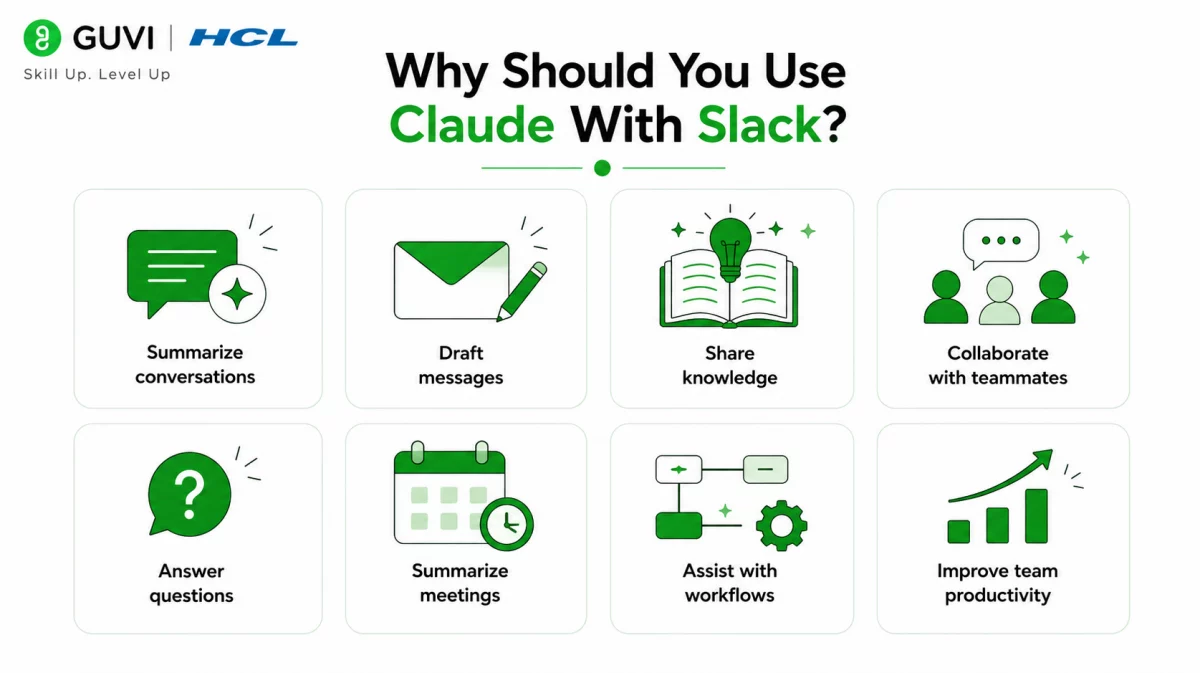
Whether you’re part of a small team or manage hundreds of employees, workplace teams typically manage dozens of conversations every day. Tracking all of these conversations and trying to answer questions, document decisions, coordinate projects, and managing daily tasks can create an excessive workload for your team.
Utilizing Claude for Slack can help automate some of your team’s daily tasks by answering questions, generating conversation summaries, organizing knowledge, and assisting your employees with everyday tasks. Your team can spend more time focusing on meaningful work instead of internal discussions.
Claude Can:
- Summarize conversations
- Draft messages
- Share knowledge
- Collaborate with teammates
- Answer questions
- Summarize meetings
- Assist with workflows
- Improve team productivity
How to Use Claude With Slack for Team Productivity
Step 1: Connect Claude to Slack
Navigate to Claude and add it to your company’s Slack workspace. Follow the integration process and allow Claude to make necessary changes to your team’s Slack workspace.
Step 2: Organize Your Slack Channels
Organize your Slack workspace by creating channels for each project, department, and important announcements. Structuring your channels will help Claude generate accurate responses based on the conversation context.
Step 3: Ask Claude Questions About Daily Tasks
Have your employees ask Claude questions about current conversations, company documentation, project-related updates, or any internal processes they may not know.
Step 4: Summarize Lengthy Slack Conversations
Summarize past conversations with Claude by copying and pasting the conversation into Claude. Claude will then provide your team with a summary of the conversation.
Step 5: Use Claude to Draft Professional Messages
Claude can help your team draft professional messages, company announcements, project updates, meeting invitations, and responses that your team would like to send.
Step 6: Have Claude Improve Your Team’s Knowledge Sharing
Enable your team to share knowledge by allowing Claude to explain documents, summarize information employees upload, answer FAQs, and make company knowledge easy for your employees to understand.
Step 7: Allow Claude to Assist With Meetings and Projects
Use Claude to generate meeting notes, identify meeting action items, define who’s responsible for each task, and organize follow-up tasks to help teams stay on track with projects.
Step 8: Optimize How Your Team Uses Claude
Once your team starts to utilize Claude throughout the workday, identify which team workflows Claude can assist with. If your team wants to learn about Artificial Intelligence technologies that power automation tools like Claude, consider taking HCL GUVI’s Artificial Intelligence & Machine Learning Course.
What Tasks Can Claude Assist Your Team With?
Here are several examples of team tasks Claude can assist with inside Slack:
- Summarizing conversations
- Drafting messages
- Taking meeting notes
- Managing knowledge
- Providing project updates
- Brainstorming ideas
- Organizing tasks
- Answering questions
- Improving team workflows
- Helping your team collaborate
Explore HCL GUVI’s Artificial Intelligence eBook, which covers artificial Intelligence concepts, prompt engineering tips, and real-world examples your business can implement.

What Tasks Should You Reserve for Your Team?
While Claude can assist your team with many tasks, there are certain tasks you’ll want your employees to continue doing. Generating business decisions, managing leadership tasks, and setting company strategies should all be reserved for your employees. Here are some things Claude should not replace:
- Business decision-making
- Leadership tasks
- Human collaboration
- Company strategy
- Employee performance
- Final decision-making
- Sensitive conversations
- Compliance decisions
Claude can assist your team with tasks, but should not be used to automate tasks that require human involvement, leadership, or decision-making. Allow Claude to automate tasks while your employees focus on their team’s responsibilities.
While Claude can generate helpful information for workplace use, Claude may not always understand your company’s business context. Always screen conversation summaries, verify recommendations, and review important business messages before sharing them across your company.
Best Practices to Get the Most Out of Claude for Slack
Here are the best practices to maximize your team’s results when using Claude for Slack.
- Organize your Slack channels.
- Provide Claude with clear prompts.
- Give Claude enough context about the conversation.
- Review Claude’s generated responses.
- Maintain your company’s documentation.
- Monitor sensitive data.
- Promote responsible Artificial Intelligence use.
- Remember, Claude is your team’s assistant.
While Claude can provide your team with conversation summaries and information, your employees should still be responsible for reviewing everything Claude generates. Generate conversation summaries for your team meetings, but let your employees review the summary.
Conclusion
Integrating Claude into your Slack workspace allows teams to efficiently improve team communication by answering questions, generating conversation summaries, organizing knowledge, and assisting with daily workplace tasks. Although Artificial Intelligence has the potential to drastically improve team productivity, successful team collaboration will always require human intelligence. The use of Artificial Intelligence will only become more prevalent in the workplace, so allow Claude to assist your team while they do what they do best: collaborate.
FAQs
1. Can I use Claude in Slack?
Yes, Claude can integrate with Slack to help your team answer questions, summarize conversations, draft messages, and more.
2. How can Claude help my team become more productive?
Claude helps teams become more productive by reducing the amount of repetitive work they have to do. Claude can automate your team’s daily tasks by assisting with communication, sharing knowledge, generating meeting notes, and helping your employees with daily tasks.
3. Is Claude useful for team communication?
Yes! Claude can assist your team by drafting professional messages, generating conversation summaries, answering your employees’ questions, and collaborating in Slack channels.
4. Can Claude generate summaries of Slack conversations?
Yes. Claude can generate conversation summaries of long discussions to help your team understand what decisions were made.
5. Is Claude safe to use at work?
Yes! However, we always recommend that our customers follow their company’s security policies and avoid inputting confidential information into Claude.
6. Can Claude automate my team’s workflows in Slack?
Claude can assist your team with tasks that are related to your workflows. Your team can automate tasks by using Claude to draft messages, organize company knowledge, and communicate with employees. Your team may need to use additional tools to automate workflows.
7. What are some best practices for using Claude with Slack?
Use clear prompts, provide context, review responses, protect sensitive data, and use Claude as a support tool, not a decision-maker.
Success Stories

About the Author
Vishalini Devarajan
An Aerospace Engineer turned content writer, I focus on making complex concepts easy to understand through well-structured, reader-friendly blogs. Whether it’s a technical topic or a non-technical one, I love creating content that is clear, engaging, and impactful.
View all posts by Vishalini Devarajan
Connect with me @











Did you enjoy this article?