


Artificial Intelligence and Machine Learning Articles
AI/ML Skills Gap 2026: Why Companies Can't Find Job-Ready Talent
20 AI/ML Interview Questions Recruiters Can Use Without a Tech Background - Best Guide
How Industry-Backed AI/ML Bootcamps Are Changing the AI/ML Hiring Pipeline - Best Guide 2026
From IT Support to AI Engineer: A Realistic Career Switch Guide 2026


Get In Touch For Details! Request More Information

Benchling Connector in Claude: Complete Guide
Jun 18, 2026 6 Min Read 855 Views
(Last Updated)
Life sciences professionals face a unique challenge in their daily work. They juggle multiple tools for managing experiments, tracking samples, analyzing sequences, and documenting research. Scientists often spend hours switching between their lab notebook, sequence analysis tools, and collaboration platforms.
What if you could bring all this scientific data together in one conversation with an AI assistant? The Benchling connector for Claude makes this possible. It bridges the gap between your research data and AI capabilities, letting you access experimental results, analyze sequences, and review protocols without leaving your conversation with Claude.
In this guide, you will learn how to set up and use the Benchling connector with Claude. You will discover practical ways to streamline your research workflows and get more value from your scientific data. Whether you are a molecular biologist, research scientist, or lab manager, this connector can transform how you work with laboratory information.
Quick TL;DR Summary
- This guide walks you through everything you need to know about using Claude with Benchling.
- You will learn what the Benchling connector is and why it matters for life sciences research.
- The article explains how Claude and Benchling work together to give you instant access to experimental data, sequences, and research documentation.
- Step-by-step instructions show you exactly how to set up the Benchling connector and start using it effectively.
- Real-world examples demonstrate how scientists use this integration for experiment analysis, sequence design, and research collaboration.
- Practical tips help you maximize productivity and avoid common setup issues when working with the Benchling connector.
Table of contents
- What Is the Benchling Connector?
- Why the Benchling Connector Matters for Scientists
- How Does the Benchling Connector Work?
- Step 1: Connector Installation
- Step 2: Authentication
- Step 3: Connection Established
- Step 4: Request Processing
- Step 5: Data Retrieval
- What You Can Do with the Benchling Connector
- Step-by-Step Guide to Setting Up the Benchling Connector
- Step 1: Open Claude Settings
- Step 2: Navigate to Connectors
- Step 3: Find Benchling
- Step 4: Select the Benchling Connector
- Step 5: Start the Connection Process
- Step 6: Sign In to Benchling
- Step 7: Review and Grant Permissions
- Step 8: Authorize the Connection
- Step 9: Confirm in Claude
- Step 10: Test Your Setup
- Practical Examples of Using Claude with Benchling
- Example 1: Sequence Analysis
- Example 2: Experiment Comparison
- Example 3: Protocol Troubleshooting
- Best Practices for Using the Benchling Connector
- Common Issues and Solutions
- Conclusion
- FAQs
- Is my research data safe when using the Benchling connector?
- Do I need programming skills to use the Benchling connector?
- Can I use the Benchling connector with other Claude connectors simultaneously?
- What types of Benchling data can Claude access?
- Can I disconnect the Benchling connector after setting it up?
What Is the Benchling Connector?
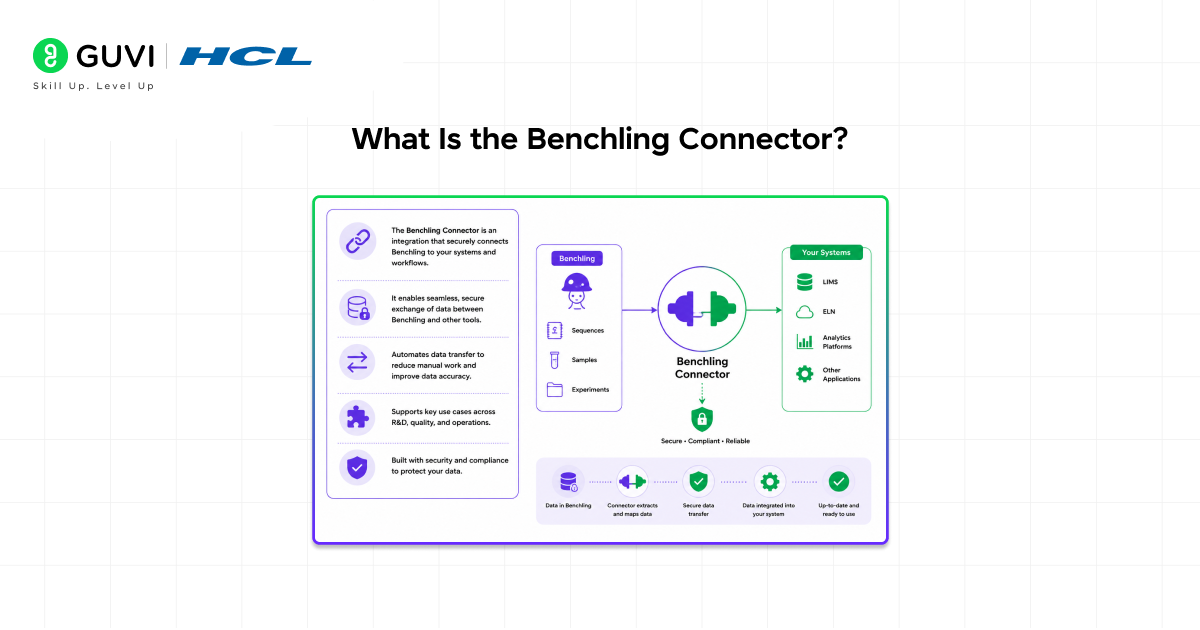
The Benchling connector is a tool that links Claude to your Benchling account and all the scientific data stored there.
Think of it as a bridge between Claude’s AI capabilities and your research platform. Just like a bridge connects two places, this connector allows Claude to access your experimental protocols, DNA sequences, protein data, inventory records, and notebook entries stored in Benchling.
For example, with the connector active, you can ask Claude to analyze a specific plasmid sequence from your Benchling library. You can request a summary of your latest CRISPR experiment without opening multiple tabs. Claude can search through your research notebooks and find protocols you created months ago.
The connector works behind the scenes. Once you set it up, Claude can access your Benchling workspace whenever you need it during a conversation. This integration makes Claude significantly more useful for actual laboratory work and scientific research.
Why the Benchling Connector Matters for Scientists
Scientists waste valuable research time copying data between applications. Without the Benchling connector, you must manually switch to Benchling, find your data, copy it, return to Claude, and paste it. This process disrupts your thinking and slows down analysis.
Here’s why the Benchling connector matters:
- Direct Access to Research Data
Claude can read your sequences, experimental results, and protocols directly from Benchling. No more copying and pasting genetic sequences or experimental parameters between windows.
- Current Scientific Information
The connector pulls the latest data from your Benchling workspace. Claude always works with your most recent experimental results, updated sequences, and current inventory levels instead of outdated information.
- Streamlined Research Workflows
Research teams save hours by letting Claude access Benchling directly. Tasks that required opening multiple applications and comparing data across screens now happen in one conversation.
- Enhanced Analysis Capabilities
The connector adds scientific research skills to Claude. Ask Claude to analyze codon optimization for a sequence in your Benchling library. Request primer design based on your stored plasmids. Get instant summaries of experimental trends from your notebook entries.
- Secure Data Handling
Your sensitive research data stays within secure, authenticated connections. The connector uses Benchling’s permission system, so Claude only sees data you have access to in your organization.
Read More: Turning Claude into Your Thinking Partner
How Does the Benchling Connector Work?
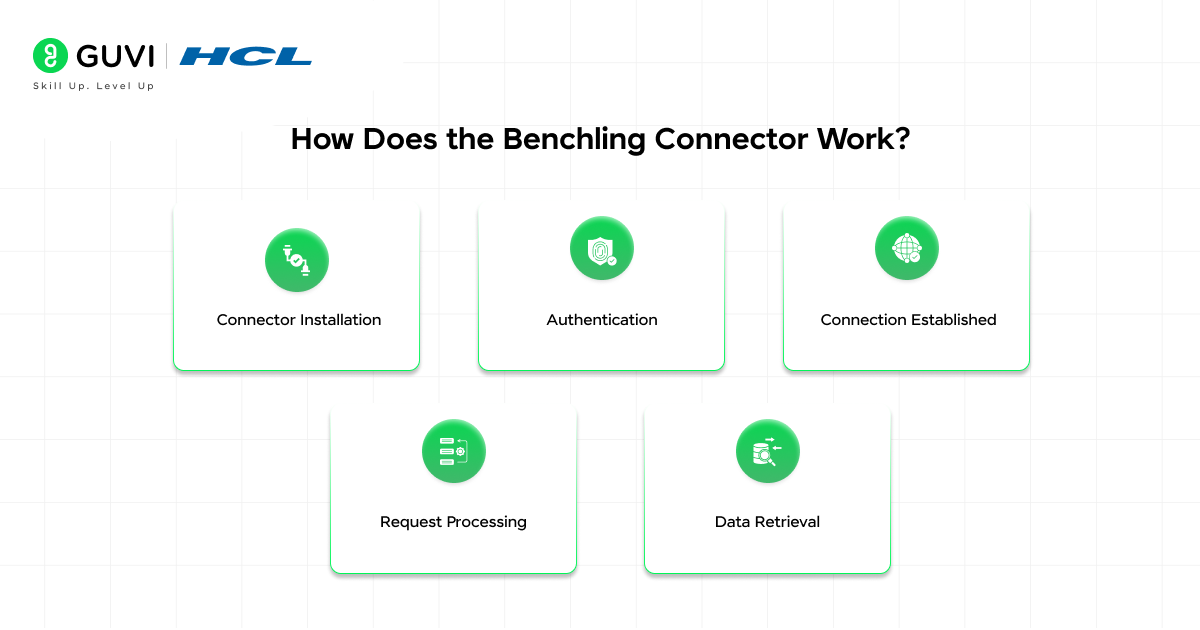
The Benchling connector uses MCP (Model Context Protocol) to communicate with your Benchling account. MCP is a standardized way for AI assistants to connect with scientific data platforms. Think of it as a universal translator that lets Claude understand and interact with Benchling using a common language.
Here’s how it works in practice:
Step 1: Connector Installation
You add the Benchling connector to Claude through the connectors settings. This connector is specifically designed to work with Benchling’s API and data structure.
Step 2: Authentication
You authorize Claude to access your Benchling account. This involves signing in to Benchling and granting specific permissions. The connector respects your organization’s access controls and security settings.
Step 3: Connection Established
The connector creates a secure link between Claude and your Benchling workspace. This connection remains active as long as you keep the connector enabled in your settings.
Step 4: Request Processing
When you ask Claude about an experiment or sequence, it recognizes that Benchling data might help answer your question. Claude checks if the Benchling connector is available and authorized.
Step 5: Data Retrieval
The connector fetches the requested information from your Benchling account and delivers it to Claude. Claude processes this scientific data and provides you with analysis, summaries, or answers to your questions.
This entire process happens automatically in seconds. You simply ask Claude about your research and it handles the technical details of accessing Benchling.
Benchling stores over 60 million biological sequences and supports research for thousands of biotech companies and academic labs. With the Claude connector, scientists can analyze sequences and experiments using natural language instead of navigating complex interfaces.
What You Can Do with the Benchling Connector
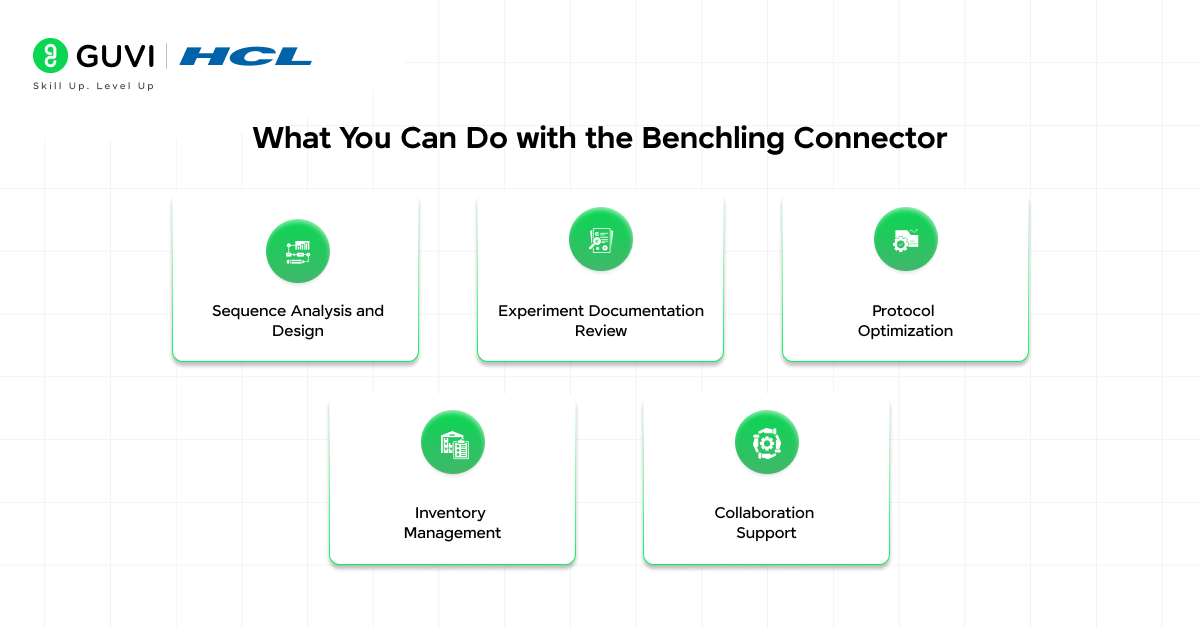
The Benchling connector opens up powerful workflows for scientific research. Here are practical ways scientists use Claude with Benchling:
- Sequence Analysis and Design
Ask Claude to analyze sequences stored in your Benchling registry. Request codon optimization suggestions for protein expression. Get help designing primers based on your plasmid collection. Claude can review restriction sites, calculate melting temperatures, and suggest modifications all while accessing your actual sequence data.
- Experiment Documentation Review
Pull up experimental results from your Benchling notebook. Ask Claude to summarize trends across multiple experiments. Request statistical analysis of your assay results. Claude can identify patterns in your data that might take hours to spot manually.
- Protocol Optimization
Reference existing protocols in your Benchling workspace. Ask Claude to suggest modifications based on recent experimental results. Get help troubleshooting failed experiments by comparing protocol variations you have documented.
- Inventory Management
Check reagent availability in your Benchling inventory. Ask Claude which samples are running low. Get suggestions for experimental planning based on current stock levels.
- Collaboration Support
Search through team notebooks to find relevant experiments. Ask Claude to summarize what other researchers discovered about a specific target. Get quick updates on project progress by reviewing recent Benchling entries.
Step-by-Step Guide to Setting Up the Benchling Connector
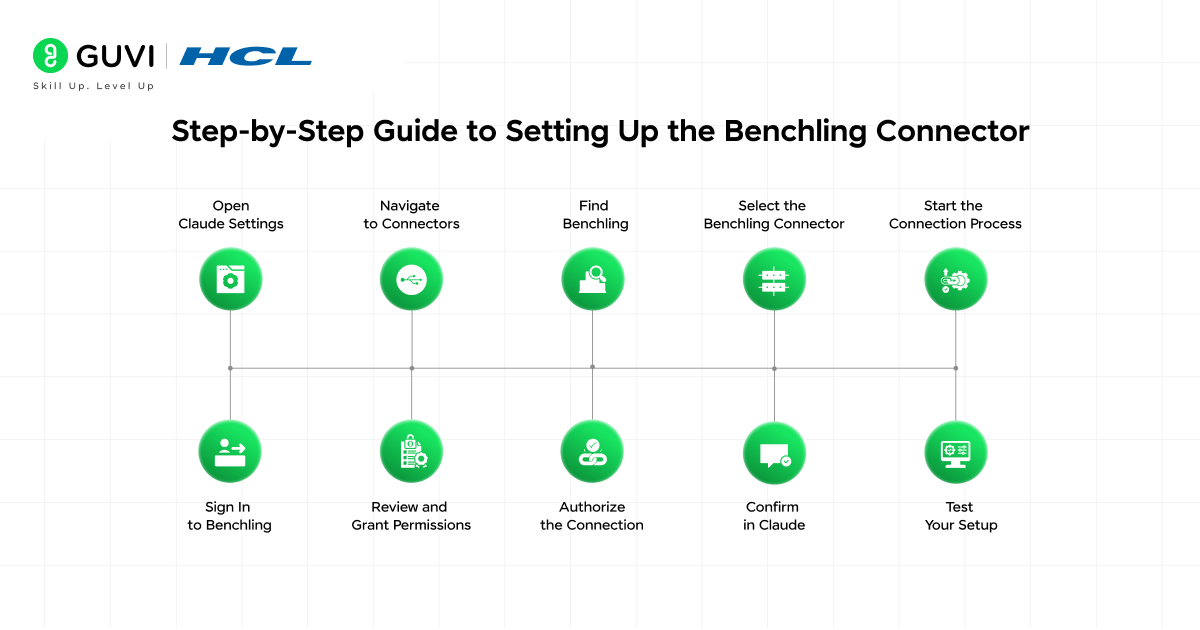
Let’s walk through connecting Benchling to Claude. This guide shows you exactly what to do.
Step 1: Open Claude Settings
Launch Claude in your browser or desktop application. Look for the settings icon, typically located in the bottom left corner of the interface.
Step 2: Navigate to Connectors
Find the “Connectors” or “Integrations” section in your settings menu. This is where you manage all connections between Claude and external tools.
Step 3: Find Benchling
Browse through the available connectors list. Look for the Benchling connector. You might need to search for it if you have many connectors available.
Step 4: Select the Benchling Connector
Click on the Benchling connector to view its details. You will see information about what data it can access and what permissions it requires.
Step 5: Start the Connection Process
Click the “Connect” or “Add” button to begin. This initiates the authentication flow with Benchling.
Step 6: Sign In to Benchling
A new window opens directing you to Benchling’s login page. Enter your Benchling account credentials. Make sure you use the account associated with your research workspace.
Step 7: Review and Grant Permissions
Benchling displays the permissions Claude is requesting. These typically include read access to your notebooks, sequences, and inventory. Review these carefully to understand what data Claude can access.
Step 8: Authorize the Connection
Click “Allow” or “Authorize” to grant Claude access to your Benchling account. This establishes the secure connection between the two platforms.

Step 9: Confirm in Claude
You return to Claude with a confirmation message. The Benchling connector should now show as “Connected” in your connectors settings.
Step 10: Test Your Setup
Start a new conversation with Claude. Ask it to find a specific sequence or experiment from your Benchling workspace. If Claude successfully retrieves the information, your connector is working properly.
Practical Examples of Using Claude with Benchling
Let’s look at real scenarios where the Benchling connector delivers value.
Example 1: Sequence Analysis
A molecular biologist asks Claude: “Can you analyze the codon usage in plasmid pCMV-GFP from my Benchling registry?”
Claude accesses the Benchling connector, retrieves the sequence, performs codon usage analysis, and provides a detailed report. The scientist gets immediate insights without switching applications or manually copying the sequence.
Example 2: Experiment Comparison
A research team leader asks: “Compare the protein yields from my last five purification experiments in Benchling and tell me which protocol worked best.”
Claude searches the Benchling notebooks, finds the relevant experiments, extracts yield data, performs statistical comparison, and identifies the most effective protocol. This analysis that would take an hour happens in minutes.
Example 3: Protocol Troubleshooting
A graduate student asks: “I am running the PCR protocol from entry PCR_v3 in Benchling, but getting weak bands. What might be wrong?”
Claude retrieves the protocol, analyzes the parameters, and suggests potential issues like primer design, annealing temperature, or template concentration. The student gets troubleshooting help based on their actual documented protocol.
Scientists using AI assistants with research data connectors report up to 40% faster analysis of experimental results. The efficiency comes from eliminating manual data gathering and getting instant answers to complex research questions.
Best Practices for Using the Benchling Connector
Follow these guidelines to get maximum value from your Benchling connection.
- Organize Your Benchling Data
Keep your Benchling workspace well organized. Use clear naming conventions for sequences, experiments, and protocols. Good organization helps Claude find the right information quickly.
- Be Specific in Your Requests
When asking Claude about Benchling data, provide specific identifiers. Reference sequences by name or ID. Mention experiment dates or notebook sections. Specific requests get faster, more accurate results.
- Understand Permission Boundaries
The connector only accesses data you have permission to view in Benchling. If you cannot see certain projects or folders in Benchling, Claude cannot access them either.
- Keep Authentication Current
If you change your Benchling password, update the connector authentication. Expired credentials cause connection failures and errors.
- Use Natural Language
You do not need to use technical commands. Ask questions naturally: “What’s the GC content of my newest plasmid?” instead of trying to format queries in a specific way.
- Verify Critical Information
While Claude provides accurate analysis, always verify critical experimental decisions. Use Claude for insights and suggestions, but confirm important findings by reviewing the source data.
- Document Your Workflows
Note which types of questions work best with the connector. Share successful query patterns with your team. This knowledge sharing improves everyone’s productivity.
Common Issues and Solutions
Even straightforward setups can encounter problems. Here are common issues and how to fix them.
- Cannot Find Specific Sequences
Problem: Claude says it cannot find a sequence you know exists in Benchling.
Solution: Check the sequence name spelling. Verify you have access to the folder containing that sequence. Try using the sequence ID instead of the name.
- Permission Denied Errors
Problem: Claude reports it does not have permission to access certain Benchling data.
Solution: Review the permissions you granted during setup. You may need to disconnect and reconnect with broader access rights. Check with your Benchling administrator if you lack access to specific projects.
- Slow Response Times
Problem: Claude takes a long time to respond when accessing Benchling data.
Solution: This often happens when requesting broad searches across large datasets. Be more specific about which notebook, folder, or date range you want Claude to search.
- Authentication Keeps Failing
Problem: The connector repeatedly asks you to authenticate even after successful setup.
Solution: Clear your browser cache and cookies. Try the authentication process again. Ensure your Benchling account is active and not expired.
- Outdated Data Returned
Problem: Claude shows old information instead of your latest experimental results.
Solution: Refresh the connection by disconnecting and reconnecting the Benchling connector. Verify that your recent data is properly saved in Benchling.
If you want to learn more about using the Benchling connector in Claude, do not miss the chance to enroll in HCL GUVI’s Intel & IITM Pravartak Certified Artificial Intelligence & Machine Learning course. Endorsed with Intel certification, this course adds a globally recognized credential to your resume, a powerful edge that sets you apart in the competitive AI job market.
Conclusion
The Benchling connector transforms Claude from a general AI assistant into a powerful research tool tailored to your specific scientific work. It eliminates the friction of switching between applications and unlocks new possibilities for analyzing your experimental data.
Setting up the connector takes just a few minutes but delivers ongoing value for your research workflows. Scientists who integrate their research platforms with AI assistants report significant time savings and discover insights they might have missed using traditional analysis methods.
As life sciences research grows more data intensive, tools that help you make sense of complex information become increasingly valuable. The Benchling connector represents a practical step toward more efficient, AI-enhanced scientific research.
FAQs
1. Is my research data safe when using the Benchling connector?
Yes, the Benchling connector uses secure authentication and encrypted connections. It respects Benchling’s permission system, so Claude only accesses data you have rights to view. Your Benchling password is never shared, and you can revoke access anytime. Always review your organization’s data policies before connecting external tools.
2. Do I need programming skills to use the Benchling connector?
No, the Benchling connector is designed for scientists without technical backgrounds. Setup involves clicking through authentication steps similar to signing into any application. You interact with your Benchling data using natural language questions. No coding or scripting knowledge is required.
3. Can I use the Benchling connector with other Claude connectors simultaneously?
Yes, you can enable multiple connectors at once. Claude can pull data from Benchling while also accessing your Google Drive documents or Slack conversations in the same conversation. This multi-connector capability is particularly useful for comprehensive research analysis.
4. What types of Benchling data can Claude access?
The connector can access sequences, notebook entries, experimental results, protocols, inventory records, and other data stored in your Benchling workspace. Access depends on your permission level. If you can view it in Benchling, Claude can access it through the connector.
5. Can I disconnect the Benchling connector after setting it up?
Yes, you can disable or remove the Benchling connector anytime through Claude’s settings. Disconnecting immediately revokes Claude’s access to your Benchling account. Your research data in Benchling remains completely unchanged. You can reconnect later if needed.
Success Stories

About the Author
Vishalini Devarajan
An Aerospace Engineer turned content writer, I focus on making complex concepts easy to understand through well-structured, reader-friendly blogs. Whether it’s a technical topic or a non-technical one, I love creating content that is clear, engaging, and impactful.
View all posts by Vishalini Devarajan
Connect with me @













Did you enjoy this article?