


Artificial Intelligence and Machine Learning Articles
How to Evaluate LLM Outputs in Production Deployments
AI/ML Skills Gap 2026: Why Companies Can't Find Job-Ready Talent
20 AI/ML Interview Questions Recruiters Can Use Without a Tech Background - Best Guide
How Industry-Backed AI/ML Bootcamps Are Changing the AI/ML Hiring Pipeline - Best Guide 2026


Get In Touch For Details! Request More Information
Design Mobile App UI with Google Stitch The Complete Guide
Sep 22, 2026 7 Min Read 5530 Views
(Last Updated)
What if you could turn a simple idea into a fully designed app interface without endless back-and-forth? Google Stitch makes that possible.
Built by Google Labs, this AI-powered tool converts plain language prompts, sketches, or screenshots into high-fidelity mobile and web interfaces complete with front-end code.
In this article, you will be learning everything related to Google Stitch and how you can design a fully functional mobile app UI with this one. So, without further ado, let us get started!
Table of contents
- AI Overview: Google Stitch in Brief
- What is Google Stitch, and Why Does It Matter?
- Who is Google Stitch For?
- Getting Started: Setup and Navigation
- Open Google Stitch
- Sign In with Your Google Account
- Choose Your Layout Target
- Choose Your Mode
- Explore the Interface
- The Two Design Modes: Standard vs. Experimental
- Standard Mode: Text to UI
- Experimental Mode: Sketch to UI
- How to Write Prompts That Get Great Results from Stitch
- Prompt Template You Can Copy
- The Zoom-Out-Zoom-In Prompting Framework for Sharper Results
- Key Features That Make Google Stitch Stand Out
- Exporting Your Stitch Design: Figma, Code, and Multi-Framework Options
- Google Stitch vs. Figma vs. Uizard vs. Framer vs. Locofy: Which Tool Fits Your Workflow?
- Limitations You Should Know Before You Start
- The Takeaways
- FAQs
- Do I need any design or coding experience to use Google Stitch?
- Is Google Stitch free? Are there any hidden costs?
- Can I design specifically for iOS and Android?
- How do I maintain consistency across multiple screens?
- How does Stitch compare to Uizard, Framer, or Locofy?
AI Overview: Google Stitch in Brief
Google Stitch is a free, browser-based AI design tool by Google Labs that converts plain text prompts or hand-drawn sketches into fully structured mobile and web app interfaces, complete with exportable front-end code.
- Built on Gemini Flash (Standard Mode) and Gemini Pro (Experimental Mode)
- Free with monthly caps: 350 Standard generations, 50 Experimental generations
- Exports to Figma, HTML/CSS, Tailwind, and via newer updates Vue, Angular, Flutter, and SwiftUI
- Best for: early-stage concept design, rapid prototyping, and non-designers who need production-quality UI fast
- Not a replacement for: pixel-perfect design systems, complex interactive logic, or professional design collaboration that’s still Figma’s territory
What is Google Stitch, and Why Does It Matter?
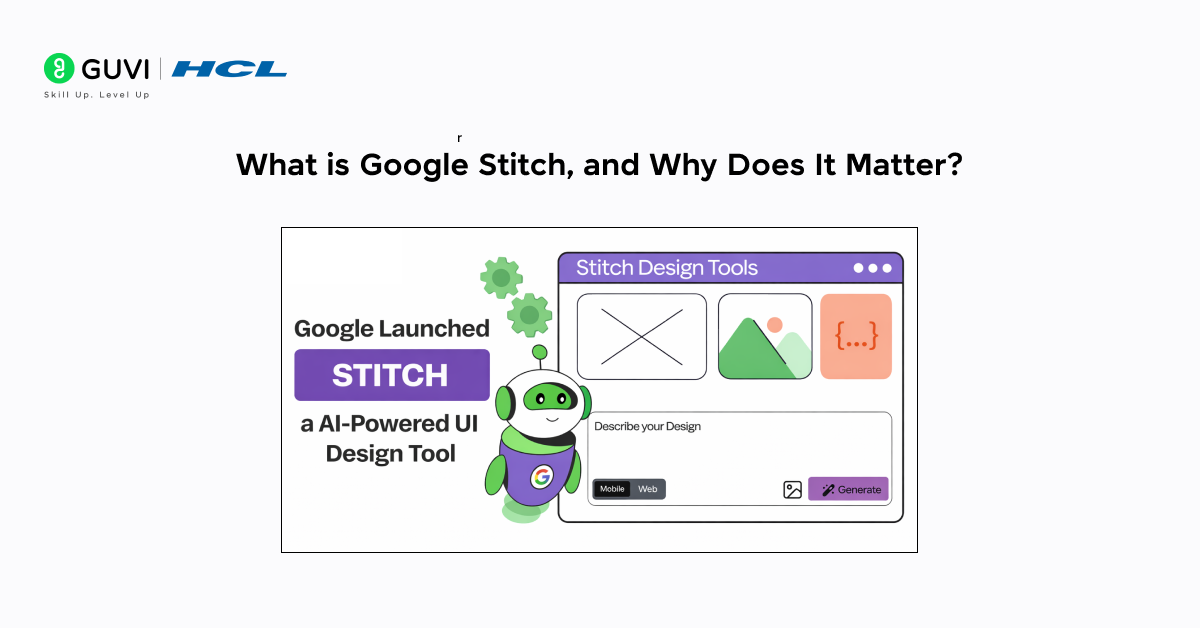
Powered by Gemini models and accessible via browser,Google Stitich lets you design, refine, and export seamlessly.
Launched at Google I/O 2025 as the evolution of Galileo AI, Stitch enhances text-to-UI generation with smarter prompts, dual AI modes, and advanced prototyping. It goes beyond layouts by creating structured, editable UI components with full design systems.
With its “vibe design” approach, you can even start from a mood or idea, making UI creation faster, intuitive, and production-ready.
Who is Google Stitch For?
Stitch was designed to serve several distinct audiences simultaneously, each of whom gets something meaningfully different from it:
- Developers without design backgrounds: Building a side project or MVP but can’t afford a designer? Stitch generates cohesive, professional-looking interfaces without requiring any design intuition or Figma expertise.
- Product designers: Use Stitch to escape “blank canvas paralysis” generate four layout directions in the time it takes to manually sketch one wireframe, then refine the best one in Figma.
- Solo founders and startup teams: Ship designs faster during early-stage product sprints where speed matters more than pixel-perfection.
- Technical program managers: Generate interface mockups for stakeholder presentations without pulling designer time for early-stage concept reviews.
Getting Started: Setup and Navigation
One of Stitch’s most immediately appealing qualities is how little friction there is to get started. There’s no app to download, no license to purchase, no workspace to configure. The entire experience lives in your browser.
1. Open Google Stitch
Go to stitch.withgoogle.com in any modern browser. Chrome is recommended for the smoothest experience, though the tool works across browsers.
2. Sign In with Your Google Account
Click the sign-in button and log in with any Google account, personal Gmail, Google Workspace, whatever you have. No special access or waitlist is required as of 2026. The tool is free through Google Labs.
3. Choose Your Layout Target
Stitch asks whether you want to design for Web or Mobile. For this guide, we’re focusing on mobile app UI select the mobile layout option. This sets the canvas dimensions and tells Stitch to generate components optimized for phone screens rather than desktop viewports.
4. Choose Your Mode
You’ll then pick between Standard Mode (text prompt input) and Experimental Mode (image/sketch upload). We’ll cover both in detail in the next section for your first attempt. Standard Mode is the place to start.
5. Explore the Interface
The Stitch workspace includes your prompt input at the bottom, a generated design preview in the center, an interactive chat sidebar for refinements, and export options at the top right. The March 2026 update added an infinite canvas view you can zoom out to see multiple screen explorations side by side.
Monthly Generation LimitsStitch is free but operates with monthly caps. Standard Mode (Gemini Flash) gives you up to 350 generations per month more than enough for most projects. Experimental Mode (Gemini Pro) is limited to 50 generations per month given its higher compute cost. Plan your iterations accordingly: use Standard for rapid ideation and Experimental for your polished refinement rounds.
If you want to learn more about the features of Figma, then read the blog – 12 Best Features of Figma for UI UX Designers
The Two Design Modes: Standard vs. Experimental
The single most important thing to understand about how to design mobile app UI with Google Stitch is that it operates in two fundamentally different modes, powered by different AI models, optimized for different workflows. Choosing the right mode for the right moment is the difference between a smooth creative session and a frustrating one.
Standard Mode: Text to UI
You type a description of the interface you want. Stitch uses that text to generate a complete mobile layout within seconds. This mode is optimized for speed and iteration volume.
Best for early concept exploration, rapid prototyping multiple directions, or when you don’t yet have a visual reference in mind.
AI Model: Gemini Flash
Monthly Limit: 350 generations
Strength: Speed, iteration, Figma export
Export: Figma + HTML/CSS
Experimental Mode: Sketch to UI
You upload a hand-drawn wireframe, a rough digital sketch, or a screenshot of an existing interface. Stitch analyzes the visual structure and generates a high-fidelity layout based on what it sees.
Best for when you already have a layout concept in mind that’s faster to draw than describe, or when you want to rebuild/restyle an existing UI.
AI Model: Gemini Pro
Monthly Limit: 50 generations
Strength: Visual fidelity, complex layouts
Export: HTML/CSS
Important Note on Figma Export As of early 2026, the “Copy to Figma” export is only available in Standard Mode. If Figma integration is essential to your workflow, plan your session in Standard Mode. You can always use Experimental Mode for initial exploration and then recreate your best concept in Standard Mode for export.
If you are serious about mastering UI/UX designing, then enroll for HCL GUVI’s UI/UX Design Course. It covers everything from design fundamentals and wireframing to prototyping and user research through hands-on projects and live sessions.
How to Write Prompts That Get Great Results from Stitch
Stitch is a conversation with a very fast, very literal designer. The quality of that conversation determines everything.
Prompt quality is the single most controllable variable in your Stitch output. Vague prompts get generic results. Specific, structured prompts produce layouts that are genuinely close to what you intended. Here’s what actually works:
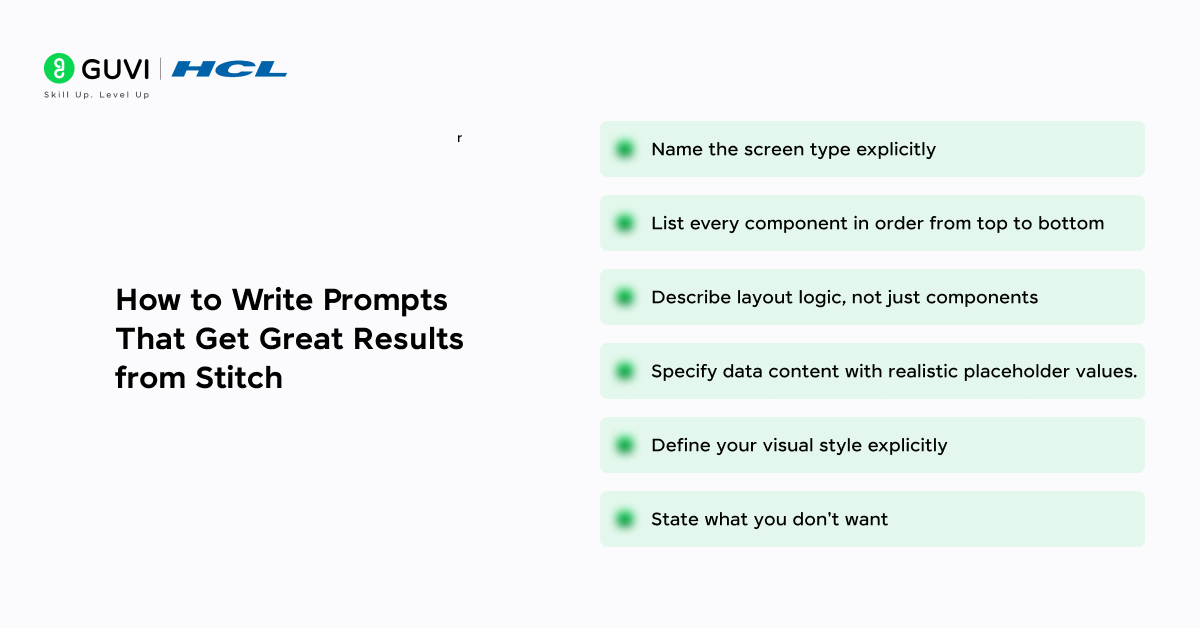
The Six Elements of a Strong Stitch Prompt
- Name the screen type explicitly. Don’t just say “design an app.” Say “Design the home screen for a food delivery app” or “Design the settings screen for a meditation app.” Stitch uses this to set baseline layout conventions before it processes anything else.
- List every component in order from top to bottom. Work through your layout the way a user’s eye would travel top nav, hero section, content cards, bottom nav. This ordering in your prompt significantly influences where Stitch places elements in the generated layout.
- Describe layout logic, not just components. “A horizontal scrollable row” tells Stitch far more than “a list of coins.” Use words like grid, stacked, scrollable, centered, two-column, full-width, and card-style to communicate structure.
- Specify data content with realistic placeholder values. “Show a total portfolio value of $42,850 with a +3.2% change badge in green” is better than “show portfolio value.” Specific placeholder data helps Stitch calibrate component sizing and visual hierarchy correctly.
- Define your visual style explicitly. Dark theme, rounded corners, flat design, glassmorphism, material design name the aesthetic. If you have specific hex colors, include them. Stitch understands these design language terms and applies them consistently.
- State what you don’t want. “No gradients,” “no drop shadows,” “do not use a hamburger menu,” “navigation should not be a floating button” — negative constraints save you iteration rounds by preventing common AI design defaults you might not want.
Prompt Template You Can Copy
Design the [screen name] for a [app type] app called [name].
Top section: [describe]. Below that: [describe]. Then: [describe].
Layout: [grid / stacked / scrollable / card-style].
Visual style: [dark/light theme], [color palette or hex], [design language].
Include placeholder data: [specific values].
Do not include: [exclusions].
The Zoom-Out-Zoom-In Prompting Framework for Sharper Results
Once you’re comfortable with basic prompts, this two-layer framework popularized by UX practitioners working with Stitch consistently produces more coherent, on-brief screens than a single descriptive prompt.
Zoom Out, set the context first: Describe your product, its purpose, and who it’s for before you mention any screen. Example: “Context: a personal finance app that helps users track daily spending. User: young professionals who check expenses multiple times a day, often on the go.”
Zoom In, then define the specific screen: State the goal of the screen, its layout hierarchy, components, visual direction, and constraints. Example: “Goal: help users see today’s total spending, top categories, and budget status at a glance. Layout: sticky header, large total-spend number, horizontal category cards, recent-transactions list. Style: clean, minimal, no heavy gradients. Constraint: one-hand usage.”
Because Stitch treats each prompt as a fresh conversation turn, giving it the “why” before the “what” produces layouts that make sense as a system — not just a single disconnected screen. This is especially useful when you’re designing multiple screens for the same app and want visual and logical consistency across all of them.

Key Features That Make Google Stitch Stand Out
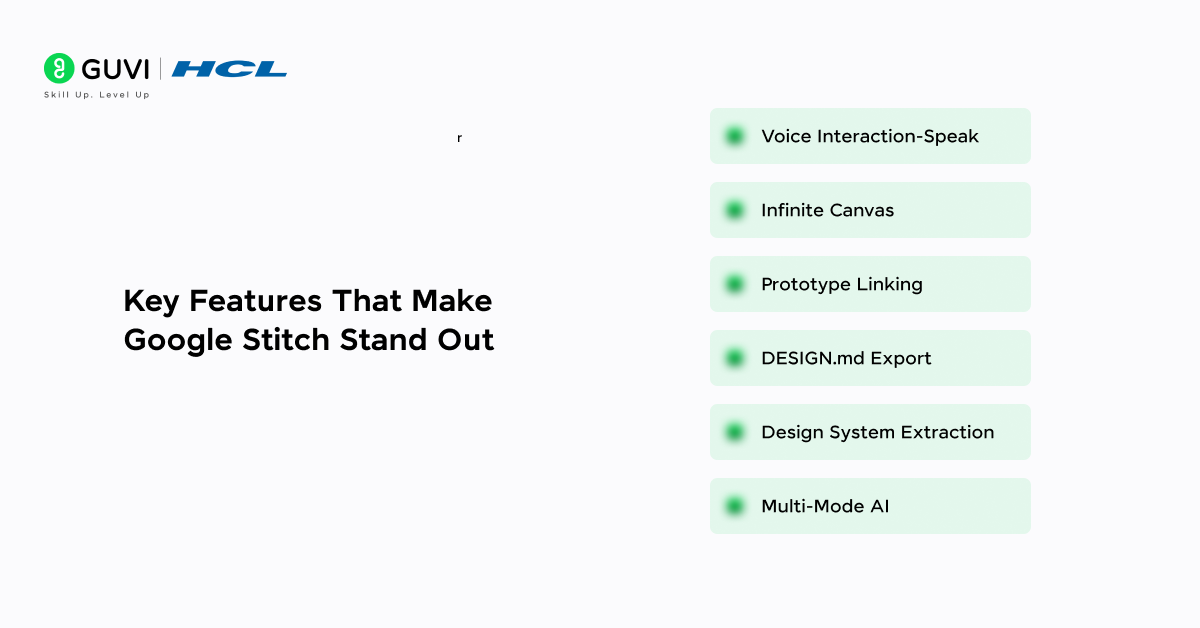
- Voice Interaction-Speak directly to your canvas. Ask for design critiques, request color palette options, or say “show me this screen in three different layouts” all in real time.
- Infinite Canvas –The March 2026 redesign introduced an unlimited canvas where multiple screen explorations live side by side. Compare directions without losing any of your work.
- Prototype Linking – Connect screens together and click “Play” to preview the full user flow interactively. Design the journey, not just individual screens.
- DESIGN.md Export – Export your design system as an agent-friendly markdown file. Import it into another Stitch project to maintain visual consistency across products.
- Design System Extraction – Extract a design system from any URL give Stitch a website and it pulls the color palette, type scale, and spacing patterns for use in your project.
- Multi-Mode AI – Switch between Gemini Flash (speed) and Gemini Pro (quality) depending on where you are in the design process explore fast, refine slowly.
The “Vibe Design” Approach
One of the most interesting philosophical shifts in the 2026 version of Stitch is what the team calls “vibe designing” the ability to start a design session not with a component list, but with a feeling, a business objective, or an inspiration image. Instead of “Design a screen with these 8 components,” you can start with “I’m building a meditation app that should feel like a Sunday morning in a quiet forest cabin. What should the home screen feel like?”
Stitch uses this intent-level description to generate a design direction and then invites you to refine from there. It’s a fundamentally more creative starting point than feature-listing, and it tends to produce more cohesive first drafts for brand-forward products.
Exporting Your Stitch Design: Figma, Code, and Multi-Framework Options
Export flexibility is one of the biggest reasons teams keep Stitch in their toolkit past the ideation stage. Depending on your mode and workflow, you have several export paths:
| Export Target | Available In | Best For |
|---|---|---|
| Figma (“Copy to Figma”) | Standard Mode only | Handing off to a design team for pixel-level polish |
| HTML + CSS | Standard & Experimental | Quick static prototypes and landing pages |
| Tailwind CSS | Standard Mode | Developers already using a utility-first CSS workflow |
| Vue / Angular | Standard Mode (newer updates) | Teams building on non-React frontend stacks |
| Flutter / SwiftUI | Standard Mode (newer updates) | Native mobile app development after design approval |
| DESIGN.md | Both modes | Feeding your design system into another Stitch project or AI coding agent |
A practical note: exports that stay inside Google’s own ecosystem (Figma, HTML/Tailwind) are the cleanest. Exports to React Native, SwiftUI, or Flutter with non-Firebase backends typically need a manual clean-up pass before they’re production-ready treat the export as a strong starting point, not a finished build.
Google Stitch vs. Figma vs. Uizard vs. Framer vs. Locofy: Which Tool Fits Your Workflow?
Stitch doesn’t operate in a vacuum most designers and developers are choosing between it and a handful of established tools. Here’s how they stack up for mobile app UI work in 2026:
| Tool | Best For | Pricing | AI Generation | Code Export |
|---|---|---|---|---|
| Google Stitch | Fast 0-to-1 concept exploration, non-designers | Free (Google Labs) | Text/sketch-to-UI, voice input | Figma, HTML/CSS, Tailwind, Vue, Angular, Flutter, SwiftUI |
| Figma (+ Figma AI) | Collaborative, pixel-perfect design systems | Free tier; paid from ~$15/seat/mo | AI-assisted (First Draft, layer renaming) | Dev Mode + plugins |
| Uizard | Quick clickable mockups | Free tier; paid plans | Text-to-mockup | Limited code export |
| Framer | Interactive marketing/landing pages | Free tier; paid plans | AI page generation | Publishes directly; limited app export |
| Locofy | Converting existing Figma files to code | Free tier; paid plans | Design-to-code (not generative design) | React, HTML, and more from Figma |
Bottom line: Stitch wins for speed and cost during early-stage exploration and for developers who need a mobile UI fast without design skills. Figma remains the standard for collaborative, pixel-perfect design systems and production hand-off. Many teams now use both Stitch to explore and validate direction in minutes, Figma to refine and finalize.
Limitations You Should Know Before You Start
Google Stitch is genuinely impressive, but it’s also genuinely experimental. Knowing where the edges are before you hit them saves frustration and helps you plan your workflow realistically.
- Static by default: Designs start as non-interactive layouts. The Prototypes feature adds basic click-through flows, but there’s no working logic, state management, or real backend integration — that all gets added later in development.
- Prompt Sensitivity: Standard Mode depends heavily on prompt quality. Ambiguous or vague prompts produce generic outputs that require significant iteration. This gap narrows as you learn the tool, but early sessions can feel unpredictable.
- Sketch Interpretation Limits: Experimental Mode can misread messy, ambiguous, or densely overlapping wireframes. The clearer your sketch, the better the result — but complex hand-drawn layouts sometimes produce unexpected structural interpretations.
- Figma Export: Figma integration is unavailable in Experimental Mode as of early 2026. If you generate your best layout in Experimental Mode, you’ll need to either recreate it in Standard Mode or manually rebuild it in Figma.
- Generation Limits: 350 standard + 50 experimental generations per month is plenty for individuals, but teams doing heavy parallel exploration may feel the cap. No paid tier with higher limits has been announced yet.
Google Stitch can turn even a rough sketch or simple idea into a complete UI with code in minutes.Its “vibe design” feature lets you start from a feeling or concept, not just technical specs.That means faster creativity with less dependency on traditional design workflows.
If you’re serious about learning tools like Google Stitch and want to apply them in real-world scenarios, don’t miss the chance to enroll in HCL GUVI’s Intel & IITM Pravartak Certified Artificial Intelligence & Machine Learning Course, co-designed by Intel. It covers Python, Machine Learning, Deep Learning, Generative AI, Agentic AI, and MLOps through live online classes, 20+ industry-grade projects, and 1:1 doubt sessions, with placement support from 1000+ hiring partners.
The Takeaways
Google Stitch is not just another AI design tool, it represents a genuine shift in how interfaces get built. Whether you are a developer who has never touched Figma, a founder racing to validate an idea, or a designer looking to escape the blank canvas, Stitch gives you a meaningful head start in a fraction of the usual time.
The key is learning to work with it intentionally, writing structured prompts, iterating in focused steps, and knowing when to hand off to Figma for the final polish. Like any tool in the Google Labs ecosystem, it is still evolving, which means the experience will only get better from here.
If you have been waiting for the right moment to bring AI into your design workflow, that moment is now. Start with a simple screen, experiment with both modes, and let your ideas lead the way, Stitch will handle the rest.
FAQs
1. Do I need any design or coding experience to use Google Stitch?
No, Stitch is built for beginners—if you can clearly describe what you want, you can use it. Basic UI terms like navbar, grid, or card can help improve your prompts.
This makes it easier to get accurate designs in fewer iterations.
2. Is Google Stitch free? Are there any hidden costs?
Yes, Stitch is completely free under Google Labs with no hidden charges. It currently offers 350 generations (Standard) and 50 (Experimental) per month. There’s no paid plan yet, but this could change in the future.
3. Can I design specifically for iOS and Android?
Yes, you can guide Stitch using prompts like Material Design or iOS guidelines. It applies visual styles based on your instructions but doesn’t auto-generate platform components. A designer review is still recommended before final deployment.
4. How do I maintain consistency across multiple screens?
Use the DESIGN.md export to reuse colors, typography, and components. You can also paste a consistent brand brief at the start of each session. For best results, export to Figma and build a reusable component library.
5. How does Stitch compare to Uizard, Framer, or Locofy?
Uizard is stable for mockups, Framer excels in interactive web design, and Locofy converts Figma to code. Stitch stands out with Gemini integration, voice input, and vibe-based design. It’s especially powerful within the Google ecosystem.
Success Stories

About the Author
Lukesh S
A professional content writer who has experience in freelancing and now working as a Technical Content Writer at HCL GUVI having sound knowledge in Blog Writing and Creative Writing!
View all posts by Lukesh S
Connect with me @






Did you enjoy this article?