


Game Development Articles
AI in Gaming: NPC Behavior and Procedural Generation
Video Game Designer Salary in India 2026: Fresher to Senior (City-wise)
50 Game Developer Interview Questions and Answers for 2026
7 Best Game Development Project Ideas for Aspiring Game Designers


Get In Touch For Details! Request More Information
How to Design a Custom Game with Generative AI in 2026
Sep 21, 2026 16 Min Read 3197 Views
(Last Updated)
According to SNS Insider, the AI in gaming market was valued at 4.54 billion dollars in 2025 and is projected to reach 81.19 billion by 2035 (estimates vary across research firms). A 2026 BCG report found roughly 50 percent of game studios now actively use AI.
A custom game with generative AI is built by using AI tools to generate the storyline, characters, dialogue, rules, art, and audio, letting you prototype a complete game from a plain-language idea without code. AI handles the heavy lifting so you can focus on being creative.
Whether you are a student, a hobbyist, or someone who just has a great game idea sitting in your head, this guide walks you through exactly how to build a custom game with generative AI, from planning and story to art, audio, prototyping, and publishing.
Table of contents
- TL;DR Summary
- What Is Generative AI
- AI Tools for Game Design at a Glance
- How to Plan Your Custom Game Before Using AI
- Using AI to Build Your Game Story and World
- Designing Game Mechanics and Rules with AI
- Creating Game Visuals and Art with AI Tools
- Creating Custom Game Audio and Voice with AI Tools
- Free vs Paid AI Tools for Game Design
- Bringing It All Together: Prototyping Your Custom Game
- Build Your First Custom Game App Right Now: A Simple Step by Step Example
- Step 1: Open an AI Tool and Plan Your Game
- Step 2: Generate Your Game Art with an AI Image Tool
- Step 3: Set Up GDevelop and Create a New Project
- Step 4: Add Your Game Background
- Step 5: Add Your Player Character
- Step 6: Add Ghosts and Collectible Orbs
- Step 7: Add Game Logic Using GDevelop Events
- Step 8: Add a Score Display
- Step 9: Playtest Your Game Inside GDevelop
- Step 10: Export and Publish Your Game as an App
- How to Write Better Prompts for Game Design
- Common Mistakes to Avoid When Designing a Game with Generative AI
- How to Market and Publish Your Custom Game with AI
- 💡 Did You Know?
- Conclusion
- FAQs
- Can I design a custom game with AI even if I have no coding experience?
- What is the best AI tool for beginners to start building a custom game?
- How long does it take to build a simple custom game with AI?
- Is it legal to use AI generated art and text in my custom game?
- Can I publish and sell a custom game made with generative AI?
TL;DR Summary
- What it is: using AI tools like ChatGPT, Claude, Midjourney, and ElevenLabs to generate story, art, audio, and even code for a custom game with generative AI
- No coding required: tools like GDevelop let you build a full custom game with generative AI content using visual, no-code logic
- What AI actually handles: storylines, characters, dialogue, game rules, visuals, music, voice lines, and even a full playable prototype
- The one thing AI can’t do for you: creative direction, you still need a clear idea before AI can build around it
- Legal note: purely AI-generated content without meaningful human creative input isn’t fully copyright protected, so add your own edits throughout
What Is Generative AI

Before you build a custom game with generative AI, it helps to know what generative AI actually is.
It’s a type of artificial intelligence that creates new content based on instructions you give it. You type a prompt, and it produces text, images, code, or audio that matches your description. For game design, this means you can describe your game idea in plain English and let the AI do the building for you.
AI Tools for Game Design at a Glance
Before diving into each stage, here’s a quick reference for every tool covered in this guide and what it’s actually used for.
| Category | Tools | What They Do |
|---|---|---|
| Story & dialogue | ChatGPT, Claude, Google Gemini | Generate storylines, characters, dialogue, rulebooks |
| Interactive NPCs | Charisma.ai | Real-time conversational NPCs that respond to context |
| Character & scene art | Midjourney, DALL-E, Adobe Firefly | Generate character art, backgrounds, UI elements |
| Consistent art style | Scenario | Trains a custom style model so all assets match |
| Panoramic environments | Skybox AI | 360-degree environment backgrounds from one prompt |
| Music | Suno, AIVA | Original royalty-free soundtracks from a text description |
| Voice & sound effects | ElevenLabs | Realistic character voice lines and sound effects |
| No-code game building | GDevelop, Roblox Studio, Buildbox, GameSalad | Assemble your custom game with generative AI content, no code |
| Automated testing | Modl.ai | AI bots playtest your game to find bugs automatically |
How to Plan Your Custom Game Before Using AI
Before you open any AI tool to start your custom game with generative AI, you need a rough plan.
AI is excellent at expanding ideas but it cannot replace your creative direction. Spending 10 minutes thinking through your concept will make every AI interaction far more productive and save you a lot of back and forth later.
1. Decide on the Game Genre
Your genre sets the foundation for everything else in your custom game. Different genres need different mechanics, tones, and player expectations, so picking one early keeps your AI prompts focused and your output consistent.
- Puzzle game: players solve problems to progress through levels
- Adventure game: players explore a world and follow a storyline
- Role playing game: players build a character and make choices that affect the story
- Trivia game: players answer questions to earn points or advance
- Text based game: players read scenarios and pick numbered choices, easiest to build with AI
2. Define Your Core Gameplay Loop
The gameplay loop is what players repeat over and over in your game. Defining this early helps you write sharper AI prompts and avoid designing mechanics that conflict with each other.
- Puzzle game loop: read clue, solve puzzle, unlock next level
- RPG loop: explore area, fight or talk to characters, earn rewards, level up
- Trivia loop: read question, pick answer, earn points, move to next round
- Adventure loop: discover location, find clues, make a decision, see the consequence
3. Know Your Target Audience
Your audience shapes every design decision in your custom game. Knowing who you are building for helps you write better prompts and get AI outputs that actually match your vision.
- Kids under 12: use bright visuals, simple language, forgiving mechanics with no harsh penalties
- Teens: add light competition, social elements, and a bit of challenge
- Adults: can handle complex storylines, harder puzzles, and longer play sessions
- General audience: keep language simple, mechanics clear, and avoid niche references
4. Create a Game Design Document with AI
A Game Design Document, or GDD, is a simple one page plan that describes your game before you build it. It keeps your ideas organized and gives the AI clear context every time you start a new prompt. Without it, your AI outputs will feel scattered and inconsistent.
Open any AI tool and type: “Help me create a simple custom Game Design Document for a text based adventure game about a haunted house. Include the game genre, target audience, core gameplay loop, main characters, win condition, and lose condition.” The AI will produce a clean structured document in seconds. Save this and refer back to it throughout your entire build process.
- Include game title, genre, target audience, and platform in your GDD
- Define the win condition and lose condition clearly
- List the main characters and their roles
- Describe the core loop in two to three sentences
- Update the GDD each time you make a major change to your game design
Using AI to Build Your Game Story and World
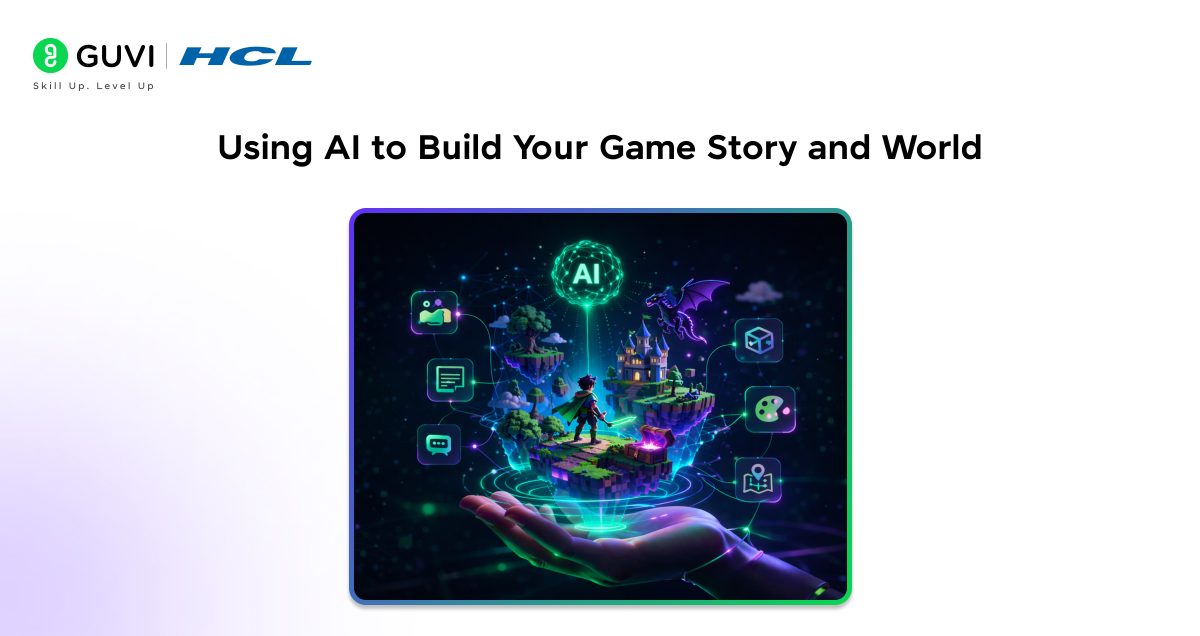
Story and world building are where generative AI truly shines when you build a custom game with generative AI. You can go from a blank page to a fully fleshed out game universe in under an hour, even with no writing experience.
1. Generate a Game Storyline with a Generative AI Tool
Start by opening any AI tool like ChatGPT, Claude, or Google Gemini and describe your game idea with as much detail as possible. The more context you give, the better and more usable the output will be for your custom game.
- Include the genre, setting, main character, and goal in your prompt
- Ask for a villain, at least two plot twists, and a clear ending
- Request the story in short paragraphs so it is easy to paste into your game
- Follow up with “make it shorter” or “add more mystery” to refine the output
Copy paste prompt: “Act as a game narrative writer. Write a storyline for a [genre] game set in [setting]. The main character is [describe character] whose goal is to [describe goal]. Include one main villain, two plot twists, and a clear ending. Write the story in short paragraphs that are easy to paste into a game. Keep the tone [funny, dark, adventurous, or mysterious].”
2. Create Characters and Backstories
Once you have a story, ask the AI to develop your characters in detail. Strong characters make players care about your custom game and keep them coming back.
- Ask for a name, age, skill, personality trait, and one flaw for each character
- Request at least one hero, one villain, and one side character
- Ask the AI to write a short backstory of 3 to 5 sentences for each one
- Tell the AI the tone you want such as funny, dark, adventurous, or mysterious
Copy paste prompt: “Create 3 characters for my [genre] game. For each character give me a name, age, one unique skill, one personality trait, and one flaw. Then write a backstory of 3 to 5 sentences for each one. Include one hero, one villain, and one side character. Keep the tone [funny, dark, adventurous, or mysterious].”
3. Build the Game World and Setting
A well described world makes your custom game feel real and immersive. Use AI to generate locations, atmospheres, and hidden details that would take hours to write manually.
- Ask the AI to describe each location in 4 to 6 sentences
- Request unique objects, hidden clues, and a mood for each area
- Ask for a short name and one sentence description to use as a label in the game
- Generate 5 to 10 locations to start and expand as your game grows
Copy paste prompt: “Act as a game world designer. Create 5 unique locations for my [genre] game set in [setting]. For each location write 4 to 6 sentences describing the atmosphere, unique objects, hidden clues, and mood. Then give each location a short name and a one sentence label I can use inside the game.”
4. Create Dynamic NPCs Using AI
NPCs are the non player characters your player interacts with inside the custom game. Traditionally these were scripted with fixed dialogue, but generative AI now lets you create NPCs that feel alive and respond naturally to the player.
You can use tools like Charisma.ai to build NPCs that hold real conversations with your player based on context. Alternatively, you can use any AI text tool to pre-generate dozens of dialogue variations for each NPC so the game feels different every time it is played.
- Ask the AI to write 5 different responses an NPC might give to the same player question
- Give each NPC a defined personality so the AI stays consistent in tone
- Ask for dialogue that reacts differently depending on whether the player is winning or losing
- Use Charisma.ai for interactive real time NPC conversations inside browser based games
Copy paste prompt: “Create dialogue for an NPC in my [genre] game. The NPC is [describe character and personality]. Write 5 different responses this NPC might give when the player asks [describe a common player question]. Make 2 responses friendly, 2 responses mysterious, and 1 response that hints at a secret. Also write 2 alternate responses for when the player is losing or struggling.”
5. Use Procedural Content Generation to Create Infinite Variety
Procedural Content Generation, or PCG, is a technique where AI algorithms create custom game content automatically on the fly instead of relying on hand designed levels.
This means every time a player launches your game, the levels, enemy positions, item placements, and even puzzles can be different, giving your game massive replayability without extra design work from you.
For beginners, you do not need to code PCG from scratch. GDevelop has built in randomization events that let you place objects at random positions each time a scene loads. You can also ask your AI tool to generate 20 different variations of a game level description and rotate through them to keep the experience fresh.
- Ask the AI to generate 10 different room layouts for your game with varying object placements
- Use GDevelop’s “Pick a random object” event to randomize enemy and item positions each run
- Ask the AI to write 15 different puzzle variations so no two playthroughs feel the same
- Tell players the game is different every time to increase replay value in your store description
Copy paste prompt: “Generate 10 different room layouts for a [genre] game level. For each layout describe where the enemies are placed, where the collectible items are, what the obstacles are, and what the mood of the room feels like. Make each layout feel distinct from the others so no two playthroughs feel the same.”
Do check out HCL GUVI’s Artificial Intelligence and Machine Learning Course if you are interested in building advanced AI applications like a custom game with generative AI.
The course covers essential concepts such as machine learning, deep learning, and real-world AI development that can help you design intelligent game mechanics, procedural content, and AI-driven characters in modern game development.
Designing Game Mechanics and Rules with AI
Game mechanics are the rules that make a custom game with generative AI actually work. AI can help you design, explain, and even test these rules without any game design experience on your part.
1. Use AI to Brainstorm Mechanics
Tell the AI what emotion you want the player to feel and ask it to suggest mechanics that create that experience. This approach gives you ideas grounded in real game design logic.
- Tell the AI: “I want players to feel tense. What mechanics create tension?”
- Ask for at least five mechanic ideas and pick the ones that fit your game
- Ask the AI to explain how each mechanic would work in your specific game
- Ask which mechanics work well together and which ones might conflict
2. Ask AI to Write Your Rulebook
Once you have chosen the mechanics for your custom game with generative AI, have the AI turn them into a simple rulebook. A clear rulebook helps you explain the game to playtesters and keeps your design consistent.
- Ask for a one page rulebook written for a beginner audience
- Request that each rule be written in one sentence
- Ask for a short “how to play” summary at the top
- Have the AI list what the player can and cannot do in the game
3. Test Your Rules with AI Roleplays
You can simulate your entire custom game inside any AI tool like ChatGPT, Claude, or Gemini before building anything. This lets you spot broken rules, boring sections, and confusing mechanics early.
- Tell the AI: “Act as the game engine. I will give you actions and you respond as the game would.”
- Play through at least one full round and note anything that feels off
- Ask the AI: “What part of this game might confuse a new player?”
- Use the feedback to update your rulebook before moving to the build stage
Creating Game Visuals and Art with AI Tools
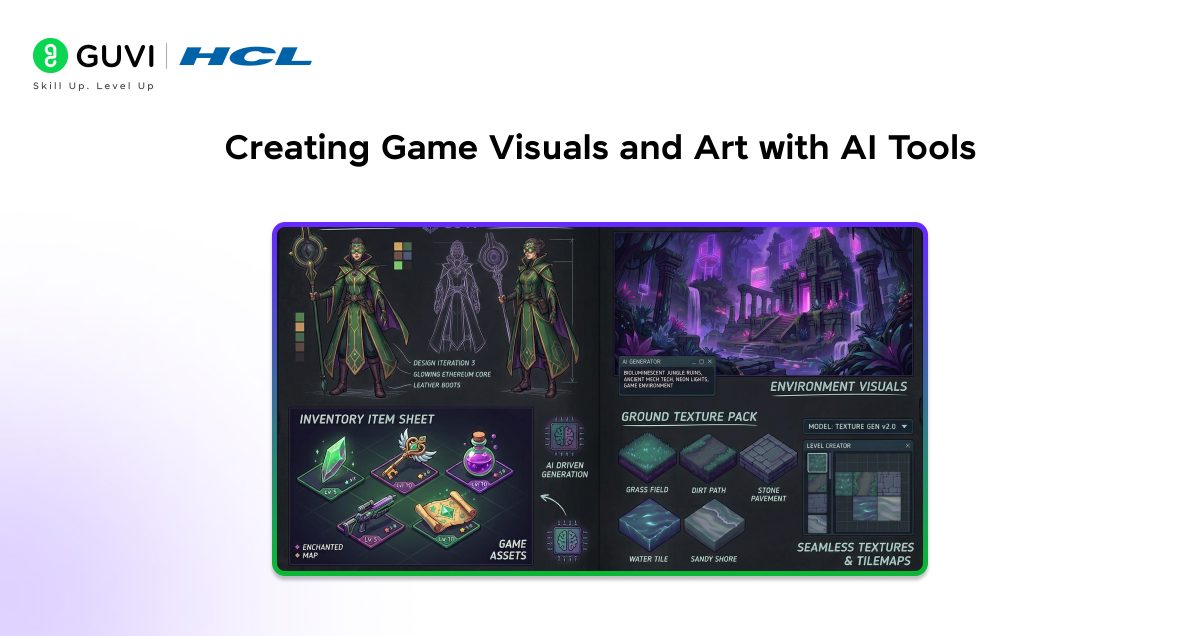
You do not need an artist on your team to give your custom game with generative AI a professional look. AI image tools can generate character art, backgrounds, icons, and UI elements from plain text descriptions. Over 40 percent of indie developers now use AI generated assets as a regular part of their workflow.
1. Generate Character Art with Midjourney or DALL-E
Describe your character in detail and let the AI generate multiple visual options for you. You pick the one that matches your game and refine from there.
- Include physical appearance, clothing, mood, and art style in your prompt
- Try styles like pixel art, cartoon, comic book, realistic, or watercolor
- Generate at least four variations and pick the closest match
- Use follow up prompts like “make the character look younger” or “change the outfit to red”
2. Create Game Backgrounds and Environments
Use the same image tools to generate the locations in your custom game. For 360 degree panoramic skyboxes and immersive environments, Skybox AI by Blockade Labs is a dedicated tool that produces stunning results from a single text prompt.
- Describe the lighting, time of day, and mood of each location
- Specify the art style so all your backgrounds look consistent
- Use Skybox AI for wide immersive environment backgrounds
- Generate a main background and two or three alternate versions for variety
3. Keep Your Art Style Consistent with Scenario
One common problem beginners face is generating character art and background art that look like they came from completely different games. Scenario is an AI tool built specifically for game asset generation that lets you train a custom style model so every image you generate looks like it belongs in the same world.
- Go to scenario.com and create a free account
- Upload five to ten reference images that represent the art style you want
- Train a custom model on those images, which takes about ten minutes
- Use that model for all future asset generation to keep everything visually consistent
4. Design Game UI Elements
Your buttons, icons, and menus are part of the player experience too. AI tools can help you create clean UI elements that match your custom game’s visual style.
- Use Adobe Firefly or Canva AI for buttons, frames, and icon sets
- Describe the color palette and style you want to match your game art
- Ask for simple flat icons for inventory items, health bars, or menu buttons
- Keep UI elements consistent in size and style across the whole game
Creating Custom Game Audio and Voice with AI Tools
Sound is one of the most overlooked parts of building a custom game with generative AI, but it has a huge impact on how professional your custom game feels. Generative AI now makes it possible to create original music, sound effects, and even character voice lines without any audio production experience.
1. Generate a Game Soundtrack with Suno or AIVA
Suno and AIVA are AI music generators that create original royalty free soundtracks based on your text description. You describe the mood and style you want and the AI composes a full track in seconds.
- Go to suno.com or aiva.ai and create a free account
- Type a prompt like “tense mysterious background music for a haunted house game”
- Download the generated track and import it into your game builder
- Generate separate tracks for the menu screen, gameplay, and ending scenes
2. Add Voice Lines for Your NPCs with ElevenLabs
ElevenLabs is an AI voice generation tool that can produce realistic spoken dialogue for your game characters. You type the line and choose a voice, and the AI reads it out in a natural human sounding tone with the accent and emotion you specify.
- Go to elevenlabs.io and sign up for a free account
- Type the NPC dialogue you want spoken and select a voice that matches the character
- Download the audio file and attach it to the matching scene in your game
- Use different voices for different characters to make them feel distinct
3. Generate Sound Effects with ElevenLabs or Freesound
Sound effects like footsteps, doors creaking, or items being picked up make your game world feel real. You can generate custom sound effects using AI or find free options from community libraries.
- Use ElevenLabs sound effects generator for custom AI produced sounds
- Visit freesound.org for a free library of thousands of user contributed sound effects
- Match the audio quality and style across all your sound effects for consistency
- Keep sound effect files short, usually under three seconds, for smooth in game playback
Free vs Paid AI Tools for Game Design
Budget is a real factor when you’re building a custom game with generative AI, especially as a hobbyist or student. Here’s how the free and paid tiers actually compare across the tools covered in this guide.
| Tool | Free Tier | When to Upgrade |
|---|---|---|
| ChatGPT / Claude / Gemini | Yes, generous free usage for text generation | Rarely needed for story/dialogue work at hobbyist scale |
| Midjourney | No free tier currently | Needed from day one for AI art generation |
| DALL-E (via ChatGPT) | Limited free generations | If you need high volume of character/background art |
| Suno / AIVA | Yes, limited free tracks | Once you need more tracks or commercial usage rights |
| ElevenLabs | Yes, limited free characters per month | Once your game needs many voice lines or longer audio |
| GDevelop | Yes, fully free to build and export | Only for advanced cloud builds or removing branding |
| Scenario | Free trial, then paid | Once you need consistent art across many assets |
For a first project, you can realistically build and publish a complete custom game with generative AI using entirely free tiers, just expect some limits on volume and resolution until you’re ready to invest.
Bringing It All Together: Prototyping Your Custom Game
Once you have your story, mechanics, visuals, and audio for your custom game with generative AI, it is time to put everything together into a working prototype. You do not need to build the full game at once.
1. Use No-Code Game Builders Powered by AI
Several platforms let you build a custom game without writing a single line of code. These tools use visual editors and drag and drop systems to assemble your game assets and logic.
- Roblox Studio with AI Assist: great for 3D games and has a large publishing audience
- Buildbox: lets you build mobile games visually with pre built templates
- GameSalad: works well for 2D games and has beginner friendly logic tools
- Itch.io: has tools and templates for text based and browser games
2. Ask AI to Write Simple Game Code for You
If you want more control over your custom game, have the AI write the code for you. You do not need to understand every line, just be able to run and test it.
- Ask your AI tool: “Write a text based Python game with numbered choices and a mystery storyline”
- Copy the code, paste it into a code editor, and run it to test
- When something breaks, paste the error back into the AI and ask it to fix it
- Ask the AI to add one new feature at a time so changes are easy to track
3. Playtest and Use AI to Improve
Playtesting is how you turn a rough prototype into a game people actually enjoy. Bring real feedback back to the AI and use it to make targeted improvements.
- Test with at least three people who match your target audience
- Write down every moment they got confused, bored, or stuck
- Bring that feedback to the AI: “Players said the puzzles were too hard. How do I fix this?”
- Repeat the test and fix cycle at least two or three times before publishing
4. Use Modl.ai for Automated AI Game Testing
Once you have a working prototype, you can use Modl.ai to let AI bots play your game automatically thousands of times to find bugs, broken mechanics, invisible walls, and balance issues.
This does the work of an entire QA team and catches problems that human playtesters often miss because they play the game too carefully.
- Go to modl.ai and sign up for a free trial
- Upload or connect your game build to the Modl.ai platform
- Set the AI bots to explore every corner of your game automatically
- Review the bug report it generates and fix the flagged issues before publishing

Build Your First Custom Game App Right Now: A Simple Step by Step Example
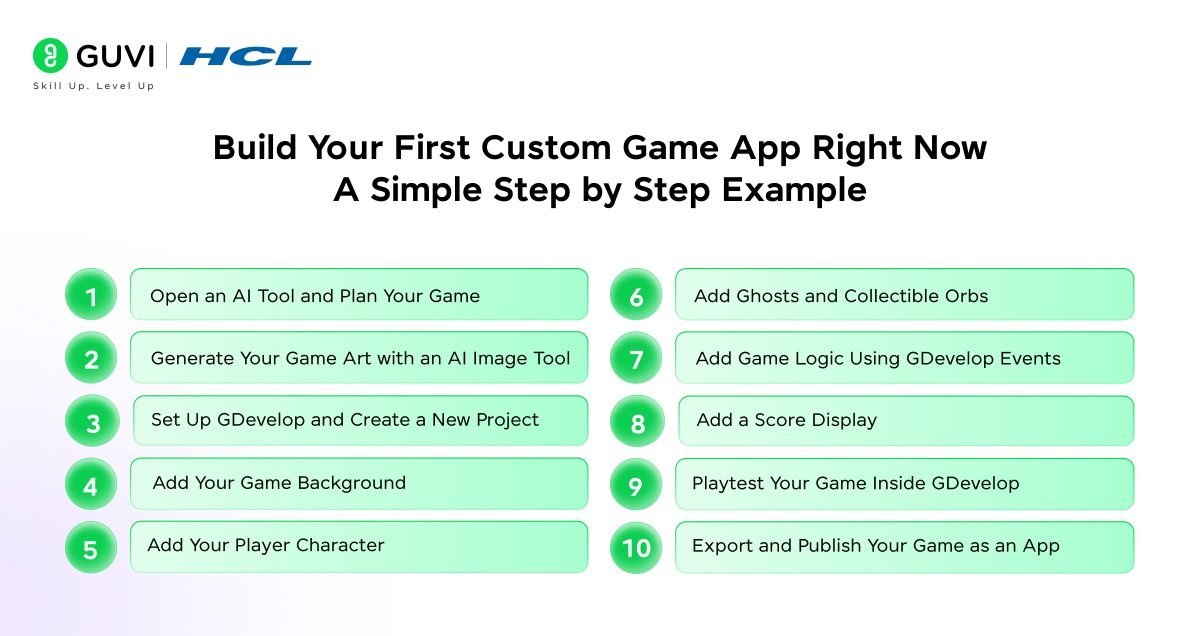
This section walks you through building a real working custom game app from scratch using GDevelop, a free no code game engine used by over 400,000 monthly creators worldwide.
The game you will build is a simple 2D haunted house runner where the player moves through a spooky scene collecting items and avoiding obstacles. No coding, no design experience, and no money needed. Follow each step and you will have a playable app you can share or publish by the end.
Step 1: Open an AI Tool and Plan Your Game
Open any free AI tool like ChatGPT at chatgpt.com, Claude at claude.ai, or Google Gemini at gemini.google.com and type this prompt:
“I want to build a simple 2D game where a player character moves through a haunted house, collects glowing orbs for points, and must avoid ghosts that move across the screen. Write me a simple Game Design Document with the player goal, win condition, lose condition, and three core mechanics. Keep it beginner friendly.”
The AI will give you a clear mini GDD. Copy it into a Google Doc or Notepad. This becomes your reference for every decision you make in GDevelop.
Step 2: Generate Your Game Art with an AI Image Tool
Before opening GDevelop you need your visual assets ready. Open Midjourney, DALL-E inside ChatGPT, or Adobe Firefly and generate the following images one by one using separate prompts:
- Player character: “A cartoon child character holding a lantern, transparent background, 2D game sprite style”
- Enemy ghost: “A cute floating white ghost with big eyes, transparent background, 2D game sprite style”
- Collectible orb: “A glowing golden orb, transparent background, flat 2D game art”
- Background: “A dark spooky haunted house interior corridor, wide horizontal, 2D cartoon game background”
Download each image and save them in a folder on your desktop called “HauntedGame Assets.” These will be uploaded into GDevelop in the next steps.
Step 3: Set Up GDevelop and Create a New Project
Open your browser and go to gdevelop.io. Click the “Start for Free” button and create a free account. Once inside the dashboard, click “Create a New Project” and then select “Empty Game” to start from scratch.
GDevelop will open its editor with a blank scene. Click on the scene called “NewScene” on the left panel to open your game canvas. This blank canvas is where your entire game will be built visually with no code required.
If you get stuck during setup, use this prompt: “I just opened GDevelop for the first time and created an empty project. What should I set up first before adding any objects? Give me a beginner friendly checklist of the first five things to do.”
Step 4: Add Your Game Background
On the left side panel inside the scene editor, click “Add an Object.” Select “Sprite” as the object type and name it “Background.” Click “Add an animation” and then “Add an image.” Upload your haunted house background image from your assets folder.
Once uploaded, drag the background object from the left panel onto your game canvas and stretch it to fill the full screen area. Right click the background object and select “Put the object on a layer” and choose the background layer so it stays behind all other objects.
If the background is not filling the screen correctly, use this prompt: “In GDevelop I added a background sprite but it is not filling the full screen. How do I scale it to fit the game canvas exactly? Give me step by step instructions for a complete beginner.”
Step 5: Add Your Player Character
Click “Add an Object” again, select “Sprite,” and name it “Player.” Upload your player character image as the animation frame. Drag the Player object onto the canvas and place it on the left side of the screen where the player will start.
Now click on the “Behaviors” tab inside the Player object settings. Click “Add a Behavior” and select “Platformer Character” from the list. This instantly gives your player the ability to walk left, walk right, and jump using the arrow keys with no code written at all.
If the player movement feels off, use this prompt: “In GDevelop I added the Platformer Character behavior to my player but the movement feels too fast and the jump is too high. What settings should I adjust and where do I find them in the editor? Explain simply.”
Step 6: Add Ghosts and Collectible Orbs
Click “Add an Object,” select “Sprite,” and name it “Ghost.” Upload your ghost image and drag it onto the canvas. Add the behavior “Move along a path” or simply use the “Tween” behavior to make the ghost float back and forth across the screen automatically.
Repeat the same process to create an “Orb” object using your glowing orb image. Place three to five orbs at different positions across the scene. These will be set up as collectibles in the next step.
If the ghost movement is not working as expected, use this prompt: “In GDevelop I want my ghost enemy to float back and forth horizontally across the screen on its own. Should I use the Tween behavior or Move along a path behavior? Walk me through whichever is simpler for a complete beginner with no coding experience.”
Step 7: Add Game Logic Using GDevelop Events
Click on the “Events” tab at the top of the editor. This is where you add game rules using a simple if and then system with no code. Click “Add an Event” and set up the following three rules one by one:
For collecting orbs: Set the condition as “Player is in collision with Orb” and the action as “Delete Orb” and “Add 10 to the score variable.”
For losing the game: Set the condition as “Player is in collision with Ghost” and the action as “Change scene to GameOver.”
For winning the game: Set the condition as “Score variable is greater than or equal to 50” and the action as “Change scene to WinScreen.”
Each of these rules takes about one minute to set up by clicking through dropdown menus. You never type a single line of code.
If a collision event is not triggering, use this prompt: “In GDevelop my collision event between the Player and the Orb is not working. The orb does not disappear when the player touches it. What are the most common reasons this event fails and how do I fix each one? Give me step by step instructions.”
Step 8: Add a Score Display
Click “Add an Object” and select “Text Object.” Name it “ScoreDisplay.” Place it in the top left corner of the canvas. In the Events tab, add a new event with the condition “At the beginning of the scene” and the action “Set text of ScoreDisplay to the value of the Score variable.” Add another event that updates the score display every time the score variable changes.
If the score is not updating on screen during gameplay, use this prompt: “In GDevelop I added a Text Object called ScoreDisplay and connected it to the Score variable. But the score on screen is not updating when I collect orbs during gameplay. What event am I missing and how do I set it up correctly in the Events tab?”
Step 9: Playtest Your Game Inside GDevelop
Click the green “Play” button at the top of the editor. Your game will launch in a preview window inside the browser. Use your arrow keys to move the player, collect orbs, and test what happens when you touch a ghost.
If something does not work correctly, go back to the Events tab and check your conditions and actions. GDevelop highlights events with errors so they are easy to find and fix. Go back to your AI tool and describe any problem you run into. For example: “In GDevelop my player falls through the floor. What event or behavior setting should I check?” The AI will walk you through the fix.
If anything is broken, use this prompt as your debugging template: “In GDevelop [describe exactly what is happening]. I expected [describe what should happen instead]. What is most likely causing this and how do I fix it step by step? I am a complete beginner with no coding experience.”
Step 10: Export and Publish Your Game as an App
When your game is ready, click “File” in the top menu and select “Export.” GDevelop gives you several export options depending on where you want to publish your game.
To share as a web game, select “Web” and click “Export.” GDevelop will generate a shareable link you can send to anyone directly without any extra steps.
To publish as an Android app, select “Android” and follow the prompts to build an APK file you can upload to the Google Play Store. To publish on desktop, select “Windows” or “macOS” to export a standalone executable file.
To publish on Itch.io, select the “Web” export, download the exported folder, go to itch.io, create a free account, click “Upload New Project,” set the kind to HTML, and upload the folder. Your game will have its own public page within minutes and anyone in the world can play it for free.
If the export fails or the published game has errors, use this prompt: “I exported my GDevelop game as a Web export and uploaded it to Itch.io but the game is not loading correctly in the browser. What are the most common reasons a GDevelop web export fails on Itch.io and how do I fix each one?”
Also read: 7 Best Game Development Project Ideas for Aspiring Game Designers
How to Write Better Prompts for Game Design
The quality of what AI produces for your custom game with generative AI depends almost entirely on the quality of the prompt you write. A vague prompt gives you a vague result. A specific, well structured prompt gives you something you can actually use.
1. Use the Context, Task, Format Structure
Every prompt you write for game design should have three parts: context, task, and format. Context tells the AI who you are and what you are building. Task tells it exactly what you want. Format tells it how to deliver the output. Without all three, you will spend more time fixing the output than using it.
- Context: “I am building a 2D haunted house game for teenagers using GDevelop”
- Task: “Write dialogue for a ghost NPC who gives the player hints when they are stuck”
- Format: “Give me 5 short dialogue lines, each under 15 words, in a spooky but friendly tone”
- Combine all three in one prompt for the best and most usable output every time
2. Use Role Assignment to Get Expert Level Output
Assigning a role to the AI before giving your task dramatically improves the quality of the response. When you tell the AI to act as a game designer, a writer, or a narrative director, it draws on patterns from that domain and gives you more relevant and polished output.
- Start your prompt with: “Act as an experienced indie game designer”
- Or use: “You are a narrative writer for mobile games. Help me write…”
- For mechanics: “Act as a game balance expert and review these rules for fairness”
- For art prompts: “Act as a concept art director and describe the visual style for my game”
3. Iterate and Refine Instead of Starting Over
Most beginners make the mistake of starting a new prompt every time the output is not perfect. The better approach is to refine the same conversation with follow up prompts. The AI remembers your earlier messages and builds on them, so your results get sharper with each round.
- After getting an output, type: “Make this more exciting and cut it to half the length”
- Or type: “The tone is too serious. Rewrite it to be funnier and more lighthearted”
- Or type: “Add one more plot twist to this story that connects to the villain’s backstory”
- Keep refining in the same chat rather than starting fresh each time
Common Mistakes to Avoid When Designing a Game with Generative AI
Most beginners run into the same set of problems when building their first custom game with generative AI. Knowing these mistakes before you start will save you hours of frustration and help you get to a finished game much faster.
- Using vague prompts and accepting weak output: If you type “make me a game story” you will get something generic and unusable. Always include genre, setting, tone, audience, and format in every prompt you write.
- Trying to build everything at once: Beginners often try to design the full game before testing any of it. Build one room, one mechanic, or one scene first. Test it. Then build the next piece.
- Ignoring consistency across AI tools: Art generated in Midjourney and art generated in DALL-E will look completely different. Use Scenario to train a consistent style model so all your assets look like they belong in the same game.
- Not saving your prompts: When a prompt gives you a great result, save it immediately. Most beginners forget their best prompts and waste time recreating them from scratch later.
- Skipping the Game Design Document: Without a GDD, your AI prompts will pull in different directions and your game will feel inconsistent. The GDD is the single source of truth that keeps every AI output aligned.
- Publishing without playtesting: A game that makes sense to you as the creator will often confuse a first time player. Always test with real people before publishing, even if it is just two or three friends.
- Assuming AI output is copyright safe by default: The US Copyright Office has confirmed that AI generated content without meaningful human creative contribution cannot be fully protected by copyright. Always add your own edits, selections, and creative decisions to every AI output you use in your game.
How to Market and Publish Your Custom Game with AI
Building your custom game with generative AI is only half the job. Getting people to actually play it is the other half. Generative AI can help you create all the marketing material you need to launch your custom game without hiring a copywriter or designer.
1. Write Your Game Description and Store Page with AI
Your game description is the first thing a potential player reads. It needs to be exciting, clear, and keyword rich. Ask your AI tool to write it for you based on your GDD.
- Prompt the AI: “Write an exciting 150 word game description for a 2D haunted house adventure game aimed at teens and adults”
- Ask for a short tagline of under 10 words that captures the game’s mood
- Request three to five bullet points highlighting the key features of your game
- Use the output directly on your Itch.io page or any other platform you publish on
2. Create Social Media Posts and Launch Content with AI
You need to build awareness before and after launch. AI can generate a full set of social media posts, captions, and promotional content in minutes.
- Ask the AI to write five Twitter or X posts announcing your game launch
- Ask for an Instagram caption with relevant hashtags for indie game creators
- Request a short Reddit post for the r/indiegaming or r/gamedev communities
- Ask the AI to write a simple press release you can send to gaming blogs and newsletters
3. Generate a Game Trailer Script with AI
A short video trailer dramatically increases the number of people who will try your game. Even a 30 second screen recording with a voiceover can make a big difference. Use AI to write the script.
- Ask the AI: “Write a 30 second voiceover script for a trailer promoting a haunted house 2D game”
- Record your screen while playing through the game using a free tool like OBS
- Use ElevenLabs to generate the AI voiceover from the script
- Combine the screen recording and voiceover using a free editor like CapCut or DaVinci Resolve
💡 Did You Know?
- Over 7,300 games on Steam now openly disclose the use of AI generated content, which is more than double the number from 2024, showing just how fast AI adoption in game development is growing according to a 2025 Steam data report.
- According to a GDC 2025 survey, over 50 percent of game studios are actively using AI tools somewhere in their development pipeline, up from just 18 percent in 2022.
- The US Copyright Office confirmed in 2023 that AI generated content without meaningful human creative input cannot be fully protected by copyright, making human edits and creative decisions essential for any game you plan to sell.
Conclusion
Designing a custom game with generative AI is one of the most exciting and accessible creative projects you can take on right now. You do not need a big budget, a programming degree, or years of experience. You need an idea, a few free tools, and the willingness to experiment.
Start by writing your game concept in a notebook. Then open an AI tool and describe it out loud. You will be surprised how quickly a real game starts to take shape. The best time to start is now, and the only thing standing between you and your first custom game with generative AI is the first prompt you type.
FAQs
1. Can I design a custom game with AI even if I have no coding experience?
Yes, absolutely. AI tools like ChatGPT, Claude, or Gemini can write game code for you, and no code platforms like GDevelop and Buildbox let you build a full game app without writing any code yourself.
2. What is the best AI tool for beginners to start building a custom game?
Any of the free AI tools work well for beginners. ChatGPT, Claude, and Google Gemini all handle story writing, character creation, and game rules. Pick whichever one you are most comfortable with and start there.
3. How long does it take to build a simple custom game with AI?
A basic text based game like the haunted house example in this guide can be built in a single afternoon using free tools. More complex games with visuals and multiple levels typically take a few weeks of iterative work.
4. Is it legal to use AI generated art and text in my custom game?
It depends on how much human creativity you add. The US Copyright Office has confirmed that purely AI generated content with no human creative input cannot be fully copyright protected. To protect your game legally, make sure you are actively editing, selecting, and building on top of every AI output rather than using it unchanged. Always check the terms of service of each tool you use as well.
5. Can I publish and sell a custom game made with generative AI?
Yes. Many indie developers are already publishing and selling AI assisted games on platforms like Steam and Itch.io. Just ensure you comply with the content policies and licensing terms of the AI tools you used.
Success Stories

About the Author
Jebasta
I translate the language of data into stories that anyone can understand. As a writer with a data science background, I simplify analytics, AI, and decision-making so beginners and enthusiasts can confidently explore the world of data.
View all posts by Jebasta
Connect with me @










Did you enjoy this article?