


Academics Articles
Is the HCL GUVI AI/ML Program Right for You? A Quick Self-Assessment
Inside the HCL GUVI AI/ML Curriculum: What You’ll Actually Build
Wipro Elite NTH Eligibility Criteria 2026: CGPA, Branch & Backlog Rules Explained
What is Wipro Elite NTH? Complete Overview for 2026 Graduates


Get In Touch For Details! Request More Information

Work Smarter with Microsoft Excel: The Complete 2026 Guide
Apr 21, 2026 10 Min Read 1952 Views
(Last Updated)
Here’s something that might surprise you: two-thirds of office workers open Excel at least once every hour. More than a third of their work time is spent inside spreadsheets. But fewer than half have ever had any real Excel training.
That’s the gap.
You use Excel a lot, but no one ever taught you how to work smarter with Microsoft Excel.
Most people learn Excel by accident. They copied a formula from a coworker. They Google “how to freeze a row” every few weeks. They rebuild the same report by hand every single month.
That’s not a workflow. That’s just wasted time.
This guide will show you how to work smarter with Microsoft Excel using formulas, shortcuts, and automation.
By the end, you’ll know how to:
- Replace slow, outdated formulas with faster modern ones
- Use keyboard shortcuts that cut your navigation time by 60%
- Use Microsoft Copilot’s AI features that most Excel users don’t even know exist
- Automate boring, repetitive tasks, without writing any code
- Build dashboards that update themselves
Let’s start with a simple question.
Quick Answer
To work smarter with Microsoft Excel, replace outdated formulas like VLOOKUP with modern ones like XLOOKUP and SUMIFS, and use shortcuts like Ctrl+T and F4 to cut daily manual work by 20 to 30 minutes.
Table of contents
- What Does "Work Smarter" in Excel Actually Mean?
- How To Set Up Excel for Maximum Productivity?
- What Does "Work Smarter" in Excel Actually Mean?
- How To Set Up Excel for Maximum Productivity?
- Step-by-Step: One-Time Excel Setup
- What Are the Most Important Excel Formulas to Learn First?
- The 10 Excel Formulas That Save the Most Time
- What Are the Best Excel Keyboard Shortcuts to Save Time?
- The 25 Keyboard Shortcuts Every Excel User Should Know
- How Do I Automate Repetitive Tasks in Excel Without Coding?
- 5 Ways to Automate Excel With No Code
- How Do I Use PivotTables to Analyze Data Faster?
- Build a PivotTable in 4 Steps
- AI-Assisted PivotTables in 2026
- What Is Power Query and Why Should I Use It?
- What Power Query Does That Formulas Can't
- Why does this matter?
- How to Open Power Query
- What Are the Most Common Excel Mistakes That Waste Your Time?
- 8 Excel Habits to Stop Right Now
- Is Excel Still Worth Learning in 2026?
- Your 5-Step Action Plan to Start Working Smarter Today
- This Week
- This Month
- This Quarter
- Conclusion
- FREQUENTLY ASKED QUESTIONS
- What is the fastest way to learn Excel?
- How do I use AI in Microsoft Excel?
- What Excel formulas should beginners learn first?
- How do I automate tasks in Excel without knowing how to code?
- What's the difference between VLOOKUP and XLOOKUP?
- Can I use Copilot in Excel on files saved on my computer?
- How do I make an Excel file update automatically?
- What is the most underused feature in Excel?
- What is the difference between Power Query and Power Automate?
- How do I stop Excel from running slowly?
- Is Microsoft Excel free to use?
- What is the best way to learn Excel for a job?
- What is the difference between a workbook and a worksheet in Excel?
What Does “Work Smarter” in Excel Actually Mean?
Working smarter in Excel means using built-in tools, formulas, shortcuts, and AI features to get more done in less time. Instead of sorting 500 rows by hand, you use a formula that does it automatically every time your data changes.
Working harder in Excel looks like this:
- Formatting every column by hand
- Typing the same headers over and over
- Using VLOOKUP when XLOOKUP is faster
- Rebuilding the same monthly report from scratch
Working smarter looks like this:
- A spreadsheet that updates itself
- Reports that run in seconds, not hours
- Formulas that catch errors before you even see them
Every tip in this guide is ranked by how much time it saves. The biggest time-savers come first.
Also Read: Top 7 Excel Course with Certifications
How To Set Up Excel for Maximum Productivity?
Spend 10 minutes setting up Excel the right way, and you’ll save 30+ minutes every single week. f you want to work smarter with Microsoft Excel, start with your setup. Spend 10 minutes setting things up correctly, and you will save hours over time.
Customize your toolbar, turn on AutoSave, and freeze your headers. These simple changes stop small frustrations from piling up every day.
What Does “Work Smarter” in Excel Actually Mean?
Working smarter in Excel means using built-in tools, formulas, shortcuts, and AI features to get more done in less time. Instead of sorting 500 rows by hand, you use a formula that does it automatically every time your data changes.
Working harder in Excel looks like this:
- Formatting every column by hand
- Typing the same headers over and over
- Using VLOOKUP when XLOOKUP is faster
- Rebuilding the same monthly report from scratch
Working smarter looks like this:
- A spreadsheet that updates itself
- Reports that run in seconds, not hours
- Formulas that catch errors before you even see them
Every tip in this guide is ranked by how much time it saves. The biggest time-savers come first.
Also Read: Top 7 Excel Course with Certifications
How To Set Up Excel for Maximum Productivity?
Spend 10 minutes setting up Excel the right way, and you’ll save 30+ minutes every single week. Customize your toolbar, turn on AutoSave, and freeze your headers. These simple changes stop small frustrations from piling up every day.
Step-by-Step: One-Time Excel Setup
Step 1: Customize the Quick Access Toolbar (QAT)
The Quick Access Toolbar is the small row of icons at the very top of Excel. It’s always visible, no matter what tab you’re on.
Right-click any button in the ribbon → click “Add to Quick Access Toolbar.”
Best buttons to add: Save, Undo, Format Cells, Insert Row, Paste Special, and Print Preview.
Now your most-used tools are always one click away.
Step 2: Turn On AutoSave
Go to: File → Options → Save → check the box that says “AutoSave OneDrive and SharePoint Online files by default.”
AutoSave means you’ll never lose work again. It also lets multiple people edit the same file at the same time.
Step 3: Set a Default Font and View
Go to: File → Options → General.
Change your default font to Calibri 11 or Arial 11. Both look clean on any screen. Set “Default view for new sheets” to Normal view.
Step 4: Pin Your Most-Used Files
Go to: File → Recent. Right-click any file → click Pin.
Your pinned files stay at the top of the list every time. No more hunting through folders.
Step 5: Always Freeze Your Top Row
Any time you have more than 20 rows of data, do this right away: View → Freeze Panes → Freeze Top Row.
Now your column headers stay visible no matter how far you scroll down. This is the number one “why didn’t I do this sooner?” habit for new Excel users.
Pro Tip: These five steps take under 10 minutes. But they save most Excel users more than 30 minutes per week by removing small daily frustrations.
What Are the Most Important Excel Formulas to Learn First?
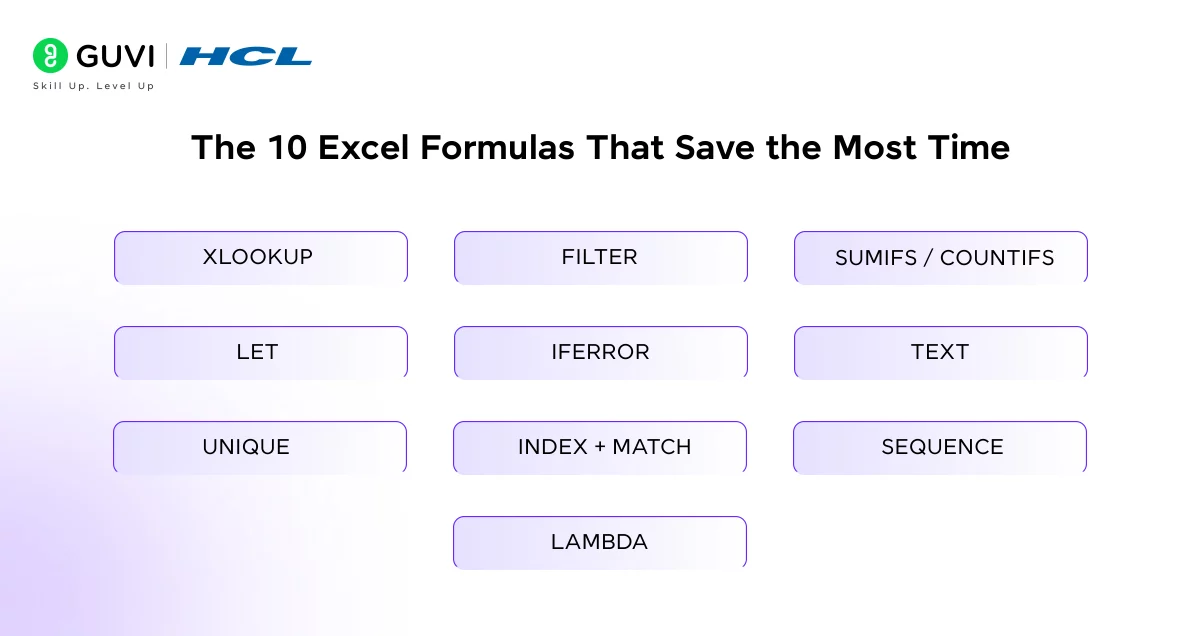
Start with XLOOKUP (to find data), SUMIFS (to add up numbers based on conditions), IFS (for multiple if-then rules), IFERROR (to handle mistakes cleanly), and TEXTJOIN (to combine text).
These five formulas handle about 80% of everyday spreadsheet work.
The 10 Excel Formulas That Save the Most Time
Most users who want to work smarter with Microsoft Excel rely on modern formulas instead of outdated ones.
1. XLOOKUP
The modern replacement for VLOOKUP. It searches a range or array and returns a match without the need for column number references. It works both left-to-right and right-to-left, handles missing values well, and stays intact even when columns are inserted.
=XLOOKUP(lookup_value, lookup_array, return_array, [if_not_found])
2. FILTER
Returns a dynamic subset of data based on a condition. No more copying and pasting filtered results. The output updates automatically as your data changes.
FILTER(array, include, [if_empty])
3. SUMIFS / COUNTIFS
These are the multi-condition versions of SUMIF and COUNTIF. You can apply multiple criteria to analyze your data. They are essential for reporting and summary tables.
=SUMIFS(sum_range, criteria_range1, criteria1, criteria_range2, criteria2, …)
4. LET
Allows you to assign names to calculations within a formula. This improves readability and avoids repeated calculations since each value is computed only once.
=LET(name1, value1, name2, value2, …, calculation)
5. IFERROR
Wraps a formula and returns a fallback value if an error occurs. This helps keep your spreadsheet clean and prevents errors like #N/A or #DIV/0! from spreading.
=IFERROR(value, value_if_error)
6. TEXT
Converts numbers or dates into formatted text. Useful for creating labels, combining values with text, or displaying dates in a specific format.
=TEXT(value, format_text)
7. UNIQUE
Extracts a list of distinct values from a range. Works well with SORT and FILTER to create dynamic lists and summaries without using pivot tables.
=UNIQUE(array, [by_col], [exactly_once])
8. INDEX + MATCH
A powerful combination for lookups. MATCH finds the position of a value, and INDEX returns the value from that position. This method is flexible and useful when XLOOKUP is not available.
=INDEX(return_range, MATCH(lookup_value, lookup_range, 0))
9. SEQUENCE
Generates a series of numbers automatically. It is useful for creating row numbers, date sequences, or supporting other dynamic array formulas.
=SEQUENCE(rows, [columns], [start], [step])
10. LAMBDA
One of Excel’s most powerful features. It allows you to create custom reusable functions directly within Excel, without using VBA. Once defined, you can reuse it anywhere in your workbook.
=LAMBDA(parameter1, parameter2, …, calculation)
What Are the Best Excel Keyboard Shortcuts to Save Time?
The five shortcuts that save the most time are Ctrl+T (turn data into a Table), Alt+= (AutoSum), F4 (lock a cell reference), Ctrl+; (today’s date), and Ctrl+Shift+L (add filters). Learning these five alone can save 20–30 minutes every day.
The 25 Keyboard Shortcuts Every Excel User Should Know
Navigation — Get Around Faster
| Shortcut | What It Does |
| Ctrl + End | Jump back to cell A1 |
| Ctrl + Home | Jump back to cell A1 |
| Ctrl + Arrow Key | Jump to the edge of your data |
| Ctrl + Shift + Arrow | Select all the way to the edge |
| Ctrl + Page Up / Down | Switch between worksheet tabs |
Data Entry — Type Less, Do More
| Shortcut | What It Does |
| Ctrl + ; | Insert today’s date |
| Ctrl + Shift + ; | Insert the current time |
| Ctrl + D | Copy the cell above into the selected cells below |
| Ctrl + R | Copy the cell to the left into the selected cells’ right |
| Alt + Enter | Start a new line inside the same cell |
Formatting — Make It Look Good Fast
| Shortcut | What It Does |
| Ctrl + 1 | Open the Format Cells window |
| Ctrl + B / I / U | Bold, Italic, or Underline text |
| Ctrl + Shift + $ | Apply currency format |
| Ctrl + Shift + % | Apply percentage format |
| Alt + H + H | Open the cell fill color picker |
Formulas — Write and Fix Formulas Faster
| Shortcut | What It Does |
| F4 | Switch between fixed and flexible cell references |
| Ctrl + ` | Show all formulas instead of results |
| Alt + = | Add up a column or row automatically |
| Ctrl + Shift + Enter | Enter an old-style array formula |
| Ctrl + Shift + U | Expand or shrink the formula bar |
Productivity — Work Smarter Every Day
| Shortcut | What It Does |
| Ctrl + T | Turn your data into an Excel Table |
| Ctrl + Shift + L | Turn filters on or off |
| Ctrl + Z / Y | Undo or Redo your last action |
| Ctrl + Shift + + | Insert new rows or columns |
Not sure how to practice these formulas on real data? HCL GUVI’s Excel course walks you through every formula with hands-on exercises built for beginners and working professionals. Master Excel Formulas
How Do I Automate Repetitive Tasks in Excel Without Coding?
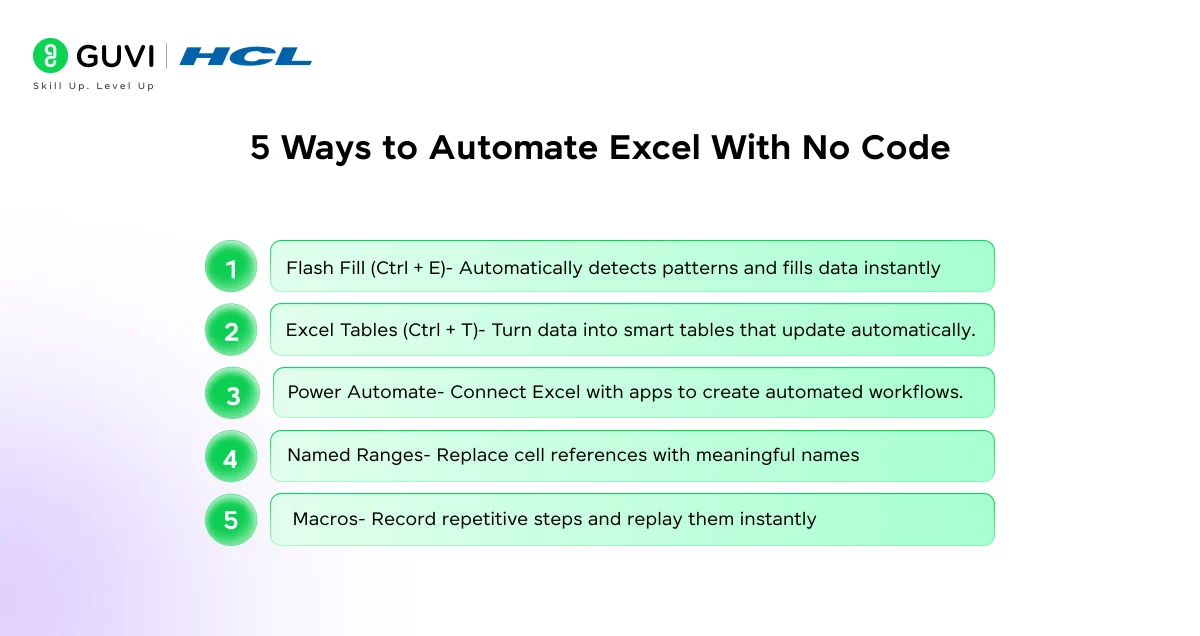
You can automate tasks in Excel without writing any code. Use Flash Fill to detect patterns and fill data automatically. Use Excel Tables to keep formulas updated. Use Power Automate to connect Excel to other apps. None of these requires any programming skills.
5 Ways to Automate Excel With No Code
1. Flash Fill (Ctrl+E) — Recognize Patterns Instantly
Flash Fill watches what you type and copies the pattern automatically.
Here’s how it works: If column A has full names like “John Smith” and you type just “John” in the first cell of column B, press Ctrl+E. Excel fills the rest of column B with first names, automatically.
Use Flash Fill for:
- Splitting first and last names into separate columns
- Reformatting phone numbers
- Pulling email domains out of email addresses
- Cleaning up text that follows a pattern
2. Excel Tables (Ctrl+T) — Formulas That Grow With Your Data
Turning your data into an Excel Table is one of the best things you can do in this whole guide.
When you press Ctrl+T on any data range, Excel makes it a smart Table. Tables automatically:
- Stretch formulas down when you add new rows
- Keep formatting consistent
- Let you use names like =Table1[Sales] instead of =C2:C100
- Update charts and PivotTables linked to them
If you’re not using Tables yet, you’re doing Excel the hard way.
3. Power Automate — Connect Excel to Other Apps
Power Automate is a free tool included with Microsoft 365. It lets you create automated workflows between Excel and other apps, without writing a single line of code.
Things you can automate with Power Automate:
- Send a weekly summary email when new rows are added to your Excel file
- Copy form submissions directly into an Excel tracker
- Get a Teams message when a value in Excel goes over a set limit
- Back up your Excel file to SharePoint on a schedule
Start at flow.microsoft.com or find the Power Automate app inside Microsoft 365.
4. Named Ranges — Formulas That Make Sense
Instead of writing =SUM(C2:C100), name that range “TotalSales” and write =SUM(TotalSales).
Named ranges make your formulas easy to read and harder to break. When your data grows, the named range updates too.
To create one: Select your cells → click the Name Box in the top-left corner → type a name → press Enter.
5. Macros — Record Steps and Play Them Back
A macro records everything you do in Excel and plays it back with one click. No coding needed, just hit Record, do your steps, and stop.
Go to: View → Macros → Record Macro. Do your task. Click Stop Recording.
Assign it to a keyboard shortcut. Now that whole sequence runs in seconds.
How Do I Use PivotTables to Analyze Data Faster?
A PivotTable takes a large table of data and summarizes it into a smaller, interactive table, without any formulas. Click inside your data, go to Insert → PivotTable, then drag fields into the Rows, Columns, and Values boxes. Add Slicers to make it interactive.
Build a PivotTable in 4 Steps
Step 1: Clean Up Your Data First
Your data needs to have:
- Column headers in the top row
- No blank rows or columns in the middle
- No merged cells
- The same type of data in each column (all dates, all numbers, all text, not mixed)
Before you start, convert your data to an Excel Table (Ctrl+T). This way, your PivotTable will automatically pick up new rows when you refresh it.
Step 2: Insert the PivotTable
Click anywhere inside your data. Go to: Insert tab → PivotTable → choose “New Worksheet” → click OK.
You’ll see the PivotTable Field List on the right side of your screen.
Step 3: Drag Fields Into the Four Areas
| Area | What to Put Here | Example |
| Rows | Categories for row labels | Region, Product, Salesperson |
| Columns | Cross-comparison categories | Quarter, Year, Month |
| Values | What do you want to calculate | SUM of Sales, COUNT of Orders |
| Filters | Report-level filters | Show only one region at a time |
Step 4: Add Slicers for Easy Filtering
Click anywhere in your PivotTable. Go to: PivotTable Analyze tab → Insert Slicer.

Pick the fields you want to filter by. Slicers add clickable buttons to your spreadsheet. Click one button and the whole PivotTable filters instantly.
This turns a plain PivotTable into an interactive report.
AI-Assisted PivotTables in 2026
You don’t even have to build a PivotTable yourself anymore.
Go to Insert → Recommended PivotTables and Excel will suggest layouts based on your data. Or open Copilot and just say: “Create a PivotTable showing total sales by region and quarter.” Copilot builds it for you.
Common Mistake: Never build a PivotTable from data that has merged cells, blank rows, or mixed data types in a column. Always clean your data first, or let Copilot’s Clean Data feature do it for you.
Learn how to set up Flash Fill, Tables, and Power Automate the right way with HCL GUVI’s structured Excel course, no coding knowledge required. Get Certified in Excel
What Is Power Query and Why Should I Use It?
What Power Query Does That Formulas Can’t
Power Query lives in the Data tab under “Get Data.” Here’s what it lets you do:
- Pull data from anywhere: Excel files, CSV files, databases, websites, SharePoint, SQL Server, and many more sources
- Clean data with clicks, not code: Remove duplicates, split columns, unpivot data, fix text, all through a simple visual editor
- Record your steps and repeat them: Every action you take is saved as a step. Hit Refresh, and all your steps run again on the new data, instantly
- Combine data from multiple sources: Merge tables from different files into one clean result
Why does this matter?
Imagine you get three CSV reports every Monday. You download them, remove duplicates, combine them into one table, fix the formatting, and build your weekly report. That takes you 2 hours every single week.
With Power Query, you do it once. Set it up in 20 minutes. After that, clicking Refresh takes 10 seconds.
That’s 2 hours saved every week, week after week.
Power Query is also now fully available in Excel for the Web, so browser-based users get access to the same powerful workflow.
How to Open Power Query
Data tab → Get Data → From File (or From Database, From Web, etc.) → follow the setup wizard → use the Power Query Editor to clean your data → click Load to send it to your spreadsheet.
What Are the Most Common Excel Mistakes That Waste Your Time?
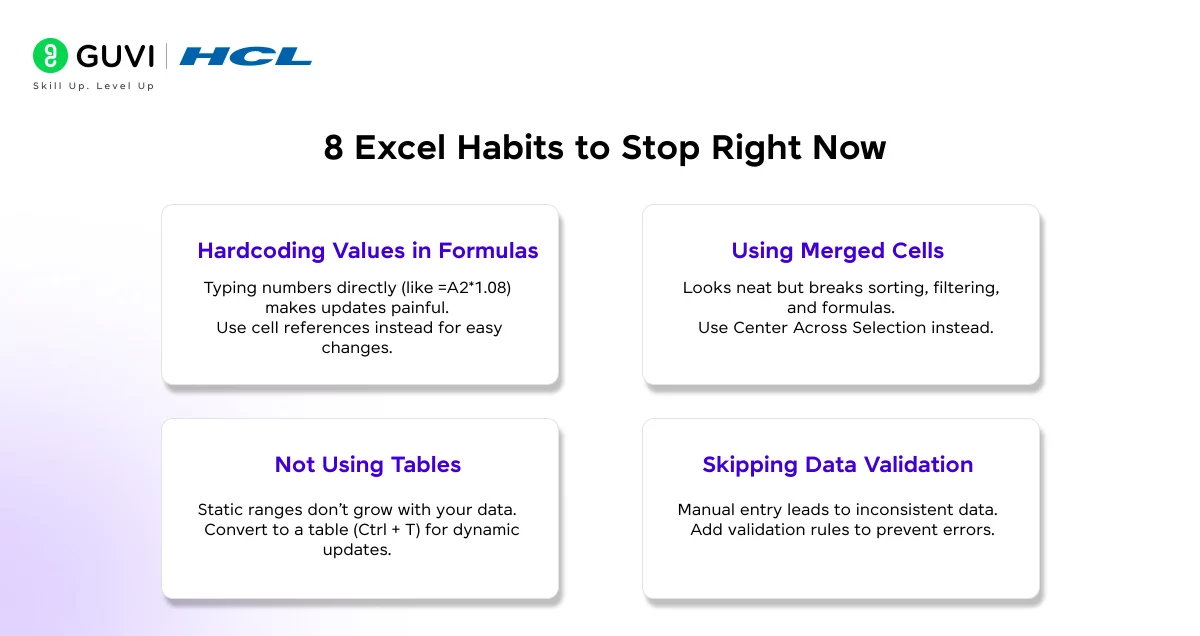
The biggest time-wasting Excel habits are: typing numbers directly into formulas instead of using cell references, using merged cells, not using Tables, skipping data validation, and forgetting to lock cell references with F4. Each of these small mistakes creates bigger problems over time.
8 Excel Habits to Stop Right Now
1. Typing Numbers Directly Into Formulas (Hardcoding)
If your formula says =A2*1.08 and the tax rate changes, you have to find and fix every single cell where you typed 1.08.
Instead, put the tax rate in a separate cell (call it TaxRate). Write =A2*(1+TaxRate). Now changing one cell fixes everything at once.
2. Using Merged Cells
Merged cells look nice. But they break sorting, filtering, copy-pasting, and most formulas. They’re one of the most common hidden causes of Excel errors.
The fix: Use “Center Across Selection” instead. It looks the same but has none of the problems. Find it at: Format Cells → Alignment → Center Across Selection.
3. Not Using Tables
A plain data range is frozen in time. An Excel Table grows with your data. Formulas stretch down automatically. Charts stay connected. References stay accurate.
This is the single most impactful habit change for most Excel users. Press Ctrl+T on your data. Do it now.
4. Skipping Data Validation
If people are entering data by hand, add validation to prevent mistakes at the source.
Go to: Data tab → Data Validation. Set a rule, like “only allow values from this list” for a Region column. This eliminates the North/north / N. inconsistency problem permanently.
5. Forgetting to Lock References With F4
When you copy a formula down a column, and it should always reference the same cell (like a tax rate in B1), press F4 to make it absolute.
=A2*$B$1 keeps B1 fixed, no matter where you copy the formula. Without F4, the reference shifts and gives you wrong results.
6. Using Whole-Column References in Formulas
=SUM(A:A) sounds convenient. But it scans over one million rows every time Excel recalculates. That slows down your entire workbook.
Use a Table reference or a specific range like A2:A100 instead.
7. Rebuilding the Same Report Every Month by Hand
If you rebuild the same report manually each month, that’s not a workflow; that’s a time drain.
Set up a Power Query or record a Macro. The first setup takes 20–30 minutes. Every month after that takes 30 seconds.
8. Saving in Old .xls Format
Old .xls files don’t support XLOOKUP, FILTER, UNIQUE, dynamic arrays, or most modern Excel features. They also have smaller row limits.
Always save in .xlsx format. If someone sends you an .xls file, save it as .xlsx before you start working on it.
Is Excel Still Worth Learning in 2026?
Yes. Excel has over 500 million users worldwide, and it’s growing. With AI tools like Copilot now built into Excel, it’s more powerful than it’s ever been. Learning Excel, especially its AI features, is still one of the best skills you can build for your career.
Some people wonder if AI will replace Excel. It won’t.
AI makes Excel better. The professionals who combine strong Excel skills with AI tools like Copilot will be far more productive than those who use one without the other.
Here’s a simple way to think about it: AI will not replace people who use Excel. But people who use AI in Excel will replace those who don’t.
Excel is still one of the most in-demand workplace skills in 2026. Get certified and stand out with HCL GUVI’s globally recognized Microsoft Excel course.
Your 5-Step Action Plan to Start Working Smarter Today
You don’t need to learn everything in this guide at once. You just need to start.
Here’s a realistic plan ranked by how fast it pays off:
This Week
Step 1: Open your most-used spreadsheet and press Ctrl+T to turn it into an Excel Table. It takes 10 seconds and immediately makes your workbook smarter.
Step 2: Find any VLOOKUP in that file and replace it with XLOOKUP. It’s faster to write, more flexible, and won’t break.
This Month
Step 3: Open Copilot in Excel if you have a Microsoft 365 subscription. Use it to write your next formula, clean your next dataset, or answer a question about your data.
Step 4: Record a Macro for your most repetitive Excel task. Assign it to a keyboard shortcut. Run it once to see how fast it is.
This Quarter
Step 5: Learn Power Query for your biggest recurring data task, the one you currently do by hand every week. The setup takes 20–30 minutes. Every week after that takes 10 seconds.
You don’t need to master every tip in this guide right away. Pick the one that matches your biggest time-waster. Apply it this week. Build from there.
Excel rewards steady practice. And in 2026, with AI tools amplifying every skill you build, there’s never been a better time to get serious about it.
Conclusion
Working smarter with Microsoft Excel is not about mastering every feature. It is about using the right ones consistently. Start with the formulas and shortcuts that eliminate manual work, build automation into your workflow using Tables, Power Query, and Power Automate, and let Copilot handle the repetitive tasks so you can focus on what actually needs your thinking. Small habit changes today add up to hours saved every single week. Pick one tip from this guide, apply it now, and build from there.
FREQUENTLY ASKED QUESTIONS
1. What is the fastest way to learn Excel?
Start with the 10 formulas that handle most everyday tasks — XLOOKUP, SUMIFS, IFS, IFERROR, FILTER, UNIQUE, TEXTJOIN, LET, SEQUENCE, and LAMBDA. Practice each one using real data from your own job. Hands-on practice sticks much better than watching videos.
2. How do I use AI in Microsoft Excel?
Click the Copilot icon in the Home tab of Excel. Type your request in plain English — for example, “Write a formula that shows month-over-month growth” or “Remove duplicate rows.” Copilot can write formulas, build PivotTables, create charts, and, in Agent Mode, run entire multi-step tasks.
You need a qualifying Microsoft 365 subscription to access Copilot.
3. What Excel formulas should beginners learn first?
Start with SUM, AVERAGE, COUNT, IF, and XLOOKUP. Once you’re comfortable with those, move to SUMIFS, IFERROR, TEXTJOIN, and conditional formatting. These cover the vast majority of everyday business tasks.
4. How do I automate tasks in Excel without knowing how to code?
Use Flash Fill (Ctrl+E) for pattern-based tasks, Excel Tables to auto-extend formulas, Power Automate to connect Excel to other apps, and Copilot’s Agent Mode for complex multi-step automation. None of these requires any coding.
5. What’s the difference between VLOOKUP and XLOOKUP?
XLOOKUP is the modern, better version of VLOOKUP. VLOOKUP can only look to the right and breaks when you add columns. XLOOKUP works in any direction, handles errors gracefully, and is simpler to write. Unless you’re editing a very old file, always use XLOOKUP.
6. Can I use Copilot in Excel on files saved on my computer?
Yes. Since February 2026, Copilot Chat in Excel has worked with files stored locally on your Windows or Mac computer. You can get AI-powered help on .xlsx, .xlsb, and .xlsm files without uploading them to OneDrive. Some advanced Copilot features still need an internet connection.
7. How do I make an Excel file update automatically?
Format your data as an Excel Table (Ctrl+T). Connect your charts and PivotTables to the Table. When you add new rows and refresh, everything updates at once. For data pulled from outside Excel, use Power Query — it re-runs all your data transformations with a single click.
8. What is the most underused feature in Excel?
Power Query. Most Excel users do manually every week what Power Query can do in seconds. It’s built into Excel, it’s free, and once you set it up, it runs automatically. Most people just don’t know it exists.
9. What is the difference between Power Query and Power Automate?
Power Query is used to clean, combine, and transform data inside Excel before it loads into your spreadsheet. Power Automate is used to connect Excel to other apps and trigger automated workflows, like sending an email when a new row is added.
10.How do I stop Excel from running slowly?
The most common causes of a slow Excel file are whole-column references like =SUM(A:A), too many volatile formulas like NOW() and OFFSET, and oversized files with unnecessary formatting.
11. Is Microsoft Excel free to use?
Excel is available as part of a paid Microsoft 365 subscription. However, a free version of Excel is available through Excel for the Web at office.com, which works in any browser without installation.
12. What is the best way to learn Excel for a job?
Focus on the skills most commonly required in job descriptions for your field.
13.What is the difference between a workbook and a worksheet in Excel?
A workbook is the entire Excel file, the one you open and save. A worksheet is a single tab inside that workbook.
Success Stories

About the Author
Salini Balasubramaniam
A curious, information-savvy writer loves to turn deep insights into authentic and engaging content that connects. With experience in writing for brands and driving audience engagement, I believe that words can make a powerful difference.
View all posts by Salini Balasubramaniam
Connect with me @
















Did you enjoy this article?