


Artificial Intelligence and Machine Learning Articles
AI/ML Skills Gap 2026: Why Companies Can't Find Job-Ready Talent
20 AI/ML Interview Questions Recruiters Can Use Without a Tech Background - Best Guide
How Industry-Backed AI/ML Bootcamps Are Changing the AI/ML Hiring Pipeline - Best Guide 2026
From IT Support to AI Engineer: A Realistic Career Switch Guide 2026


Get In Touch For Details! Request More Information
How to Create a Custom GPT? A Quick 10 Step Guide
Apr 06, 2026 6 Min Read 2039 Views
(Last Updated)
If you’ve spent any time with ChatGPT, you’ve probably hit a wall, the kind where you keep re-typing the same context, the same tone instructions, the same constraints, conversation after conversation. That’s exactly the problem Custom GPTs were designed to solve.
A Custom GPT is essentially your own tailored version of ChatGPT, built to handle a specific task or audience. You define how it speaks, what it knows, and what it can do, and it shows up ready to work every single time, without you having to start from scratch.
Whether you’re an educator building a study companion, a business owner setting up a customer-facing assistant, or just someone who wants a smarter AI workflow, this guide will walk you through the entire process of creating a custom GPT, from concept to deployment.
Quick Answer:
A Custom GPT is a personalized version of ChatGPT that you can build, without any coding, by giving it specific instructions, a knowledge base, and defined behaviors to handle a particular task or audience. You can create one in minutes using OpenAI’s GPT Builder, available on ChatGPT Plus, Team, or Enterprise plans.
Table of contents
- What is a Custom GPT, and Why Should You Build One?
- What You'll Need Before You Start?
- Step 1: Access the GPT Builder
- Step 2: Understand the Two Building Modes
- Step 3: Define Your GPT's Identity
- Step 4: Write Strong Instructions
- Step 5: Build Your Knowledge Base
- Step 6: Set Up Capabilities
- Step 7: Configure Advanced Actions (Optional but Powerful)
- Step 8: Add Conversation Starters
- Step 9: Test, Refine, and Iterate
- Step 10: Publish and Share
- Best Practices to Keep in Mind
- Final Thoughts
- FAQs
- Do you need coding skills to create a Custom GPT?
- Is creating a Custom GPT free?
- What is the difference between a Custom GPT and a regular ChatGPT?
- Can I share my Custom GPT with others?
- What is the difference between ChatGPT Projects and Custom GPTs?
What is a Custom GPT, and Why Should You Build One?
A custom GPT model is built on top of the base model and is fine-tuned or configured with specific instructions, data, or behaviors. Custom GPTs can remember preferred formats, adopt a unique tone of voice, and access additional tools or documents relevant to the user’s needs.
Think of it this way: the standard ChatGPT is a generalist. A Custom GPT is a specialist. You’re not changing the underlying model; you’re giving it a clearly defined role, a knowledge base to draw from, and behavioral guardrails so it stays on-task.
GPTs are custom versions of ChatGPT that users can tailor for specific tasks or topics by combining instructions, knowledge, and capabilities. They can be as simple or as complex as needed, addressing anything from language learning to technical support.
Why Build One?
Here are some key benefits of building a custom GPT: tailored solutions for industry-specific tasks such as data analysis, customer support, and content generation; increased efficiency by automating routine tasks; enhanced accuracy through training on specific datasets relevant to your industry; and a competitive advantage through early adoption of AI-powered tools.
What You’ll Need Before You Start?
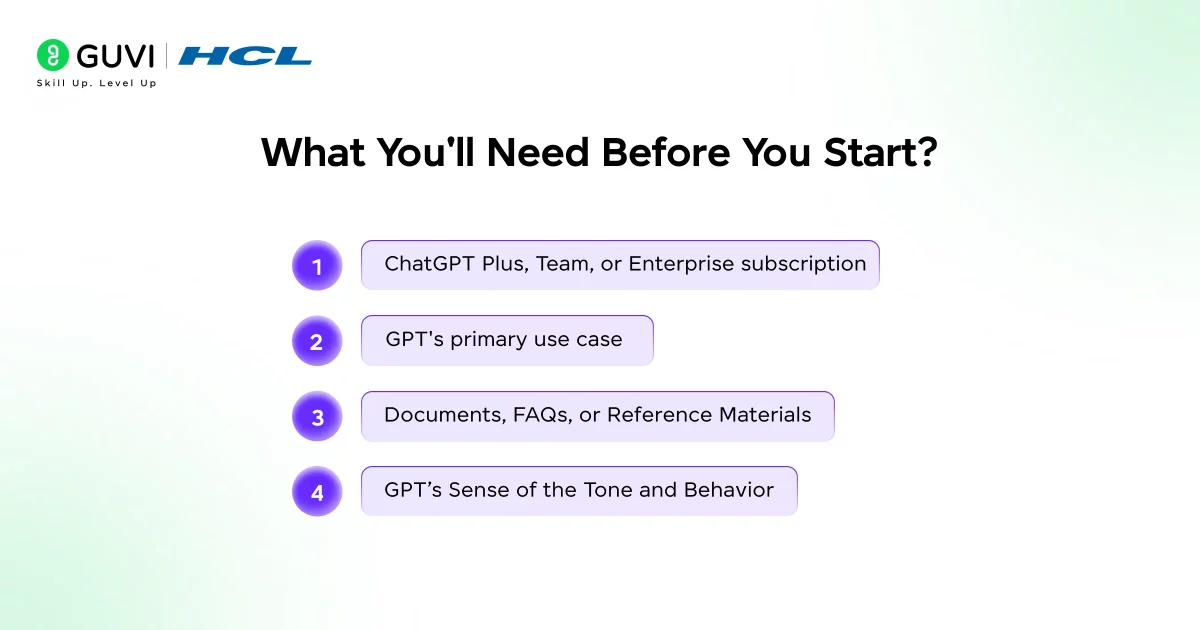
1. ChatGPT Plus, Team, or Enterprise subscription
2. GPT’s primary use case
3. Documents, FAQs, or Reference Materials
4. GPT’s Sense of the Tone and Behavior]
Getting started is simpler than you might think, but there are a few prerequisites worth checking off.
Creating a GPT is available to ChatGPT Pro, Plus, Team, Enterprise, and Edu users. So if you’re on the free tier, you’ll need to upgrade first.
A clear goal is your first step, decide what you actually want your custom GPT to do. You’ll also need your knowledge sources: gather the documents, PDFs, or website content you want your custom GPT to learn from. For a business bot, this could be your public help center, internal process docs, or product FAQs.
A quick checklist before you begin:
- A ChatGPT Plus, Team, or Enterprise subscription
- A clear understanding of your GPT’s primary use case
- Any documents, FAQs, or reference materials you want to upload
- A sense of the tone and behavior you want your GPT to have
Step 1: Access the GPT Builder
Plus, Team, and Enterprise users can start creating GPTs at chatgpt.com/create.
Once you’re there, look for the “+ Create” button in the top-right corner. This launches the GPT Builder interface, a split-screen workspace that becomes your design studio for the next few minutes (or hours, depending on how deep you want to go).
Step 2: Understand the Two Building Modes
When you open the GPT Builder, you’ll see two main tabs: Create and Configure. The Create tab lets you build a GPT conversationally by chatting with the builder. The Configure tab provides specific fields to manually input your instructions, upload files, and set up actions.
Here’s a useful mental model: Create is for getting started fast; Configure is for getting it right.
The “Create” tab is beginner mode for creating a GPT as a series of prompts that will guide you through building your GPT and write many of the instructions for you. The “Configure” tab gives you direct access to the backend of your custom GPT, the advanced mode.
If you’re new to this, start with the Create tab to get a working draft quickly, then switch to Configure to tighten everything up. Most experienced builders end up spending most of their time in Configure.
Step 3: Define Your GPT’s Identity
This is where you give your GPT a name, a purpose, and a personality. It sounds simple, but the decisions you make here significantly shape how useful the final product actually is.
Give your GPT a clear name (e.g., Policy Assistant or Recipe Buddy). Write a short description so users know what it does. In the builder, define the GPT’s behavior, tone, and knowledge focus.
A few things worth thinking through at this stage:
- Name: Make it specific and descriptive. “Marketing Strategy Coach” is clearer than “Marketing Bot.”
- Description: Write it for the user. What will they get out of this GPT?
- Tone: Should it be formal and precise? Warm and encouraging? This matters especially if other people will be using your GPT.
Forbidden actions: what to refuse – form an important part of instructions too. For example: “Do not create legal advice; always recommend an attorney.” These instructions form the backbone of consistent behavior.
Step 4: Write Strong Instructions
The Instructions field is arguably the most important part of your entire custom GPT. Think of it as the job description your AI will always have open in the background. Everything your GPT does, how it responds, what it avoids, how it handles ambiguous questions, flows from this section.
Break your instructions into separate steps, especially when they involve multiple steps or actions. Clearly define what you’re expecting to help the GPT avoid providing generic responses. Provide enough contextual information and examples of desired outputs to ensure the GPT understands your requirements.
Good instruction writing typically includes:
- The GPT’s core role (what it does and for whom)
- Tone and communication style
- Topics it should focus on, and ones it should avoid
- How it should handle things it doesn’t know
- Preferred output formats (bullet points, numbered steps, paragraphs, etc.)
One practical tip: if you need the GPT to follow a specific output format, include an example directly in the instructions. That concrete reference gives the model something to anchor its responses to.
Step 5: Build Your Knowledge Base
This is where your Custom GPT transforms from a smart generalist into a true domain expert. The Knowledge section lets you upload files that your GPT will reference when answering questions, instead of relying solely on its general training.
Upload proprietary documents like policies, procedures, and FAQs to give your GPT the business context it needs for accurate answers.
You can upload up to 20 files per custom GPT, with each file supporting up to 512MB in size.
Supported file types typically include PDFs, Word documents, and plain text files. The GPT uses these as its reference material, so the quality and structure of what you upload directly affects the quality of responses.
A few practical rules for organizing your knowledge files:
- Keep files focused and well-organized. A single clean FAQ document outperforms a messy 200-page manual every time.
- Put titles and dates at the top of each document so the GPT can cite sources clearly.
- Remove outdated content, or clearly tag it as such.
- Consolidate and version on your side — the practical limit is 20 files per GPT.
In the first two months following OpenAI’s custom GPT feature’s release in 2024, users created over 3 million custom GPTs. Since then, OpenAI launched the GPT Store, essentially a marketplace where you can discover GPTs built by other users and OpenAI partners, or publish your own. If your custom GPT is good enough, there’s a real audience waiting for it.

Step 6: Set Up Capabilities
The Capabilities section lets you toggle specific features on or off depending on what your GPT needs to do.
Here, you will also be able to select the actions you would like your GPT to take, like browsing the web or creating images.
The main toggles you’ll encounter:
- Web Browsing — lets your GPT access up-to-date information from the internet
- DALL-E Image Generation — enables your GPT to create images from text descriptions
- Code Interpreter / Data Analysis — allows your GPT to run Python code, process files, and analyze data
Step 7: Configure Advanced Actions (Optional but Powerful)
This is where Custom GPTs can really start to feel like purpose-built tools rather than just smart chatbots. Actions allow your GPT to connect to external APIs and perform real-world tasks during a conversation.
GPT Actions empower ChatGPT users to interact with external applications via RESTful API calls outside of ChatGPT simply by using natural language. They convert natural language text into the JSON schema required for an API call. GPT Actions are usually used either to retrieve data to ChatGPT (e.g., query a data warehouse) or take action in another application (e.g., file a JIRA ticket).
Some common real-world examples of what Actions can enable:
- Fetching live weather data when a user asks about travel conditions
- Looking up product inventory from a CRM
- Sending a Slack message or email from within the chat
- Retrieving customer records from a database
Step 8: Add Conversation Starters
Conversation starters are the suggested prompts users see when they first open your GPT. They serve two purposes: they guide users toward the most useful interactions, and they communicate what the GPT is capable of doing.
Add example prompts that appear when users open the GPT. These help guide users on how to begin their interaction.
Think of conversation starters as a lightweight onboarding experience. If someone lands on your GPT without context, a good set of starters should make it immediately obvious what they can ask and how to get value from it quickly.
Step 9: Test, Refine, and Iterate
Before you publish anything, spend real time testing your GPT. The Preview panel on the right side of the builder is your sandbox — use it aggressively.
Use the Preview tab to simulate real user prompts. Test edge cases, adversarial prompts, and error paths (e.g., missing data or ambiguous user intent). Iterate on the instructions, files, and actions until behavior is reliable.
Write 10 to 15 questions that reflect the tasks your GPT should handle. Include the correct answers for each question. Review the results and adjust your GPT’s instructions or knowledge if needed.
Step 10: Publish and Share
Once you’re satisfied with how your GPT performs, it’s time to decide who gets access.
Your sharing options include: Only me — private sandbox; Anyone with the link — share with clients, students, or teammates; Public/Store — a discoverable listing once you add a category and a simple privacy policy.
For most teams and educators, the “Anyone with the link” option is the sweet spot — it keeps things controlled while still making the GPT accessible to whoever you want to share it with.
If you’re going public via the GPT Store, make sure your description is clear, your conversation starters are helpful, and your GPT’s scope is well-defined. A focused, well-described GPT will always outperform a vague, catch-all one in terms of user adoption.
If you want to extract the full potential of ChatGPT and make it useful for your programming journey, then consider enrolling for HCL GUVI’s ChatGPT Course for Programmers, where you discover how to effortlessly enhance your projects, build dynamic chatbots, and integrate natural language processing seamlessly
Best Practices to Keep in Mind
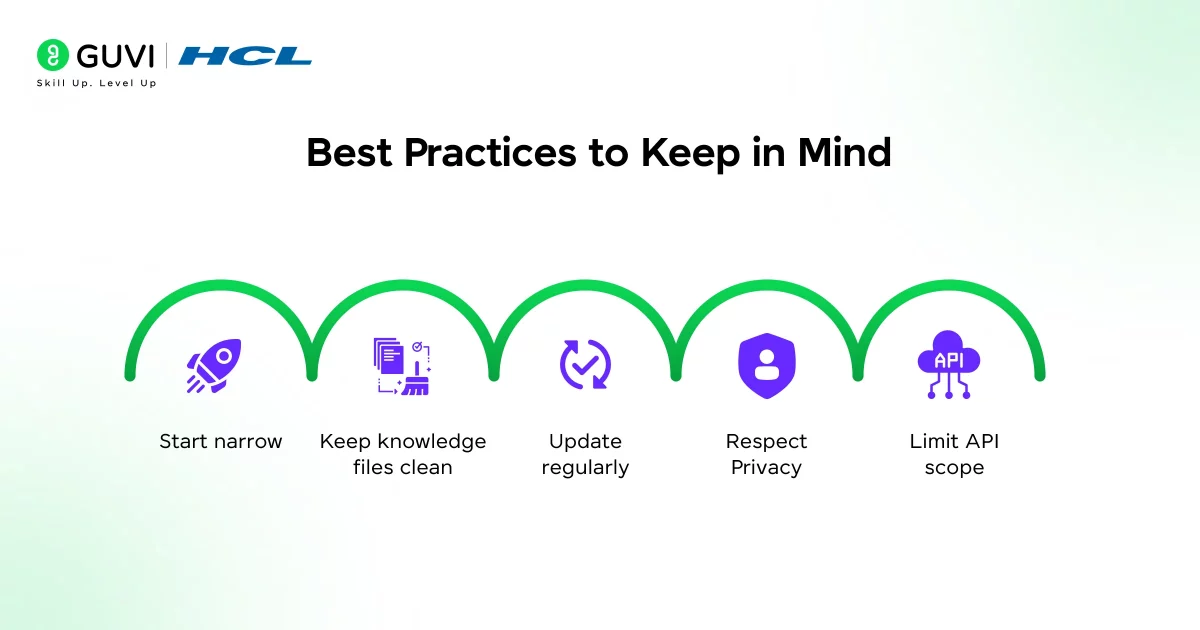
Building a Custom GPT is relatively straightforward. Building one that actually works well and stays useful over time takes a bit more discipline. Here are the principles worth holding onto:
- Start narrow: If you’re just starting, pick a narrow use case (e.g., internal onboarding assistant or code reviewer) and iterate quickly. Trying to build a GPT that does everything usually results in one that does nothing particularly well.
- Keep knowledge files clean: Well-organized, focused documents dramatically outperform massive, disorganized knowledge dumps.
- Update regularly: Refresh instructions and data to keep responses accurate. A GPT built on outdated information will start producing outdated answers.
- Respect privacy: If your GPT handles any sensitive data, opt out of allowing OpenAI to use those conversations for model training. Review your sharing settings carefully.
- Limit API scope: Only connect APIs you trust for security reasons.
If you’re serious about learning GPT’s and want to apply them in real-world scenarios, don’t miss the chance to enroll in HCL GUVI’s Intel & IITM Pravartak Certified Artificial Intelligence & Machine Learning course, co-designed by Intel. It covers Python, Machine Learning, Deep Learning, Generative AI, Agentic AI, and MLOps through live online classes, 20+ industry-grade projects, and 1:1 doubt sessions, with placement support from 1000+ hiring partners.
Final Thoughts
Custom GPTs represent a meaningful shift in how people interact with AI. Rather than adapting yourself to a general-purpose tool, you’re building a tool that adapts itself to you — or to your users.
Creating a custom GPT means taking ChatGPT’s base model, which is trained on general data, and adding your customized instructions and task-specific data to obtain more accurate answers. That shift from reactive to proactive AI, where the tool already knows your context before the conversation begins, is what makes Custom GPTs genuinely useful rather than just technically impressive.
FAQs
1. Do you need coding skills to create a Custom GPT?
No, you don’t. OpenAI’s GPT Builder is entirely no-code. You can set up instructions, upload knowledge files, and configure behavior using plain English.
2. Is creating a Custom GPT free?
3. What is the difference between a Custom GPT and a regular ChatGPT?
Custom GPTs are specialized versions you can tailor with specific instructions and knowledge for niche tasks. Unlike regular ChatGPT’s general responses, they’re designed for specific use cases like brand-specific content creation or answering internal company questions.
4. Can I share my Custom GPT with others?
Yes. Custom GPTs are shareable and distributable; you can publish them in the GPT Marketplace or share links with teammates or clients. You have three visibility options: keep it private (only you), share via link (specific people), or go fully public through the GPT Store.
5. What is the difference between ChatGPT Projects and Custom GPTs?
They serve different purposes. ChatGPT Projects let you keep research, models, and ongoing discussions for each initiative neatly organized in one place, while Custom GPTs allow you to create specialized AI tools tailored to specific tasks.
Success Stories

About the Author
Lukesh S
A professional content writer who has experience in freelancing and now working as a Technical Content Writer at HCL GUVI having sound knowledge in Blog Writing and Creative Writing!
View all posts by Lukesh S
Connect with me @







Did you enjoy this article?