


Artificial Intelligence and Machine Learning Articles
Finance Manager to Data Analytics: Career Growth, Salary and Seniority
How to Evaluate LLM Outputs in Production Deployments
AI/ML Skills Gap 2026: Why Companies Can't Find Job-Ready Talent
20 AI/ML Interview Questions Recruiters Can Use Without a Tech Background - Best Guide


Get In Touch For Details! Request More Information
CMS Coverage in Claude Made Simple
Jun 24, 2026 6 Min Read 1054 Views
(Last Updated)
Medicare coverage is complex: clinicians must check NCDs, LCDs, ICD‑10 codes, and whether a drug is under Part B or Part D, all before billing. Doing this correctly can mean the difference between payment and denial.
The CMS Coverage Connector in Claude cuts through the manual work. It links Claude directly to Medicare Part B coverage policies, so you can ask in plain language and instantly get structured answers from the official CMS database with no authentication or portal navigation needed.
In this article, we will walk through exactly what the CMS Coverage Connector is, what Medicare Part B it covers, and what it does not, how each of its seven tools works, how to set it up in Claude, and the most practical workflows it enables for clinicians, billers, and coding professionals.
TL;DR: CMS Coverage Connector in Claude
- Connects Claude to the CMS Medicare Part B database for NCDs, LCDs, and policies; no authorization or subscription needed.
- Seven tools: Search National/Local Coverage, Get Documents, Batch NCDs, What’s New, SAD Exclusion List, and Get Contractors.
- Set up: Enable in Claude Desktop settings > Connectors > CMS Coverage (instant activation).
- Ideal for prior claim denials, policy monitoring, and ICD-10 verification via natural language.
- Combines with NPI/ICD-10 connectors for full billing/compliance workflows.
Table of contents
- What Is the CMS Coverage Connector in Claude?
- The Seven Tools and What Each One Does
- Search National Coverage
- Get Coverage Document
- Batch Get NCDs
- Search Local Coverage
- What's New
- SAD Exclusion List
- Get Contractors
- How to Set Up the Connector
- Step 1: Open Claude Desktop and Go to Connectors
- Step 2: Enable the CMS Coverage Connector
- Step 3: Test That the Connector Is Working
- Step 4: Enable the Connector Across Your Organization
- Practical Workflows That Save Real Time
- Streamline Prior Authorization Workflows
- Resolve Drug Coverage Disputes Quickly
- Monitor Policy Changes Automatically
- Understanding NCDs vs. LCDs: Why Both Matter
- 1. NCDs and LCDs Are
- NCDs and LCDs Work Together
- 3. Both Layers Matter for Claims
- Using This Alongside Other Healthcare Connectors
- Final Thoughts
- FAQs
- What does the CMS Coverage Connector cover?
- Is authentication required?
- How do the seven tools differ?
- What's a key workflow?
- NCD vs. LCD?
What Is the CMS Coverage Connector in Claude?
It connects Claude to the official CMS Medicare Coverage Database, letting you query NCDs, LCDs, and drug coverage policies through plain language conversation
The CMS Coverage connector gives Claude access to Medicare Part B coverage policies from the CMS Coverage Database, including national coverage determinations and local coverage determinations. The connector draws from the same government database that all Medicare coverage decisions are based on, meaning the information Claude returns is authoritative, not summarized from a third-party source.
The MCP endpoint behind this connector is maintained by deepsense.ai and is publicly available without requiring a paid subscription or authentication. The connector works immediately after enabling no authentication is required. That makes it one of the most accessible healthcare connectors available in Claude, and one of the most practically useful for day-to-day clinical operations work.
The Seven Tools and What Each One Does
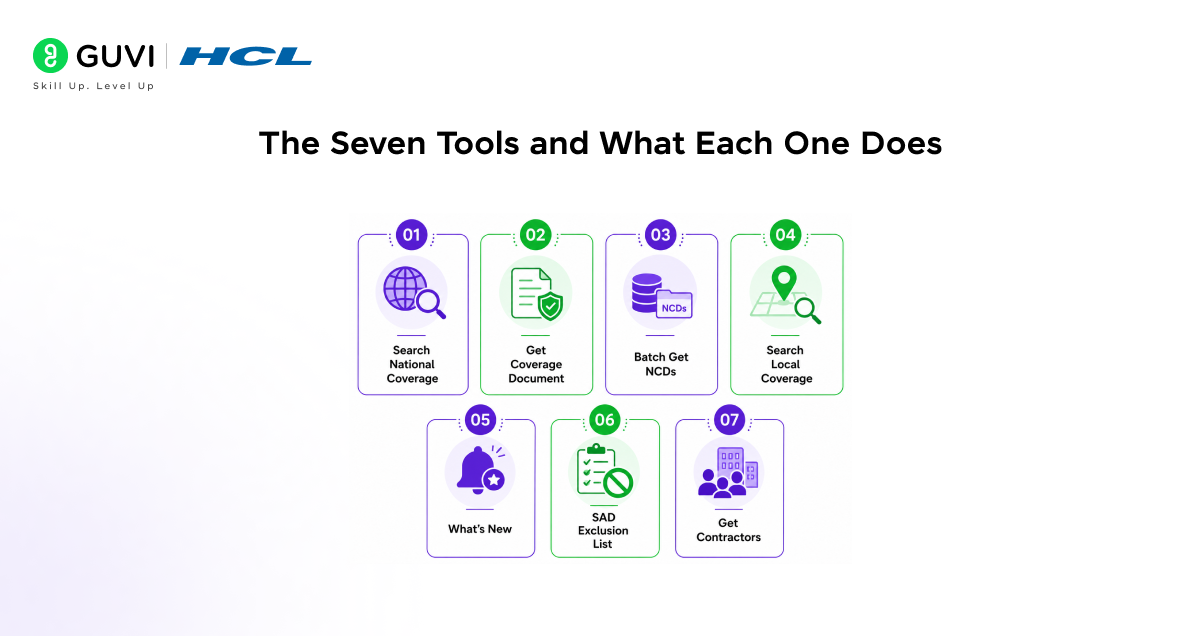
The connector provides seven distinct tools organized across four categories. Each tool is designed for a specific kind of coverage inquiry, and Claude will automatically select and combine the right tools based on how you phrase your question.
1. Search National Coverage
This is the broadest entry point for national policy questions. This tool performs a unified search for all national coverage documents, NCDs, NCAs, CALs, MEDCAC meetings, and technology assessments.
Use it for finding national coverage policies and analyses, checking coverage for new technologies, understanding Medicare’s position on treatments, researching coverage decision rationale, and tracking MEDCAC meetings and technology assessments. Example prompts that trigger this tool include asking whether Medicare covers PET scans or looking for all national coverage analyses related to cardiac devices.
2. Get Coverage Document
This goes one level deeper; once you know a specific policy exists, this tool retrieves the full document. It retrieves complete information for a specific coverage document by ID and type. Use it for reading full policy text, understanding coverage criteria, checking indications and limitations, finding coding requirements, and accessing complete NCA or CAL details.
If a Search National Coverage query returns a document number, following up with Get Coverage Document gives you everything in that policy: the coverage criteria, the coding requirements, and the effective dates.
3. Batch Get NCDs
It handles comparative research efficiently. This tool retrieves multiple National Coverage Determinations in a single request, up to 20 NCDs. Use it for efficiently fetching details for multiple policies, comparing coverage across related conditions, building comprehensive coverage summaries, and reducing API calls when analyzing multiple NCDs.
For anyone trying to understand how Medicare approaches an entire disease area, say, all diabetes-related NCDs, this tool lets Claude retrieve them all simultaneously and present a comparative analysis in one response.
4. Search Local Coverage
It addresses the regional layer of Medicare policy. This tool performs a unified search for all local coverage documents, final LCDs, proposed LCDs, and billing articles.
Use it for finding local and regional coverage policies, checking state-specific requirements, understanding local medical necessity criteria, accessing billing and coding guidance, and tracking proposed policy changes. A billing team in California dealing with a physical therapy claim, for instance, can search specifically for LCDs applicable to their state and find the exact local requirements that apply.
5. What’s New
This handles policy monitoring. This tool tracks recent coverage changes, both national and local policies. Use it for monitoring policy changes, staying current on coverage updates, tracking new technologies and treatments, planning for policy implementations, and identifying policy revisions in your region.
For national scope, it tracks NCDs, NCAs, CALs, MEDCAC meetings, and technology assessments updated within a configurable lookback period of up to 120 days. For practices that need to stay ahead of coverage changes before they affect their claim submission process, this tool is the most operationally valuable.
6. SAD Exclusion List
This handles a question that comes up constantly in drug coverage: is this drug covered under Part B, or does it belong in Part D? This tool searches the Self-Administered Drug Exclusion List for oral drugs not covered under Medicare Part B because they are covered under Part D instead.
Use it for verifying if an oral drug is Part B covered, understanding why a drug claim was denied under Part B, determining the correct benefit category, guiding patients to Part D coverage for oral medications, and finding excluded drugs by HCPCS code or name.
7. Get Contractors
It resolves the jurisdiction question that local coverage work always requires. This tool finds Medicare administrative contractors by state or contractor ID. Use it for identifying which MAC covers your state, finding MAC contact information, determining applicable local policies, and understanding jurisdiction coverage.
This tool works alongside Search Local Coverage once you know which MAC administers your state, you can filter local coverage searches to only return policies from that contractor.
The CMS Coverage Connector pulls from the official Medicare Part B database, handling complex rules such as identifying when drugs like imatinib are excluded under the SAD List and instead fall under Part D — helping avoid weeks of claim denials.
With features that track policy updates up to 120 days back, it can detect changes like new Local Coverage Determinations (LCDs) early. This transforms manual portal searches into instant, structured answers that combine national policies, local variations, and coding requirements for faster reimbursements.
How to Set Up the Connector
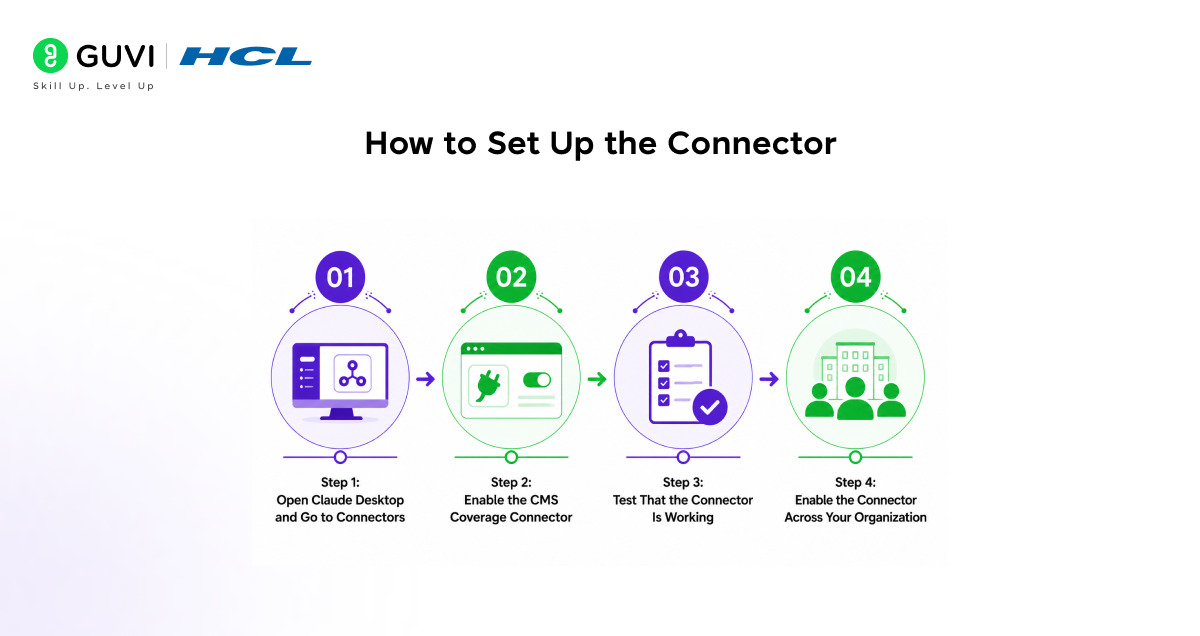
Step 1: Open Claude Desktop and Go to Connectors
To add the connector to Claude, open Claude Desktop and select your profile icon in the bottom left. Navigate to Settings, then Connectors. Browse the available connectors catalog and search for “CMS Coverage” or find it under Healthcare connectors.
Step 2: Enable the CMS Coverage Connector
Click on the CMS Coverage Connector and click “Enable” or “Add Connector.” The connector will be activated immediately. No authentication is required the connector works as soon as it is enabled in your account.
Step 3: Test That the Connector Is Working
To verify the connection is working, ask Claude: “Does Medicare cover PET scans?” Claude should use the CMS Coverage connector to search policies and return an answer based on the current NCD rather than just drawing on its training knowledge. If you see Claude citing specific NCD document numbers and effective dates, the connector is active and working correctly.
Step 4: Enable the Connector Across Your Organization
For team and enterprise users, the connector can be made available across an organization through the same admin settings used for other connectors. Because no authentication is required, there is no user‑level credentialing to manage. Administrators simply enable the connector for the organization, and all members can use it immediately.

Practical Workflows That Save Real Time
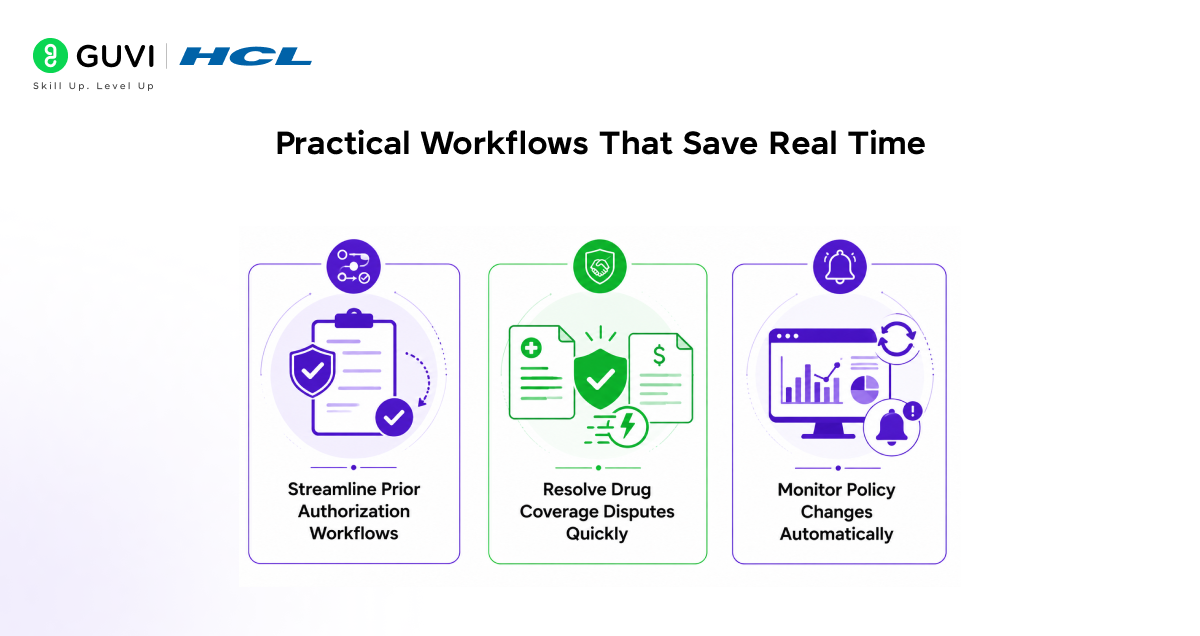
1. Streamline Prior Authorization Workflows
The real value of the connector shows up in the workflows where healthcare professionals spend the most time manually searching and cross‑referencing. Prior authorization preparation is one of the clearest use cases. When preparing a prior authorization for a PET scan in California, Claude will search national coverage for the PET scan NCD and retrieve the full coverage criteria from the complete document.
Use the Get Contractors tool to identify California’s MAC and search local coverage with a contractor filter for billing guidance, then list the required documentation, covered indications, and ICD‑10 codes all in a single response. That multi‑step workflow, which previously involved separate searches across multiple CMS database interfaces, now happens in one conversation.
2. Resolve Drug Coverage Disputes Quickly
For drug coverage disputes, the connector resolves claim denials that practices sometimes chase for weeks without understanding the root cause. When asked whether oral imatinib is covered under Medicare Part B, Claude searches the SAD exclusion list, finds imatinib in the exclusion list, and explains.
That it is a self‑administered oral drug excluded from Part B confirms it is covered under Part D prescription drug plans instead and provides HCPCS codes for the excluded formulations. For a billing team that received a denial on an oral chemotherapy claim, this answer clarifies both the reason and the correct path forward in under a minute.
3. Monitor Policy Changes Automatically
Policy monitoring using the What’s New tool is particularly useful for compliance officers and coding managers who need to track regulatory changes affecting their practice. When asked about Medicare coverage changes in the last month affecting a practice in Texas. Claude uses the What’s New tool with a national scope to check recent NCD, NCA, and CAL changes.
Then searches the local scope filtered by the Texas contractor to check LCD updates, summarizes new and revised policies, highlights those relevant to the specified specialty, and notes effective dates for upcoming changes. This kind of summary, built from live CMS data, replaces what previously required either a dedicated compliance service subscription or hours of manual database monitoring.
Understanding NCDs vs. LCDs: Why Both Matter
1. NCDs and LCDs Are
NCDs are national policies that grant, limit, or exclude Medicare coverage for a specific medical item or service.
They are developed and published by CMS and apply to all states. If an NCD does not specifically exclude or limit an indication or circumstance, or if the item or service is not mentioned at all in an NCD or in a Medicare manual, coverage may be decided at the local level by a Medicare Administrative Contractor (MAC) through a Local Coverage Determination (LCD).
2. NCDs and LCDs Work Together
LCDs cannot contradict NCDs but exist to clarify them or address common coverage issues in a specific region. Think of NCDs as federal regulations and LCDs as state‑level rules built on top of them.
Always verify both the NCD and the relevant LCDs before submitting claims, because compliance with both is essential for successful reimbursement. Even if your documentation is strong and the procedure is medically necessary, a lack of coverage under the correct NCD or LCD can still lead to denials.
3. Both Layers Matter for Claims
These two factors, NCDs and LCDs, directly determine whether Medicare will reimburse you for a service. The CMS Coverage Connector in Claude handles this two‑layer structure automatically. When you ask about coverage for a procedure, Claude searches NCDs first and retrieves the full national policy if one exists.
If no NCD applies, Claude then checks LCDs in the relevant jurisdiction. You do not need to know in advance whether coverage is national or local; Claude figures that out from the CMS database and surfaces the right policies for your question.
Using This Alongside Other Healthcare Connectors
The CMS Coverage Connector works well in combination with other healthcare-focused tools available in Claude, creating a more complete compliance and billing workflow.
- The NPI Registry connector, which is part of the same deepsense.ai healthcare connector ecosystem, handles provider identification. If you need to verify a provider’s NPI number alongside a coverage check, you can use both connectors in the same conversation.
- The ICD-10 Codes connector handles diagnostic code lookup, useful when a coverage query surfaces that a specific diagnosis code is required to justify medical necessity and you need to verify the correct code for a patient’s condition.
- Related connectors include the NPI Registry for healthcare provider identification and ICD-10 codes for medical classification.
- When used alongside Claude’s broader capabilities, the ability to reference internal documents, compare information across multiple sources, and synthesize information from different data points, the CMS Coverage Connector becomes part of a more complete compliance workflow rather than a standalone lookup tool.
Ready to streamline Medicare compliance with Claude’s CMS Coverage Connector?
Dive into HCL GUVI’s IIT Pravartak AI and ML Course at HCL GUVI. Build AI-powered healthcare agents, automate coverage analysis pipelines, and master connectors like CMS for efficient billing workflows step by step.
Final Thoughts
The CMS Coverage Connector brings one of the most practically important regulatory databases in US healthcare directly into Claude with no authentication, no subscription fee for the connector itself, and no need to navigate the CMS portal manually.
For billing teams dealing with claim denials, clinicians preparing prior authorization documentation, coders verifying ICD-10 requirements, and compliance officers monitoring policy changes, the seven tools cover the full range of Medicare Part B coverage questions that come up in day-to-day practice.
Enable it through Claude Desktop in under two minutes, verify it is working with a simple coverage question, and then bring it into the billing or clinical workflows where your team currently spends the most time searching the CMS database manually.
The connector does not replace clinical judgment or legal advice but it puts the authoritative policy data that those judgments depend on directly into your conversation, exactly when you need it.
FAQs
1. What does the CMS Coverage Connector cover?
Medicare Part B only (e.g., outpatient services, injectables, DME)—not Part A/D, Medicaid, or private plans.
2. Is authentication required?
Not publicly available via DeepSense. AI: Enable in Claude settings and use immediately.
3. How do the seven tools differ?
National/local searches for policies get documents/batches for details; what’s new for updates, SAD for drug exclusions, and contractors for MACs by state.
4. What’s a key workflow?
Ask about PET scan coverage in CA: Auto-searches NCD/LCD, lists criteria, ICD-10 codes, and local MAC in one response.
5. NCD vs. LCD?
NCDs are national (CMS-wide); LCDs are regional (MAC-specific and can’t contradict NCDs); the connector checks both automatically.
Success Stories

About the Author
Vishalini Devarajan
An Aerospace Engineer turned content writer, I focus on making complex concepts easy to understand through well-structured, reader-friendly blogs. Whether it’s a technical topic or a non-technical one, I love creating content that is clear, engaging, and impactful.
View all posts by Vishalini Devarajan
Connect with me @













Did you enjoy this article?