


Artificial Intelligence and Machine Learning Articles
Finance Manager to Data Analytics: Career Growth, Salary and Seniority
How to Evaluate LLM Outputs in Production Deployments
AI/ML Skills Gap 2026: Why Companies Can't Find Job-Ready Talent
20 AI/ML Interview Questions Recruiters Can Use Without a Tech Background - Best Guide


Get In Touch For Details! Request More Information
How to Run and Use OpenAI’s GPT-OSS Locally?
May 30, 2026 6 Min Read 1998 Views
(Last Updated)
If you’ve been using ChatGPT through the browser or via an API, you already know how powerful it is. But there’s always that one catch: your data goes to OpenAI’s servers, and every token you generate costs money.
That changed in August 2025. OpenAI’s release of GPT-OSS represented a fundamental shift in AI accessibility. After years of proprietary model development, the company returned to its open-source roots with two production-ready language models that rival their commercial offerings while enabling complete local deployment.
In this guide, you’ll learn exactly how to get GPT-OSS running on your own machine using Ollama, the simplest setup method available. Whether you’re on Windows, macOS, or Linux, this tutorial will walk you through every step from scratch. No prior experience with local AI models required.
TL;DR Summary
- This article introduces GPT-OSS, OpenAI’s first open-weight model release since GPT-2, and explains why running it locally is a game-changer for privacy, cost, and control.
- It walks you through system requirements for both the gpt-oss-20b and gpt-oss-120b variants, so you know exactly what hardware you need before getting started.
- The guide covers installing Ollama — the simplest and most beginner-friendly method — and pulling the GPT-OSS model with just two commands.
- It shows you how to interact with the model through Ollama’s terminal interface and how to connect it to Python for building your own applications.
- It also covers common setup errors and practical fixes, along with tips to improve performance on everyday hardware.
- Finally, the article wraps up with a look at what you can build once GPT-OSS is running on your machine.
Table of contents
- What is GPT-OSS?
- Why Run an AI Model Locally?
- System Requirements
- For GPT-OSS-20B (Recommended for beginners)
- For GPT-OSS-120B
- A Note on Performance
- What is Ollama and Why Use It?
- Installing Ollama on Your Machine
- Step 1: Download Ollama
- Step 2: Verify the Installation
- Step 3: Start the Ollama Service
- Pulling and Running GPT-OSS
- Step 1: Pull the Model
- Step 2: Run the Model
- Chatting with GPT-OSS in the Terminal
- Chain-of-Thought Reasoning
- Adjusting Reasoning Effort
- Exiting the Chat
- Using GPT-OSS with Python
- Step 1: Install the OpenAI Python Package
- Step 2: Write Your First Script
- Common Errors and Fixes
- What Can You Build With GPT-OSS Locally?
- Conclusion
- FAQs
- What is GPT-OSS?
- Is GPT-OSS free to use?
- How much storage does GPT-OSS-20B require?
- Can I run GPT-OSS without a GPU?
- Does GPT-OSS work on Mac?
What is GPT-OSS?
GPT-OSS stands for GPT Open Source Series. OpenAI released gpt-oss-120b and gpt-oss-20b as two state-of-the-art open-weight language models that deliver strong real-world performance at low cost, available under the flexible Apache 2.0 license.
To put it simply, these are the same class of OpenAI models that are used internally, now available for you to download, run, and even modify freely.
What makes GPT-OSS different from something like GPT-4o or o4-mini? Those are proprietary models; you access them through an API, pay per token, and your data passes through OpenAI’s infrastructure. GPT-OSS flips that entirely. You download the model weights to your own machine and run everything locally.
Here’s what that means practically:
- No API key needed
- No subscription or usage fees
- Your data never leaves your machine
- Works completely offline once downloaded
- You can fine-tune it for your own use case
Both models come with a permissive Apache 2.0 license, meaning you can build freely without copyleft restrictions or patent risk, ideal for experimentation, customization, and commercial deployment.
Why Run an AI Model Locally?
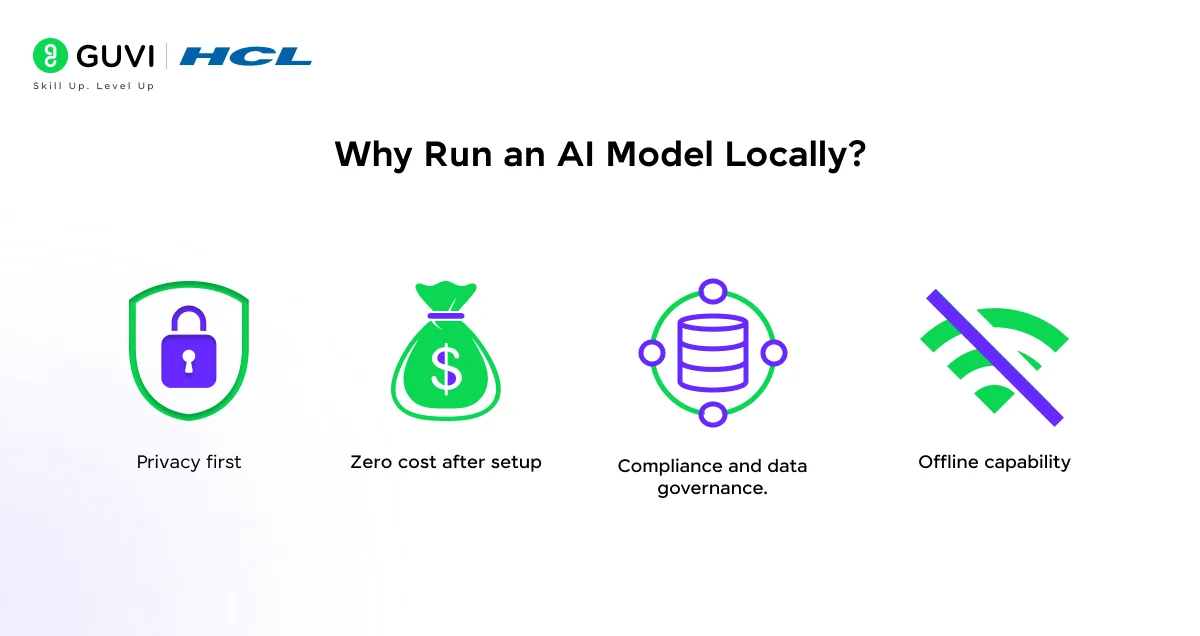
Running a model locally might sound like extra effort, but the benefits are very real, especially if you’re working with sensitive information or want to explore AI without paying for it.
- Privacy first. When you run GPT-OSS locally, all inference happens on your own hardware. There are no external dependencies, no outages, no API changes, and you get complete access to the model’s internal reasoning, not just its final answers.
- Zero cost after setup. You download the model once, and from that point on, you can run as many queries as you want without spending a single rupee or dollar on API calls.
- Compliance and data governance. Organizations can maintain complete control over sensitive information while meeting regulatory requirements, including GDPR, HIPAA, and industry-specific compliance standards. This is especially relevant if you work in healthcare, legal, or finance.
- Offline capability. Once the model is downloaded, you don’t need internet access at all. This is useful for edge device applications, field use cases, or simply working in environments with restricted connectivity.
System Requirements
Before you install anything, check that your machine meets the minimum requirements. This is one step most beginners skip, and it leads to frustrating errors later.
For GPT-OSS-20B (Recommended for beginners)
- RAM: 16 GB minimum (24 GB recommended if you don’t have a dedicated GPU)
- GPU VRAM: 16 GB+ (NVIDIA or AMD discrete GPU preferred)
- Storage: At least 15 GB of free disk space for the model download
- OS: Windows 10/11, macOS (M1 or later), or Linux
For GPT-OSS-120B
- GPU VRAM: 80 GB (NVIDIA H100 or AMD MI300X)
- Storage: ~65 GB free space
- This variant is not practical for home hardware
A Note on Performance
Performance is heavily dependent on memory bandwidth. A graphics card with GDDR7 or GDDR6X memory will far outperform a typical notebook or desktop’s DDR4 or DDR5.
If your machine has less than 16 GB of VRAM, the model can partially offload to system RAM — but responses will be noticeably slower. You can still use it, just expect to wait a bit longer per query.
OpenAI uses MXFP4 quantization on GPT-OSS model weights, a technique that compresses model weights to just 4.25 bits per parameter. This is what allows the 20B model to run on systems with as little as 16 GB of memory, without sacrificing meaningful output quality. Ollama supports this format natively, so you don’t need to do any manual conversion.
What is Ollama and Why Use It?
If you’re new to running AI models locally, Ollama is the best place to start. It’s a free, open-source tool that handles the complexity of running large language models on your own machine, so you don’t have to worry about configurations, model formats, or low-level setup.
Think of it like a package manager for AI models. Instead of downloading raw model weights, writing loading scripts, and managing dependencies manually, you just run two commands and you’re talking to the model.
Here’s what Ollama takes care of for you:
- Downloading and storing the model efficiently
- Setting up a local API server at localhost:11434
- Handling quantization and memory optimization
- Providing a simple chat interface right in your terminal
- Exposing an OpenAI-compatible API so you can plug it into existing code
Ollama applies a chat template out of the box that mimics the OpenAI harmony format, and it exposes a Chat Completions-compatible API, so you can use the OpenAI SDK without changing much.
Installing Ollama on Your Machine
Step 1: Download Ollama
Head to https://ollama.com and download the installer for your operating system.
- Windows: Download and run the .exe installer
- macOS: Download the .dmg file and move it to your Applications folder
- Linux: Run the following one-line install command in your terminal:
curl -fsSL https://ollama.com/install.sh | sh
Step 2: Verify the Installation
Once installed, open your terminal (Command Prompt on Windows, Terminal on macOS/Linux) and run:
ollama --version
If you see a version number printed out, Ollama is installed and ready to go.
Step 3: Start the Ollama Service
On Windows and macOS, Ollama starts automatically in the background after installation. On Linux, you may need to start it manually:
ollama serve
You can leave this running in the background. Ollama will now be listening at http://localhost:11434.
Pulling and Running GPT-OSS
Now for the part you’ve been waiting for. With Ollama installed, getting GPT-OSS-20B onto your machine is just one command.
Step 1: Pull the Model
ollama pull gpt-oss:20b
This will begin downloading approximately 13 GB of model data. The first download does take time, so let it run and come back to it. Once it’s cached locally, you won’t need to download it again.
Step 2: Run the Model
ollama run gpt-oss:20b
That’s it. After you open Ollama, you’ll see a prompt where you can interact with the model directly. You’ll be dropped into an interactive chat session right in your terminal.
Type any message and press Enter. The model will show its reasoning process first (labelled as “thinking”), and then deliver its final response.

Chatting with GPT-OSS in the Terminal
Once you’re inside the Ollama terminal chat, using GPT-OSS feels straightforward. You type, the model responds. But there are a few things worth knowing.
Chain-of-Thought Reasoning
GPT-OSS is a reasoning model. Before giving you an answer, it works through the problem step by step. You’ll see this “thinking” output appear before the final response. This is by design, full chain-of-thought access lets you see the model’s reasoning process, making it easier to debug outputs and build trust in its answers.
Adjusting Reasoning Effort
The models support three reasoning effort levels: low, medium, and high, which trade off latency versus quality. If you want faster responses and don’t need deep reasoning, you can instruct the model to think less:
“Answer this briefly without extensive reasoning: What is machine learning?”
For complex problems like coding challenges or mathematical proofs, let it think fully.
Exiting the Chat
To exit the terminal session, simply type:
/bye
Using GPT-OSS with Python
One of the most useful aspects of running GPT-OSS through Ollama is the OpenAI-compatible API it exposes. This means you can write Python code that talks to your local model using the same syntax you’d use for the OpenAI API, just pointing to a different URL.
Step 1: Install the OpenAI Python Package
pip install openai
Step 2: Write Your First Script
from openai import OpenAI

client = OpenAI(

    base_url="http://localhost:11434/v1",  # Points to local Ollama

    api_key="ollama"                        # Dummy key — not validated locally

)

response = client.chat.completions.create(

    model="gpt-oss:20b",

    messages=[

        {"role": "system", "content": "You are a helpful assistant."},

        {"role": "user", "content": "Explain what machine learning is in simple terms."}

    ]

)

print(response.choices[0].message.content)
Run this file with python your_script.py and you’ll get a response from your locally running GPT-OSS model.
If you’ve used the OpenAI SDK before, this will feel instantly familiar. Alternatively, you can use the Ollama SDKs in Python or JavaScript directly.
Common Errors and Fixes
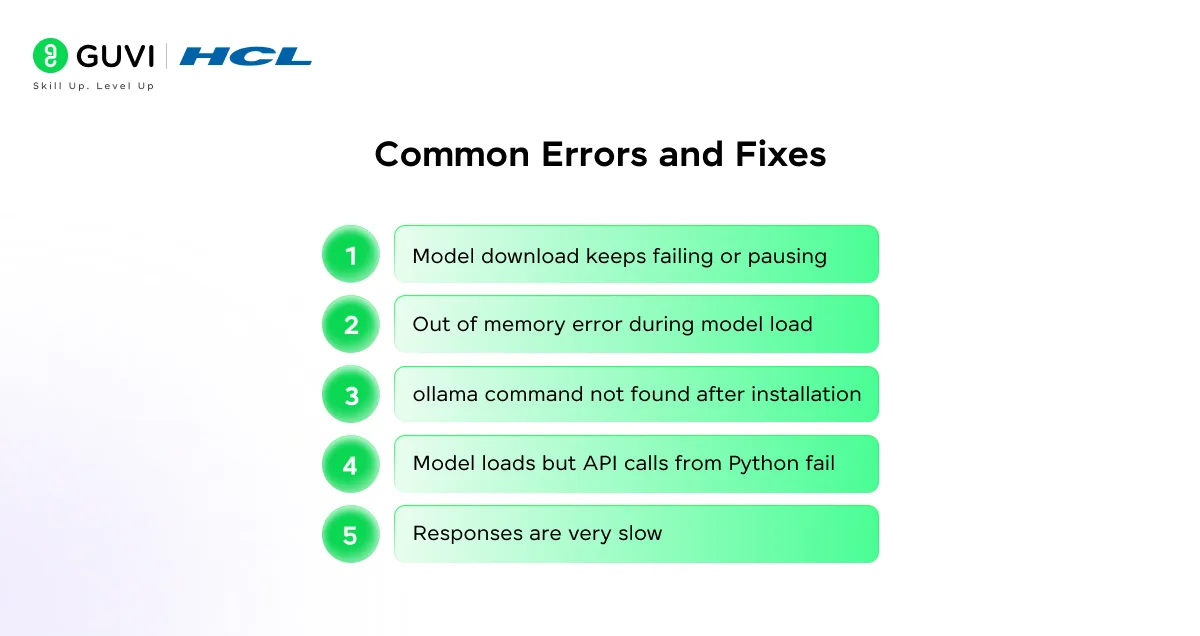
Even with the simplest setup method, a few issues tend to come up. Here’s what to watch out for.
- Model download keeps failing or pausing: This is usually a network issue. Restart the ollama pull command, Ollama resumes downloads from where they stopped. You won’t have to start over.
- Out of memory error during model load: Your system doesn’t have enough free RAM or VRAM to load the model. Close any heavy applications (especially browsers, video editors, or games) before running Ollama. If the issue persists, consider reducing the context length in your requests.
- Responses are very slow: Ollama isn’t always taking full advantage of integrated graphics or NPUs on certain machines. For best performance, make sure your discrete GPU is being used. You can check this by watching GPU utilization in Task Manager (Windows) or Activity Monitor (macOS) while the model is generating.
- ollama command not found after installation: On Linux, try restarting your terminal session or running source ~/.bashrc. On Windows, make sure Ollama is added to your system PATH.
- Model loads but API calls from Python fail: Make sure Ollama is running before you execute your Python script. Run ollama serve in a separate terminal if needed, then run your script.
What Can You Build With GPT-OSS Locally?
Once GPT-OSS is running, the real fun begins. Since the model runs entirely on your hardware, you can integrate it into any application without worrying about cost or data privacy.
Here are some practical directions you can take:
- Private document Q&A: Combine GPT-OSS with a retrieval system to build a chatbot that answers questions from your own documents, entirely offline
- Code assistant: Use it as a local coding helper inside your development environment, without sending your proprietary code to any external server
- Internal knowledge base: Build a private AI assistant for your team that answers questions based on your internal documentation
- Research tool: Ask GPT-OSS to reason through complex topics, with full visibility into its chain-of-thought process
- Fine-tuned specialist: The model is fully fine-tunable, letting you customize it to a specific domain through parameter fine-tuning, useful for creating industry-specific assistants
The Apache 2.0 license means you can use GPT-OSS in commercial products as well, without licensing complications.
If you’re serious about learning tools like GPT-OSS and want to apply them in real-world scenarios, don’t miss the chance to enroll in HCL GUVI’s Intel & IITM Pravartak Certified Artificial Intelligence & Machine Learning Course, co-designed by Intel. It covers Python, Machine Learning, Deep Learning, Generative AI, Agentic AI, and MLOps through live online classes, 20+ industry-grade projects, and 1:1 doubt sessions, with placement support from 1000+ hiring partners.
Conclusion
In conclusion, running GPT-OSS locally is one of the most practical ways to explore what modern AI can do, without subscription fees, without privacy trade-offs, and without an internet connection once it’s set up.
You’ve now covered the full path: understanding what GPT-OSS is, choosing the right variant for your hardware, installing Ollama, pulling the model, chatting in the terminal, and writing Python scripts to integrate it into your own projects.
The open-source AI ecosystem is moving fast, and tools like GPT-OSS are making powerful models more accessible than ever. Getting comfortable with local AI now puts you ahead of the curve, both as a developer and as someone who understands where this technology is going.
FAQs
1. What is GPT-OSS?
GPT-OSS is OpenAI’s first open-weight model release since GPT-2. It comes in two variants, gpt-oss-20b and gpt-oss-120b, and is available for free under the Apache 2.0 license. You can download, run, and even fine-tune it on your own hardware.
2. Is GPT-OSS free to use?
Yes, completely. The Apache 2.0 license allows free personal and commercial use. You only need an internet connection for the initial download; after that, it runs entirely offline.
3. How much storage does GPT-OSS-20B require?
The model download is approximately 13 GB. Make sure you have at least 15 GB of free disk space to account for the download and any additional files Ollama needs.
4. Can I run GPT-OSS without a GPU?
Yes, but it will be significantly slower. Without a discrete GPU, the model runs on your CPU and system RAM. Responses may take several minutes depending on your hardware. A GPU with at least 16 GB of VRAM gives the best experience.
5. Does GPT-OSS work on Mac?
Yes. Ollama supports macOS with M1 or later chips. Apple Silicon’s unified memory architecture makes it one of the better platforms for running the 20B model efficiently.
Success Stories

About the Author
Lukesh S
A professional content writer who has experience in freelancing and now working as a Technical Content Writer at HCL GUVI having sound knowledge in Blog Writing and Creative Writing!
View all posts by Lukesh S
Connect with me @








Did you enjoy this article?