


Javascript Articles
GraphQL with Strawberry Tutorial: Build Your First Python API
gRPC Tutorial: A Beginner's Guide to Building Fast, Modern APIs
Temporal Workflow Engine Tutorial: Build Reliable Workflows
Tauri 2.0 Desktop App Tutorial: Build Your First App Without the Bloat


Get In Touch For Details! Request More Information

Enable JavaScript in Chrome: Quick Setup for All Devices
Sep 19, 2026 5 Min Read 4048 Views
(Last Updated)
JavaScript is the coding language that makes websites interactive — powering everything from buttons and forms to live chat and video playback. If you’ve ever landed on a page that looks broken, blank, or stuck loading, chances are you’ll need to enable JavaScript in Chrome to fix it.
This guide walks you through exactly how to do that — on desktop, Android, iPhone, and iPad — along with how to fix it when it’s still not working, so you’re not left guessing which setting actually matters.
Table of contents
- TL;DR Summary
- What Is JavaScript and Why Does Chrome Use It?
- Is JavaScript Enabled in Chrome by Default?
- Enable JavaScript in Chrome: Quick Steps by Device
- How to Enable JavaScript in Chrome on Desktop (Windows, macOS, Linux)
- How to Enable JavaScript in Chrome on Android
- Why Chrome on iPhone/iPad Doesn't Have a JavaScript Toggle (and How to Enable It via Safari)
- How to Allow or Block JavaScript for Specific Websites in Chrome
- How to Fix JavaScript Not Working in Chrome?
- How to Fix JavaScript Not Working in Chrome
- JavaScript Settings Best Practices in Chrome
- Conclusion
- FAQs
- Is JavaScript already enabled in Chrome by default?
- Why does a website say "Please enable JavaScript" even though it's on?
- How do I know if I need to enable JavaScript in Chrome?
- Can I enable JavaScript in Chrome on iPhone?
- Does disabling JavaScript make Chrome faster?
TL;DR Summary
- JavaScript is already turned on by default in Chrome, so most people never actually need to enable JavaScript in Chrome manually.
- On Windows, macOS, and Linux, the steps to enable JavaScript in Chrome are exactly the same, since it’s Chrome’s own settings page, not the operating system’s.
- On Android, you enable it through Chrome’s own site settings, with a simple toggle switch.
- On iPhone and iPad, there’s no JavaScript switch inside Chrome at all — you have to enable JavaScript in Chrome through Safari’s settings instead, and it applies system-wide.
- If a site still isn’t working after checking these settings, the real issue is usually a blocked site, an extension, or outdated Chrome, not the JavaScript setting itself.
What Is JavaScript and Why Does Chrome Use It?
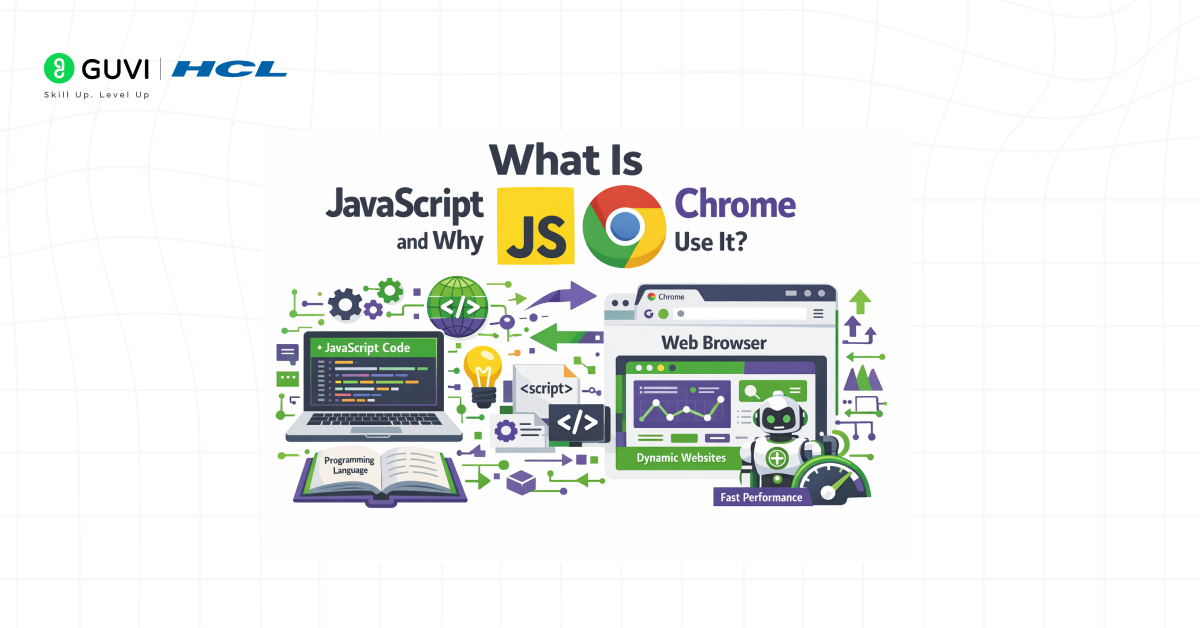
JavaScript is a client-side scripting language that runs directly inside the web browser. It controls how web pages respond to user actions and how content updates without reloading the page. Modern websites depend on JavaScript to handle form validation, interactive menus, dynamic content loading, and real-time data updates.
Google Chrome uses JavaScript because most web standards and application frameworks rely on it for proper rendering and functionality. Chrome includes a high-performance JavaScript engine that executes scripts securely and efficiently within the browser environment.
This execution allows websites to behave as interactive applications rather than static documents. A disabled JavaScript setting often causes broken layouts, inactive buttons, and missing page content.
Is JavaScript Enabled in Chrome by Default?
Yes — in most cases, you don’t need to enable JavaScript in Chrome at all, because it’s already on by default.
- Chrome comes with JavaScript turned on by default — on Windows, macOS, Linux, and Android.
- If a site looks broken, it’s usually not JavaScript being off. It’s more likely a site-specific setting, an extension blocking scripts, or a glitch.
- One common exception: work or school Chrome accounts, where an admin may have turned JavaScript off using policy controls.
- Still, it’s worth double-checking the setting if something isn’t working — just don’t assume it’s disabled by default.
Enable JavaScript in Chrome: Quick Steps by Device
Here’s a quick side-by-side look at how to enable JavaScript in Chrome across different devices:
| Device | Where the Setting Lives | How to Enable It |
|---|---|---|
| Windows | Chrome Settings (not Windows settings) | Settings > Privacy and security > Site settings > JavaScript > “Sites can use JavaScript” |
| macOS | Chrome Settings (not macOS settings) | Same steps as Windows — identical menu since it’s Chrome’s own UI |
| Linux | Chrome Settings (not Linux settings) | Same steps as Windows and macOS |
| Android | Chrome app settings | Settings > Site settings > JavaScript > toggle On |
| iPhone/iPad | iOS Settings app (not Chrome) | Settings > Safari > Advanced > toggle JavaScript on — applies to Chrome too |
How to Enable JavaScript in Chrome on Desktop (Windows, macOS, Linux)
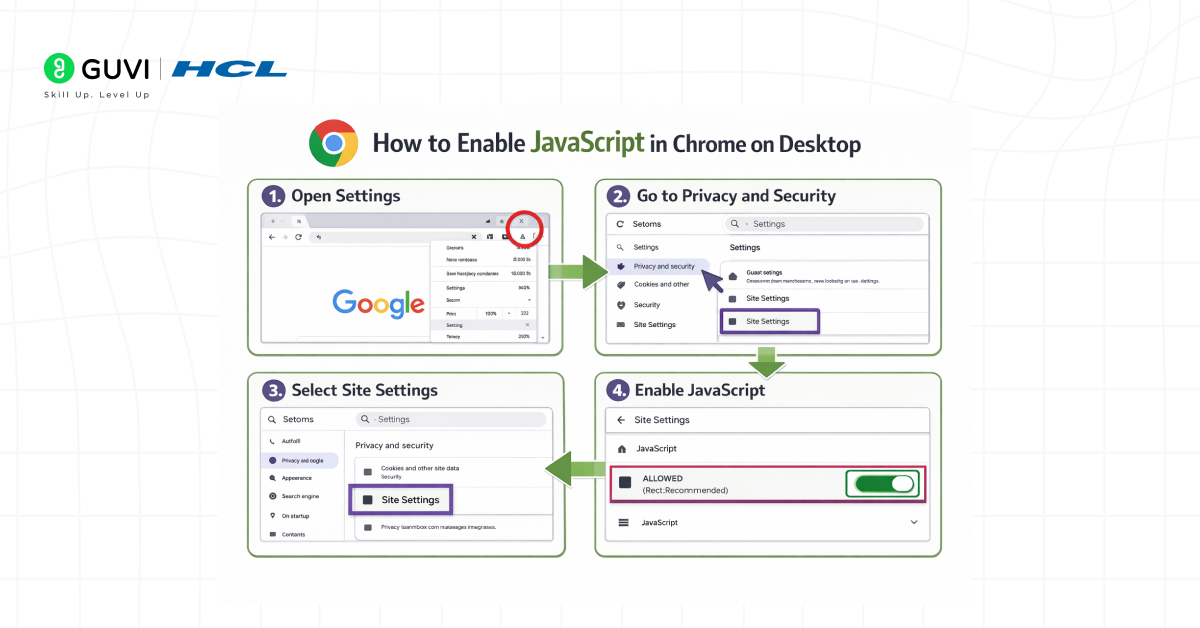
The fastest way to enable JavaScript in Chrome is a simple shortcut — paste this into your address bar and hit Enter:
chrome://settings/content/javascript
This takes you straight to the JavaScript settings page. From there, under Default behavior, just select “Sites can use JavaScript.”
That’s it — this one setting works the same way on Windows, macOS, and Linux, since Chrome’s settings menu is identical across all three.
If you’d rather click through the menu instead:
- Click the three dots (⋮) in the top-right corner and select Settings.
- Click Privacy and security on the left, then click Site Settings.
- Scroll down to the Content section and click JavaScript.
- Under Default behavior, you’ll see two options — select “Sites can use JavaScript” to turn it on. (The other option, “Don’t allow sites to use JavaScript,” is what you’d pick only if you want to disable it.)
Once selected, refresh any page that wasn’t working, and it should load normally.
Note: Since this is a Chrome setting (not an OS setting), the steps above work exactly the same on Windows, macOS, and Linux.
How to Enable JavaScript in Chrome on Android
On Android, the steps are almost identical, just inside the mobile app instead of the desktop menu.
- Open the Chrome app and tap the three dots (⋮) in the top-right corner.
- Tap Settings, then tap Site settings.
- Tap JavaScript.
- Toggle the switch On — it’ll turn blue once it’s active.
Same as desktop, this setting applies globally across all sites unless you’ve blocked JavaScript for a specific website separately.
You just learned how to control JavaScript in your browser — now imagine building the websites that use it. HCL GUVI’s Software and AI Engineer Course teaches you React.js, Node.js, and real backend development, with hands-on projects, mentors from top tech companies, and placement support. Join today and start building for real!
Why Chrome on iPhone/iPad Doesn’t Have a JavaScript Toggle (and How to Enable It via Safari)
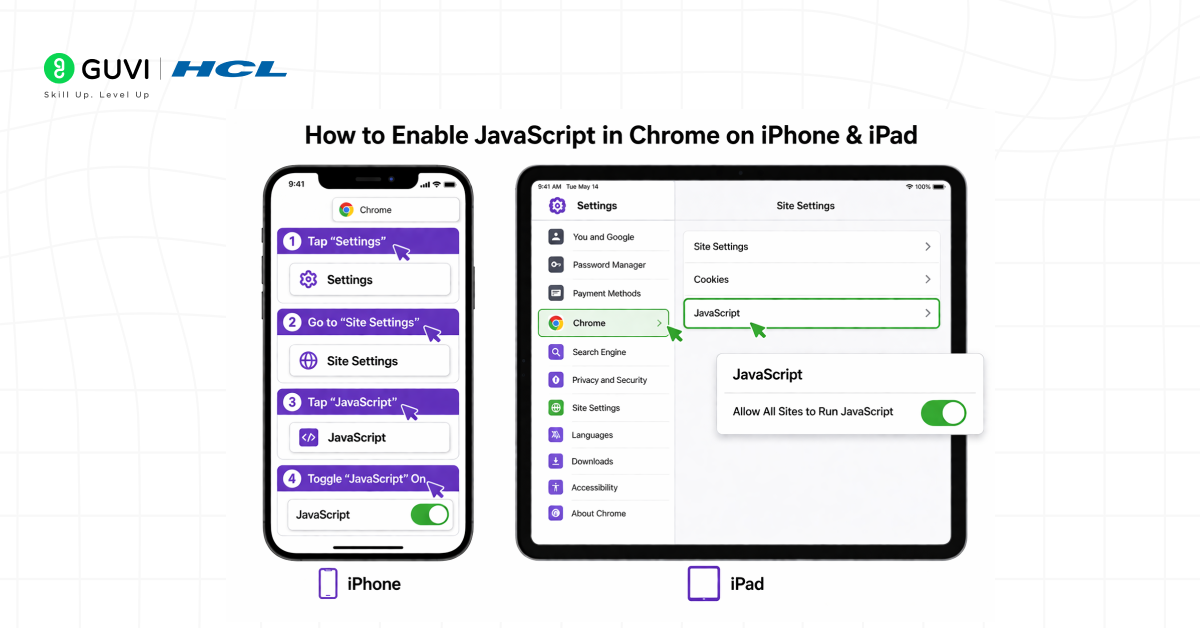
If you’re trying to enable JavaScript in Chrome on your iPhone or iPad and can’t find the setting anywhere — that’s not you missing something. It genuinely doesn’t exist inside the Chrome app on iOS.
Apple requires every browser on iPhone and iPad, including Chrome, Firefox, and Edge, to run on its own WebKit engine instead of their own. So even though you’re using the Chrome app, under the hood it’s technically running on Apple’s engine — the same one Safari uses. That’s why JavaScript is controlled at the system level through Safari, not separately inside each browser app.
The good news: JavaScript is turned on by default on iOS, so most people never need to touch this. But if a site still isn’t working, here’s where the actual control lives:
Using Safari Settings to Enable JavaScript:
- Open the Settings app on your iPhone or iPad (not Chrome).
- Scroll down and tap Safari.
- Tap Advanced at the bottom.
- Toggle JavaScript on.
Once it’s enabled here, it applies across every browser on your device, including Chrome — not just Safari.
Want to understand how JavaScript actually powers interactive websites beyond browser settings? Explore HCL GUVI’s JavaScript Hub to learn core JavaScript concepts, real-world use cases, and how scripts drive modern web functionality.

How to Allow or Block JavaScript for Specific Websites in Chrome
Sometimes you don’t want to enable JavaScript in Chrome for every site — maybe you trust a shopping site but want to keep it off for a random news page. Chrome lets you control this per website, without touching the global setting.
Adding Sites to the Allowed List
- Click the tune icon (sliders) or lock icon on the left side of the address bar.
- Click Site settings.
- Find JavaScript and set it to Allow.
- Reload the page — it should work normally now.
Blocking JavaScript for Selected Websites
Same steps, just flip it the other way — select Block instead of Allow for that specific site. This is useful if a page runs too many scripts and slows down your browser, or if you’re avoiding tracking scripts on a particular site.
Managing Site-Level JavaScript Permissions
If you’ve allowed or blocked several sites and lost track, go to chrome://settings/content/javascript — you’ll see two lists, one for allowed sites and one for blocked ones, and you can edit or remove any of them from there directly.
How to Fix JavaScript Not Working in Chrome?
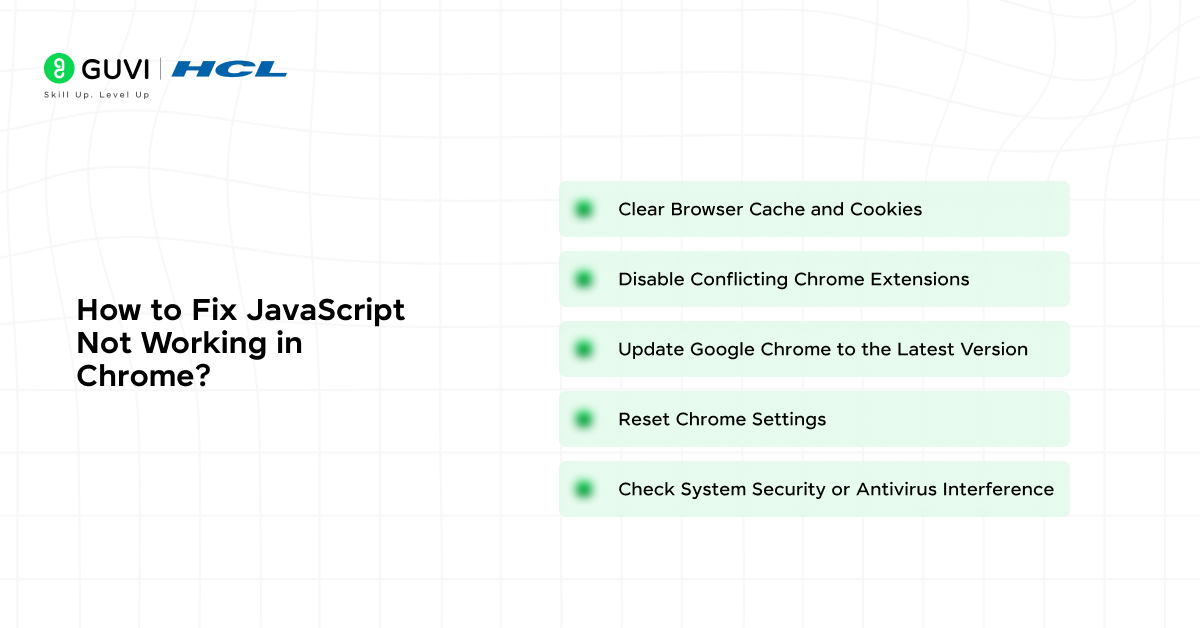
JavaScript issues in Chrome usually originate from stored data conflicts, browser-level restrictions, or external interference. Each step below addresses a common technical cause:
- Clear Browser Cache and Cookies
- Open Chrome Settings and select Privacy and security
- Choose Clear browsing data to access stored data options
- Select Cookies and cached files and confirm the action
- Reload the affected website to apply the changes
Cached files often contain outdated scripts and corrupted site data. These stored elements interfere with proper JavaScript execution.
- Disable Conflicting Chrome Extensions
- Open the Extensions page from the Chrome menu
- Temporarily turn off installed extensions
- Reload the website to check script behavior
- Re-enable extensions one at a time to identify conflicts
Some chrome extensions block scripts, modify page content, or inject code. These actions disrupt JavaScript execution on certain websites.
- Update Google Chrome to the Latest Version
- Open Chrome Settings and select About Chrome
- Check for available updates
- Install the update and relaunch the browser
Outdated browser versions lack support for newer JavaScript features. Updated releases contain performance fixes and security patches.
- Reset Chrome Settings
- Open Chrome Settings and select Reset settings
- Choose Restore settings to their original defaults
- Confirm the reset process
This action removes custom configurations that interfere with JavaScript frameworks. Saved bookmarks and passwords remain unaffected.
- Check System Security or Antivirus Interference
- Review antivirus or firewall browser protection settings
- Disable script-blocking or web filtering features temporarily
- Reload the affected website
How to Fix JavaScript Not Working in Chrome
If you’ve already tried to enable JavaScript in Chrome and a site is still broken, the setting probably isn’t the actual problem. Here’s what to check instead, in order:
- Check if the site is blocked individually — even if JavaScript is on globally, a specific site might be set to Block under site permissions.
- Disable extensions temporarily — ad blockers, privacy tools, and script blockers are one of the most common reasons JavaScript looks disabled when it’s actually not.
- Clear your cache — go to Settings > Privacy and security > Clear browsing data, and clear cached files. Broken caching can make pages behave like scripts aren’t loading.
- Update Chrome — an outdated version can cause scripts to fail silently on newer websites.
- Check for managed browser policy — if you’re on a work or school device, an admin might have disabled JavaScript at the account level, and no setting on your end will override that.
JavaScript Settings Best Practices in Chrome
Once JavaScript is working, a few habits keep things running smoothly without opening you up to unnecessary risk:
- Keep JavaScript on globally unless you have a specific reason to disable it — most modern websites simply won’t function without it.
- Use the per-site block list for pages you don’t fully trust, instead of turning JavaScript off browser-wide.
- Review your extensions periodically — old or unused ones are a common, overlooked reason scripts stop working.
- Keep Chrome updated, since script-related bugs are usually patched quickly in newer releases.
- If you manage a work device, check with your IT admin before assuming a setting issue — policy-level restrictions won’t show up as a normal toggle.
Conclusion
JavaScript runs quietly in the background on almost every site you visit, so most people never have to touch this setting at all. The moment it matters is when a page breaks — and now you know exactly where to check, whether that’s Chrome’s global setting, a single blocked site, or the Safari workaround on iPhone and iPad. Enable JavaScript in Chrome once, and most sites just work from then on.
FAQs
1. Is JavaScript already enabled in Chrome by default?
Yes — most people don’t need to enable JavaScript in Chrome manually, since it’s turned on by default for almost everyone.
2. Why does a website say “Please enable JavaScript” even though it’s on?
It usually means JavaScript is blocked for that specific site, or an extension like an ad blocker is interfering with scripts on that page.
3. How do I know if I need to enable JavaScript in Chrome?
Go to chrome://settings/content/javascript — if “Sites can use JavaScript” is already selected, you don’t need to do anything.
4. Can I enable JavaScript in Chrome on iPhone?
Not directly inside the Chrome app — on iPhone, you enable JavaScript in Chrome through Safari’s settings instead, since it applies system-wide.
5. Does disabling JavaScript make Chrome faster?
A little, but most modern websites won’t work properly without it, so most people are better off leaving it enabled.
Success Stories
















Did you enjoy this article?