


Web Development Articles
How to Use Firebase Firestore for Real-Time Data in Web Apps
Web Designing Roadmap 2026: Best Guide to Become a Successful Web Designer


Get In Touch For Details! Request More Information

Axios in React: Build Better Web Apps!
Feb 12, 2026 6 Min Read 2685 Views
(Last Updated)
Axios holds a significant value while developing React applications and platforms. In recent times, developers have been observed to rely heavily on it to handle API requests.
Before Axios, there was a heavy dependence on the fetch API and basic XMLHttpRequest for making HTTP requests. This resulted in lengthy and repetitive boilerplate code, which involved multiple issues, including manual JSON parsing, complex error handling, and an inconsistent request-response cycle.
But after the introduction of Axios in React, multiple time-consuming tasks were automated and simplified, such as making API calls, handling JSON, managing errors, and dealing with inappropriate API structures.
In this blog, our sole motive is to understand Axios in React along with all its essential aspects. So, let’s get started.
Table of contents
- What is Axios in React and Why It’s Used
- Installing and Setting Up Axios
- Making API Requests (GET, POST, PUT, DELETE)
- GET
- POST
- PUT
- DELETE
- Handling Responses and Errors Using Axios in React
- Handling Responses
- Handling Errors
- Best Practices for Using Axios in React
- Conclusion
- FAQs
- Why use Axios in React?
- Can I use async/await with Axios?
- Axios vs Fetch – which is better?
What is Axios in React and Why It’s Used
Axios is an open-source JavaScript library that was created to make HTTP requests from browsers or any Node.js environment. The basic working principle of Axios in React is to establish a communication pathway between client systems and external APIs or servers, where data requests are sent and responses are received in a structured format. For a better comprehension: Axios is like a bridge that fills the gap between a client (in this case, React applications) and a server.
This powerful and flexible library enables the React app to perform multiple data operations, such as fetching, sending, updating, or deleting. Moreover, Axios in React helps developers handle several HTTP methods, such as GET, POST, PUT, and DELETE, making it an effective option for managing all data operations in an app.
Axios in React smoothens the process of interacting with backend systems by supporting data retrieval in various readable formats, including JSON and URL-encoded forms.
Explore this free resource, your go-to guide for full-stack development: React eBook
Axios in React acts as a pure HTTP client that seamlessly integrates with the modular components and the virtual DOM (Document Object Model) tree. Its major benefit is that it gives developers the authority to perform asynchronous API calls using React hooks like useEffect. Due to this key advantage, developers can execute multiple data operations without even blocking the main user interface (UI) thread.
In addition, the Axios library automates different workflows, such as abstracting the complexity involved in low-level HTTP requests, managing promise-based responses, and serializing payloads. Furthermore, using Axios in React can safeguard your application from potential memory leaks and runtime issues by handling request cancellation through CancelToken or AbortController.
So, to build top-notch web applications, Axios in React becomes extremely necessary as it can effectively maintain a seamless data flow and update the UI according to state changes.
Installing and Setting Up Axios
1. Now comes the installation part. So, to install the Axios library in your React project or system, initially, you are required to install this library via npm. And it’s a simple command that you have to execute in your React project terminal:
(Code)
{
npm install axios
// OR
npm i axios
}
2. After installing Axios in React, you can now implement it in your React code by simply importing it.
(Code)
{
import axios from ‘axios’;
}
3. But to ensure an excellent build quality, your React code also needs to be modular and maintainable. For this reason, creating a separate API utility file (here, it is api.js) is highly recommended, as it will serve as a specific location within your project where you can easily configure the Axios library with default settings like the base URL, headers, and timeouts.
(Code)
{
import axios from ‘axios’;
const api = axios.create({
baseURL: ‘https://api.example.com’,
timeout: 5000,
headers: {
‘Content-Type’: ‘application/json’,
},
});
export default api;
}
Making API Requests (GET, POST, PUT, DELETE)
1. GET
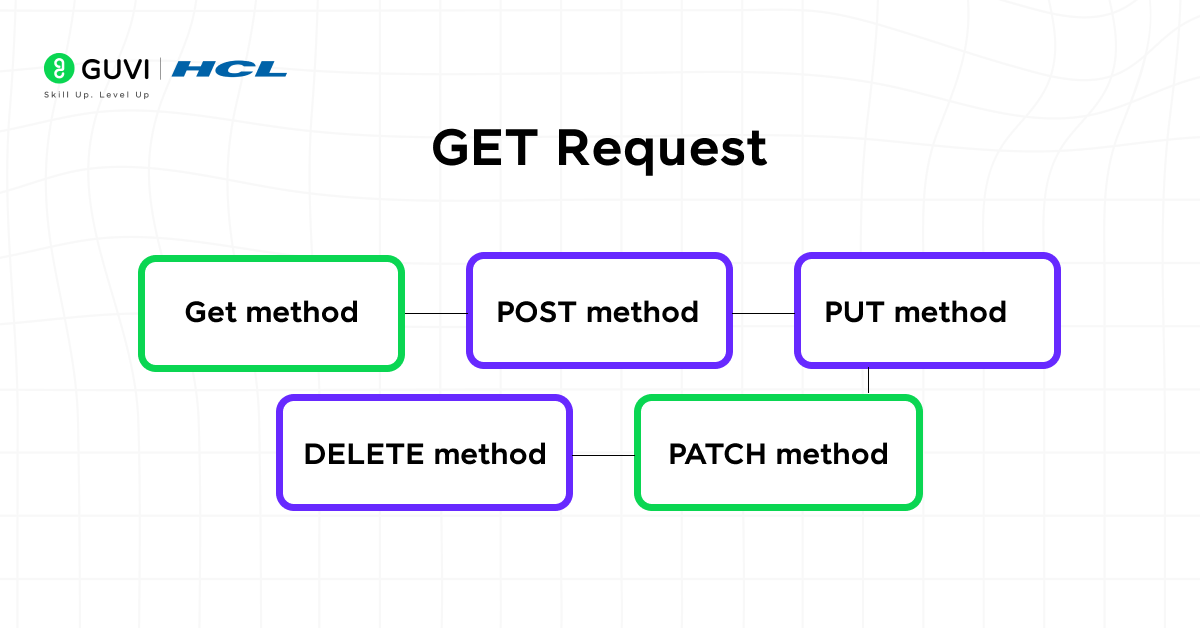
GET requests are sent by the client (React App) to retrieve data from the servers. In this case, Axios in React automatically parses JSON responses, allowing the client to easily use the received data in the React state.
(Code)
{
const fetchTasks = async () => {
try {
const response = await axios.get(‘/tasks’);
console.log(‘All tasks:’, response.data);
} catch (error) {
console.error(‘Error fetching tasks:’, error);
}
};
}
Explanation:
In this React code, the client requests the server to retrieve information about all tasks. If the request is completed successfully, the output is printed as a task list. If it fails due to an error, the catch method captures the error and displays an error message to the client.
NOTE:
We can invoke the fetchTask (async) function during the mounting phase of the component. It is highly recommended to call the function inside the useEffect hook to fetch data when the functional components are rendered.
(Code)
{
import { useEffect } from ‘react’;
useEffect(() => {
fetchTasks(); // call your GET function here
}, []);
}
2. POST

POST requests are made from the client systems to send the new data to the servers. When sending the data in the request body, JSON data or other formats can be included.
(Code)
{
const addTask = async () => {
try {
const response = await axios.post(‘/tasks’, { title: ‘Buy groceries’, completed: false });
console.log(‘Task added:’, response.data);
} catch (error) {
console.error(‘Error adding task:’, error);
}
};
}
Explanation:
The client is sending new task data to the server to build a task with parameters { title: ‘Buy groceries’, completed: false }. So, in this code, the title defines the name of the task, and completed: false indicates that the task has been recently added to the server, which doesn’t mean it has been completed. Whether it is finished or not will be determined by using the PUT method, which we will discuss next.
3. PUT
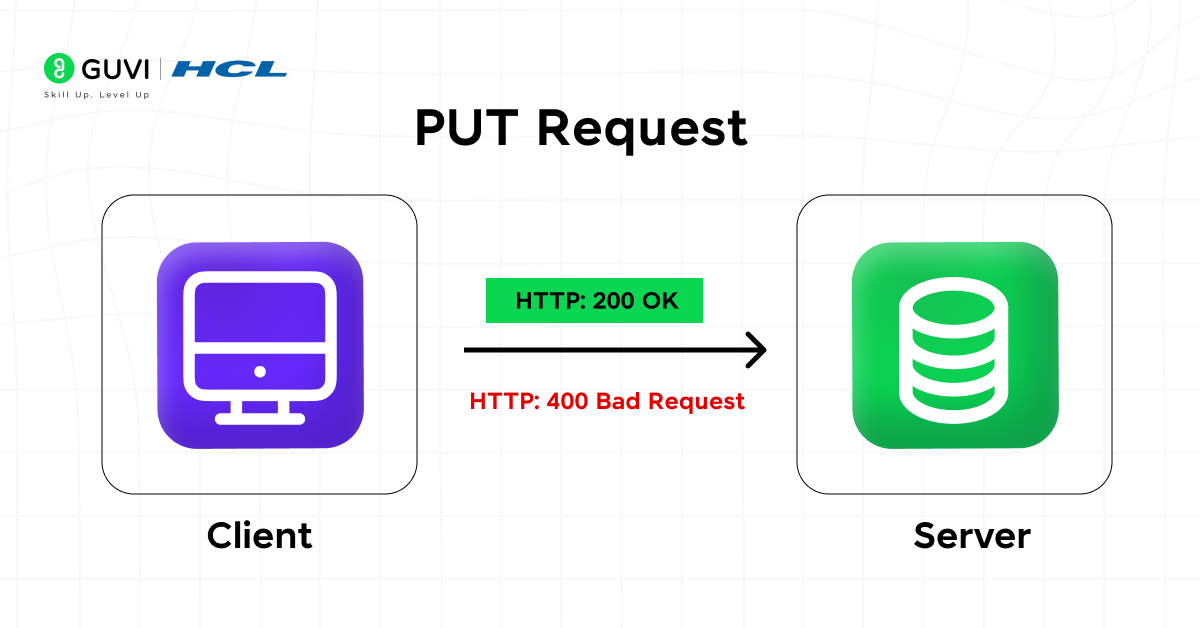
PUT requests are used to update the data that already exists on the server. While sending this request, the client attaches a resource ID (to help the server in identifying the exact item that needs to be modified) and the updated data in JSON or any other format.
(Code)
{
const updateTask = async () => {
try {
const response = await axios.put(‘/tasks/1’, { title: ‘Buy groceries’, completed: true });
console.log(‘Task updated:’, response.data);
} catch (error) {
console.error(‘Error updating task:’, error);
}
};
}
Explanation:
In this example, the React code is updating an existing task (with ID: 1) on the server with the new details. If the new information is updated without any issues, the updated task will be displayed on the screen. If not, the client system will display an error message.
Here, the parameter completed: true is implemented to mark the completion of the task. Additionally, you can also apply conditional logic for checking the status of completion.

4. DELETE

DELETE requests are used to eliminate data from the server, after which the data can’t be accessed from the app anymore. This request is used for deleting specific tasks that are not necessary.
(Code)
{
const deleteTask = async () => {
try {
await axios.delete(‘/tasks/1’);
console.log(‘Task deleted’);
} catch (error) {
console.error(‘Error deleting task:’, error);
}
};
}
Explanation:
In this React code example, the task with ID: 1 is deleted from the server. If the task is removed successfully, it prints the confirmation output; if it fails, it displays the error message.
Here, observe that we are not using any additional parameters, as the task is detected purely by its ID in the URL.
NOTE:
All three (3) HTTP method types — POST, PUT, and DELETE — are invoked only when users trigger the event by interacting with React UI components, such as clicking, focusing, scrolling, submitting, or mouse activities like hovering or entering.
(Code)
{
// POST on form submit
<form onSubmit={addTask}>
<input type=”text” placeholder=”New Task” />
<button type=”submit”>Add Task</button>
</form>
// PUT on button click
<button onClick={updateTask}>Update Task</button>
// DELETE on button click
<button onClick={deleteTask}>Delete Task</button>
}
Handling Responses and Errors Using Axios in React
When using Axios in React, handling responses and errors is crucial to ensure the app behaves correctly and provides feedback to users. Every Axios request returns a promise, which can either resolve with a response or reject with an error.
Handling Responses
Here, async/await works with Promises. You don’t need .then() because await pauses execution until the Promise resolves and gives you the result directly. The returned data from the server is available inside the response object and can be accessed through response.data (property) that can be easily stored inside the React state for updating the UI. [ Here, async stands for asynchronous. ]
(Code)
{
const fetchTasks = async () => {
try {
const response = await axios.get(‘/tasks’);
console.log(‘Tasks fetched:’, response.data);
setTasks(response.data); // update React state
// Response Objects
console.log(‘Status of the response:’, response.status);
console.log(‘Headers of the response:’, response.headers);
} catch (error) {
console.error(‘Error fetching tasks:’, error);
}
};
}
Essential points to note:
Using Response Objects
- response.data → the actual data from the server
- response.status → HTTP status code
- response.headers → any headers returned
Handling Errors
The .catch() method is specifically used to handle errors encountered during HTTP requests, such as incorrect API endpoints, network errors, server errors (status codes 4xx or 5xx), and timeout errors. You can easily display the error message along with the reasons to the users.
(Code)
{
const fetchTasks = async () => {
try {
const response = await axios.get(‘/tasks’);
console.log(‘Tasks fetched:’, response.data);
} catch (error) {
console.error(‘Error fetching tasks:’, error);
alert(‘Failed to load tasks. Please try again.’);
// Error Objects
console.error(‘Server responded with error:’, error.response);
console.error(‘Request sent but no response received:’, error.request);
console.error(‘Reason behind the error:’, error.message);
}
};
}
Essential points to note:
Using Error Objects
- error.response → server response (if request reached server)
- error.request → request made but no response
- error.message → general error message
Best Practices for Using Axios in React
These are the following best practices one should always keep in mind while using Axios in React:
- Use async/await – Makes your Axios code cleaner and easier to understand.
- Handle errors with try…catch – Prevents the app from crashing when requests fail.
- Set a base URL – Use axios.create() to avoid repeating the same API URL.
- Make API calls in useEffect – Ensures requests run only when needed.
- Add loading and error states – Keeps users informed during data fetching.
- Clean up console logs – Remove extra logs before pushing to production.
Axios library is used by over 461,000 live websites, including major platforms like Netflix, GitHub, and Twitter.
In this blog, I hope you have gained a clear perspective on Axios in React and its role in developing React applications. But Axios in React is just a small aspect of building fully functional software projects. If you want to create real-world impact, developing full-stack applications is one of the best ways to do it.
Enroll yourself in HCL GUVI’s ITM Pravartak Certified MERN Full Stack Development Course with AI Integration, where you not only master React but also delve deep into other technologies, such as Git, MongoDB, Express, Node.js, and more. So, don’t wait any further, join us today and take your tech career to the next level.
Conclusion
Axios in React simplifies API requests, handles responses and errors efficiently, and helps maintain clean, manageable code, making it a reliable choice for building dynamic web applications. Developers are advised to organize their Axios calls and error handling properly to ensure smooth and scalable app performance.
FAQs
Why use Axios in React?
Axios simplifies API calls by handling JSON, managing errors, and providing a clean way to send GET, POST, PUT, and DELETE requests.
Can I use async/await with Axios?
Yes, async/await can replace .then() and .catch(), making your code cleaner and easier to read.
Axios vs Fetch – which is better?
Axios has simpler syntax, automatic JSON parsing, and better error handling, while Fetch needs extra setup.
Success Stories







































Did you enjoy this article?