


Artificial Intelligence and Machine Learning Articles
Model Cards and Datasheets: Documenting AI Responsibly
AI Watermarking: Detecting AI-Generated Content


Get In Touch For Details! Request More Information

Pinecone Tutorial: Vector Search for Beginners
Sep 05, 2026 6 Min Read 26 Views
(Last Updated)
Pinecone is a managed vector database designed for fast similarity search over high-dimensional embeddings. It lets you store vectors generated from text, images, or other data and retrieve the most similar items with a single query. This tutorial shows how to set up Pinecone, create an index, upsert vectors, and run your first vector search in Python.
Table of contents
- TL;DR Summary
- What Is Pinecone?
- Why Use a Vector Database?
- Core Concepts: Embeddings, Vectors, and Indexes
- Embeddings
- Vectors
- Indexes
- Step-by-Step: Setting Up Pinecone
- Step 1: Create a Pinecone Account
- Step 2: Install the Python Client
- Step 3: Initialize the Pinecone Client
- Step 4: Create an Index
- Step 5: Connect to the Index
- Generating and Upserting Vectors
- Step 6: Prepare Sample Data
- Step 7: Generate Embeddings
- Step 8: Upsert Vectors into Pinecone
- Querying for Similar Vectors
- Step 9: Embed a Query
- Step 10: Run a Vector Search Query
- Filtering by Metadata
- Building a Simple RAG Example
- Common Mistakes to Avoid
- What Should You Do Next?
- Conclusion
- FAQs
- What is Pinecone used for?
- Do I need to generate embeddings myself?
- How do I choose the index dimension?
- What distance metric should I use?
- Can I filter results by metadata?
TL;DR Summary
- Pinecone is a managed vector database for similarity search.
- You store embeddings (vectors) and optional metadata in an index.
- Queries return the most similar vectors based on distance metrics.
- Setup involves creating an account, index, and using the Python SDK.
- Common use cases include semantic search, recommendations, and RAG.
Direct Answer
Pinecone Vector Search is a service that stores vector embeddings and returns the most similar vectors for a given query vector. You generate embeddings using an embedding model, upsert them into a Pinecone index with optional metadata, and then query the index with a new embedding to find the top-k nearest neighbors. Pinecone handles indexing, scaling, and similarity computation so you can focus on building semantic search, recommendations, or RAG applications.
What Is Pinecone?
Pinecone is a cloud-native vector database built for production-scale similarity search. Instead of storing rows and columns like a traditional database, Pinecone stores high-dimensional vectors and indexes them for fast nearest-neighbor search.
Key characteristics:
- Fully managed and serverless options.
- Optimized for low-latency similarity search.
- Supports metadata filtering alongside vector search.
- Scales automatically with your data and query volume.
- Integrates with popular embedding models and frameworks.
Pinecone is commonly used for:
- Semantic search over documents or products.
- Recommendation systems.
- Retrieval-Augmented Generation (RAG) for LLMs.
- Duplicate detection and clustering.
- Image and multimodal search.
Why Use a Vector Database?
Traditional databases are great for exact matches and structured queries. They are not designed for “find items similar to this one” in high-dimensional space.
Vector databases like Pinecone:
- Index vectors using specialized structures (for example, HNSW).
- Support approximate nearest neighbor search for speed.
- Allow filtering by metadata while searching by similarity.
- Handle large-scale embeddings efficiently.
This makes them ideal for AI applications where meaning, not just keywords, matters.
Pinecone lets beginners build semantic search by storing embeddings in a managed vector index and querying for the most similar results with just a few Python calls. Learn AI & ML with HCL GUVI’s Artificial Intelligence and Machine Learning course.
Core Concepts: Embeddings, Vectors, and Indexes
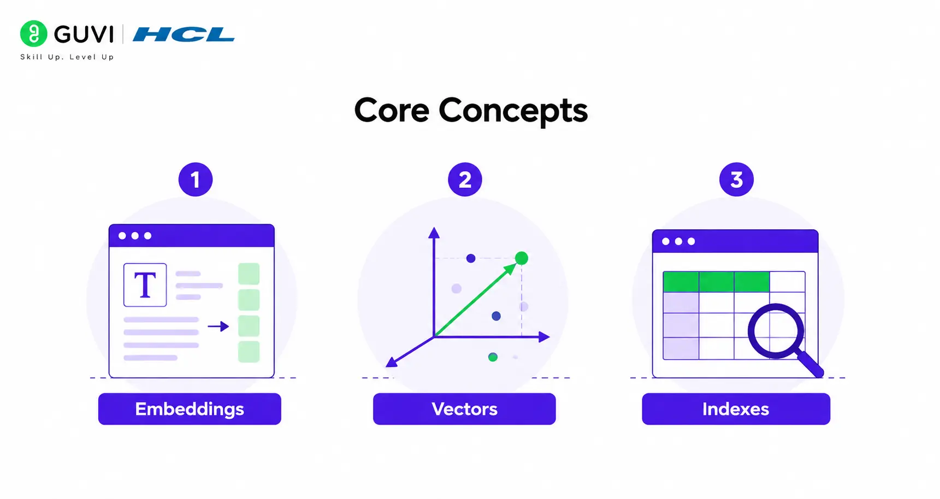
Before using Pinecone, you need to understand three core ideas.
1. Embeddings
An embedding is a numeric representation of data such as text, images, or audio.
- Text like “cat” might become a vector like [0.12, -0.45, 0.78, …].
- Similar meanings produce vectors that are close together in space.
- Embeddings are generated by models such as OpenAI’s text-embedding models, Sentence Transformers, or other encoders.
Pinecone does not generate embeddings by default in all setups; you typically generate them using an external model and then store the vectors in Pinecone. Some newer Pinecone features offer integrated embedding, but the core concept remains: you store vectors that represent your data.
2. Vectors
A vector is simply an array of numbers. In AI, vectors usually have dozens to thousands of dimensions.
- Each dimension captures some latent feature learned by the embedding model.
- Distance between vectors (for example, cosine similarity or Euclidean distance) reflects semantic similarity.
- Pinecone stores these vectors and indexes them for fast search.
3. Indexes
An index in Pinecone is a logical collection of vectors.
- You create an index with a specific dimension (for example, 768 or 1536).
- You choose a distance metric (for example, cosine, euclidean, dotproduct).
- You upsert vectors into the index.
- You query the index to find similar vectors.
An index is similar to a table in a relational database, but optimized for vector similarity instead of row lookups.
Step-by-Step: Setting Up Pinecone
This section walks you through a minimal end-to-end setup using Python.
Step 1: Create a Pinecone Account
- Go to pinecone.io and sign up for a free account.
- Verify your email and log in to the console.
- Navigate to the API Keys section.
- Copy your default API key. You will use it to authenticate the SDK.
The free tier typically includes a small amount of storage and read/write units suitable for development and prototyping.
Step 2: Install the Python Client
In your Python environment, install the Pinecone SDK and an embedding library if needed.
bash
pip install pineconeIf you plan to generate embeddings yourself, you might also install a model library, for example:
bash
pip install sentence-transformersor use an API-based embedding service.
Step 3: Initialize the Pinecone Client
In your Python script or notebook:
python
from pinecone import Pinecone

pc = Pinecone(api_key="YOUR_PINECONE_API_KEY")
Replace YOUR_PINECONE_API_KEY with the key you copied from the console.
Step 4: Create an Index
Create a serverless index with the appropriate dimension for your embeddings.
python
index_name = "my-first-index"

# Check if index already exists

existing_indexes = [idx["name"] for idx in pc.list_indexes()]

if index_name not in existing_indexes:

    pc.create_index(

        name=index_name,

        dimension=768,          # Match your embedding dimension

        metric="cosine",        # or "euclidean", "dotproduct"

        spec={"serverless": {"cloud": "aws", "region": "us-east-1"}}

    )
Adjust:
- dimension to match your embedding model (for example, 768, 1536).
- metric based on your model’s recommended distance.
- cloud and region to your preferred deployment location.
It may take a minute for the index to become ready.
Step 5: Connect to the Index
Once the index is created, connect to it:
python
index = pc.Index(index_name)You will use index to upsert vectors and run queries.
Generating and Upserting Vectors
Now you will generate embeddings for some sample text and store them in Pinecone.
Step 6: Prepare Sample Data
Suppose you have a few documents:
python
documents = [

    {"id": "doc1", "text": "Pinecone is a vector database for similarity search."},

    {"id": "doc2", "text": "Vector search enables semantic search over embeddings."},

    {"id": "doc3", "text": "RAG systems use vector databases to retrieve relevant context."},

]
Each document has:
- A unique id.
- A text field to embed.
- Optionally, additional metadata fields.
Step 7: Generate Embeddings
Use an embedding model to convert text into vectors. Here is an example using Sentence Transformers:
python
from sentence_transformers import SentenceTransformer

model = SentenceTransformer("all-MiniLM-L6-v2")

texts = [doc["text"] for doc in documents]

vectors = model.encode(texts).tolist()
Now vectors is a list of lists, each representing a vector for a document.
Step 8: Upsert Vectors into Pinecone
Combine vectors with IDs and optional metadata, then upsert:
python
vectors_to_upsert = [

    {

        "id": doc["id"],

        "values": vec,

        "metadata": {

            "text": doc["text"],

            # Add more metadata if needed, e.g., "source", "date", "category"

        }

    }

    for doc, vec in zip(documents, vectors)

]

index.upsert(vectors=vectors_to_upsert)
After this step, your vectors are stored and indexed in Pinecone.

Pinecone lets beginners build semantic search by storing embeddings in a managed vector index and querying for the most similar results with just a few Python calls. Learn AI & ML with HCL GUVI’s Artificial Intelligence and Machine Learning course.
Querying for Similar Vectors
Now you can perform vector search.
Step 9: Embed a Query
To search, embed your query text using the same model:
python
query_text = "How does vector search work?"

query_vector = model.encode([query_text]).tolist()[0]
Using the same embedding model is critical for meaningful similarity.
Step 10: Run a Vector Search Query
Query the index for the top-k most similar vectors:
python
response = index.query(

    vector=query_vector,

    top_k=2,

    include_metadata=True

)

for match in response["matches"]:

    print("ID:", match["id"])

    print("Score:", match["score"])

    print("Text:", match["metadata"]["text"])

    print("-" * 40)
Pinecone returns:
- id: the document ID.
- score: similarity score (higher is more similar for cosine/dotproduct).
- metadata: the metadata you stored, including the original text.
This is the core of semantic search: you search by meaning, not by exact keywords.
Filtering by Metadata
Pinecone lets you combine vector similarity with metadata filters.
For example, filter by a category field:
python
response = index.query(

    vector=query_vector,

    top_k=2,

    filter={"category": {"$eq": "tutorials"}},

    include_metadata=True

)
Common filter operators include:
- {“$eq”: value} – equals.
- {“$ne”: value} – not equal.
- {“$gt”: value}, {“$gte”: value} – greater than.
- {“$lt”: value}, {“$lte”: value} – less than.
- {“$in”: [values]} – in a list.
- {“$and”: […]}, {“$or”: […]} – logical combinations.
Metadata filtering is useful for:
- Restricting search to certain users, tenants, or domains.
- Limiting by date, language, or content type.
- Implementing access control alongside semantic search.
Building a Simple RAG Example
Pinecone is often used in Retrieval-Augmented Generation (RAG) pipelines.
A minimal RAG flow:
- User asks a question.
- Embed the question.
- Query Pinecone for top-k relevant documents.
- Pass the retrieved text plus the question to an LLM.
- LLM generates an answer grounded in the retrieved context.
Conceptual code:
python
# 1. User question

question = "What is Pinecone used for?"

# 2. Embed question

query_vector = model.encode([question]).tolist()[0]

# 3. Retrieve context

response = index.query(

    vector=query_vector,

    top_k=3,

    include_metadata=True

)

contexts = [m["metadata"]["text"] for m in response["matches"]]

context_text = "\n\n".join(contexts)

# 4. Build prompt for LLM (pseudo-code)

prompt = f"""

Context:

{context_text}

Question: {question}

Answer based on the context above:

"""

# 5. Send prompt to your LLM API and return the response
This pattern powers many AI assistants, document Q&A systems, and knowledge-base chatbots.
Common Mistakes to Avoid
- Using different embedding models for indexing and querying.
- Choosing an index dimension that does not match your vectors.
- Not setting a unique ID for each vector.
- Ignoring metadata and losing the ability to filter or trace results.
- Using an inappropriate distance metric for your embedding model.
- Expecting exact keyword matching instead of semantic similarity.
- Not monitoring latency, cost, and index size as data grows.
- Storing sensitive data in metadata without proper access controls.
- Treating Pinecone as a general-purpose database instead of a vector index.
- Skipping evaluation of retrieval quality in RAG applications.
Pinecone can return results in milliseconds even over millions of vectors by using approximate nearest neighbor indexes. You can combine vector similarity with metadata filters to build multi-tenant, domain-specific, or access-controlled search systems.
What Should You Do Next?
Use this practical checklist:
- Create a Pinecone account and get your API key.
- Choose an embedding model and note its dimension.
- Create an index with matching dimension and metric.
- Generate embeddings for your initial dataset.
- Upsert vectors with IDs and meaningful metadata.
- Test queries with representative questions or inputs.
- Add metadata filters for tenancy, domain, or access control.
- Integrate Pinecone into a simple RAG or search prototype.
- Evaluate retrieval quality and adjust as needed.
- Monitor usage, latency, and cost as you scale.
Conclusion
Pinecone Vector Search provides a simple, scalable way to build semantic search, recommendations, and RAG applications. By storing embeddings in a Pinecone index and querying with new vectors, you can retrieve the most similar items based on meaning rather than keywords.
With a few lines of Python, you can create an index, upsert vectors with metadata, and run similarity queries. As your application grows, you can add filtering, multi-tenancy, and integration with LLMs to build powerful AI-driven experiences.
FAQs
What is Pinecone used for?
Pinecone is used for vector similarity search, semantic search, recommendations, duplicate detection, and retrieval for RAG applications.
Do I need to generate embeddings myself?
In most setups, yes. You generate embeddings using an embedding model and store the resulting vectors in Pinecone. Some newer Pinecone features offer integrated embedding, but the core pattern remains vector-based.
How do I choose the index dimension?
The index dimension must match the output dimension of your embedding model (for example, 768, 1536). Check your model’s documentation.
What distance metric should I use?
Use the metric recommended by your embedding model (often cosine or dotproduct). The metric must be consistent between indexing and querying.
Can I filter results by metadata?
Yes. Pinecone supports metadata filtering with operators like $eq, $in, $gt, $and, and $or, allowing you to combine semantic search with structured filters.
Success Stories

About the Author
HCL GUVI
This article was selected and published as part of the HCL GUVI AI Blogathon 2026, an initiative designed to encourage students, AI enthusiasts, and aspiring tech writers to simplify complex AI concepts through impactful technical content. The contest recognized high-quality, original, and insightful AI-focused blogs, with selected authors receiving publication opportunities on the HCL GUVI blog platform along with official author credits and recognition.
View all posts by HCL GUVI
Connect with me @













Did you enjoy this article?