


Artificial Intelligence and Machine Learning Articles
Claude for Enterprises: ROI Calculator and Business Case
Deploying Claude on AWS: Architecture and Cost Guide
Claude vs. AI21 Jurassic: Which Is Better for Long-Form Content?


Get In Touch For Details! Request More Information
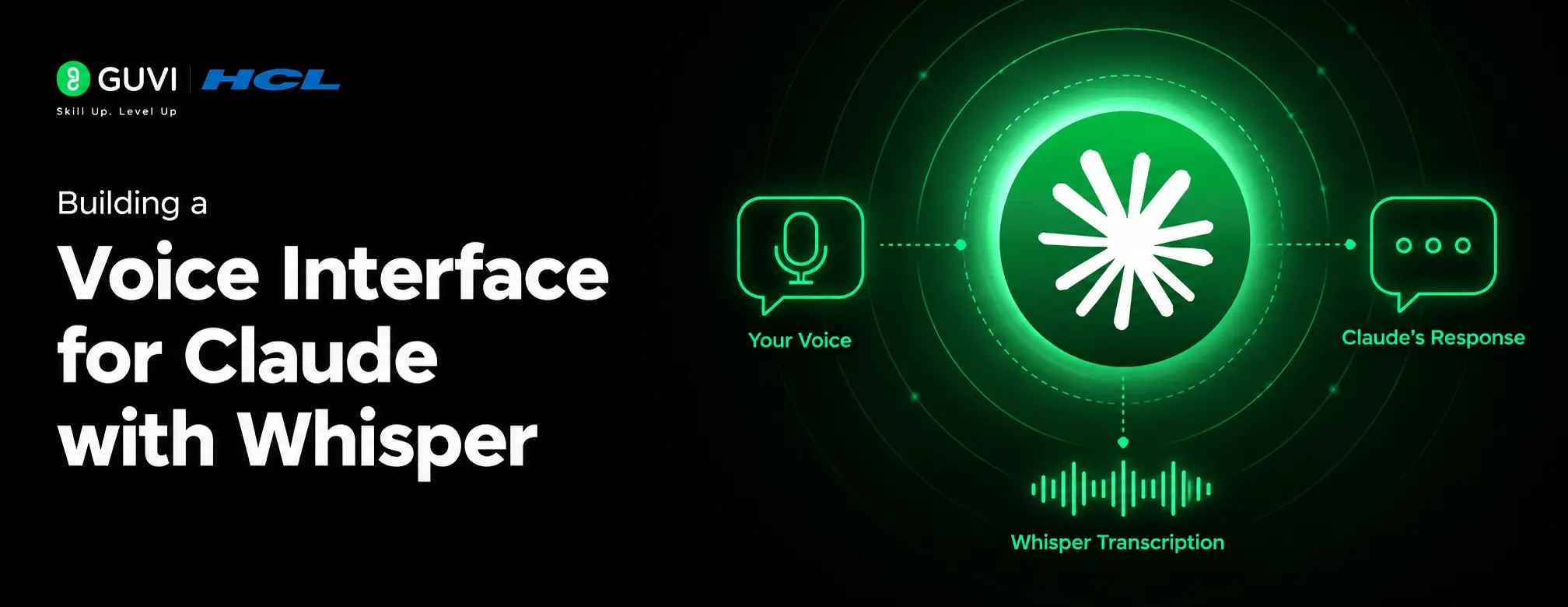
Building a Voice Interface for Claude with Whisper
Aug 10, 2026 3 Min Read 40 Views
(Last Updated)
Building a voice interface for Claude with Whisper does not have a built-in voice mode in all environments, but you can add one by wiring together speech recognition, the Claude API, and text-to-speech. Whisper is a popular choice for the recognition part because it is accurate, widely supported, and can run locally.
Table of contents
- TL;DR Summary Box
- Direct Answer Box
- What This Setup Does to Build a Voice Interface for Claude with Whisper
- Core Components
- Why Use Whisper
- How It Works
- Step 1: Capture Audio
- Step 2: Transcribe With Whisper
- Step 3: Send To Claude
- Step 4: Read The Response
- Local vs Cloud Options
- Local-First Setup
- Cloud-Assisted Setup
- Comparison Table
- Tools And Projects That Help
- Existing Voice Tools
- MCP And Plugins
- Common Use Cases
- Good Scenarios
- Less Ideal Scenarios
- Common Mistakes
- Real-World Example
- What To Do Next
- Conclusion
- FAQs
- What is Whisper used for in this setup?
- Can I run everything locally?
- Do I need to code to build this?
- Is this setup private?
- What hardware do I need?
- Can I use this with Claude Code?
TL;DR Summary Box
- Whisper handles speech recognition locally or in the cloud.
- A small app or script captures audio, transcribes it, and sends text to Claude.
- Claude generates the response, which is then read aloud with TTS.
- You can run the whole pipeline locally for better privacy.
- Existing tools and MCP servers make setup much easier than building from scratch
Direct Answer Box
| You can build a voice interface for Claude by combining Whisper for speech-to-text with a simple app or script that sends the transcript to Claude and reads responses back with text-to-speech. The result is a local or semi-local voice assistant that lets you talk to Claude instead of typing, while keeping most processing on your own machine. |
What This Setup Does to Build a Voice Interface for Claude with Whisper
A voice interface for Claude turns your spoken words into text, sends that text to Claude, and then converts Claude’s reply back into speech. That lets you interact with Claude using your voice instead of typing.
Core Components
The basic pipeline includes:
- Audio capture from your microphone.
- Speech-to-text using Whisper.
- Text sent to Claude via API or CLI.
- Claude’s response captured and cleaned.
- Text-to-speech to read the reply.
Why Use Whisper
Whisper is useful because it supports many languages, runs on common hardware, and can be tuned for speed or accuracy. It also has variants that work well for local setups, which is important if you want privacy.
How It Works
The system works in a loop: listen, transcribe, send to Claude, get a reply, speak it back. Each step can be simple, but the combination creates a conversational experience.
Step 1: Capture Audio
You need a small program or script that records audio from your microphone. A hotkey, a push-to-talk button, or a wake word can trigger this.
Step 2: Transcribe With Whisper
The recorded audio is sent to Whisper for transcription. Whisper outputs plain text that represents what you said.
Step 3: Send To Claude
The transcript is sent to Claude using the API, a CLI tool, or an integration like Claude Code. Claude processes the text like any other prompt.
Step 4: Read The Response
Claude’s text response is cleaned to remove code blocks or tool calls if needed, then passed to a text-to-speech engine. The result is spoken back to you.
Local vs Cloud Options
You can run parts of this pipeline locally or in the cloud, depending on your needs for speed, cost, and privacy.
1. Local-First Setup
A local setup runs Whisper and often the TTS on your own machine. That keeps your voice data off external servers and works well for privacy-focused users.
2. Cloud-Assisted Setup
A cloud setup might use a hosted Whisper API or cloud TTS for better performance or easier installation. That can be faster to set up but means your audio leaves your device.
Comparison Table
| Approach | Privacy | Setup Complexity | Best For |
| Fully local | High | Medium | Privacy-focused users |
| Mixed local + cloud | Medium | Low | Easier setup, decent privacy |
| Mostly cloud | Lower | Lowest | Quick prototypes, less concern about data |

Tools And Projects That Help
You do not need to build everything from scratch. Several projects and MCP servers already implement parts of this workflow.
Existing Voice Tools
There are open-source tools that:
- Integrate Whisper with Claude Code.
- Add push-to-talk or wake-word support.
- Filter tool calls and code blocks from spoken responses.
These can save a lot of time compared to writing your own pipeline.
Whisper can turn spoken words into text, making it easy to add voice input to Claude-powered apps. This lets users interact naturally with Claude by simply speaking instead of typing.
MCP And Plugins
MCP servers and editor plugins can connect Whisper-style transcription directly into Claude environments. That makes it easier to use voice in coding or chat workflows.
Common Use Cases
Voice interfaces are most useful when typing is inconvenient or slow. They fit well in hands-busy or on-the-go situations.
Good Scenarios
Examples include:
- Hands-free coding assistance.
- Talking to Claude while moving around.
- Quick prompts without switching windows.
- Accessibility support for users who prefer voice.
Less Ideal Scenarios
Voice is less ideal when:
- You need very long, precise prompts.
- You are in a noisy environment.
- You need strict privacy but cannot run local models.
- Your workflow depends heavily on seeing code or complex output.
Building a Voice Interface for Claude with Whisper Learn AI & Machine Learning with HCL GUVI: Artificial Intelligence and Machine Learning course
Common Mistakes
The biggest mistake is ignoring privacy and data flow. If you assume everything is local by default, you might accidentally send audio to the cloud.
Avoid:
- Skipping noise handling or push-to-talk controls.
- Not filtering tool calls from spoken output.
- Expecting perfect accuracy without tuning.
- Overlooking latency from transcription and TTS.
⚠️ Warning: If you use cloud-based speech or TTS, your voice and conversation may be processed by external services. Check the privacy policy of each component.
Real-World Example
A developer might set up a hotkey that records their voice, transcribes it with local Whisper, and sends the text to a Claude Code session. Claude’s reply is then read back via a simple TTS tool.
That allows them to ask questions, request code changes, or get explanations without leaving their editor or using the keyboard.
What To Do Next
Decide whether you want a local or cloud-based setup. Then choose an existing voice tool or follow a guide to connect Whisper, Claude, and TTS into a simple pipeline.
Conclusion
Building a voice interface for Claude with Whisper is a practical way to add hands-free interaction. You get the intelligence of Claude with the convenience of voice while keeping control over how much runs locally.
The best results come from using existing tools, being clear about privacy, and tuning the pipeline for your environment.
FAQs
1. What is Whisper used for in this setup?
Whisper is used to convert your spoken words into text that can be sent to Claude
2. Can I run everything locally?
Yes, you can run Whisper and TTS locally and only send text to Claude, though some setups may use cloud services for parts of the pipeline.
3. Do I need to code to build this?
You can use existing tools and plugins to avoid most coding, but deeper customization may require some scripting.
4. Is this setup private?
It can be very private if you run Whisper and TTS locally and only send text to Claude instead of raw audio.
5. What hardware do I need?
A standard computer with a microphone is enough; local Whisper runs better with a decent CPU or GPU for faster transcription.
6. Can I use this with Claude Code?
Yes, several projects specifically integrate voice and Whisper with Claude Code for hands-free coding assistance.
Success Stories

About the Author
HCL GUVI
This article was selected and published as part of the HCL GUVI AI Blogathon 2026, an initiative designed to encourage students, AI enthusiasts, and aspiring tech writers to simplify complex AI concepts through impactful technical content. The contest recognized high-quality, original, and insightful AI-focused blogs, with selected authors receiving publication opportunities on the HCL GUVI blog platform along with official author credits and recognition.
View all posts by HCL GUVI
Connect with me @








Did you enjoy this article?