


Artificial Intelligence and Machine Learning Articles
AI/ML Skills Gap 2026: Why Companies Can't Find Job-Ready Talent
20 AI/ML Interview Questions Recruiters Can Use Without a Tech Background - Best Guide
How Industry-Backed AI/ML Bootcamps Are Changing the AI/ML Hiring Pipeline - Best Guide 2026
From IT Support to AI Engineer: A Realistic Career Switch Guide 2026


Get In Touch For Details! Request More Information
How to Use Claude’s Long Context Window Effectively
Aug 12, 2026 3 Min Read 203 Views
(Last Updated)
Claude’s long context window allows it to process more information in a single conversation. This makes it easier to analyze lengthy documents, summarize reports, review large codebases, and manage complex workflows. Organizing information clearly and writing focused prompts helps improve response quality and maintain context.
Table of contents
- TL;DR
- Direct Answer Box
- Benefits of Claude's Long Context Window
- Process Lengthy Documents
- Analyze Large Codebases
- Maintain Conversation Context
- Summarize Extensive Reports
- Compare Multiple Documents
- Support Complex Reasoning
- Improve Workflow Efficiency
- Reduce Repetitive Prompting
- How to Use Claude's Long Context Window Effectively
- Step 1: Organize Your Information
- Step 2: Provide Clear Instructions
- Step 3: Focus on Relevant Context
- Step 4: Analyze Large Documents
- Step 5: Review Responses Carefully
- Step 6: Refine Prompts Iteratively
- Step 7: Continuously Optimize Long-Context Workflows
- Tasks You Can Automate with Claude's Long Context Window
- Tasks Claude's Long Context Window Should Not Replace
- Best Practices for Using Claude's Long Context Window
- Conclusion
- FAQs
- What is Claude's long context window?
- What are the benefits of Claude's long context window?
- How can I improve Claude's long-context performance?
- Can Claude process multiple documents at once?
- Can Claude review large codebases?
- Does a larger context window guarantee better responses?
- What are the best practices for using Claude's long context window?
TL;DR
- Claude’s long context window lets you process large amounts of information in a single conversation.
- It simplifies document analysis, code reviews, report summarization, and complex workflows.
- Organizing information and writing focused prompts improves response quality.
- Clear context helps Claude retain information across longer interactions.
- Human review remains essential for business-critical decisions.
📚 Data Point: Claude features one of the largest context windows among commercial large language models, enabling developers and businesses to process extensive documents and complex workflows within a single conversation.
Source: Anthropic Documentation
Direct Answer Box
| Claude’s long context window enables users to provide large amounts of information in a single conversation, making it easier to analyze documents, review code, retrieve knowledge, and perform complex reasoning. Organizing content clearly and writing focused prompts helps maximize response quality and maintain context. |
Benefits of Claude’s Long Context Window
A larger context window allows Claude to understand more information at once, reducing the need to split documents or repeat instructions across multiple prompts. This improves efficiency when working with complex or information-heavy tasks.
Process Lengthy Documents
Review reports, research papers, contracts, user manuals, and technical documentation without splitting them into multiple prompts.
Analyze Large Codebases
Understand, troubleshoot, document, and review large software projects more efficiently.
Maintain Conversation Context
Follow lengthy conversations and multi-step workflows without repeatedly providing the same context.
Summarize Extensive Reports
Generate concise summaries from lengthy reports, research papers, and multi-document collections.
Compare Multiple Documents
Compare, summarize, extract information, and identify insights across multiple documents in a single conversation.
Support Complex Reasoning
Handle multi-step reasoning using business requirements, supporting documents, and reference materials.
Improve Workflow Efficiency
Complete information-heavy tasks more efficiently without breaking work into multiple conversations.
Reduce Repetitive Prompting
Reduce the need to repeat instructions or context when working on long documents and ongoing projects.
How to Use Claude’s Long Context Window Effectively
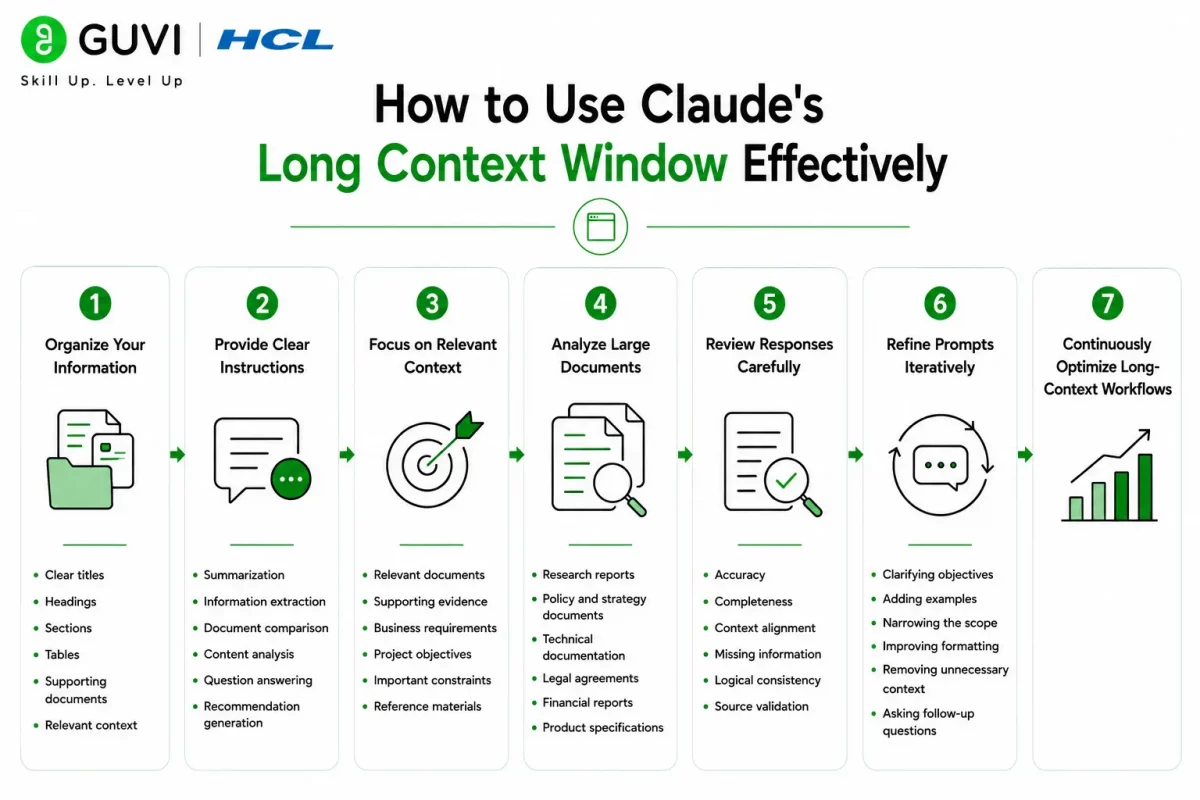
Step 1: Organize Your Information
Before uploading large amounts of information, organize it into logical sections with clear headings. A well-structured prompt helps Claude understand your content more effectively.
Include:
- Clear titles
- Headings
- Sections
- Tables
- Supporting documents
- Relevant context
Step 2: Provide Clear Instructions
Clearly explain what you want Claude to do with the information you provide. Specific instructions produce more accurate and relevant responses.
Claude can assist with:
- Summarization
- Information extraction
- Document comparison
- Content analysis
- Question answering
- Recommendation generation
Step 3: Focus on Relevant Context
Include only the information needed for the task. Removing unnecessary content improves response quality and helps Claude focus on what’s important.
Focus on:
- Relevant documents
- Supporting evidence
- Business requirements
- Project objectives
- Important constraints
- Reference materials
Step 4: Analyze Large Documents
Claude can analyze lengthy reports, research papers, contracts, manuals, and technical documentation within a single conversation.
Common use cases include:
- Research reports
- Policy and strategy documents
- Technical documentation
- Legal agreements
- Financial reports
- Product specifications
Step 5: Review Responses Carefully
Always review Claude’s responses, especially when working with business-critical documents or large datasets. Verify important facts, calculations, and conclusions before acting on them.
Check for:
- Accuracy
- Completeness
- Context alignment
- Missing information
- Logical consistency
- Source validation
Step 6: Refine Prompts Iteratively
Improve response quality by refining prompts based on previous outputs. Small improvements to instructions often produce better results for complex tasks.
Refine prompts by:
- Clarifying objectives
- Adding examples
- Narrowing the scope
- Improving formatting
- Removing unnecessary context
- Asking follow-up questions
Step 7: Continuously Optimize Long-Context Workflows
As your projects evolve, regularly review how you organize information and write prompts. Removing unnecessary context, improving formatting, and updating supporting documents help Claude deliver better results over time. Build advanced prompt engineering and AI skills through HCL GUVI’s Artificial Intelligence and Machine Learning Course.
Claude’s long context window enables it to analyze larger amounts of information within a single conversation. This makes it especially useful for research, software development, knowledge management, and enterprise workflows.

Tasks You Can Automate with Claude’s Long Context Window
Claude can support a wide range of information-intensive tasks.
It can help with:
- Document summarization
- Multi-document comparison
- Research analysis
- Codebase review
- Technical documentation analysis
- Knowledge base search
- Report generation
- Meeting transcript summarization
- Contract review
- Policy analysis
- Requirement extraction
- Long-form content analysis
The HCL GUVI’s Artificial Intelligence eBook is an excellent resource for learning practical Artificial Intelligence concepts, prompt engineering, business automation, and real-world AI applications. It explains how AI improves productivity across research, software development, customer support, and business operations.
Tasks Claude’s Long Context Window Should Not Replace
Claude’s long context window is a powerful productivity tool, but certain responsibilities should remain with human experts.
It should not replace:
- Final business decisions
- Legal reviews
- Medical diagnosis
- Financial approvals
- Regulatory compliance decisions
- Security assessments
- Human quality assurance
- Strategic planning
- Expert judgment
While Claude can analyze large amounts of information and identify patterns, important decisions should always involve human expertise and careful review.
⚠️ Warning: Even with a long context window, Claude may occasionally overlook details or misinterpret information. Always review AI-generated summaries, analyses, and recommendations before using them for business, legal, financial, or other high-impact decisions.
Best Practices for Using Claude’s Long Context Window
Follow these best practices to maximize performance:
- Organize information into clear sections.
- Include only relevant context.
- Write specific and focused prompts.
- Break complex tasks into logical steps.
- Review AI-generated responses carefully.
- Refine prompts based on previous outputs.
- Update supporting documents regularly.
- Validate important information.
- Use Claude to assist, not replace, expert judgment.
Conclusion
Claude’s long context window helps users analyze extensive documents, review large codebases, maintain context across complex conversations, and complete information-heavy tasks more efficiently. By organizing information clearly, writing focused prompts, and reviewing AI-generated outputs, users can maximize its capabilities while maintaining human oversight for important decisions.
FAQs
1. What is Claude’s long context window?
Claude’s long context window allows it to process large amounts of information within a single conversation, making it easier to analyze lengthy documents, codebases, reports, and other information-heavy content.
2. What are the benefits of Claude’s long context window?
It helps users analyze large documents, maintain context across conversations, summarize extensive content, compare multiple documents, and complete complex tasks more efficiently.
3. How can I improve Claude’s long-context performance?
Organize information clearly, include only relevant context, write focused prompts, refine instructions based on previous responses, and review outputs for accuracy.
4. Can Claude process multiple documents at once?
Yes. Claude can compare, summarize, and analyze multiple documents within its supported context window.
5. Can Claude review large codebases?
Yes. Claude can review, understand, troubleshoot, and explain large codebases when sufficient context is provided.
6. Does a larger context window guarantee better responses?
No. Response quality still depends on how well the information is organized and how clearly the prompt is written.
7. What are the best practices for using Claude’s long context window?
Organize content into clear sections, include relevant context, write focused prompts, review responses carefully, refine prompts regularly, validate important information, and use Claude to support—not replace—human expertise.
Success Stories

About the Author
Vishalini Devarajan
An Aerospace Engineer turned content writer, I focus on making complex concepts easy to understand through well-structured, reader-friendly blogs. Whether it’s a technical topic or a non-technical one, I love creating content that is clear, engaging, and impactful.
View all posts by Vishalini Devarajan
Connect with me @









Did you enjoy this article?