


Python Articles
Go vs Python for Forward Deployed Engineering Workloads
Python for Forward Deployed Engineers: What You Actually Need to Know
Freelancing as a Python Developer: Getting Your First Client


Get In Touch For Details! Request More Information
How to Install Python on Linux: A Complete Guide
Jun 16, 2026 4 Min Read 1242 Views
(Last Updated)
Imagine you want to learn programming or build applications, and everyone tells you to use Python because it is beginner-friendly. You download Python and realize you need to install it on your computer. If you use Linux, the process is straightforward but might seem confusing if you have never done it before.
Installing Python in Linux is one of the most common tasks for developers and students. Linux comes with Python pre-installed in most cases, but you might want the latest version or need multiple Python versions for different projects. Learning how to install Python in Linux is essential whether you are a beginner or an experienced developer.
If you are using Linux, learning to code, or setting up a development environment, this guide walks you through everything you need to know about how to install Python in Linux.
Table of contents
- Quick TL;DR Summary
- Why Install Python in Linux?
- Check if Python Is Already Installed
- Installing Python in Linux
- Method 1: Using apt (Ubuntu and Debian)
- Method 2: Using yum (CentOS and RHEL)
- Method 3: Using pacman (Arch Linux)
- Method 4: Installing from source
- Installing pip (Package Manager)
- Managing Multiple Python Versions
- Creating Virtual Environments
- Verifying Your Installation
- Conclusion
- FAQs
- Which Python version should I install?
- Why do I get "python: command not found"?
- Can I have Python 2 and Python 3 together?
- What is the difference between apt and pip?
- Do I need virtual environments?
Quick TL;DR Summary
- This guide explains how to install Python in Linux through multiple methods including using package managers, installing from source, and managing multiple Python versions.
- You will learn the differences between Python 2 and Python 3, why you should use Python 3, and how to check which version you already have installed.
- Step-by-step instructions show you how to use package managers like apt (Ubuntu/Debian), yum (CentOS/RHEL), and pacman (Arch Linux) to install Python with single commands.
- You will understand how to verify your installation, set up pip (Python package manager), create virtual environments, and manage multiple Python versions using tools like pyenv.
- Practical troubleshooting tips help you solve common installation problems and get your Python development environment working correctly.
How to Install Python in Linux
Installing Python in Linux is the process of downloading, configuring, and setting up the Python programming language on a Linux operating system. Most Linux distributions include Python by default, but users can install or upgrade it using package managers such as apt, dnf, or yum, compile it from source code, or manage multiple Python versions using tools like pyenv. Proper installation ensures that Python, its package manager (pip), and related development tools are available for building and running Python applications.
Why Install Python in Linux?
- Most Linux distributions come with Python
Many Linux systems come with Python 2 or Python 3 pre-installed. However, you might want the latest version, a specific version for compatibility, or multiple versions for different projects.
- Python 2 is outdated
Python 2 reached end-of-life in 2020. Most projects and learning materials use Python 3. Even if your system has Python installed, it might be an old version you should update.
- Development requires specific versions
Different projects need different Python versions. Installing multiple versions lets you switch between them based on project requirements.
- Linux development environment
Linux is the preferred operating system for developers and server environments. Learning how to install Python in Linux sets you up for professional development work.
Python and Linux form one of the most widely used technology combinations in the world. Many large-scale internet services rely heavily on Linux-based infrastructure and use Python for automation, backend services, data processing, machine learning, and DevOps workflows. Companies such as Google, Netflix, Instagram, and Spotify have all used Python extensively within their technology stacks. Because of this, learning how to install and manage Python on Linux is more than a beginner exercise—it introduces the same foundational skills that software engineers, data scientists, and system administrators use when working with production servers and cloud environments.
Check if Python Is Already Installed
- Opening the terminal
First, open your Linux terminal. You can usually do this by pressing Ctrl + Alt + T or searching for “Terminal” in your application menu.
- Checking Python version
Type this command to check if Python 3 is installed:
python3 –version
If Python is installed, you see the version number like “Python 3.10.12”. If you get “command not found”, Python 3 is not installed.
- Checking for Python 2
Type this to check for Python 2:
python2 –version
Note: Python 2 is outdated. If you have only Python 2, you should install Python 3.
- Checking pip version
Pip is Python’s package manager. Check if pip is installed:
pip3 –version
If pip is not installed, you will need to install it along with Python.
Read More: Understand Python and set up Python Development Environment
Installing Python in Linux
Method 1: Using apt (Ubuntu and Debian)
This is the easiest method for Ubuntu and Debian-based distributions.
Step 1: Update package manager
sudo apt update
This downloads the latest package information.
Step 2: Install Python 3
sudo apt install python3
Step 3: Verify installation
python3 –version
Method 2: Using yum (CentOS and RHEL)
For CentOS, RHEL, and Red Hat based systems.
Step 1: Install Python 3
sudo yum install python3
Step 2: Verify installation
python3 –version
Method 3: Using pacman (Arch Linux)
For Arch Linux and Arch-based distributions.
Step 1: Install Python 3
sudo pacman -S python
Step 2: Verify installation
python –version
Note: Arch Linux calls it “python” instead of “python3”.
Method 4: Installing from source
For the absolute latest Python version or custom installation.
Step 1: Download Python source
cd /tmp
wget https://www.python.org/ftp/python/3.12.0/Python-3.12.0.tgz
Replace 3.12.0 with the version you want.
Step 2: Extract the archive
tar -xzf Python-3.12.0.tgz
cd Python-3.12.0
Step 3: Configure and install
./configure –prefix=$HOME/python-3.12
make
make install
Step 4: Add to PATH
export PATH=$HOME/python-3.12/bin:$PATH
Python is one of the most important tools in modern Linux system administration and DevOps. System administrators use Python scripts to automate repetitive tasks such as server provisioning, log analysis, backup management, performance monitoring, and cloud infrastructure deployment. Because many web servers, cloud platforms, and enterprise systems run on Linux, Python has become a key language for managing the technology that powers much of the internet. In fact, many DevOps engineers spend a significant portion of their time writing Python code to automate workflows, reduce manual effort, and improve the reliability of large-scale systems.

Installing pip (Package Manager)
- What is pip?
Pip is Python’s package manager. It lets you install libraries and tools for your Python projects. Most Python installations include pip, but you might need to install it separately.
- Installing pip for Python 3
sudo apt install python3-pip
For other distributions, replace “apt” with your package manager.
- Verifying pip installation
pip3 –version
- Using pip to install packages
Once pip is installed, you can install Python packages:
pip3 install package_name
For example, to install a web framework:
pip3 install flask
Managing Multiple Python Versions
- Installing multiple Python versions
You can have multiple Python versions installed simultaneously.
sudo apt install python3.9 python3.10 python3.11 python3.12
Check which versions are installed:
python3.9 –version
python3.10 –version
python3.11 –version
python3.12 –version
- Using update-alternatives for default version
Make one version the default:
sudo update-alternatives –install /usr/bin/python3 python3 /usr/bin/python3.9 1
sudo update-alternatives –install /usr/bin/python3 python3 /usr/bin/python3.10 2
Switch between versions:
sudo update-alternatives –config python3
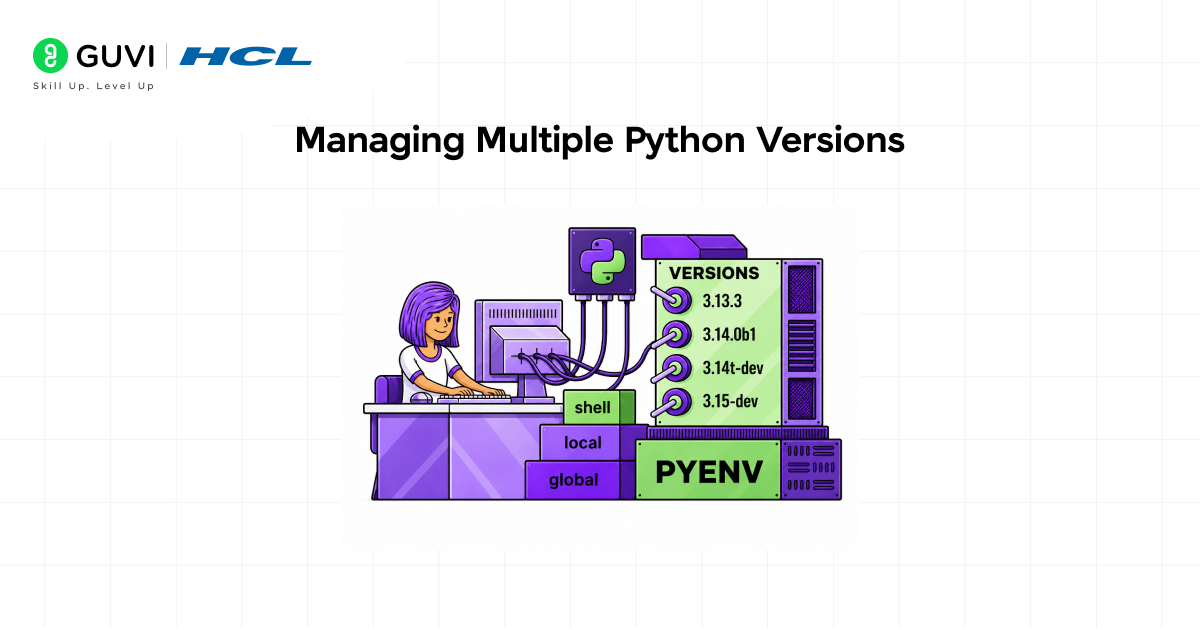
- Using pyenv for version management
Pyenv is a tool that makes managing multiple Python versions easy.
Install pyenv:
curl https://pyenv.run | bash
Install a specific Python version:
pyenv install 3.11.0
Set a version as default:
pyenv global 3.11.0
Switch versions per project:
cd my_project
pyenv local 3.9.0
Creating Virtual Environments
- What is a virtual environment?
A virtual environment is an isolated Python installation for a specific project. It lets different projects use different Python versions and package versions without conflicts.
- Creating a virtual environment
python3 -m venv my_project_env
This creates a folder called “my_project_env” with an isolated Python setup.
- Activating a virtual environment
source my_project_env/bin/activate
Your terminal prompt changes to show the environment is active.
- Installing packages in virtual environment
With the virtual environment activated:
pip install package_name
Packages install only in this environment, not globally.
- Deactivating virtual environment
deactivate
Your terminal returns to normal mode.
Verifying Your Installation
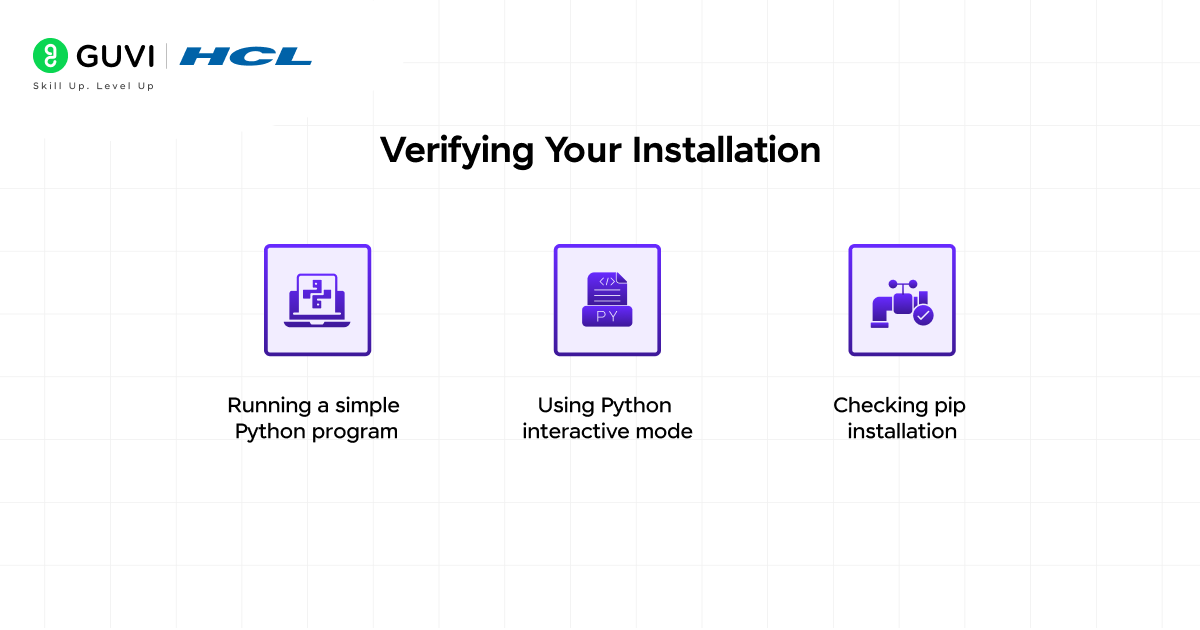
- Running a simple Python program
Create a file called “hello.py”:
nano hello.py
Type this code:
print(“Hello, Python!”)
Press Ctrl + X, then Y, then Enter to save.
Run the program:
python3 hello.py
You should see “Hello, Python!” printed.
- Using Python interactive mode
Type this to enter interactive Python mode:
python3
Try commands:
>>> print(“Testing Python”)
>>> 5 + 3
>>> exit()
Press Ctrl + D or type exit() to exit.
- Checking pip installation
Verify pip works:
pip3 list
This shows all installed packages.
To learn more on Python programming, enroll in this HCL GUVI’s Python course designed for beginners and aspiring developers. Gain hands-on experience, strengthen your problem-solving abilities, and build industry-ready Python programming skills that real employers demand while working on practical projects and earning an industry-recognized certification.
Conclusion
Installing Python in Linux is straightforward once you understand the process. Most distributions provide Python through package managers, making installation a single command away.
The easiest method is using your distribution’s package manager (apt, yum, or pacman). For latest versions or specific needs, install from source using pyenv.
Always create virtual environments for projects to avoid package conflicts. This is a best practice that will save you debugging time later.
Verify your installation by running simple Python programs and checking versions. Once Python is installed and working, you can start learning programming or develop applications.
FAQs
1. Which Python version should I install?
Install Python 3, preferably the latest stable version. Python 2 is outdated and no longer supported. Most learning materials and projects use Python 3.
2. Why do I get “python: command not found”?
Python might not be in your PATH, or it is not installed. Try “python3” instead of “python”. If that does not work, install Python using your package manager.
3. Can I have Python 2 and Python 3 together?
Yes, you can install both. Use “python2” for Python 2 and “python3” for Python 3. However, Python 2 is outdated, so focus on Python 3.
4. What is the difference between apt and pip?
apt is your Linux distribution’s package manager for system software. pip is Python’s package manager for Python packages and libraries. Use apt to install Python itself, use pip to install Python packages.
5. Do I need virtual environments?
Virtual environments are strongly recommended. They keep projects isolated, preventing package conflicts. Start using them from the beginning.
Success Stories

About the Author
Vishalini Devarajan
An Aerospace Engineer turned content writer, I focus on making complex concepts easy to understand through well-structured, reader-friendly blogs. Whether it’s a technical topic or a non-technical one, I love creating content that is clear, engaging, and impactful.
View all posts by Vishalini Devarajan
Connect with me @









Did you enjoy this article?