


Artificial Intelligence and Machine Learning Articles
AI/ML Skills Gap 2026: Why Companies Can't Find Job-Ready Talent
20 AI/ML Interview Questions Recruiters Can Use Without a Tech Background - Best Guide
How Industry-Backed AI/ML Bootcamps Are Changing the AI/ML Hiring Pipeline - Best Guide 2026
From IT Support to AI Engineer: A Realistic Career Switch Guide 2026


Get In Touch For Details! Request More Information

Claude Function Connector: An Ultimate Guide [2026]
Jun 11, 2026 5 Min Read 643 Views
(Last Updated)
If you have spent any time using Claude, you already know it is a powerful AI assistant. But did you know Claude can do much more than answer questions and write text? With the Function Connector, Claude can actually take actions, fetch real data, and connect to tools and services outside of its basic knowledge.
This guide breaks down what the Function Connector is, how it works, and why it matters for anyone who wants to get the most out of Claude.
Quick TL;DR Summary
- This guide explains what the Function Connector is and how it allows Claude to go beyond its built-in knowledge by connecting to real-world tools and live data.
- You will learn how Claude automatically decides when to use a function and which one to call, without you needing to do anything technical.
- The guide covers the main types of functions available, including search, weather, maps, sports data, file creation, and code execution.
- Real-world examples show you exactly how the Function Connector works in everyday situations like trip planning, following sports, and getting work done.
- Practical tips help you phrase your requests in ways that get the most out of Claude’s function calling abilities.
- You will also understand the current limitations so you can set the right expectations and use Claude more effectively.
Table of contents
- What Is the Function Connector?
- Why Does This Matter?
- How Does It Work?
- Step 1: You ask a question
- Step 2: Claude decides a function is needed
- Step 3: Claude calls the right function
- Step 4: The function returns data
- Step 5: Claude gives you a complete answer
- Types of Functions Claude Can Use
- Real World Examples
- Example 1: Planning a Trip
- Example 2: Staying Up to Date
- Example 3: Getting Work Done
- Example 4: Following Sports
- Pros and Cons of Using the Function Connector
- Pros
- Cons
- What Makes the Function Connector Different From Regular Claude?
- Do You Need to Set Anything Up?
- Tips for Getting the Best Results
- Limitations to Keep in Mind
- Conclusion
- FAQs
- Do I need any coding knowledge to use the Function Connector in Claude?
- Will Claude always tell me when it is using a function?
- Can Claude use multiple functions at the same time?
- Are all functions available to every Claude user?
- What should I do if Claude does not use a function when I think it should?
What Is the Function Connector?
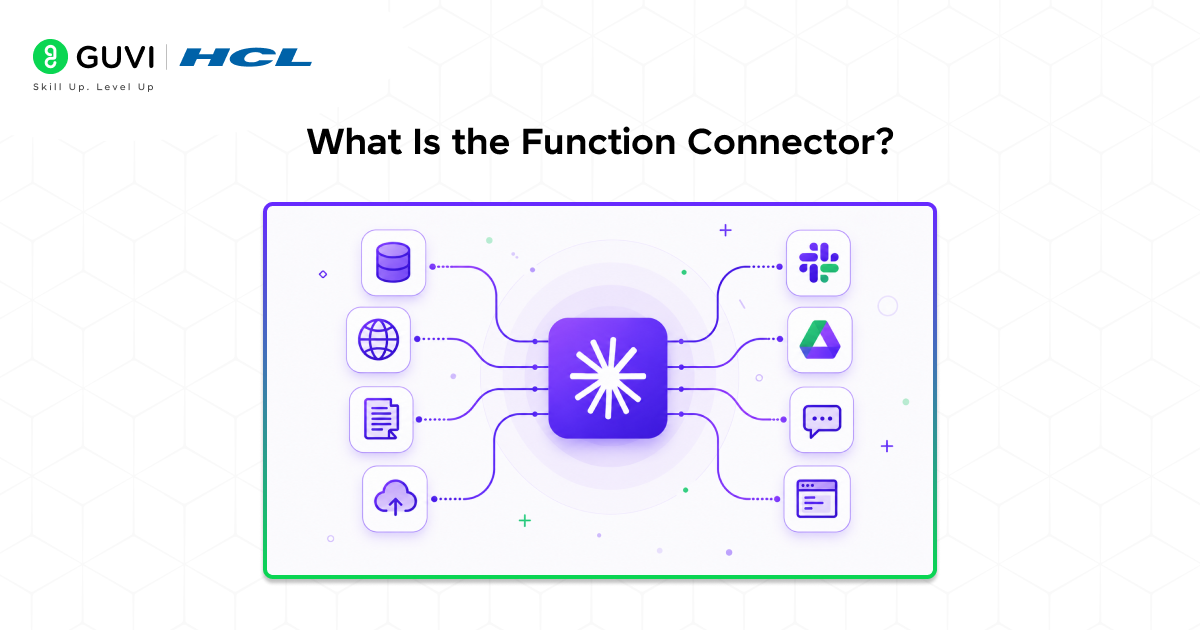
The Function Connector is a feature that allows Claude to use external tools during a conversation. Instead of only relying on what it already knows, Claude can call a function, get back real information, and use that to give you a better, more accurate answer.
Think of it this way. Imagine asking a very smart friend a question. Normally, they answer from memory. But with the Function Connector, your friend can pick up a phone, call an expert, get the latest information, and then answer you. That is essentially what Claude is doing.
Some common examples of what Claude can do using functions include checking live weather, searching the web for current news, looking up sports scores, finding places on a map, and running calculations or code.
Why Does This Matter?
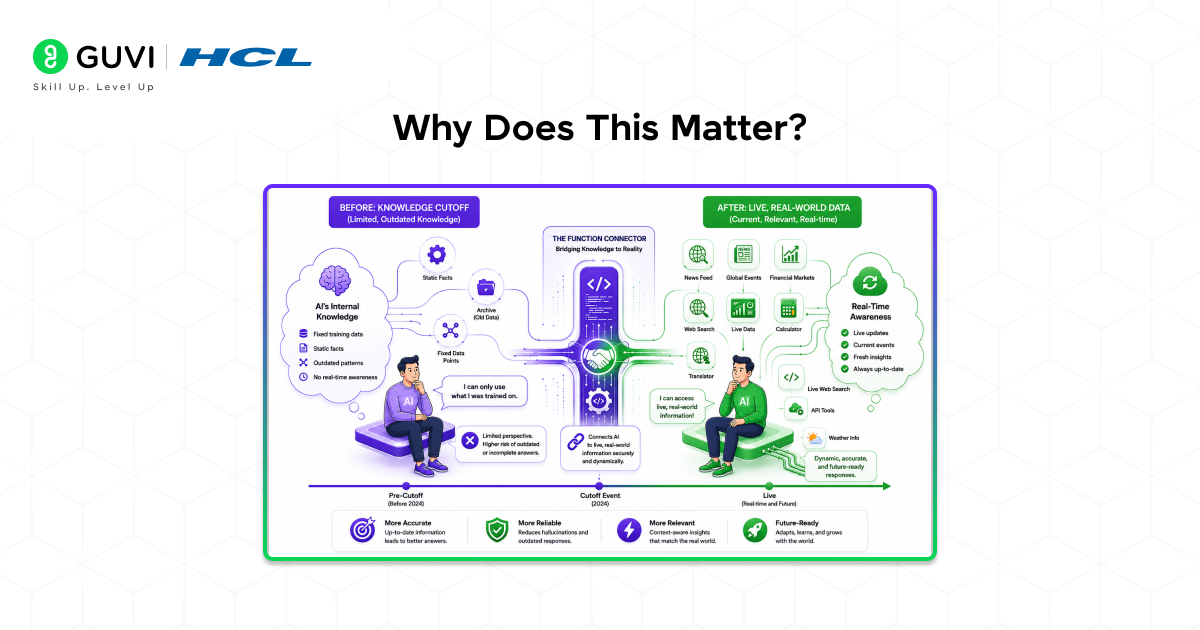
Claude’s built in knowledge has a cutoff date. That means anything that happened recently might not be something Claude knows about from training alone. The Function Connector solves this problem by letting Claude reach out and grab fresh, real time data when needed.
This is especially useful when you need answers that are accurate right now, not just answers based on older information.
Read More: What’s New in Claude: Turning Claude into Your Thinking Partner
How Does It Work?
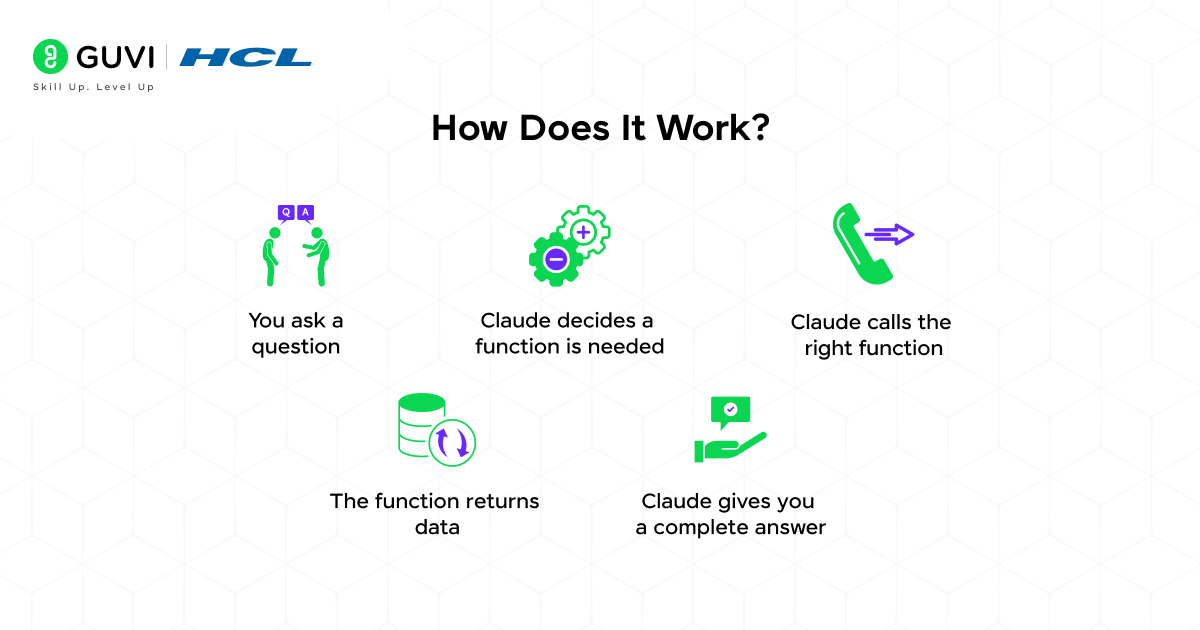
Here is the simple version of what happens behind the scenes when Claude uses a function.
Step 1: You ask a question
You type something like “What is the weather in Chennai today?”
Step 2: Claude decides a function is needed
Claude recognizes that this question needs live data, not just a general answer from its training.
Step 3: Claude calls the right function
Claude triggers the weather function with your location as the input.
Step 4: The function returns data
The weather tool fetches the current temperature, conditions, and forecast.
Step 5: Claude gives you a complete answer
Claude takes that data and wraps it in a clear, natural language response.
You never have to manually trigger any of this. Claude handles the decision of when and which function to use on its own.
When Claude uses the Function Connector, it reads your entire conversation before selecting a tool. The more clear and natural your request, the better Claude can choose the right function to execute.
Types of Functions Claude Can Use
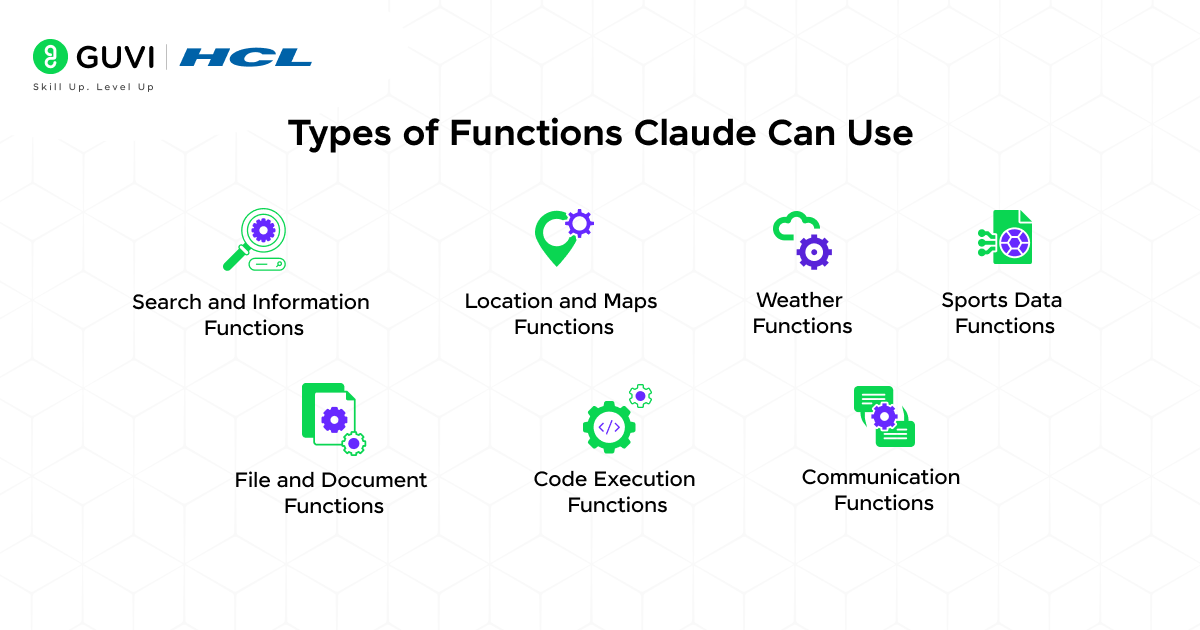
There are several categories of functions available depending on how Claude is set up in a given context.
- Search and Information Functions
These let Claude look up current news, research topics on the web, or fetch the contents of a specific webpage. This is helpful when you need the latest information on a fast moving topic.
- Location and Maps Functions
Claude can search for nearby restaurants, landmarks, businesses, or any place of interest. It can even display results on an interactive map with directions and details.
- Weather Functions
Real time weather data for any city or location. Claude can tell you the current temperature, humidity, chance of rain, and more.
- Sports Data Functions
Live scores, standings, match results, and player statistics for a wide range of sports. This is perfect when you want to know how your favorite team did last night.
- File and Document Functions
Claude can create Word documents, PDFs, spreadsheets, and presentations. These get generated in the background and delivered to you as downloadable files.
- Code Execution Functions
Claude can actually write and run code in a live environment, then show you the results. This goes beyond just suggesting code. It can test it too.
- Communication Functions
Draft emails or messages in formats ready to send. Claude can even connect to platforms like Slack or Gmail if those connectors are enabled.
Real World Examples
Example 1: Planning a Trip
You ask Claude to help you plan a weekend trip to a new city. Instead of giving you generic advice, Claude searches for actual restaurants, hotels, and attractions near your destination, displays them on a map, and even checks the weather forecast for that weekend.
Example 2: Staying Up to Date
You want to know what happened in the stock market today. Claude uses a search function to pull in the latest financial news and gives you a summary of the key movements, not information from months ago.
Example 3: Getting Work Done
You need a formatted business proposal. You describe your needs, Claude writes the content, and then uses a document function to generate a clean Word file you can download and send to your client.
Example 4: Following Sports
You ask who won last night’s cricket match. Claude checks the live sports data function and gives you the score, key players, and match summary within seconds.
Pros and Cons of Using the Function Connector
Like any tool, the Function Connector has its strengths and its limitations. Here is an honest look at both sides.
Pros
- It saves time by handling multiple tasks in one conversation instead of switching between different apps and tools.
- It gives you access to live, real time data instead of relying only on Claude’s training knowledge.
- It is easy to use since you do not need any technical skills. Plain language is enough.
- It produces actual outputs like files, maps, and data that you can use right away.
- It reduces manual errors that happen when you move information between tools yourself.
Cons
- Not all functions are available on every plan or setup, so some users may have limited access.
- Claude may occasionally choose the wrong function or skip using one when it would have been helpful.
- Some functions require you to connect external accounts first, which takes a little extra setup.
- Live data pulled from external sources is not always guaranteed to be fully accurate or up to date.
- It works best with clear, specific prompts. Vague questions can sometimes produce incomplete results.

What Makes the Function Connector Different From Regular Claude?
Without functions, Claude can only work with information it was trained on. It can answer general questions, write content, explain concepts, and have detailed conversations. That is already very useful.
But with the Function Connector, Claude becomes an active assistant that can interact with the real world. It can take your question, gather fresh data, perform tasks, and produce tangible outputs like files or live data displays.
The difference is similar to reading a textbook versus having access to both a textbook and the internet at the same time.
Claude can chain multiple functions in a single response. For example, if you ask for restaurant recommendations in a new city, it can check the weather, search for places, and even display a map — all in one step, without requiring separate requests.
Do You Need to Set Anything Up?
For most users on Claude.ai, many of these functions are already available and running in the background. Claude automatically decides when to use them. You do not have to type any special commands or learn any technical syntax.
Some functions, like connecting to your Google Drive, Slack workspace, or other personal tools, may require you to connect those services through your settings. Claude will let you know when a connection is needed and guide you through the process.
Tips for Getting the Best Results
- Be specific in your requests.
The more detail you give Claude, the better it can decide which function to use and how to use it. Instead of saying “find me food,” say “find me South Indian restaurants near Anna Nagar, Chennai.”
- Ask for live data when you need it.
If your question is about something current, like prices, scores, news, or weather, just ask naturally. Claude will recognize the need for real time information.
- Request files when you need deliverables.
If you want something you can save and share, tell Claude. Phrases like “create a Word document,” “make a PDF,” or “build a spreadsheet” signal that you want a proper file output.
- Trust Claude to choose the right tool.
You do not need to name the specific function you want. Claude figures that out based on what you are asking for.
Limitations to Keep in Mind
- The Function Connector is powerful, but it has limitations.
- Not all functions are available in every setup or plan.
- Some tools require connecting external accounts.
- Claude decides which function to use, and may sometimes skip one even when it could help.
- Always review outputs carefully, especially facts and figures.
- Even live data can occasionally be outdated or incorrect.
If you want to learn more about using the Function Connector in Claude, do not miss the chance to enroll in HCL GUVI’s Intel & IITM Pravartak Certified Artificial Intelligence & Machine Learning course. Endorsed with Intel certification, this course adds a globally recognized credential to your resume, a powerful edge that sets you apart in the competitive AI job market.
Conclusion
The Function Connector turns Claude from a knowledgeable conversational assistant into a capable, action oriented tool. Whether you need live information, real world data, documents, or connections to your favorite apps, functions make it possible.
The best part is that you do not need to be technical to benefit from this. Just ask Claude what you need in plain language, and it will figure out the rest.
As AI tools become more capable, understanding what they can and cannot do puts you in a much better position to use them well. The Function Connector is one of the most practical and powerful aspects of working with Claude, and now you know exactly what it is and how to make the most of it.
FAQs
1. Do I need any coding knowledge to use the Function Connector in Claude?
Not at all. The Function Connector works entirely in the background. You simply ask Claude what you need in plain, everyday language and Claude handles the rest. No commands, no syntax, and no technical setup is required on your end.
2. Will Claude always tell me when it is using a function?
In most cases, yes. Claude typically shows you what it is doing when it calls a function, such as displaying search results, showing a map, or generating a file. This keeps the process transparent so you always know where the information is coming from.
3. Can Claude use multiple functions at the same time?
Yes. Claude is capable of calling more than one function within a single response when the situation calls for it. For instance, planning a trip might involve a map search, a weather check, and a document creation all happening together before Claude gives you the final answer.
4. Are all functions available to every Claude user?
Not necessarily. Some functions are available to all users by default, while others, like connecting to Google Drive, Gmail, or Slack, require you to link those accounts through your settings. The features available to you may also depend on your Claude plan.
5. What should I do if Claude does not use a function when I think it should?
Try being more specific in your request. For example, instead of asking “what is the news today,” try “search for the latest technology news from today.” Adding words like “search,” “find,” “check,” or “create a file” can signal to Claude that an external function is needed rather than a general response from its training.
Success Stories

About the Author
Vishalini Devarajan
An Aerospace Engineer turned content writer, I focus on making complex concepts easy to understand through well-structured, reader-friendly blogs. Whether it’s a technical topic or a non-technical one, I love creating content that is clear, engaging, and impactful.
View all posts by Vishalini Devarajan
Connect with me @












Did you enjoy this article?