


Artificial Intelligence and Machine Learning Articles
AI/ML Skills Gap 2026: Why Companies Can't Find Job-Ready Talent
20 AI/ML Interview Questions Recruiters Can Use Without a Tech Background - Best Guide
How Industry-Backed AI/ML Bootcamps Are Changing the AI/ML Hiring Pipeline - Best Guide 2026
From IT Support to AI Engineer: A Realistic Career Switch Guide 2026


Get In Touch For Details! Request More Information
How to Translate With DeepL? An Informative Guide
Apr 15, 2026 5 Min Read 1155 Views
(Last Updated)
In today’s connected world, language is not a barrier it helps you reach more people.
You might be a student, a working professional, or a content creator. In all these cases, having accurate translation is very important.
But not all translation tools give results that sound natural and correct. Some tools translate word by word and miss the real meaning. This is where DeepL helps by understanding context, tone, and intent using AI.
In this article, you’ll learn how to use DeepL step by step. You’ll also see simple tips, features, and best practices. By the end, you can translate content easily and confidently.
Quick Answer:
DeepL is an AI-based translation tool with accurate and natural translation. You can translate text, documents, and web pages using its web version, extension, or mobile app.
Table of contents
- What is DeepL?
- Understanding DeepL Pricing
- How to Translate Text on DeepL?
- Step 1: Go to deepl.com
- Step 2: Type or paste your text
- Step 3: Select your target language
- Step 4: Read your translation
- Step 5: Modify your translation
- Step-by-step process to translate a document
- Step 1: Click "Translate files"
- Step 2: Upload your file
- Step 3: Set the target language
- Step 4: Click "Translate"
- Step 5: Download your translated file
- How to Translate Web Pages Using DeepL Browser Extension
- Translate on the Go with DeepL Mobile App
- Seven Tips for Better DeepL Translations
- Final Thoughts
- FAQ’s
- Is DeepL really better than Google Translate?
- Is DeepL free to use?
- Is DeepL safe for confidential documents?
- Can DeepL translate images?
- How many languages does DeepL support?
What is DeepL?
DeepL is an AI-powered translation tool developed by the German company DeepL SE. It was launched in 2017 and quickly became popular for its natural-sounding translations. Unlike many tools, it doesn’t feel robotic and gives more human-like results.
DeepL uses advanced AI and neural networks trained on real-world data. This helps it understand context, tone, and even complex phrases. Because of this, it often gives more accurate translations than other tools.
It supports 30+ languages and offers features like document translation and apps.
You can use it on browsers, desktop (Windows & Mac), and mobile devices. It also provides API access for developers and supports major global languages.
Understanding DeepL Pricing
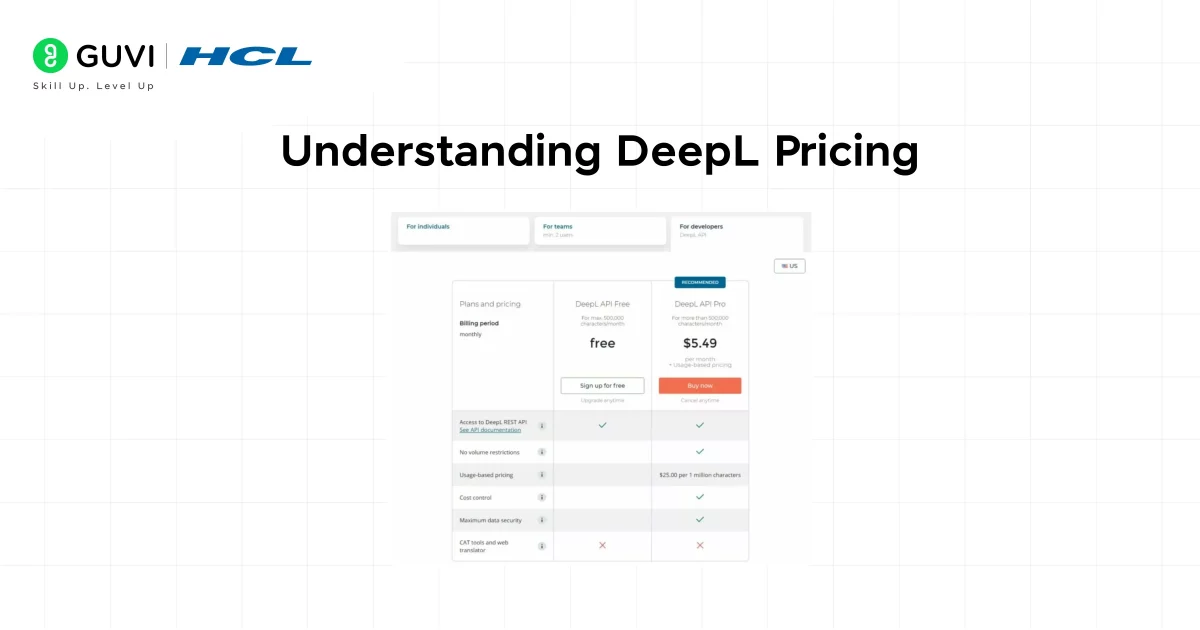
- Free Version
You can use DeepL for free without signing up. It allows text translation of up to 1,500 characters and up to 3 documents per month. This is enough for basic and occasional use.
- DeepL Pro
With DeepL Pro, you get unlimited text and document translation. You can also use features like glossary (Terms) and tone control (Style) for better results. It is more suitable for professional and regular use.
Note: In the free version, your data may be stored. But in the Pro version, your data is kept secure and not stored. You also get API access, which is useful for developers.
How to Translate Text on DeepL?
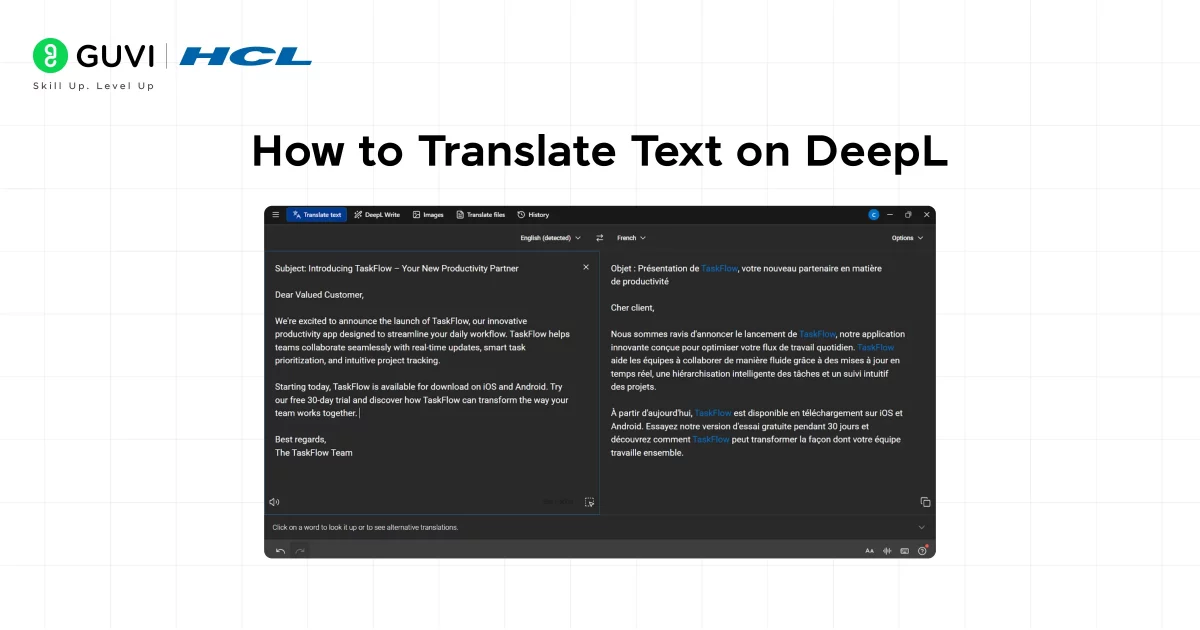
This is the fastest way to get started. No sign-up required.
Step 1: Go to deepl.com
Simply open your browser of choice and navigate to deepl.com. You’ll find a two-pane text box on the homepage itself.
Step 2: Type or paste your text
Click on the left panel of the text box and type your text. You can also paste your text from your clipboard. DeepL can automatically detect the original language of your text.
Step 3: Select your target language
Click on the dropdown menu on the right panel of the text box. It should default to English. Select your target language from the dropdown menu.
Step 4: Read your translation
DeepL translates your text in real-time as you type. Your translation will appear in the right panel of the text box immediately.
Step 5: Modify your translation
Click on any word in your translation. You can swap words to refine your translation.
Step-by-step process to translate a document
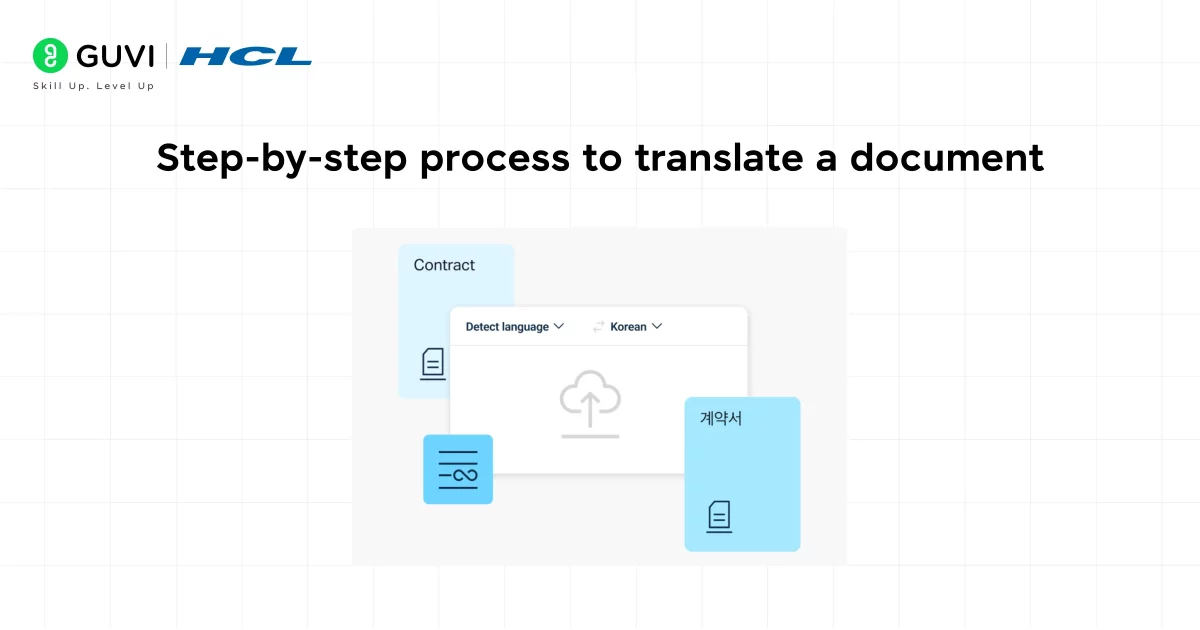
DeepL can translate entire files while preserving the original formatting like fonts, layout, bullet points and all.
Supported file formats
- .docx (Word)
- .pptx (PowerPoint)
- .xlsx (Excel)
- .txt
- .html
- .xlf / .xliff
Step 1: Click “Translate files”
On the DeepL homepage, click the “Translate files” tab next to the text translator.
Step 2: Upload your file
Drag and drop your document into the upload area, or click to browse your files. Free users can upload up to 3 documents per month (max 5MB each).
Step 3: Set the target language
Select the language you want the document translated into.
Step 4: Click “Translate”
DeepL processes the file. This usually takes just a few seconds for shorter documents.
Step 5: Download your translated file
Once done, a download button appears. The file keeps its original format and formatting intact.
Note: Scanned PDFs (images of text) are not supported on the free plan. You’ll get a message asking you to upgrade if DeepL can’t read the text in your PDF.
How to Translate Web Pages Using DeepL Browser Extension
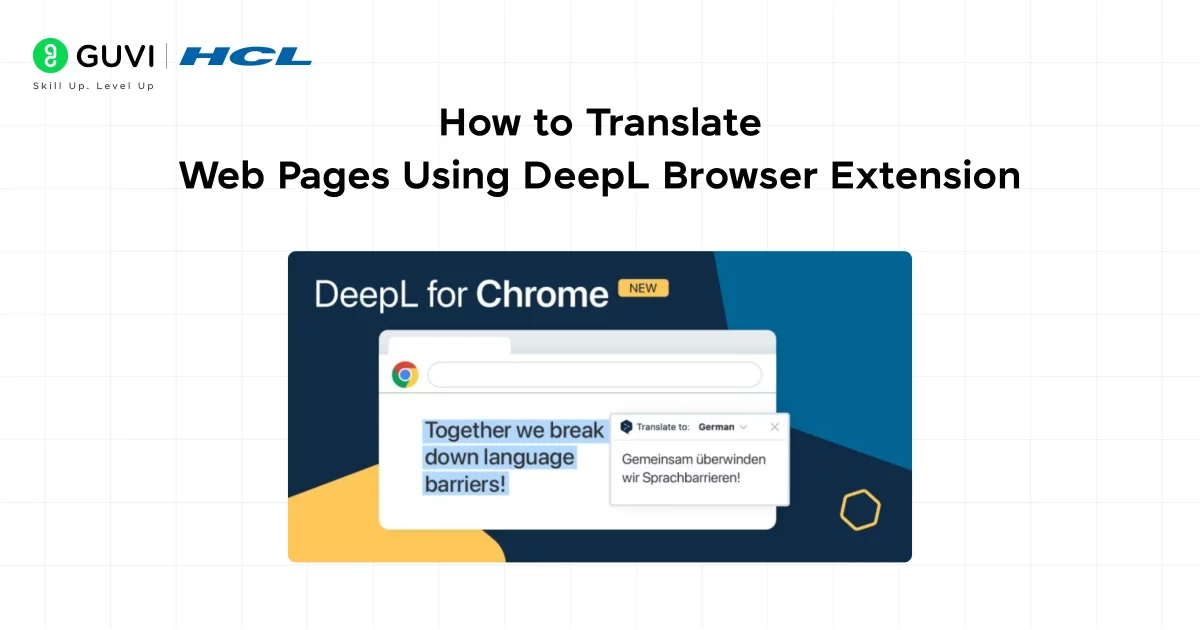
This is one of DeepL’s handiest tools. Install the extension once, and you can translate anything on the web without ever opening a new tab.
- How to install it
Go to your browser’s extension store (Chrome Web Store or Firefox Add-ons) and search for “DeepL Translate”. You can also install it by clicking here: DeepL Translate extension. Click “Add to Chrome” (or Firefox) and confirm the install. The DeepL icon will appear in your toolbar. - How to use it on a webpage
Select any text on a webpage, just click and drag to highlight it. A small DeepL icon appears next to your selection. Click it, and a popup shows the translation instantly. You can also click the toolbar icon to translate the entire page you’re currently on.
Pro tip: The extension works in Gmail too. Highlight a foreign-language email, hit the
Translate on the Go with DeepL Mobile App
DeepL has free apps for both iOS and Android. They’re clean, fast, and packed with useful features for on-the-go translation.
- Download the app
To use DeepL Translate, first download the app from the App Store or Google Play Store by typing “DeepL Translate” into the search bar.
- Enter your text
Enter your text into the app’s text box. The translation will appear at the bottom of the screen.
- Use camera translation
You can also use the camera icon to point your phone camera at printed words you want to translate and DeepL will translate it in real time.

- Use voice input
You can also use the microphone icon to speak your words into the app – useful for travelling!
Pro tip: Before you travel, make sure to download your language pairs for offline use in DeepL Translate. Tap ‘Settings’ and then ‘Languages’ and ‘Download offline packs.’
DeepL translates over a billion words every single day, and in blind tests with professional translators, it was rated three times more accurate than Google Translate for European language pairs. What makes it stand out is its ability to understand context, so instead of swapping words one by one, it reads the whole sentence before deciding how to phrase the translation naturally.
Seven Tips for Better DeepL Translations
DeepL is powerful on its own, but a few habits will make your translations noticeably sharper.
- Write clearly before you translate
A poor source text means a poor translation. Before you hit translate, make sure you’ve fixed your spelling errors, split up your run-on sentences, and eliminated any extraneous jargon. What you put in is what you’ll get out.
- Use the alternative word feature
If you click on a word in your translation, you’ll see alternative words in a pop-up box. Don’t automatically accept the first alternative; particularly in formal writing, you may want to replace a word with a better alternative.
- Try the formal/informal toggle
If you’re translating into German, French, Spanish, Portuguese, Dutch, Polish, or Russian, you can choose formal or informal language. Always make sure you choose the right one; a business proposal has a very different tone from a text message to a friend.
- Use DeepL Write alongside DeepL Translate
DeepL has a free writing assistant called DeepL Write that can help you improve your text in English and German before you translate. A better text will give you a better translation.
- Break up very long texts
On the free plan, you are limited to 1,500 characters per translation. Break your text up into logical chunks, paragraph by paragraph, rather than in the middle of a sentence. This will also help preserve context for each block of text.
- Create a glossary (Pro users)
If you are a Pro user, you are working on industry-specific content. You should create a custom glossary so that DeepL always uses your preferred terms. This is particularly useful for legal, medical, or technical content.
- Double-check numbers and proper nouns
DeepL is very good, but it can occasionally get dates in foreign formats, names of people or places, or technical model numbers wrong. Double-check your translation for these.
If you’re serious about learning how to translate with DeepL, HCL GUVI’s Intel & IITM Pravartak Certified Artificial Intelligence and Machine Learning Course is a great place to start. This live online program is taught by Intel engineers and industry experts. You’ll also get access to 1:1 doubt-clearing sessions with top SMEs, work on 20+ industry-grade projects including a capstone project, learn in your preferred language, and benefit from placement assistance through 1000+ hiring partners.
Final Thoughts
DeepL is genuinely one of those tools that makes you wonder why you didn’t switch sooner. It’s fast, free for most everyday needs, and produces translations that actually sound like a person wrote them.
Whether you’re reading a foreign news article, translating a business email, studying a new language, or handling professional documents, DeepL handles it with a level of finesse that other free tools simply can’t match.
Start with the web version, get comfortable with the text translator, and then explore the browser extension and mobile app. Once you know your way around, you’ll find DeepL saves you time on a daily basis.
FAQ’s
Is DeepL really better than Google Translate?
For most European language pairs, yes DeepL consistently produces more natural sounding output. Google Translate has the edge for rare languages and real time camera translation on mobile, but for everyday use, DeepL wins on quality.
Is DeepL free to use?
Yes. The free version lets you translate text (up to 1,500 characters at a time) and documents (up to 3 per month). No account required for basic text translation.
Is DeepL safe for confidential documents?
On the free plan, DeepL may store and review translations to improve its models.
If you’re handling sensitive data, consider DeepL Pro, which guarantees that translations are not stored or logged.
Can DeepL translate images?
On the mobile app, yes you can point the camera at printed text. On the web, DeepL does not support image only PDFs (scanned documents) on the free plan.
How many languages does DeepL support?
As of 2026, DeepL supports over 30 languages, including all major European languages plus Japanese, Korean, Chinese, Indonesian, Turkish, Ukrainian, and several others.
Success Stories

About the Author
Lukesh S
A professional content writer who has experience in freelancing and now working as a Technical Content Writer at HCL GUVI having sound knowledge in Blog Writing and Creative Writing!
View all posts by Lukesh S
Connect with me @




Did you enjoy this article?