


Artificial Intelligence and Machine Learning Articles
How to Evaluate LLM Outputs in Production Deployments
AI/ML Skills Gap 2026: Why Companies Can't Find Job-Ready Talent
20 AI/ML Interview Questions Recruiters Can Use Without a Tech Background - Best Guide
How Industry-Backed AI/ML Bootcamps Are Changing the AI/ML Hiring Pipeline - Best Guide 2026


Get In Touch For Details! Request More Information
How to Use Model Context Protocol (MCP) with Claude?
Sep 25, 2026 5 Min Read 1406 Views
(Last Updated)
Every organization today wants to build smarter and more efficient systems. AI models like Claude are very powerful, but they can only work with the information given in a prompt.
Model Context Protocol (MCP) is an open standard that lets Claude connect directly to APIs, databases, and local systems, so it can work with live data, perform real actions, and give more accurate results. Instead of manually copying information into every prompt, MCP lets Claude reach out and get what it needs on its own.
This guide breaks down what Model Context Protocol actually is, how to set it up with Claude step by step, and how to avoid the mistakes that trip up most first-time setups.
Table of contents
- TL;DR Summary
- What Is a Model Context Protocol (MCP)?
- Model Context Protocol vs Traditional API Integrations
- How to Use MCP with Claude?
- Step 1: Install Claude Desktop on Your PC
- Step 2: Install Node.js
- Step 3: Choose an MCP Server
- Step 4: Configure Your Chosen Server
- Step 5: Trigger Your First Tool Call
- Step 6: Handle the Response
- Common Use Cases of MCP with Claude
- Best Practices for Using Model Context Protocol
- Common Model Context Protocol Errors and How to Fix Them
- Conclusion
- FAQs
- What is MCP in simple terms?
- How does MCP improve the way Claude works?
- What are MCP servers and why are they needed?
- Do I need coding knowledge to use MCP with Claude?
- Is it safe to use MCP with Claude?
TL;DR Summary
- What it is: an open standard, developed by Anthropic, that connects Claude to real tools, APIs, and data sources
- Why it matters: Claude can fetch live data and perform actions instead of relying only on what’s typed into a prompt
- How you set it up: install Claude Desktop and Node.js, pick an MCP server, then configure it in one JSON file
- What it looks like in use: ask Claude to read a file or query a database in plain English, no manual copy-pasting required
- The one thing to get right: only grant access to specific folders or servers you actually trust, not your whole system
What Is a Model Context Protocol (MCP)?
Model Context Protocol (MCP) is a simple way that helps AI connect with the outside world.
Instead of giving the AI all the information manually, MCP lets it:
- Get data whenever it needs
- Talk to APIs (other systems)
- Use tools to perform tasks
- Remember and use context better
In very simple terms, Model Context Protocol is like a bridge that connects AI to real-world data and tools, so it can work smarter, not harder.
Read More: How to Build Claude Skills: Lesson Plan Generator Tutorial
Model Context Protocol vs Traditional API Integrations
If you’ve built API integrations before, it’s worth understanding exactly what Model Context Protocol changes.
| Factor | Traditional API Integration | Model Context Protocol |
|---|---|---|
| Setup per tool | Custom code written for each specific API | One shared protocol, works across any MCP-compatible server |
| Who builds the connection | You, from scratch, every time | Often already built, pick from existing MCP servers |
| How Claude uses it | Not natively, requires custom middleware | Native, Claude calls tools directly through MCP |
| Reusability | Tied to one project or app | The same MCP server works across any MCP-compatible client |
| Maintenance | You maintain every custom integration | The MCP server maintainer handles updates |
The practical difference: instead of writing and maintaining custom glue code for every API you want Claude to use, MCP gives you a standard way to plug in pre-built connections, and lets you build your own once, reusably, if nothing existing fits.
How to Use MCP with Claude?
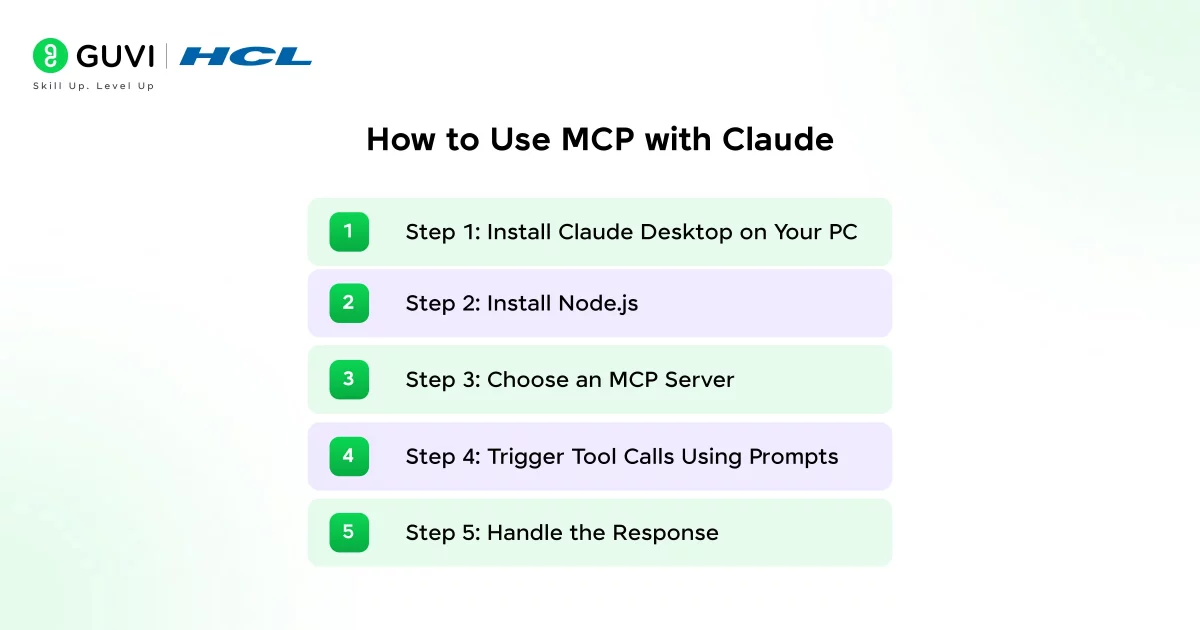
Let’s walk through the complete setup, from installing the basics to running your first real request.
Step 1: Install Claude Desktop on Your PC
Download Claude Desktop from the official website. It is compatible with both Windows and macOS.
This is where you will be working most of the time, and this is where Claude and MCP will be working together.
Step 2: Install Node.js
Most MCP tools run using Node.js, so you’ll need it installed first.
Go to the Node.js website, install the LTS version, and once it’s done, check whether it’s working by typing: node –version
If it shows version 18 or above, you’re ready to move ahead.
Step 3: Choose an MCP Server
MCP servers are what let Claude actually use Model Context Protocol to connect to different tools. What makes it easier is that you don’t have to create these yourself, many are already built for you.
For example:
- A filesystem server → lets Claude read and write files
- A GitHub server → helps with repos, issues, pull requests
- A database server → lets Claude query your data
- A search server → for real-time web results
- A Slack server → to read or send messages
MCP is an open standard developed by Anthropic, which means that anyone is free to implement tools for MCP. This is why there are already several pre-made servers that connect Claude with apps like Slack, GitHub, Notion, and Spotify. The interesting thing is that Claude doesn’t just look at your data, but also works with it in real-time. When you ask something like “Summarize the latest file,” Claude can do all the work for you and provide you with the answer in a simple reply.
Step 4: Configure Your Chosen Server
- Identify the goal you want Claude to achieve.
- Copy the server name from the official MCP servers list on GitHub or its npm package page.
- Open the config file at %APPDATA%\Claude (Windows) or ~/Library/Application Support/Claude (macOS), then open claude_desktop_config.json.
- Paste the configuration into the file, replacing
YourNamewith your actual system username:
{
  "mcpServers": {
    "filesystem": {
      "command": "npx",
      "args": [
        "-y",
        "@modelcontextprotocol/server-filesystem",
        "C:\\Users\\YourName\\Documents"
      ]
    }
  }
}- Restart Claude Desktop by closing and reopening it.
Step 5: Trigger Your First Tool Call
Open Claude Desktop and type “Show me files in my Documents folder.” Claude understands you need file data, and it automatically uses the filesystem server to fetch your files.
Step 6: Handle the Response
Claude replies with a list of your files. From here, you can go further, for example, ask “Summarize the content of this file,” and Claude gets the data, reads it, and gives you a useful response.
Common Use Cases of MCP with Claude
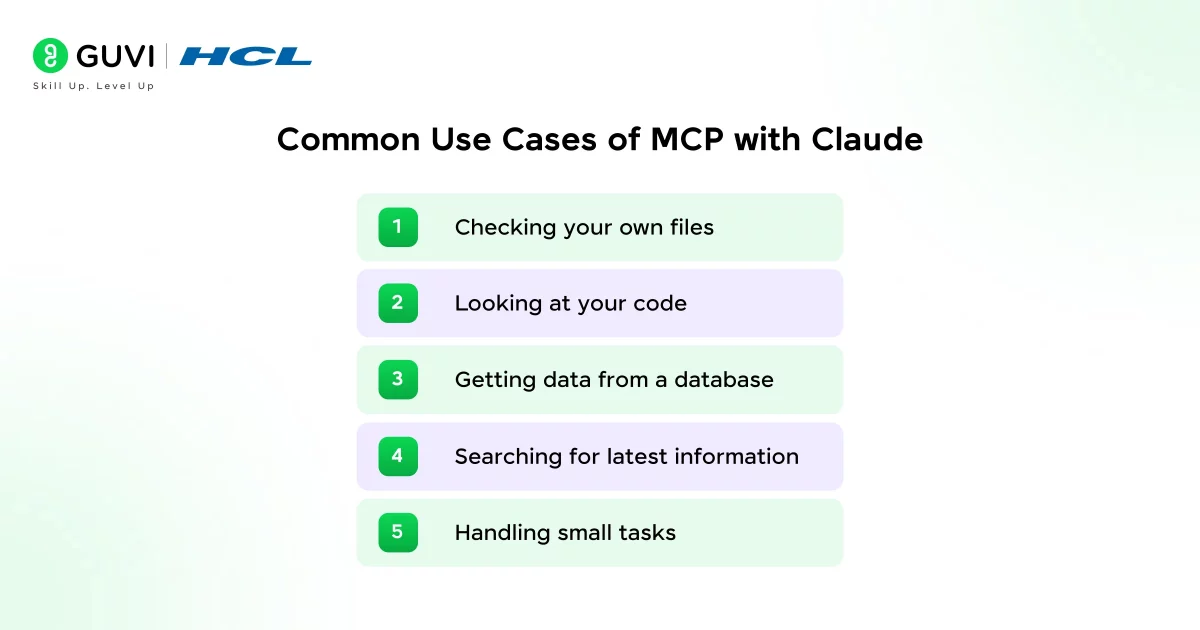
Model Context Protocol is most useful when you don’t want to keep switching between apps or copying data again and again. It basically lets Claude help you do things, not just answer.
1. Checking your own files: instead of opening folders and searching manually, you can just ask Claude to show or read a file. It saves time, especially when you have a lot of files.
2. Looking at your code: if your project is on GitHub, Claude can go through your code, understand it, and even point out issues without you pasting everything.

3. Getting data from a database: normally, you would log in, write queries, and check results. Here, you just ask in plain English, and Claude pulls the data for you.
4. Searching for the latest information: if something needs current data, Claude can fetch it instead of giving outdated answers, so it stays genuinely up to date.
5. Handling small tasks: things like checking logs, summarizing content, or organizing information become quicker because Claude can access the source directly.
Best Practices for Using Model Context Protocol
1. Start Small: it is not recommended to integrate more than one tool at a time. Start with something simple, like your files. After you are comfortable, you can proceed to the next step.
2. Limit the Scope of Access: there is no need to allow access to everything. It is always best to keep things limited. For example, instead of allowing access to the entire system, you can allow access to a particular folder.
3. Use Clear, Meaningful Names: while configuring servers, you should ensure that each server name is proper and descriptive, so you are not confused later when you have several set up.
4. Review Every Permission Prompt: Claude may ask for your permission to execute certain tasks. Always read the request carefully before allowing Claude to execute the task.
5. Save Advanced Tools for Later: many servers need API keys and additional setup. It’s recommended to start with simple tools first, and move to more advanced ones only once you’re comfortable.
6. Restart When Things Do Not Work: if things aren’t working properly, the first thing to try is restarting Claude Desktop.
Common Model Context Protocol Errors and How to Fix Them
Even a correct Model Context Protocol setup can hit a few common snags. Here’s what usually goes wrong and how to fix it.
- Claude doesn’t seem to recognize the server at all. Double-check your JSON syntax in claude_desktop_config.json, a single missing comma or bracket will silently break the whole config. Restart Claude Desktop after any edit.
- “Command not found” errors when Claude tries to call a tool. This usually means Node.js isn’t installed correctly, or isn’t on your system PATH. Re-run node –version in your terminal to confirm it’s actually accessible.
- Claude asks for permission repeatedly for the same action. This is expected behavior for sensitive actions by design, it’s not a bug, it’s MCP intentionally keeping you in control.
- The file path in your config doesn’t work. On Windows, remember that backslashes need to be escaped (C:\\Users\\YourName\\Documents), a single backslash will break the JSON.
- A server requires an API key you don’t have yet. Check that specific server’s documentation, most require you to generate a key from the service itself (GitHub, Slack, etc.) before it will connect.
If you’re serious about learning to use Model Context Protocol with Claude and want to apply it in real-world scenarios, don’t miss the chance to enroll in HCL GUVI’s Intel & IITM Pravartak Certified Artificial Intelligence & Machine Learning course, co-designed by Intel.
It covers Python, Machine Learning, Deep Learning, Generative AI, Agentic AI, and MLOps through live online classes, 20+ industry-grade projects, and 1:1 doubt sessions, with placement support from 1000+ hiring partners.
Conclusion
Model Context Protocol changes how you use Claude in a very practical way. Instead of just asking questions and getting answers, you can connect Claude to real tools, real data, and real tasks.
What starts as something simple, like connecting to your files, can slowly become much more powerful. You can bring your code, data, and tools into one place and work with everything through a single conversation.
The best part is, you don’t have to make it complicated. Start with one simple setup, understand it, and then build step by step. Before long, you’re not just using AI anymore, you’re actually working with it.
FAQs
1. What is MCP in simple terms?
MCP (Model Context Protocol) is a framework that connects AI models like Claude to external tools, APIs, and data sources. It helps Claude go beyond static prompts and work with real-time data and systems.
2. How does MCP improve the way Claude works?
MCP allows Claude to perform real tasks instead of just answering questions. It can access files, interact with APIs, query databases, and fetch live data, making its responses more accurate and context-aware.
3. What are MCP servers and why are they needed?
MCP servers act as bridges between Claude and external tools or services. They enable Claude to connect with systems like file storage, GitHub, databases, and messaging apps, so it can read, write, and interact with data directly.
4. Do I need coding knowledge to use MCP with Claude?
Basic technical knowledge is helpful for setup, such as installing Node.js and editing configuration files. However, you do not need advanced programming skills to start using MCP.
5. Is it safe to use MCP with Claude?
Yes, but it is important to be careful with permissions. Only allow trusted servers and limit access to specific files or folders. Always review and approve access before Claude performs any action.
Success Stories

About the Author
Jebasta
I translate the language of data into stories that anyone can understand. As a writer with a data science background, I simplify analytics, AI, and decision-making so beginners and enthusiasts can confidently explore the world of data.
View all posts by Jebasta
Connect with me @








Did you enjoy this article?