


Artificial Intelligence and Machine Learning Articles
AI/ML Skills Gap 2026: Why Companies Can't Find Job-Ready Talent
20 AI/ML Interview Questions Recruiters Can Use Without a Tech Background - Best Guide
How Industry-Backed AI/ML Bootcamps Are Changing the AI/ML Hiring Pipeline - Best Guide 2026
From IT Support to AI Engineer: A Realistic Career Switch Guide 2026


Get In Touch For Details! Request More Information

How to Use NotebookLM: Create Study Notes & Presentations
Jun 16, 2026 4 Min Read 11308 Views
(Last Updated)
What if your notes could think with you and your presentations could build themselves from your sources? Most workflows still rely on manual reading, highlighting, and restructuring, which slows down both learning and output creation. This is where NotebookLM changes the approach. By grounding responses in your uploaded documents, it allows you to generate structured study notes and presentation-ready content directly from source material.
In this guide, you will learn how to use NotebookLM to create accurate notes and well-structured presentations step by step:
Quick Answer:
Use NotebookLM by creating a notebook, uploading sources, and using structured prompts to generate notes or presentations. It grounds outputs in your documents with citations. For best results, use quality inputs, precise prompts, and validate responses for accuracy and clarity.
Table of contents
- What is NotebookLM?
- Getting Started with NotebookLM
- Login or Sign Up to NotebookLM
- Create Your First Notebook
- Upload Your Source Materials
- Understanding the NotebookLM Interface
- Your First Interaction with NotebookLM
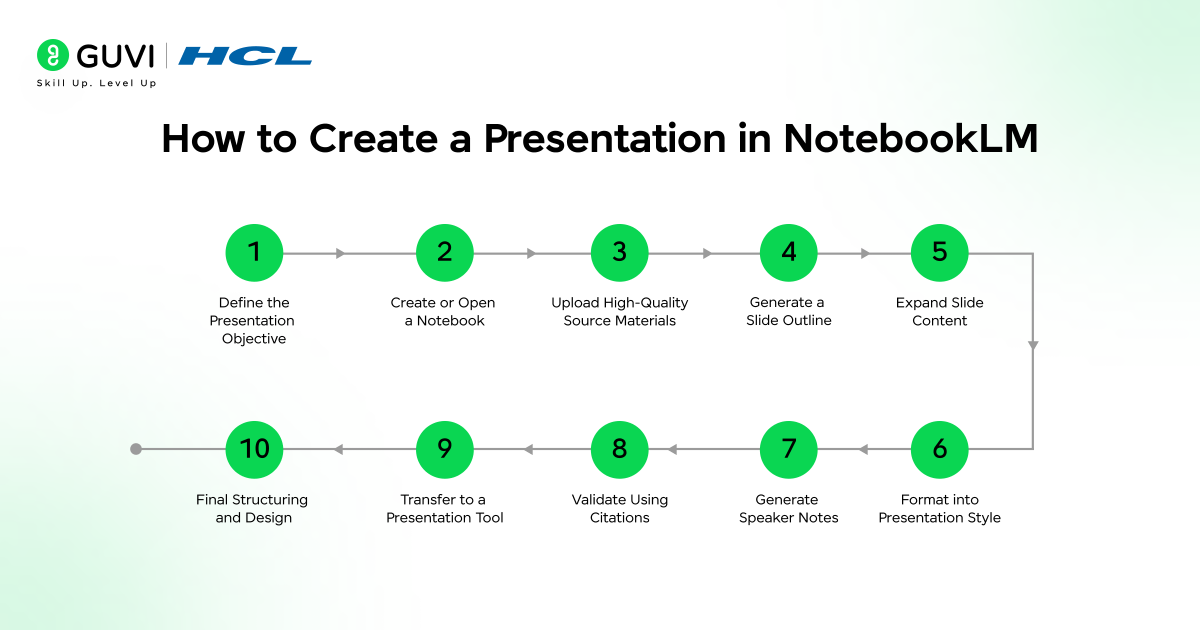
- How to Create a Presentation in NotebookLM
- Step 1: Define the Presentation Objective
- Step 2: Create or Open a Notebook
- Step 3: Upload High-Quality Source Materials
- Step 4: Generate a Slide Outline
- Step 5: Expand Slide Content
- Step 6: Format into Presentation Style
- Step 7: Generate Speaker Notes (Optional but Recommended)
- Step 8: Validate Using Citations
- Step 9: Transfer to Presentation Tool
- Step 10: Final Structuring and Design
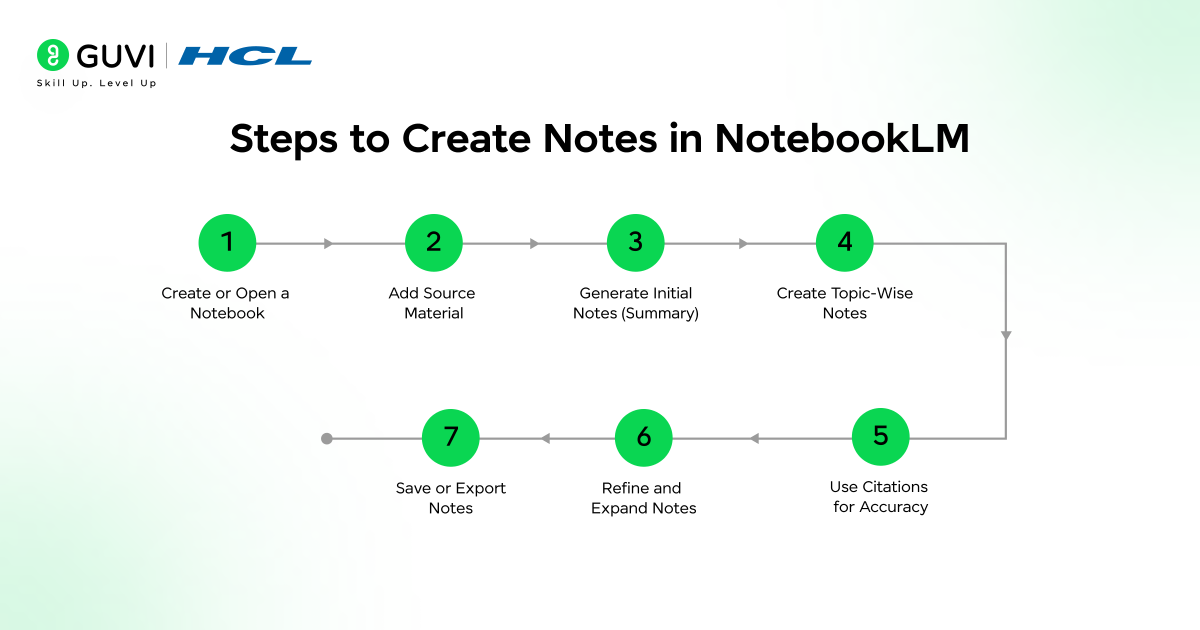
- Steps to Create Notes in NotebookLM
- Step 1: Create or Open a Notebook
- Step 2: Add Source Material
- Step 3: Generate Initial Notes (Summary)
- Step 4: Create Topic-Wise Notes
- Step 5: Use Citations for Accuracy
- Step 6: Refine and Expand Notes
- Step 7: Save or Export Notes
- Tips for Creating Study Notes & Presentations in NotebookLM
- For Study Notes
- For Presentations
- Conclusion
- FAQs
- Can NotebookLM combine multiple documents into one set of notes?
- How accurate are NotebookLM responses compared to other AI tools?
- What kind of prompts work best in NotebookLM?
What is NotebookLM?
NotebookLM is an AI-powered research and knowledge synthesis tool developed by Google. It allows users to upload documents and interact with them through natural language queries. Unlike generic chatbots, it grounds every response in user-provided sources such as PDFs, Google Docs, and web content, using retrieval-augmented generation (RAG) to ensure accuracy and contextual relevance. It parses, indexes, and semantically links information across documents, enabling tasks like summarization and insight extraction with inline citations.
Getting Started with NotebookLM
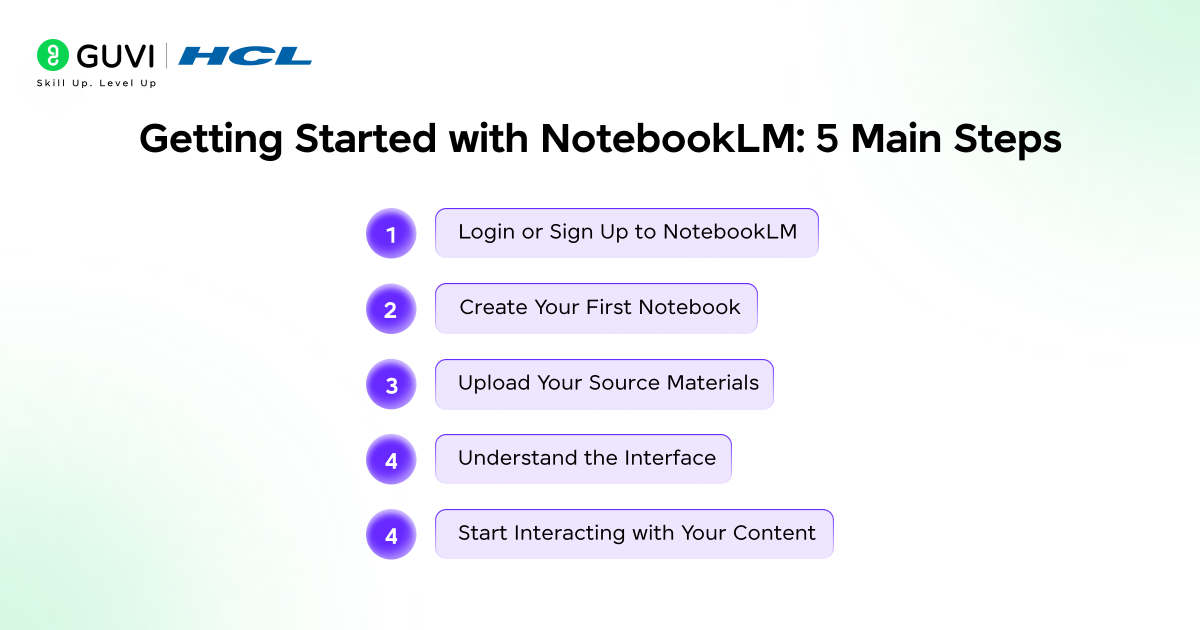
1. Login or Sign Up to NotebookLM
To begin, visit the NotebookLM platform and sign in using your Google account.
Once logged in, you’ll land on the homepage, which acts as your central dashboard. Here, you can:
- View existing notebooks
- Create new notebooks
- Resume ongoing research or projects
This workspace is designed to keep all your knowledge organized in one place.
2. Create Your First Notebook
Click on “Create New” to start a fresh notebook.
Think of a notebook as a dedicated workspace for:
- A research topic
- A content project
- A business use case
- A learning module
For example:
- Notebook Name: Generative AI Research
This naming structure helps maintain clarity when managing multiple notebooks.
Best practice: Use one notebook per topic instead of mixing unrelated documents. This improves response accuracy and context relevance.
3. Upload Your Source Materials
NotebookLM becomes powerful when you provide it with high-quality inputs. It supports multiple formats, making it flexible for different workflows.
Supported Source Types:
- Google Docs: Directly import from Drive
- PDFs: Research papers, reports, whitepapers
- Text Files: Notes, markdown, documentation
- Web URLs: Blogs, articles, documentation pages
- Google Slides: Presentation content
How to Upload:
- Click “Upload a Source”
- Select a file or paste a link
- Wait for processing to complete
Example:
Upload a report like: “Deep Point of View on Generative AI” by LTI Mindtree
This allows NotebookLM to:
- Understand enterprise AI trends
- Extract insights across sections
- Provide contextual answers with references
Pro Tip: Upload multiple related documents to enable cross-source insights instead of isolated answers.
4. Understanding the NotebookLM Interface
Once your sources are uploaded, NotebookLM organizes everything into a clean, functional layout.
Left Panel: Sources
- Displays all uploaded documents
- Click to open and read full content
- Highlight key sections
- Remove or manage sources
Center Panel: AI Interaction Area
This is where the core functionality happens.
You can:
- Ask questions
- Generate summaries
- Request structured outputs
- Compare insights across documents
Key Feature: Inline Citations
Every response includes references like [1], [2]:
- These link directly to the original text
- Clicking them shows the exact passage used
This ensures:
- Transparency
- Accuracy
- Trust in generated outputs
Download HCL GUVI’s GenAI eBook to learn how to build smarter note-taking systems, apply prompt strategies, and create structured outputs for real-world use.
5. Your First Interaction with NotebookLM
Once your notebook is ready, start with a high-level query to understand the content.
Example Prompt: “Summarize the main themes and key findings from this generative AI report in 5 bullet points.”
What Happens:
- NotebookLM scans the entire document
- Extracts key insights
- Presents them in structured bullets
- Adds citations for verification
How to Create a Presentation in NotebookLM
Step 1: Define the Presentation Objective
Before using NotebookLM, clearly define:
- Topic and scope
- Target audience (beginner, technical, business)
- Number of slides or depth required
This makes sure that the AI generates relevant and structured output.
Step 2: Create or Open a Notebook
- Log in to NotebookLM
- Click “Create New” or open an existing notebook
- Keep one notebook per topic for better context handling
Step 3: Upload High-Quality Source Materials
- Click “Upload a Source”
- Add PDFs, Google Docs, URLs, or Slides
- Wait for indexing to complete
Important Note: NotebookLM generates content only from uploaded sources, so input quality directly impacts output.
Step 4: Generate a Slide Outline
Ask NotebookLM to create a structured presentation flow.
Prompt example:
- “Create a 10-slide presentation outline on [topic] with slide titles and key points”
Output:
- Logical sequence (Introduction → Core → Conclusion)
- Slide-wise structure
Step 5: Expand Slide Content
Refine each slide with more depth.
Prompt examples:
- “Expand each slide with 3-5 bullet points”
- “Add examples and key insights to each slide”
This creates content-ready slides.
Step 6: Format into Presentation Style
Convert content into clean slide format.
Prompt example:
- “Rewrite this into presentation-ready slides with concise bullet points and clear headings”
Optional refinements:
- Limit bullets per slide
- Simplify language
- Adjust tone (technical or business)
Step 7: Generate Speaker Notes (Optional but Recommended)
Add explanation for delivery.
Prompt example:
- “Add speaker notes for each slide explaining the key points”

Step 8: Validate Using Citations
- Check inline citations like [1], [2]
- Verify accuracy by reviewing source passages
Ensures:
- Source-backed content
- No incorrect assumptions
Step 9: Transfer to Presentation Tool
NotebookLM does not create slides directly.
- Copy content into:
- Google Slides
- Microsoft PowerPoint
- Canva
Step 10: Final Structuring and Design
- Add visuals (charts, icons, diagrams)
- Keep slides concise (3-5 bullets each)
- Ensure consistent formatting
Steps to Create Notes in NotebookLM
Step 1: Create or Open a Notebook
- Log in to NotebookLM
- Click “Create New” or open an existing notebook
- Treat each notebook as a focused topic workspace
Step 2: Add Source Material
- Click “Upload a Source”
- Upload PDFs, Google Docs, or paste URLs
- Wait for indexing to complete
Tip: The quality of your notes depends on the quality of your sources.
Step 3: Generate Initial Notes (Summary)
Start with a structured prompt:
Example:
- “Summarize this document into clear notes with headings and bullet points”
This creates a base layer of notes from the entire document.
Step 4: Create Topic-Wise Notes
Refine your notes by focusing on specific sections.
Examples:
- “Create notes on enterprise use cases of generative AI”
- “Extract key challenges and limitations in bullet points”
This helps break large content into organized sub-notes.
Step 5: Use Citations for Accuracy
- Every output includes citation markers like [1], [2]
- Click them to verify the exact source text
This ensures your notes are:
- Source-backed
- Reliable
- Traceable
Step 6: Refine and Expand Notes
You can iteratively improve notes:
Follow-up prompts:
- “Expand point 3 with examples”
- “Convert this into structured study notes”
- “Simplify this for beginners”
Step 7: Save or Export Notes
- Copy notes directly
- Use them for blogs, research, or study material
- Organize them externally if needed
NotebookLM turns note-making from a manual task into a structured and Artificial Intelligence-assisted knowledge extraction process.
Build advanced AI skills beyond note-taking tools and workflows. Join HCL GUVI’s Artificial Intelligence and Machine Learning Course to learn from industry experts and Intel engineers through live online classes, master in-demand skills like Python, ML, MLOps, Generative AI, and Agentic AI, and gain hands-on experience with 20+ industry-grade projects, 1:1 doubt sessions, and placement support with 1000+ hiring partners.
Tips for Creating Study Notes & Presentations in NotebookLM
For Study Notes
- Prompt for layered notes: “Give detailed notes + 5-point revision summary”
- Ask for exam-focused extraction: “List only definitions, frameworks, and key points”
- Use compare prompts: “Compare concept A vs B from sources” for deeper clarity
- Extract only high-signal content: “Remove examples, keep core concepts only”
- Generate active recall questions: “Create 10 questions from these notes”
- Convert notes into flashcards format: Q&A style for revision
- Ask for concept simplification: “Explain this like a beginner without losing meaning”
- Use multi-source synthesis: “Combine insights from all documents into one note”
- Create structured hierarchies: “Organize into H2, H3, bullet points”
- Generate last-minute revision notes: “Condense into 1-page quick revision sheet”
For Presentations
- Force slide discipline: “Max 1 idea per slide, 4 bullets only”
- Ask for story flow: “Structure as problem → insight → solution → impact”
- Generate hook slide separately: “Create a strong opening slide with context + hook”
- Extract data-backed slides: “Include stats or facts with source references”
- Ask for visual cues: “Suggest what visual/diagram to add for each slide”
- Convert content into executive format: “Make slides suitable for business audience”
- Use contrast prompts: “Turn this into before vs after slide”
- Generate closing slide with impact: “Create a strong conclusion with key takeaway”
- Ask for speaker transitions: “Add 1-line transitions between slides”
- Optimize for time: “Fit this into a 10-slide, 10-minute presentation”
Conclusion
NotebookLM shifts the way you work with information by turning static documents into interactive, source-driven outputs. Instead of manually summarizing or structuring content, you can generate accurate notes and presentation-ready material in minutes. With the right prompts and quality inputs, it enables faster understanding and reliable outputs, making it a practical tool for learning and professional content creation.
FAQs
Can NotebookLM combine multiple documents into one set of notes?
Yes, NotebookLM can synthesize insights from multiple uploaded sources into a single, structured output. This allows you to create unified notes or summaries instead of reviewing each document separately.
How accurate are NotebookLM responses compared to other AI tools?
NotebookLM is more reliable because it grounds responses in your uploaded sources and provides citations. This reduces the chances of incorrect or unsupported information.
What kind of prompts work best in NotebookLM?
Structured and specific prompts work best, such as asking for bullet points, comparisons, or slide outlines. Clear instructions help generate more organized and usable outputs.
Success Stories

About the Author
Vaishali
I'm a seasoned writer with four years of experience across technical, non-technical, and just about every genre or niche you can imagine. Adaptable and curious, I enjoy exploring new topics and making information engaging and easy to understand. Fueled by a steady stream of tea, I approach each project with creativity, reliability, and genuine enthusiasm for storytelling.
View all posts by Vaishali
Connect with me @











Did you enjoy this article?