


Artificial Intelligence and Machine Learning Articles
AI/ML Skills Gap 2026: Why Companies Can't Find Job-Ready Talent
20 AI/ML Interview Questions Recruiters Can Use Without a Tech Background - Best Guide
How Industry-Backed AI/ML Bootcamps Are Changing the AI/ML Hiring Pipeline - Best Guide 2026
From IT Support to AI Engineer: A Realistic Career Switch Guide 2026


Get In Touch For Details! Request More Information
Code Interpreter with GitHub Copilot in Visual Studio Code (2026 Guide)
Mar 19, 2026 9 Min Read 1731 Views
(Last Updated)
Have you ever wished you had a smart coding assistant sitting right next to you while you work, someone who understands what you are building and actually helps you write the code in real time? That is exactly what using Code Interpreter with GitHub Copilot in Visual Studio Code feels like. Whether you are a complete beginner or someone who has been coding for a while, this combination makes writing, testing, and understanding code feel faster and far less overwhelming.
In this guide, you will learn everything you need to know about Code Interpreter with GitHub Copilot in Visual Studio Code. We will cover what it is, how to set it up from scratch, how to use each feature effectively, and practical tips to get the most out of it every single day. By the end, you will have a clear picture of how this tool can genuinely change the way you code.
TL/DR Summary:
Code Interpreter with GitHub Copilot in Visual Studio Code lets you write, run, and test code directly inside your editor using AI. Copilot suggests code as you type, helps you fix errors, and lets you execute code without ever switching to a terminal. It is the fastest way to go from idea to working code, all inside VS Code.
Table of contents
- What Is GitHub Copilot and Why Does It Matter?
- What Is a Code Interpreter?
- How to Set Up Code Interpreter with GitHub Copilot in Visual Studio Code
- Install Visual Studio Code
- Install the GitHub Copilot extension
- Sign in with your GitHub account
- Install the Python extension for Python projects
- Open a file and start coding
- How to Use Code Interpreter with GitHub Copilot
- Inline suggestions as you type
- Next Edit Suggestions for smarter coding flow
- Using Copilot Chat to generate and run code
- Using Inline Chat for targeted edits
- Using Agent mode for complete coding tasks
- Testing your app with the integrated browser
- Asking Copilot to explain your code
- Fixing errors with one click
- Key Features of Code Interpreter with GitHub Copilot in VS Code
- GitHub Copilot Pricing Plans in 2026
- How Code Interpreter with GitHub Copilot Helps Beginners Learn Faster
- Tips for Getting the Most Out of Code Interpreter with GitHub Copilot
- 💡 Did You Know?
- Conclusion
- FAQs
- What is Code Interpreter with GitHub Copilot in Visual Studio Code?
- Is GitHub Copilot free to use in VS Code?
- Do I need coding experience to use GitHub Copilot?
- What programming languages does GitHub Copilot support in VS Code?
- What is Agent mode in GitHub Copilot?
What Is GitHub Copilot and Why Does It Matter?
GitHub Copilot is one of the most widely used AI tools in the developer world right now, and for good reason. It brings intelligent AI assistance directly into your coding environment so you spend less time searching for syntax and more time actually building things. Here is a closer look at what makes it special.
1. GitHub Copilot is an AI-powered coding assistant
GitHub Copilot is an AI tool built by GitHub and Microsoft that watches what you are typing and suggests lines of code, full functions, and even entire files based on the context of your project. Think of it like a very smart autocomplete, except instead of just finishing a word, it understands what you are trying to build and writes meaningful code for you.
2. What makes it different from regular autocomplete?
Regular autocomplete simply finishes a word or method name, but GitHub Copilot actually understands your intent. If you write a comment like “calculate the average of a list of numbers,” Copilot will write the entire function for you based on that description, saving you minutes of work every single time.
3. Why Visual Studio Code is the best place to use it
VS Code is a free, lightweight, and extremely popular code editor made by Microsoft that millions of developers use every day. GitHub Copilot integrates directly into VS Code, which means you get AI suggestions, a chat panel, error fixes, and agent-powered automation all without ever leaving your editor.
Do check out HCL GUVI’s Artificial Intelligence and Machine Learning Course if you want to build strong AI skills while working with modern developer tools like GitHub Copilot and VS Code. The program includes hands-on projects, mentor-led live sessions, and topics such as Python, machine learning, deep learning, and LLMs to help learners become job-ready AI professionals.
What Is a Code Interpreter?
Before we get into the setup, it helps to understand what a code interpreter actually does and why having one inside your editor is such a productivity boost. Most beginners think running code always needs a separate terminal window, but that is not the case anymore.
1. Understanding what “interpreting” code means
A code interpreter is a program that reads and runs your code line by line and shows you the result immediately. Unlike compiled languages where you wait for a build step, interpreted languages like Python give you instant feedback. You write it, run it, and see the output right away.
2. How code execution works inside VS Code with Copilot
With GitHub Copilot in VS Code, you can run code directly from the chat panel without manually opening a terminal. Copilot can execute commands, install packages, and run scripts as part of its agent workflow, and in 2026 VS Code also includes an integrated browser so you can test and preview web apps without leaving the editor at all.
3. Why this combination is powerful for beginners
Constantly switching between your editor, a browser, and a terminal when you are learning is distracting and slows you down. Having Copilot handle code execution, error fixing, and explanations all inside VS Code means you stay focused, learn faster, and make fewer mistakes along the way.
How to Set Up Code Interpreter with GitHub Copilot in Visual Studio Code
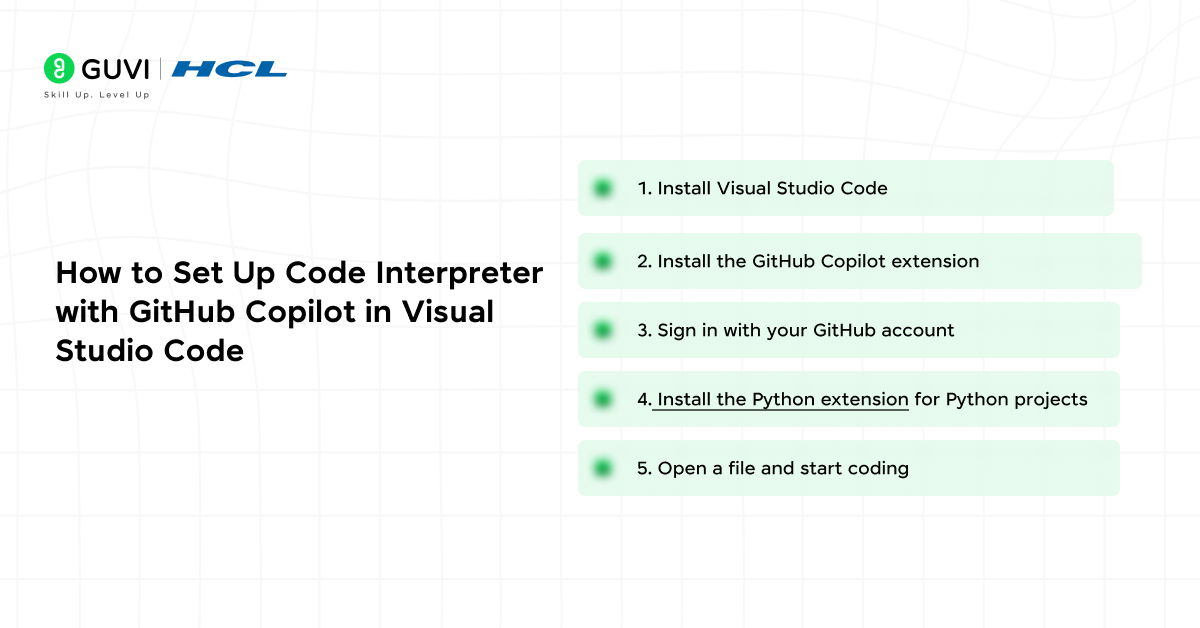
Getting everything set up takes less than ten minutes and the steps are completely beginner-friendly. Here is a clear walkthrough to get you from zero to running AI-assisted code inside VS Code.
1. Install Visual Studio Code
Download VS Code for free from code.visualstudio.com and install it on your computer. It works on Windows, Mac, and Linux with no cost and no account required just to download and start using it.
2. Install the GitHub Copilot extension
Open VS Code, click the Extensions icon in the left sidebar, search for “GitHub Copilot,” and click Install. The GitHub Copilot Chat extension usually comes bundled automatically, but if it does not appear, search for it separately and install it as well.
3. Sign in with your GitHub account
Look for the Copilot icon in the bottom Status Bar of VS Code, hover over it, and select “Set up Copilot.” Follow the sign-in prompts using your GitHub account, and if you do not have a paid plan, GitHub will automatically enroll you in the free tier at no cost.
4. Install the Python extension for Python projects
If you are working with Python, search for the Python extension in the Extensions panel and install it. This gives VS Code full Python support including syntax highlighting, code navigation, and the ability for Copilot to assist with Python-specific tasks like data analysis and scripting.
5. Open a file and start coding
Create a new file, for example a .py file for Python or a .js file for JavaScript, start writing code, and you will immediately see Copilot suggestions appearing as faint gray text in your editor. Press Tab to accept a suggestion or keep typing to dismiss it and continue on your own.
How to Use Code Interpreter with GitHub Copilot
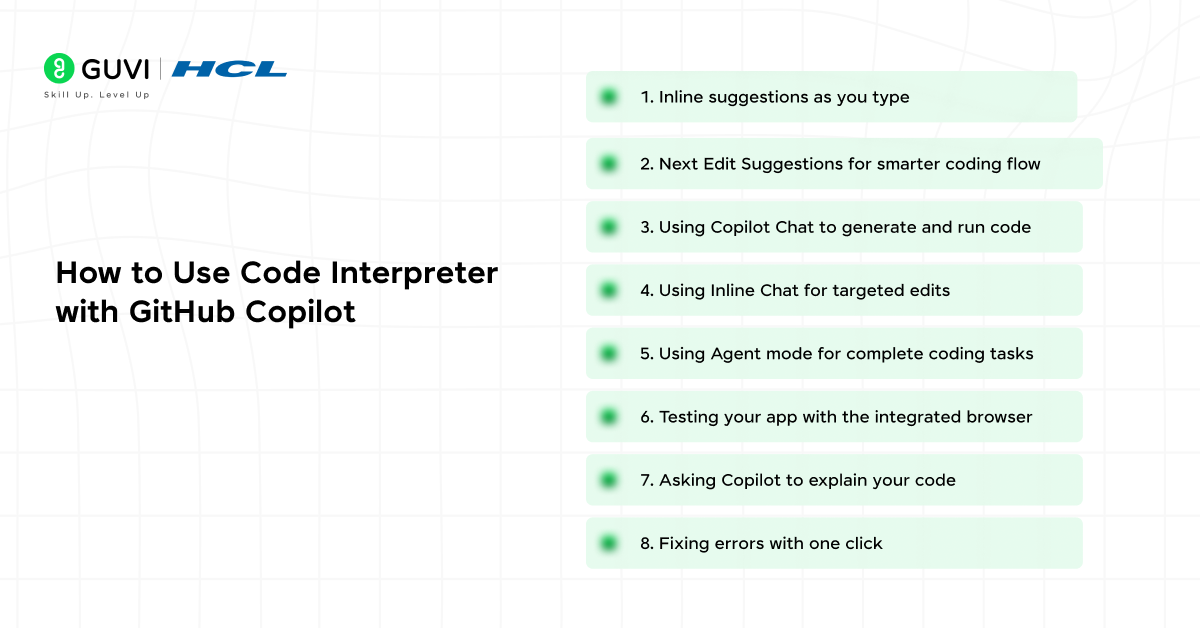
Now that everything is installed, here is how you actually use it day to day. GitHub Copilot has several ways to interact with your code in 2026, and knowing which one to use in each situation will save you a lot of time.
1. Inline suggestions as you type
The moment you start writing in any supported file, Copilot shows you gray ghost text, which is its real-time prediction of what you are trying to write next. Ghost text is simply a faded suggestion that appears automatically and disappears the moment you start typing something different. Press Tab to accept it instantly.
- Ghost text appears automatically: You do not need to trigger anything. Copilot watches what you type and shows suggestions in real time.
- Tab to accept, type to dismiss: Press Tab if you like the suggestion or just keep typing if you want to write something different.
- Multi-line suggestions: Copilot can suggest entire functions or blocks of code in one go, not just a single line at a time.
2. Next Edit Suggestions for smarter coding flow
Next Edit Suggestions is a 2026 feature where Copilot predicts not just what you are currently typing but also where your next edit will likely be in the file and suggests a completion for it. This means Copilot moves with you as you code, reducing the back-and-forth of making connected edits across a file manually.
- Predicts your next move: Copilot tracks patterns in your edits and anticipates where you will need to make the next change in the file.
- Reduces repetitive edits: When you rename a variable or change a function signature, Copilot suggests all the connected updates automatically.
- Keeps your flow uninterrupted: Instead of hunting through a file for related edits, Copilot brings the next suggestion directly to you.
3. Using Copilot Chat to generate and run code
Press Ctrl + Alt + I on Windows or Cmd + Ctrl + I on Mac to open the Copilot Chat panel. Here you type plain English requests like “write a function to sort a list of names alphabetically” and Copilot generates working code. In Agent mode, Copilot can also run that code, install required packages, and fix any errors automatically.
- Plain English requests: You do not need to know the exact syntax. Just describe what you want and Copilot writes the code for you.
- Run code directly from chat: In Agent mode, Copilot executes the code it generates and shows you the output without you opening a terminal.
- Automatic error fixing: If the generated code has an error, Copilot catches it and corrects it on its own before showing you the final working result.
4. Using Inline Chat for targeted edits
Press Ctrl + I on Windows or Cmd + I on Mac to open Inline Chat directly inside your code file. This is for when you want to change a specific section without leaving the editor. You can type “add error handling to this block” or “refactor this to be more readable” and Copilot makes the edit right where your cursor is.
- Edit in context: Inline Chat appears exactly where your cursor is, so Copilot knows precisely which part of the code you are referring to.
- Natural language instructions: You do not need to explain the code structure. Just describe the change you want and Copilot handles the rest.
- Preview before applying: Copilot shows you a diff of the proposed changes so you can review them carefully before accepting.
5. Using Agent mode for complete coding tasks
Agent mode is where Copilot becomes genuinely powerful for bigger projects. You give it a high-level task like “build a basic login form with validation” and it breaks the work into steps, creates or edits multiple files, runs terminal commands, installs dependencies, and self-corrects when it hits an error.
- Handles multi-file tasks: Agent mode can create, update, and manage multiple files across your entire project at once.
- Self-correcting: When Copilot runs into an error during a task, it reads the error and automatically tries a fix without stopping to ask you.
- Fork conversations: In 2026, you can branch from any point in an agent session to explore an alternative approach without losing your original progress.
6. Testing your app with the integrated browser
In 2026, VS Code now includes an integrated browser directly inside the editor. This means when you build a web app with Copilot’s help, you can preview and test it without opening Chrome or any external browser. Everything stays inside VS Code, keeping your workflow completely uninterrupted.
- No switching to Chrome: Preview your web app in a panel right next to your code and see changes instantly as you edit and save.
- Works with live reload: The integrated browser updates automatically when you save changes so you always see the latest version of your app.
- Great for beginners building web projects: Seeing your HTML, CSS, and JavaScript render in real time inside VS Code makes learning web development far more intuitive.

7. Asking Copilot to explain your code
Select any block of code, right-click, and choose “Copilot: Explain This.” Copilot will break it down in plain English step by step, which is incredibly useful when you are reading someone else’s code or revisiting a file you wrote weeks ago and no longer remember clearly.
- Plain English explanations: Copilot does not use jargon. It explains each part of the code in a way that anyone can understand.
- Great for reading unfamiliar code: Paste in any code snippet and Copilot will tell you exactly what it does and how it works.
- Helps you learn as you go: Use Copilot’s explanations to understand the logic behind the code and grow your own skills over time.
8. Fixing errors with one click
When your code has an error, VS Code underlines it in red. Click on the underlined error, look for the small Copilot lightbulb icon that appears nearby, and click it. Copilot will suggest a fix that you can apply with a single click.
- One click fix: You do not need to understand the error to fix it. Copilot reads it, figures out the solution, and applies it for you instantly.
- Explains why the error happened: Along with the fix, Copilot tells you what caused the error so you can avoid making the same mistake again.
- Works with runtime and syntax errors: Whether the error is a typo, a missing import, or a logic problem, Copilot can usually identify and resolve it cleanly.
Key Features of Code Interpreter with GitHub Copilot in VS Code
| Feature | What It Does |
| Inline Suggestions | Suggests code as you type, accepted with Tab |
| Next Edit Suggestions | Predicts your next edit location and suggests a completion |
| Copilot Chat | Chat with AI to generate, explain, or refactor code |
| Inline Chat | Edit code in place using natural language |
| Agent Mode | Handles multi-step tasks, edits files, runs commands, self-corrects |
| Integrated Browser | Test and preview web apps without leaving VS Code |
| Smart Actions | Auto-generates commit messages, renames symbols, fixes errors |
| Claude Agent Support | Delegate tasks to Anthropic Claude models right inside VS Code |
| Context Awareness | Understands your whole project, not just the current file |
GitHub Copilot Pricing Plans in 2026
GitHub Copilot now has five tiers to choose from, including a genuinely free plan that requires no credit card. Here is a clear breakdown of what each plan includes so you can pick the right one for your needs.
| Plan | Price | What You Get |
| Copilot Free | Free | 2,000 code completions and 50 chat messages per month |
| Copilot Pro | $10/month | Unlimited completions, premium models, Copilot coding agent |
| Copilot Pro+ | $39/month | Everything in Pro plus all available AI models and 1,500 premium requests |
| Copilot Business | $19/user/month | Team management, audit logs, IP indemnity, policy controls |
| Copilot Enterprise | $39/user/month | All Business features plus org-wide knowledge bases and custom models |
Students, verified teachers, and maintainers of popular open source projects can get Copilot Pro for free through the GitHub Education and GitHub Sponsors programs.
How Code Interpreter with GitHub Copilot Helps Beginners Learn Faster
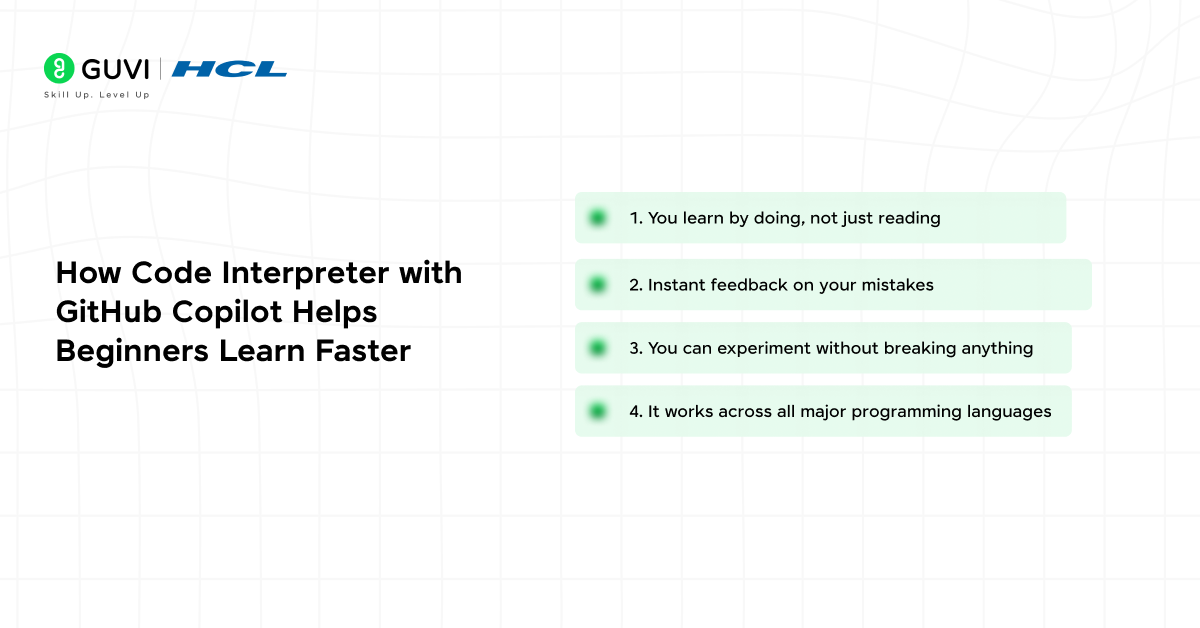
One of the best things about this tool is that it does not just write code for you. It genuinely helps you understand and learn as you go. Here is how it makes the learning process faster and far less frustrating for people just starting out.
1. You learn by doing, not just reading
Instead of memorizing syntax from documentation, you describe what you want in plain English and see working code appear instantly. Watching Copilot build the logic in real time helps you absorb patterns and best practices naturally without feeling overwhelmed.
2. Instant feedback on your mistakes
When you make an error, you do not have to dig through forum posts or Stack Overflow for thirty minutes. Just ask Copilot what went wrong and it explains the problem and suggests a fix in plain language within seconds, which is exactly how a good mentor would help.
3. You can experiment without breaking anything
Agent mode and in-editor code execution let you try small experiments without worrying about breaking your project. Test a function, check an output, undo it if needed, and iterate quickly, all from the safety of the chat panel.
4. It works across all major programming languages
GitHub Copilot supports Python, JavaScript, TypeScript, Java, C++, Go, Ruby, C#, PHP, and many more, so no matter what you are learning or building, Copilot can assist in the language you are working with.
Tips for Getting the Most Out of Code Interpreter with GitHub Copilot
- Write clear comments before your code. Copilot reads your comments to understand your intent, so a specific comment like “function to validate an email address format” will produce far more relevant suggestions than starting with blank code.
- Use the Chat panel for complex problems. If you are stuck on logic or architecture, open Copilot Chat, describe your problem clearly, and it will often give you a full working solution with step-by-step explanations.
- Switch to Agent mode for big tasks. When you need Copilot to create multiple files, install packages, or run tests automatically, Agent mode handles the entire workflow end to end without you needing to manage each step.
- Fork conversations to try alternatives. In 2026, you can branch from any point in an agent conversation to explore a different approach without losing your original work, which is perfect when you want to compare two solutions.
- Use #file references in Chat. Type #file followed by a filename to give Copilot specific context about which file you want it to focus on, making its suggestions much more accurate and relevant.
- Set up custom instructions with /init. This command analyzes your codebase and creates a set of project-specific instructions so Copilot always generates code that fits your existing style and conventions.
- Review every suggestion before accepting. Copilot is powerful but not always perfect. Always read the suggested code before pressing Tab, and use it as a learning opportunity to understand what was written and why.
💡 Did You Know?
- GitHub Copilot is used by over 20 million developers worldwide, making it the most widely adopted AI coding assistant in the world right now.
- Developers who use GitHub Copilot report being up to 55% faster at writing code and report up to 75% higher job satisfaction compared to those who do not use it.
- The free plan gives you 2,000 code completions and 50 chat messages every month with no credit card required, just a free GitHub account.
- As of January 2026, GitHub Copilot in VS Code now supports Claude by Anthropic as an agent, meaning you can delegate coding tasks to Claude models directly from inside your editor.
Conclusion
If you have been looking for a way to code faster, learn more efficiently, and spend less time stuck on bugs and error messages, Code Interpreter with GitHub Copilot in Visual Studio Code is exactly what you need. The setup takes less than ten minutes, the free plan costs nothing, and the boost to your productivity and confidence is real from the very first day. You do not need to be an expert to benefit from it. It is one of the best tools for beginners because it meets you exactly where you are and helps you grow naturally with every project.
Start with the free plan, explore inline suggestions and the Chat panel first, then gradually work your way into Agent mode as you take on bigger projects. Every developer who makes Copilot a part of their workflow says the same thing: going back to coding without it feels impossible.
FAQs
1. What is Code Interpreter with GitHub Copilot in Visual Studio Code?
It is the ability to write, execute, and test code directly inside VS Code using GitHub Copilot. Copilot helps you generate, explain, fix, and refactor code through inline suggestions and the Chat panel. In Agent mode, Copilot can also run terminal commands, install packages, and execute code as part of a complete end-to-end workflow without you needing to switch to a separate terminal.
2. Is GitHub Copilot free to use in VS Code?
Yes. GitHub offers a free tier of Copilot that includes 2,000 code completions and 50 chat messages per month. You only need a free GitHub account to get started with no credit card required. Students and open source maintainers may also qualify for free access to the full Pro plan through GitHub Education.
3. Do I need coding experience to use GitHub Copilot?
No, you do not need any prior coding experience to start using GitHub Copilot. It is designed to assist developers at every level, including complete beginners. You can describe what you want to build in plain English and Copilot will generate the code, explain it, and help you fix any issues along the way.
4. What programming languages does GitHub Copilot support in VS Code?
GitHub Copilot supports a wide range of languages including Python, JavaScript, TypeScript, Java, C++, Go, Ruby, C#, PHP, and many more. It works best with languages that have a large amount of public code, but it handles most popular languages and modern frameworks very effectively.
5. What is Agent mode in GitHub Copilot?
Agent mode is where Copilot takes on complete coding tasks autonomously. You give it a high-level instruction, and it plans the work, edits multiple files, runs terminal commands, installs dependencies, and self-corrects when it runs into errors. In 2026, you can also run multiple agent sessions in parallel and fork conversations to explore alternative solutions without losing your original progress.
Success Stories

About the Author
Jebasta
I translate the language of data into stories that anyone can understand. As a writer with a data science background, I simplify analytics, AI, and decision-making so beginners and enthusiasts can confidently explore the world of data.
View all posts by Jebasta
Connect with me @











Did you enjoy this article?