


Artificial Intelligence and Machine Learning Articles
AI/ML Skills Gap 2026: Why Companies Can't Find Job-Ready Talent
20 AI/ML Interview Questions Recruiters Can Use Without a Tech Background - Best Guide
How Industry-Backed AI/ML Bootcamps Are Changing the AI/ML Hiring Pipeline - Best Guide 2026
From IT Support to AI Engineer: A Realistic Career Switch Guide 2026


Get In Touch For Details! Request More Information
OpenClaw Tutorial 2026: Installation for Your First Chat Setup
Sep 22, 2026 3 Min Read 1476 Views
(Last Updated)
Imagine building your own chat system powered by AI without getting lost in time-consuming processes or confusing applications? Sounds interesting, right?
The current tools, such as OpenClaw, are simplifying the process of configuring your first chat so much that it is now easier than ever to build one; however, most beginners are confused about where to begin.
That is precisely why such a clear point of starting makes a difference. In this blog, we will guide you through the steps to install OpenClaw and create your first chat integration.
Quick Answer:
OpenClaw is an open-source software that helps you automate and communicate more effectively with systems powered by AI. It operates by interpreting instructions and executing tasks, simplifying complicated work processes.
Table of contents
- Understanding OpenClaw: How It Works, Its Benefits, and Key Considerations
- Working Mechanism
- Benefits
- Key Considerations
- OpenClaw Installation and First Chat Setup: Complete Walkthrough
- Step 1: Visit the Official Website
- Step 2: Open Quick Start
- Step 3: Run PowerShell as Administrator
- Step 4: Installation Begins
- Step 5: Fix Execution Policy Error (If It Appears)
- Step 6: Complete Installation
- Step 7: Initial Setup (Onboarding)
- Step 8: Login (If Required)
- Step 9: Select Model
- Step 10: Set up Telegram Bot (Optional but Useful)
- Step 11: Skip Optional Configurations
- Step 12: Open Dashboard
- Step 13: Connect Telegram to OpenClaw
- Step 14: Test the Setup
- Step 15: Start Using OpenClaw
- Conclusion
- FAQs
- What devices and platforms can OpenClaw run on?
- Do I need coding experience to use OpenClaw?
- How safe is it to use OpenClaw with my personal data?
Understanding OpenClaw: How It Works, Its Benefits, and Key Considerations
OpenClaw is an automated system or tool designed to accomplish tasks efficiently with minimal human input. It is usually applied in workplaces that require grabbing, holding, and processing items, thereby making work quicker and more precise.
OpenClaw reduces errors and saves time by employing intelligent mechanisms and programmed instructions to perform tasks, rather than relying on manual inputs.
Working Mechanism
OpenClaw is based on the input-process-output (IPO) model. First, it receives instructions or detects an object using sensors or pre-set commands.
Once the object is identified, the system processes this information and decides how to act, such as where to move or how tightly to grip. This step ensures that the action is accurate and suited to the task.
Once it has been processed, OpenClaw then executes the final operation with its virtual mechanical parts, which can be claws or gripping instruments.
These segments move in a controlled manner to collect, carry, or discard objects when necessary. The system can also adjust its activities based on feedback, thereby becoming more effective and dependable over time.
Benefits
These are the following benefits of using OpenClaw:
- Real task execution: OpenClaw does more than chatting. It can send emails, manage your calendar, browse websites, and automate daily work, saving you time and effort.
- Privacy and local control: It runs on your own device, so your data stays with you. This gives better privacy and full control over your information.
- Works with familiar apps: You can use OpenClaw inside apps like WhatsApp, Telegram, or Slack. There’s no need to learn a new platform—just chat and get work done.
- Automation and integrations: It connects with many tools and services. You can automate workflows, manage tasks, and handle repetitive work easily.
- Customizable and flexible: Being open source, you can modify it, add new features, and create your own workflows tailored to your needs.
- Supports multiple AI models: OpenClaw works with different AI models like GPT, Claude, or local models. This gives you flexibility to choose what works best for you.
Key Considerations
- If not properly configured, it can lead to errors, misexecution, or unexpected behavior.
- It can access local files, system resources, and connected applications, so you must carefully manage permissions and access controls.
- Avoid installing it on your host machine; instead, run it in an isolated environment (e.g., VirtualBox/VMware, Docker, Sandboxie) for better security.
OpenClaw was founded by Peter Steinberger as a personal project, and its name reflects an AI that can “grab” and complete tasks, not just chat, making it a powerful open-source autonomous agent.
OpenClaw Installation and First Chat Setup: Complete Walkthrough
Follow this step-by-step guide to install the OpenClaw tool in your system. The screenshots below make each step clear and help you avoid confusion.

Step 1: Visit the Official Website
- Go to the OpenClaw website
- If you can’t find it, search “OpenClaw” on Google
- Open the official site and scroll down
Step 2: Open Quick Start
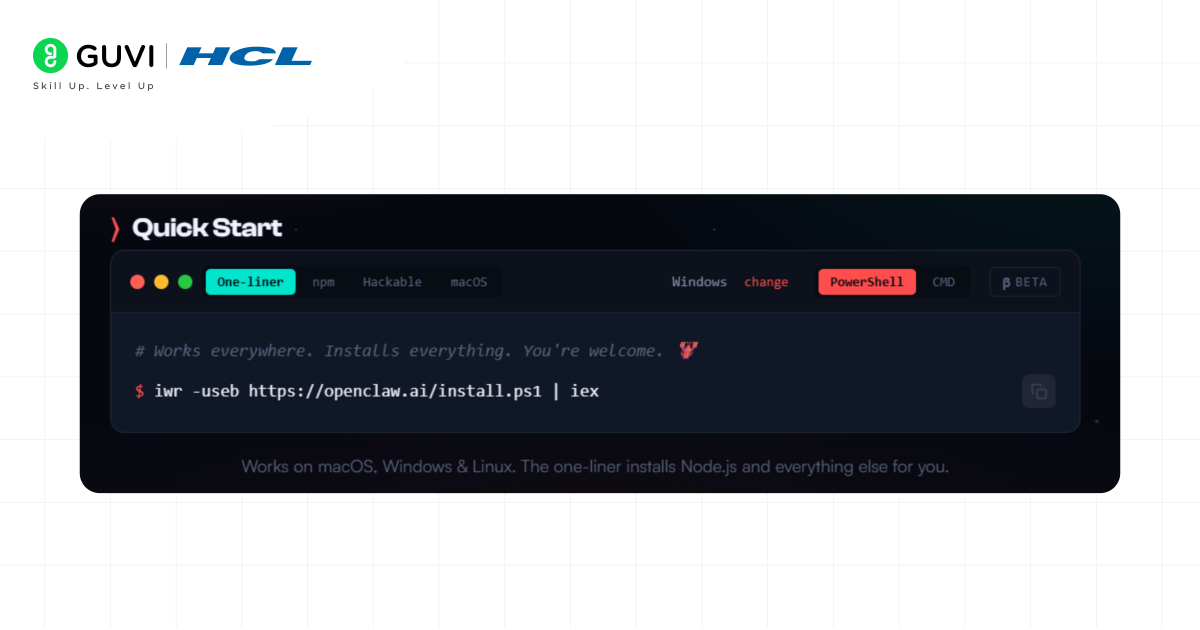
- Click on Quick Start
- Make sure Windows + PowerShell is selected
- Copy the installation command shown there
Step 3: Run PowerShell as Administrator
- Search for Windows PowerShell
- Right-click → Click Run as Administrator
- Paste the copied command
- Press Enter
Step 4: Installation Begins
- OpenClaw will start installing automatically
- It will check for Node.js:
- If already installed → it may update it
- If not installed → it will install it
Step 5: Fix Execution Policy Error (If It Appears)
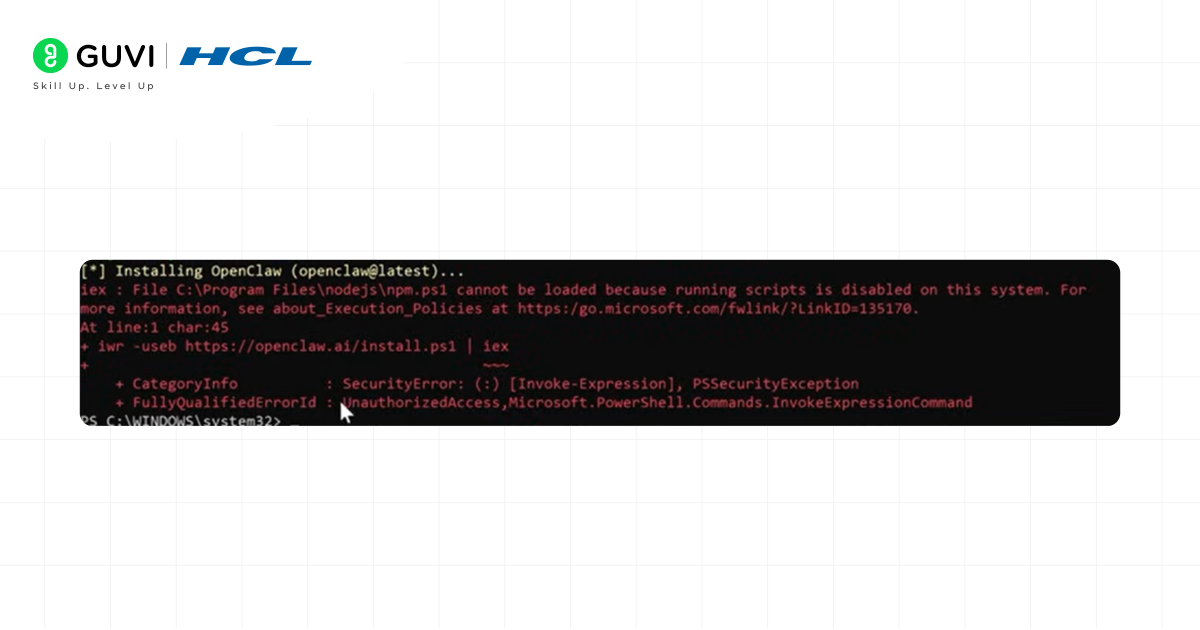
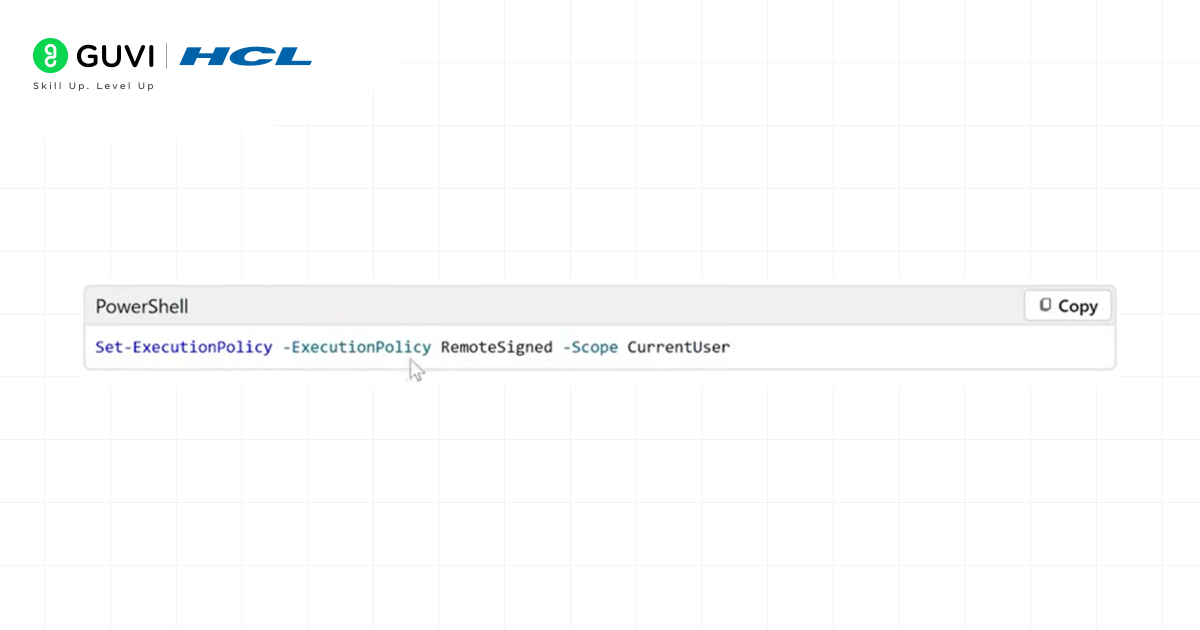
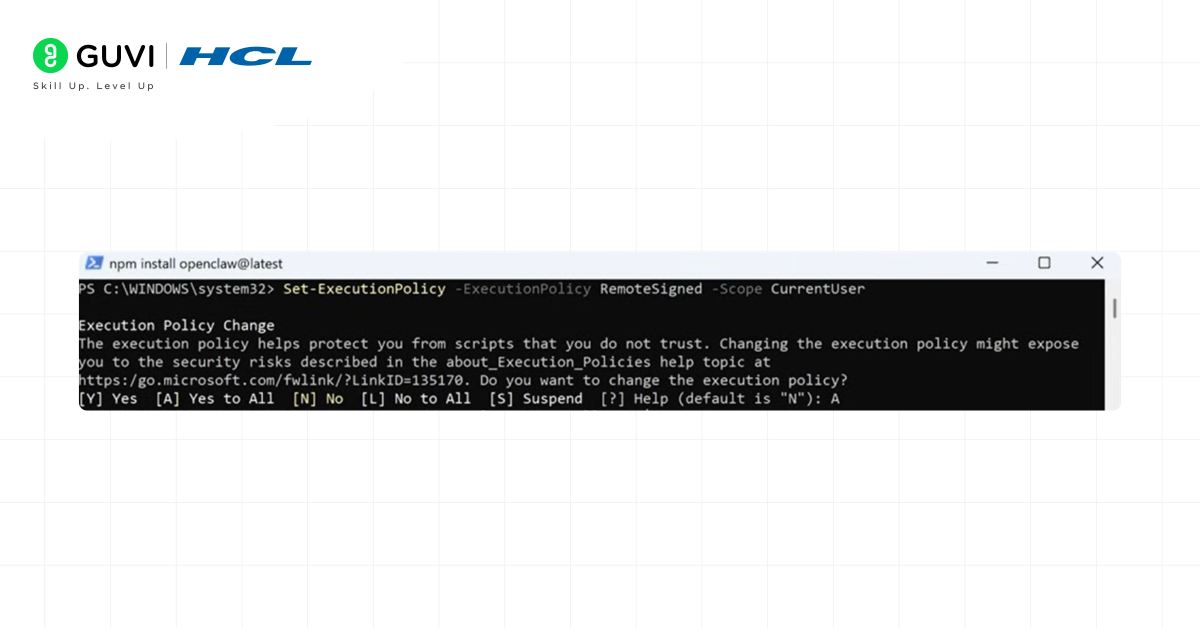
If you see an authorization error:
- This happens due to the restricted execution policy
- Copy the Set-ExecutionPolicy (RemoteSigned for CurrentUser) command
- Run it in PowerShell
- Then run the OpenClaw install command again
Step 6: Complete Installation
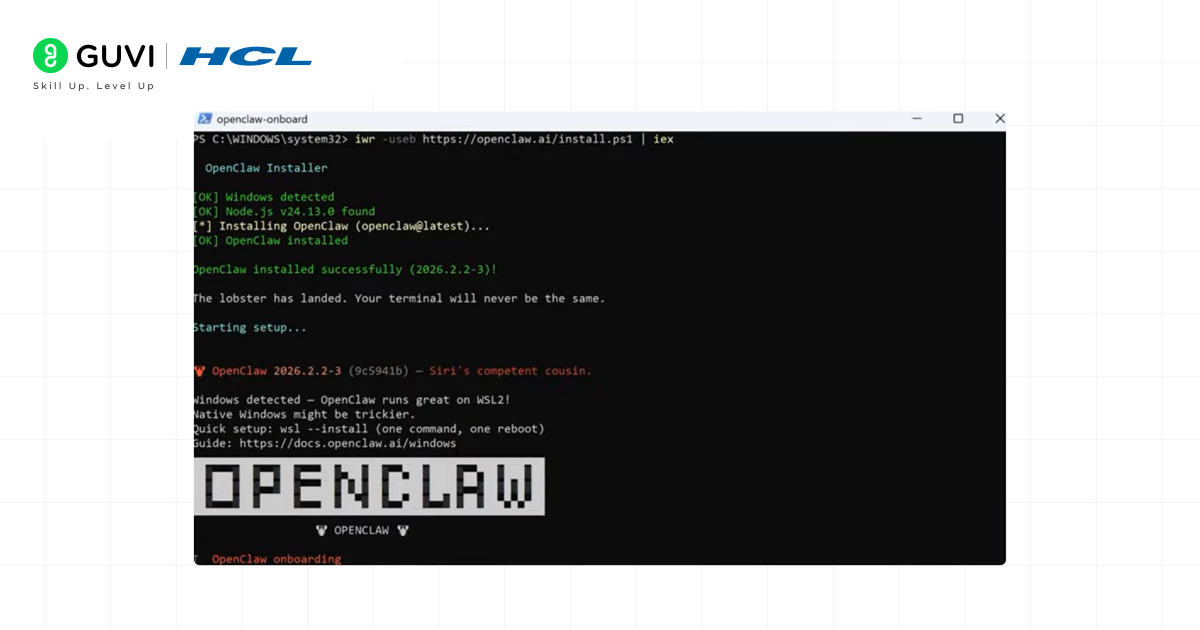
- OpenClaw will finish downloading and installing
- The setup will start automatically
Step 7: Initial Setup (Onboarding)
- You’ll be asked to confirm risk → click Yes
- Choose how you want to use OpenClaw:
- OpenAI
- Anthropic (recommended)
- GitHub Copilot
- Other APIs
Step 8: Login (If Required)
- If using GitHub Copilot or similar:
- Log in via browser
- Enter the verification code
- Authorize access
Step 9: Select Model
- Choose a model (example: free option like GPT-5 Mini if available)
- Continue to the next step
Step 10: Set up Telegram Bot (Optional but Useful)

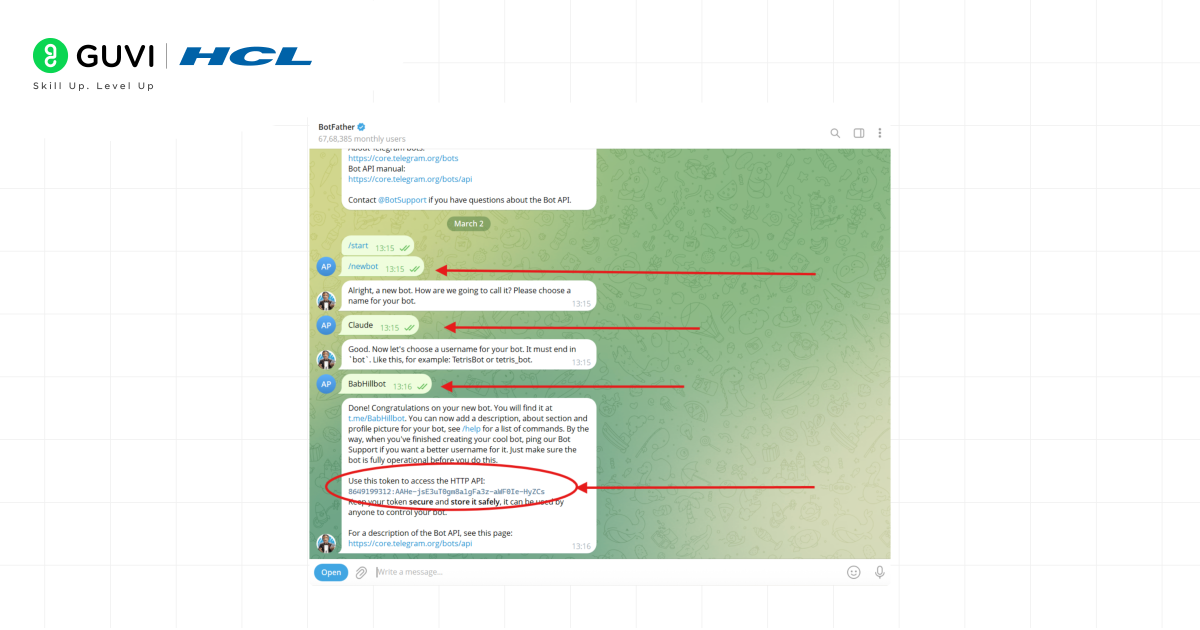
- Open Telegram and search for BotFather
- Type /newbot
- Enter:
- Bot name (as per your choice)
- Username (must end with “bot”)
- Copy the bot token
- Paste it into the OpenClaw setup (PowerShell)
Step 11: Skip Optional Configurations
- You can skip skills setup for now
- Continue forward
Step 12: Open Dashboard
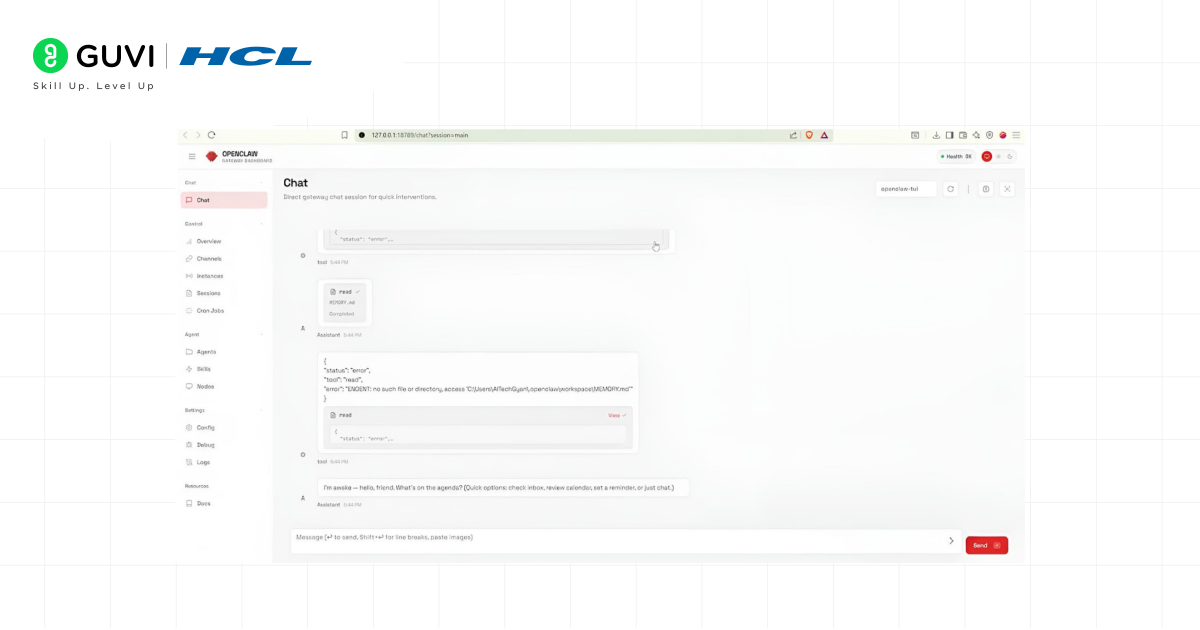
- Use the command: openclaw dashboard
- This opens your dashboard:
- Sessions
- Channels
- Jobs
Step 13: Connect Telegram to OpenClaw
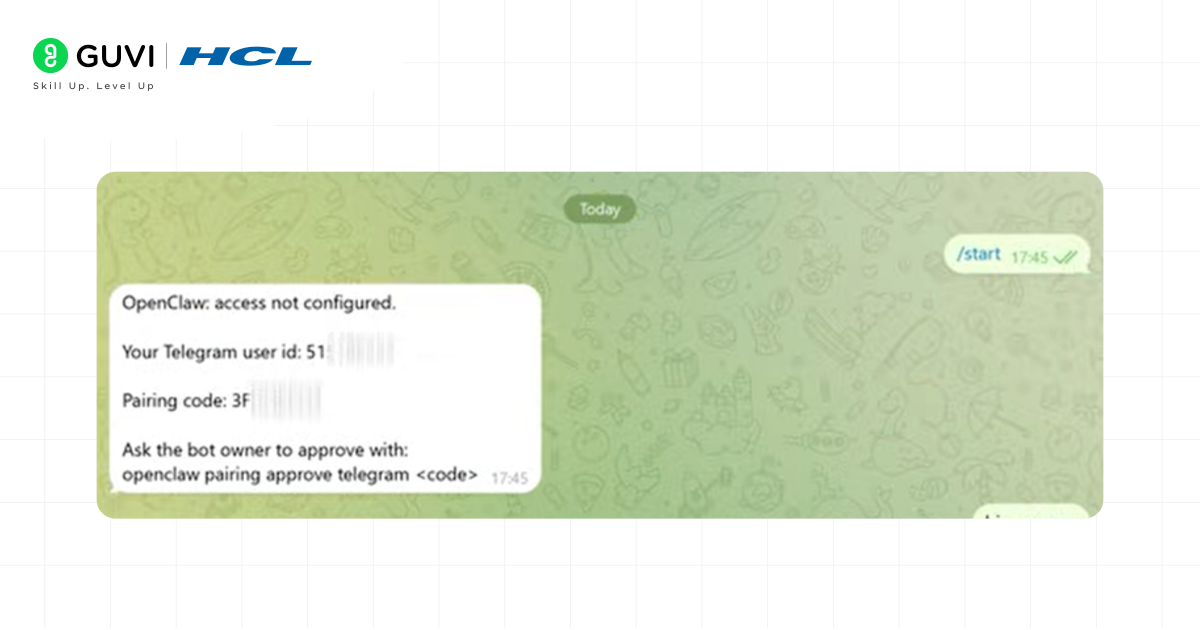
- Open your bot in Telegram
- Click Start
- Copy the pairing code shown
- Run command:
- openclaw pairing approve telegram <code>
- Now Telegram is connected
Step 14: Test the Setup
- Send “hi” in Telegram
- You should receive a reply
Step 15: Start Using OpenClaw
- You can:
- Chat via Telegram
- Use dashboard
- Run commands
- You can access it from anywhere
Kickstart your AI journey with HCL GUVI’s Intel & IITM Pravartak Certified AI/ML course—build practical skills, work on real-world projects, and get industry-ready. Enroll today and start shaping your future in AI.
Conclusion
OpenClaw makes it simple, efficient, and customizable to set up your own AI-powered chat system. By following the installation steps carefully, you can automate tasks and streamline workflows with ease. With proper setup and precautions, OpenClaw becomes a powerful tool for both personal and professional use.
FAQs
What devices and platforms can OpenClaw run on?
It runs on most computers and works best in virtual machines or containers. It also integrates with apps like WhatsApp, Telegram, and Slack.
Do I need coding experience to use OpenClaw?
No, basic setup is easy. Coding is only needed to customize workflows or add features.
How safe is it to use OpenClaw with my personal data?
It runs locally, keeping your data private. Always manage permissions and use an isolated environment for safety.
Success Stories













Did you enjoy this article?