


Web Development Articles
How to Use Firebase Firestore for Real-Time Data in Web Apps
Web Designing Roadmap 2026: Best Guide to Become a Successful Web Designer


Get In Touch For Details! Request More Information

Routing in ReactJS Simplified: Essential Beginner-Friendly Examples!
Nov 23, 2025 8 Min Read 2454 Views
(Last Updated)
Since the inception of websites and software applications, navigation has been one of the most fundamental aspects of user experience (UX). Imagine a platform where users spend most of their time figuring out how to use its features or where to navigate—awful, isn’t it? That’s why routing is vital in modern React applications.
Routing in ReactJS is managed through React Router, a JavaScript library that enables single-page applications (SPAs) to navigate between components without full page reloads.
Before React Router, developers manually managed URLs, leading to messy code, unnecessary reloads, and poor UX. With React Router, React apps became modular, seamless, and performance-optimized.In this blog, we will explore routing in ReactJS, covering its essential topics and providing the most effective code examples. So, let’s begin our discussion.
Table of contents
- React Router & Routing in React: What It Is and Why It Matters
- Implementing Routing in ReactJS: Setup, Navigation, and Advanced Techniques
- Setting Up React Router (Latest Version) & Understanding BrowserRouter, Routes, and Route (v6+)
- File Structure for React Routing & Optimized Routing Example
- Using Link and NavLink for Navigation
- Nested Routes Explained
- Handling 404 Pages (Not Found Routes)
- Best Practices for React Routing (2025)
- Conclusion
- FAQs
- What is React Router, and why do we need it?
- What’s the difference between Link and NavLink?
- How do I handle pages that don’t exist (404)?
React Router & Routing in React: What It Is and Why It Matters

Routing in ReactJS is the process of mapping the URLs (URL mapping) to the respective functional components. In other words, determining which component should be displayed to the end users based on the URL they visit or navigate. It is an essential part for controlling the entire navigational flow of a React application.
To enable or establish a full-fledged routing system, React Router (a standard JS library) is integrated into the development process. It provides a declarative API for defining route paths, mapping URLs to multiple components, handling dynamic parameters, and managing nested views of components. For better comprehension: Routing in ReactJS is a navigation concept, while React Router is the software tool through which this concept gets implemented.
If we discuss React Router’s significance from a core development perspective, it becomes extremely crucial for developers. It allows them to manage authentication-specific routes, role-based access control, and build deeply nested frontend layouts without cluttering the program files.
Without routing in ReactJS applications, several challenges would arise, such as sophisticated DOM manipulation, mishandling of dynamic URLs, and, more importantly, degradation in user engagement and interaction with the apps.
Implementing Routing in ReactJS: Setup, Navigation, and Advanced Techniques
1. Setting Up React Router (Latest Version) & Understanding BrowserRouter, Routes, and Route (v6+)

These are the following steps you need to follow to set up the React Router before developing the applications:
a. Installing React Router
To implement routing in ReactJS, first, you have to install the React Router library by writing the following command:
(Code)
{
npm install react-router-dom
}
b. Wrapping Your App with BrowserRouter
Here, the <BrowserRouter> is a component used to enable routing in your application. Here, the entire <App /> component is wrapped inside the <BrowserRouter>, which observes URL changes and renders only the components that users visit. Usually, it wraps your entire application in index.js or App.js:
(Code)
{
File: index.js
import React from ‘react’;
import ReactDOM from ‘react-dom/client’;
import { BrowserRouter } from ‘react-router-dom’;
import App from ‘./App’;
const root = ReactDOM.createRoot(document.getElementById(‘root’));
root.render(
<BrowserRouter>
<App />
</BrowserRouter>
);
}
Explanation:
- In this code example, ReactDOM is the library imported to establish a connection between React functional components and the actual browser DOM (Document Object Model).
- App is the main parent component. The root is the container box where the entire React app gets rendered. And this root source is created by using: ReactDOM.createRoot( ).
- document.getElementById(‘root’) is the method we use to manipulate the DOM tree by selecting the HTML element with the id “root” (from the index.html file), where the entire React code is injected.
- The render( ) method is responsible for instructing the React app what to display inside the root container. In this case, the <App /> component will get rendered, which is wrapped inside the <BrowserRouter> component.
c. Defining Routes
In React, Routes are defined using the <Routes> component, which can hold one or more <Route> elements. Here, each <Route> element specifies a navigation path and the components that need to be rendered when any user visits that specific URL.
In simple terms, Route basically conducts a mapping process by linking the URL paths with the respective component (element).
Note: In React Router v6+, component is replaced by element, and you pass it as a JSX element (<Component />). In this latest version, there is no <Switch> component; <Routes> replaces <Switch> and automatically behaves like it.
(Code)
{
File: App.js
import { Routes, Route } from ‘react-router-dom’;
import Home from ‘./pages/Home’;
import About from ‘./pages/About’;
import Contact from ‘./pages/Contact’;
function App() {
return (
<Routes>
<Route path=”/” element={<Home />} />
<Route path=”/about” element={<About />} />
<Route path=”/contact” element={<Contact />} />
</Routes>
);
}
export default App;
}
_________________________________________________________________________
(Code)
{
File: pages/Home.js
import React from ‘react’;
function Home() {
return (
<div style={{ textAlign: ‘center’, marginTop: ’50px’ }}>
<h1>Welcome to the Home Page 🏠</h1>
<p>This is the main page of our website where you can explore everything!</p>
</div>
);
}
export default Home;
}
_________________________________________________________________________
{
File: pages/About.js
import React from ‘react’;
function About() {
return (
<div style={{ textAlign: ‘center’, marginTop: ’50px’ }}>
<h1>About Us 💡</h1>
<p>We’re a passionate team building amazing React apps with modern tools and clean code.</p>
</div>
);
}
export default About;
}
_________________________________________________________________________
{
File: pages/Contact.js
import React from ‘react’;
function Contact() {
return (
<div style={{ textAlign: ‘center’, marginTop: ’50px’ }}>
<h1>Contact Us </h1>
<p>Have any questions? Reach out to us anytime at [email protected].</p>
</div>
);
}
export default Contact;
}
Let’s briefly understand how routing works with the help of the above examples:
- When any end user navigates to “/”, React Router renders the <Home /> component. In this example, the frontend will display “Welcome to the Home Page ”.
- When the user navigates to “/about”, React Router renders the <About /> component. In this example, the frontend will display “About Us ”.
- Similarly, when the user navigates to “/contact”, React Router renders the <Contact /> component. In this example, the frontend will display “Contact Us ”.
For better comprehension: The routing in ReactJS is dynamic in nature, not static, and is entirely based on client-side rendering (CSR) instead of server-side rendering (SSR), due to which each React page loads faster, as there is no involvement of fetching details from the server.
Note: We can optimize React for SSR through Code Splitting, Lazy Loading Components, Server-Side Caching functions, Minimizing the Bundle Size, and many more.
2. File Structure for React Routing & Optimized Routing Example

React app development is not just limited to writing code; to ensure code readability and maintainability, organizing your program files should be your top priority, as it allows you to make the routing system much easier to handle.
A common and clean structure looks like this:
{
src/
│
├── App.js
├── index.js
│
├── pages/ # Components for each route
│ ├── Home.js
│ ├── About.js
│ ├── Contact.js
│ └── NotFound.js
│
├── components/ # Reusable UI components
│ ├── Header.js
│ ├── Footer.js
│ └── Navbar.js
│
└── routes/ # Optional: route-related config or helpers
└── AppRoutes.js
}
(Optimized Code Example)
{
File: src/routes/AppRoutes.js
// src/routes/AppRoutes.js
import Home from ‘../pages/Home’;
import About from ‘../pages/About’;
import Contact from ‘../pages/Contact’;
import NotFound from ‘../pages/NotFound’;
export const routes = [
{ path: ‘/’, element: <Home /> },
{ path: ‘/about’, element: <About /> },
{ path: ‘/contact’, element: <Contact /> },
{ path: ‘*’, element: <NotFound /> },
];
}
_________________________________________________________________________
{
File: App.js
import { Routes, Route } from ‘react-router-dom’;
import { routes } from ‘./routes/AppRoutes’;
function App() {
return (
<Routes>
{routes.map((route, index) => (
<Route key={index} path={route.path} element={route.element} />
))}
</Routes>
);
}
}
Explanation:
- In this example, kindly observe how we created a separate file, AppRoutes.js, for centralizing all the route definitions (path, associated component).
- After that, we imported the routes array into the main App.js file and implemented the map method. By writing less code, we attached all the essential properties to each Route component, such as a unique key, path, and child component to be rendered.
3. Using Link and NavLink for Navigation

<Link>: This component is used as a replacement for the <a> tag in React apps; it is essentially a simple way to navigate to a route.

<NavLink>: It is equivalent to the <Link> component but has extra features, adding an active class and applying custom styling on it, to ensure active page links are visually highlighted (as in this case with bold font weight & blue text color).
(Code)
{
File: components/Navbar.js
import React from ‘react’;
import { Link, NavLink } from ‘react-router-dom’;
function Navbar() {
const activeStyle = {
fontWeight: ‘bold’,
color: ‘blue’,
};
return (
<nav style={{ display: ‘flex’, gap: ’20px’, padding: ’20px’ }}>
{/* Simple Link */}
<Link to=”/”>Home</Link>
{/* NavLink with active styling */}
<NavLink to=”/about” style={({ isActive }) => (isActive ? activeStyle : undefined)}>
About
</NavLink>
<NavLink to=”/contact” style={({ isActive }) => (isActive ? activeStyle : undefined)}>
Contact
</NavLink>
</nav>
);
}
export default Navbar;
}
Explanation:
- Upon clicking the <Link> or <NavLink> component changes the URL without rendering the whole page.
- The <NavLink> component automatically applies the active styles when the route matches the current URL.
- It becomes easier to add custom style or className conditional props (properties) with a function that will check the isActive status of the links.
}
4. Nested Routes Explained
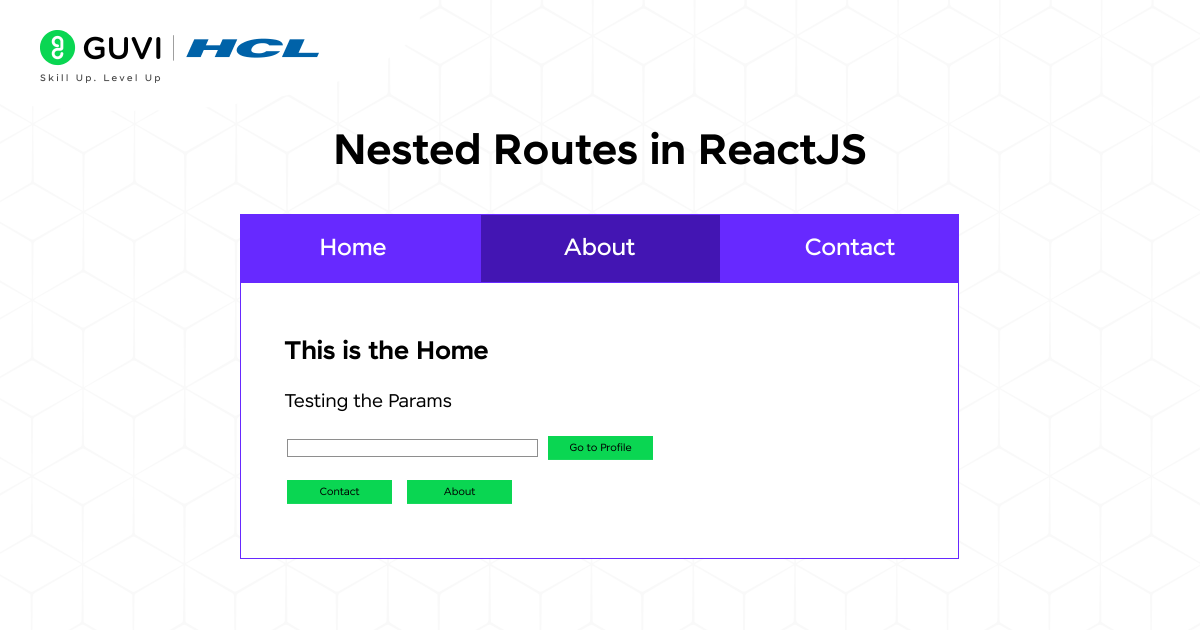
Nested Routes is a routing structure in which users can render the navigational routes inside other parent routes. By doing this, it becomes easier to create page layouts that include shared components like headers, navbars, sidebars, or footers.
It is one of the effective methods to eliminate code repetitiveness; you just define a parent route and render all the child routes inside it.
(Code)
{
File: App.js
import { Routes, Route } from ‘react-router-dom’;
import Layout from ‘./pages/Layout’;
import Home from ‘./pages/Home’;
import About from ‘./pages/About’;
import Contact from ‘./pages/Contact’;
import NotFound from ‘./pages/NotFound’;
function App() {
return (
<Routes>
{/* Parent layout route */}
<Route path=”/” element={<Layout />}>
{/* Nested routes */}
<Route index element={<Home />} /> {/* Default page */}
<Route path=”about” element={<About />} />
<Route path=”contact” element={<Contact />} />
<Route path=”*” element={<NotFound />} />
</Route>
</Routes>
);
}
export default App;
}
_________________________________________________________________________
{
File: pages/Layout.js
import React from ‘react’;
import { Outlet, NavLink } from ‘react-router-dom’;
function Layout() {
const activeStyle = { fontWeight: ‘bold’, color: ‘blue’ };
return (
<div>
{/* Navbar */}
<nav style={{ display: ‘flex’, gap: ’20px’, padding: ’20px’ }}>
<NavLink to=”/” end style={({ isActive }) => (isActive ? activeStyle : undefined)}>Home</NavLink>
<NavLink to=”about” style={({ isActive }) => (isActive ? activeStyle : undefined)}>About</NavLink>
<NavLink to=”contact” style={({ isActive }) => (isActive ? activeStyle :
undefined)}>Contact</NavLink>
</nav>
{/* Nested route content will render here */}
<Outlet />
</div>
);
}
export default Layout;
}
Explanation:
- Parent Route (Layout): Contains the shared layout, e.g., Navbar.
- <Outlet />: Placeholder where nested child routes render.
- Child Routes (Home, About, Contact): Render inside the <Layout> automatically.
- index route: Serves as the default child page when parent path / is visited.
5. Handling 404 Pages (Not Found Routes)
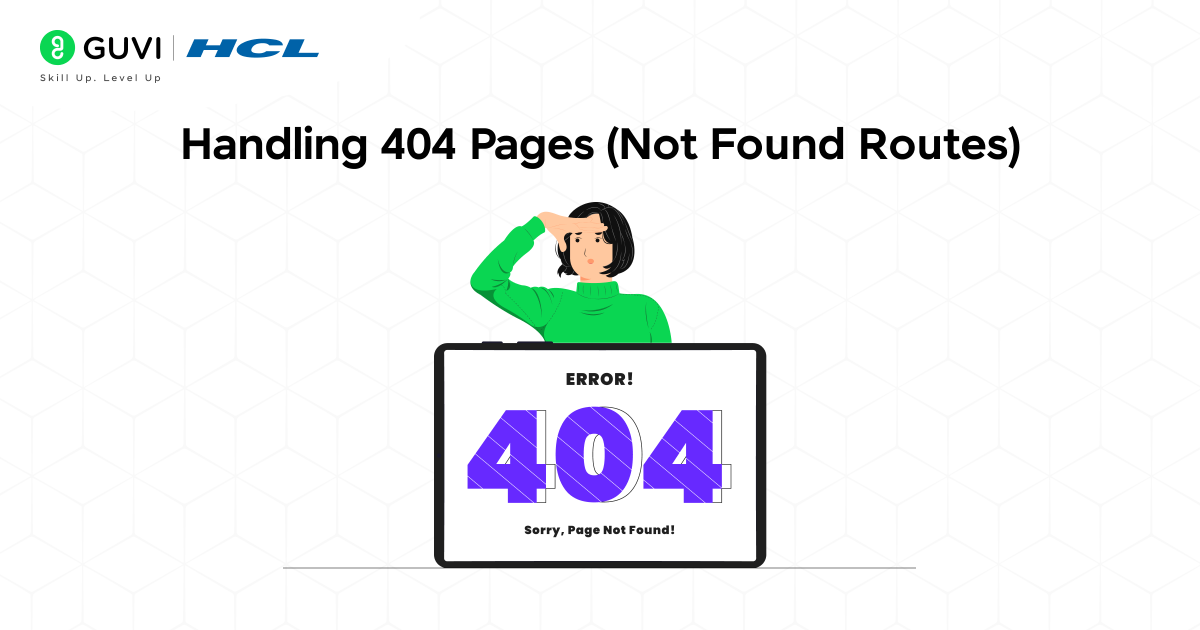
Along with defining all the routes, it is also necessary to include code scripts for handling 404 Pages. The reason behind this is to maintain the application’s consistency and workflow, particularly when users visit URLs that don’t match any defined routes.
In other words, letting the end users know that the page doesn’t exist instead of showing a blank interface.
(Code)
{
File: App.js
import { Routes, Route } from ‘react-router-dom’;
import Home from ‘./pages/Home’;
import About from ‘./pages/About’;
import Contact from ‘./pages/Contact’;
import NotFound from ‘./pages/NotFound’;
function App() {
return (
<Routes>
<Route path=”/” element={<Home />} />
<Route path=”/about” element={<About />} />
<Route path=”/contact” element={<Contact />} />
{/* Catch-all route for 404 */}
<Route path=”*” element={<NotFound />} />
</Routes>
);
}
export default App;
}
_________________________________________________________________________
{
File: pages/NotFound.js
import React from ‘react’;
import { Link } from ‘react-router-dom’;
function NotFound() {
return (
<div style={{ textAlign: ‘center’, marginTop: ’50px’ }}>
<h1>404 – Page Not Found </h1>
<p>The page you are looking for does not exist.</p>
<Link to=”/”>Go back Home</Link>
</div>
);
}
export default NotFound;
}
Explanation:
- path=”*”
- Matches any URL that doesn’t match the defined routes.
- This ensures the 404 page is shown for invalid URLs.
- User-friendly message
- Let users know the page isn’t found.
- Provide a link to go back home or to other important pages.
Best Practices for React Routing (2025)
The following are the best practices while performing routing in React applications:
- Organize Routes – Keep routes in a central file.
- Use Nested Routes – Share layouts like Navbar/Footer.
- Highlight Active Links – Use NavLink for the current page.
- Handle 404 Pages – Include a catch-all route.
- Keep Routes Simple – Avoid overly complex nesting.
In today’s time, cracking a top product-based company requires a solid foundation in programming and hands-on experience in developing real-world projects. But to acquire proficiency in these fields is not an easy task; for that, you need a tech mentor who can guide you through all the intricacies involved in software development processes. If you constantly aspire to become a software developer but don’t know how to start, enroll in HCL GUVI’s IITM Pravartak Certified MERN Full Stack Development Course with AI Integration. Equip yourself with the in-demand tools and unlock a high-paying tech career.
Conclusion
React Router makes it easy to create single-page applications with multiple pages and smooth navigation. By using BrowserRouter, Routes, and Route, you can define both static and dynamic routes. Components like Link and NavLink allow users to navigate seamlessly, while nested routes help organize layouts with shared components. Including a 404 page ensures a professional and user-friendly experience.
For beginners, focusing on these essentials provides a solid foundation for building React apps with clean and maintainable routing.
FAQs
What is React Router, and why do we need it?
React Router lets React apps have multiple pages without reloading the browser, enabling smooth navigation.
What’s the difference between Link and NavLink?
The Link component is for basic navigation, while NavLink can highlight the active page automatically.
How do I handle pages that don’t exist (404)?
Use a catch-all route (path=”*”) to render a NotFound component for unmatched URLs.
Success Stories








































Did you enjoy this article?