


Python Articles
Excel SQL Python for BPO Professionals Best Guide to Move Into Data Science
Go vs Python for Forward Deployed Engineering Workloads
Python for Forward Deployed Engineers: What You Actually Need to Know
Freelancing as a Python Developer: Getting Your First Client


Get In Touch For Details! Request More Information
How to Add Python to PATH in Windows, macOS, and Linux
Jul 16, 2026 4 Min Read 1423 Views
(Last Updated)
After installing Python, many users expect commands like python and pip to work right away. However, that’s not always true. You might see errors such as “Python is not recognized as an internal or external command” or “command not found: python,” even though Python is already on your system.
In most cases, the issue is related to PATH configuration. Knowing how to add Python to PATH is one of the first tasks every Python developer should grasp. This allows your operating system to find Python automatically whenever you run a command.
Whether you’re learning Python, building automation scripts, working with data science tools, or developing applications, setting PATH correctly makes development smoother from the start.
Table of contents
- TL;DR
- How to Check if Python Is Already Added to PATH
- How to Add Python to PATH During Installation on Windows
- How to Add Python to PATH After Installation on Windows
- Step 1: Locate the Python Installation Folder
- Step 2: Open Environment Variables
- Step 3: Edit the PATH Variable
- Step 4: Restart Command Prompt
- How to Add Python to PATH in Windows 11
- How to Add Python to PATH in Windows 10
- How to Add Python to PATH in macOS
- How to Add Python to PATH in Linux
- How to Verify Python PATH Configuration
- Common Python PATH Errors and How to Fix Them
- Python Is Not Recognized
- pip Is Not Recognized
- Python Works in VS Code but Not in Command Prompt
- Python Opens the Microsoft Store
- Multiple Python Versions Are Installed
- Conclusion
- FAQs
- What is PATH in Python?
- Can I add Python to PATH after installation?
- How do I check if Python is already added to PATH?
- Why is pip not recognized after installing Python?
- Do I need to add both the Python and Scripts folders to PATH?
TL;DR
- Adding Python to PATH allows you to run Python commands from any Command Prompt or Terminal window.
- If Python is not added to PATH, you may see errors like “Python is not recognized” or “command not found.”
- Windows users can add Python to PATH during installation or through Environment Variables later.
- macOS and Linux users can update their shell configuration files to include Python’s installation directory.
- Verifying the configuration ensures that Python, pip, and related tools function correctly from the command line.
Why Should You Add Python to PATH?
Adding Python to the PATH environment variable allows your operating system to locate and execute Python from any Command Prompt or Terminal window without requiring you to navigate to the installation directory manually. It also enables tools such as pip, IDEs, and development environments to find and use Python correctly. Without Python in PATH, running Python commands may result in “command not found” or similar errors, making development workflows less convenient.
How to Check if Python Is Already Added to PATH

Before making any changes, check whether Python is already configured correctly.
On Windows, open Command Prompt and run:
python –version
If Python is available, you should see output like:
Python 3.13.2
You can also check the installation location using:
where python
This command shows the path to the Python executable currently in use.
On macOS and Linux, run:
python3 –version
To find the executable, use:
which python3
If these commands return errors or no results, Python is likely missing from PATH.
How to Add Python to PATH During Installation on Windows
If you’re installing Python for the first time, the easiest way is to add Python to PATH during installation.
Launch the Python installer and look for the checkbox labeled:
Add Python to PATH
Check this option before selecting Install Now.
The installer will automatically configure the necessary PATH entries, allowing Python and pip to work right after installation.
If you have any queries related to how to install Python in Windows, you can refer to the guide.
How to Add Python to PATH After Installation on Windows
If Python is already installed, you can add it to PATH manually.
Step 1: Locate the Python Installation Folder
Open Command Prompt and run:
where python
If nothing appears, check common installation folders like:
C:\Users\YourUsername\AppData\Local\Programs\Python\Python313
or
C:\Program Files\Python313
You should also find the Scripts folder inside the Python installation directory.
Step 2: Open Environment Variables
Search Windows for:
Edit the system environment variables
Open the result and click Environment Variables.
Step 3: Edit the PATH Variable
Under User Variables, select Path and click Edit.
Choose New and add the Python installation directory.
Then, add the Scripts directory as well.
Example:
C:\Users\YourUsername\AppData\Local\Programs\Python\Python313
C:\Users\YourUsername\AppData\Local\Programs\Python\Python313\Scripts
Click OK to save the changes.
Step 4: Restart Command Prompt
Close any open Command Prompt windows and open a new one.
Run:
python –version
If the version number appears, Python has been successfully added to PATH.
You can also download HCL GUVI’s Python ebook to learn more about Python installation, environment setup, PATH configuration, and other essential concepts for getting started with Python.
How to Add Python to PATH in Windows 11
Windows 11 users can access PATH settings through Environment Variables.
Open the Start menu and search for Environment Variables. Find the Path variable, edit it, and add both the Python installation directory and the Scripts folder.
After saving the changes, open a new Command Prompt window and verify the setup using:
python –version
How to Add Python to PATH in Windows 10
The process in Windows 10 is similar to Windows 11.
Access Environment Variables, edit the Path variable, and add the required Python directories. Once done, restart Command Prompt and check the installation.
If set up correctly, Python commands should work from any location on your system.
How to Add Python to PATH in macOS
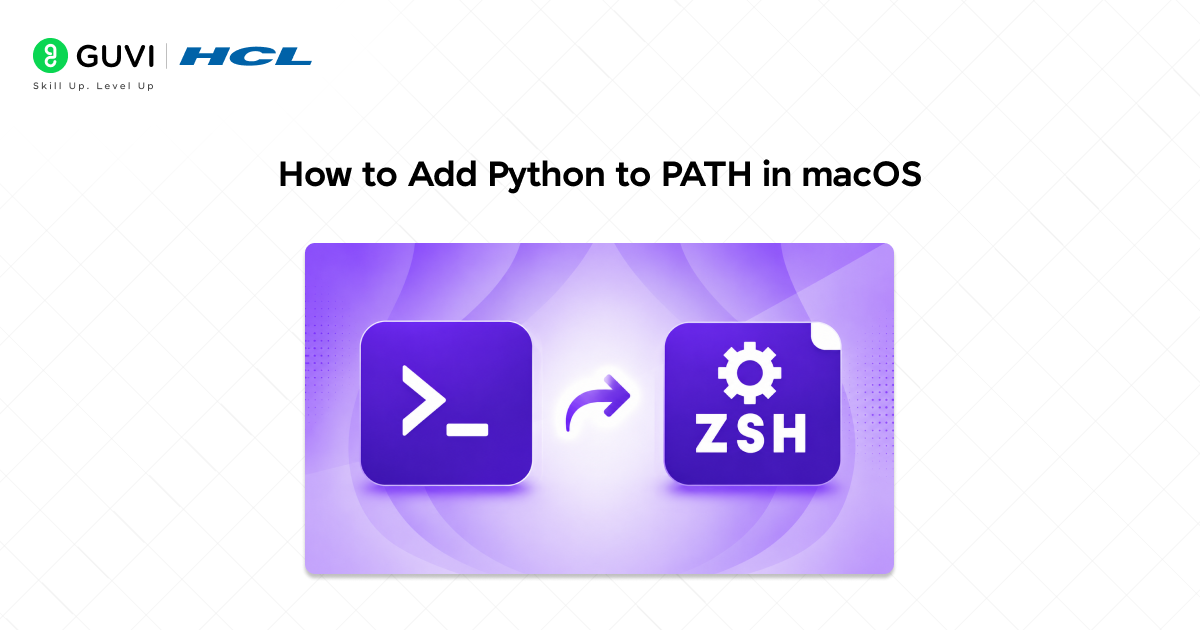
Most modern macOS systems use Zsh as the default shell.
First, locate Python:
which python3
If Python is installed but not accessible globally, update the PATH variable:
echo ‘export PATH=”/usr/local/bin:$PATH”‘ >> ~/.zshrc

Apply the changes:
source ~/.zshrc
Then verify the installation:
python3 –version
If a version number appears, Python has been added to PATH successfully.
How to Add Python to PATH in Linux

Many Linux distributions come with Python by default, but custom installations might need manual setup.
To add Python to PATH, update your shell configuration file:
echo ‘export PATH=”/usr/local/bin:$PATH”‘ >> ~/.bashrc
Reload the configuration:
source ~/.bashrc
Verify the setup:
python3 –version
If the command shows the installed version, PATH is set up correctly.
If you have any queries related to how to install Python in Linux and macOS, you can refer to the guide.
How to Verify Python PATH Configuration
After updating PATH, confirm that everything works as expected.
Run:
python –version
Then check the executable location:
where python
Windows users can also check pip:
python -m pip –version
On macOS and Linux, use:
which python3
These commands confirm that Python and related tools are accessible from the command line.
Many developers assume Python is configured correctly because it runs without issues inside tools such as VS Code, PyCharm, or Jupyter Notebook. However, these applications often locate Python using their own configuration settings and can function even when Python has not been added to the system PATH. As a result, Python may work perfectly inside an IDE while commands like python or pip fail in Command Prompt or the Terminal. This is one of the most common causes of confusion for beginners setting up their Python development environment.
Common Python PATH Errors and How to Fix Them
Python Is Not Recognized
This error usually happens when Python’s installation directory is missing from PATH.
Check the installation location and confirm it has been added correctly to the PATH variable.
pip Is Not Recognized
Often, this occurs when the Scripts folder was not added to PATH.
Adding the Scripts directory related to your Python installation usually resolves the issue.
Python Works in VS Code but Not in Command Prompt
VS Code can often find Python automatically, even when PATH is not configured correctly.
If Python works in the editor but not in the Command Prompt, manually adding Python to PATH usually fixes the issue.
Python Opens the Microsoft Store
Some Windows systems use App Execution Aliases that redirect Python commands to the Microsoft Store.
Disabling the alias or setting PATH correctly can prevent this behavior.
Multiple Python Versions Are Installed
When multiple Python versions exist on your system, the command line may launch a different version than the one you expect.
To check which Python executable is currently being used, run:
where python
On macOS and Linux, run:
which python3
These commands display the location of the active Python installation, helping you identify version conflicts and PATH-related issues.
Curious about how these concepts work in real life? Join HCL GUVI’s Python course to build Python projects and learn automation, backend development, and data science fundamentals.
Conclusion
Adding Python to PATH is one of the most important steps for Python developers. It allows your operating system to find Python automatically, making commands, packages, and development tools available from anywhere on your system.
Whether you’re writing your first Python script or building large applications, a properly configured PATH can reduce common setup problems and create a smoother development process. Spending a few minutes getting PATH right today can save significant trouble later.
FAQs
1. What is PATH in Python?
PATH is a system environment variable that tells your operating system where to look for executable files. Adding Python to PATH allows Python commands to run from any directory.
2. Can I add Python to PATH after installation?
Yes. You can update the PATH variable through Environment Variables on Windows or shell configuration files on macOS and Linux.
3. How do I check if Python is already added to PATH?
Run python –version or python3 –version. If a version number appears, Python is likely set up correctly.
4. Why is pip not recognized after installing Python?
This usually happens when the Python Scripts directory has not been added to PATH.
5. Do I need to add both the Python and Scripts folders to PATH?
Yes. Adding both directories ensures that Python, pip, and other command-line tools work properly.
Success Stories

About the Author
Vishalini Devarajan
An Aerospace Engineer turned content writer, I focus on making complex concepts easy to understand through well-structured, reader-friendly blogs. Whether it’s a technical topic or a non-technical one, I love creating content that is clear, engaging, and impactful.
View all posts by Vishalini Devarajan
Connect with me @










Did you enjoy this article?