


Python Articles
Building a Neural Network Using PyTorch: Step-by-Step Guide for Beginners and Developers
How to Install Requirements.txt in Python: A Beginner's Step-by-Step Guide (2026)


Get In Touch For Details! Request More Information
Step-by-Step Guide to Add Python to Path in 2026
Apr 07, 2026 3 Min Read 1259 Views
(Last Updated)
The first step in your programming journey is to install Python. After you install it on your computer, you will be able to run Python commands using the terminal (or command prompt). In order for your terminal or command prompt to be able to run Python commands successfully from any folder, the terminal must know exactly where the Python installation is located on your computer. If this connection is not set up correctly, then you will not be able to run commands successfully, although you have Python on your computer.
This is why learning how to add Python to PATH is so important. It helps your operating system to find and run programs quickly. allowing you to run Python from any folder without typing long directory paths.
In this beginner’s guide, you’ll find what PATH is; as well as why you should add Python to PATH; and finally, step-by-step instructions to properly configure PATH for Windows, macOS, and Linux so that you set up your Python environment correctly and do not create common setup error.
Quick Answer:
Python being added to the PATH means you have added the full location of where Python is installed into your operating system as part of your Environment Variable, so that when you type in ‘python’ in your command line, it will know where to go find your Python software. When Python has been added onto path, you will be able to run Python and pip in any folder without having to open the Python installation directory yourself.
Table of contents
- What is meant by the Python path?
- Why Do You Need to Add Python to PATH?
- How to Add Python to PATH in Windows
- Method 1: Add Python to PATH During Installation (Recommended)
- Method 2: Add Python to PATH Manually in Windows
- How to Add Python to PATH in macOS
- Step 1: Check Python Location
- Step 2: Python addition to PATH via Terminal
- How to Add Python to PATH in Linux
- Step 1: Find Python Location
- Step 2: Add Python to PATH
- How to Check If Python Was Added to PATH Correctly
- Wrapping it up:
- FAQs
- Is it necessary to add Python to PATH?
- Can I add Python to PATH later?
- What happens if I don’t add Python to PATH?
What is meant by the Python path?
Before we jump to steps, it is important to get the concept.
PATH is an operating system environment variable.
It tells your system where to look for executable files when you type a command in the terminal or command prompt.
For example:
If you type:
| python |
Your system searches through folders listed in the PATH variable. If Python’s installation folder is not there, the system won’t find it.
When we add Python to PATH we mean:
Installation of Python into the environment variables of the system to ensure that you can execute Python anywhere on the command line.
Why Do You Need to Add Python to PATH?
Here’s why this step is important:
- You can run Python from any directory in Command Prompt or Terminal without navigating to its installation folder.
- You can install packages using pip without errors.
- It is easy to run python scripts by typing python filena me.py.
- Development tools and IDEs can locate Python automatically.
How to Add Python to PATH in Windows
Method 1: Add Python to PATH During Installation (Recommended)
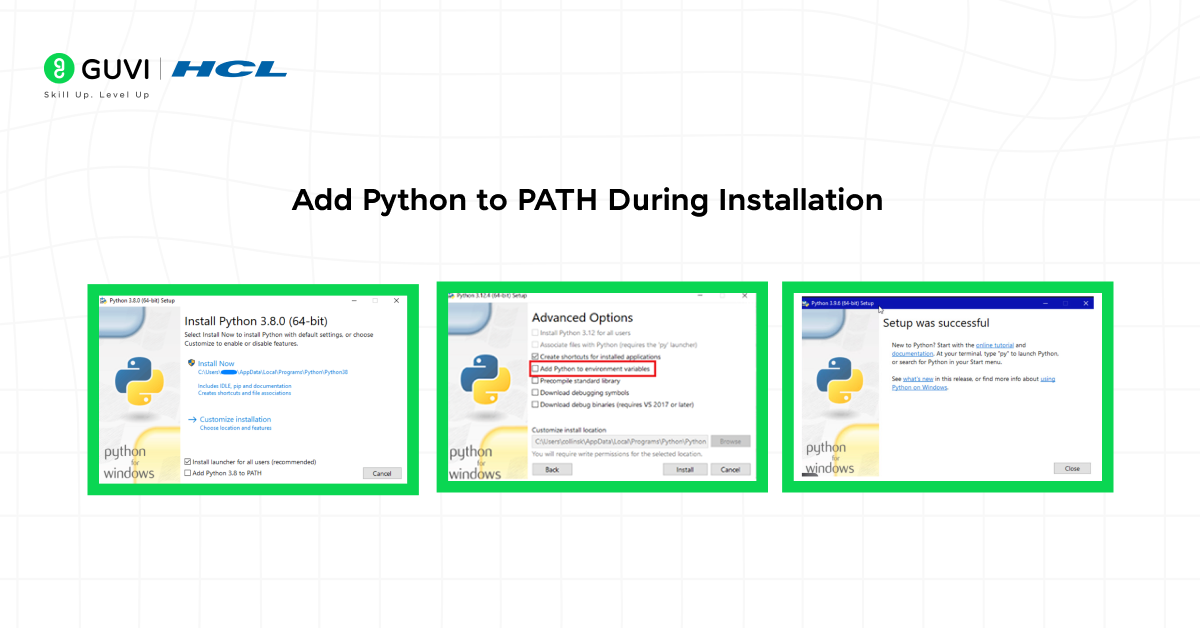
When installing Python from the official website:
- You can download Python from the official website.
- Open the installer.
- Check the box that says “Add Python to PATH.”
- Click “Install Now.”
- Wait for the installation to complete.
This is the easiest way to add Python to PATH because the installer automatically configures everything.
Also read: How to Install Python in Ubuntu: A Beginner’s Guide That Actually Works
Method 2: Add Python to PATH Manually in Windows
If you forgot to check the box during installation, don’t worry. You can still manually add Python to PATH.
Step 1: Locate Python Installation Folder
Python is usually installed in:
| C:\Users\YourUsername\AppData\Local\Programs\Python\Python39 |
Copy this folder path.
Also ,locate the Scripts folder inside it:
| C:\Users\YourUsername\AppData\Local\Programs\Python\Python39\Scripts |
You must add both folders to PATH.
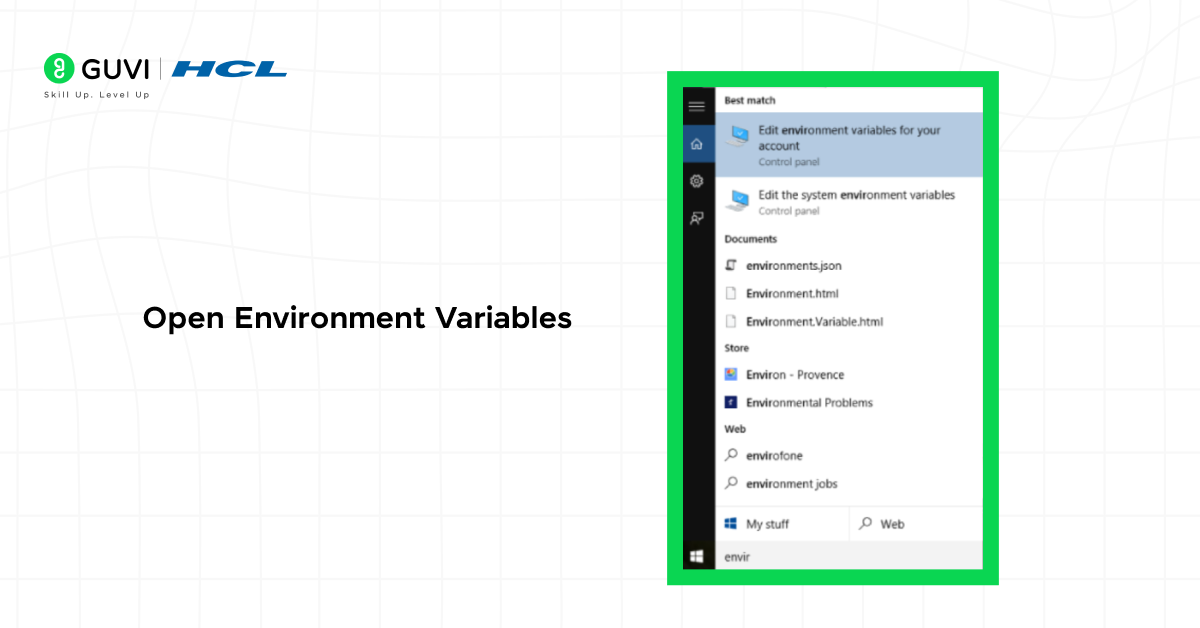
Step 2: Open Environment Variables
- Press Windows + S.
- Search for “Environment Variables.”
- Click “Edit the system environment variables.”
- Click the “Environment Variables” button.
Step 3: Edit PATH Variable
Under “System Variables,” find Path.
- Click “Edit.”
- Click “New.”
- Paste the Python installation path.
- Click “New” again and paste the Scripts path.
- Click OK on all windows.
Now you have successfully learned how to add Python to PATH manually.
Step 4: Verify Installation
Open Command Prompt and type:
| python –version |
If you see the Python version number, then you have successfully added Python to PATH.
Also read: Python Libraries for Data Science: What Top Companies Actually Use in 2026

How to Add Python to PATH in macOS
In macOS, Python is often pre-installed, but sometimes you need to configure PATH properly.
Step 1: Check Python Location
Open Terminal and type:
| which python3 |
This shows the installed location.
Also read: Top 10 Python Projects for Beginners with Source Code
Step 2: Python addition to PATH via Terminal
In case Python is not available, it can be added manually.
Open Terminal and edit your shell profile:
For Zsh (default in modern macOS):
| nano ~/.zshrc |
For Bash:
nano ~/.bash_profile
Add this line:
| export PATH=”/usr/local/bin/python3:$PATH” |
Save and exit.
Then refresh:
| source ~/.zshrc |
Now Python is accessible globally.
Also read:Top 10 Reasons Why Python is Super Popular in 2026
How to Add Python to PATH in Linux
Python is usually pre-installed in Linux systems such as Ubuntu. But if not configured, here’s what to do.
Step 1: Find Python Location
| which python3 |
Example output:
| /usr/bin/python3 |
Step 2: Add Python to PATH
Edit your profile file:
| nano ~/.bashrc |
Add:
| export PATH=”/usr/bin/python3:$PATH” |
Save and run:
| source ~/.bashrc |
Now you have successfully learned how to add Python to PATH in Linux.
How to Check If Python Was Added to PATH Correctly
After you add Python to PATH, always verify.
Run:
| python –version |
or
| python3 –version |
If you see something like:
| Python 3.12.1 |
Then everything is configured correctly.
You can also check pip:
| pip –version |
If this works, it means the Scripts folder was added successfully.
Now that you know how to add Python to PATH, it’s time to move beyond setup and start building real skills. Join HCL GUVI’s IITM Pravartak Certified Python Programming Course and gain hands-on experience with real-world projects, expert mentorship, and industry-relevant training. Start your Python journey the right way with GUVI today.
Wrapping it up:
Understanding how to add Python to PATH is a small but essential step in setting up your programming environment correctly. If you don’t have your environment setup correctly (with the correct installation of Python and no path) then no one will be able to run your scripts or use the command line after installation. Being able to add Python to your environment will allow you to run multiple applications at once off the same device
Regardless of whether you are using Windows, macOS or Linux, the process is the same regardless of which OS you use. By setting up your environment correctly today, you will have a much smoother experience using Python going forward as you continue to work on projects with Python, automation, data analysis or software development.
FAQs
1. Is it necessary to add Python to PATH?
Yes, you will have to add Python to the PATH environment variable to run Python commands from any location on your computer.
2. Can I add Python to PATH later?
Yes, you can manually add Python to PATH anytime using environment variable settings.
3. What happens if I don’t add Python to PATH?
If you do not configure the PATH variable for Python, then you will not be able to execute any Python commands or execute a Python interpreter using the command line interface (CLI).
Success Stories

About the Author
Vishalini Devarajan
An Aerospace Engineer turned content writer, I focus on making complex concepts easy to understand through well-structured, reader-friendly blogs. Whether it’s a technical topic or a non-technical one, I love creating content that is clear, engaging, and impactful.
View all posts by Vishalini Devarajan
Connect with me @








Did you enjoy this article?