


Python Articles
What is Turtle in Python? A Beginner's Guide to Turtle Graphics
Convert Integer to String in Python


Get In Touch For Details! Request More Information
What Is Tkinter in Python? A Complete Beginner’s Guide
Jul 03, 2026 4 Min Read 21 Views
(Last Updated)
Many Python beginners want to move beyond command-line scripts and build applications with visual windows and buttons that anyone can use. Tkinter in Python makes this possible without installing anything extra, since it ships with the standard Python distribution. Learning Tkinter is often the first step into desktop application development for new Python programmers.
Table of contents
- TL;DR Summary
- What Is Tkinter?
- Core Components of a Tkinter Application
- Common Tkinter Widgets
- Geometry Managers: Positioning Widgets in Tkinter
- Handling User Events in Tkinter
- Building a Complete Example: A Simple Calculator
- Real-World Example: An Internal Inventory Tool
- Conclusion
- FAQs
- What is Tkinter in Python?
- Do I need to install Tkinter separately?
- What is the difference between pack(), grid(), and place() in Tkinter?
- What does window.mainloop() do in Tkinter?
- Can Tkinter be used for professional applications?
- How do I get text from an Entry widget in Tkinter?
- Why does my Tkinter window close immediately after opening?
- Is Tkinter cross-platform?
TL;DR Summary
- Tkinter in Python is the standard built-in library for creating graphical user interfaces.
- It comes bundled with every standard Python installation, requiring no separate setup.
- Tkinter provides widgets like buttons, labels, text fields, and menus that let developers build desktop applications with minimal code.
- It is the most beginner-friendly GUI library in Python and remains widely used for small to medium desktop tools.
- This guide covers how Tkinter works, its core widgets, and how to build a basic application step by step.
Want to build real Python applications with hands-on projects and structured learning? Explore HCL GUVI’s Python Programming Course, designed for beginners ready to move from scripts to real software.
What Is Tkinter?
Tkinter is Python’s standard GUI (Graphical User Interface) library. It is a binding to the Tk GUI toolkit, which provides ready-made visual components called widgets that developers use to build windows, buttons, menus, and forms.
Because Tkinter is part of Python’s standard library, there is no need to install anything separately in most environments. Importing it is enough to start building a GUI application.
import tkinter as tk
This single import gives you access to every widget and function needed to build a desktop application window.
Read More: Read More: How to Practice Python Effectively : Small Projects You Can Build Right Away
Core Components of a Tkinter Application
Every Tkinter application is built from a few essential building blocks.
- Root window: The main application window created with tk.Tk()
- Widgets: Visual elements like labels, buttons, and text fields placed inside the window
- Geometry managers: Layout tools that position widgets, including pack(), grid(), and place()
- Event loop: The mainloop() call that keeps the window open and responsive to user actions
A minimal Tkinter application requires all four of these elements working together.
import tkinter as tk

window = tk.Tk()           # Root window

label = tk.Label(window, text="Hello, Tkinter!")  # Widget

label.pack()                # Geometry manager

window.mainloop()           # Event loop
Want to build real Python applications with hands-on projects and structured learning? Explore HCL GUVI’s Python Programming Course, designed for beginners ready to move from scripts to real software.
Common Tkinter Widgets
Tkinter provides a wide range of widgets to build interactive applications.
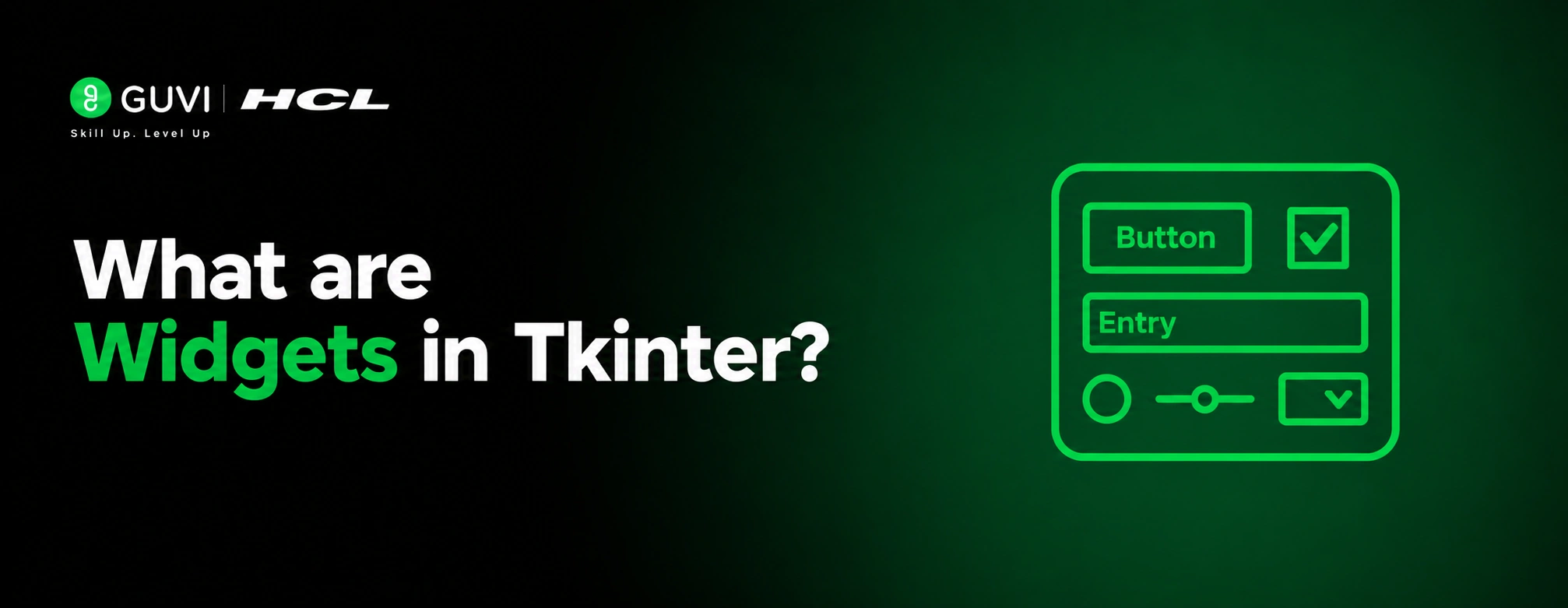
| Widget | Purpose |
| Label | Displays static text or images |
| Button | Triggers an action when clicked |
| Entry | Single-line text input field |
| Text | Multi-line text input area |
| Checkbutton | Toggleable checkbox option |
| Radiobutton | Single selection from a group of options |
| Listbox | Displays a scrollable list of items |
| Frame | Container used to group and organise other widgets |
Each widget accepts configuration options like text, font, color, and width to control its appearance and behaviour.

Geometry Managers: Positioning Widgets in Tkinter
Tkinter offers three different geometry managers, each suited to different layout needs.
- pack()
Stacks widgets vertically or horizontally in the order they are added.

label1 = tk.Label(window, text="First")

label1.pack()

label2 = tk.Label(window, text="Second")

label2.pack()- grid()
Positions widgets in a row and column structure, similar to a spreadsheet.

tk.Label(window, text="Name:").grid(row=0, column=0)

tk.Entry(window).grid(row=0, column=1)

tk.Label(window, text="Age:").grid(row=1, column=0)

tk.Entry(window).grid(row=1, column=1)- place()
Positions widgets using exact x and y pixel coordinates.
label = tk.Label(window, text="Fixed Position")

label.place(x=50, y=80)
grid() is the most commonly used manager for forms and structured layouts because it offers precise control without manual pixel calculations.
Handling User Events in Tkinter
Tkinter applications respond to user actions like clicks and key presses through callback functions connected to widgets.
import tkinter as tk

def on_button_click():

    name = entry.get()

    result_label.config(text=f"Hello, {name}!")

window = tk.Tk()

window.title("Greeting App")

entry = tk.Entry(window)

entry.pack(pady=10)

button = tk.Button(window, text="Greet", command=on_button_click)

button.pack(pady=5)

result_label = tk.Label(window, text="")

result_label.pack(pady=10)

window.mainloop()
The command parameter links the button to the on_button_click function. entry.get() retrieves whatever text the user typed into the input field.
Building a Complete Example: A Simple Calculator
A practical Tkinter application combining multiple widgets and event handling:
import tkinter as tk

def calculate():

    try:

        num1 = float(entry1.get())

        num2 = float(entry2.get())

        result = num1 + num2

        result_label.config(text=f"Result: {result}")

    except ValueError:

        result_label.config(text="Enter valid numbers")

window = tk.Tk()

window.title("Simple Adder")

window.geometry("250x200")

entry1 = tk.Entry(window)

entry1.pack(pady=5)

entry2 = tk.Entry(window)

entry2.pack(pady=5)

tk.Button(window, text="Add", command=calculate).pack(pady=10)

result_label = tk.Label(window, text="Result: ")

result_label.pack()

window.mainloop()
This calculator takes two numbers as input, adds them when the button is clicked, and displays the result. A try-except block handles invalid input gracefully instead of crashing the application.
Tkinter has been included in Python’s standard library since Python 1.5, released in 1998, making it one of the longest-supported GUI libraries in Python’s history. Although modern alternatives such as PyQt and Kivy offer more advanced features, Tkinter remains a popular choice for learning, rapid prototyping, and small desktop applications because it is available out of the box with a standard Python installation.
Real-World Example: An Internal Inventory Tool
Consider a warehouse team that needs a simple desktop tool to log incoming stock without training staff on a complex system.
A developer builds a Tkinter application with an Entry field for the item name, an Entry field for quantity, and a Button to save the record. Each entry is appended to a local SQLite database, and a Listbox below displays all logged items in real time.
This kind of small internal tool is common across logistics, retail, and manufacturing businesses where a lightweight Tkinter application solves a daily operational task without the overhead of a full web application.
Tk, the GUI toolkit that powers Tkinter, was created by John Ousterhout for the Tcl scripting language in 1991, several years before Python gained its own GUI binding. Python adopted Tk because of its stability and cross-platform compatibility, allowing Tkinter applications to run with nearly identical behavior on Windows, macOS, and Linux without requiring platform-specific code.
Conclusion
Tkinter in Python remains the most accessible way to start building desktop applications, since it requires no installation and covers everything needed for small to medium GUI projects. Its widgets, geometry managers, and event-driven structure form the foundation that every other Python GUI library builds upon conceptually.
Practice building small projects like a calculator, a to-do list, or a simple form to get comfortable with widgets and layout.
FAQs
What is Tkinter in Python?
Tkinter is Python’s standard built-in library for creating graphical user interfaces, providing widgets like buttons, labels, and text fields without requiring separate installation.
Do I need to install Tkinter separately?
No, in most standard Python installations Tkinter is already included. Some minimal Linux distributions may require installing it separately using a package manager.
What is the difference between pack(), grid(), and place() in Tkinter?
pack() stacks widgets in order, grid() arranges them in rows and columns, and place() positions them using exact pixel coordinates.
What does window.mainloop() do in Tkinter?
It starts the event loop that keeps the application window open and continuously listening for user interactions like clicks and key presses.
Can Tkinter be used for professional applications?
Tkinter works well for simple to moderately complex tools, but professional applications with advanced styling typically use PyQt, Kivy, or customtkinter instead.
How do I get text from an Entry widget in Tkinter?
Call the .get() method on the Entry widget instance, such as entry.get(), which returns the current text typed by the user.
Why does my Tkinter window close immediately after opening?
This happens when window.mainloop() is missing from the script. Without it, there is no event loop to keep the window active.
Is Tkinter cross-platform?
Yes. Tkinter runs nearly identically on Windows, macOS, and Linux because it is built on the Tk toolkit, which has supported all three platforms for decades.
Success Stories

About the Author
Vishalini Devarajan
An Aerospace Engineer turned content writer, I focus on making complex concepts easy to understand through well-structured, reader-friendly blogs. Whether it’s a technical topic or a non-technical one, I love creating content that is clear, engaging, and impactful.
View all posts by Vishalini Devarajan
Connect with me @










Did you enjoy this article?