


Python Articles
Freelancing as a Python Developer: Getting Your First Client
Common Python Mistakes Beginners Make And How to Fix Them
Python Best Practices: Writing Clean, Maintainable Code Like a Pro
How to Build a Python Developer Portfolio That Gets You Hired


Get In Touch For Details! Request More Information

What are Widgets in Tkinter? A Complete Guide
Sep 24, 2026 5 Min Read 326 Views
(Last Updated)
Tkinter may seem overwhelming with widgets like Label, Button, Entry, and Frame, but they all follow the same core idea: a widget is simply a visual element you create, style, and place on a window. Once you understand that, learning new widgets is just about their specific options, making Tkinter much easier to master.
Table of contents
- TL;DR Summary
- What is a Widget in Tkinter?
- The Widgets You Will Actually Use
- Label and Button
- Entry: Text Input
- Checkbutton and Radiobutton
- Placing Widgets: pack, grid, and place
- pack() — Stack Widgets in Order
- grid() — Rows and Columns
- place() — Exact Coordinates
- Frame: The Widget That Organises Other Widgets
- Common Mistakes When Working with Tkinter Widgets
- Conclusion
- FAQs
- What are widgets in Tkinter?
- What is the difference between pack, grid, and place in Tkinter?
- Why does my Tkinter button run the command immediately?
- How do you read the value of a Checkbutton or Radiobutton in Tkinter? You need to attach a
- What is a Frame used for in Tkinter?
- How do you get text from an Entry widget in Tkinter?
- Is Tkinter included with Python by default?
TL;DR Summary
- Widgets are the building blocks of every Tkinter GUI; buttons, labels, text boxes, sliders, and frames are all widgets.
- Each one is a Python object you create, configure, and place on screen using a geometry manager like pack(), grid(), or place().
- Once you understand that a widget is just an object with properties and event bindings, the rest of Tkinter stops feeling mysterious and starts feeling like ordinary Python.
Want to master Python, build real desktop and web applications, and grow your development skills with hands-on mentorship? Check out HCL GUVI’s Python Programming Course designed for learners who want to build genuinely working applications, not just follow tutorials.
What is a Widget in Tkinter?
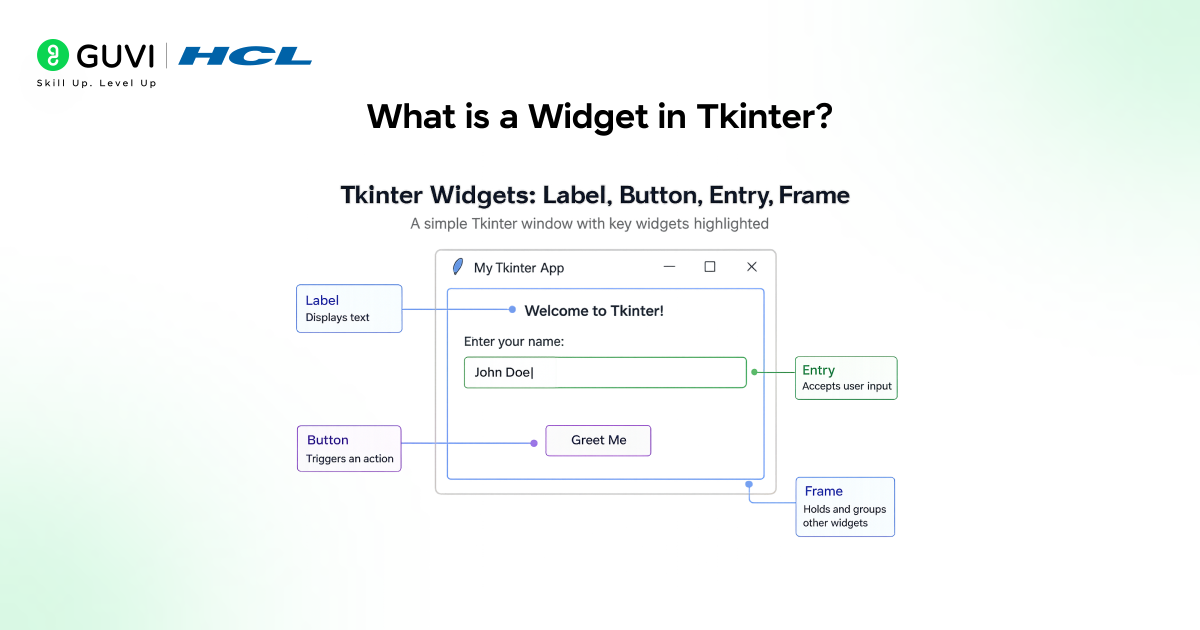
A widget is any visible component in a Tkinter window: a button, a piece of text, an input box, a checkbox, a scrollbar. In code terms, a widget is just an instance of a Python class, and every one of those classes follows the same basic pattern: create it, configure it, place it on screen.
import tkinter as tk
| root = tk.Tk() # the main window — also a widget root.title(‘My First App’) root.geometry(‘300×200’) label = tk.Label(root, text=’Hello, Tkinter!’) # create the widget label.pack(pady=20) # place it on screen root.mainloop() # start the event loop |
Three lines, three steps. That pattern create, configure, place repeats for every single widget you will ever use in Tkinter, no matter how complex the app gets.
Want to master Python, build real desktop and web applications, and grow your development skills with hands-on mentorship? Check out HCL GUVI’s Python Programming Course designed for learners who want to build genuinely working applications, not just follow tutorials.
Read More: How to Create an API in Python: A Complete Guide
The Widgets You Will Actually Use
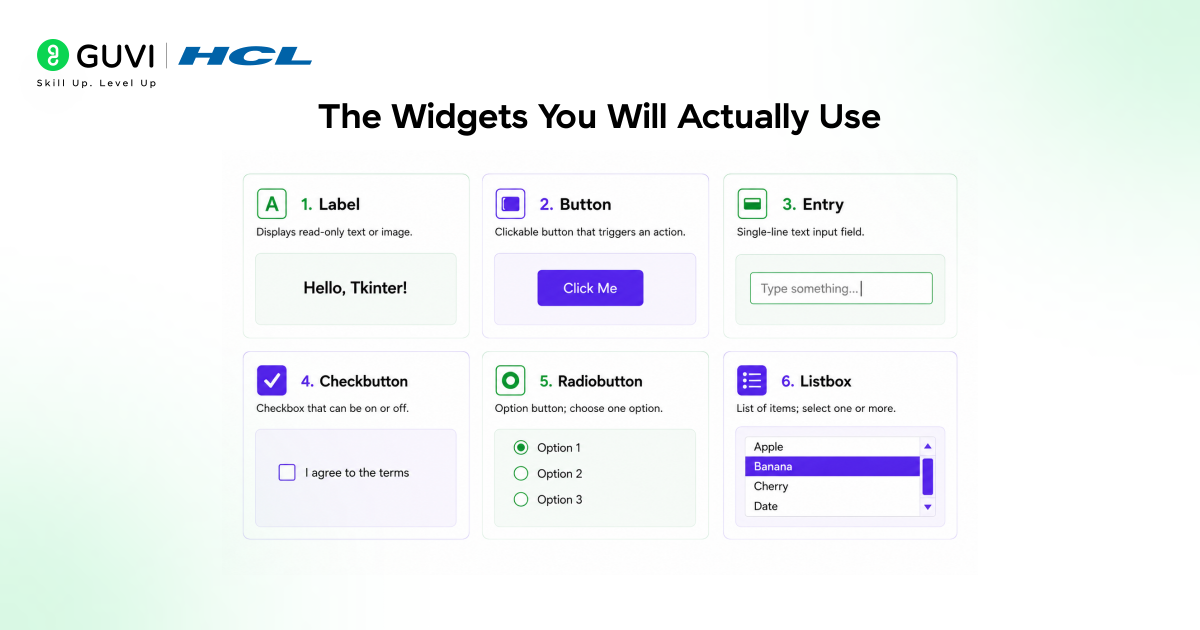
Tkinter ships with around twenty widget classes, but in practice, most apps lean on the same handful. Here they are, with the part that usually trips people up.
Label and Button
Label displays static text or an image. Button does something when clicked, and that something is whatever function you pass to its command argument.
| def say_hello(): print(‘Button was clicked’) label = tk.Label(root, text=’Click the button below’) button = tk.Button(root, text=’Click Me’, command=say_hello) label.pack() button.pack(pady=10) |
Notice command=say_hello, not command=say_hello(). Pass the function itself, not the result of calling it. Get this wrong, and the function runs immediately when the script starts instead of when the button is clicked one of the most common first mistakes.
Entry: Text Input
Entry is a single-line text box. You read its value with .get(), which returns whatever the user has typed at that moment; it is not a live-updating variable; you have to ask for it.
| entry = tk.Entry(root, width=30) entry.pack(pady=10) def show_input(): user_text = entry.get() print(f’You typed: {user_text}’) tk.Button(root, text=’Submit’, command=show_input).pack() |
Checkbutton and Radiobutton
Both need a Tkinter variable, IntVar or StringVar, to actually track their state. This is the part nobody explains clearly enough in beginner tutorials, and it is worth getting right early.
| newsletter = tk.IntVar() tk.Checkbutton(root, text=’Subscribe to newsletter’, variable=newsletter).pack() plan = tk.StringVar(value=’basic’) tk.Radiobutton(root, text=’Basic’, variable=plan, value=’basic’).pack() tk.Radiobutton(root, text=’Premium’, variable=plan, value=’premium’).pack() def show_choices(): print(‘Subscribed:’, bool(newsletter.get())) print(‘Plan:’, plan.get()) |
Without the variable= argument, the checkbox or radio button will still draw on screen and respond to clicks visually, but you will have no way to read its state from code. This catches almost everyone the first time.
Tkinter is not a third-party library—it comes bundled with every standard Python installation and serves as Python’s interface to the Tk GUI toolkit, which was originally developed for the Tcl programming language in 1991. Because Tk is one of the oldest GUI toolkits still in widespread use, Tkinter’s API can feel more traditional than modern frameworks, but its stability, cross-platform compatibility, and ease of use continue to make it a popular choice for building desktop applications.
Placing Widgets: pack, grid, and place
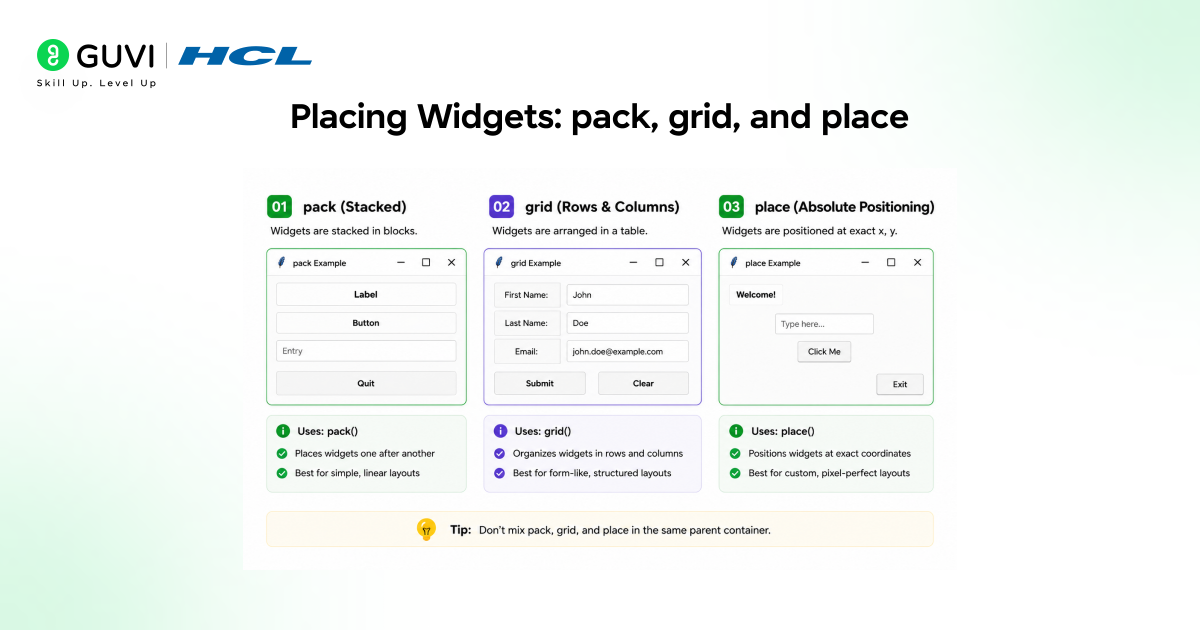
A widget does not appear just because you created it; you have to tell Tkinter where to put it, using one of three geometry managers. This is the part where most beginner code goes wrong, usually by mixing managers in the same container, which Tkinter does not allow.
pack() — Stack Widgets in Order
Simple, linear layouts. Widgets stack top-to-bottom or side-to-side based on the side argument.
| tk.Label(root, text=’Top’).pack(side=’top’) tk.Label(root, text=’Bottom’).pack(side=’bottom’) tk.Label(root, text=’Left’).pack(side=’left’) |
grid() — Rows and Columns
This is the one to default to for anything resembling a form — it gives you precise, predictable control.
| tk.Label(root, text=’Name:’).grid(row=0, column=0, padx=5, pady=5) tk.Entry(root).grid(row=0, column=1) tk.Label(root, text=’Email:’).grid(row=1, column=0, padx=5, pady=5) tk.Entry(root).grid(row=1, column=1) |

place() — Exact Coordinates
Pixel-perfect positioning. Powerful, but it does not adapt when the window is resized — use it sparingly, for specific overlay effects rather than general layout.
| tk.Label(root, text=’Fixed position’).place(x=50, y=80) |
The rule that saves you a debugging headache: never mix pack() and grid() inside the same parent widget. Tkinter will deadlock or throw an error. Pick one geometry manager per container and stick with it; you can use a different one inside a nested Frame if you need to.
Frame: The Widget That Organises Other Widgets
Frame is a container widget; it is invisible by default and exists purely to group other widgets, so you can apply a layout to a section of your window independently from the rest.
| top_frame = tk.Frame(root) top_frame.pack(fill=’x’, pady=10) tk.Label(top_frame, text=’Username:’).pack(side=’left’) tk.Entry(top_frame).pack(side=’left’) bottom_frame = tk.Frame(root) bottom_frame.pack(fill=’x’) tk.Button(bottom_frame, text=’Cancel’).pack(side=’right’) tk.Button(bottom_frame, text=’Save’).pack(side=’right’) |
This is how real Tkinter apps are structured: not one giant flat layout, but Frames nested inside Frames, each one managing its own small piece of the window. Once your app has more than five or six widgets, reaching for a Frame to organise them is the difference between manageable code and a layout you cannot reason about.
Common Mistakes When Working with Tkinter Widgets
1. Calling the function instead of passing it: command=my_function() runs my_function immediately and passes its return value as the command rarely what you want. Always pass command=my_function without parentheses.
2. Forgetting variable= on Checkbutton and Radiobutton: The widget displays and responds to clicks fine without it, but you cannot read its state from code. Always create an IntVar or StringVar and pass it via variable= before you need to check the value.
3. Mixing pack() and grid() in the same parent: Tkinter will raise an error or silently misbehave if you try to use both geometry managers on widgets sharing the same parent container. Use a nested Frame if you genuinely need both layouts in one window.
Conclusion
Once the create-configure-place pattern sinks in, Tkinter’s twenty-odd widget classes stop being twenty things to memorise and become one idea applied twenty times. Label shows text. Button runs a function. Entry reads input. Checkbutton and Radiobutton need a variable to be useful. Frame organises everything else. The geometry manager you pick pack, grid, or place decides how it all ends up on screen, and grid is almost always the right default for anything with structure.
FAQs
1. What are widgets in Tkinter?
Widgets are the visible building blocks of a Tkinter GUI: buttons, labels, text boxes, checkboxes, frames, and more. Each widget is a Python object you create, configure with options like text or colour, and place on screen using a geometry manager such as pack(), grid(), or place().
2. What is the difference between pack, grid, and place in Tkinter?
pack() stacks widgets in order along a side of their container. grid() arranges widgets in a row-and-column layout, ideal for forms. place() positions widgets at exact pixel coordinates. You cannot mix pack() and grid() on widgets sharing the same parent; pick one per container.
3. Why does my Tkinter button run the command immediately?
This happens when you write command=my_function() instead of command=my_function. Adding parentheses calls the function right away during widget creation and passes its return value as the command, rather than passing a reference to the function itself. Always omit the parentheses.
4. How do you read the value of a Checkbutton or Radiobutton in Tkinter? You need to attach a
Tkinter variable IntVar for a Checkbutton or StringVar/IntVar for a Radiobutton using the variable= argument when creating the widget. Without it, the widget displays and responds to clicks but gives you no way to read its current state in code.
5. What is a Frame used for in Tkinter?
A Frame is an invisible container widget used to group and organise other widgets. It lets you apply a layout to one section of your window independently of the rest, and is essential for building structured interfaces with more than a handful of widgets.
6. How do you get text from an Entry widget in Tkinter?
Call .get() on the Entry widget instance, for example, entry.get(). This returns whatever text is currently in the box as a string at the moment you call it. It does not update automatically; you must call .get() each time you need the current value.
7. Is Tkinter included with Python by default?
Yes. Tkinter ships with the standard Python installation on Windows and macOS. On some Linux distributions, it may need to be installed separately via the package manager (e.g., sudo apt install python3-tk), since it is sometimes split into its own package.
Success Stories

About the Author
Vishalini Devarajan
An Aerospace Engineer turned content writer, I focus on making complex concepts easy to understand through well-structured, reader-friendly blogs. Whether it’s a technical topic or a non-technical one, I love creating content that is clear, engaging, and impactful.
View all posts by Vishalini Devarajan
Connect with me @













Did you enjoy this article?