


Artificial Intelligence and Machine Learning Articles
AI/ML Skills Gap 2026: Why Companies Can't Find Job-Ready Talent
20 AI/ML Interview Questions Recruiters Can Use Without a Tech Background - Best Guide
How Industry-Backed AI/ML Bootcamps Are Changing the AI/ML Hiring Pipeline - Best Guide 2026
From IT Support to AI Engineer: A Realistic Career Switch Guide 2026
Get In Touch For Details! Request More Information
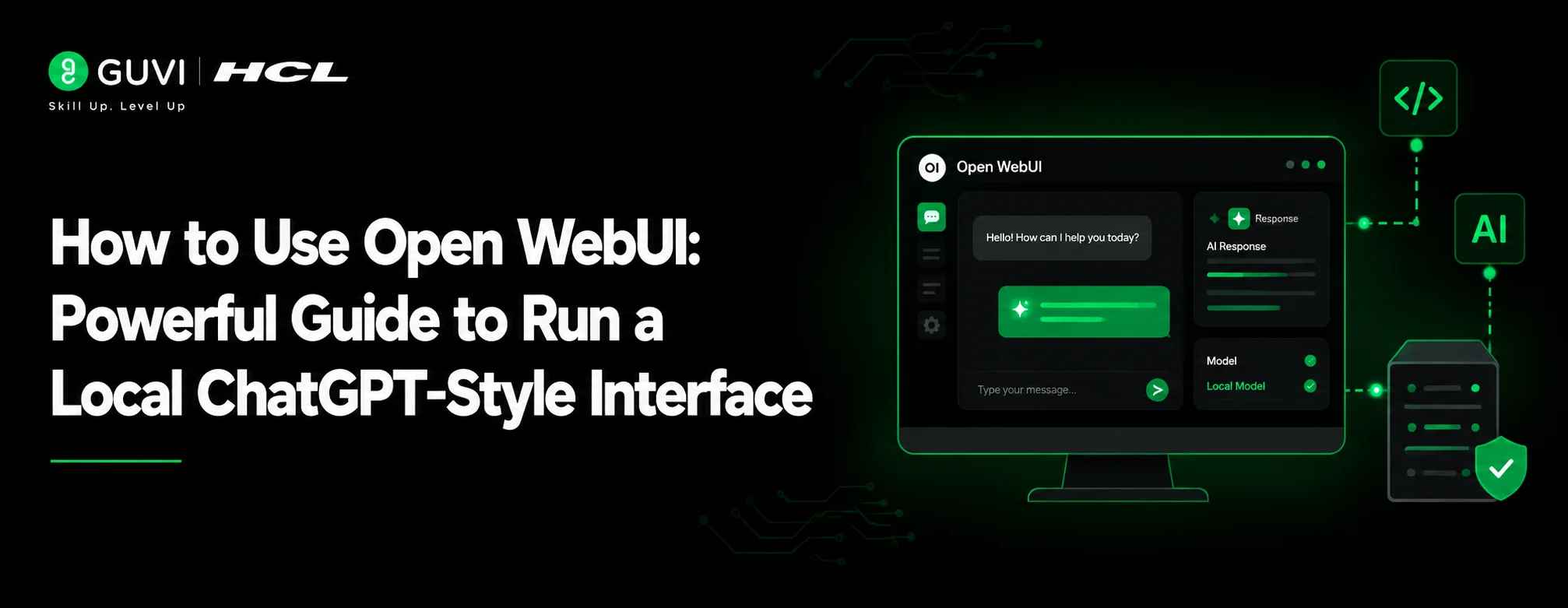
How to Use Open WebUI: Powerful Guide to Run a Local ChatGPT-Style Interface
Jul 24, 2026 7 Min Read 442 Views
(Last Updated)
Table of contents
- TL;DR Summary
- How Do You Use Open WebUI?
- What is Open WebUI?
- Why Use Open WebUI for a Local ChatGPT-Style Interface?
- Open WebUI, Ollama, Docker, and Local LLMs Explained
- Prerequisites Before Using Open WebUI
- How to Install Open WebUI Using Docker
- How to Run Open WebUI With Ollama
- How to Open and Use the Open WebUI Interface
- Useful Open WebUI Features for Developers
- Open WebUI vs ChatGPT
- Real-World Example: Using Open WebUI for Coding Help
- Common Open WebUI Errors Beginners Face
- Open WebUI Does Not Open in the Browser
- Model Does Not Appear in the Dropdown
- Connection Refused Error
- Slow Responses
- Docker Permission Issues
- Common Mistakes to Avoid When Using Open WebUI
- Thinking Open WebUI is the AI Model
- Assuming Everything is Fully Offline
- Running Large Models on Weak Hardware
- Ignoring Updates and Security
- Sharing Private Data Without Understanding the Setup
- Best Practices for Using Open WebUI Safely
- Build AI Skills With HCL GUVI
- Conclusion
- FAQs
- What is Open WebUI?
- Is Open WebUI the same as ChatGPT?
- Can Open WebUI run fully offline?
- Do I need Ollama to use Open WebUI?
- What is the easiest way to install Open WebUI?
- What URL do I open after installing Open WebUI?
- Can developers use Open WebUI for coding help?
- Why is my model not showing in Open WebUI?
- Is Open WebUI safe to expose online?
- Is Open WebUI good for beginners?
TL;DR Summary
Open WebUI is a self-hosted AI interface that lets you run a ChatGPT-style chat experience on your own system or server. To use Open WebUI, install Docker, run the official Open WebUI container, connect it to a model provider such as Ollama or an OpenAI-compatible API, open the browser interface, select a model, and start chatting. It is useful for developers who want a local AI workspace for coding help, document search, testing prompts, and experimenting with local LLMs.
How Do You Use Open WebUI?
To use Open WebUI, install Docker, run the Open WebUI container, open http://localhost:3000, create or sign in to your local account, connect a model provider like Ollama, select a model, and start chatting through the web interface. For local AI usage, most beginners use Open WebUI with Ollama because Ollama can run language models on your own machine.
If you want to know how to use Open WebUI, think of it as creating your own ChatGPT-style interface for local or self-hosted AI models.
Instead of using only cloud-based AI tools, Open WebUI lets you interact with local models through a clean browser-based chat interface.
This is useful for developers, AI learners, students, and self-hosting enthusiasts who want to experiment with local LLMs, coding prompts, documents, and private workflows.
In this guide, you will learn what Open WebUI is, how to set it up, how to connect it with Ollama, and how to use it safely as a local AI workspace.
What is Open WebUI?
Open WebUI is a self-hosted AI platform that gives you a web-based chat interface for interacting with local or cloud-based language models.
In simple words, it helps you create a ChatGPT-style interface that runs on your machine or server.
You can connect Open WebUI with tools like Ollama, OpenAI-compatible APIs, or other supported model providers. Once connected, you can chat with models, save conversations, manage prompts, work with documents, and experiment with different AI workflows.
For beginners, the easiest way to understand it is this:
Open WebUI is the interface, Ollama runs the local model, and Docker helps you install and run Open WebUI easily.
Beginners can also learn the basics of LLMs and prompting to understand how local AI models respond inside Open WebUI.
Why Use Open WebUI for a Local ChatGPT-Style Interface?
Open WebUI is useful because it gives developers more control over their AI setup.
Cloud AI tools are convenient, but they may not always be ideal when you want to experiment locally, test open-source models, control your data flow, or build a self-hosted AI workspace.
You can use Open WebUI to:
- Run a ChatGPT-style interface locally
- Connect with local models through Ollama
- Test different open-source LLMs
- Save and manage AI conversations
- Use AI for coding help and documentation
- Work with local knowledge bases
- Experiment with prompts
- Build private AI workflows
- Compare model responses
- Learn how self-hosted AI tools work
This makes Open WebUI useful for developers who want more than a basic chatbot.
Open WebUI, Ollama, Docker, and Local LLMs Explained
Before setting up Open WebUI, it helps to understand the basic tools involved.
| Term | Simple Meaning |
| Open WebUI | The browser-based chat interface |
| Ollama | A tool that runs local AI models on your machine |
| Docker | A platform that runs applications inside containers |
| Local LLM | A language model running on your own computer or server |
| Model Provider | The service or tool that provides the AI model |
| Self-hosted AI | AI software that you run and control yourself |
Open WebUI does not automatically mean the AI model is running locally.
The model depends on what you connect it to. If you connect Open WebUI to Ollama running on your system, you can use local models. If you connect it to a cloud API, the model response may come from that external provider.
This distinction is important because local AI, cloud AI, and self-hosted interfaces are not always the same thing.
If you want to customize model behaviour further, learning how to fine-tune large language models can help you understand the next step after local model experimentation.
Prerequisites Before Using Open WebUI
Before using Open WebUI, make sure your system has the basic setup ready.
You may need:
- Docker installed
- A stable internet connection for downloading images and models
- Ollama installed, if you want to run local models
- Basic terminal knowledge
- Enough storage for models
- Enough RAM or GPU power for larger models
- A modern browser
- Admin access on your system, depending on installation method
For beginners, Docker is usually the easiest installation method because it keeps Open WebUI inside a container and avoids many manual setup issues.
If you want to run local models, install Ollama and pull at least one model before testing Open WebUI.
Before using Open WebUI, make sure you have Docker installed because it is the easiest way to run Open WebUI in a container.
How to Install Open WebUI Using Docker
The official Open WebUI documentation recommends Docker as the main setup method for most users.
After installing Docker, open your terminal and run:
docker run -d -p 3000:8080 –add-host=host.docker.internal:host-gateway -v open-webui:/app/backend/data –name open-webui –restart always ghcr.io/open-webui/open-webui:main
This command does a few important things:
- Downloads the Open WebUI container image
- Runs Open WebUI in the background
- Maps Open WebUI to port 3000
- Stores backend data in a Docker volume
- Restarts the container automatically if needed
After the command runs successfully, open your browser and visit:
http://localhost:3000
You should see the Open WebUI interface.
If this is your first time opening it, you may need to create an admin account or complete the initial setup.
If you are new to containers, learning containerization using Docker will help you understand why Open WebUI can run cleanly inside a Docker container.
How to Run Open WebUI With Ollama
Ollama is commonly used with Open WebUI because it allows you to run local language models on your own machine.
A simple beginner workflow looks like this:
- Install Ollama
- Pull a model using Ollama
- Run Open WebUI using Docker
- Open http://localhost:3000
- Select the available model
- Start chatting
For example, after installing Ollama, you can pull a model using a command like:
ollama pull llama3.2
Then start or confirm Ollama is running.
Once Open WebUI is running, it can connect to Ollama and show available models in the model dropdown.
If models do not appear, check whether Ollama is running, whether the model is downloaded, and whether Open WebUI can reach the Ollama service from inside Docker.
Once you understand the basic setup, you can also explore how to set up Qwen 3 with Ollama for more local model experimentation.
How to Open and Use the Open WebUI Interface
After installation, open this URL in your browser:
http://localhost:3000
Once the interface opens, you can:
- Create or sign in to your local account
- Select a model from the dropdown
- Start a new chat
- Ask coding or learning questions
- Edit or regenerate responses
- Manage conversation history
- Upload or work with documents, depending on your setup
- Explore settings and model options
A simple first prompt can be:
Explain what Open WebUI is in beginner-friendly language.
For developers, a better prompt could be:
I am building a Node.js REST API. Explain how I can structure authentication, routes, controllers, and database models.
Open WebUI gives you a familiar chat interface, but the quality and speed of responses depend on the model you are using.
Open WebUI’s official documentation describes it as a self-hosted AI platform designed to operate offline and support both Ollama and OpenAI-compatible APIs.
This means you can use it for local model workflows, cloud-connected workflows, or hybrid setups depending on the provider you connect.
Useful Open WebUI Features for Developers
Open WebUI is not just for casual chatting.
Developers can use it as a local AI workspace for learning, coding, documentation, and experimentation.
Useful features may include:
- Chat interface for local models
- Conversation history
- Markdown rendering
- Code syntax highlighting
- Model selection
- Prompt management
- Local or connected model providers
- Knowledge base or document-based workflows
- Multi-model experimentation
- Admin and user settings
- Self-hosted control
For example, a developer can use Open WebUI to ask a local model to explain code, generate a README, summarise documentation, brainstorm API structure, or compare approaches before writing code.
Developers who want to go beyond simple chat can also explore building an AI chatbot with Rasa and Ollama to understand how local models can support chatbot workflows
You can also explore fine-tuning LLMs with Unsloth and Ollama if you want to understand how local LLM workflows can move from simple usage to model customisation.
Advanced learners can also explore visual RAG pipelines with Ollama to understand how local models can work with retrieval-based AI workflows.

Open WebUI vs ChatGPT
Open WebUI and ChatGPT may look similar from the user side, but they are not the same.
| Feature | Open WebUI | ChatGPT |
| Type | Self-hosted AI interface | Cloud-based AI product |
| Model Source | Local or connected providers | OpenAI-hosted models |
| Local Setup | Yes, depending on setup | No local setup needed |
| Privacy Control | More control if using local models | Depends on cloud service settings |
| Ease of Use | Requires setup | Ready to use |
| Customization | High | Limited for general users |
| Best For | Local AI experiments and self-hosted workflows | Quick access to powerful cloud AI |
Use Open WebUI if you want control, local experimentation, and self-hosted AI workflows.
Use ChatGPT if you want a ready-to-use AI assistant without setup.
Real-World Example: Using Open WebUI for Coding Help
Imagine you are a beginner developer building a small task management app.
You are using Node.js, Express, and MongoDB. You want AI help, but you also want to experiment with a local model instead of relying only on a cloud chatbot.
You install Ollama, pull a model, run Open WebUI, and open the browser interface.
Then you ask:
I am building a task management app using Node.js, Express, and MongoDB. Suggest a simple project folder structure for routes, controllers, models, and middleware.
Next, you ask:
Create a beginner-friendly Express route for adding a new task. Explain each part of the code.
Then you ask:
What are common mistakes beginners make while connecting Express with MongoDB?
This workflow helps you learn, experiment, and build while staying inside your local AI interface.
However, you should still test the code, check official documentation, and avoid sharing private credentials or production secrets.
If you are using Open WebUI for coding help, understanding LLMs for code repair can help you see how language models support debugging and code improvement.
Open WebUI’s official quick start supports multiple installation paths, including Docker, Python, Kubernetes, and desktop options.
For most beginners, Docker is the recommended path because it provides a faster and cleaner setup compared to manual installation.
Common Open WebUI Errors Beginners Face
Beginners may face a few setup issues while using Open WebUI.
1. Open WebUI Does Not Open in the Browser
If http://localhost:3000 does not open, check whether the Docker container is running.
You can use:
docker ps
If the container is not running, check logs using:
docker logs open-webui
2. Model Does Not Appear in the Dropdown
This usually happens when Open WebUI cannot detect the model provider.
Check whether Ollama is installed, running, and has at least one model downloaded.
You can check Ollama models using:
ollama list
3. Connection Refused Error
A connection refused error usually means Open WebUI cannot reach the model service.
This may happen because Ollama is not running, Docker networking is not configured properly, or the base URL is incorrect.
4. Slow Responses
Local models can be slow if your system has limited RAM, CPU, or GPU power.
Try using a smaller model, closing other heavy applications, or reducing the context size if your setup supports it.
5. Docker Permission Issues
Some systems may require Docker Desktop to be running, admin permission, or correct Docker installation.
If Docker commands fail, confirm Docker is installed properly before troubleshooting Open WebUI.
Common Mistakes to Avoid When Using Open WebUI
1. Thinking Open WebUI is the AI Model
Open WebUI is the interface, not the model itself.
You still need a model provider such as Ollama, OpenAI-compatible API, or another supported backend.
2. Assuming Everything is Fully Offline
Open WebUI can support offline local workflows, but only if your connected model is local and your setup does not call external APIs.
If you connect to a cloud model provider, your prompts may go to that provider.
3. Running Large Models on Weak Hardware
Large models need more system resources.
If your laptop has limited RAM or no GPU, start with smaller models.
4. Ignoring Updates and Security
Self-hosted tools need maintenance.
Keep Open WebUI, Docker, Ollama, and related dependencies updated to avoid bugs and security risks.
5. Sharing Private Data Without Understanding the Setup
Do not paste passwords, API keys, customer data, or confidential company code unless you fully understand where the data is processed and stored.
If you connect Open WebUI to cloud-based model providers, make sure you understand how an OpenAI ChatGPT API key works and never expose it publicly.
Best Practices for Using Open WebUI Safely
Use Open WebUI as a learning and experimentation tool, but set it up carefully.
A good beginner checklist is:
- Use official installation commands
- Keep Docker and Open WebUI updated
- Start with smaller local models
- Use trusted model sources
- Avoid exposing the interface publicly without security
- Enable authentication for multi-user setups
- Do not paste secrets into unknown models
- Test AI-generated code before using it
- Read official docs when changing configuration
- Backup important data if using it regularly
If you are using Open WebUI on a server, take security more seriously. Do not expose it to the internet without proper authentication, HTTPS, firewall rules, and access control.
Build AI Skills With HCL GUVI
Open WebUI is a great tool for experimenting with local AI models, self-hosted chat interfaces, and AI-powered developer workflows. But to use tools like this confidently, you also need strong foundations in AI concepts, machine learning, prompting, model behavior, and real-world AI applications.
Explore HCL GUVI’s AI & Machine Learning Course to build practical AI skills through guided learning, hands-on projects, and career-focused training.
Conclusion
Learning how to use Open WebUI is useful if you want a local ChatGPT-style interface for AI experimentation.
With Docker, Ollama, and a local model, you can create a self-hosted AI workspace for coding help, learning, prompt testing, and document-based workflows.
Open WebUI gives you more control than a normal cloud chatbot, but it also needs careful setup, regular updates, and responsible usage.
Start small, use official documentation, test your setup, and avoid sharing sensitive data unless you fully understand where your model is running
FAQs
1. What is Open WebUI?
Open WebUI is a self-hosted AI interface that lets you chat with local or connected language models through a browser-based interface.
2. Is Open WebUI the same as ChatGPT?
No. ChatGPT is a cloud-based AI product, while Open WebUI is a self-hosted interface that can connect to local models or external model providers.
3. Can Open WebUI run fully offline?
Yes, Open WebUI can support offline workflows if it is connected to a local model provider like Ollama and does not rely on external APIs.
4. Do I need Ollama to use Open WebUI?
No, but Ollama is one of the most popular ways to run local models with Open WebUI. You can also connect other supported providers.
5. What is the easiest way to install Open WebUI?
The easiest method for most users is Docker. The official documentation recommends Docker for most users because it is faster and cleaner than manual setup.
6. What URL do I open after installing Open WebUI?
If you use the standard Docker command, open http://localhost:3000 in your browser.
7. Can developers use Open WebUI for coding help?
Yes. Developers can use Open WebUI to explain code, generate snippets, write documentation, compare approaches, and experiment with local AI models.
8. Why is my model not showing in Open WebUI?
This usually means the model provider is not running, the model has not been downloaded, or Open WebUI cannot connect to the provider.
9. Is Open WebUI safe to expose online?
You should not expose Open WebUI publicly without proper security. Use authentication, HTTPS, firewall rules, updates, and access controls.
10. Is Open WebUI good for beginners?
Yes, but beginners should start with the Docker setup and a small local model. They should also understand the difference between the interface, model provider, and local model.
Success Stories

About the Author
Reemsha Khan
Always been a storyteller at heart. Now, I turn complex topics into simple, easy-to-understand stories through content. Hope you find it helpful.
View all posts by Reemsha Khan
Connect with me @






Did you enjoy this article?