


DevOps Articles
Claude for IT Help Desks: Reducing Ticket Volume
From Beginner to DevOps Engineer: How HCL GUVI Zen Class Helps You Get There

Get In Touch For Details! Request More Information
Containerization Using Docker: A Complete Beginner’s Guide (2026)
Jul 24, 2026 7 Min Read 9873 Views
(Last Updated)
Imagine you have just finished building a web app. It works perfectly on your laptop. You send it to your team, and it immediately crashes on their machine. You hear the words: “But it works on my machine!” If you have been in software development for more than a week, you know this problem. It is one of the most frustrating things in the industry. Containerization using Docker was invented to solve exactly this problem, and it does so brilliantly.
This guide explains containerization using Docker from the very beginning. Just clear explanations, real examples, and step-by-step instructions to get you started. By the end, you will understand what Docker is, why developers love it, and how to start using it yourself.
Quick Answer
Containerization using Docker means packaging your application, its code, its libraries, and all its settings into a single portable box called a container. That box runs identically on any computer, whether it is your laptop, a colleague’s machine, or a cloud server. Docker is the tool that creates, runs, and manages those boxes.
Table of contents
- What is Containerization?
- What is Docker?
- Containers vs Virtual Machines: The Key Difference
- Core Docker Concepts Every Beginner Needs to Know
- Docker Image
- Docker Container
- Dockerfile
- Docker Hub
- Docker Compose
- How to Install Docker
- Install on Windows
- Install on macOS
- Install on Linux (Ubuntu)
- Verify the Installation
- Your First Docker Commands
- Pull and Run a Test Image
- Run a Real Web Server
- Essential Docker CLI Commands
- Writing Your First Dockerfile
- Docker Compose: Running Multiple Containers Together
- Key Uses of Containerisation Using Docker
- Tips for Containerization Using Docker
- 💡 Did You Know?
- Conclusion
- FAQs
- What is the difference between Docker and Kubernetes?
- Is Docker free to use?
- Can I use Docker without knowing Linux?
- What is a Docker volume and why do I need one?
- How is containerization using Docker different from just installing software normally?
What is Containerization?
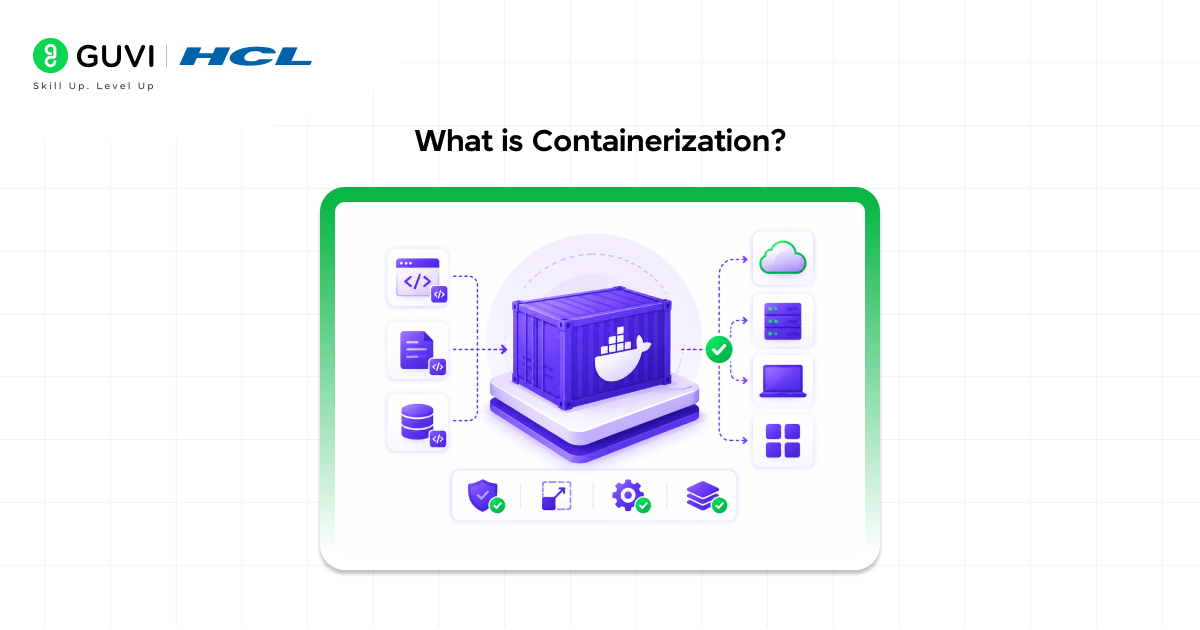
Containerisation is the process of packaging an application along with everything it needs to run into a single, self-contained unit. That unit is called a container.
Think of it like shipping goods in a physical cargo container. Before shipping containers existed, loading a ship was chaos. Different items in different shapes needed different packing methods. With standardized shipping containers, it does not matter what is inside. The container goes on the ship, on a truck, on a train, and it always arrives in the same condition.
Software containers work the same way. Instead of worrying about which operating system the server has, which version of Python is installed, or which environment variables are set, you pack everything your app needs into one standardized container. It runs the same everywhere.
Why containerisation matters in 2026:
- 92% of IT organisations now rely on containers for their applications
- 71% of developers use Docker specifically, up 17 percentage points in a single year
- Organisations adopting containers report roughly a 66% reduction in infrastructure costs
- Containerization using Docker is a core skill for software development, DevOps, cloud engineering, and data science
Thought to ponder: Before cargo shipping containers were invented in the 1950s, loading and unloading a ship could take weeks. The container standardised everything and made global trade dramatically faster and cheaper. Software containerisation did exactly the same thing for how we ship code. What other industries might be transformed by a similar kind of standardisation?
Hint: Healthcare records, financial data pipelines, and AI model deployment are all areas where standardised packaging is solving the same “it runs differently here” problem that containerisation solved for software.
What is Docker?
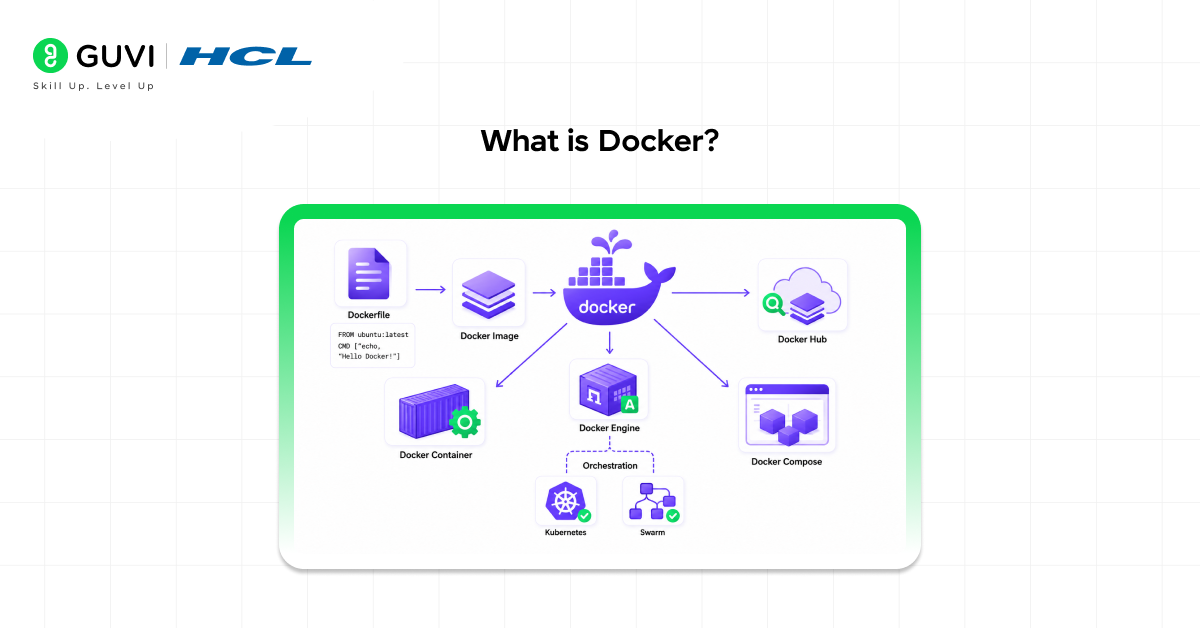
Containerization using Docker has made it the world’s most popular container platform. Docker is an open-source tool that lets you build, run, share, and manage containers. While other container technologies exist, Docker became the industry standard because it made containerisation simple enough for any developer to use.
Containerization using Docker became mainstream after its release in 2013. By 2026, it is used by companies of all sizes, from solo developers building side projects to Netflix, Google, and Uber running millions of containers to serve their global user bases.
What containerization using Docker actually does:
- Builds containers using containerization using Docker from a Dockerfile
- Runs containers on your machine or any server
- Stores and shares container images through a registry called Docker Hub
- Manages multiple containers working together through a tool called Docker Compose
Do check out HCL GUVI’s Artificial Intelligence and Machine Learning course that helps you master Python, Machine Learning, Deep Learning, and real-world AI projects through live mentor-led sessions and hands-on training designed to make you industry-ready.
Containers vs Virtual Machines: The Key Difference
Many beginners confuse containers with virtual machines (VMs). They are both ways of isolating software, but they work very differently and serve different purposes.
| Feature | Container | Virtual Machine |
| Size | 10 to 100 MB | 1 to 10 GB |
| Start time | Under 1 second | Minutes |
| OS overhead | Shares the host OS kernel | Full separate OS |
| Isolation | Process-level | Full machine level |
| Resource usage | Very low | High |
| Best for | Application packaging and deployment | Running a completely different OS |
The simple explanation:
A virtual machine is like renting an entire apartment. You get your own walls, kitchen, bathroom, and electricity. It is completely separate from the apartment next door. That is powerful, but expensive and slow to set up.
A container is like renting a room in a shared house. You have your own space, your own things, and your own privacy. But you share the kitchen and the plumbing with the other rooms. That makes containers much lighter, much faster, and much cheaper to run than virtual machines.
Core Docker Concepts Every Beginner Needs to Know
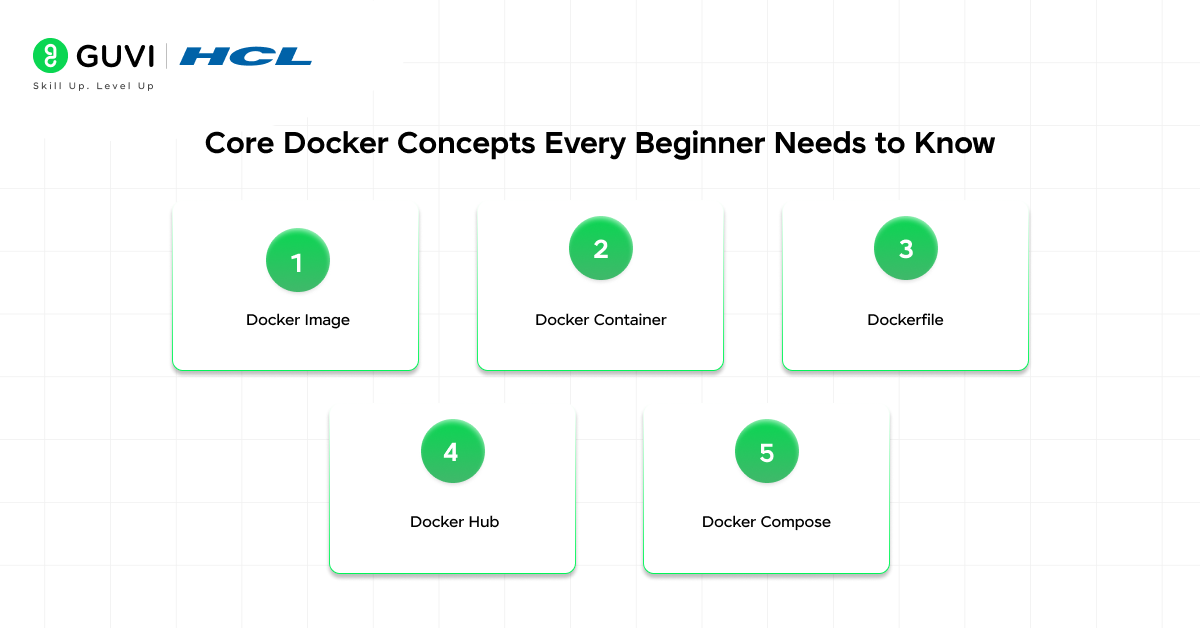
Before you write a single command, these five concepts will make everything else click.
1. Docker Image
An image is a read-only template that contains all the instructions for creating a container. Think of it like a recipe. The image itself is not running. It just defines everything needed to create something that can run.
- Images are built from a file called a Dockerfile
- Images can be stored in and shared from a registry like Docker Hub
- Every time you create a container, you create it from an image
- Images are made of layers, and each layer represents one step of the build process
2. Docker Container
A container is a running instance of an image. If the image is the recipe, the container is the dish you made by following that recipe. You can run multiple containers from the same image, just like you can cook the same dish many times from the same recipe.
- Containers are isolated from each other and from the host machine
- You can start, stop, pause, and delete containers at any time
- Deleting a container does not delete the image it came from
- Data inside a container is lost when the container is deleted unless you use a volume
3. Dockerfile
A Dockerfile is a plain text file containing the step-by-step instructions Docker follows to build an image. It is the blueprint. You define which base operating system to start from, which dependencies to install, which files to copy in, and which command to run when the container starts.
- Every line in a Dockerfile is an instruction
- FROM sets the base image (for example, FROM python:3.12-slim)
- COPY copies files into the image
- RUN executes a command during the build (for example, installing packages)
- CMD sets the default command that runs when the container starts
4. Docker Hub
The default public registry for containerization using Docker is Docker Hub, where images are stored and shared. Think of it like GitHub but for container images instead of code. You can pull official images for databases, web servers, and programming languages from Docker Hub, or push your own images there to share with your team.
- Official images exist for Python, Node.js, MySQL, PostgreSQL, Nginx, and hundreds more
- Visit hub.docker.com to browse available images
- Public images are free to pull. Private repositories require a paid plan for teams.
5. Docker Compose
Docker Compose is a tool for defining and running multi-container applications using a single YAML configuration file. When your app needs a web server, a database, and a cache working together, Docker Compose lets you define all three in one file and start them all with a single command.
- The configuration file is called docker-compose.yml or compose.yaml
- One command starts all your services together: docker compose up
- One command stops everything: docker compose down
Riddle: A developer builds a web app that needs three things to work: the app itself, a PostgreSQL database, and a Redis cache. Without Docker, setting up this environment on a new team member’s laptop takes three hours of installation and configuration. With containerisation using Docker Compose, how long does it take?
Answer: Under five minutes. The developer writes a single compose.yaml file defining all three services. The new team member runs docker compose up and all three containers start together, already configured to talk to each other. This is one of the most powerful real-world benefits of containerisation using Docker. Onboarding and environment setup become trivial.
How to Install Docker
The easiest way to start with containerization using Docker is Docker Desktop. It bundles everything you need: Docker Engine, Docker CLI, Docker Compose, and a GUI for managing containers.
As of April 2026, the latest stable version is Docker Desktop 4.66.
1. Install on Windows
- Go to docker.com/products/docker-desktop and download Docker Desktop for Windows
- Run the installer and make sure the option “Use WSL 2 instead of Hyper-V” is checked
- Restart your computer after installation
- It will start automatically and appear in your system tray
2. Install on macOS
- Download the Docker Desktop .dmg file for your chip type (Apple Silicon for M1/M2/M3 Macs, Intel for older Macs)
- Drag Docker to your Applications folder
- Open It, and grant the networking permissions it requests
3. Install on Linux (Ubuntu)
Run these commands in your terminal:
sudo apt update
sudo apt install docker.io docker-compose-plugin
sudo usermod -aG docker $USER
The last command adds your user to the Docker group so you can run Docker commands without sudo. Log out and log back in for this to take effect.
4. Verify the Installation
Open a terminal or command prompt and run:
docker –version
docker compose version
If both commands return version numbers, Docker is installed and working correctly.
Your First Docker Commands
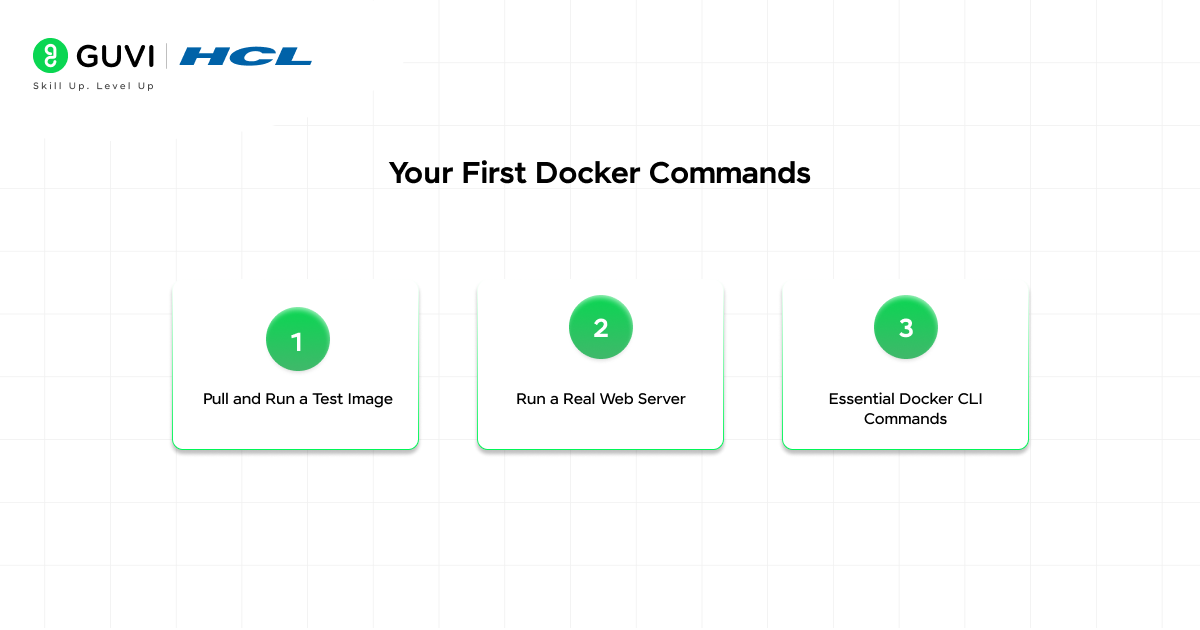
Once containerization using Docker is set up, these are the first commands every beginner should try.

1. Pull and Run a Test Image
Run this command to download and run Docker’s official test image:
docker run hello-world
The tool downloads the hello-world image from Docker Hub and runs it as a container. You will see a message confirming Docker is working. This is the Docker equivalent of “Hello, World.”
2. Run a Real Web Server
This command downloads and runs an Nginx web server:
docker run -d -p 8080:80 nginx
Now open your browser and go to http://localhost:8080. You will see the Nginx welcome page. That web server is running inside a container, not installed on your machine.
What the flags mean:
- -d runs the container in the background (detached mode)
- -p 8080:80 maps port 8080 on your machine to port 80 inside the container
3. Essential Docker CLI Commands
| Command | What It Does |
| docker ps | List all running containers |
| docker ps -a | List all containers including stopped ones |
| docker images | List all downloaded images |
| docker pull nginx | Download an image without running it |
| docker stop container_name | Stop a running container |
| docker rm container_name | Delete a stopped container |
| docker rmi image_name | Delete an image |
| docker logs container_name | View logs from a container |
| docker exec -it container_name bash | Open a terminal inside a running container |
Writing Your First Dockerfile
A Dockerfile is how you containerise your own application. Here is a simple example for a Python web application.
Create a file called Dockerfile (no file extension) in your project folder and add these instructions:
FROM python:3.12-slim sets the base image. This gives you a minimal Python 3.12 environment to start from.
WORKDIR /app sets the working directory inside the container. All subsequent commands run from this folder.
COPY requirements.txt . copies your requirements file into the container.
RUN pip install -r requirements.txt installs your Python packages inside the container during the build.
COPY . . copies the rest of your project files into the container.
CMD [“python”, “app.py”] tells Docker what command to run when the container starts.
Once your Dockerfile is ready, run this containerization using Docker build command:
docker build -t my-python-app .
The -t flag gives your image a name. The . tells Docker to look for the Dockerfile in the current folder. Then run it with:
docker run -p 5000:5000 my-python-app
Your Python app is now running through containerization using Docker.
Docker Compose: Running Multiple Containers Together
Most real applications need more than one service. Here is what a basic compose.yaml file looks like for a web app with a PostgreSQL database:
The file defines two services. The app service builds from your Dockerfile, maps port 3000, and waits for the database to be ready. The db service uses the official postgres:16 image, sets the password through an environment variable, and uses a named volume called postgres_data to store the database files so they survive if you restart or recreate the container.
Start everything with:
docker compose up -d
Stop everything with:
docker compose down
This is the real power of containerization using Docker at work: an entire development environment started and stopped with one command.
Key Uses of Containerisation Using Docker
Containerization using Docker is not limited to one type of project. Here is where it is used every day in 2026.
| Use Case | What Docker Solves |
| Development environments | Every team member gets an identical setup with one command |
| Microservices | Each service runs in its own container and can be updated independently |
| CI/CD pipelines | Tests and builds run in clean, consistent containers every time |
| Cloud deployment | Containers run identically on AWS, Azure, Google Cloud, or any provider |
| Legacy app modernisation | Old apps packaged in containers without rewriting them |
| AI and ML workloads | Models and their dependencies packaged for reproducible training and inference |
Do check out HCL GUVI’s free AI & ML Email Course that delivers a structured 5-day learning journey covering AI and Machine Learning basics, real-world applications, career paths, and essential tools to help beginners clearly understand how AI works and where to start their learning journey.
Tips for Containerization Using Docker
- Use slim base images: Choose python:3.12-slim or node:20-alpine instead of full OS images. Slim and Alpine images are far smaller and faster to build and pull.
- Never hardcode secrets: Do not put passwords or API keys in your Dockerfile or compose.yaml. Use environment variables or Docker secrets for sensitive values.
- Use specific version tags: Use postgres:16 not postgres:latest. The latest tag changes over time and can break your build silently.
- Add a .dockerignore file: Create a .dockerignore file next to your Dockerfile listing files that should not be copied into the image (like node_modules, .git, or pycache). This makes builds faster.
- One process per container: Each container should run one service. Do not run your web app and your database in the same container. Separate them with Docker Compose.
- Use volumes for persistent data: Any data you need to keep after the container stops (like database files or uploaded files) must be stored in a Docker volume. Data inside the container itself is lost when the container is deleted.
💡 Did You Know?
- Containerization using Docker began with Docker’s first release in March 2013. Within just one year, it became one of the most starred projects on GitHub, reflecting the immediate need it fulfilled in the developer community.
- A container created through containerization using Docker is typically 10 to 100 MB in size, while a traditional virtual machine with a full operating system ranges from 1 to 10 GB. This means you can run around 50 containers on the same laptop that could only run about 2 virtual machines.
- Netflix runs hundreds of thousands of Docker containers to serve over 260 million subscribers globally, with each microservice such as recommendations, billing, streaming, and search running in its own container for independent scaling and updates.
Conclusion
Containerization using Docker solves one of the oldest problems in software development. Code that works everywhere, every time, regardless of which machine is running it. That promise has made Docker the most widely adopted container platform in the world, used by 71% of developers and deployed in 92% of IT organisations.
You do not need to know everything about Docker to start benefiting from it. Install Docker Desktop, run your first docker run hello-world command, and explore from there. Every concept in containerization using Docker, images, volumes, Docker Compose, networking, builds on the same simple foundation.
Developers who understand containerization using Docker are building more reliable software, deploying faster, and spending less time debugging environment issues. That is a genuine career advantage in 2026.
FAQs
1. What is the difference between Docker and Kubernetes?
Containerization using Docker creates and runs individual containers on a single machine. Kubernetes is an orchestration system that manages Docker containers across many machines at scale. Think of Docker as building and running your containers, and Kubernetes as the control tower directing thousands of them across a fleet of servers. Most beginners should learn containerisation using Docker before moving to Kubernetes.
2. Is Docker free to use?
Containerization using Docker’s Desktop app is free for personal use, students, and open-source projects. Commercial use at larger companies requires a paid subscription starting at $9 per month per user. Docker Engine (the command-line version without the GUI) is fully open source and free for all uses.
3. Can I use Docker without knowing Linux?
Yes. Containerization using Docker Desktop on Windows and macOS handles Linux underneath automatically. You do not need to know Linux to run containers or write basic Dockerfiles. Some advanced commands use Linux-style syntax, but the fundamentals work the same regardless of your operating system.
4. What is a Docker volume and why do I need one?
A volume in containerization using Docker is a way to store data outside the container so it persists when the container is stopped or deleted. Containers are designed to be temporary. If you store a database inside a container without a volume, all the data disappears when the container is removed. Volumes solve this by storing the data on the host machine instead.
5. How is containerization using Docker different from just installing software normally?
When you install software normally, it depends on your operating system, your existing libraries, and your specific configuration. If something does not match, the software may not work. Containerization using Docker packages the software together with everything it needs inside the container, so it works regardless of what is on the host machine. The container created through containerization using Docker is self-contained and portable.
Success Stories

About the Author
Jebasta
I translate the language of data into stories that anyone can understand. As a writer with a data science background, I simplify analytics, AI, and decision-making so beginners and enthusiasts can confidently explore the world of data.
View all posts by Jebasta
Connect with me @
























Did you enjoy this article?