


Python Articles
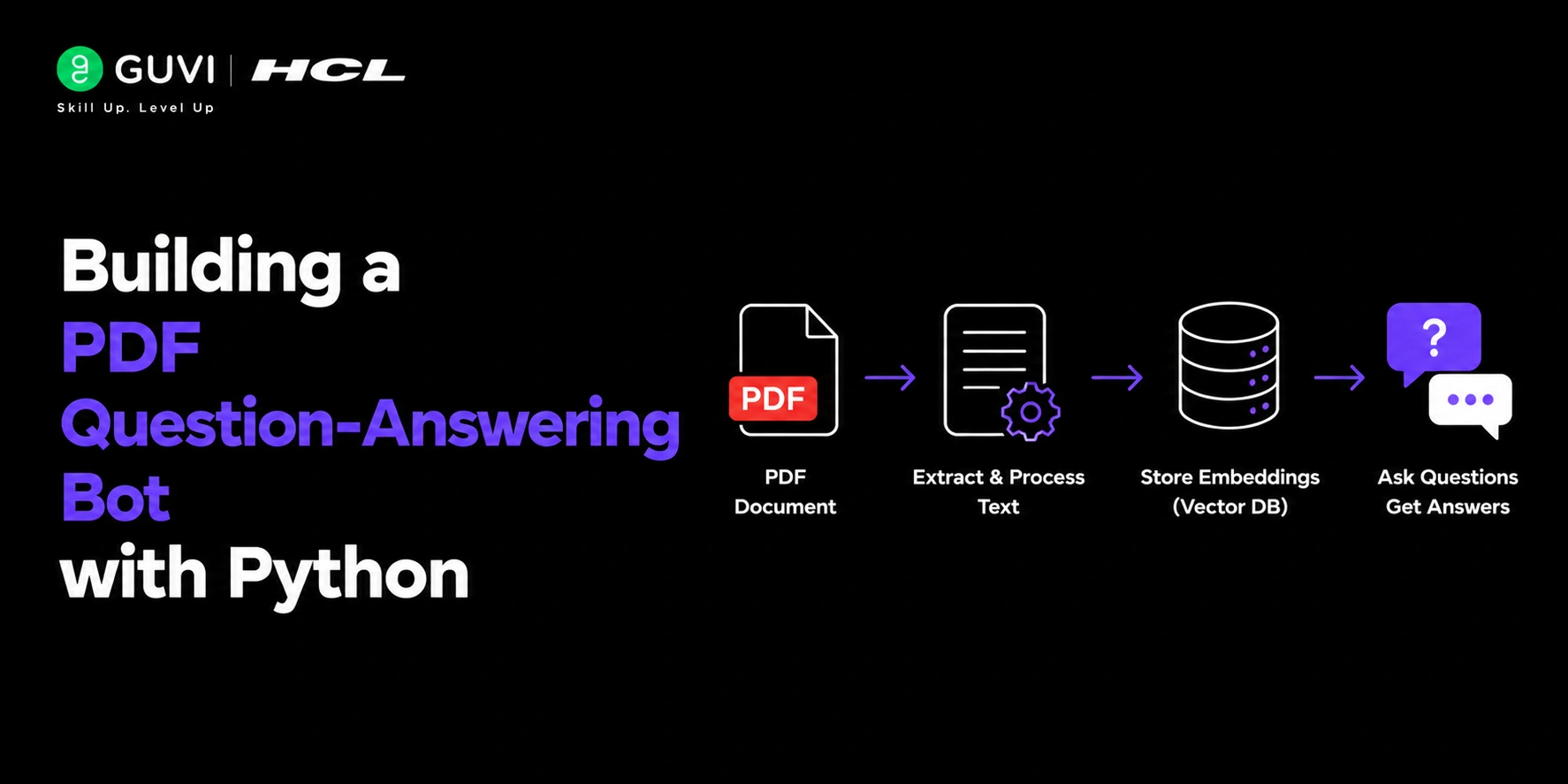
Build a Job Board Scraper and Email Digest with Python
Gmail Automation with Python: Automate Your Inbox in 50 Lines
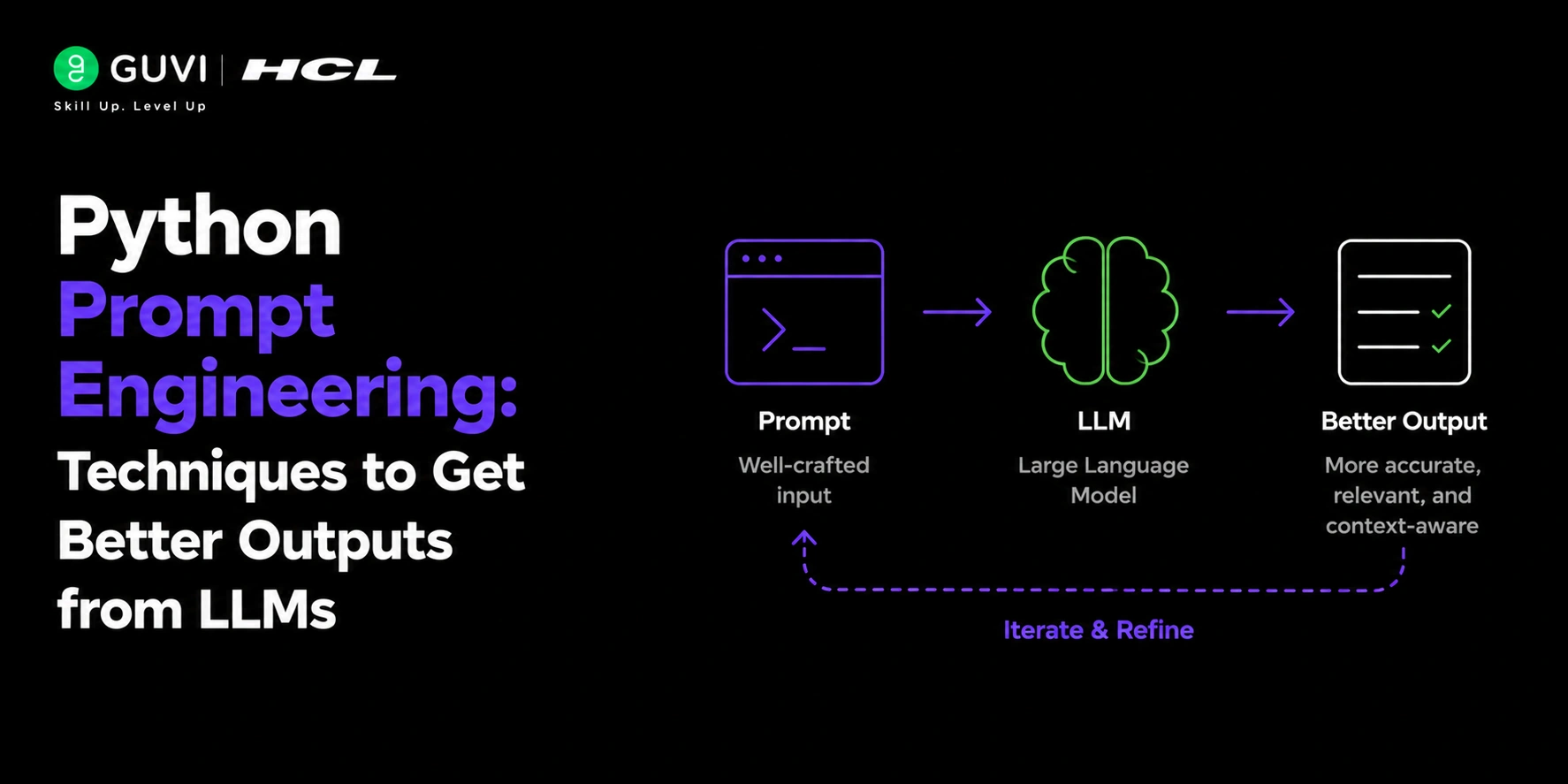
Python Prompt Engineering: Techniques to Get Better Outputs from LLMs


Get In Touch For Details! Request More Information
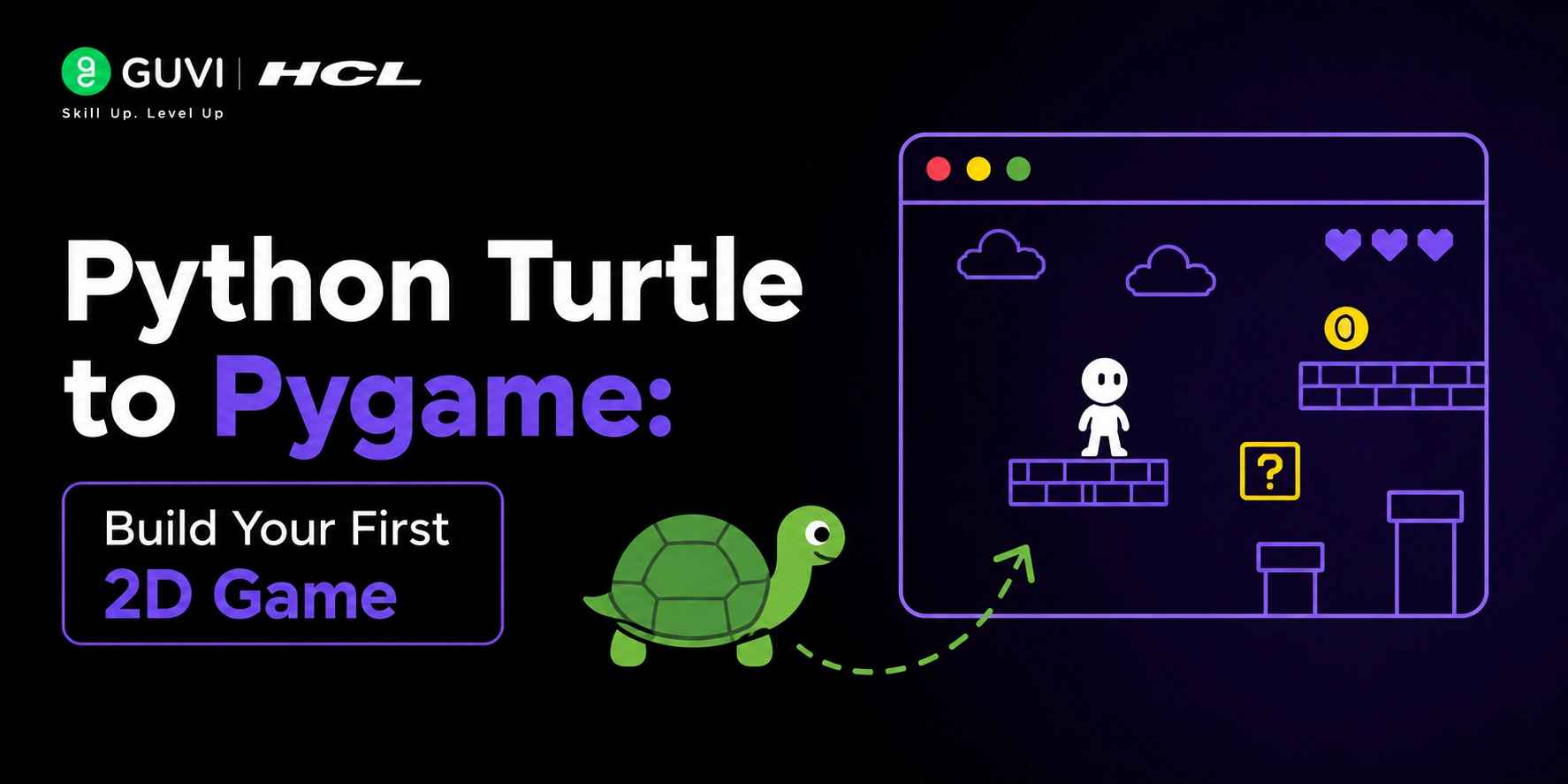
Python Turtle to PyGame: Build Your First 2D Game
Jun 29, 2026 4 Min Read 27 Views
(Last Updated)
Python Turtle is great for learning the basics — drawing shapes, understanding loops, thinking spatially. But the moment you want something interactive — something that like a game — Turtle hits a wall. It’s not built for it.
PyGame is. It gives you a real game loop, hardware-accelerated rendering, a full event system, and collision detection. And the jump is much smaller than most beginners expect. If you can write Turtle code, you already know enough Python to follow this .
Table of contents
- TL;DR Summary
- Why PyGame Instead of Turtle?
- Setting Up PyGame
- Your First PyGame Window
- Building a Playable Game: Step-by-Step
- Step 1: Player and Movement
- Step 2: Spawning Obstacles
- Step 3: Collision Detection and Rendering
- Key Takeaways
- Wrapping Up
- FAQs
- What is PyGame and why should beginners use it?
- Do I need to know Turtle before learning PyGame?
- How is the PyGame game loop different from normal Python code?
- Is PyGame free to use?
- How long does it take to build a simple PyGame game?
- What should I build after the dodge game?
TL;DR Summary
- PyGame is a beginner-friendly Python library that gives you everything you need to build real 2D games.
- Transitioning from Turtle to PyGame unlocks a proper game loop, event handling, collision detection, and sprite management.
- This walks you through setting up PyGame, understanding the game loop, and shipping a working game.
- The two core skills to master first are the event loop and the display surface — everything else builds on them.
- You can build your first playable game in under 100 lines of Python.
| Direct Answer: PyGame is a Python library built on SDL2 that handles graphics, sound, and input for 2D games. You install it with pip install pygame, then build around a game loop a while True block that reads input, updates game state, and redraws the screen 60 times per second. Unlike Turtle, PyGame is fast enough for real-time games and gives you proper collision detection and sprite management. |
Want to level up your Python skills beyond games? Check out HCL GUVI’s
Python Course hands-on projects, mentorship, and placement support included.
Why PyGame Instead of Turtle?
Turtle is a teaching tool. It was never designed for interactive games, and trying to build one in it leads to hacks: polling loops, manual frame timing, and input lag that makes your game feel broken.
PyGame solves every one of those problems by design. It wraps SDL2 — the same C library used by thousands of commercial games — and gives you a Python API on top of it.
| Pro Tip: The single biggest mental shift from Turtle to PyGame is the game loop. In Turtle, you write code, and it runs top-to-bottom. In PyGame, your code runs inside a loop that fires 60+ times per second. Everything input, movement, rendering happens inside that loop. |
This architecture is what makes PyGame feel like a real engine, even though it’s a lightweight library. Once the loop clicks, the rest follows naturally.
Setting Up PyGame
Installation is one line:
pip install pygameThen verify it:
python -m pygame.examples.aliens If a little spaceship game launches, you’re set. That’s PyGame’s built-in demo — it ships with the library.
Your First PyGame Window
Here’s the minimal skeleton every PyGame project starts with:
import pygame
# Initialize Pygame
pygame.init()# Create the game window
screen = pygame.display.set_mode((800, 600))

pygame.display.set_caption("My First Game")
# Create a clock object
clock = pygame.time.Clock()# Game loop
running = Truewhile running:
# Handle events
for event in pygame.event.get():

        if event.type == pygame.QUIT:

            running = False
# Fill the screen with a dark gray color
screen.fill((30, 30, 30))# Update the display
pygame.display.flip()# Limit the frame rate to 60 FPS
clock.tick(60)# Quit Pygame
pygame.quit()Warning: Never skip pygame.init() or pygame.quit(). init() starts the underlying SDL subsystems. Without quit(), some platforms leave audio or display handles open and your script will hang or crash on exit.
Every line here has a job. The caps your frame rate so the game doesn’t run at different speeds on different machines.
| Data Point: According to the 2023 Python Developers Survey, PyGame is the most-used game development library among Python developers, with 61% of respondents who build games in Python citing it as their primary tool. [Source: JetBrains Python Developer Survey 2023] |

Building a Playable Game: Step-by-Step
Let’s build a simple dodge game a player rectangle that moves left and right to avoid falling blocks. It’s the PyGame equivalent of Cora for GNNs: small, complete, and teaches you everything you need.
Step 1: Player and Movement
# Create the player rectangle
player = pygame.Rect(375, 520, 50, 50)# Player movement speed
PLAYER_SPEED = 5# Inside the game loop
keys = pygame.key.get_pressed()# Move left
if keys[pygame.K_LEFT] and player.left > 0:

    player.x -= PLAYER_SPEED
# Move right
if keys[pygame.K_RIGHT] and player.right < 800:

    player.x += PLAYER_SPEED
pygame.Rect is your best friend. It stores position and size and comes with built-in collision methods — no math required.
Step 2: Spawning Obstacles
import random# List to store obstacles
obstacles = []# Timer for spawning obstacles
spawn_timer = 0# Inside the game loop
spawn_timer += 1# Spawn a new obstacle every 40 frames
if spawn_timer >= 40:

    x = random.randint(0, 750)

    obstacles.append(pygame.Rect(x, 0, 50, 50))

    spawn_timer = 0
# Move obstacles downward
for obs in obstacles:
obs.y += 4 # Fall speed
Step 3: Collision Detection and Rendering
# Collision check
for obs in obstacles:

    if player.colliderect(obs):

        running = False  # Game over
# Remove off-screen obstacles
obstacles = [obs for obs in obstacles if obs.top < 600]# Render
screen.fill((20, 20, 40))# Draw the player
pygame.draw.rect(screen, (100, 200, 255), player)# Draw the obstacles
for obs in obstacles:

    pygame.draw.rect(screen, (255, 80, 80), obs)
# Update the display
pygame.display.flip()| Best Practice: Always clear the screen with screen.fill() before drawing, and always call pygame.display.flip() after. Drawing without clearing leaves ghost images from the previous frame. Forgetting flip() means the screen never updates — a common beginner mistake. |
That’s under 60 lines total. A real, playable game. Add a score counter, difficulty scaling, or sound effects, and you have something worth showing.
Want to level up your Python skills beyond games? Check out HCL GUVI’s
Python Course hands-on projects, mentorship, and placement support included.
Key Takeaways
- PyGame runs on SDL2 and is fast enough for real-time 2D games — Turtle simply isn’t.
- The game loop — read input, update state, render — is the mental model you need to internalize first.
- Handles both position and collision detection, keeping your code clean.
- You can build a fully playable game in under 100 lines using just surfaces, rects, and the event system.
- PyGame is the right next step after Turtle — not Unity, not Godot, not anything heavier than you need right now.
Wrapping Up
The gap between Turtle and PyGame is smaller than it looks. You’re not learning a new language; you’re learning a new pattern: the game loop.
Once that clicks, everything else sprites, sound, tilemaps, physics — is just more of the same structure. Start with the dodge game above, get it running, then break it. Add features. Make it harder. That’s how you actually learn this stuff.
FAQs
1. What is PyGame and why should beginners use it?
PyGame is a Python library built on SDL2 that handles graphics, input, and sound for 2D games. Beginners should use it because it’s pure Python, has massive community resources, and the gap from Turtle is genuinely small you don’t need to learn a new language.
2. Do I need to know Turtle before learning PyGame?
No Turtle experience helps because it means you’re already comfortable with Python basics, but it’s not a requirement. If you can write a for loop and define a function, you know enough to follow this .
3. How is the PyGame game loop different from normal Python code?
Normal Python runs top-to-bottom and exits. A PyGame game loop runs in a block that repeats 60 times per second, checking for input, updating positions, and redrawing the screen on every frame until the player quits.
4. Is PyGame free to use?
Yes. PyGame is open-source and released under the LGPL license. It’s completely free for personal and commercial projects.
5. How long does it take to build a simple PyGame game?
A minimal playable game like the dodge example above takes 1–2 hours for a Python beginner. Installation and setup take under 10 minutes. The game loop pattern becomes familiar after your first session.
6. What should I build after the dodge game?
Try a Pong clone it introduces the concept of two moving objects, a ball with velocity, and a score system. After Pong, Snake is a natural next step because it introduces growing collections of rects and game-over logic.
Success Stories

About the Author
Vishalini Devarajan
An Aerospace Engineer turned content writer, I focus on making complex concepts easy to understand through well-structured, reader-friendly blogs. Whether it’s a technical topic or a non-technical one, I love creating content that is clear, engaging, and impactful.
View all posts by Vishalini Devarajan
Connect with me @







Did you enjoy this article?