


Python Articles
Build a Job Board Scraper and Email Digest with Python
Gmail Automation with Python: Automate Your Inbox in 50 Lines
Python Prompt Engineering: Techniques to Get Better Outputs from LLMs


Get In Touch For Details! Request More Information
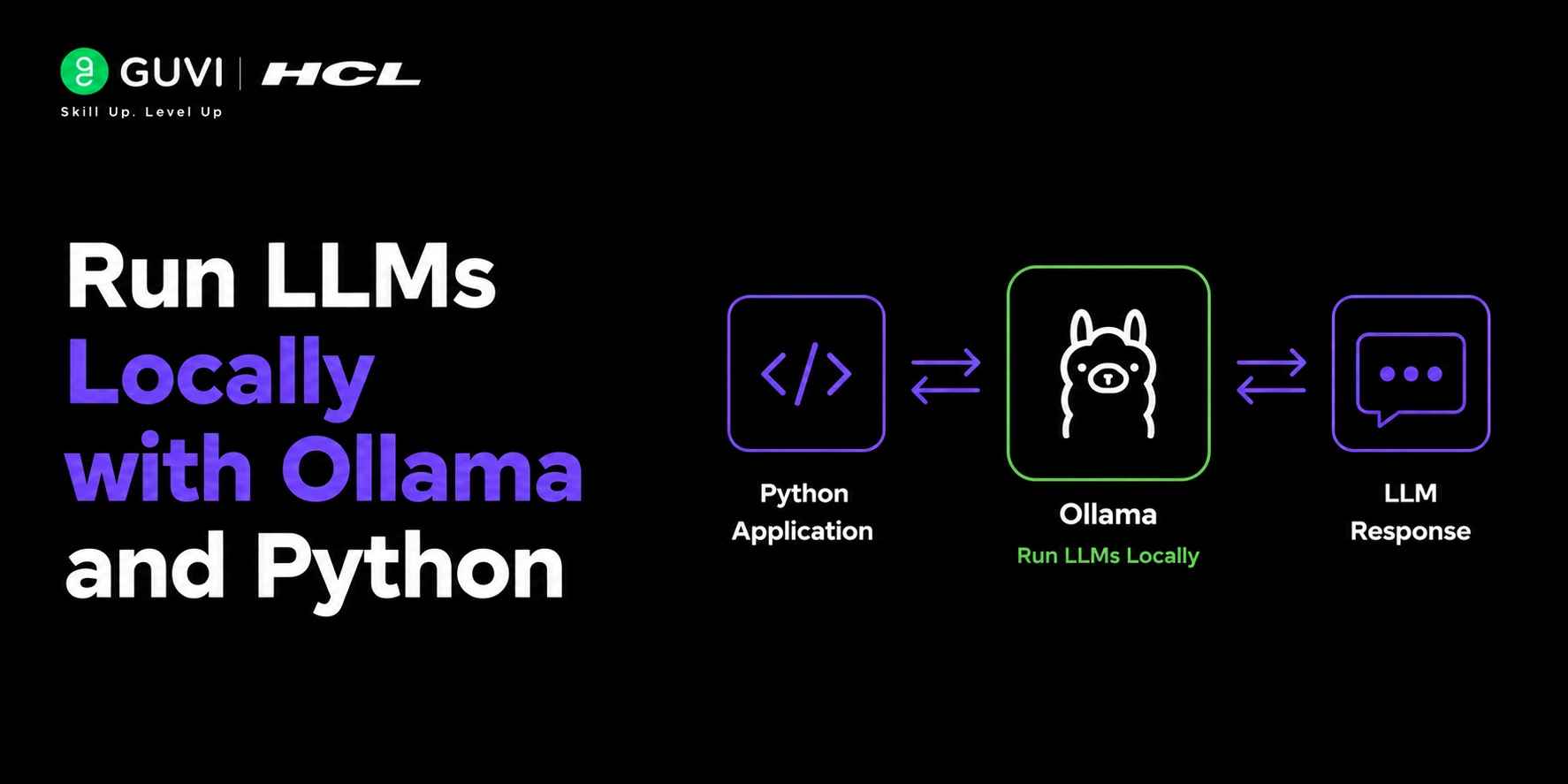
Cloud AI APIs are convenient — until you hit rate limits, get surprised by a bill, or realise you just sent sensitive customer data to a third-party server. Running LLMs locally with Ollama solves all three problems at once. This guide walks you through the complete setup: installing Ollama, pulling a model, and calling it from Python — whether you want a quick one-liner or a full streaming chat interface.
Table of contents
- TL;DR Summary
- What Is Ollama and Why Use It?
- Installing Ollama: macOS, Linux, and Windows
- macOS and Linux
- Windows
- Verify the Installation
- Calling Ollama from Python
- Option 1: The Official ollama Python Library
- Option 2: Streaming Responses
- Option 3: The REST API Directly
- Which Model Should You Pull?
- Using Ollama with LangChain and LlamaIndex
- LangChain
- LlamaIndex
- Key Takeaways
- Common Mistakes to Avoid
- Wrapping Up
- FAQs
- Do I need a GPU to run LLMs locally with Ollama?
- Which is better for local LLMs — Ollama or LM Studio?
- Can I run Ollama on a server without a GPU?
- Is Ollama production-ready?
- How do I update a model in Ollama?
- Can I use my own fine-tuned model with Ollama?
TL;DR Summary
- Running LLMs locally with Ollama lets you use powerful AI models on your own machine — no API keys, no cloud costs, no data leaving your device.
- Ollama supports models like Llama 3, Mistral, Gemma 2, and Phi-3 — all downloadable with a single command.
- You can call Ollama from Python using the official ollama library or directly via its REST API — both work with any framework.
- The full setup takes under 10 minutes on macOS, Linux, or Windows with WSL2.
- Local LLMs are ideal for privacy-sensitive workloads, offline use, and cutting per-token API costs to zero.
Run an LLM Locally with Ollama
Running a large language model (LLM) locally with Ollama is straightforward. First, install Ollama from the official website, then download a model by running ollama pull llama3 in your terminal. Once the model is installed, you can access it from Python using the Ollama library with methods such as ollama.chat(). After the initial model download, the LLM runs entirely on your local machine without requiring an internet connection or an API key. This makes Ollama an excellent choice for building AI applications that prioritize privacy, offline access, and low-latency inference.
Explore HCL GUVI’s Artificial Intelligence & Machine Learning Course hands-on projects, mentorship, and placement support included.
What Is Ollama and Why Use It?
Ollama is an open-source tool that packages large language models into a simple CLI and REST server. Think of it as Docker for LLMs — you pull a model by name, and Ollama handles the quantisation, memory mapping, and inference runtime behind the scenes. No Python environment juggling, no manual GGUF file wrangling.
The core reasons developers choose Ollama over cloud APIs:
- Privacy: your prompts and data never leave your machine.
- Cost: zero per-token charges after the one-time model download.
- Latency: no network round-trip — especially fast on Apple Silicon or modern NVIDIA GPUs.
- Offline use: works without any internet connection once the model is downloaded.
Pro Tip: Ollama uses llama.cpp under the hood and automatically applies 4-bit quantisation, which means Llama 3 8B fits comfortably on a machine with 8 GB of RAM. You don’t need a GPU — modern CPUs run 7B-parameter models at usable speeds (roughly 10–20 tokens per second on an M2 MacBook Air).
Want to build real-world AI applications? Explore HCL GUVI’s Artificial Intelligence & Machine Learning Course hands-on projects, mentorship, and placement support included.
Installing Ollama: macOS, Linux, and Windows
macOS and Linux
One command installs and starts the Ollama daemon:
curl -fsSL https://ollama.com/install.sh | sh On macOS, you can also download the native app from ollama.com/download — it runs as a menu-bar icon and starts the server automatically on login.

Windows
Ollama has native Windows support (no WSL2 required as of version 0.1.30+). Download the .exe installer from ollama.com/download and run it. The server starts in the background on port 11434.
Verify the Installation
| ollama –version # Expected output: ollama version 0.x.x # Pull your first model (approx 4.7 GB) ollama pull llama3 # Run it interactively ollama run llama3 |
Warning: Model downloads can be large — Llama 3 8B is ~4.7 GB and Mistral 7B is ~4.1 GB. Pull models on a stable connection and make sure you have at least 8 GB free disk space per model. Ollama stores models in ~/.ollama/models on macOS/Linux.
Calling Ollama from Python
Option 1: The Official ollama Python Library
| pip install ollama import ollama response = ollama.chat( model=’llama3′, messages=[ {‘role’: ‘system’, ‘content’: ‘You are a helpful assistant.’}, {‘role’: ‘user’, ‘content’: ‘Explain vector embeddings in two sentences.’} ] ) print(response[‘message’][‘content’]) |
That’s the complete working example — no API key, no environment variables, no account. As long as the Ollama daemon is running and the model is pulled, this code works offline.
Option 2: Streaming Responses
For longer outputs, streaming lets you display tokens as they are generated instead of waiting for the full response:
| import ollama stream = ollama.chat( model=’llama3′, messages=[{‘role’: ‘user’, ‘content’: ‘Write a Python function to reverse a string.’}], stream=True ) for chunk in stream: print(chunk[‘message’][‘content’], end=”, flush=True) |
Option 3: The REST API Directly
Ollama exposes a local REST server, so you can call it with requests or any HTTP client — useful if you’re integrating into a framework that already manages HTTP:
| import requests, json payload = { ‘model’: ‘llama3’, ‘prompt’: ‘What is retrieval-augmented generation?’, ‘stream’: False } r = requests.post(‘http://localhost:11434/api/generate’, json=payload) print(r.json()[‘response’]) |
Ollama provides an OpenAI-compatible REST API at the
/v1/chat/completions endpoint. This allows developers to use Ollama as a local replacement in applications built with the OpenAI Python library by simply updating the base_url to http://localhost:11434/v1 and setting the api_key to ollama. As a result, many existing AI applications can run with locally hosted models with minimal code changes.
Which Model Should You Pull?
| Model | Size | RAM Needed | Best For |
| llama3 | 8B (~4.7 GB) | 8 GB | General chat, coding, summarisation |
| mistral | 7B (~4.1 GB) | 8 GB | Fast inference, instruction following |
| gemma2 | 9B (~5.5 GB) | 10 GB | Google-tuned reasoning tasks |
| phi3 | 3.8B (~2.3 GB) | 6 GB | Low-RAM devices, quick prototyping |
| codellama | 7B (~3.8 GB) | 8 GB | Code generation and completion |
| llava | 7B (~4.5 GB) | 8 GB | Multimodal — image + text prompts |
Quick rule: if you have 8 GB of RAM, start with llama3 for general use or codellama for coding tasks. If RAM is tight, phi3 delivers surprisingly strong results at a fraction of the size.
Using Ollama with LangChain and LlamaIndex
Ollama integrates directly with the two most popular Python LLM frameworks, so you can build RAG pipelines, agents, and chat applications without changing your architecture.
LangChain
| pip install langchain-ollama from langchain_ollama import OllamaLLM llm = OllamaLLM(model=’llama3′) print(llm.invoke(‘Summarise the CAP theorem in one paragraph.’)) |
LlamaIndex
| pip install llama-index-llms-ollama from llama_index.llms.ollama import Ollama llm = Ollama(model=’mistral’, request_timeout=120.0) response = llm.complete(‘What is the difference between RAG and fine-tuning?’) print(response) |
Pro Tip: When building RAG pipelines locally, pair Ollama with nomic-embed-text for embeddings — it’s a lightweight embedding model also available via ollama pull nomic-embed-text. This keeps the entire pipeline on your machine, including the vector search step.
Key Takeaways
- Ollama is the fastest way to run LLMs locally — one install command, one pull command, and your model is ready.
- The official Ollama Python library makes integration a five-line script. The REST API works for any language or framework.
- Llama 3 8B and Mistral 7B run on 8 GB RAM machines — no GPU required, though one significantly improves speed.
- Ollama’s OpenAI-compatible endpoint lets you swap cloud APIs for local inference with minimal code changes.
- For production RAG pipelines, combine Ollama with LangChain or LlamaIndex and a local embedding model like nomic-embed-text.
Common Mistakes to Avoid
- Common Mistake 1 — Pulling a model too large for your RAM: If the model size exceeds your available RAM, Ollama will use swap memory and inference will be extremely slow (sometimes 1 token per second or worse). Always check the RAM requirement before pulling.
- Common Mistake 2 — Forgetting to start the Ollama daemon: The Python library and REST API both require the Ollama server to be running. If you get a connection refused error, run ollama serve in a separate terminal window.
- Common Mistake 3 — Using stream=False for long outputs: Generating a 500-word response with streaming disabled holds the connection open for the full generation time. Use stream=True for anything beyond short answers to keep your application responsive.
Wrapping Up
Running LLMs locally with Ollama removes the three biggest friction points of cloud AI: cost, privacy risk, and rate limits. The setup takes less than 10 minutes, the Python integration is four lines of code, and the model quality of Llama 3 and Mistral is genuinely competitive with GPT-3.5 for most tasks. Pull a model, run the example, and see for yourself — local inference is more accessible than it has ever been.
FAQs
1. Do I need a GPU to run LLMs locally with Ollama?
No. Ollama runs on CPU-only machines using llama.cpp with 4-bit quantisation. A GPU significantly improves inference speed — on an M2 MacBook, Llama 3 8B runs at roughly 60 tokens per second vs 10 tokens per second on CPU — but it is not required for development or low-volume use.
2. Which is better for local LLMs — Ollama or LM Studio?
Ollama is better for developers who want a CLI, Python library, and REST API they can script and automate. LM Studio provides a graphical interface and is better for non-technical users who want a point-and-click experience. Both use llama.cpp under the hood and support the same GGUF model format.
3. Can I run Ollama on a server without a GPU?
Yes. Ollama runs on any Linux machine, including cloud VMs without GPUs. A CPU-only VM with 16 GB RAM and 2–4 vCPUs can serve a 7B-parameter model for low-traffic internal applications. For higher throughput, add a GPU instance.
4. Is Ollama production-ready?
Ollama is stable for internal tools, development environments, and low-traffic applications. For high-traffic production APIs, consider vLLM or TGI (Text Generation Inference) instead — they offer better batching, token streaming, and horizontal scaling. Ollama itself recommends this distinction in its documentation.
5. How do I update a model in Ollama?
Run ollama pull <model-name> again. Ollama checks for a newer version and downloads only the changed layers, similar to how Docker handles image updates. Your existing pulled models are not affected.
6. Can I use my own fine-tuned model with Ollama?
Yes. Ollama supports importing custom models via a Modelfile a simple configuration file that points to a GGUF weights file and sets system prompts, parameters, and templates. This lets you package and serve your own fine-tuned models with the same ollama run interface as official models.
Success Stories

About the Author
Vishalini Devarajan
An Aerospace Engineer turned content writer, I focus on making complex concepts easy to understand through well-structured, reader-friendly blogs. Whether it’s a technical topic or a non-technical one, I love creating content that is clear, engaging, and impactful.
View all posts by Vishalini Devarajan
Connect with me @







Did you enjoy this article?