


Artificial Intelligence and Machine Learning Articles
Finance Manager to Data Analytics: Career Growth, Salary and Seniority
How to Evaluate LLM Outputs in Production Deployments
AI/ML Skills Gap 2026: Why Companies Can't Find Job-Ready Talent
20 AI/ML Interview Questions Recruiters Can Use Without a Tech Background - Best Guide


Get In Touch For Details! Request More Information
How to Use Claude Artifacts: Create, Share, and Remix AI Content in 2026
Aug 07, 2026 12 Min Read 9561 Views
(Last Updated)
Most people use Claude like a fancy search engine. They ask a question, read the answer, and move on. But there is a feature sitting right inside Claude that lets you build a working app, publish it to the world, and have someone on the other side of the planet remix it, all without writing a single line of code yourself.
It is called Claude Artifacts. And once you see it in action, you will wonder how you ever worked without it.
Table of contents
- TL;DR Summary
- Understanding What Claude Artifacts Actually Are
- Claude Artifacts vs ChatGPT Canvas: Feature Comparison
- Knowing the Types of Artifacts You Can Create
- What Can You Build with Claude Artifacts? Real Examples to Try
- Claude Artifacts for Non-Coders: Practical Use Cases Beyond Code
- Checking Plan Access Before You Start
- How to Create Your First Claude Artifact
- Enabling the Artifacts Feature in Your Account
- Writing a Prompt That Triggers an Artifact
- Working Inside the Artifact Panel
- Editing and Iterating on Claude Artifacts
- Asking Claude to Modify Specific Sections
- Using Version History to Compare Directions
- Fixing Errors Without Debugging Yourself
- How to Publish and Share Claude Artifacts
- Publishing an Artifact with a Public Link
- Understanding What Viewers See
- Embedding an Artifact on Your Website
- Unpublishing When Needed
- How to Customize and Remix Claude Artifacts
- Finding Artifacts to Customize
- Starting a Customization from a Shared Link
- Publishing Your Customized Version
- Advanced: AI-Powered Artifacts and the "Claude in Claude" Feature
- Building AI-Powered Apps Inside Artifacts
- Using Persistent Storage for Apps That Remember Things
- Connecting MCP Tools to Artifacts
- Limitations of Claude Artifacts — What They Still Cannot Do
- No Deployment or Hosting on a Custom Domain
- No Backend or Database by Default
- Single File Only
- Persistent Storage Only Works After Publishing
- Conclusion
- FAQs
- What is a Claude Artifact?
- Is Claude Artifacts free to use?
- Do viewers need a Claude account to use a published artifact?
- Can I embed a Claude Artifact on my own website?
- What is the difference between publishing and sharing in Claude Artifacts?
TL;DR Summary
- Claude Artifacts turns any Claude conversation into a live workspace — apps, websites, diagrams, and documents render instantly in a side panel, fully interactive, with no coding required.
- Unlike ChatGPT Canvas, Artifacts can be published with a public link, embedded on websites, and remixed by others — all free on every Claude plan, including the free tier.
- Beyond code, non-coders use Artifacts for real things: quiz apps, budget trackers, flashcards, landing pages, and planners — just by describing what they want in plain English.
- Advanced “Claude in Claude” apps can embed live AI features, persistent storage, and MCP connections to tools like Gmail and Google Calendar (available on Pro, Max, Team, and Enterprise plans).
- Key limitations to know: no custom domain hosting, no backend/database by default, single-file only, and persistent storage only activates after publishing — not during the build/preview stage.
Understanding What Claude Artifacts Actually Are
Picture this; You ask Claude to build a quiz app for your students. Instead of getting back 200 lines of code to copy, paste, debug, and test in a browser, a fully working quiz just appears right next to your chat. You can click buttons. You can answer questions. You can watch it work.
That is an artifact. It is live, interactive, and ready to share before you have even finished your coffee.
An artifact is triggered whenever Claude generates something substantial enough to deserve its own space. Anything over roughly 15 lines that you would want to use, not just read. Here is what that looks like in practice:
- Rendered live in the panel: You see the actual webpage, app, or diagram, not the code behind it.
- Instantly interactive: Click buttons, fill forms, and use the tool the moment it appears.
- No setup required: No browser tabs to open, no files to download, no terminal to touch.
- Always editable: Every artifact stays open for changes throughout the conversation.
Have you ever built something useful with AI, or have you mostly just read AI-generated text? If it is the latter, Artifacts is where that changes.
Do check out HCL GUVI’s Artificial Intelligence and Machine Learning course, a comprehensive program designed to help you master core concepts like machine learning, deep learning, NLP, and real-world AI applications through hands-on projects, industry mentorship, and practical tools like TensorFlow and PyTorch, making it a strong choice for beginners and professionals aiming to build job-ready AI skills in 2026.
Claude Artifacts vs ChatGPT Canvas: Feature Comparison
You may have heard of ChatGPT Canvas. Both tools show your output in a side panel. But they are built for very different things, and the gap matters if you want to actually ship something.
| Feature | Claude Artifacts | ChatGPT Canvas |
| Supported output types | Code, HTML, React, SVG, Markdown, Mermaid diagrams | Text documents and code |
| Live interactive preview | Yes, rendered in the side panel | No live preview for HTML or React |
| Publishing with public link | Yes, free on all plans | No direct public publishing |
| Customize and remix by others | Yes | No |
| Embed on external websites | Yes | No |
| AI-powered apps inside artifacts | Yes | No |
| MCP integration | Yes (where MCP is supported) | No native MCP support in Canvas |
Canvas is great for editing documents with a collaborator. Artifacts are for building things you want to publish, share, and hand off. If your goal is to ship something real, Artifacts win.
💡 Did You Know?
- Publishing, customizing, and remixing artifacts is completely free on every Claude plan including the free tier. You do not need a paid subscription to ship real work and share it publicly.
- Claude can accept a hand-drawn sketch or a Figma mockup as an image input and generate a working HTML or React artifact based on what it sees in the image.
- If you delete the conversation where a published artifact was created, the public version of that artifact is also permanently deleted, even if others have been using it.
- The Inspiration gallery is organized into categories like Learn something, Life hacks, Play a game, and Be creative so you can browse by purpose rather than searching blindly.
Knowing the Types of Artifacts You Can Create
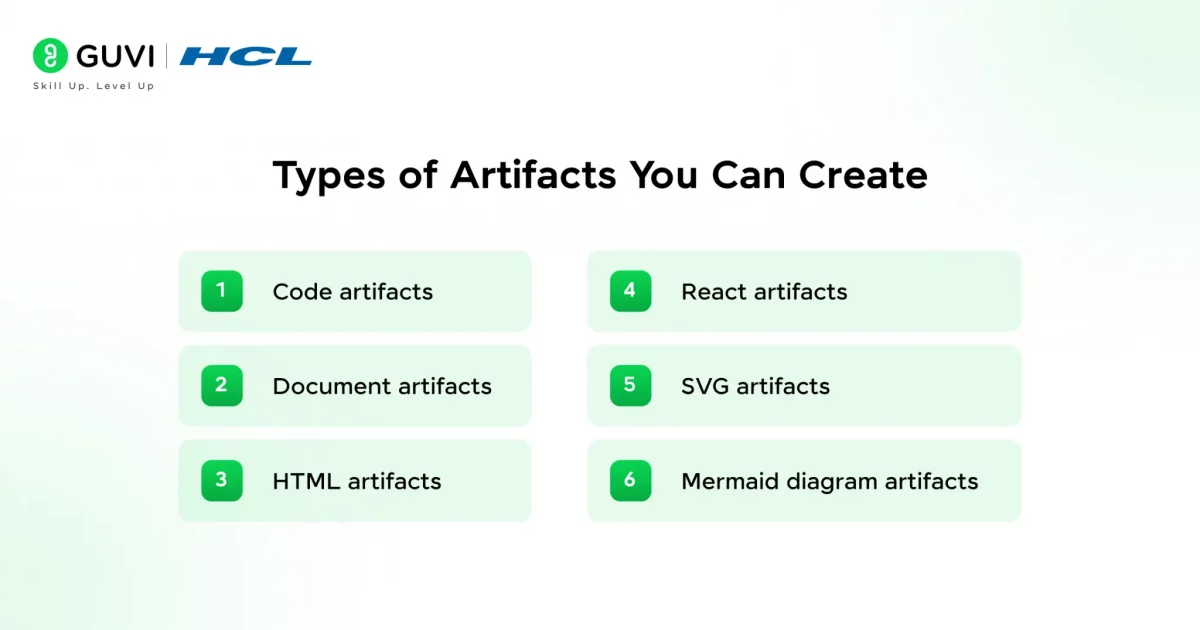
Not every artifact looks the same. Here is what Claude can build and drop into the side panel for you.
- Code artifacts: Clean, modular code in Python, JavaScript, Java, C++, and more. Great for functions, scripts, and reusable modules.
- Document artifacts: Reports, tutorials, and notes in Markdown that you can download or share instantly.
- HTML artifacts: Full single-page websites with CSS, rendered live so you can see and interact with them immediately.
- React artifacts: Dynamic UI components with state, hooks, and real interactivity. Supports Recharts, D3, and other popular libraries.
- SVG artifacts: Vector graphics, icons, and logos rendered visually and ready to download.
- Mermaid diagram artifacts: Flowcharts, system diagrams, Gantt charts, and sequence diagrams without touching a design tool.
Think of the last thing you tried to build and gave up on. Which of these artifact types would have gotten you there in an afternoon?
What Can You Build with Claude Artifacts? Real Examples to Try
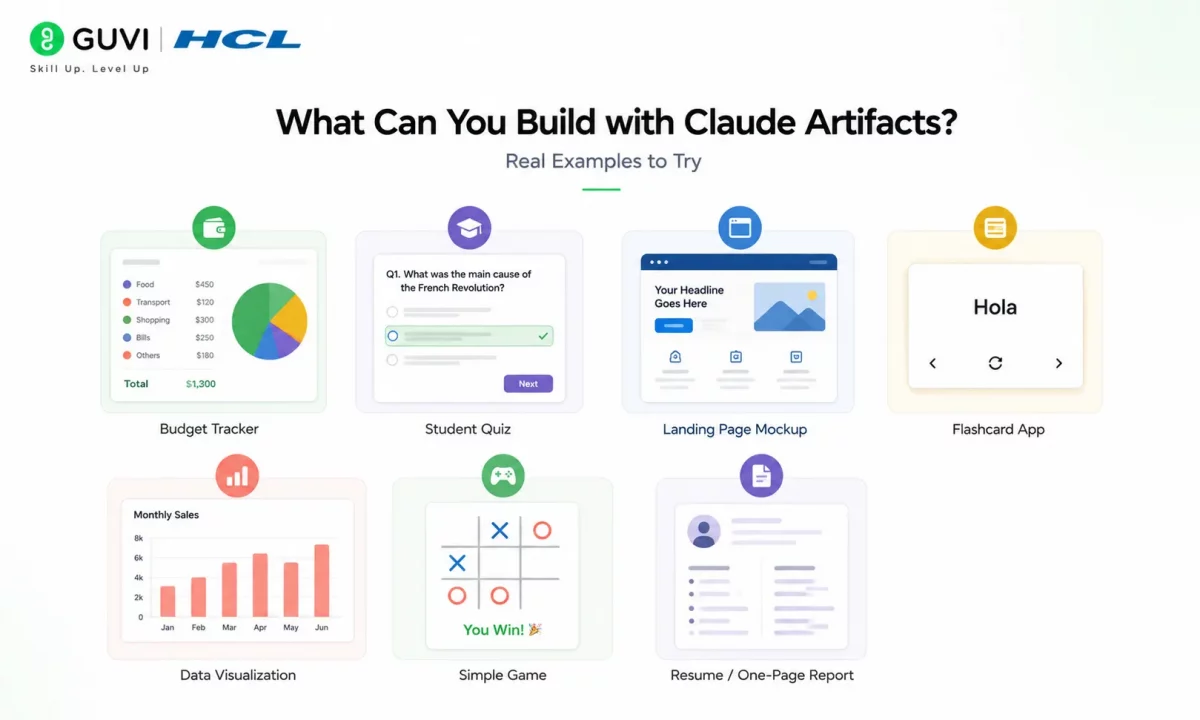
Okay, so here’s the thing about Artifacts — most explanations make it sound abstract. “Generate interactive content!” Cool, but what does that actually mean for you?
Let’s skip the buzzwords and just look at real stuff people build.
A budget tracker. You tell Claude you want to track monthly expenses by category, and it builds you an actual working tool — input fields, a running total, maybe a pie chart breaking down where your money’s going. Not a description of a budget tracker. An actual one, sitting right there in the panel, that you can use immediately.
A quiz for your students. Say you’re a teacher prepping a pop quiz on the French Revolution. Ask Claude to build it, and you get a real interactive quiz — multiple choice buttons, a score at the end, maybe even color feedback for right and wrong answers. You could screenshot it, share the link, or just use it live in class.
A landing page mockup. Freelancer pitching a client? Describe the business, and Claude can spin up a clean, styled webpage — headline, sections, buttons — so your client sees something real instead of a Google Doc full of ideas.
A flashcard app for studying. Learning Spanish vocabulary? Claude can build flip-style flashcards you click through, right in the chat. No app download, no sign-up.
A data visualization from your own numbers. Paste in a messy list of sales figures, and Claude can turn it into an actual bar chart or line graph — the kind you’d usually need Excel or a designer for.
A simple game. Sounds like a stretch, but people build things like tic-tac-toe, word guessing games, or simple trivia — fully playable, right in the artifact panel.
A resume or one-page report, formatted and ready. Not just text — actual visual structure, headers, spacing, the works.
Note:
Artifacts aren’t magic. They won’t replace a real developer building you a production app, and they’re not hosting a full website with a database behind it (more on that later). But for the “I need something now that actually works and I can see it working” category — a tool, a visual, a small interactive thing — that’s exactly what Artifacts are built for.
If you can describe it clearly, there’s a good chance Claude can build a working version of it in front of you.
Claude Artifacts for Non-Coders: Practical Use Cases Beyond Code
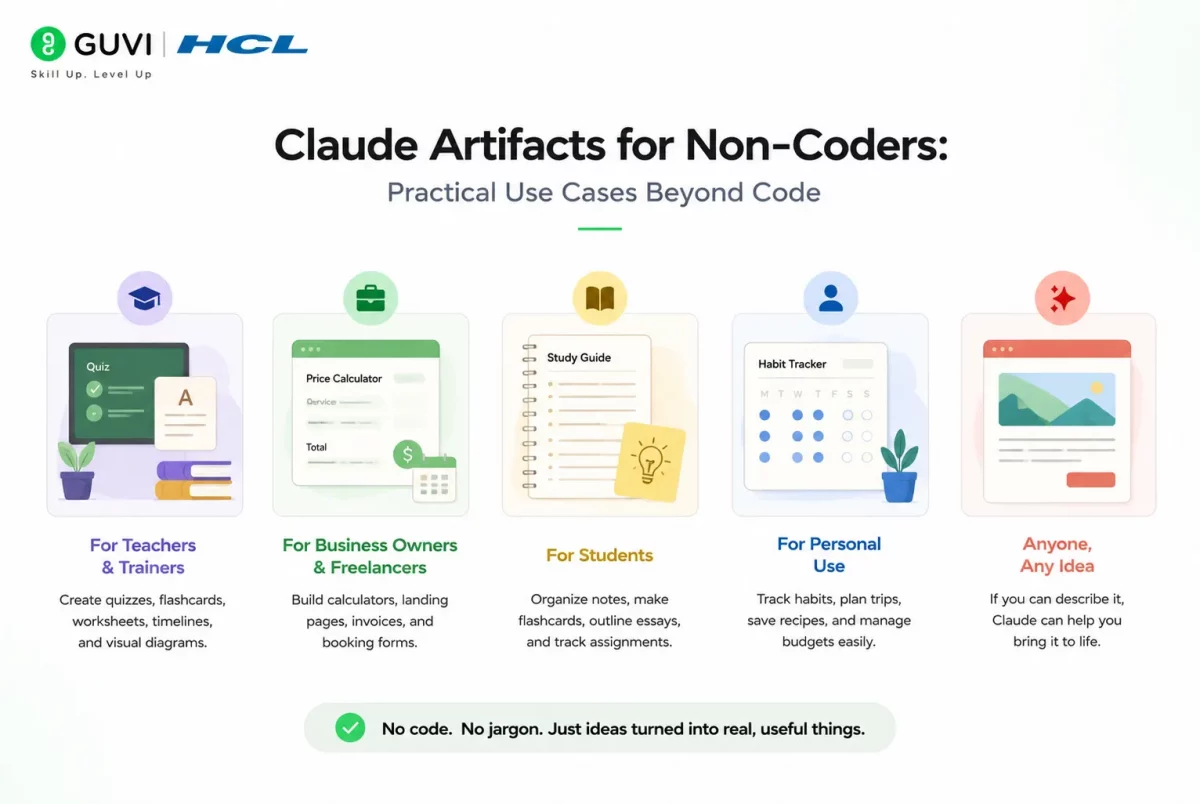
Here’s something people miss about Artifacts — you don’t need to write a single line of code to get real value out of them. Somewhere along the way, “AI-generated content” got tangled up with “for developers only.” That’s just not true here.
If you can type out what you want in plain English, you’re already qualified.
Let’s break down who’s actually using this and how.
a. If you’re a teacher or trainer
You’re not coding a quiz app. You’re typing: “Make me a 10-question quiz on cell biology with instant scoring.” Done. Claude builds it, you use it that afternoon.
Other things educators are building:
- Flashcard sets for vocabulary or exam prep
- Simple visual timelines for history lessons
- Worksheets formatted and ready to print
- Interactive diagrams explaining a concept (like the water cycle or a math formula)
b. If you’re a small business owner or freelancer
You don’t need a web developer for every little thing.
- A pricing calculator for your services
- A simple landing page to show a client during a pitch
- An invoice template that actually looks professional
- A booking form mockup to test an idea before paying someone to build it for real
c. If you’re a student
This one’s underrated.
- Turn your messy notes into a clean, organized study guide
- Build yourself flashcards for a subject you’re struggling with
- Visualize an essay outline before you start writing
- Create a simple planner to track assignment deadlines
d. If you’re just someone who likes organizing things
Not everything needs a “professional” reason.
- A habit tracker you actually enjoy looking at
- A trip itinerary laid out visually, day by day
- A recipe card, formatted nicely, that you can save and reuse
- A simple budget or savings tracker for personal use
The honest truth here
None of this requires you to know what an API is, what JavaScript means, or how to “deploy” anything. You describe what you want, in normal language, the way you’d explain it to a friend — and Claude handles the technical part quietly in the background.
That’s really the whole point of Artifacts for non-coders. It’s not about becoming a developer. It’s about not needing to be one anymore.
Checking Plan Access Before You Start
Here is one thing most guides get wrong: they say you need a paid plan to publish and share artifacts. You do not. Everything core is free.
- Free plan: Full artifact creation, live preview, publishing with a public link, customizing and remixing others’ artifacts, and access to the community Inspiration gallery.
- Pro and Max plans: Everything in Free, plus persistent storage so your apps remember data between sessions, MCP tool connections to external services like Gmail and Google Calendar, and higher usage limits for AI-powered artifacts.
- Team and Enterprise plans: Internal sharing within your organization, admin controls, and Projects integration for team workflows.
Publishing, remixing, and customizing are completely free. You can build something real and share it with the world today, no subscription needed.
How to Create Your First Claude Artifact
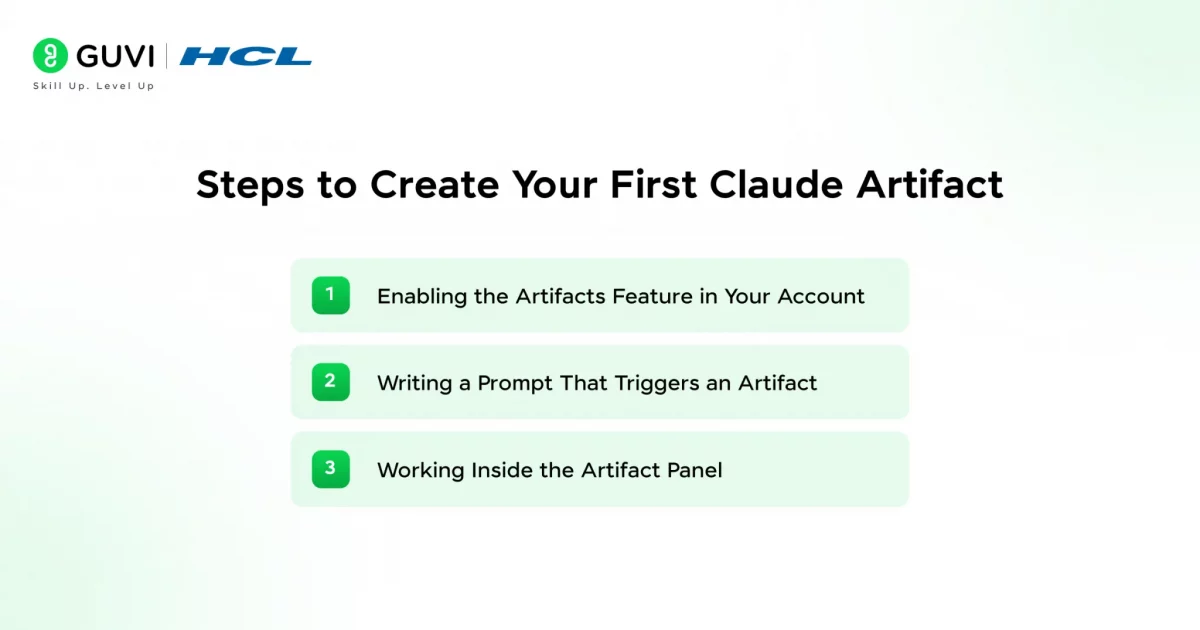
The hardest part of creating your first artifact is not technical at all. It is knowing how to describe what you want.
1. Enabling the Artifacts Feature in Your Account
Before anything else, make sure Artifacts is switched on. The process takes under a minute and you only need to do it once.
- On desktop: Click your name or initials in the bottom left corner of Claude, go to Settings, open the Capabilities or Feature Preview section, and toggle Artifacts on.
- On mobile: Artifacts appear below your chat automatically in the iOS and Android apps once the feature is enabled in Settings.
- From a shared link: If someone sends you a published artifact and you click Customize, Claude turns the feature on for your account automatically. No settings needed.
So first-time users can jump straight in from a shared link without touching settings at all.
2. Writing a Prompt That Triggers an Artifact
This is where most beginners go wrong. Vague prompts get text. Specific, build-focused prompts get artifacts.
Here is the difference in practice:
- Weak prompt: “Write me some HTML.”
- Strong prompt: “Build a single-page HTML landing page for a Python course with a hero section, three feature cards with icons, and a signup button. Use a dark navy and orange color scheme.”
The second prompt describes a finished product. Claude can picture exactly what to build. The more you describe the layout, the functionality, the colors, and the purpose, the closer your first artifact will be to what you actually want.
You can also just type “show this as an artifact” at the end of any request and Claude will route the output to the side panel.
3. Working Inside the Artifact Panel
Once your artifact appears, the side panel becomes your workspace. Here is what each part of the panel does:
- Preview toggle: Switch between Preview mode to see the live rendered output and Code mode to see the raw source behind it.
- Copy icon: Copy all the content to your clipboard in one click.
- Download icon: Save the artifact as a file to your device.
- Publish button: Generate a public shareable link instantly.
- Version history: Browse every previous version of the artifact and jump back to any of them.
You never have to leave the chat. Keep talking to Claude in the chat window and every change you request updates the artifact live in the panel beside it.
What would your workflow look like if every tool you built could be tweaked just by describing the change in plain language?
Editing and Iterating on Claude Artifacts
Getting a good first version is satisfying. Getting exactly what you want through iteration is where the real power kicks in.
1. Asking Claude to Modify Specific Sections
You do not need to rewrite your prompt or start a new conversation to make changes. Just describe what needs to be different and Claude will update only that part, leaving everything else exactly as it is. Here are some real examples of edit prompts that work well:
- Design changes: “Change the button color to orange” or “Make the hero section full height with a gradient background.”
- Content edits: “Add a FAQ section at the bottom with five questions about Python.”
- Layout fixes: “Make the font larger on mobile” or “Stack the three cards vertically on small screens.”
- Functionality updates: “Add a reset button that clears all the form fields.”
This means you can build a complex piece by piece, refining one section at a time, without risking the parts that are already working.
2. Using Version History to Compare Directions
Every update creates a new version, and Claude keeps them all. Use the version controls at the bottom of the artifact panel to flip between them. Here is when this saves you:
- Comparing two design directions: Switch between version 3 and version 5 to see which layout actually looks better.
- Rolling back a broken change: If a new feature breaks something that was working, go back to the previous version in one click.
- Exploring bold ideas safely: Try a completely different approach without losing your stable working version.
- Showing a client options: Pull up two versions side by side and let them choose the direction they prefer.
This is a lifesaver when you are deciding between approaches and want to compare rather than guess.
3. Fixing Errors Without Debugging Yourself
Here is something that trips up beginners: sometimes an artifact will generate an error, especially with complex React components. The fix is simpler than you think. Here is the full error-handling workflow:
- Spot the error: An error message appears in the artifact panel where the preview should be.
- Click “Try fixing with Claude”: This button appears near the error. Clicking it copies the full error details into a new chat message automatically.
- Send the message: Claude reads the error, diagnoses what went wrong, and patches the code without you needing to understand any of it.
- If the error persists: Describe the behavior you are seeing in plain language. “The button does nothing when I click it” works better than pasting technical error codes.
Think about how much time you have spent copying error messages into Google. This is the answer to that problem.
How to Publish and Share Claude Artifacts
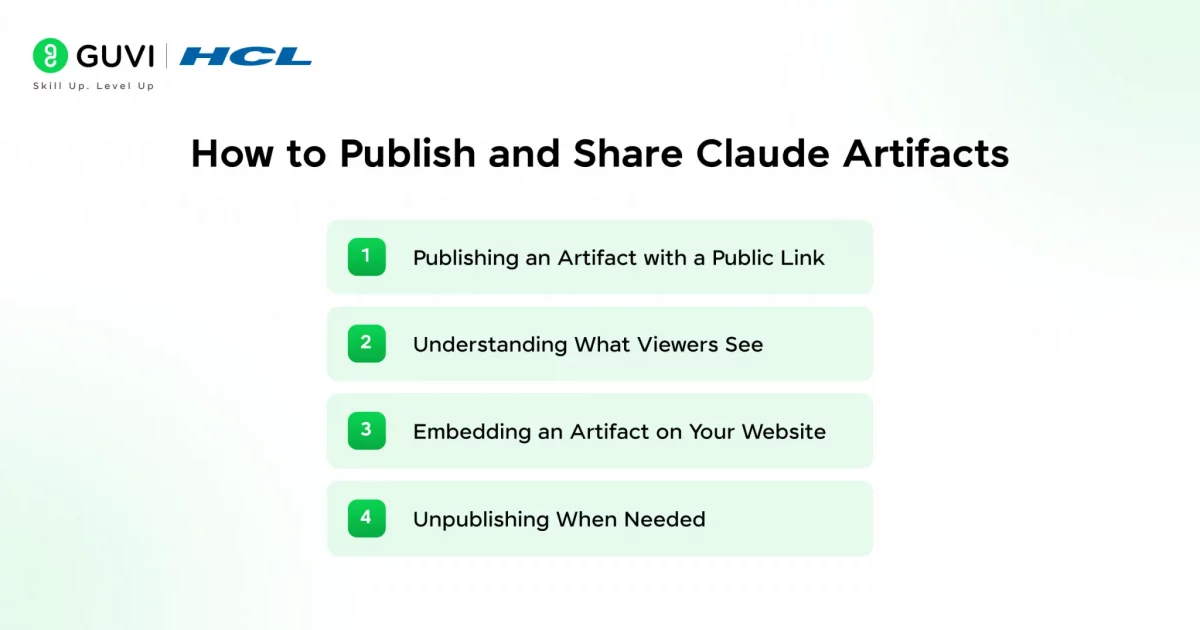
Building something is only half the story. Getting it in front of people is the other half. Artifacts make both equally fast.

1. Publishing an Artifact with a Public Link
Click the Publish button in the artifact panel and Claude generates a public link in seconds. Here is what makes this different from other AI tools:
- No account needed to view: Anyone with the link can open and use the artifact immediately.
- No app to install: It opens in any browser like a normal webpage.
- Fully interactive: Viewers can click, type, and use every feature, not just read a screenshot.
- Free on all plans: Publishing is not locked behind a subscription. Every Claude user can publish.
A student from Chennai built a unit converter for her physics class using Claude Artifacts. She published it, dropped the link in her class WhatsApp group, and 40 classmates were using it within the hour. She had never built a web app before.
2. Understanding What Viewers See
When someone opens your published artifact link, they get the full interactive experience. Here is what different artifact types look like to the person receiving them:
- HTML artifact: A fully rendered webpage they can scroll, click, and interact with.
- React artifact: A live component with all its interactive features working exactly as intended.
- Code artifact: Clean, formatted, readable code they can copy into their own project.
- Document artifact: A neatly formatted Markdown document they can read or download.
- Diagram artifact: A rendered visual diagram, not just the text syntax behind it.
Viewers without a Claude account can use it fully. Viewers with any Claude account will also see a Customize button to fork and build their own version.
3. Embedding an Artifact on Your Website
After publishing, click “Get embed code” in the panel. Claude generates a ready-to-use HTML snippet you can drop into any webpage. Here is how to get the embed working:
- Copy the snippet: Click the copy button in the embed modal to grab the full iframe code.
- Set allowed domains: Enter your website URL in the Allowed domains field or the embed will not render on your site.
- Paste into your page: Drop the snippet into your HTML, WordPress editor, or page builder wherever you want the artifact to appear.
- Test on live: Open your page in a browser and interact with the embedded artifact to confirm it is working.
This is one of the best ways to make your portfolio, course page, or blog genuinely interactive with live working tools instead of static screenshots.
4. Unpublishing When Needed
The Unpublish button appears in the panel after you publish. Clicking it revokes public access immediately. A few important things to know before you hit that button:
- Access is cut off instantly: Anyone trying to open the link after unpublishing will see an error.
- You cannot republish the same version: Once unpublished, that version is permanently removed from public access.
- Storage data is deleted: Any persistent storage data attached to the artifact is permanently wiped when you unpublish.
- To reshare after changes: Publish the updated version instead. It will generate a new link.
Always export any data or content you want to keep before pulling a published artifact offline.
How to Customize and Remix Claude Artifacts
This is where Artifacts start to feel less like a solo tool and more like a creative platform.
1. Finding Artifacts to Customize
Open the Artifacts section in your Claude sidebar and look for the Inspiration gallery or the “Get inspired” banner. The gallery is sorted into categories that make browsing by purpose easy:
- Learn something: Flashcard apps, quiz tools, study timers, and explainer diagrams.
- Life hacks: Budgeting calculators, habit trackers, meal planners, and productivity dashboards.
- Play a game: Word games, logic puzzles, trivia, and interactive challenges.
- Be creative: Writing prompts, story generators, art tools, and design experiments.
You can open any artifact and start using it right away, or click Customize to load a copy into your own chat and modify it however you want.
2. Starting a Customization from a Shared Link
When someone shares an artifact link with you, open it and click Customize. Claude opens a fresh conversation with the full artifact already loaded. Here is what makes remixing safe and independent:
- Your copy is fully separate: Whatever you change does not affect the original creator’s version at all.
- Original changes do not affect yours: If the creator updates and republishes their version, your copy stays exactly as you left it.
- Auto-enables Artifacts: If you have never used Artifacts before, clicking Customize turns the feature on for your account automatically.
- No permission needed: Anyone with the link can customize. The original creator does not need to approve it.
Imagine a teacher sharing a quiz artifact with 30 students, each of whom remixes it into their own study tool. That is a real classroom use case happening right now.
3. Publishing Your Customized Version
Once you are happy with your remixed version, publish it under its own link. It is treated as an entirely new artifact that belongs to you completely. Here is what that means in practice:
- Your own link: The published URL is unique to your version and completely independent.
- You control it: Update it, unpublish it, or keep iterating whenever you want.
- No limits on republishing: You can make changes and publish a new version as many times as you need.
- Full ownership: The original creator has no visibility into or control over your published version.
There is no limit on how many times you can iterate, remix, and republish.
Advanced: AI-Powered Artifacts and the “Claude in Claude” Feature
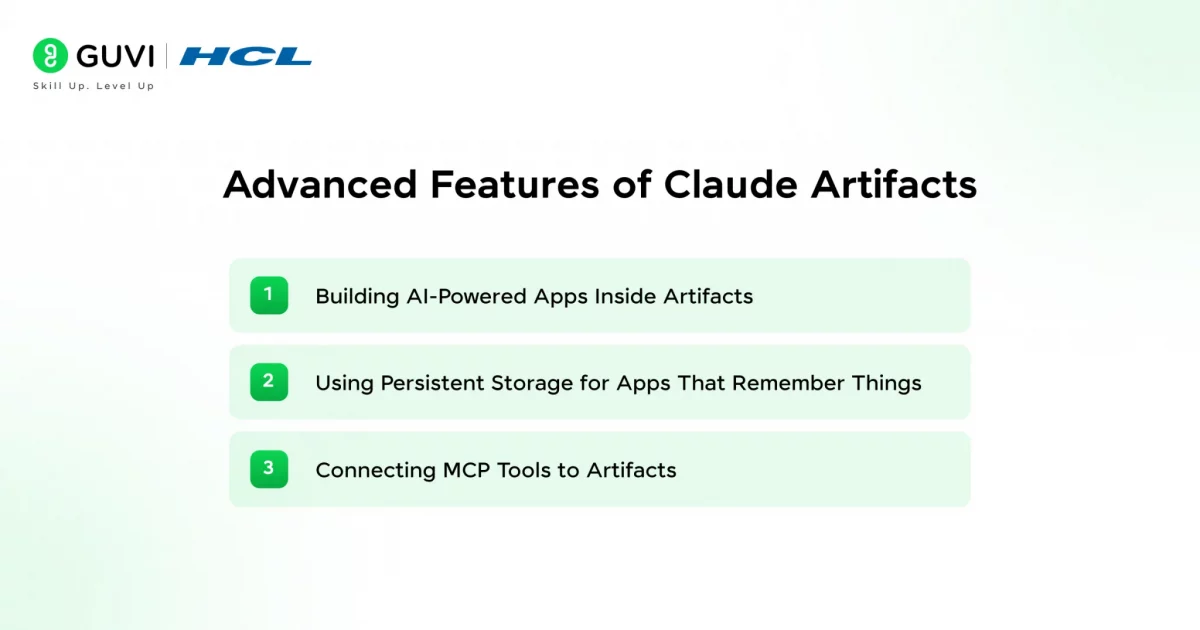
This is the part of Artifacts that genuinely surprises people the first time they see it. Your artifact does not just have to display static content. It can contain a working AI.
1. Building AI-Powered Apps Inside Artifacts
Claude can build artifacts that make real-time calls to the Claude API from inside the artifact itself. The community calls this “Claude in Claude” because the app you publish contains its own AI brain that your users can interact with. Here are some things you can build with this feature:
- Custom AI tutors: A subject-specific chatbot that answers questions only about Python, or chemistry, or whatever topic you set.
- Writing coaches: An artifact that reviews your sentences and gives feedback in a specific style or tone.
- Mock interview tools: A practice interviewer that asks real questions and evaluates your answers live.
- Quiz generators: An app that creates new questions on any topic the user types in.
- Recipe assistants: A tool that suggests meals based on whatever ingredients the user lists.
The people who use your artifact do not need an API key. Their usage counts against their own Claude plan limits, so sharing it costs you nothing.
A developer built a vocabulary flashcard app with an AI hint system using this feature. He described what he wanted to Claude, got a React artifact back, published it, and shared it with his language learning community. The whole process took under 15 minutes. The app has been used thousands of times since.
2. Using Persistent Storage for Apps That Remember Things
Persistent storage lets your artifact save and retrieve data across sessions so it actually remembers things between visits. This is available on published artifacts on Pro, Max, Team, and Enterprise plans. Here is the difference between the two storage types:
- Personal storage: Each user’s data is private and visible only to them. Perfect for a journal app, a reading list tracker, or a personal progress dashboard.
- Shared storage: All users interact with the same data pool. Ideal for a public leaderboard, a community idea board, or a collaborative vote tracker.
One important detail: storage data is permanently deleted the moment you unpublish the artifact. Always export anything valuable before you pull a published artifact offline.
3. Connecting MCP Tools to Artifacts
MCP stands for Model Context Protocol. In plain English, it is a system that lets Claude connect to external apps and services from inside an artifact. Think of it as giving your artifact the ability to read and write real data from the tools you already use every day. Here are some services you can connect:
- Gmail: Read emails, extract action items, draft replies, or summarize threads.
- Google Calendar: Pull upcoming events, check availability, or auto-schedule tasks.
- Slack: Read channel messages, post updates, or summarize conversations from a time period.
- Asana: Create tasks, update project statuses, or pull a list of overdue items.
MCP is available on Pro, Max, Team, and Enterprise plans. When an artifact tries to access a connected tool, Claude asks you to approve it once. After that, your approval carries over to every future use of that artifact.
Imagine an artifact that reads your Gmail, pulls out all action items from the last 48 hours, and turns them into a prioritized to-do list. That is not a hypothetical. You can build it today on a Pro plan.
Limitations of Claude Artifacts — What They Still Cannot Do
Let’s be real for a second. No tool does everything, and Artifacts is no exception. I’d rather tell you where it breaks before you build something you’re excited about, only to hit a wall halfway through.
1. No Deployment or Hosting on a Custom Domain
Here’s the mix-up I see people make constantly: publishing an artifact feels like launching a website. It’s not.
- What works: You get a shareable link. Anyone can open it, use it, even embed it on your site.
- What doesn’t: You can’t point yourdomain.com at it. No redirects, no server rules, no “production app” behavior.
Think of it like a really polished prototype link — great for demos, not for running your business.
Want a real domain? Copy the code and host it yourself on Vercel, Netlify, or GitHub Pages.
2. No Backend or Database by Default
Artifacts run entirely in your browser — nothing touches a server. Which means:
- No connecting to MySQL, Firebase, MongoDB, or any database
- No Node.js, Python, or server-side scripts running behind the scenes
- No direct calls to Stripe, Razorpay, Twilio, or similar APIs
There’s one exception worth knowing: on paid plans, MCP lets Artifacts talk to a handful of approved services like Gmail and Google Calendar. But that’s a narrow doorway, not a general backend.
Need real backend logic? That’s a job for Claude Code or the API, not the Artifacts panel.
3. Single File Only
Every artifact lives in one file. For a calculator, a quiz, a landing page — that’s plenty. But it does mean:
- No importing code from other files
- No shared component libraries
- No
src,components, orutilsfolders — none of that project structure
Honestly? Most people never hit this ceiling. You’ll only feel it if you’re trying to build something closer to a real production app with hundreds of moving parts.
4. Persistent Storage Only Works After Publishing
This one trips people up the most, so pay attention here.
You can’t test “does my data actually save” inside the artifact panel while you’re still building. It’ll look broken — even when the code is perfect — simply because storage only activates once the artifact is published.
Here’s the workflow that actually works:
- Build and test everything except storage first
- Add the storage logic once the core app works
- Publish the artifact to get a live link
- Test storage behavior on that published link, not the preview
- Something off? Go back to chat, describe it, let Claude fix it
Note: If you skip step 3, you’ll spend 20 minutes thinking Claude broke your app. It didn’t—you tested it in the wrong place.
Conclusion
Here is the honest truth: most people are using Claude at about 20 percent of what it can actually do. They type a question, read the answer, and close the tab. Claude Artifacts is the other 80 percent.
It is where AI stops being something you talk to and becomes something you build with. Think about everything you have read in this guide:
- A student with no coding background publishing a working physics tool to 40 classmates in under an hour.
- A developer shipping an AI-powered flashcard app to thousands of users in 15 minutes.
- A teacher sharing one artifact with 30 students and getting 30 unique customized versions back.
None of these required a developer. None required a subscription. None required anything except a clear prompt and the willingness to hit Publish.
The feature is free. The learning curve is one afternoon. And the first artifact you build and publish will change how you think about what is possible. Start with something small, something you have been meaning to build for months, and let Claude surprise you.
FAQs
1. What is a Claude Artifact?
A Claude Artifact is a standalone, interactive output that Claude generates and displays in a side panel next to your chat. It can be a working app, a webpage, a diagram, a document, or an AI-powered tool you can publish and share with anyone.
2. Is Claude Artifacts free to use?
Yes. Creating, publishing, customizing, and remixing artifacts is free on all Claude plans. Persistent storage and MCP tool connections to external services require a Pro, Max, Team, or Enterprise subscription.
3. Do viewers need a Claude account to use a published artifact?
No. Anyone with the public link can open and use a published artifact without signing up. A Claude account is only needed if the viewer wants to customize or remix it for themselves.
4. Can I embed a Claude Artifact on my own website?
Yes. After publishing, click “Get embed code” in the artifact panel, copy the HTML snippet, and paste it into your webpage. Enter your site URL in the Allowed domains field and the embedded artifact will render live for your visitors.
5. What is the difference between publishing and sharing in Claude Artifacts?
Publishing, available on Free, Pro, and Max plans, makes your artifact accessible to anyone on the internet via a public link. Sharing, available on Team and Enterprise plans, restricts access to members within your organization who are logged into Claude.
Success Stories







Did you enjoy this article?