


Artificial Intelligence and Machine Learning Articles
CI/CD Pipelines for Machine Learning Projects
A/B Testing for Machine Learning Models
Canary Deployment Strategies for ML Models
What is Model Drift Detection: Keeping Models Accurate in Production


Get In Touch For Details! Request More Information
Google ADK Visual Agent Builder: Build Your First AI Agent
Apr 28, 2026 6 Min Read 1251 Views
(Last Updated)
Have you ever wondered how modern AI assistants are built behind the scenes? From automated customer support systems to intelligent productivity tools, many of today’s applications rely on AI agents that can reason, plan, and execute tasks.
Google’s Agent Development Kit (ADK) Visual Agent Builder makes this process significantly easier by allowing developers to design AI agents through a visual interface instead of writing complex configurations manually.
In this article, you’ll learn how to build your first AI agent using Google ADK Visual Agent Builder, step by step. By the end of this tutorial, you’ll understand how to create an agent project, configure a root agent, design multi-agent workflows, and test your AI agent in a real interaction environment.
Quick Answer:
Google ADK Visual Agent Builder lets you create AI agents through a visual interface by designing agent workflows, configuring models like Gemini, and testing interactions without writing complex configuration code.
Table of contents
- What are ADK and the Visual Agent Builder?
- Why Use the Visual Agent Builder?
- Getting Started: Installation and Setup
- Visual Builder Interface Overview
- Left Panel (Configuration Editor):
- Center Panel (Agent Canvas):
- Right Panel (AI Assistant):
- Example: Building a Workout Planner Agent
- Key Tips and Best Practices
- Deploying Your Agent
- Conclusion
- FAQs
- What is Google ADK Visual Agent Builder?
- Do you need coding skills to use Google ADK Visual Agent Builder?
- What models can be used with Google ADK agents?
- What are AI agents in generative AI?
- What is the difference between single-agent and multi-agent systems?
What are ADK and the Visual Agent Builder?
The Agent Development Kit (ADK) is Google’s open-source framework for building multi-agent AI systems. It treats agent design like software development: you can compose specialized agents (e.g. LlmAgent for language models) into workflows using orchestration agents (Sequential, Parallel, Loop).
In late 2025, Google added the Visual Agent Builder to ADK (v1.18.0). This new tool is a web-based IDE that combines a drag-and-drop workflow designer, a form-based config editor, and an AI assistant.
In practice, you can sketch your agent architecture on a canvas and describe behavior in natural language, and the Builder fills in the details. Behind the scenes, it generates correct ADK YAML for deployment.
Key features include:
- Visual workflow canvas: See your agent hierarchy as a graph, with lines showing data flow. You can add sub-agents or tools by clicking buttons, no coding required.
- AI assistant: A chat panel lets you tell the builder what you want in English. For example, “create an agent to plan workouts” can generate a root agent plus child agents automatically.
- Built-in tools: Search and other tools are available in a panel. You can drop in a google_search tool or a code execution tool without writing Python.
- Live testing: As you build, you can instantly chat with the agent in the UI to validate its behavior (the output appears right there).
Everything you do in the Builder produces real ADK code. You can export the final YAML to version-control or deploy it like any other agent. In short, it speeds up prototyping by eliminating manual YAML editing.
Why Use the Visual Agent Builder?
- Learning and experimentation: If you’re new to ADK, the Visual Builder is the fastest way to learn agent types and patterns. As you add agents and tools visually, you see how they fit together, and the tool even gives you correct examples of prompts and configs. This accelerates learning.
- Rapid prototyping: For complex workflows, the drag-and-drop canvas lets you try sequential vs parallel vs loop patterns quickly. Instead of editing nested YAML, you can re-arrange nodes with a click and instantly see the impact.
- Collaboration: Non-technical team members (product managers, subject experts) can describe requirements in natural language, and the AI assistant will generate the design. They can hand off that design (as YAML) to engineers for further work.
- Iteration speed: When you want to tweak an architecture – say add a new sub-agent or swap tools – the Builder makes it easy without syntax errors. You click “Add agent,” fill a form, and it just works.
That said, the Visual Builder is marked experimental and doesn’t (yet) cover absolutely every advanced ADK feature. For scripted or infrastructure-as-code setups, you can still use ADK’s CLI and libraries. The Builder complements (rather than replaces) those workflows.
Getting Started: Installation and Setup
Before building agents, make sure your environment is ready:
- Install ADK: Open a terminal and run:
pip install --upgrade google-adk
adk --version
This ensures you have ADK 1.18.0 or later (the version that includes the Builder).
- Obtain a Gemini API key: The Builder’s AI assistant and LLM agents use Google’s Gemini models. Go to Google AI Studio and create an API key (under “Get API Key”). Then set it in your shell:
export GOOGLE_API_KEY=YOUR_API_KEY # Mac/Linux
setx GOOGLE_API_KEY "YOUR_API_KEY" # Windows PowerShell
Restart your terminal and verify the key (echo $GOOGLE_API_KEY).
- Launch the web interface: Run the ADK web server:
adk web --port 8000
Your terminal will look like the image below once you run the command above:
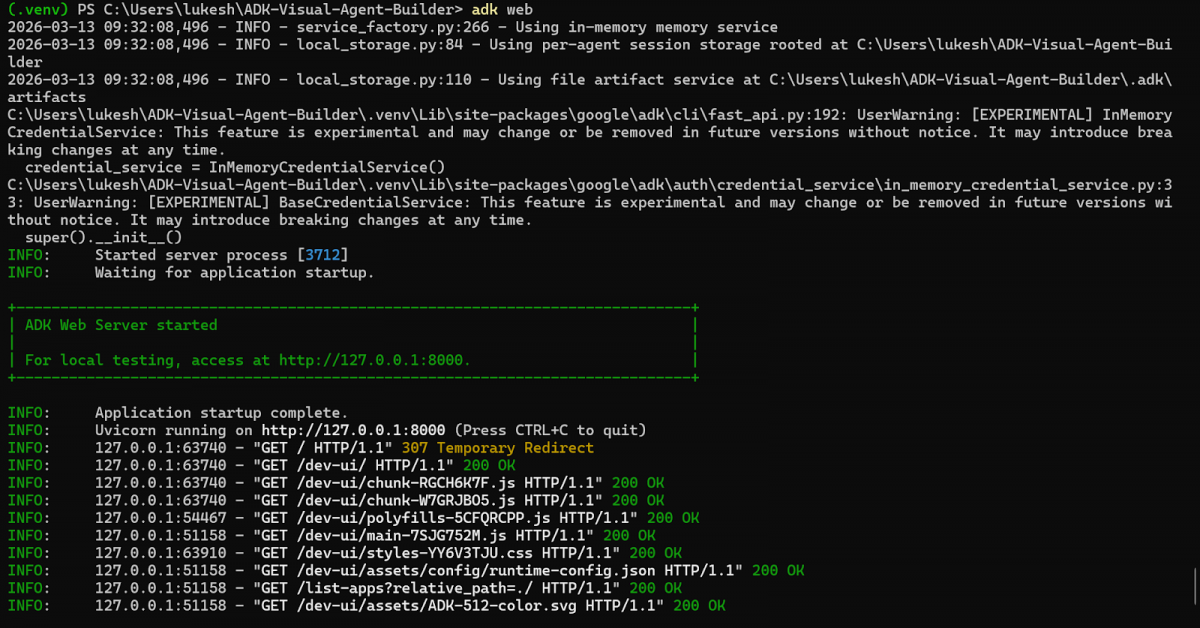
This starts a local server (by default at http://127.0.0.1:8000). The Visual Builder is part of this ADK Dev UI; open http://127.0.0.1:8000/dev-ui/ in your browser.
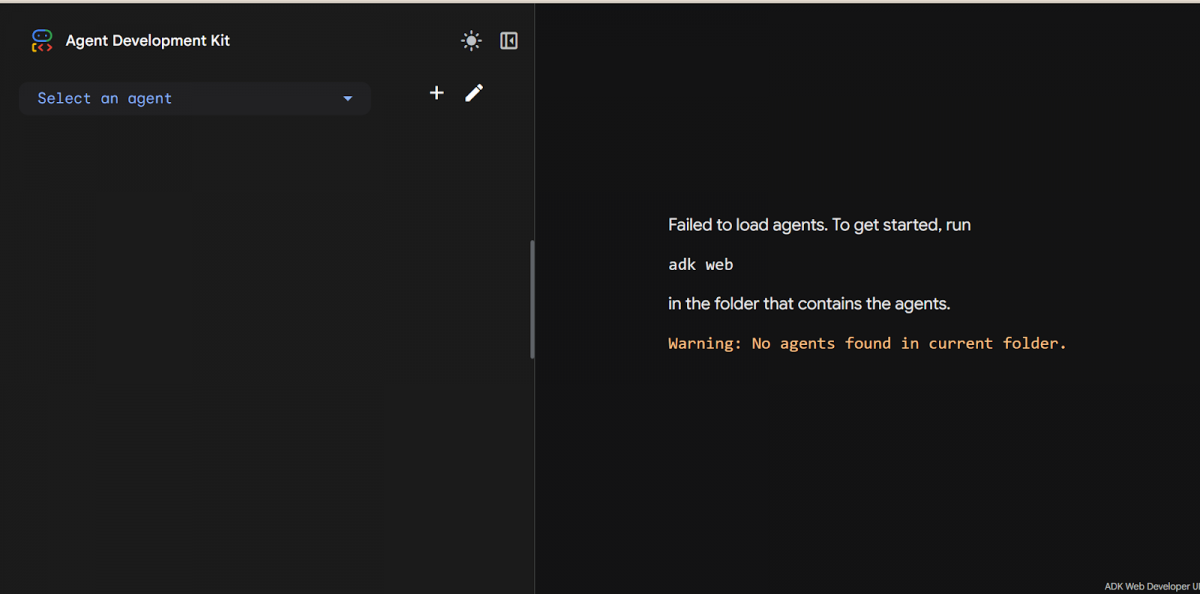
When you first open the ADK web interface without any projects, it prompts you to start a new agent, just as shown in the above figure
Now you should see the ADK landing page. Click the “+” icon (top-left) to create a new agent project. Give it a name (lowercase letters and hyphens only) – this becomes the folder name for your agent files. For example, enter workout_planner. Then click Create to open the Visual Builder for that project.
Visual Builder Interface Overview
The Builder’s interface has three main panels, each with a specific role:
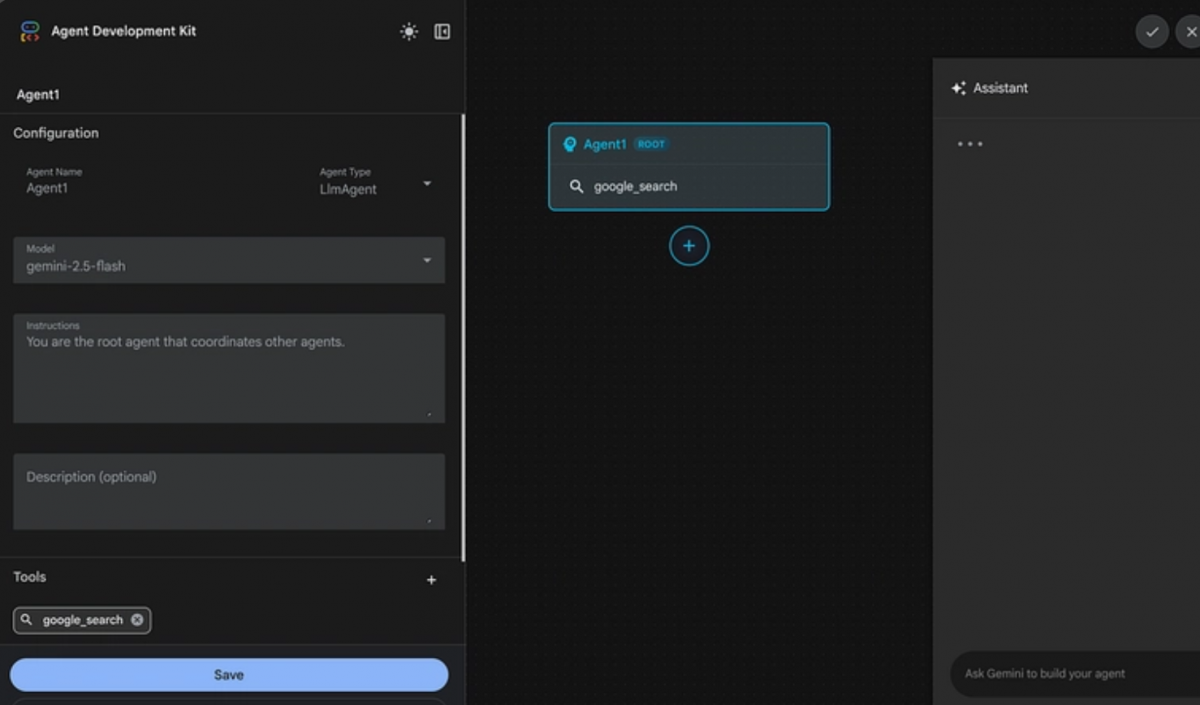
1. Left Panel (Configuration Editor):
Here you configure the selected agent’s properties. You can set the agent’s name (must be a valid Python identifier), type (LlmAgent, SequentialAgent, ParallelAgent, or LoopAgent – the root agent must be an LLM agent), and model (choose a Gemini model like gemini-2.5-flash or gpt-4o).
You also enter the agent’s system prompt (instructions) and a description. From the same panel you can add tools (e.g. google_search) and manage sub-agents or callbacks. Everything is filled in via forms, so you won’t see YAML here – the Builder handles that for you.
2. Center Panel (Agent Canvas):
This is your visual graph of the agent workflow. The root agent (always an LlmAgent) is shown on top. Any sub-agents you add appear as connected nodes beneath it. Lines between nodes indicate the control/data flow.
On the canvas, you’ll see buttons like + Add sub-agent to quickly insert a new child agent in your workflow. The canvas updates live: whenever you change something in the config editor, the graph redraws accordingly.
3. Right Panel (AI Assistant):
This is a chat box powered by Gemini that helps you build your agent. You can ask questions (“What agents can I add?”) or give high-level commands. For example:
“Create an agent that plans a workout routine based on user fitness level and equipment.”
The assistant will respond by generating the necessary agents and configuration (name, prompts, tools) on the fly. It can suggest which models or tools to use, or even output entire YAML snippets. Think of it as an AI co-pilot: just type your intent, and it writes the plumbing for you.
You use these panels in tandem. For instance, you might select the root agent on the canvas, then tweak its “Instructions” in the left panel. Or you might tell the assistant “Add a tool for web search,” and it will do so.
Example: Building a Workout Planner Agent
Let’s walk through creating a simple workout planner agent. This agent will ask a user for fitness level, time, equipment, and goals, then output a customized exercise plan. We’ll use the AI assistant to generate the sub-agent structure.
1. Create the project (already done above). Your blank project appears in the Builder. Describe the agent to the AI assistant. With the new project open, the right panel’s chat is active. Type a prompt like:

“Build an agent that creates personalized workout routines. The agent should collect parameters: fitness level (beginner, intermediate, advanced), duration in minutes, available equipment (none, basic, full gym), and primary goal (strength, cardio, flexibility). Based on these inputs, generate a workout session: include a warm-up, a main exercise sequence with sets/reps, rest guidance, and a cool-down. Tailor exercises to the fitness level (e.g., beginners get fundamentals, advanced get overload).”
2. Press Enter to send. In about 15–20 seconds, the assistant generates a full agent design. On the canvas, you’ll now see a root node named e.g. workout_planner_root [ROOT] connected to three sub-agent nodes (e.g. strength_workout_specialist, cardio_workout_specialist, flexibility_workout_specialist). The left panel is filled in with properties for each agent (you can click them to inspect).
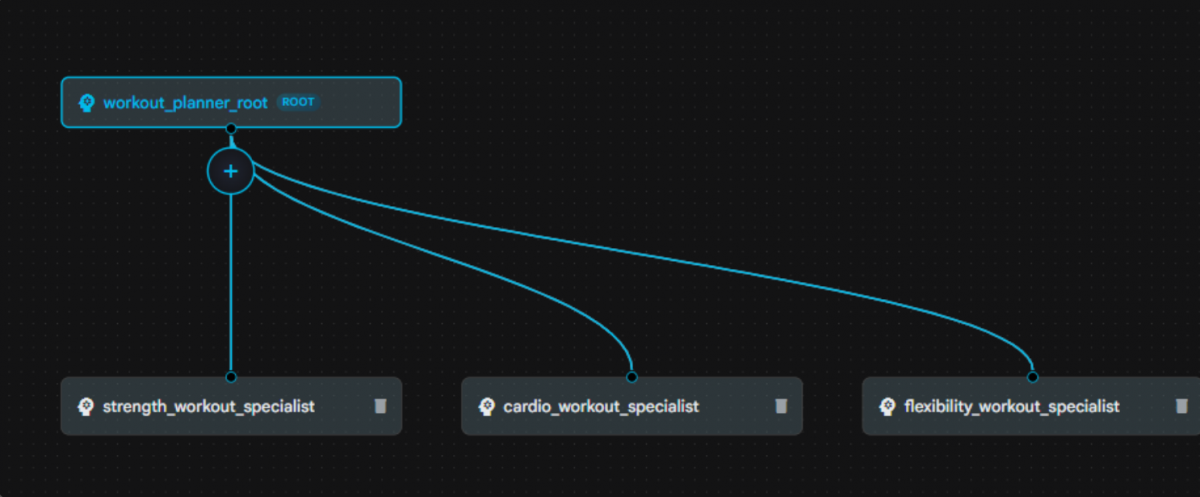
3. Review and save the agent. Click each node to see its settings. For example, the root agent (workout_planner_root) might use a general model (gemini-2.5-pro) and have instructions like “Plan the workout flow”. Each specialist agent will have its own prompt (e.g. “Generate a strength-training routine”). Adjust anything if needed.
When it looks good, click the Save button (bottom-left or top-left). Saving ensures your configuration is stored (in YAML files) and lets you interact with it.
4. Test with a scenario. Scroll down to the Test/Chat panel (bottom of the interface). Enter a user query, for example:
“I have 30 minutes, no equipment, and I’m a complete beginner wanting general fitness.”
Press Enter. The agent will run, and within seconds you’ll see an answer appear (produced by the assembled sub-agents). It might suggest a warm-up, bodyweight exercises, and cooldown suited to a beginner. You can ask follow-ups or change inputs:
“Now I have 90 minutes, full gym equipment, and I want to focus on strength.”
The output should adapt accordingly – perhaps recommending barbell squats, deadlifts, heavy sets, etc.
These tests verify your agent is working as intended. The Builder also shows a Trace view (on the right of the Test panel) so you can see which agent ran each step and what data was passed.
Key Tips and Best Practices
- Naming conventions: Use lowercase letters, numbers, and hyphens for agent and tool names. For example, strength_specialist instead of spaces. This avoids path issues in the backend.
- Save early, save often: Always click Save after editing an agent. If you navigate away without saving, your changes may be lost.
- Use built-in tools: Don’t forget the handy tools panel. For example, adding the google_search tool (by typing its name in the left panel) lets your agent fetch live web info. Tools greatly expand your agent’s capabilities.
- Iterate with the assistant: If something isn’t quite right, go back to the AI assistant and refine your prompt. You can ask it to add or remove sub-agents, or to tweak prompts. It’s often faster than manual edits.
- Check the generated YAML: If you’re curious, you can inspect the YAML files in the project folder. The Builder is effectively writing the ADK config for you.
The Visual Agent Builder itself uses Google’s Gemini LLM under the hood. When you type an English prompt to it, Gemini is actually deciding how to structure the agents and what prompts they should use. In other words, you’re watching AI design AI behind the scenes!
Deploying Your Agent
Once you’re happy with the design and testing, you can export the agent for production. ADK provides a CLI and scripts to containerize or deploy agents. For instance:
- You can commit the project’s YAML/config files to Git and use ADK’s CLI commands (adk deploy, etc.) to push it to a server or the cloud.
- ADK agents run anywhere Python can run. You might spin up a Cloud Run service or VM image with your agent.
- If you’re on Google Cloud, the agent can be deployed to Vertex AI’s Agent Engine or integrated with other Google services for scale.
Because the Builder generated standard ADK configs, your agent is ready for any environment that ADK supports.
If you’re serious about learning AI tools like this and want to apply them in real-world scenarios, don’t miss the chance to enroll in HCL GUVI’s Intel & IITM Pravartak Certified Artificial Intelligence & Machine Learning course, co-designed by Intel. It covers Python, Machine Learning, Deep Learning, Generative AI, Agentic AI, and MLOps through live online classes, 20+ industry-grade projects, and 1:1 doubt sessions, with placement support from 1000+ hiring partners.
Conclusion
In conclusion, building AI agents no longer requires complex orchestration scripts or advanced infrastructure knowledge. With the Google ADK Visual Agent Builder, you can design, configure, and test intelligent agents through an intuitive visual interface.
By combining graphical workflows, AI-powered configuration assistance, and built-in testing tools, the platform makes agent development far more accessible for developers and learners alike.
Now that you’ve built your first AI agent, the next step is to experiment with different agent architectures, integrate external tools, and explore more advanced multi-agent workflows to unlock the full potential of AI-driven automation.
FAQs
1. What is Google ADK Visual Agent Builder?
Google ADK Visual Agent Builder is a graphical tool in the Agent Development Kit that lets you design, configure, and test AI agents visually. Instead of writing complex code, you can create agent workflows using a drag-and-drop interface and natural language prompts.
2. Do you need coding skills to use Google ADK Visual Agent Builder?
Basic programming knowledge helps, but it is not mandatory. The visual interface and AI assistant allow you to build agent workflows without manually writing configuration files or complex orchestration code.
3. What models can be used with Google ADK agents?
ADK primarily supports Google’s Gemini models, such as Gemini 1.5 Flash and Gemini 1.5 Pro. However, the framework is designed to be flexible and can integrate with other models depending on the deployment setup.
4. What are AI agents in generative AI?
AI agents are systems that can autonomously perform tasks by understanding instructions, making decisions, and interacting with tools or other agents. They extend large language models by adding reasoning, memory, and workflow capabilities.
5. What is the difference between single-agent and multi-agent systems?
A single-agent system performs all tasks within one AI model. A multi-agent system divides tasks among specialized agents that collaborate, improving efficiency, scalability, and decision-making.
Success Stories

About the Author
Lukesh S
A professional content writer who has experience in freelancing and now working as a Technical Content Writer at HCL GUVI having sound knowledge in Blog Writing and Creative Writing!
View all posts by Lukesh S
Connect with me @







Did you enjoy this article?