


Programming Languages Articles
Why Is Python an Interpreted Language? How Python Executes Code Internally Explained
Why Java & C# Beat the Hype Cycle?


Get In Touch For Details! Request More Information

How to Setup Sublime Text for C++ & Competitive Programming
Oct 31, 2025 3 Min Read 2000 Views
(Last Updated)
As Abraham Lincoln once said, “Give me six hours to chop down a tree, and I will spend the first four sharpening my axe.” The same principle applies to competitive programming; your setup is your axe. A finely tuned coding environment can make the difference between finishing a problem in time or missing the leaderboard by seconds. Sublime Text, known for its speed, simplicity, and endless customization, is the perfect tool to sharpen before your next coding battle.
In this guide, we’ll walk you through how to setup Sublime Text for C++ and competitive programming to maximize efficiency, accuracy, and performance.
Table of contents
- What is Sublime Text and What is C++?
- How to Setup Sublime Text for C++ and Competitive Programming?
- Step 1: Install Sublime Text
- Step 2: Setting up the layout
- Step 3: Creating the necessary files
- Step 4: Writing our CPP Program
- Top Benefits of Using Sublime Text for C++
- Best Practices for Setting Up and Using Sublime Text
- Common Mistakes to Avoid
- Conclusion
- FAQs
- How do I compile and run C++ code in Sublime Text?
- Why is Sublime Text good for competitive programming?
- What are the best plugins for C++ in Sublime Text?
What is Sublime Text and What is C++?
Sublime Text is a lightweight, fast, and highly customizable source code editor designed for programmers. It supports a wide range of programming languages, including C++, Python, JavaScript, HTML, and more. Known for its speed, simplicity, and powerful extensibility, Sublime Text offers features like syntax highlighting, multiple selections, split editing, and a built-in command palette that makes coding efficient and intuitive.
For competitive programmers and developers, Sublime Text is especially valuable because it allows custom build systems for languages like C++, enabling you to write, compile, and run programs directly from the editor with minimal setup. Its light footprint and cross-platform compatibility make it ideal for rapid testing and iterative coding workflows.
C++, on the other hand, is a high-performance programming language widely used in system software, game engines, real-time simulations, and competitive programming. It combines the efficiency and control of low-level programming (like C) with the power of object-oriented and generic programming paradigms.
C++ is the preferred language because of its execution speed, standard template library (STL), and fine-grained memory control in competitive programming. It authorizes coders to solve complex problems efficiently within strict time limits. It provides rich data structures and algorithms without sacrificing performance.
How to Setup Sublime Text for C++ and Competitive Programming?
Step 1: Install Sublime Text
Downloading and installing Sublime Text 3 is pretty straightforward. Just click on the link below to download and install Sublime Text 3.
Step 2: Setting up the layout
First, we’ll divide the current workspace into 3 parts: one for our coding and the other two for the input and output, respectively.
Go to- View > Layout > Columns: 3
or you can use the shortcut: Alt + Shift + 3
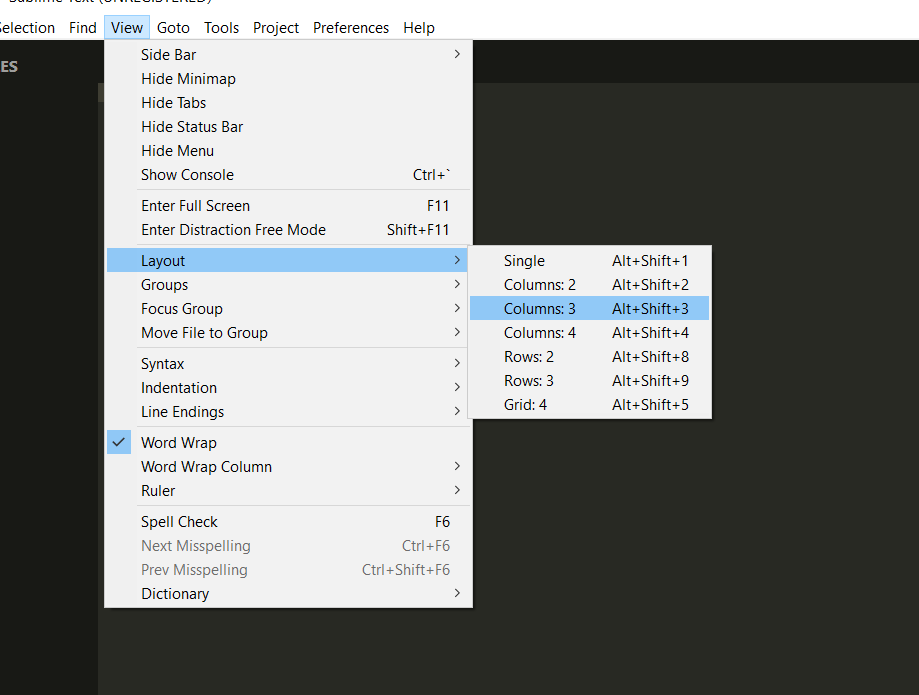
After dividing the workspace, let’s arrange it to give us more space for coding and to make it look a lot more stylish.
Go to- View > Groups > Max Columns: 2
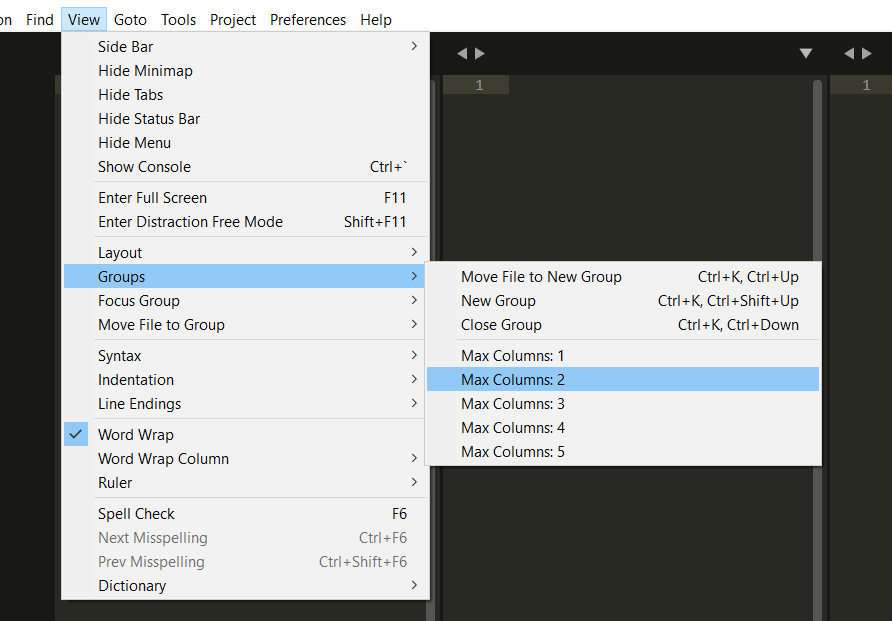
Your workspace should now look more appealing and manageable.
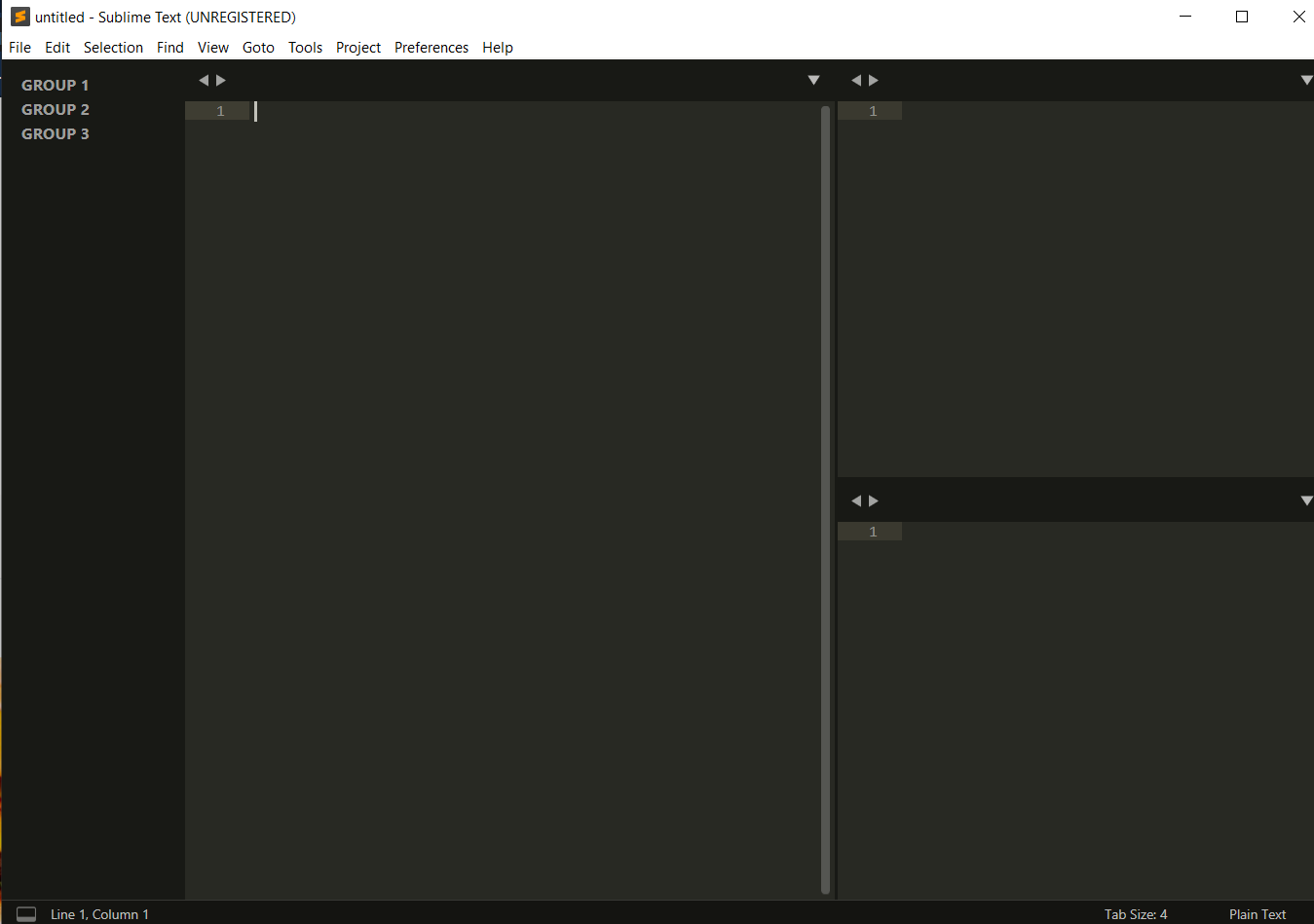
Step 3: Creating the necessary files
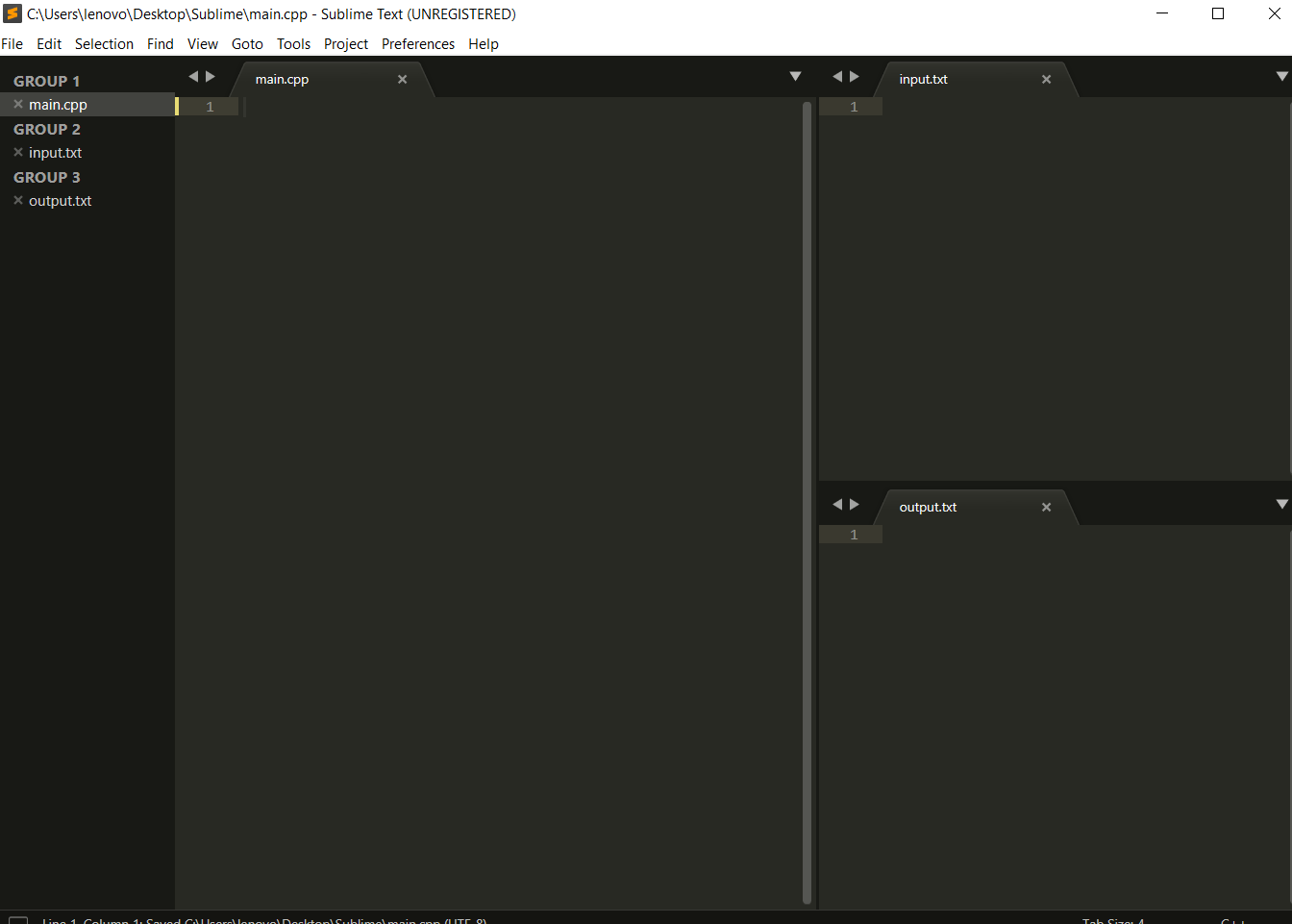
Now, create a new folder anywhere you like, and inside that, create 3 files named:
main.cpp
input.txt
output.txt
You can name your “CPP” file anything you want but the other two files must be named “input.txt” and “output.txt”.

Open the files in sublime in the respective spaces. Your working space should look something like this:

Step 4: Writing our CPP Program
Now we are prepared with the layout and will look forward to writing out the first CPP program. Let’s start with printing the first 10 multiples of a number.
#include<iostream>
using namespace std;int main(){
    int var;
    cin>>var;
    for(int i=1; i<=10; i++){
      cout<<var * i<<endl;
    }
 return 0;
}
But before compiling and running our program, we have to add four lines of code that will take input in from the input.txt file we created earlier and write the output the output.txt file. We have to add these on the first line inside the main function.
#ifndef ONLINE_JUDGEfreopen(“input.txt”, “r”, stdin);freopen(“output.txt”, “w”, stdout);#endif
Top Benefits of Using Sublime Text for C++
- Precision and Speed: Sublime Text loads in seconds and executes build commands efficiently. The quick response time helps developers test ideas faster and maintain focus during competitive programming.
- Custom Build Configuration: Programmers can define their own build systems that link directly with compilers such as GCC or Clang. The setup supports advanced execution flows that redirect input and output automatically. This reduces manual work during code testing.
- Plugin Ecosystem: Sublime Text supports a wide range of plugins through Package Control. Tools such as SublimeCodeIntel and AStyleFormatter enhance code completion and formatting accuracy, which improves development precision.
- Memory Efficiency: The editor runs with very low memory usage. Developers can compile and edit multiple files in parallel without system lag.
- Cross-Platform Adaptability: The same configuration works across Windows, Linux, and macOS. Teams and individuals can maintain a uniform setup and minimize environment-related errors.
Best Practices for Setting Up and Using Sublime Text
- Establish a Clean Folder Structure: Keep each project in a single directory that includes source, input, and output files. A clean structure improves traceability and eliminates confusion during testing.
- Set Compiler Paths Properly: Point the build configuration to the correct compiler path. Incorrect paths cause repeated build errors and waste time during contests.
- Leverage Snippets and Templates: Create reusable snippets for input handling and loop structures. This reduces repetitive typing and improves code uniformity.
- Integrate Terminal Access: Use the Terminus plugin to access the terminal directly inside Sublime Text. This avoids switching between windows and maintains continuous focus on the code.
- Enable Syntax Highlighting and Linting: Highlighted syntax improves readability. Linting tools mark syntax errors immediately, which reduces compilation failures and improves accuracy.
Common Mistakes to Avoid
- Skipping Build Customization: Default build commands often do not handle input or output files. Neglecting customization leads to extra steps during testing and creates avoidable delays.
- Poor File Organization: Scattered source and text files cause wrong file references. Keep every project organized in a single workspace.
- Ignoring Compiler Settings: Failing to specify compiler flags such as -std=c++17 restricts access to advanced C++ features. Modern problems often require updated standards for correct execution.
- Overlooking Code Readability: Writing long blocks without indentation or comments makes debugging complex. Consistent spacing and brief comments improve clarity and speed up review.
- Neglecting Version Control Integration: Projects can break after edits if changes are not tracked. Integrating Git through Sublime Merge or command-line tools maintains a safe version history.
Conclusion
Sublime Text and C++ together form a productive and efficient development environment. Proper setup reduces repetitive work and enhances control over builds. Developers who apply structured workflows, maintain organized files, and use intelligent plugins can improve speed and precision during competitive programming or large-scale development tasks.
FAQs
1. How do I compile and run C++ code in Sublime Text?
You can compile and run C++ programs in Sublime Text by creating a custom build system linked to a compiler such as GCC or Clang. The build file should include commands that compile the code and redirect input and output through text files for faster testing during contests.
2. Why is Sublime Text good for competitive programming?
Sublime Text provides a fast interface, low memory usage, and a plugin ecosystem that supports automation. Features like split editing, custom builds, and real-time syntax highlighting help programmers focus on logic and reduce time spent on manual setup.
3. What are the best plugins for C++ in Sublime Text?
The best plugins for C++ in Sublime Text include SublimeCodeIntel for smart auto-completion, AStyleFormatter for consistent formatting, and Terminus for integrated terminal access. These plugins create an efficient and organized environment for competitive coding.
Success Stories

About the Author
Vaishali
I'm a seasoned writer with four years of experience across technical, non-technical, and just about every genre or niche you can imagine. Adaptable and curious, I enjoy exploring new topics and making information engaging and easy to understand. Fueled by a steady stream of tea, I approach each project with creativity, reliability, and genuine enthusiasm for storytelling.
View all posts by Vaishali
Connect with me @

















Did you enjoy this article?