


Artificial Intelligence and Machine Learning Articles
Types of AI Agents: A Practical Guide with Examples
Setup and Fine-Tune Qwen 3 with Ollama: Complete Guide (2026)


Get In Touch For Details! Request More Information

GPT-5.1 Codex Tutorial: Build Apps in VS Code
Apr 06, 2026 7 Min Read 50 Views
(Last Updated)
If you have been writing code for a while, you already know how much time goes into switching between your editor, documentation tabs, and debugging windows. GPT-5.1 Codex changes that equation entirely.
Instead of jumping back and forth between tools, you get an intelligent coding agent that lives right inside Visual Studio Code, planning, writing, debugging, and refactoring code alongside you in real time.
This tutorial walks you through everything you need to get started with GPT-5.1 Codex in VS Code, from setting it up for the first time to building a real working application with it. Whether you are building your first AI-assisted project or looking to upgrade your existing workflow, this guide covers everything step by step. Let us get started!
Quick TL;DR Summary
- This tutorial introduces GPT-5.1 Codex, OpenAI’s specialized AI coding agent, and explains how it differs from ChatGPT by integrating directly into your development environment for end-to-end app bauilding.
- It walks through the complete setup process, including installing GitHub Copilot in VS Code (v1.104.1 or higher) and enabling GPT-5.1-Codex from the model picker for individual and enterprise plans.
- The guide explains the three interaction modes: Ask, Edit, and Agent, and when to use each one depending on whether you are exploring, making targeted edits, or building full features from scratch.
- It includes a hands-on project, building a Task Manager Application using Agent mode, covering file structure generation, feature addition, and real-time multi-file code updates through natural language prompts.
- The blog covers debugging and refactoring workflows, showing how Codex identifies root causes of errors, explains fixes, and improves existing code without breaking functionality.
- It also shares best practices for prompt writing, iterative development, and using AGENTS.md to maintain project-specific coding standards across longer, more complex builds.
Table of contents
- What is GPT-5.1 Codex?
- Prerequisites: What You Need Before You Start
- Step 1: Install and Set Up GitHub Copilot in VS Code
- Installing the GitHub Copilot Extension
- Verifying Your VS Code Version
- Step 2: Enable GPT-5.1 Codex in GitHub Copilot Settings
- For Individual Plans (Pro and Pro+)
- For Business and Enterprise Plans
- Step 3: Understanding the Three Interaction Modes
- Step 4: Build a Real App: Task Manager Application
- Step 4.1: Open a New Project Folder
- Step 4.2: Use Agent Mode to Plan the App
- Step 4.3: Review the Generated File Structure
- Step 4.4: Ask Codex to Add a Feature
- Step 5: Debugging With GPT-5.1 Codex
- Step 6: Refactoring and Code Review
- Tips for Getting the Best Results From GPT-5.1 Codex
- Conclusion
- FAQs
- What is GPT-5.1 Codex and how is it different from ChatGPT?
- How do I install GPT-5.1 Codex in VS Code?
- Is GPT-5.1 Codex free to use?
- Can GPT-5.1 Codex build a complete app on its own?
- What is the difference between Ask, Edit, and Agent mode in GitHub Copilot?
What is GPT-5.1 Codex?
GPT-5.1 Codex is a specialized version of GPT-5.1 built for long-running, agentic coding tasks rather than just snippet autocompletion. Think of it as a senior developer who understands your entire codebase, knows what you are trying to build, and can actually take on work end-to-end without needing constant hand-holding.
Unlike ChatGPT, which is designed for general conversations, Codex integrates directly into your development tools. It handles complex tasks across multiple files, suggests database schemas, plans architecture, fixes bugs at their root cause, and explains why it made certain decisions, all without you leaving VS Code.
If you want to learn how to code using ChatGPT-5 Codex, then read the blog – How to Use ChatGPT-5 Codex for Coding
Did you know that GPT-5.1 Codex can work independently for over 7 hours on a single complex task, iterating on its own implementation, fixing test failures, and delivering a working solution without needing you to step in? That means you can assign it a large feature, switch to other work, and come back to a completed, reviewed codebase. It is less like an autocomplete tool and more like a developer you can delegate to.
Prerequisites: What You Need Before You Start
Before diving into the setup, make sure you have the following in place:
- Visual Studio Code: Version 1.104.1 or higher (this is a hard requirement for GPT-5.1 Codex access)
- A GitHub Copilot subscription: Copilot Pro, Pro+, Business, or Enterprise plan
- The GitHub Copilot extension: Installed and updated to the latest version in VS Code
- Node.js: Installed on your system if you are building JavaScript or TypeScript applications
- Basic familiarity with VS Code: Knowing how to open folders, use the terminal, and install extensions

Step 1: Install and Set Up GitHub Copilot in VS Code
The primary way to access GPT-5.1 Codex inside VS Code is through GitHub Copilot. Here is how to get it running.
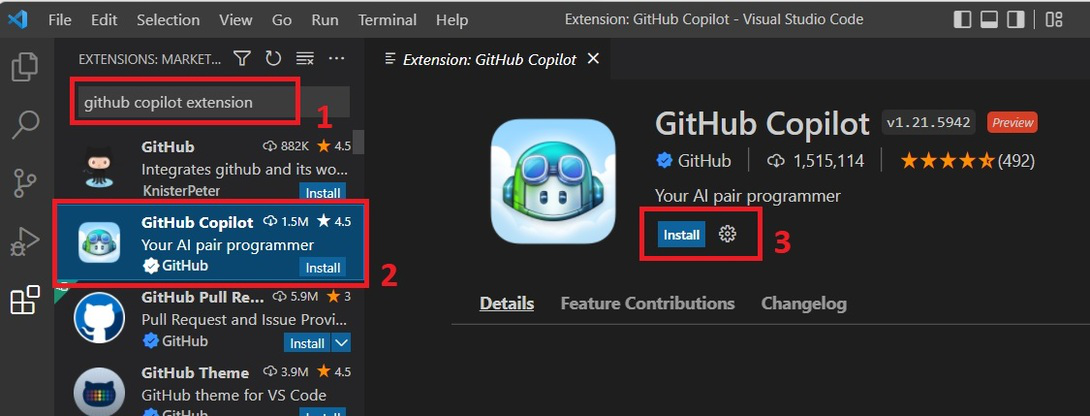
Installing the GitHub Copilot Extension
- Open VS Code and go to the Extensions panel (Ctrl+Shift+X on Windows/Linux, Cmd+Shift+X on Mac).
- Search for “GitHub Copilot” in the search bar.
- Click Install on the official GitHub Copilot extension.
- Once installed, also search for and install “GitHub Copilot Chat” this is what gives you the chat interface and agent mode.
- After both extensions are installed, you will be prompted to sign in with your GitHub account. Complete that sign-in flow.
Walk through VS Code
Verifying Your VS Code Version
Since GPT-5.1 Codex requires VS Code v1.104.1 or higher, it is important to confirm you are on the right version before proceeding.
- Go to Help → About in VS Code.
- Check the version number listed at the top.
- If your version is older, go to Help → Check for Updates and install the latest release.
Step 2: Enable GPT-5.1 Codex in GitHub Copilot Settings
Installing the extension alone is not enough, you need to specifically enable GPT-5.1 Codex in your model settings.
For Individual Plans (Pro and Pro+)
For individual plans, enable the model by selecting it in the model picker in any supported IDE and confirming the one-time prompt.
Here is exactly how to do that:
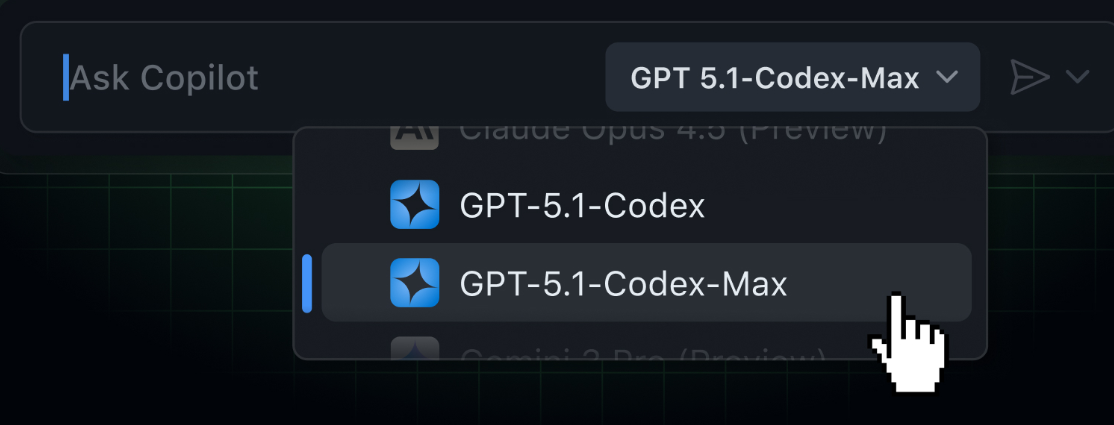
- Open the Copilot Chat panel in VS Code (look for the chat icon in the left sidebar or press Ctrl+Alt+I).
- At the top of the chat panel, click on the model name (it might say “GPT-4o” or “Auto” by default).
- A dropdown will appear showing all available models. Scroll down to find GPT-5.1-Codex.
- Select it. A one-time confirmation prompt will appear, click Enable.
- You are now using GPT-5.1 Codex.
For Business and Enterprise Plans
Copilot Business and Copilot Enterprise administrators must opt in by enabling the GPT-5.1 and GPT-5.1-Codex policies in Copilot settings. Once enabled, users in that organization will see the models in the model picker across all supported IDEs.
If you are an admin, here is where to find that setting:
- Go to your GitHub organization settings.
- Navigate to Copilot → Policies.
- Find the GPT-5.1-Codex toggle and enable it.
- Save changes — the model will become available to all members in your organization.
GPT-5.1 Codex is available in VS Code across three distinct interaction modes: Ask, Edit, and Agent. Each serves a different purpose. Ask mode is great for quick questions about your code. Edit mode applies targeted changes to specific files. Agent mode is where things get powerful; it can plan, create files, run commands, and build features end-to-end.
Step 3: Understanding the Three Interaction Modes
Before you start building, it helps to understand how GPT-5.1 Codex interacts with your workspace. There are three modes available in GitHub Copilot Chat, and choosing the right one for the right task makes a big difference.
Ask Mode: Use this when you have questions about your code or want explanations. You can highlight a block of code, ask what it does, or ask how to approach a specific problem. Codex will respond with clear explanations and suggestions without modifying any files.
Edit Mode: Use this when you want to make targeted, specific changes to a file or a selection. You tell Codex what to change, it shows you a diff preview, and you accept or reject the changes. Think of it as a smarter find-and-replace with context awareness.
Agent Mode: This is the most powerful of the three. In Agent mode, Codex understands context, reasons through problems, and adapts to your project as it grows. It can analyze and update code across multiple files simultaneously while maintaining consistency and dependencies. Agent mode is what you will use for building full features or applications from scratch.
If you are interested about Codex and want to learn how to use it for coding, then read the blog – How to Use ChatGPT-5 Codex for Coding
Step 4: Build a Real App: Task Manager Application
Now that you have everything set up, let us build something practical. We will create a Task Manager Application, a web app where users can add tasks, set priority levels, track their progress, and mark tasks as complete. It is a straightforward project that clearly demonstrates how GPT-5.1 Codex handles multi-file planning, component creation, and iterative development.
Step 4.1: Open a New Project Folder
- Create a new folder on your machine called task-manager-app.
- Open VS Code and use File → Open Folder to open that folder.
- Open the integrated terminal with Ctrl+` (backtick).
Step 4.2: Use Agent Mode to Plan the App
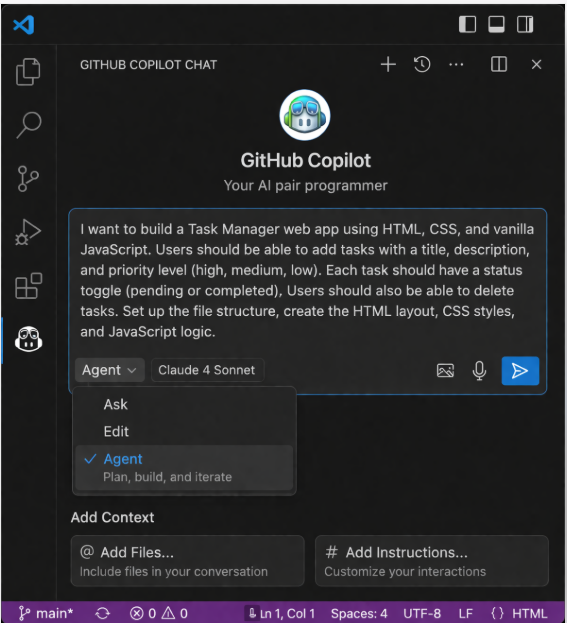
Switch Copilot Chat to Agent mode by clicking the mode selector at the bottom of the chat panel and choosing Agent.
Now type a detailed prompt describing what you want to build. Here is an example you can use directly:
“I want to build a Task Manager web app using HTML, CSS, and vanilla JavaScript. Users should be able to add tasks with a title, description, and priority level (high, medium, low). Each task should have a status toggle (pending or completed). Users should also be able to delete tasks. Set up the file structure, create the HTML layout, CSS styles, and JavaScript logic.”
Codex will review the suggestions, and if something is unclear or missing, you can ask follow-up questions to refine the plan further.
Step 4.3: Review the Generated File Structure
Once you send the prompt, Codex in Agent mode will:
- Propose a clean file structure, typically index.html, styles.css, and app.js.
- Automatically create those files inside your project folder.
- Populate each file with working, context-aware code.
Open each file and read through what Codex generated. It will also explain its decisions in the chat, pay attention to those explanations, as they help you understand what to tweak or extend next.
Step 4.4: Ask Codex to Add a Feature
With the base app working, let us extend it. In the Copilot Chat panel (still in Agent mode), type:
“Add a search bar that filters tasks in real time by title or priority level.”
Codex will update the HTML, CSS, and JavaScript files simultaneously, keeping all existing logic intact while weaving in the new feature cleanly.
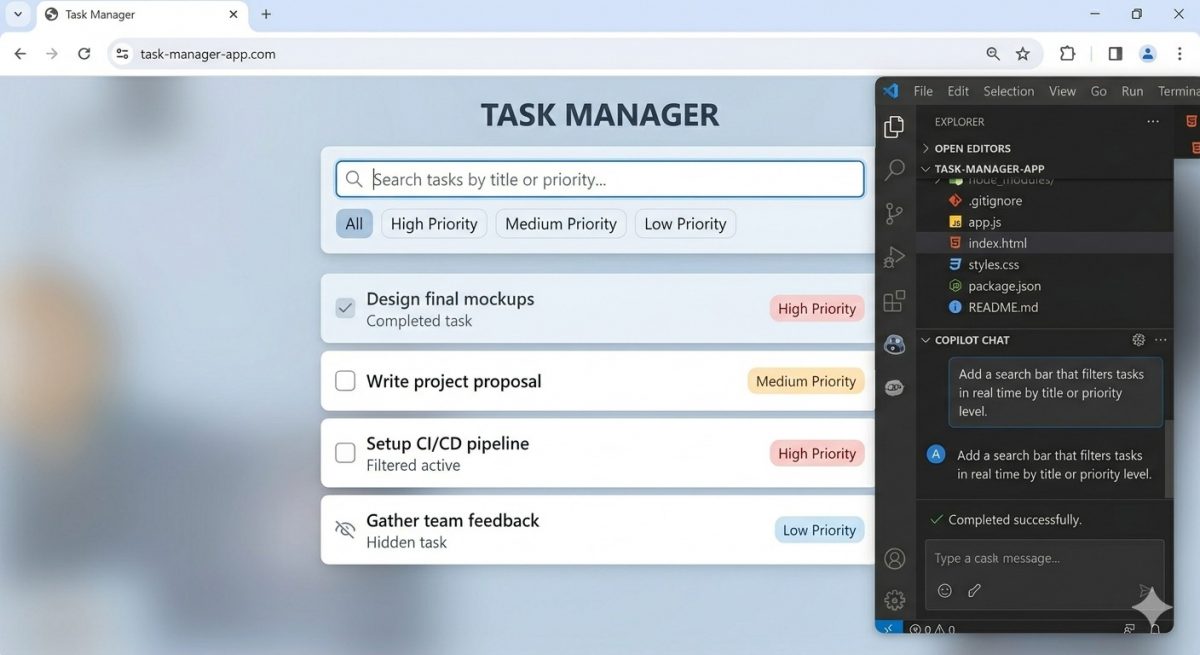
This is where GPT-5.1 Codex’s multi-file reasoning stands out — it analyzes and updates code across multiple files simultaneously while maintaining consistency and dependencies.
Step 5: Debugging With GPT-5.1 Codex
No project is complete without at least a few bugs. The good news is that GPT-5.1 Codex is also an excellent debugging partner.
When something breaks, here is the most effective way to use Codex to fix it:
- Select the problematic code in the editor.
- Right-click and choose Copilot → Explain This to understand what the code does.
- If there is an error message in the terminal or browser console, copy that error message and paste it into Copilot Chat with a note like: “I’m getting this error. What’s causing it and how do I fix it?”
Codex identifies errors in your code, explains what went wrong, and generates fixes that address the root cause rather than masking the symptom.
This approach saves you significant debugging time, especially when you are working with code that Codex itself generated, since it already has full context of what was intended.
Step 6: Refactoring and Code Review
Once your app is working, use Codex to clean up and improve the code. This is a step many developers skip, but it is where you genuinely level up.
Switch to Ask mode in Copilot Chat and try these prompts:
- “Review the JavaScript in app.js and suggest improvements for readability.”
- “Are there any performance issues in this code?”
- “Can this function be simplified without losing functionality?”
Codex modifies and improves existing code without breaking functionality or requiring complete rewrites, it iteratively refactors while keeping everything connected.
For larger projects, you can also use the code review feature built into Codex. When you are working with a team and making pull requests, Codex can catch bugs before they are merged into the main branch.
Did you know that GPT-5.1 Codex uses 93.7% fewer tokens than standard GPT-5 for simpler tasks? This means it is not just smarter, it is significantly more efficient, responding faster on quick edits and conserving resources for the heavy lifting. In practical terms, that translates to snappier interactions during everyday coding and longer, more sustained performance on complex, multi-file projects.
Tips for Getting the Best Results From GPT-5.1 Codex
A few practical habits will dramatically improve your experience:
- Be specific in your prompts. Vague requests produce vague results. Instead of “add a button,” say “add a button that clears all entries from the station list and shows a confirmation message before deleting.”
- Iterate in small steps. Rather than asking Codex to build your entire app in one prompt, break the work into features. This gives you more control and makes it easier to review each change.
- Always review the generated code. Codex is powerful, but you are the developer. Understanding what it generates helps you catch edge cases and make the code truly your own.
- Use AGENTS.md for complex projects. Codex adheres better to AGENTS.md instructions and produces higher-quality code — you can configure project-specific instructions so you do not need to repeat style and structure preferences in every prompt.
- Combine modes strategically. Use Agent mode for building, Edit mode for targeted fixes, and Ask mode for understanding and review.
If you’re serious about learning tools like GPT-5.1 Codex and want to apply them in real-world scenarios, don’t miss the chance to enroll in HCL GUVI’s Intel & IITM Pravartak Certified Artificial Intelligence & Machine Learning Course, co-designed by Intel. It covers Python, Machine Learning, Deep Learning, Generative AI, Agentic AI, and MLOps through live online classes, 20+ industry-grade projects, and 1:1 doubt sessions, with placement support from 1000+ hiring partners.
Conclusion
In conclusion, GPT-5.1 Codex is not just a smarter autocomplete. It is a genuine shift in how you can approach building applications, from planning and scaffolding to debugging and review, all within VS Code. The key is learning to work with it collaboratively: you bring the product thinking and context, Codex brings the execution speed and technical depth.
AI-assisted development is already standard practice in modern teams. The sooner you build fluency with tools like GPT-5.1 Codex, the more leverage you have as a developer, regardless of what you are building next.
FAQs
1. What is GPT-5.1 Codex and how is it different from ChatGPT?
GPT-5.1 Codex is a specialized version of GPT-5.1 built specifically for software development and agentic coding tasks. Unlike ChatGPT, which handles general conversations, Codex integrates directly into your code editor.
2. How do I install GPT-5.1 Codex in VS Code?
You can access GPT-5.1 Codex in VS Code through the GitHub Copilot extension, which requires a Copilot Pro, Pro+, Business, or Enterprise subscription. Once installed, open the Copilot Chat panel, click the model picker, and select GPT-5.1-Codex. VS Code version 1.104.1 or higher is required for the model to appear.
3. Is GPT-5.1 Codex free to use?
GPT-5.1 Codex is not available on a free plan, it requires an active GitHub Copilot subscription. Individual users on Copilot Pro or Pro+ can enable it directly from the model picker in VS Code.
4. Can GPT-5.1 Codex build a complete app on its own?
Yes, in Agent mode, GPT-5.1 Codex can build a complete application from a single detailed prompt, creating files, writing code, and connecting components across your project. However, you should always review the generated code, test it, and iterate with follow-up prompts for best results.
5. What is the difference between Ask, Edit, and Agent mode in GitHub Copilot?
Ask mode is used for questions and explanations about your code without making any changes to files. Edit mode applies targeted, reviewable changes to specific code selections or files. Agent mode is the most powerful, it can plan, create files, run commands, and build entire features end-to-end across your project.
Success Stories

About the Author
Lukesh S
A professional content writer who has experience in freelancing and now working as a Technical Content Writer at HCL GUVI having sound knowledge in Blog Writing and Creative Writing!
View all posts by Lukesh S
Connect with me @











Did you enjoy this article?