


Uncategorised Articles
Q-Learning Explained: A Beginner's Guide
Claude for Code Documentation with JSDoc


Get In Touch For Details! Request More Information

Automating Emails with Claude and Make
Jul 28, 2026 4 Min Read 337 Views
(Last Updated)
Table of contents
- TL;DR Summary Box
- Why Use Claude With Make
- What This Workflow Can Do
- Basic Workflow
- Best Email Use Cases
- How To Design The Prompt
- Make Scenario Structure
- Common Mistakes
- Practical Workflow Examples
- What To Automate First
- Real-World Example
- What To Do Next
- Conclusion
- FAQs
- What can Claude do with Make for email automation?
- Should I auto-send emails with Claude?
- What is the best first email automation to build?
- Can Claude personalize outreach emails?
- Can Make connect Claude to Gmail or Outlook?
- What is the safest way to use Claude for email automation?
- Can Claude help with multilingual email workflows?
TL;DR Summary Box
- Claude can draft, classify, and personalize emails, while Make moves the data through your workflow.
- The most common setup is email trigger → Claude writes or analyzes → Make sends, saves, or drafts the result.
- Use Claude for language and reasoning; use Make for routing, triggers, and app connections.
- A human review step is still the safest option for customer-facing or sensitive emails.
- The best workflows start small, then expand to triage, reply drafting, and scheduled sending.
Why Use Claude With Make
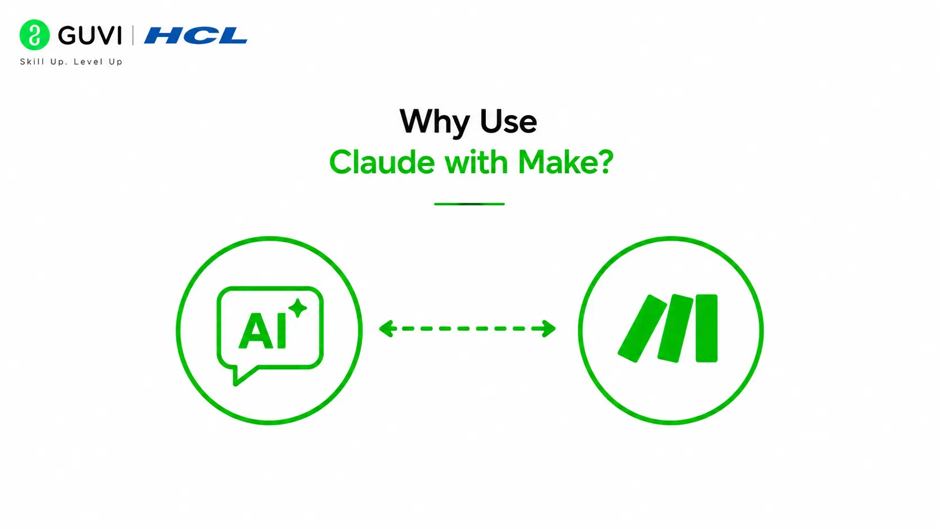
Claude and Make work well together because they solve different parts of the same problem. Claude handles language, context, tone, and classification, while Make handles automation, triggers, and connections between apps.
This combination is useful when you want to reduce repetitive email work without losing control. For example, you can use Claude to draft responses to incoming messages, then let Make place those drafts into Gmail or Outlook for review.
Automate emails with Claude + Make to draft replies faster and save hours. Learn AI & ML with HCL GUVI’s Artificial Intelligence and Machine Learning course
What This Workflow Can Do
A Claude + Make email workflow can do much more than generate a reply. It can sort incoming messages, summarize long threads, create draft responses, tag urgent requests, and send reminders on a schedule.
Common use cases include:
- Customer support reply drafts.
- Lead follow-up emails.
- Internal inbox triage.
- Daily briefing emails.
- Personalized outreach.
- Multilingual email drafts.
The reason this setup is so flexible is that Make can connect Claude to many apps, not just email. That lets you build a workflow around your actual process instead of forcing your process to fit a single tool.
Basic Workflow
The simplest structure is easy to understand. An email arrives. Make passes the email content to Claude, Claude produces a draft or analysis, and Make sends that output to Gmail, Outlook, or another destination.
A practical sequence looks like this:
- Trigger on a new email or form submission.
- Send the email text to Claude.
- Ask Claude to classify, summarize, or write a reply.
- Save the result as a draft or route it to another step.
- Review and send if needed.
This setup gives you speed without giving up control. You decide where automation should stop and where human review should begin.
Best Email Use Cases
The most useful Claude + Make workflows are those that eliminate repetitive email tasks. The best candidates are support replies, lead responses, multilingual drafting, and routine summaries.
Here are strong use cases:
- Drafting customer replies from incoming support emails.
- Creating personalized sales follow-ups.
- Summarizing long email threads into short notes.
- Generating daily executive briefings.
- Turning form submissions into polished messages.
- Translating messages into another language.
Pro Tip: Start with email drafts, not auto-send. Draft mode is easier to trust, easier to debug, and much safer for business use.
How To Design The Prompt

Claude gives better email output when the prompt is narrow and specific. Instead of telling it to “reply professionally,” tell it who it is, what the sender wants, and how the response should sound.
A strong prompt should include:
- Role.
- Tone.
- Audience.
- Objective.
- Length.
- Constraints.
For example, you can instruct Claude to act as a support agent, keep the tone polite and concise, avoid promising anything not in the source email, and return only the reply text. That makes the output easier for Make to map into a draft or email action.
Make Scenario Structure
Make is the orchestration layer. It watches for events, sends data to Claude, and routes the result to the next app or action.
A typical scenario looks like this:
- Trigger: New email in inbox or new row in a sheet.
- Action: Send content to Claude.
- Transform: Clean or structure Claude’s response.
- Output: Create a draft, send an email, or save the result in a database.
That separation matters. Claude should think and write. Make should move data and execute the workflow.
Common Mistakes
The biggest mistake is trying to automate full sending too early. That can create errors, bad tone, or accidental replies to the wrong context.
Other common mistakes include:
- Using vague prompts.
- Skipping a review step.
- Passing too much irrelevant content into Claude.
- Not mapping subject, sender, and body fields correctly.
- Auto-sending customer emails before testing draft mode.
- Ignoring edge cases like long threads or quoted replies.
Warning: Email automation can create business and privacy risks if you skip review, especially for customer support, legal messages, finance, or account-sensitive replies.

Practical Workflow Examples
- One common workflow is support inbox automation. Make watches for a new email, Claude drafts a reply based on the message, and the team reviews it before sending.
- Another useful workflow is the automation of daily briefings. Claude summarizes key information, and Make delivers it to your inbox on a schedule. This is a strong fit for executive updates, team summaries, and recurring status reports.
- A third workflow is lead response drafting. Claude personalizes an outreach email based on the lead context, and either store it as a draft or routes it to the right sender.
Automate emails with Claude + Make to draft replies faster and save hours. Learn AI & ML with HCL GUVI’s Artificial Intelligence and Machine Learning course
What To Automate First
Start with low-risk, repetitive emails. Those are the easiest to test and the least likely to cause problems if the draft needs editing.
A good rollout order is:
- Draft generation.
- Email classification.
- Thread summarization.
- Scheduled digests.
- Limited auto-send for approved templates only.
This gradual approach helps you catch prompt issues, mapping errors, and tone problems before they affect real users.
Real-World Example
Imagine a support team gets the same five questions every day. Instead of writing each response from scratch, Make captures the incoming message, Claude drafts the reply in the right tone, and the team reviews it before sending.
That saves time without removing oversight. It also keeps replies more consistent, which matters when multiple people answer from the same inbox.
What To Do Next
Build one small workflow first. Use a single trigger, one Claude prompt, and one output action so you can test the whole chain before expanding it.
A smart first project is “new email → Claude reply draft → Gmail draft.” Once that works reliably, you can add tagging, summaries, routing rules, or scheduled follow-ups.
Conclusion
Claude and Make make a strong automation pair because they divide the work cleanly. Claude writes and reasons; Make connects apps and moves the workflow forward.
If you begin with draft-only automation and keep a human review step, you can save a lot of time without sacrificing quality. That is the safest and most practical way to automate email work.
FAQs
1. What can Claude do with Make for email automation?
Claude can draft replies, summarize threads, classify messages, and generate briefings while Make sends the data to the right app or workflow step.
2. Should I auto-send emails with Claude?
Usually not at first. Draft mode is safer because it lets you review tone, accuracy, and context before anything is sent.
3. What is the best first email automation to build?
A “new email to draft reply” workflow is the best place to start because it is easy to test and low risk.
4. Can Claude personalize outreach emails?
Yes. Claude can use context from a lead, conversation, or form submission to make the email sound more relevant and natural.
5. Can Make connect Claude to Gmail or Outlook?
Yes. Make can connect to email tools and route Claude’s output into draft, send, or other email actions.
6. What is the safest way to use Claude for email automation?
Use Claude for drafting and summarizing, then keep a human review step before sending. That gives you speed without losing control.
7. Can Claude help with multilingual email workflows?
Yes. One useful use case is automating multilingual content, including email drafts and published messages.
Success Stories

About the Author
Vishalini Devarajan
An Aerospace Engineer turned content writer, I focus on making complex concepts easy to understand through well-structured, reader-friendly blogs. Whether it’s a technical topic or a non-technical one, I love creating content that is clear, engaging, and impactful.
View all posts by Vishalini Devarajan
Connect with me @












Did you enjoy this article?