


Software Development Articles
How to Read and Understand System Design Diagrams?
System Engineer Roles and Responsibilities: 12 Proven Duties for Growth
SAP Consultant Roles and Responsibilities: 12 Proven Duties for Growth and Success
Network Engineer Roles and Responsibilities: 12 Essential Duties for Success


Get In Touch For Details! Request More Information

Activity Diagrams in UML: A Complete Beginner’s Guide to Workflow Modeling
Sep 02, 2026 5 Min Read 655 Views
(Last Updated)
What happens when a software workflow becomes too complex to explain using plain text or static documentation? Modern systems involve complex workflows that are often difficult to understand through plain documentation alone. This is where Activity Diagrams in Unified Modeling Language (UML) help teams visualise workflows clearly using structured process flows.
In this guide, explore activity diagram symbols, workflow structures, real-world applications, advantages, limitations, and how to create them effectively for modern software systems.
Quick Answer:
An Activity Diagram in Unified Modeling Language (UML) is a behavioural diagram used to represent workflows, business processes, and system operations step by step. It visually shows actions, decisions, parallel activities, and process flow inside a system. Activity diagrams are widely used in software engineering, system design, workflow automation, and business process modelling to simplify complex operations and improve process understanding.
Table of contents
- TL;DR
- Data Point
- Quick Answer
- What Are System Design Diagrams?
- Key Components of System Design Diagrams
- Did You Know?
- Why Are System Design Diagrams Important?
- Benefits of Understanding System Design Diagrams
- Data Point
- How to Read and Understand System Design Diagrams
- Identify the Main Components
- Follow the Data Flow
- Examine Relationships Between Components
- Understand the Diagram Type
- Look for Scalability Features
- Identify Reliability and Failure Points
- Warning
- How System Design Diagrams Improve Communication
- Key Areas Improved by System Design Diagrams
- Real-World Applications of System Design Diagrams
- Software Architecture Design
- Cloud Infrastructure Planning
- API Integration Projects
- System Design Interviews
- Enterprise Application Development
- Best Practice
- Key Takeaways
- What To Do Next
- Conclusion
- FAQs
- What are system design diagrams?
- Why are system design diagrams important?
- What are the most common types of system design diagrams?
- How do I start reading a system design diagram?
- What is the purpose of arrows in system diagrams?
- How do system design diagrams help during interviews?
- Are system design diagrams only useful for architects?
What Are Activity Diagrams in UML?

Activity Diagrams are behavioural UML diagrams used to represent workflows, operational sequences, and process logic within a system. They help visualise how activities, decisions, and operations move across different stages inside software systems and business workflows.
What Do Activity Diagrams Model?
Activity diagrams commonly model:
- Sequential actions
- Decision-making flows
- Parallel operations
- Conditional paths
- User interactions
- Business processes
- System activities
Why Are Activity Diagrams Important?

1. Simplify Complex Workflows
Activity diagrams break complicated systems into understandable process flows.
Instead of analysing large blocks of technical documentation, teams can quickly visualise how operations, decisions, approvals, and parallel tasks interact within the system.
2. Improve Team Communication
Developers, testers, architects, analysts, and business stakeholders can understand workflows visually.
This improves collaboration during requirement gathering, architecture discussions, testing processes, and software development planning.
3. Help During System Design
Activity diagrams assist teams during multiple stages of software engineering.
- Requirement Analysis: Teams can visualise functional requirements and process behaviour before development begins.
- Process Mapping: They help structure operational workflows clearly across different business and technical systems.
- Architecture Planning: Architects can model execution logic, process dependencies, and system interactions more effectively.
- Software Documentation: Activity diagrams improve technical documentation by simplifying workflow explanations visually.
4. Support Process Optimization
Activity diagrams help teams identify inefficiencies inside workflows before implementation.
- Redundant Operations: Teams can detect unnecessary processing steps that increase complexity.
- Inefficient Approvals: Approval chains and validation stages can be optimised for better operational efficiency.
- Workflow Delays: Bottlenecks and slow execution paths become easier to identify visually.
- Logic Gaps: Missing conditions, incomplete flows, and process inconsistencies can be detected early during system analysis.
Activity Diagram Notations
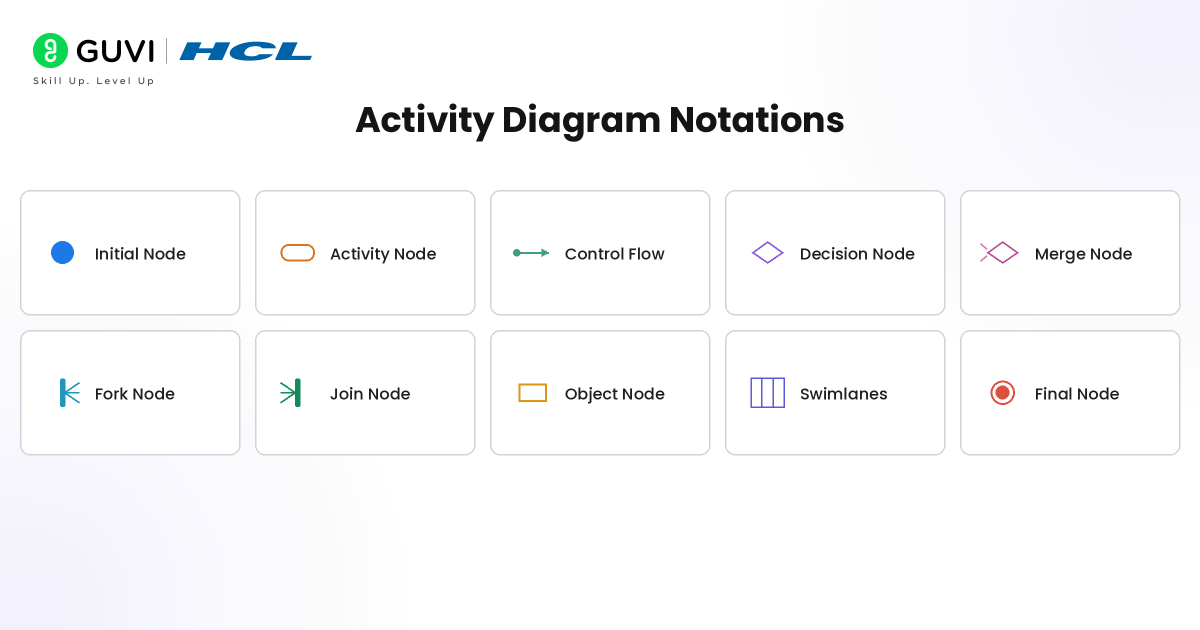
1. Initial Node
The Initial Node represents the starting point of the workflow inside an activity diagram.
Symbol Representation
- Displayed as a filled black circle
- Indicates where the process begins
Real-World Example
In an e-commerce automation system, the initial node may represent:
- User opens the application
- Customer starts checkout process
2. Activity Node
An Activity Node represents a task, operation, or action performed within the workflow.
Symbol Representation
- Rounded rectangle shape
- Contains the activity name inside the box
Purpose of Activity Nodes
They help visualise:
- System operations
- User actions
- Business process steps
- Workflow execution stages
Real-World Example
Examples include:
- Validate Login
- Process Payment
- Generate Invoice
- Send Notification
3. Control Flow
Control Flow represents the direction of execution between activities.
Symbol Representation
- Straight arrow line
- Connects workflow components
Purpose of Control Flow
It defines:
- Process sequence
- Execution direction
- Workflow progression
Real-World Example
After “User Login,” the workflow may proceed to:
- Dashboard Access
- Authentication Validation
4. Decision Node
A Decision Node represents conditional branching inside the workflow.
Symbol Representation
- Diamond shape
- Multiple outgoing paths based on conditions
Purpose of Decision Nodes
They help model:
- Conditional logic
- Yes/No decisions
- Validation checks
- Alternative execution paths
Real-World Example
A payment system may check:
- Payment Successful?
- Stock Available?
- User Authenticated?
5. Merge Node
A Merge Node combines multiple alternative paths into a single workflow path.
Symbol Representation
- Diamond shape similar to decision node
- Multiple incoming flows with one outgoing flow
Purpose of Merge Nodes
They simplify workflow continuation after conditional execution.
Real-World Example
After:
- Successful payment
- Failed payment retry
Both paths may merge into:
- Order Status Update
6. Fork Node
A Fork Node splits a workflow into multiple parallel activities.
Symbol Representation
- Thick horizontal or vertical bar
- One incoming flow with multiple outgoing flows
Purpose of Fork Nodes
They enable:
- Concurrent processing
- Parallel execution
- Multi-task operations
Real-World Example
After order confirmation:
- Generate Invoice
- Send Email
- Update Inventory
All may execute simultaneously.
7. Join Node
A Join Node synchronises parallel workflows back into a single execution path.
Symbol Representation
- Thick bar similar to fork node
- Multiple incoming flows with one outgoing flow
Purpose of Join Nodes
They ensure all parallel operations complete before proceeding further.
Real-World Example
A deployment pipeline may wait for:
- Code Testing
- Security Validation
- Build Verification
Before:
- Production Deployment
8. Object Node
An Object Node represents data or objects flowing between activities.
Symbol Representation
- Rectangle shape
- Contains object or data name
Purpose of Object Nodes
They help visualise:
- Data movement
- Object transitions
- Information exchange
Real-World Example
Objects may include:
- Customer Data
- Payment Details
- Invoice Information
9. Swimlanes
Swimlanes divide workflows based on responsibilities, users, or departments.
Purpose of Swimlanes
They improve clarity by separating:
- Teams
- Systems
- Departments
- Actors
Real-World Example
An e-commerce workflow may contain swimlanes for:
- Customer
- Payment Gateway
- Inventory System
- Delivery Team
10. Final Node
The Final Node represents workflow completion.
Symbol Representation
- Black circle inside another circle
- Indicates process termination
Purpose of Final Nodes
They define:
- End of workflow
- Process completion
- Final execution stage
Real-World Example
Final nodes may represent:
- Order Completed
- Payment Failed
- Registration Successful
Go beyond learning UML concepts and start building real-world software systems with structured expertise. Join GUVI’s AI-Powered Software Development Course to master system design, software architecture, APIs, databases, and scalable development workflows through hands-on projects and industry-focused training.
Step-by-Step: How to Draw an Activity Diagram in UML
1. Identify the Workflow
Start by choosing the process you want to model.
What to Do
Define the exact workflow clearly before drawing the diagram.
Example
For an online shopping system, the workflow could be:
- User logs in
- User selects product
- User makes payment
- System confirms order
- System sends notification
2. Define the Start Point
Every activity diagram begins with an initial node.
What to Do
Place a filled black circle at the beginning of the diagram.
Purpose
This shows where the workflow starts.
Example
The start point can represent:
- User opens app
- Customer starts checkout
- Employee submits request

3. List the Main Activities
Break the workflow into individual actions or tasks.
What to Do
Write each activity as a short action phrase.
Example
For a checkout workflow, activities may include:
- Login to Account
- Add Product to Cart
- Enter Delivery Details
- Make Payment
- Generate Order
4. Connect Activities Using Arrows
Use control flow arrows to show the direction of execution.
What to Do
Connect each activity in the correct sequence.
Purpose
Arrows help readers understand how the process moves from one step to another.
Example
Login to Account → Add Product to Cart → Make Payment
5. Add Decision Nodes
Use decision nodes when the workflow has conditions.
What to Do
Place a diamond shape where the process branches.
Example
A payment workflow may include:
Payment Successful?
- Yes → Confirm Order
- No → Retry Payment
6. Add Merge Nodes
Use merge nodes when different paths come back into one flow.
What to Do
Connect multiple alternative paths into a single continuation point.
Example
After payment retry or successful payment validation, the workflow may continue to:
- Update Order Status
7. Add Parallel Activities
Use fork nodes when multiple activities happen at the same time.
What to Do
Use a thick bar to split one flow into multiple parallel tasks.
Example
After order confirmation, the system may perform these tasks together:
- Send Email Confirmation
- Update Inventory
- Generate Invoice
8. Synchronise Parallel Activities
Use a join node when parallel activities must finish before the next step begins.
What to Do
Use another thick bar to combine parallel flows.
Example
Once email confirmation, invoice generation, and inventory update are complete, the workflow may move to:
- Complete Order Process
9. Add Swimlanes
Use swimlanes when multiple users, teams, or systems are involved.
What to Do
Divide the diagram into sections based on responsibility.
Example
For an e-commerce workflow, swimlanes may include:
- Customer
- Website
- Payment Gateway
- Inventory System
10. Define the End Point
Every activity diagram should end with a final node.
What to Do
Place a black circle inside another circle at the end of the workflow.
Purpose
This shows that the process is complete.
Example
The final point may represent:
- Order Completed
- Request Approved
- Payment Failed
- Registration Successful
11. Review the Diagram
Check the complete activity diagram before finalising it.
What to Check
Ensure that:
- Every workflow has a start and end point
- Activities are named clearly
- Decision paths are labelled properly
- Parallel tasks are synchronised
- No workflow path is incomplete
Final Example Flow
Start → Login → Select Product → Add to Cart → Make Payment → Payment Successful? → Confirm Order → Send Notification → End
Differences Between an Activity Diagram and a Flowchart
Although Activity Diagrams and Flowcharts both help visualise workflows and process sequences, they are designed for different purposes. Flowcharts mainly represent general procedural logic, while Activity Diagrams are part of UML and are specifically designed for modelling software systems, business workflows, parallel operations, and object-oriented processes.
The table below highlights the major differences between Activity Diagrams and Flowcharts in a clear and structured manner:
| Feature | Activity Diagram | Flowchart |
| Standard | Part of UML | General-purpose diagram |
| Primary Usage | Software and workflow modeling | Process representation |
| Complexity Handling | Suitable for complex systems | Better for simple workflows |
| Parallel Processing | Supports parallel activities | Limited support |
| Object-Oriented Support | Yes | No |
| Swimlanes | Supported | Limited |
| Synchronisation | Supports fork and join nodes | Minimal support |
| System Behaviour Modeling | Strong workflow modeling | Basic process flow |
| Scalability | Better for enterprise systems | Can become cluttered |
| Common Usage | SDLC, APIs, enterprise systems | Algorithms, procedures, instructions |
Common Mistakes to Avoid While Creating Activity Diagrams
1. Overcomplicating the Workflow
One of the most common mistakes is placing too many activities, conditions, and flows inside a single diagram.
Why It Becomes a Problem
Large diagrams can:
- Reduce readability
- Confuse stakeholders
- Make debugging workflows difficult
- Increase documentation complexity
Best Practice
Break large systems into smaller modular activity diagrams instead of forcing every workflow into one model.
2. Using Unclear Activity Names
Generic activity names make workflows difficult to interpret.
Poor Examples
- Process Data
- Execute Task
- Validate System
Better Examples
- Validate Customer Payment
- Generate Shipping Invoice
- Verify User Authentication
Best Practice
Use clear action-oriented naming conventions for every activity node.
3. Ignoring Decision Conditions
Many beginners add decision nodes without properly labelling conditions.
Why It Causes Issues
Unlabelled branches create ambiguity during workflow analysis and implementation.
Best Practice
Always label outgoing decision paths clearly.
Example
Payment Successful?
- Yes → Confirm Order
- No → Retry Payment
4. Misusing Fork and Join Nodes
Parallel execution is often implemented incorrectly in activity diagrams.
Common Error
Using fork nodes without properly synchronising workflows using join nodes.
Why It Matters
This can create:
- Incomplete execution paths
- Logical inconsistencies
- Workflow synchronization issues
Best Practice
Always ensure parallel activities reconnect properly before continuing the process flow.
5. Forgetting Start and End Nodes
Some diagrams miss initial or final nodes entirely.
Why It Creates Problems
Without proper start and end points:
- Workflow boundaries become unclear
- Process completion becomes ambiguous
Best Practice
Every activity diagram should contain:
- One clear initial node
- One or more final nodes
Conclusion
Activity Diagrams in Unified Modeling Language (UML) play an important role in visualising workflows, system operations, and business processes. They simplify complex execution flows and improve collaboration between developers, architects, analysts, and stakeholders.
From software systems and DevOps pipelines to banking workflows and enterprise automation, activity diagrams continue helping teams design scalable and efficient systems more effectively. Understanding how to create and interpret activity diagrams is becoming increasingly valuable for modern software engineering and system design professionals.
FAQs
Which UML category does activity diagram belong to?
Activity diagrams belong to behavioural UML diagrams.
Can activity diagrams represent parallel processes?
Yes. Fork and join nodes allow parallel workflow representation.
Which tools are best for creating activity diagrams?
Popular tools include Draw.io, Lucidchart, StarUML, Visual Paradigm, and Microsoft Vision.

Success Stories

About the Author
Vaishali
I'm a seasoned writer with four years of experience across technical, non-technical, and just about every genre or niche you can imagine. Adaptable and curious, I enjoy exploring new topics and making information engaging and easy to understand. Fueled by a steady stream of tea, I approach each project with creativity, reliability, and genuine enthusiasm for storytelling.
View all posts by Vaishali
Connect with me @













Did you enjoy this article?