


Project Articles
Automated Resume Screener: NLP-Based Python Project with Source Code
Business Analysis in Digital Transformation Projects - Best Guide
Build No-Code AI Agents with Flowise AI: Step-by-Step Beginner Guide


Get In Touch For Details! Request More Information

Are you learning UI/UX design but have no idea what to actually build? You’re not alone. Most beginners know the theory, wireframes, user flows, prototypes, but freeze when it’s time to put something in a portfolio. The good news is you don’t need a client or a job to build real, impressive work. You just need the right project ideas and a clear place to start.
This article gives you exactly that: 10 carefully chosen UI/UX projects, with the tools you need, what you’ll learn, and how to present each one to employers. Whether you’ve just opened Figma for the first time or you’ve already done a couple of small exercises, there’s something here for you.
Table of contents
- Quick Reference: All 10 Projects at a Glance
- Top 10 UI/UX Project Ideas for Beginners
- Blog or Online Journal
- Restaurant Menu
- Landing Page Design
- Email Template Design
- Pricing Page
- Mobile App Homepage
- Chatbot UI Design
- Portfolio Site Splash Page
- Smart TV App Interface
- App Redesign Case Study
- How to Add These Projects to Your Portfolio
- What Tools Do You Need to Get Started?
- Conclusion
- FAQs
- What is a good first UI/UX project for a complete beginner?
- Can a beginner learn UI/UX design without experience?
- How long does a beginner UI/UX project take to complete?
- Do I need to know coding to do UI/UX design?
- What tools do beginners use for UI/UX projects?
Quick Reference: All 10 Projects at a Glance
Before you dive in, here’s a snapshot of everything covered in this article:
| # | Project | Tool | Time | Key Skill |
|---|---|---|---|---|
| 1 | Blog / Online Journal | Figma | 1–2 days | Typography & layout |
| 2 | Restaurant Menu App | Figma | 1–2 days | Visual hierarchy |
| 3 | Landing Page | Figma / Adobe XD | 2–3 days | CTA & conversion design |
| 4 | Email Template | Figma | 2–3 days | Layout & KPI thinking |
| 5 | Pricing Page | Figma | 2–3 days | UX writing & tiers |
| 6 | Mobile App Homepage | Figma | 3–4 days | Mobile-first design |
| 7 | Chatbot UI | Figma | 3–4 days | Conversation design |
| 8 | Portfolio Splash Page | Figma | 3–5 days | Personal branding |
| 9 | Smart TV App Interface | Figma | 4–5 days | 10-foot UI principles |
| 10 | App Redesign Case Study | Figma + Research | 5–7 days | End-to-end UX thinking |
Top 10 UI/UX Project Ideas for Beginners
1. Blog or Online Journal
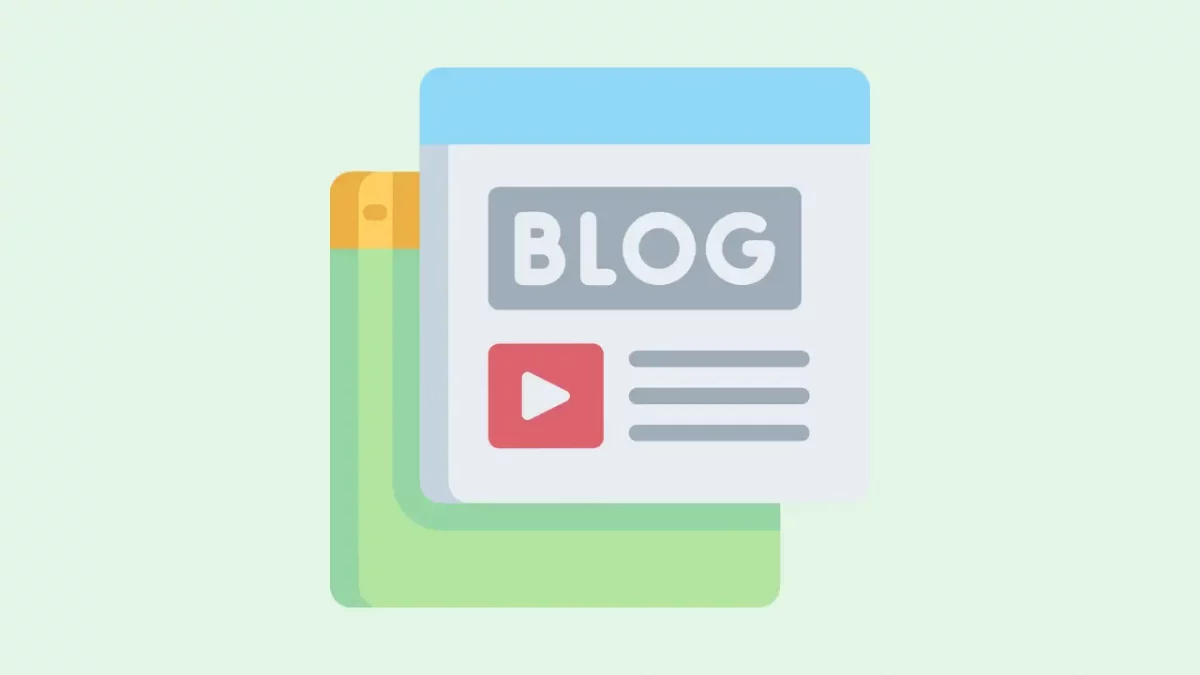
A blog page might seem simple, but designing one well is harder than it looks. Your job here isn’t just to make it pretty, it’s to make reading feel effortless.
What you’ll design: A full blog post layout, hero section, article body, author bio, and a sidebar or recommended posts section.
What you’ll learn: Typography pairing, reading flow, content hierarchy, and how whitespace affects attention. These are fundamentals every UI/UX designer needs regardless of specialisation.
Tools: Figma (free). Use Google Fonts within Figma for realistic typography choices.
Portfolio tip: Don’t just show the final screen. Add a short note explaining why you chose the font size, line height, and column width. Interviewers want to see your thinking, not just the output.
2. Restaurant Menu
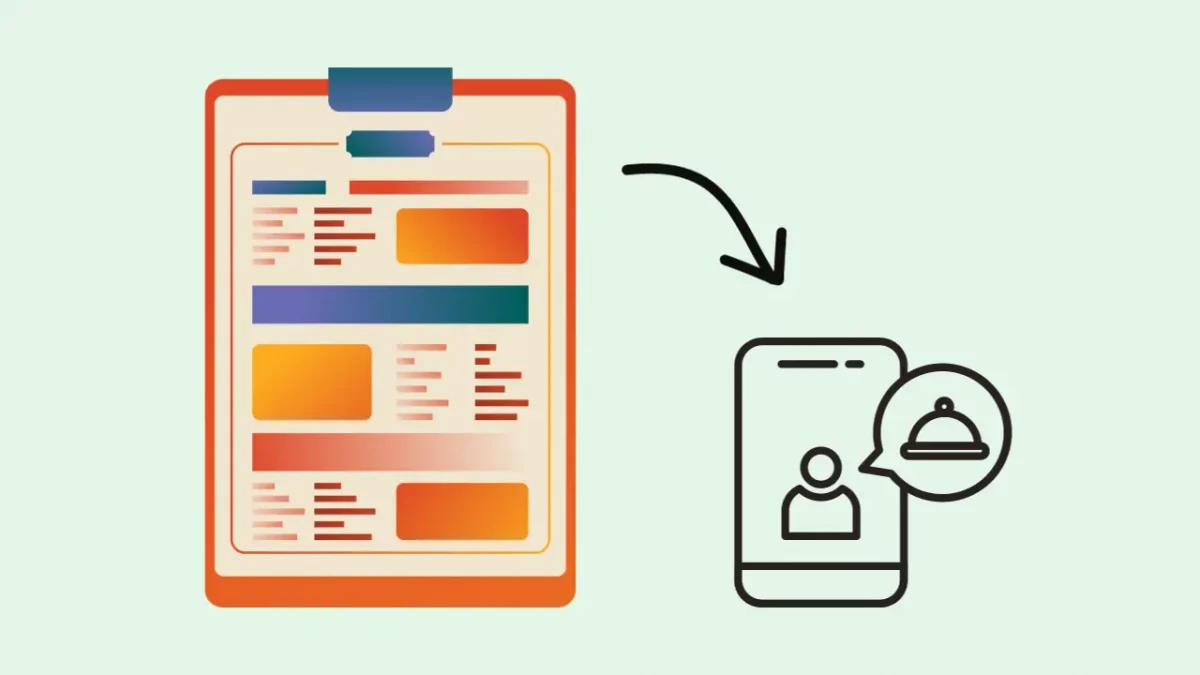
Redesigning a restaurant’s menu as a mobile app is one of the best early projects because the problem is immediately tangible, everyone has used a bad one.
What you’ll design: A digital menu with category navigation, item cards (photo, name, price, description), and an add-to-cart interaction.
What you’ll learn: Visual scanning patterns (F-pattern, Z-pattern), icon usage, colour for appetite appeal, and micro-interactions for cart additions.
Tools: Figma. Search “restaurant menu UI kit” in the Figma Community for reference, don’t copy, but use it to understand design conventions.
Portfolio tip: Take a real local restaurant’s paper menu and show a before/after. Real-world context makes the project immediately credible.
Studies on digital menu design show that adding high-quality food photography to a digital menu can increase item selection rates by up to 30% compared to text-only menus — a direct UX impact measurable in business terms.
3. Landing Page Design
You will design landing pages constantly as a UI/UX professional. This project is less about creativity and more about discipline, every element on a landing page must earn its place.
What you’ll design: A single-page layout for a product or service, hero section, value proposition, features breakdown, social proof, and a CTA button.
What you’ll learn: Above-the-fold design, visual hierarchy for conversion, CTA button psychology, and how to balance text with whitespace.
Tools: Figma or Adobe XD (both free). Figma is recommended for beginners in 2026 because of its community resources and job market prevalence.
Portfolio tip: Choose a product you actually use and redesign its existing landing page. Showing that you improved something real is far more compelling than a fictional brand.
“Design is not just what it looks like and feels like. Design is how it works.” – Steve Jobs
4. Email Template Design
Email design is one of the most underrated UI/UX skills, and it’s also one of the most in-demand, every SaaS product, e-commerce brand, and startup needs well-designed emails.
What you’ll design: A transactional or marketing email template, welcome email, product update, or promotional offer, complete with header, body, CTA, and footer.
What you’ll learn: How to design within strict constraints (email clients have severe CSS limitations), visual hierarchy in a narrow format, and how KPIs like open rates and click rates should influence design decisions.
Tools: Figma for the design mockup. If you want to go further, test it in a free tool like Litmus Preview.
Portfolio tip: Frame this as a business problem. “I designed this welcome email to increase free-to-paid conversion. Here’s why I placed the CTA above the fold and used a single-column layout.”
5. Pricing Page
A pricing page is one of the highest-stakes pages in any SaaS product, and designing one well requires you to understand both UX principles and business strategy.
What you’ll design: A three-tier pricing layout (Free / Pro / Enterprise) with feature comparison, a toggle for monthly/annual billing, and a highlighted recommended plan.
What you’ll learn: UX writing for decision-making, visual anchoring (making the middle plan look most attractive), toggle interactions, and how to present complex information simply.
Tools: Figma. Look at Notion, Linear, or Figma’s own pricing page for real-world references.
Portfolio tip: Annotate your design choices. Why did you highlight the middle tier? Why did you use a toggle instead of two separate pages? Annotations turn a good design into a great portfolio piece.
6. Mobile App Homepage
Designing a mobile app home screen forces you to solve one of the hardest UX problems: what does the user need to see the moment they open the app?
What you’ll design: A home screen for an app of your choice, fitness tracker, finance app, food delivery, or a concept of your own, including navigation, key stats or content, and a primary action.
What you’ll learn: Mobile-first design principles, thumb-zone navigation, card-based layouts, and designing for small screens without losing hierarchy.
Tools: Figma. Use the iPhone 15 or Android frame templates available in Figma’s resource panel.
Portfolio tip: Design two versions, one for a first-time user (onboarding state) and one for a returning user (loaded state). Showing both states demonstrates genuine UX thinking.
7. Chatbot UI Design
Chatbots and conversational interfaces are now a standard feature in apps, websites, and AI tools. Designing one well is a distinct, teachable skill.
What you’ll design: A conversational interface, either a customer support bot or an AI assistant, including the chat window, message bubbles (user vs bot), quick-reply buttons, and typing indicators.
What you’ll learn: Conversation design principles, accessibility in chat UI (contrast, font size, touch targets), and information architecture within a constrained space.
Tools: Figma. Build a prototype flow where clicking the quick-reply buttons advances the conversation, this makes the portfolio piece interactive and impressive.
Portfolio tip: Include 2–3 conversation flows, not just a static screen. Show what happens when the user asks something the bot can’t answer. Edge cases show maturity as a designer.ll user experience.
8. Portfolio Site Splash Page
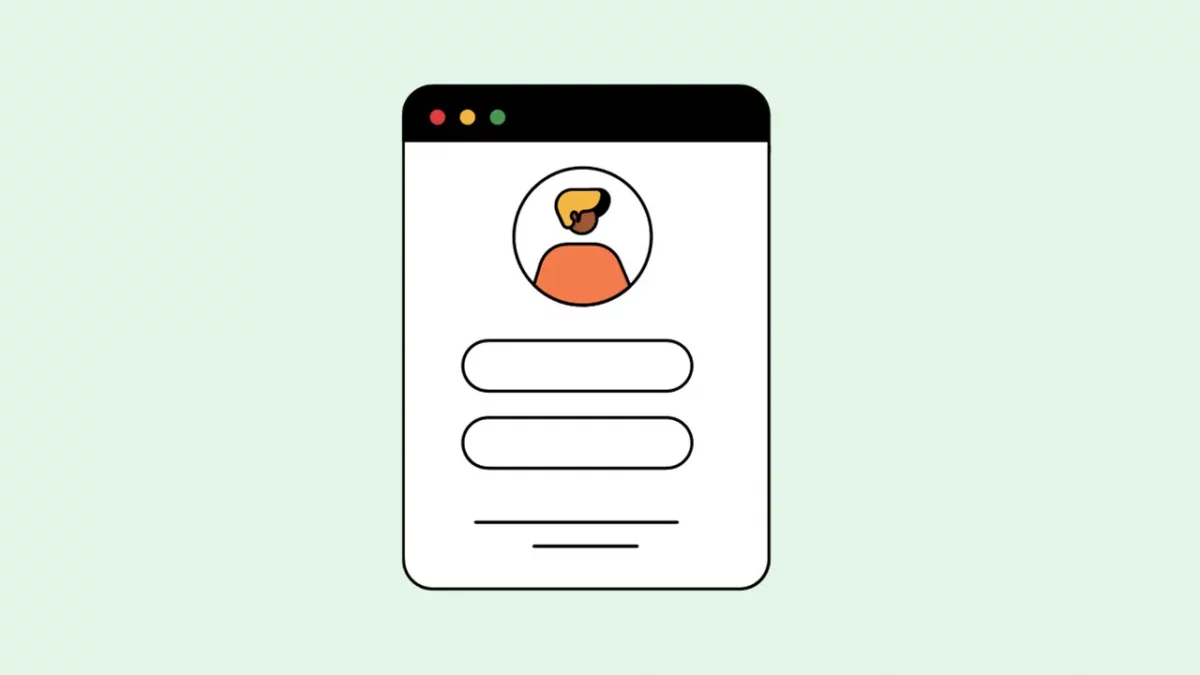
Your own portfolio site is itself a UI/UX project, and one that tells employers everything about how you think.

What you’ll design: A non-scrollable splash or landing page that introduces you as a designer, your name, role, a one-line value proposition, a CTA to view your work, and a visual identity that reflects your personal brand.
What you’ll learn: Personal branding, motion design concepts (even a subtle hover animation demonstrates awareness of interactivity), and how to make a strong first impression in under 5 seconds.
Tools: Figma for design. If you want to go live, Framer or Webflow let you publish directly from Figma-style designs without coding.
Portfolio tip: This page is your portfolio entry. Write a case study about designing it, your research, iterations, and the reasoning behind your visual choices. Meta? Yes. Effective? Absolutely.
9. Smart TV App Interface
This is one of the most distinctive projects you can include in your portfolio, because very few beginners attempt it, and it demonstrates awareness of design contexts beyond phone and web.
What you’ll design: A streaming or media app interface for a smart TV, home screen with featured content, category rows, a detail/play page, and navigation using D-pad (remote control) interaction.
What you’ll learn: “10-foot UI” design rules (designing for a screen viewed from across a room), focus states for D-pad navigation, overscan safety zones, and how ambient lighting affects colour choices.
Tools: Figma. Set your frame to 1920×1080 (16:9 TV frame). Look at Netflix, Prime Video, or Apple TV’s interface as reference.
Portfolio tip: Annotate the accessibility decisions specifically, font size minimums for TV, focus ring design, contrast ratios. Employers who work on streaming or smart home products will notice immediately.
10. App Redesign Case Study
This is the most powerful portfolio project a beginner can do, and it’s the closest thing to what you’ll actually do on the job.
What you’ll design: Pick any real app with obvious UX problems (a government portal, an old banking app, a local service app). Conduct a brief user research session (even 3 friends as test users counts), identify the top 3 pain points, and redesign 3–5 key screens to address them.
What you’ll learn: The full UX process, heuristic evaluation, user research synthesis, problem framing, wireframing, high-fidelity design, and presenting decisions with data. This is end-to-end UX thinking.
Tools: Figma for design. A simple Maze or Google Form for gathering feedback. A Notion page or Google Slides to document the case study.
Portfolio tip: The research and reasoning matter more than the final screens here. Document your process: “I identified that 7 out of 10 users dropped off at the checkout screen because of X. Here’s what I changed and why.” That narrative is what gets you hired.
How to Add These Projects to Your Portfolio
Building the project is only half the work. Here’s how to present it effectively:
- Write a one-paragraph problem statement — what problem does this design solve, and for whom?
- Show your process — include at least one wireframe or sketch, even rough ones
- Explain your key decisions — why this layout, why this colour, why this CTA placement
- Show the final design — high-fidelity Figma screens, ideally in a device mockup
- Add a reflection — what would you do differently with more time or resources?
What Tools Do You Need to Get Started?
You don’t need to buy anything. Here’s all you need:
Figma (free) — the industry standard for UI/UX design in 2026. Works in your browser, has thousands of free community templates, and is what most companies actually use. Start with HCL GUVI’s Self-Paced Figma Certification Course if you want a structured path.
Adobe XD (free tier) — a good alternative, especially if you’re already in the Adobe ecosystem.
Maze or Useberry — free plans available for basic usability testing on your prototypes.
If you want to go from zero to job-ready with structured projects, real mentor feedback, and placement support, then consider enrolling in HCL GUVI’s UI/UX Design Course that covers all of the above tools in depth with hands-on projects built into the curriculum.
Conclusion
The best time to start building your UI/UX portfolio was six months ago. The second best time is today. You don’t need a perfect project — you need a real one that shows you can identify a problem, think through a solution, and communicate your decisions clearly.
Start with one beginner project this week. Finish it properly, write a short case study, and put it somewhere visible. Then move to the next. By the time you’ve completed three or four projects across different difficulty levels, you’ll have something that most self-taught designers don’t — evidence that you can actually do the work.
Pick your first project from the table above and open Figma. That’s step one.
FAQs
1. What is a good first UI/UX project for a complete beginner?
A blog page or landing page design is the best starting point. Both have clear goals, familiar layouts, and enough design decisions to demonstrate your thinking — without the complexity of multi-screen user flows. Aim to complete one in Figma within 2–3 days.
2. Can a beginner learn UI/UX design without experience?
Yes. UI/UX is a learnable skill, not an innate talent. Start by understanding design fundamentals (hierarchy, contrast, spacing), then practice by building the projects in this guide. Most working designers were beginners who built enough projects to get their first interview.
3. How long does a beginner UI/UX project take to complete?
Beginner-level projects like a landing page or blog layout take 1–3 days. Intermediate projects (mobile app homepage, pricing page) take 3–5 days. An advanced case study redesign can take 5–7 days if done properly. Quality matters more than speed.
4. Do I need to know coding to do UI/UX design?
No coding is required to design or prototype in Figma. However, a basic understanding of HTML/CSS helps you design with developer constraints in mind — making collaboration smoother and your designs more realistic to implement.
5. What tools do beginners use for UI/UX projects?
Figma is the standard tool in 2026 and it’s free. It runs in your browser, has a large community of templates and resources, and is used by companies from early-stage startups to Google and Microsoft.
Success Stories

About the Author
Lukesh S
A professional content writer who has experience in freelancing and now working as a Technical Content Writer at HCL GUVI having sound knowledge in Blog Writing and Creative Writing!
View all posts by Lukesh S
Connect with me @

Did you enjoy this article?
Comments












Give me microproject
project