


Python Articles
Freelancing as a Python Developer: Getting Your First Client
Common Python Mistakes Beginners Make And How to Fix Them
Python Best Practices: Writing Clean, Maintainable Code Like a Pro
How to Build a Python Developer Portfolio That Gets You Hired


Get In Touch For Details! Request More Information
What is Python Rich Library: Beautiful Terminal CLI Output
Jul 08, 2026 4 Min Read 442 Views
(Last Updated)
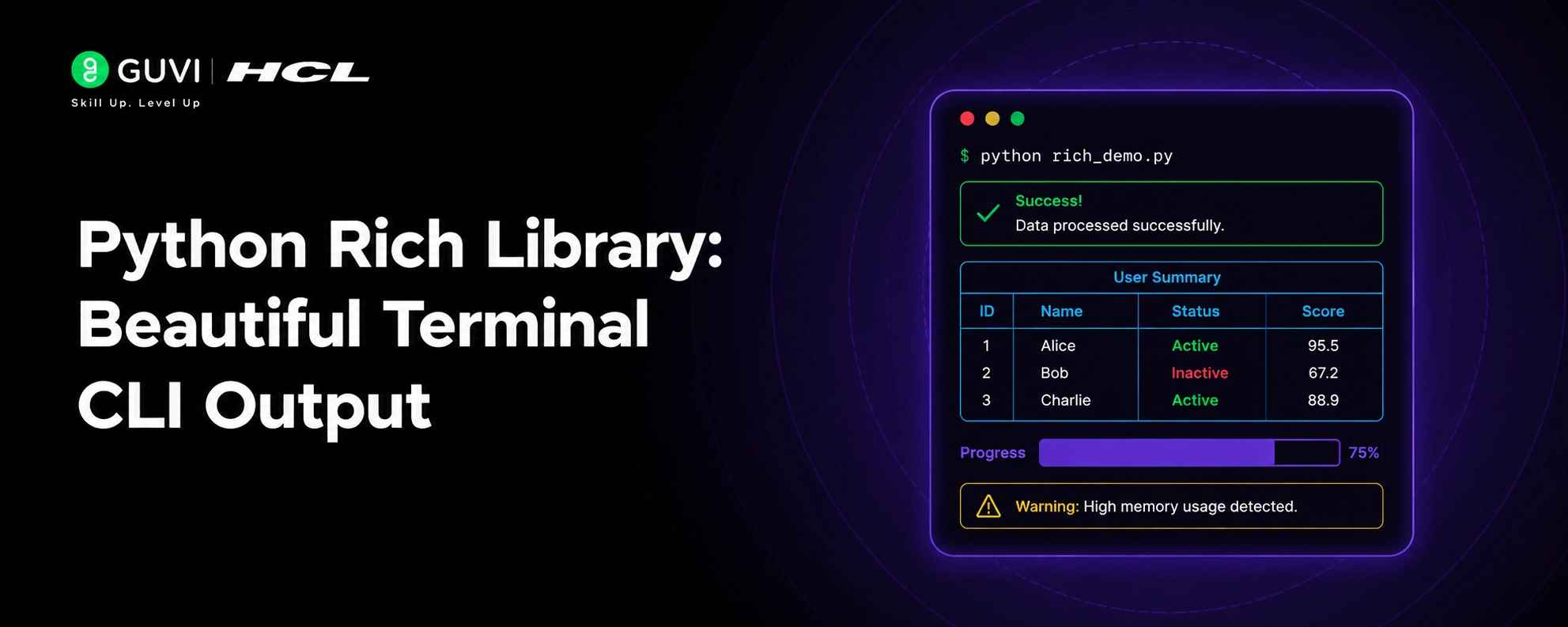
Most Python developers have written scripts whose output is a wall of plain print() statements no structure, no colour, no way to tell what is important. The Python Rich library solves this comprehensively. Created by Will McGuinnen and released in 2020, Rich turned terminal output from an afterthought into a first-class experience. In this blog, we cover Rich’s most useful features: styled text, tables, progress bars, syntax highlighting, and live displays, each with practical code you can drop into your own scripts today.
Table of contents
- TL;DR Summary
- Getting Started with the Python Rich Library
- The Console Object: Rich's Core API
- Tables: Structured Data in the Terminal
- Progress Bars and Live Displays
- Syntax Highlighting, Panels, and Inspecting Objects
- Syntax Highlighting
- Panels
- Inspecting Objects
- Python Rich Library: Feature Quick Reference
- Common Mistakes When Using the Python Rich Library
- Conclusion
- FAQ
- What is the Python Rich library?
- How do I install the Python Rich library?
- What is the difference between rich.print and the built-in print?
- How do I display a table in the terminal using Rich?
- Can Rich display real-time progress bars?
- How does Rich handle syntax highlighting?
- What is rich.inspect() used for?
TL;DR Summary
- Python Rich is a third-party library that transforms plain terminal output into beautifully formatted, colour-coded text with tables, progress bars, syntax-highlighted code, panels, and live displays, all with a single import.
- It works on Windows, macOS, and Linux without any extra dependencies, and is used by popular tools like Textual, Pytest, and pip itself. If you build CLI scripts, developer tools, or data pipelines, Rich makes your terminal output professional and readable with very little code.
Want to build professional Python CLI tools, scripts, and pipelines with real projects and mentorship? Check out HCL GUVI’s Python Programming Course designed for learners who want job-ready Python skills with hands-on practice and structured guidance.
Getting Started with the Python Rich Library
Install Rich with pip; it has no mandatory external dependencies:
pip install richThe simplest upgrade is replacing Python’s built-in print() with Rich’s version it accepts markup tags for colour and style inline:
| from rich import print print(‘[bold green]Success:[/bold green] Data pipeline completed.’) print(‘[bold red]Error:[/bold red] Connection to database failed.’) print(‘[yellow]Warning:[/yellow] Cache is 90% full.’) print(‘[bold cyan underline]Processing file 42 of 100…[/bold cyan underline]’) |
Rich’s markup syntax is inspired by BBCode wrap text in [style] and [/style] tags. Styles can be combined freely: [bold red underline] stacks all three. Any valid terminal colour name, hex code, or RGB value works
The Console Object: Rich’s Core API
For anything beyond basic styled print, use the Console class; it gives you full control over output style, width, file destination, and logging integration.
console = Console()

console.print('Standard output with Rich styling')
console.print('[bold]Important:[/bold] This message stands out')
console.log('[green]Task completed[/green]', log_locals=True)

# Write to stderr instead of stdout
err_console = Console(stderr=True)
err_console.print('[red]Error: file not found[/red]')

# Capture output as a string
from rich.console import Console
capture_console = Console(record=True)
capture_console.print('[blue]Captured output[/blue]')
text = capture_console.export_text()
console.log() adds a timestamp and source file reference automatically, making it ideal for replacing print-based debug logging in scripts and pipelines.
Want to build professional Python CLI tools, scripts, and pipelines with real projects and mentorship? Check out HCL GUVI’s Python Programming Course designed for learners who want job-ready Python skills with hands-on practice and structured guidance.
Tables: Structured Data in the Terminal
Rich’s Table class renders database-style tables directly in the terminal with column headers, borders, alignment, and optional row styles.
| from rich.console import Console from rich.table import Table console = Console() table = Table(title=’Model Benchmark Results’) table.add_column(‘Model’, style=’cyan’, no_wrap=True) table.add_column(‘Accuracy’, style=’green’, justify=’right’) table.add_column(‘Latency’, style=’yellow’,justify=’right’) table.add_column(‘Size’, justify=’right’) table.add_row(‘GPT-4o’, ‘94.2%’, ‘1.2s’, ‘1.8 TB’) table.add_row(‘Claude 3.5′,’93.8%’, ‘0.9s’, ‘1.2 TB’) table.add_row(‘Llama 3.1’, ‘89.4%’, ‘0.4s’, ’70 B’) table.add_row(‘Mistral 7B’,’85.1%’, ‘0.2s’, ‘7 B’) console.print(table) |
Tables automatically size columns to fit the terminal width. You can customise border style, row styles, cell padding, and header formatting making even complex data immediately readable.
Progress Bars and Live Displays
Rich’s Progress class renders smooth, multi-task progress bars that update in place far more informative than printing a percentage on each line.
| import time from rich.progress import Progress, SpinnerColumn, TimeElapsedColumn with Progress( SpinnerColumn(), ‘[progress.description]{task.description}’, ‘[progress.percentage]{task.percentage:>3.0f}%’, TimeElapsedColumn(), ) as progress: download = progress.add_task(‘[cyan]Downloading…’, total=100) process = progress.add_task(‘[green]Processing…’, total=50) while not progress.finished: time.sleep(0.05) progress.update(download, advance=1) if progress.tasks[0].completed > 50: progress.update(process, advance=1) |
Multiple tasks display simultaneously, each with its own bar and description. Rich handles the cursor movement and terminal refresh automatically; no curses or ANSI escape code knowledge needed.
Read more: How to Use the Official Python Documentation When You’re Just Starting
The Python Rich library is used by popular developer tools such as pip, Pytest, Textual, and the Ruff linter. Despite being relatively young, Rich has become one of the most widely adopted Python terminal libraries, helping developers create colorful console output, interactive progress bars, formatted tables, and modern command-line interfaces with minimal code.
Syntax Highlighting, Panels, and Inspecting Objects
Syntax Highlighting
Rich can syntax-highlight code in the terminal for any language supported by the Pygments library: Python, JSON, SQL, JavaScript, YAML, and more:
| from rich.syntax import Syntax from rich.console import Console console = Console() code = ”’ def fibonacci(n): if n < 2: return n return fibonacci(n-1) + fibonacci(n-2) ”’ syntax = Syntax(code, ‘python’, theme=’monokai’, line_numbers=True) console.print(syntax) |

Panels
Panels wrap any content in a styled border box, useful for separating sections in long script output or highlighting key results:
| from rich.panel import Panel from rich.console import Console console = Console() console.print(Panel(‘[bold green]Pipeline Complete[/bold green]\n’ ‘Processed 10,432 records in 4.2s.’, title=’Status’, border_style=’green’)) |
Inspecting Objects
rich.inspect() prints a formatted overview of any Python object: its type, attributes, and methods, making it a powerful debugging tool:
| from rich import inspect import requests r = requests.get(‘https://httpbin.org/get’) inspect(r, methods=True) # shows all attributes and callable methods |
Python Rich Library: Feature Quick Reference
| Feature | Class / Function | Use Case |
| Styled text | print() / Console.print() | Colour, bold, italic terminal output |
| Structured tables | Table | Display data in column-aligned format |
| Progress bars | Progress | Track long-running tasks in real time |
| Syntax highlighting | Syntax | Display code with language colouring |
| Panels | Panel | Box-framed sections in terminal output |
| Object inspection | inspect() | Debug any Python object interactively |
| Logging integration | Console.log() | Timestamped, styled debug logging |
| Live display | Live | Update any renderable in place |
Common Mistakes When Using the Python Rich Library
1. Importing print from rich globally and breaking third-party code: from rich import print replaces the built-in globally in that module. If a third-party library imports print from your module’s namespace, it may receive Rich’s version unexpectedly. Prefer Console().print() for explicit, scoped usage in production code.
2. Using Rich markup characters in raw data: Square brackets in Rich output are interpreted as markup tags. If you print user data or paths that contain square brackets, they may be misinterpreted or swallowed. Use console.print(data, markup=False) or escape them with rich. markup.escape(data) before printing.
3. Creating a new Console instance per call: Instantiating Console() repeatedly can cause inconsistent width detection and output buffering. Create a single Console instance at module level and reuse it across your application.
Conclusion
The Python Rich library transforms what terminal output can be from a raw stream of text into a structured, readable, professional interface for your scripts and tools. Whether you are logging pipeline results, debugging data transformations, or building a developer CLI, Rich’s tables, progress bars, syntax highlighting, and panels make your output significantly more useful with very little extra code. The best way to start is to add Rich to a script you already have: replace one print() with a styled console.print(), wrap one data structure in a Table, and add a Progress bar to one loop.
FAQ
1. What is the Python Rich library?
Rich is a third-party Python library that adds beautiful, colourful, formatted output to terminal applications. It supports styled text with markup tags, tables, progress bars, syntax-highlighted code, panels, live displays, and object inspection all without requiring special terminal configurations.
2. How do I install the Python Rich library?
Install Rich using pip: pip install rich. It has no mandatory external dependencies and works on Windows, macOS, and Linux in any modern terminal. For syntax highlighting, Rich uses Pygments, which is included as an optional dependency.
3. What is the difference between rich.print and the built-in print?
from rich import print replaces the built-in with a version that accepts markup tags like [bold red] for inline styling. It is a drop-in replacement for simple cases but can cause issues with raw data containing square brackets. For production code, prefer using a Console instance directly.
4. How do I display a table in the terminal using Rich?
Create a Table object, add columns with table.add_column(), add rows with table.add_row(), then print it with console.print(table). You can customise column styles, alignment, border style, and column width to match the data you are displaying.
5. Can Rich display real-time progress bars?
Yes. Rich’s Progress class renders smooth, multi-task progress bars that update in place. Use it as a context manager, add tasks with progress.add_task(), and call progress.update() with advance= to update each task’s completion. SpinnerColumn, TimeElapsedColumn, and other built-in columns can be composed freely.
6. How does Rich handle syntax highlighting?
Rich uses the Syntax class to highlight code in any language supported by Pygments. Pass the code string, language name, and a theme name (such as ‘monokai’ or ‘github-dark’) to Syntax(), then print it with a Console instance. Line numbers can be shown with line_numbers=True.
7. What is rich.inspect() used for?
rich.inspect(obj) prints a formatted overview of any Python object, including its type, attributes, and optionally its methods. It is a powerful debugging tool that reveals far more than print(dir(obj)) while remaining readable in the terminal.
Success Stories

About the Author
Vishalini Devarajan
An Aerospace Engineer turned content writer, I focus on making complex concepts easy to understand through well-structured, reader-friendly blogs. Whether it’s a technical topic or a non-technical one, I love creating content that is clear, engaging, and impactful.
View all posts by Vishalini Devarajan
Connect with me @








Did you enjoy this article?