


Artificial Intelligence and Machine Learning Articles
AI/ML Skills Gap 2026: Why Companies Can't Find Job-Ready Talent
20 AI/ML Interview Questions Recruiters Can Use Without a Tech Background - Best Guide
How Industry-Backed AI/ML Bootcamps Are Changing the AI/ML Hiring Pipeline - Best Guide 2026
From IT Support to AI Engineer: A Realistic Career Switch Guide 2026


Get In Touch For Details! Request More Information
Cursor Browser Visual Editor: Build Without Complexity
Jun 24, 2026 4 Min Read 702 Views
(Last Updated)
There is a silent friction in modern front-end development. Designers create the interface, developers translate it into code, and both sides repeatedly iterate on each other’s work. This process is slow, error-prone, and often disconnects intent from the outcome.
The Cursor Browser Visual Editor fundamentally changes this. Instead of constant back-and-forth between tools, it brings visual editing, natural language input, and AI agents into a single unified environment. You interact directly with the application, while the complexity of translating those changes into code is handled by AI.
In this article, we explore how this visual editor is not just a tool, but a shift in how software is built. We will cover the key trends, workflows, use cases, and limitations that define this new approach.
Table of contents
- TL;DR
- Why the Traditional Development Method Is Broken
- Shifting Towards Intent-Based Development
- How Cursor Combines Visual, AI, and Agents
- The Visual Interaction Layer
- The AI Understanding Layer
- The Agents Execution Layer
- Defining Characteristics of the Experience
- Drag and Drop UI Manipulation
- Inspect and Control State of UI Elements
- Control Styles Visually
- Click on and Prompt the System to Make Changes
- The “Apply” Step
- The Resulting Workflow Example
- Advantages That Really Count
- Faster UI Iteration
- Less Context Switching
- UI Changes Are Accessible to Everyone
- Designer/Developer Workflow
- Time Savings
- Shortcomings You Should Not Ignore
- Needs a Development Environment
- AI May Not Understand the Correct Context
- Limited Design Tool Functionality
- AI-Generated Code Is Not Always Valid
- Role of AI Agents in This System
- This Is Not a Visual Editor
- The Rise of Non-Developers Within the Context of Application Development
- The Future of Visual Coding
- Conclusion
- FAQs
- What is the Cursor Browser Visual Editor used for?
- Does Cursor replace traditional coding completely?
- Can beginners use the Cursor Visual Editor effectively?
- Is Cursor better than design tools like Figma?
- How does the “Apply” feature work?
- What are the risks of using AI-based visual editors?
TL;DR
- Cursor Browser Visual Editor is an AI interface for editing live web apps visually, updating the production-ready code automatically.
- It replaces conventional workflows by combining design, development, and testing in a single, unified environment.
- The fundamental change in the development paradigm is that, rather than coding, the developer is now focused on communicating intent visually and via natural language prompts.
- The multi-file updates, modifications to layouts, and UI generation are handled automatically by AI agents, resulting in significantly less work on the developer’s part.
- It makes iteration speeds significantly faster, reduces context switching, and enhances UI iterations greatly.
- Despite this, human developer validation is required due to potential inconsistencies in AI code or poor code maintainability.
What is Cursor Browser Visual Editor?
Cursor Browser Visual Editor is an AI-driven development interface that allows developers to visually interact with a live web application and apply changes directly to the underlying codebase. It combines visual editing, natural language prompts, and AI agents to convert design intent into real code without manual implementation.
Why the Traditional Development Method Is Broken
Traditional UI development is not slow because it is accidental, but because it is intentionally so:
- Designers sketch up non-real static mockups.
- Developers translate design into code, where intent is often lost.
- Feedback cycles involve back-and-forth across many different tools.
- A seemingly tiny UI change may involve multiple hours of effort.
This makes productivity a factor of the coding aspect rather than the creative aspect. Cursor eliminates the translation.
Shifting Towards Intent-Based Development

Cursor introduces a fundamental shift, replacing syntax-driven development with intent-driven execution.
In the past, developers iterated like this:
Write code, run app, see result, fix, and repeat.
In Cursor, we have this flow:
Point and describe. The AI will do the rest.
Instead of worrying about the order of CSS rules or component hierarchies, we can just state our desired output and have the system handle it. This represents a massive leap in human-computer interaction.
To see how this intent-driven workflow works step by step, you can explore this complete guide on how to use Cursor AI.
How Cursor Combines Visual, AI, and Agents
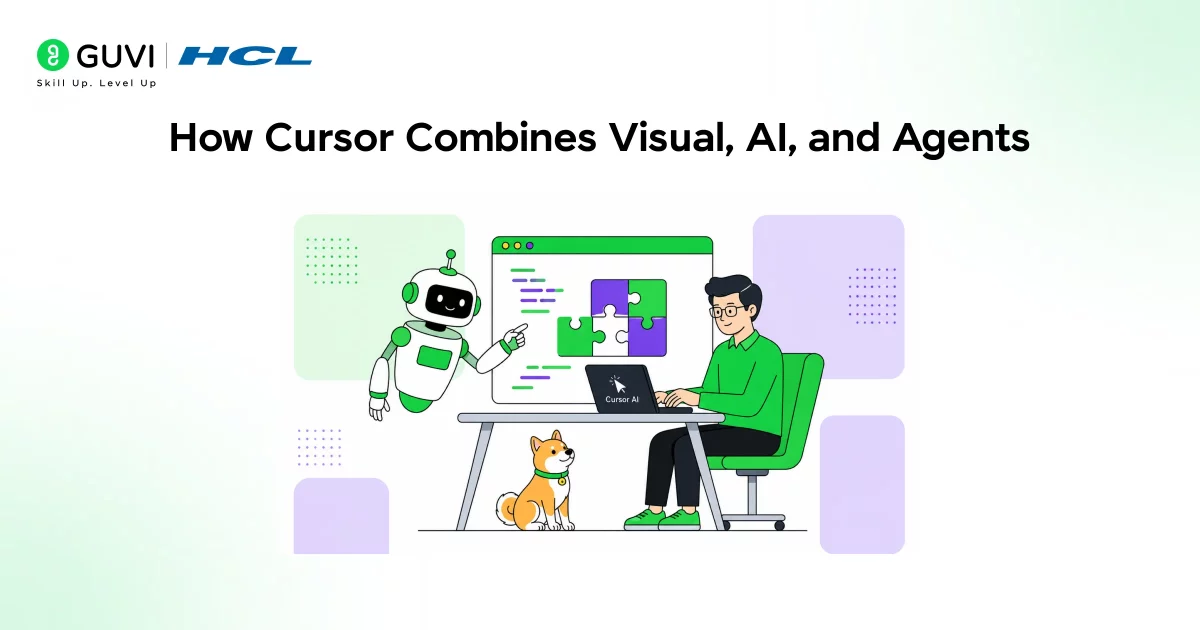
The Visual Interaction Layer
You interact with and change things directly on the screen by clicking and dragging.
The AI Understanding Layer
You tell the system what changes you want made in natural language. The system understands your intent.
The Agents Execution Layer
The AI agent finds the relevant code to change.
It can modify files or even update multiple files across the codebase.
To understand the underlying model and architecture powering this system, refer to Cursor 2.0 explained in detail.
Defining Characteristics of the Experience
1. Drag and Drop UI Manipulation
You get to reposition layout items within the browser. Rather than fiddling with the CSS to change where items are, just drag them in place and have the AI agent update them.
2. Inspect and Control State of UI Elements
Click anywhere in your UI to inspect the properties of individual components. For instance, you could change the states of your React component visually, no coding required.
3. Control Styles Visually
Slide your way to the desired typography, spacing, and colors with sliders and visual controls. Fine-tuning your UI becomes far more efficient.
4. Click on and Prompt the System to Make Changes
This is where Cursor is unique. Simply point to something in the UI and prompt the change:
Increase font size on the title and add padding below.
The system understands and updates the relevant code.
5. The “Apply” Step
The visual changes are applied in real-time within the Cursor Browser but remain transient until you decide to apply them. Click apply, and the AI agent will convert the visual edits into code.
This ensures your creative vision seamlessly becomes real, implementable production code.
For a deeper breakdown of how this visual editing system works in real scenarios, you can refer to Cursor Design Mode explained here.
The Resulting Workflow Example
Here’s an example workflow for building a simple dashboard card:
- Load the Component: Simply open up your web application in the Cursor Browser.
- Adjust Layout: Drag the different components around to fine-tune spacing and alignment.
- Modify Styles: Use visual controls to adjust spacing, fonts, and colors.
- Prompt Natural Language Commands: Increase the space between cards, and bolden the header text.
- Apply the Changes: The AI agent takes care of updating the codebase.
- Review the Result: Check the updated code and UI to ensure everything is as desired.
This workflow is far removed from current processes, which often require constant switching between tools, file navigation, and the manual application of visual changes. You express what you want in natural language. The system processes layout, context, and structure to infer and apply these changes to the correct areas of your code.

If you want to go deeper into AI-driven development workflows and UI automation concepts, explore this ebook. It gives practical insights into how tools like Cursor are reshaping development pipelines.
Advantages That Really Count
1. Faster UI Iteration
Updates appear on the fly, reducing development iterations.
2. Less Context Switching
You no longer need to jump between a design tool and a code editor.
3. UI Changes Are Accessible to Everyone
A non-expert can make effective changes without code knowledge.
4. Designer/Developer Workflow
Designers and developers can work in the same toolset.
5. Time Savings
Developers save time every week by cutting out repetitive tasks.
Shortcomings You Should Not Ignore
1. Needs a Development Environment
The project still needs to run locally.
2. AI May Not Understand the Correct Context
It could target the wrong component or copy code over unnecessarily.
3. Limited Design Tool Functionality
The design tools do not offer full functionality compared to advanced UI tools.
4. AI-Generated Code Is Not Always Valid
Any code the AI generates needs to be reviewed.
Cursor-based workflows can help developers save up to 8–12 hours per week by automating repetitive UI tasks and multi-file updates.
This isn’t just a small efficiency gain—it represents a fundamental shift in how development time is allocated, allowing engineers to focus more on problem-solving and system design rather than manual implementation.
Role of AI Agents in This System
The significance of Cursor is that the entire thing is built around agents. Agents can:
- Edit many files at once.
- Run commands and actions within the application.
- Understand the codebase and its structure.
- Create full features from a prompt.
Because of this, the graphical interface is merely a window onto the underlying engine.
This Is Not a Visual Editor
This system may appear similar to visual editing tools, but this is a false comparison. While traditional visual editors focus only on the user interface, Cursor handles all three: the user interface, the code, and its actual execution. Because of this, it is far more accurate to call this system a code generation interface layer.
The Rise of Non-Developers Within the Context of Application Development
Perhaps one of the most exciting aspects is the expansion of who can code:
- Product managers can start prototyping entire features.
- Designers can directly modify live applications using Cursor for designers.
- Developers can finally step away from UI and write the architecture behind the features, and not worry about individual UI changes.
If you want a step-by-step breakdown of how product managers can use Cursor effectively, refer to this complete guide for product managers.
The Future of Visual Coding
Cursor is not the final destination for these tools, but an indicator of a new trend. Future systems will likely extrapolate this to its extreme: full-stack agent-based development, with little human involvement on the UI side.
These types of systems are likely to employ a visual and conversational interface for code, where agents and humans can collaboratively develop code in real-time, and humans’ role is restricted to that of supervision on agents.
To understand how AI, machine learning, and automation are shaping tools like Cursor, explore HCL GUVI’s AI and Machine Learning course. It provides a strong foundation in how intelligent systems operate and how they are applied in real-world development environments.
Conclusion
Cursor Browser Visual Editor is not just simplifying development; it is redefining it.
It shifts the focus from writing code to expressing intent. It removes unnecessary friction between design and implementation. And it introduces a system where AI actively participates in building software.
However, it is not a magic tool. It requires understanding, validation, and discipline.
The real advantage lies in using it wisely. Developers who adapt to this workflow early will not just work faster. They will work differently.
FAQs
1. What is the Cursor Browser Visual Editor used for?
It is used to visually edit web applications while automatically updating the underlying code using AI agents.
2. Does Cursor replace traditional coding completely?
No. It reduces manual coding but still requires developers to review and validate changes.
3. Can beginners use the Cursor Visual Editor effectively?
Yes, but a basic understanding of development concepts helps in reviewing and managing generated code.
4. Is Cursor better than design tools like Figma?
It serves a different purpose. Cursor integrates design with code, while Figma focuses on design workflows.
5. How does the “Apply” feature work?
It converts visual changes into actual code updates by using AI agents to locate and modify relevant files.
6. What are the risks of using AI-based visual editors?
Risks include incorrect code generation, duplication of components, and potential maintainability issues.
Success Stories

About the Author
Vishalini Devarajan
An Aerospace Engineer turned content writer, I focus on making complex concepts easy to understand through well-structured, reader-friendly blogs. Whether it’s a technical topic or a non-technical one, I love creating content that is clear, engaging, and impactful.
View all posts by Vishalini Devarajan
Connect with me @









Did you enjoy this article?