


Artificial Intelligence and Machine Learning Articles
AI/ML Skills Gap 2026: Why Companies Can't Find Job-Ready Talent
20 AI/ML Interview Questions Recruiters Can Use Without a Tech Background - Best Guide
How Industry-Backed AI/ML Bootcamps Are Changing the AI/ML Hiring Pipeline - Best Guide 2026
From IT Support to AI Engineer: A Realistic Career Switch Guide 2026


Get In Touch For Details! Request More Information
Cursor for Designers Tutorial: Vibe-Code & Edit UI Safely
Jun 11, 2026 7 Min Read 2512 Views
(Last Updated)
If you’ve ever handed off a Figma file to an engineer, waited two weeks, and gotten back something that looks nothing like what you designed this tutorial is for you.
In 2026, designers no longer have to stay on the sidelines of implementation. Cursor an AI-powered code editor has changed the game with its Visual Editor and agent-based chat workflow. Now, product designers can directly edit live UI, prototype functional screens, and even ship changes into real codebases.
This cursor for designers tutorial covers two complete workflows. First, you’ll learn how to vibe-code a UI from scratch using Cursor’s Visual Editor. Then, you’ll learn the safe, structured approach to editing UI inside an existing product repo without breaking logic, routes, or other engineers’ work.
No deep coding experience required. Just a structured approach and the right guardrails
Quick TL;DR Summary
- This cursor for designers tutorial covers two essential workflows: vibe-coding a fresh UI using Cursor’s Visual Editor and making safe, focused changes inside an existing product repo.
- You’ll learn how to use Cursor’s chat + visual editing loop, write constrained prompts that protect business logic, work on Git branches safely, and review AI-generated code before committing.
- No deep coding experience required just a structured approach and the right guardrails.
Table of contents
- What is Cursor and Why Should Designers Care?
- Understanding Cursor's Two Core Modes
- Chat Mode (Agent)
- Visual Editor (Design Mode)
- Part 1: Vibe-Coding UI with the Visual Editor
- Step 1: Set Up Your Project
- Step 2: Open the Built-In Preview
- Step 3: Use Point-and-Prompt Editing
- Step 4: Art-Direct Through Prompts
- Step 5: Save Meaningful Milestones
- Part 2: Editing UI Safely in an Existing Product Repo
- Step 1: Clone the Repo in Cursor
- Step 2: Understand the Codebase First
- Step 3: Create a New Branch
- Step 5: Review the Diff Before Applying
- Step 6: Write a Clear PR Description
- Chat Mode vs. Visual Editor: When to Use Which
- Real-World Example: Redesigning a Dashboard Component
- Common Mistakes Designers Make in Cursor
- Best Practices for Designers Using Cursor
- Conclusion
- FAQs
- Do I need to know how to code to use Cursor as a designer?
- What is the Cursor Visual Editor and how does it work?
- Is it safe to edit a real product repo in Cursor as a non-engineer?
- What does 'vibe-coding' mean in Cursor?
- How do I find which component controls a specific part of the UI?
What is Cursor and Why Should Designers Care?
Cursor is an AI-powered code editor built on top of VS Code. It uses large language models to read your entire codebase, suggest edits, refactor components, and even run multi-step tasks through its agent workflow.
What makes Cursor special for designers is its Visual Editor released in Cursor 2.2 in December 2025. For the first time, designers can drag elements, adjust spacing and colors, and describe changes in plain English all while the AI writes the actual code changes behind the scenes.
The result is a tool that sits right at the intersection of design and engineering. You don’t need to be a developer. But you do need to understand the workflow.
Cursor’s Visual Editor was released as part of version 2.2 in December 2025. It brought together the live web app, the codebase, and design tools into a single window something no mainstream editor had done before.
Understanding Cursor’s Two Core Modes
Before you start, it helps to understand how Cursor works. There are two main ways you’ll interact with it:
1. Chat Mode (Agent)
This is where you type instructions in plain English. The Cursor agent reads your codebase and makes changes across multiple files. Use this for structural edits, component refactors, and layout changes.
Example: “Refactor this page into reusable components. Create Sidebar, DashboardHeader, and StatCard. Keep styling consistent. Do not change behavior or layout.”
2. Visual Editor (Design Mode)
This is the new drag-and-drop, point-and-prompt layer built into Cursor’s browser. You click elements on the live rendered UI and either adjust them visually using sliders and palettes, or describe what you want to change.
Example: Click a button → type “make this larger and change to a primary blue” → the agent writes the code update automatically.
The strongest workflow combines both: Chat for speed, Visual Editor for precision.
Part 1: Vibe-Coding UI with the Visual Editor
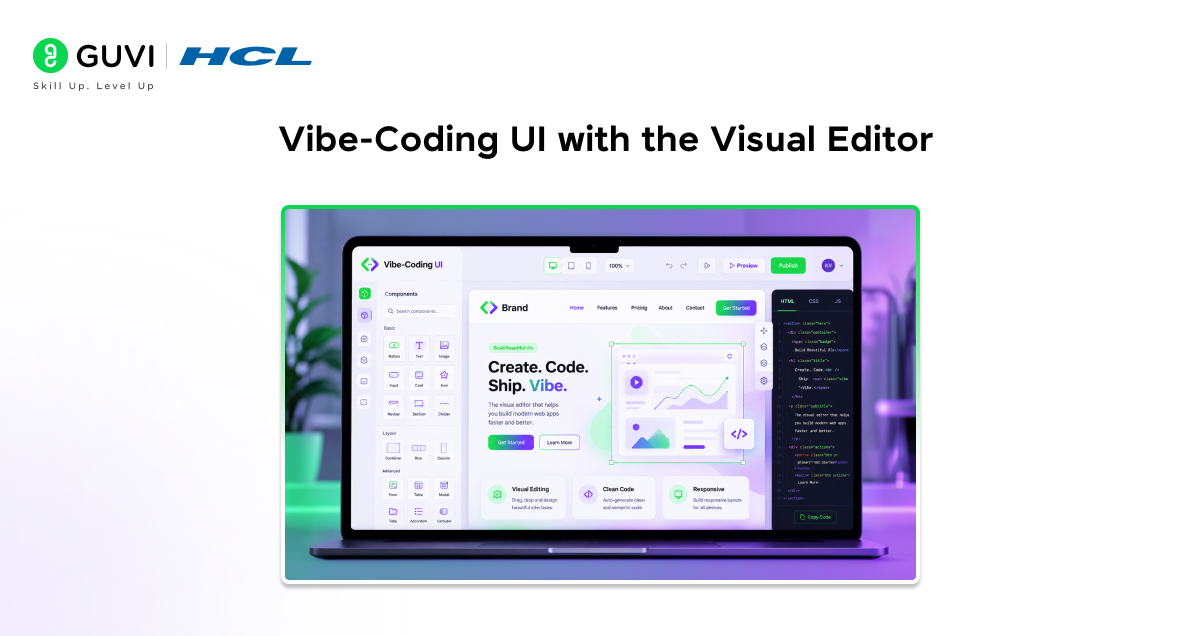
Vibe-coding means going from a loose idea to a working UI using natural language prompts and visual feedback loops. It’s the fastest way to build confidence in Cursor as a designer.
Step 1: Set Up Your Project
Open Cursor and create a new folder for your prototype. Then prompt the agent to scaffold a starter project:
Prompt to try:
Set up a Next.js project with Tailwind CSS and shadcn/ui components. Create a basic dashboard layout with a sidebar, header, and a main content area with three stat cards.
Cursor will handle the setup, install dependencies, and create the file structure. You just review and confirm.
Step 2: Open the Built-In Preview
Once your project is running, open Cursor’s built-in browser (Cursor Browser) and point it to your localhost. You should see a live preview of your UI updating in real time as you make changes.
Look for the three icons in the live preview menu. Click the sidebar icon to open the CSS inspector. You can also press the cursor icon to enable element selection mode.
Step 3: Use Point-and-Prompt Editing
Now here’s where it gets fun. Click any element in the live preview. A prompt box appears. Describe what you want:
Prompt to try:
Increase density slightly. Reduce visual noise. Keep the layout structure the same. Refine spacing and typography only.
The Visual Editor lets you run multiple changes in parallel. Click one element, describe a change, click another, describe another the agents run simultaneously and your UI updates within seconds.
Step 4: Art-Direct Through Prompts
You’re not just adjusting pixels you’re setting the tone. Some of the most powerful prompts are directional:
• “Make this feel more enterprise and less playful.”
• “Increase the visual hierarchy between the header and the cards.”
• “Standardize spacing across all sections. Use a consistent scale.”
This is your greenfield superpower as a designer. Art-direct the UI through language the same way you’d brief a junior developer.
Step 5: Save Meaningful Milestones
When you reach a state you like, commit it. You don’t need terminal commands. Just prompt:
Prompt to try:
Create a Git commit for this current state with a clear message describing the dashboard UI prototype.
This gives you a safety net to roll back to if something breaks in a later iteration.
Part 2: Editing UI Safely in an Existing Product Repo
This is where most designers freeze. Opening a real product codebase with hundreds of files, unfamiliar naming conventions, and business logic you don’t want to break it feels risky.
But here’s the important part: Cursor gives you a repeatable, safe workflow for exactly this situation. The key is constrained prompts, proper branching, and careful diff review before committing anything.
Step 1: Clone the Repo in Cursor
You don’t need Git command fluency. Just prompt the agent:
Prompt to try:
Clone this repo into my workspace and open it: [repo URL]. Explain what you’re doing at each step in designer-friendly language
Cursor handles the clone, opens the project, and explains the structure. You’re in the codebase without typing a single terminal command.
Step 2: Understand the Codebase First
Before touching anything, ask Cursor to orient you:
Prompt to try:
Show me exactly which file renders the main dashboard screen and highlight the component responsible for the stat cards.
This is how designers build codebase orientation without manual file hunting. Once you can trace visible UI back to the source file, you’re no longer guessing.
Step 3: Create a New Branch
Never make changes directly on the main branch. Prompt Cursor to handle this:
Prompt to try:
Create a new branch for this change called design/update-dashboard-spacing.
Cursor creates the branch through its agent. You get the safety of a proper branch workflow without needing Git syntax.
Working on a separate branch means your changes are isolated. Even if the AI makes an unexpected edit, the main branch stays untouched. It’s your most important safety guardrail when editing an existing repo.
Step 4: Make Changes with Constrained Prompts
Now let’s understand the most critical part of safe repo editing: constrained prompts. These are instructions that explicitly tell Cursor what NOT to touch.
Always include safety boundaries in your prompt:
• Keep logic intact. Restore handlers, links, forms, routing, and state.
• Minimal diff only. Make only the visual changes needed.
• Do not introduce new conventions. Reuse existing components, spacing scale, and tokens.
• Do not change behavior or layout structure. Refine spacing and typography only.
Example constrained prompt:
Update the stat card component to match this Figma screenshot. Adjust padding, font size, and border radius only. Keep logic intact. Minimal diff. Reuse existing color tokens.
Constrained prompts are the difference between a clean, reviewable change and a diff that terrifies your engineering team.
Step 5: Review the Diff Before Applying
This step is non-negotiable. Before you click Apply or commit anything, review every line the agent changed.
What to check:
• Did it touch any logic, routes, or state handlers? (It shouldn’t have)
• Did it modify multiple components when you only asked for one?

• Does the change work across screen sizes? (Check mobile)
• Did it introduce any new CSS classes or tokens not already in the system?
Until you hit Apply, all your Visual Editor changes are temporary client-side overrides. Refreshing the page resets them. Only after Apply does the agent write real code to your repo.
Step 6: Write a Clear PR Description
When you’re ready to hand off your changes to the engineering team, prompt Cursor to write the PR description for you:
Prompt to try:
Draft a PR description for this change with: what changed, what stayed intact, and what reviewers should look at.
A good PR description covers what changed visually, what was explicitly left untouched, which screens to review, and a note asking for before/after comparisons. This is what gets engineers to trust and merge designer-led changes.
Chat Mode vs. Visual Editor: When to Use Which
Here’s a quick reference for choosing the right mode for each type of task:
| Task | Best Mode | Why |
| Spacing & typography tweaks | Visual Editor (Design Mode) | Fast, precise, no code needed |
| Structural / layout changes | Chat (Agent) | Multi-file, safe with constraints |
| Component refactoring | Chat (Agent) | Use ‘minimal diff’ prompts |
| Figma-to-code translation | Chat + Visual Editor | Screenshot as reference |
| Responsive fix | Chat or manual code | Check mobile after applying |
The strongest designers in Cursor use both modes together. Chat for speed and structure. Visual Editor for precision and polish.
Real-World Example: Redesigning a Dashboard Component
Let’s walk through a realistic scenario.
The Situation: A product designer needs to update the stat cards on a SaaS dashboard to match a new Figma design. The cards are shared components used on three different screens.
The Old Way: File a ticket, wait for an engineer, review it a week later, provide feedback, wait again. Total turnaround: 1–2 weeks.
The Cursor Way:
1. Clone the repo, open the project in Cursor
2. Ask: “Which file controls the StatCard component?”
3. Create a new branch: design/stat-card-refresh
4. Paste the Figma screenshot into the chat with the prompt: “Update StatCard to match this. Minimal diff. Keep logic intact. Reuse existing tokens.”
5. Review the generated diff check spacing, colors, border radius
6. Open Visual Editor to fine-tune typography and padding
7. Commit, write a PR description with Cursor, submit for review
Total time: 2–3 hours. Zero waiting. Zero back-and-forth. The engineer reviews a clean, well-described PR and merges it the same day.
Common Mistakes Designers Make in Cursor
Using vague prompts. “Make this look better” tells the AI nothing useful. Always describe the specific change: element, property, and direction.
Skipping the branch step. Making changes directly on main is the fastest way to break something important. Always work on a dedicated branch.
Applying without reviewing. The Visual Editor shows a clean live preview, but the underlying code might touch more files than you expected. Always check the diff.
Letting the AI refactor. Cursor will sometimes try to ‘improve’ your code structure unprompted. Always include “do not refactor” in your prompt when you only want visual changes.
Ignoring responsive layout. A change that looks perfect on desktop can break on mobile. After applying changes, always resize the preview window and check smaller breakpoints.
Best Practices for Designers Using Cursor
Start with greenfield projects. Before touching a real product repo, practice vibe-coding a few screens from scratch. Build muscle memory for prompting and the visual editing loop first.
Use the CSS inspector before prompting. Click any element in the Visual Editor and open the CSS panel before writing a chat prompt. Understanding the current state leads to more precise instructions.
Keep your prompts scoped to one change at a time. The more focused the prompt, the more predictable the output. Don’t bundle spacing, color, and layout changes into one instruction.
Build a personal prompt library. Over time, you’ll develop reliable prompt patterns that work well in your team’s codebase. Save them in a simple text file for reuse.
Communicate your changes in engineering language. When sharing your PR, describe changes the way a developer would: ‘Updated padding from 16px to 24px on StatCard. No logic changes. No new classes introduced.’ This builds trust with your engineering team.
React powers over 40% of all web applications worldwide and Cursor’s Visual Editor was specifically optimized for React-first workflows. If your product runs on React or Next.js, you’re in the ideal environment for this workflow.
If you’re serious about mastering AI-powered coding tools and want to apply them in real-world scenarios, don’t miss the chance to enroll in HCL GUVI’s Intel & IITM Pravartak Certified Artificial Intelligence & Machine Learning Course, co-designed by Intel. It covers Python, Machine Learning, Deep Learning, Generative AI, Agentic AI, and MLOps through live online classes, 20+ industry-grade projects, and 1:1 doubt sessions, with placement support from 1000+ hiring partners, helping you build intelligent systems and work efficiently with modern AI development tools
Conclusion
The cursor for designers tutorial covers a real, practical shift in how product teams work. Designers no longer have to wait in a handoff queue to see their work implemented. With Cursor’s Visual Editor and a safe repo workflow, you can go from Figma to committed code in hours not weeks.
Vibe-coding gives you the speed to prototype and explore. The existing-repo workflow gives you the structure to contribute safely to production. Together, they make you a stronger, more autonomous contributor to your product team.
Start with a greenfield project. Get comfortable with the Chat + Visual Editor loop. Then bring that confidence into a real repo with constrained prompts and a branch-first discipline.
The designers who learn this workflow now will be the ones shipping fastest in 2026 and beyond.
FAQs
1. Do I need to know how to code to use Cursor as a designer?
Not deeply. You need to understand basic concepts like components, file structure, and what Git branches are for — but Cursor can execute most steps for you. The key skill is writing precise, constrained prompts.
2. What is the Cursor Visual Editor and how does it work?
The Cursor Visual Editor is a design-mode feature built into Cursor’s browser. You can drag and drop elements, adjust styles using sliders and palettes, or click elements and describe changes in plain English. The AI agent then finds the relevant code and updates it automatically.
3. Is it safe to edit a real product repo in Cursor as a non-engineer?
Yes with the right workflow. The key is using constrained prompts (“keep logic intact,” “minimal diff”), always working on a separate Git branch, and reviewing the code diff before committing. You don’t need to write code, but you do need to verify what the AI wrote.
4. What does ‘vibe-coding’ mean in Cursor?
Vibe-coding means describing your UI intent in natural language and letting the AI generate and refine the interface. The workflow is: describe intent → generate UI → refine visually → iterate safely. It’s ideal for greenfield prototyping and building familiarity with the tool.
5. How do I find which component controls a specific part of the UI?
Ask Cursor directly: “Show me exactly which file renders this screen and highlight the main component responsible.” Cursor traces the visible UI back to the source file, which removes one of the biggest blockers for designers working in unfamiliar codebases.
Success Stories

About the Author
Lukesh S
A professional content writer who has experience in freelancing and now working as a Technical Content Writer at HCL GUVI having sound knowledge in Blog Writing and Creative Writing!
View all posts by Lukesh S
Connect with me @







Did you enjoy this article?