


UI/UX Designing Articles
What is a Design System? The Ultimate Guide to Building Consistent UIs
What is UX Writing? A Complete Guide to Mastering Microcopy and Content Design
What is a UX Audit? A Complete & Best Guide to User Experience Evaluation
How HCL GUVI Zen Class Helps You Build a Job-Ready UI/UX Portfolio


Get In Touch For Details! Request More Information

How to Use Figma Sites to Build a Website?
Jun 24, 2026 6 Min Read 1964 Views
(Last Updated)
If you’ve ever designed a website in Figma and then handed it off to a developer to build, you already know how much can get lost in translation. Spacing shifts, fonts change, animations disappear. It’s a frustrating gap that has existed in design workflows for years.
Figma Sites is changing that. It allows you to publish a fully functional website directly from your Figma canvas, no HTML, no CSS, no third-party builders. What you design is exactly what goes live.
In this article, you’ll learn how to use Figma Sites from the ground up. Whether you’re a designer building your first portfolio or a student creating a landing page for a project, this tutorial will walk you through every step, from setting up your file to hitting publish.
TL;DR Summary
- Figma Sites is a built-in feature that lets you publish websites directly from your Figma designs, no coding or third-party tools required.
- It works within the same Figma workspace you already use, so there’s no learning curve for switching platforms.
- This guide walks you through setting up your canvas, designing your layout, adding interactions, and publishing your site live.
- You’ll also learn how to customise domains, optimise for mobile, and handle basic SEO settings inside Figma Sites.
- By the end, you’ll have a fully published website built entirely within Figma, ideal for portfolios, landing pages, and product showcases.
Table of contents
- What are Figma Sites?
- Why Use Figma Sites to Build a Website?
- What You Need Before You Start?
- Setting Up Your Figma File for the Web
- Choosing the Right Frame Size
- Setting Up Your Grid
- Naming Your Frames
- Designing Your Website Layout in Figma
- The Navigation Bar
- The Hero Section
- Content Sections
- The Footer
- Adding Interactions and Animations
- How to Add Interactions in Figma?
- Keeping Animations Subtle
- Previewing Your Site
- Publishing Your Website With Figma Sites
- Step-by-Step Publishing Process
- Basic SEO Settings in Figma Sites
- What You Can Control
- Common Mistakes to Avoid
- Conclusion
- FAQs
- What is Figma Sites?
- Is Figma Sites free to use?
- Can I build a full website with Figma Sites?
- Do I need to know how to code to use Figma Sites?
- Can I connect a custom domain to Figma Sites?
What are Figma Sites?
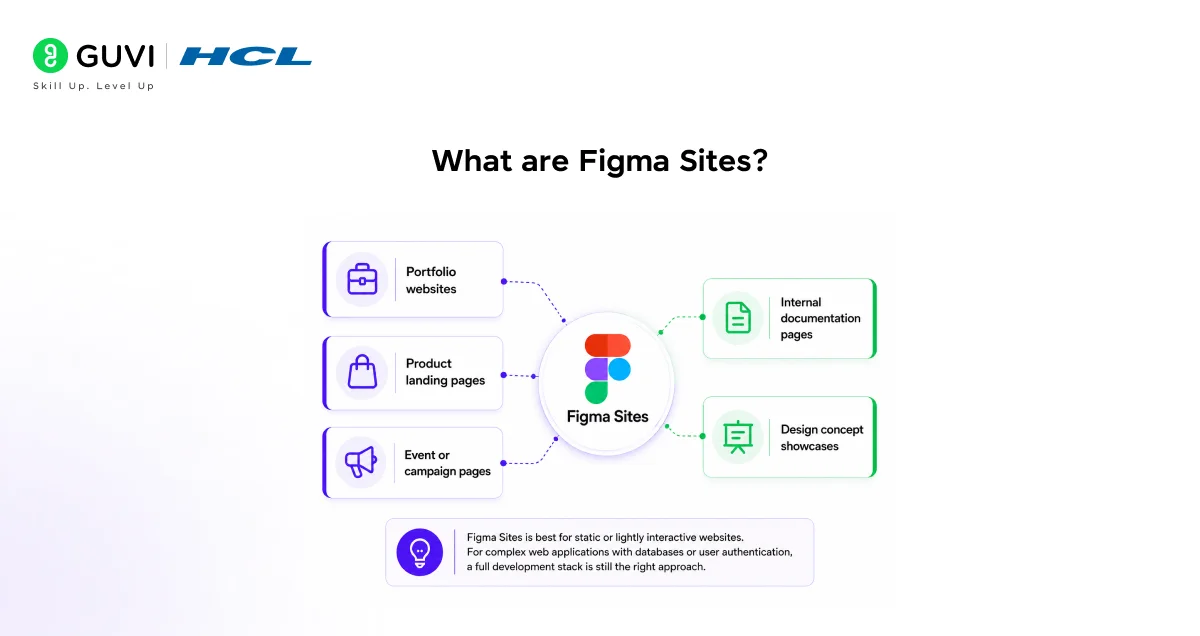
Figma Sites is a web publishing feature built directly into Figma. It bridges the gap between design and deployment by letting you turn your Figma frames into live, interactive websites.
Unlike traditional design-to-development workflows, Figma Sites removes the need for a separate development phase for simpler web projects. You design your page, set up your interactions, and publish, all from one place.
It’s particularly well-suited for:
- Portfolio websites
- Product landing pages
- Event or campaign pages
- Internal documentation pages
- Design concept showcases
It’s worth noting that Figma Sites is best for static or lightly interactive websites. For complex web applications with databases or user authentication, a full development stack is still the right approach.
Why Use Figma Sites to Build a Website?
You might be wondering, why not just use Webflow, Wix, or Squarespace? Those are great tools, but Figma Sites has a specific advantage: your design and your live site live in the same file.
Here’s why that matters for beginners, especially:
- No context switching: You don’t need to learn a new tool to go from design to live site.
- Design fidelity: What you see in Figma is what appears on the web. No translation errors.
- Faster iteration: Making a change to your design automatically reflects on your site after republishing.
- Collaboration: Your team can leave comments, view the design, and see the published result from one shared link.
For anyone already comfortable in Figma, the learning curve for Figma Sites is minimal. That’s a significant advantage when you’re just starting out.
If you are interested in learning more about Figma in a structured manner with a certificate, then enroll for HCL GUVI’s Beginner-friendly Figma Course, where you learn the fundamentals of Figma and its advanced features!
What You Need Before You Start?
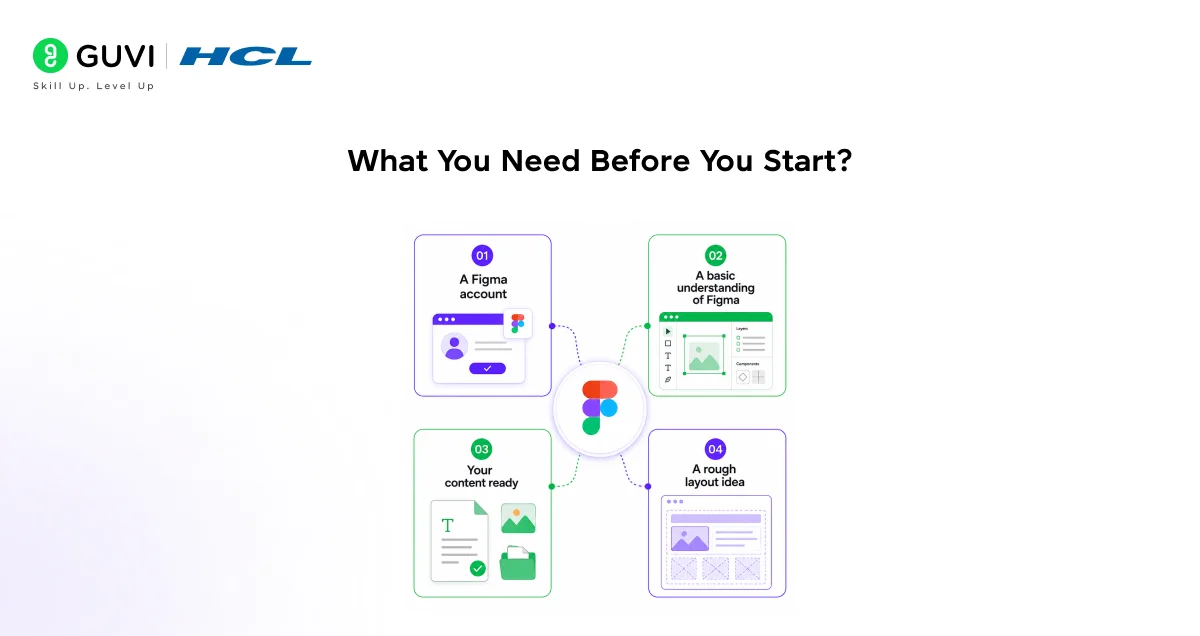
Before jumping into the design, make sure you have a few things in place.
- A Figma account: You’ll need a free or paid Figma account. Figma Sites is available on certain plan tiers, so check your current plan on the Figma website.
- A basic understanding of Figma: You don’t need to be an expert, but knowing how to create frames, use the text tool, and work with components will make this much easier.
- Your content ready: Have your copy, images, and any logos ready before you start designing. Trying to design and write content at the same time slows you down significantly.
- A rough layout idea: It doesn’t have to be detailed. Even a rough sketch on paper helps you move faster inside Figma.
Once you have these ready, you’re good to go.
Setting Up Your Figma File for the Web
The first thing you need to do is create a new Figma file and set it up correctly for web design.
Choosing the Right Frame Size
Open Figma and create a new file. Press F to activate the Frame tool, then look at the right panel. You’ll see preset frame sizes, select Desktop (1440 x 1024px) as your starting point.
This is the standard desktop design size used across most modern web projects. You’ll design for mobile separately later in the process.
Setting Up Your Grid
A grid keeps your layout consistent and professional. To add one:
- Select your frame
- In the right panel, scroll down to Layout Grid
- Click the + icon to add a grid
- Switch it from Grid to Columns
- Set columns to 12, gutter to 20px, and margin to 80px
This 12-column grid is the same system used by frameworks like Bootstrap and is a reliable foundation for any web layout.
Naming Your Frames
Get into the habit of naming your frames clearly: Home, About, Contact, and so on. This makes it much easier when you’re setting up navigation and links later in Figma Sites.
Designing Your Website Layout in Figma
Now comes the actual design work. A typical website consists of a few standard sections, and building them one by one keeps the process manageable.
The Navigation Bar
Your nav bar sits at the top of the page and typically contains your logo and navigation links. Keep it simple, a logo on the left, links on the right is a layout that works for almost every type of site.
Use Auto Layout (Shift + A) to build your nav bar. It keeps elements evenly spaced and makes it easy to adjust later without manually repositioning everything.
The Hero Section
The hero is the first thing visitors see. It usually includes a headline, a short supporting line, and a call-to-action button.
A few things to keep in mind here:
- Your headline should be large and clear, aim for 48–64px font size
- Use a contrasting button colour to make your CTA stand out
- Avoid cluttering this section; white space is your friend
Content Sections
Below the hero, you’ll add the body of your website. This could include a features section, an about section, testimonials, or a portfolio grid, depending on what your site is for.
Work section by section. Complete one, then move to the next. This prevents the canvas from feeling overwhelming.
The Footer
Your footer should include basic links, contact information, and, optionally, social media icons. Keep it minimal. A heavy footer on a simple site feels out of place.
Figma introduced Auto Layout back in 2019, and it fundamentally changed how designers build responsive components. When you use Auto Layout in your Figma designs, those spacing rules carry over much more cleanly when published through Figma Sites, making your layout more web-ready from the start.
Pretty much all of Figma comes under UI/UX designing and if you don’t know the basics of it, then you are missing big time. So, be up-to-date with HCL GUVI’s UI/UX: Your Beginner’s Guide to Design Excellence that covers the key concepts of UI/UX (like color theory, typography, and spacing) and the core principles of UI/UX (User-centered design, usability, and accessibility, role of empathy in design) and the UX design process.

Adding Interactions and Animations
One of the most exciting parts of Figma Sites is that you can add real interactions to your design, hover effects, click transitions, scroll animations, without writing any code.
How to Add Interactions in Figma?
- Select the element you want to make interactive
- Switch to the Prototype tab in the right panel
- Click + under Interactions
- Choose your trigger: On Click, While Hovering, On Drag, etc.
- Choose your action: Navigate To, Open Overlay, Scroll To, etc.
For a basic website, the most useful interactions are:
- On Click → Navigate To — for navigation links and buttons
- While Hovering → Change To — for button hover states
- Scroll To — for anchor links within a page
Keeping Animations Subtle
It’s tempting to add animations everywhere when you first discover them. Resist that urge. Subtle, purposeful animations improve the experience. Too many make the site feel busy and slow.
A simple fade or slide on scroll for section entries is more than enough for most beginner projects.
Previewing Your Site
Before publishing, always preview your site to check how it actually feels to navigate.
Click the Play button (▶) in the top right corner of Figma to open the prototype preview. This gives you an interactive version of your design that behaves like a real website.
Check the following during your preview:
- Do all navigation links go to the right sections or frames?
- Do buttons respond to hover states correctly?
- Is the text readable at screen size?
- Does the layout feel balanced?
Make any adjustments needed before moving to the publishing stage. It’s much easier to fix things here than after you’ve published.
Publishing Your Website With Figma Sites
This is where your design goes live. Here’s how to publish using Figma Sites.
Step-by-Step Publishing Process
- Open your Figma file
- Click on the Figma logo in the top left corner
- Navigate to File → Publish to Figma Sites (or look for the Sites option in your menu depending on your version)
- Figma will scan your file and present a publishing panel
- Select the frame or frames you want to publish
- Review your site settings, title, URL, and visibility
- Click Publish
Your site will be assigned a Figma-generated URL in the format yourproject.figma.site. You can share this link immediately, or set up a custom domain for a more professional appearance.
Basic SEO Settings in Figma Sites
Even a simple website benefits from a basic SEO setup. Figma Sites gives you a few essential settings to configure before publishing.
What You Can Control
- Page title: This appears on browser tabs and in search results. Keep it under 60 characters and include your main keyword.
- Meta description: A short summary of your page shown in search results. Aim for 150–160 characters.
- Favicon: Upload a small icon that appears in browser tabs. It’s a small detail that makes your site look complete.
- Open Graph image: The image that appears when your link is shared on social media. Use a 1200 x 630px image for best results.
These settings are accessible in the Figma Sites publishing panel. Fill them in before you hit publish; it saves you from having to go back and update them later.
Common Mistakes to Avoid
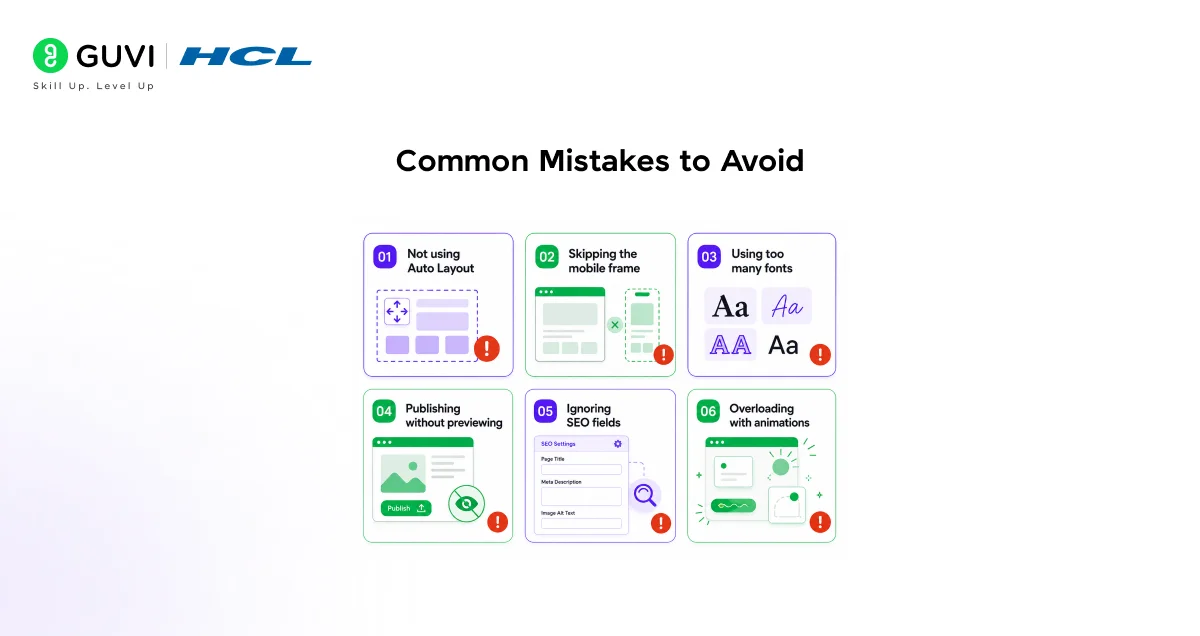
Even with a straightforward tool like Figma Sites, a few mistakes tend to come up repeatedly with beginners.
- Not using Auto Layout: Designing without Auto Layout makes your frames harder to scale and less web-friendly when published. Build the habit of using it from the start.
- Skipping the mobile frame: It’s easy to focus entirely on the desktop design and forget mobile. Always build both.
- Using too many fonts: Stick to two font families at most, one for headings, one for body text. More than that makes the site look inconsistent.
- Publishing without previewing: Always run through the prototype preview before publishing. Broken links and misaligned elements are much easier to catch here.
- Ignoring SEO fields: The title and meta description fields in Figma Sites take two minutes to fill in and make a real difference for discoverability. Don’t skip them.
- Overloading with animations: A site that animates every element on scroll feels slow and distracting. Use motion sparingly and with purpose.
If you are interested in learning more about Figma and how it helps in creating websites with ease, then consider enrolling in HCL GUVI’s Certified UI/UX Design Course with placement guidance, where you will be learning all about UI/UX from scratch, not only in theory but also practically by doing hands-on projects!
Conclusion
In conclusion, Figma Sites brings something genuinely useful to the table, the ability to go from design to live website without ever leaving your design tool. For beginners, that means fewer barriers, less context-switching, and more focus on actually building something.
You’ve now covered everything from setting up your canvas and designing your layout to adding interactions, optimising for mobile, and publishing your site. The best next step is to open Figma and start building. A simple portfolio or landing page is the perfect first project to apply everything you’ve learned here.
FAQs
1. What is Figma Sites?
Figma Sites is a feature within Figma that allows you to publish your designs as live websites directly from your Figma file, without needing a separate development tool or writing code.
2. Is Figma Sites free to use?
Figma Sites availability depends on your Figma plan. Some features may be available on free plans with limitations, while full publishing capabilities may require a paid plan. Check Figma’s pricing page for the most current details.
3. Can I build a full website with Figma Sites?
Yes, for static and lightly interactive websites like portfolios, landing pages, and product pages. For complex applications with user logins or databases, you’ll still need a full development stack.
4. Do I need to know how to code to use Figma Sites?
No. Figma Sites is designed to work without any coding knowledge. You design visually in Figma and publish directly through the Sites feature.
5. Can I connect a custom domain to Figma Sites?
Yes. Figma Sites supports custom domains. You’ll need to add a CNAME record through your domain registrar to connect your domain to your Figma Site.
Success Stories

About the Author
Lukesh S
A professional content writer who has experience in freelancing and now working as a Technical Content Writer at HCL GUVI having sound knowledge in Blog Writing and Creative Writing!
View all posts by Lukesh S
Connect with me @









Did you enjoy this article?