


Artificial Intelligence and Machine Learning Articles
Claude for Code Documentation with JSDoc
How to Integrate Claude into a Next.js App with App Router


Get In Touch For Details! Request More Information
How to Build Agents with Vertex AI Agent Builder: Complete Guide
Jun 15, 2026 6 Min Read 1363 Views
(Last Updated)
AI agents are no longer just a research concept. They’re being deployed in customer support portals, internal knowledge tools, and enterprise workflows, and the barrier to building them is lower than ever.
If you’ve been curious about how to build an agent that can reason, retrieve information, and respond intelligently without spending weeks on infrastructure, Vertex AI Agent Builder is worth your attention.
Google’s Vertex AI platform brings together language models, retrieval systems, and a visual configuration interface so that general tech professionals can build production-ready agents without writing everything from scratch.
In this guide, you’ll go through the complete process of building an AI agent using Vertex AI Agent Builder. From setting up your Google Cloud project to testing your agent’s responses, every step is covered.
TL;DR Summary
1. Vertex AI Agent Builder is Google Cloud’s no-code/low-code platform that lets you create intelligent AI agents without deep ML expertise.
2. This guide walks you through the complete setup process, from enabling the API on Google Cloud Console to configuring your first agent with a data store.
3. You’ll learn how agents work under the hood, including how they use tools, grounding, and instructions to reason and respond.
4. The guide includes a hands-on walkthrough of building a document Q&A agent, complete with a data store, tool configuration, and test queries.
5. It also covers best practices for writing agent instructions, common errors you may encounter, and practical next steps to extend your agent for real-world use.
Table of contents
- What is Vertex AI Agent Builder?
- Prerequisites Before You Begin
- How Do AI Agents Work?
- Setting Up Google Cloud for Agent Builder
- Step 1: Create or Select a Project
- Step 2: Enable the Required APIs
- Step 3: Open Vertex AI Agent Builder
- Creating Your First Agent
- Step 1: Click "Create New Agent"
- Step 2: Configure Basic Settings
- Step 3: Choose Your Model
- Adding a Data Store to Your Agent
- What is a Data Store?
- Step 1: Go to Data Stores
- Step 2: Select Your Data Type
- Step 3: Upload or Connect Your Data
- Step 4: Name and Create
- Configuring Tools and Grounding
- What are the tools in Agent Builder?
- Step 1: Open Your Agent and Go to Tools
- Step 2: Select Data Store as Tool Type
- Step 3: Enable Grounding
- Writing Effective Agent Instructions
- Testing Your Agent
- Step 1: Open the Test Console
- Step 2: Ask Test Questions
- Step 3: Test Edge Cases
- Deploying and Integrating Your Agent
- Option 1: Dialogflow Messenger (Quickest)
- Option 2: REST API
- Option 3: Telephony and Messaging Channels
- Common Errors and Fixes
- Conclusion
- FAQs
- What is Vertex AI Agent Builder?
- Do I need to know how to code to use it?
- Is Vertex AI Agent Builder free?
- What models does Vertex AI Agent Builder use?
- What is grounding, and why does it matter?
What is Vertex AI Agent Builder?
Vertex AI Agent Builder is a platform within Google Cloud that lets you create, configure, and deploy AI-powered agents. These agents can answer questions, search through documents, take actions via APIs, and maintain context across a conversation.
What makes it different from just calling an LLM API is the layer of structure it provides. You’re not just sending a prompt and getting a response, you’re defining:
- What the agent knows (through data stores and grounding)
- What the agent can do (through tools and integrations)
- How the agent should behave (through system instructions)
This makes the agent more reliable, more controllable, and far easier to maintain at scale.
Vertex AI Agent Builder is built on top of Dialogflow CX and integrates with Google’s Gemini models, giving you access to powerful reasoning capabilities out of the box.
Prerequisites Before You Begin
Before you start building, make sure the following are in place:
- A Google Cloud account with billing enabled (new accounts come with free credits)
- A Google Cloud project created and active
- Basic familiarity with the Google Cloud Console
- A document or dataset you want your agent to reference (PDF, website URL, or structured data)
You don’t need to know machine learning or have any Python experience to follow this guide. If you can navigate a dashboard and follow setup steps, you’re ready.
How Do AI Agents Work?
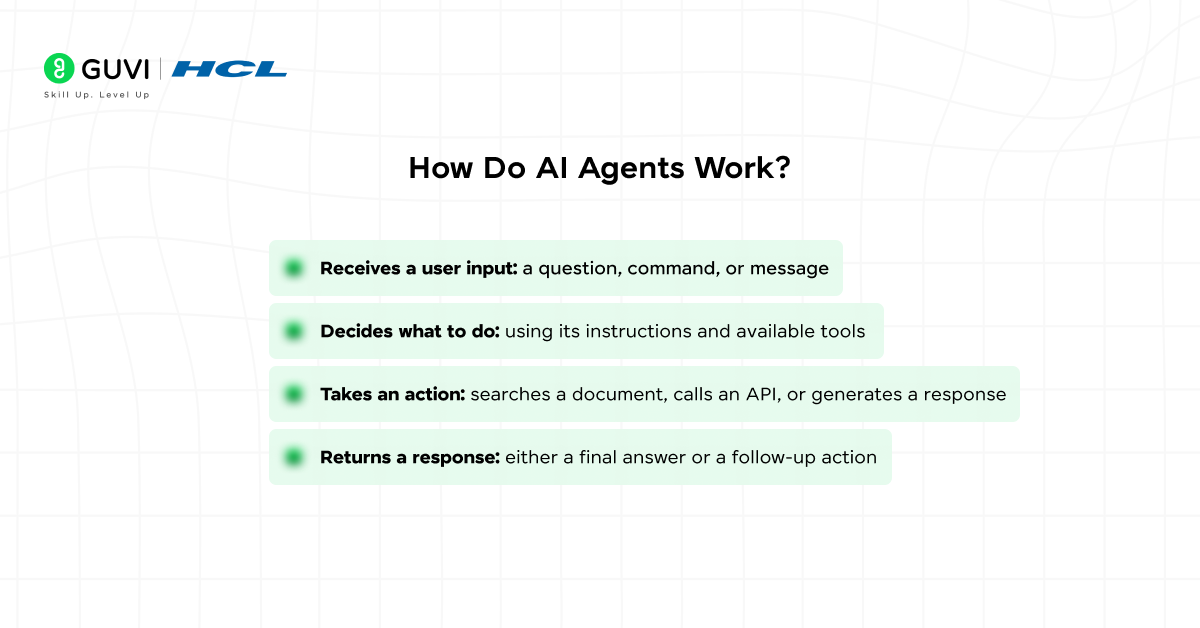
Before jumping into the platform, it helps to understand what’s actually happening when an agent responds to a query.
At a high level, an AI agent follows this loop:
- Receives a user input: a question, command, or message
- Decides what to do: using its instructions and available tools
- Takes an action: searches a document, calls an API, or generates a response
- Returns a response: either a final answer or a follow-up action
This loop is often called a ReAct pattern (Reasoning + Acting). The agent reasons about what step to take next, acts on it, observes the result, and continues until it can give a complete answer.
Vertex AI Agent Builder handles this loop for you. You define the boundaries — the instructions, tools, and data, and the model handles the reasoning.
The term “agent” in AI comes from the idea of an autonomous entity that perceives its environment and takes actions to achieve a goal. Modern LLM-based agents apply this concept by using language models as the “brain” that decides what to do next, step by step.
Setting Up Google Cloud for Agent Builder
Step 1: Create or Select a Project
Log in to Google Cloud Console. Either create a new project or select an existing one from the top navigation bar.
Step 2: Enable the Required APIs
Agent Builder requires a few APIs to be active. Go to APIs & Services → Library and enable the following:
- Vertex AI API
- Dialogflow API
- Cloud Storage API (if you plan to upload documents)
Step 3: Open Vertex AI Agent Builder
In the left navigation, go to Vertex AI → Agent Builder. If you’re accessing it for the first time, you’ll be prompted to enable the service.
Click Enable and wait for the service to activate. This usually takes under a minute.
Creating Your First Agent
Once you’re inside Agent Builder, you’ll see two main options, Search and Conversational Agent. For this guide, you’ll be building a conversational agent.
Step 1: Click “Create New Agent”
Select Conversational Agent from the options presented on the screen.
Step 2: Configure Basic Settings
You’ll be asked to fill in:
- Agent name: Give it something descriptive (e.g., “Support Assistant” or “Docs Q&A Bot”)
- Default language: Select English or your preferred language
- Time zone: Set this to match your deployment region
Step 3: Choose Your Model
Under the Model section, select Gemini 1.5 Flash for fast, cost-effective responses, or Gemini 1.5 Pro if you need deeper reasoning.
For most starting projects, Gemini 1.5 Flash is the right choice. You can always switch models later without rebuilding your agent.
Click Create and your agent workspace will load.
Adding a Data Store to Your Agent
An agent without data is just a general-purpose chatbot. To make it genuinely useful — answering questions about your products, documents, or internal knowledge — you need to connect it to a data store.
What is a Data Store?
A data store in Vertex AI Agent Builder is a collection of information that your agent can search through when answering questions. It supports:
- Uploaded PDF or text files
- Website URLs (crawled automatically)
- BigQuery tables
- Cloud Storage buckets
Step 1: Go to Data Stores
In the left navigation of Agent Builder, click Data Stores → Create Data Store.
Step 2: Select Your Data Type
Choose the type of content you want to ingest. For this walkthrough, select Website or File Upload depending on what you have available.
Step 3: Upload or Connect Your Data
- For File Upload: Upload your PDF or text document directly
- For Website: Enter the URL and enable auto-crawl
Step 4: Name and Create
Give your data store a clear name (e.g., “Product Documentation”) and click Create. Indexing usually takes a few minutes depending on the volume of content.
Configuring Tools and Grounding
Now that your data store exists, you need to connect it to your agent through a Tool.
What are the tools in Agent Builder?
Tools are the capabilities you give your agent. In Vertex AI Agent Builder, a tool can be:
- A data store search (retrieves relevant chunks from your documents)
- An OpenAPI tool (calls an external API)
- A function (custom logic you define)
For a document Q&A agent, you’ll use a data store tool.
Step 1: Open Your Agent and Go to Tools
Inside your agent workspace, navigate to the Tools tab and click Create Tool.
Step 2: Select Data Store as Tool Type
Choose Data Store from the tool type options and select the data store you just created.
Step 3: Enable Grounding
Grounding tells the agent to base its responses on the retrieved content rather than its general training knowledge. This significantly improves accuracy for domain-specific questions.
Toggle on Enable Grounding and set the grounding confidence threshold. A threshold of 0.5 is a good default to start with.

Click Save and your tool is now active.
Grounding in AI refers to anchoring a model’s responses to verifiable, real-world information — in this case, your documents. Without grounding, large language models can “hallucinate,” meaning they generate confident but incorrect answers. Grounding significantly reduces this risk by forcing the model to cite actual retrieved content.
Writing Effective Agent Instructions
Agent instructions are essentially your system prompt. They define how the agent should behave, what it should and shouldn’t do, and how it should handle unclear inputs.
You’ll find the Instructions field in the Agent Settings panel.
What to Include in Your Instructions
Good instructions typically cover:
- The agent’s role and purpose
- The tone it should use
- How to handle questions outside its scope
- Whether it should ask clarifying questions
- How to use the connected tool
Example Instruction Set
Here’s a simple but effective instruction template you can adapt:
You are a helpful assistant for [Company Name]. Your job is to answer questions using the provided documentation.
Always use the data store tool to retrieve relevant information before responding.
If you cannot find an answer in the documents, say: “I don’t have that information in my current knowledge base. Please contact support for further help.”
Keep responses concise, clear, and professional. Do not speculate or provide information beyond what is in the documentation.
Common Mistakes to Avoid
- Vague instructions like “be helpful” without specifying how
- Not telling the agent when to use the tool vs. when to respond directly
- Writing instructions that are too long and internally contradictory
The clearer your instructions, the more predictable and reliable your agent becomes.
Testing Your Agent
Before deploying, Vertex AI Agent Builder gives you a built-in test console so you can validate your agent’s behavior without going live.
Step 1: Open the Test Console
Click Test Agent in the top right of your agent workspace.
Step 2: Ask Test Questions
Start with questions that your data store should be able to answer directly. For example, if you uploaded a product manual:
- “What is the return policy?”
- “How do I reset my device?”
- “What are the system requirements?”
Observe both the response and the source citations — these show which document chunks the agent retrieved to generate its answer.
Step 3: Test Edge Cases
Try questions that fall outside the document’s scope to see how the agent handles them. It should respond with your fallback message rather than guessing.
If the agent is guessing or generating responses not grounded in the document, revisit your instructions and tighten the grounding settings.
Deploying and Integrating Your Agent
Once you’re happy with how the agent performs, it’s time to make it accessible.
Vertex AI Agent Builder offers several deployment options:
Option 1: Dialogflow Messenger (Quickest)
This gives you a pre-built chat widget you can embed on any website with a single script tag.
Go to Integrations → Dialogflow Messenger and copy the provided embed code.
Option 2: REST API
You can call your agent programmatically via its REST API endpoint. This is the right path if you want to embed the agent into a custom application or backend system.
Option 3: Telephony and Messaging Channels
Agent Builder also supports integration with:
- Google Chat
- Slack
- Telephony systems (for voice agents)
Each integration follows a similar pattern, authenticate, configure the channel, and point it to your agent’s endpoint.
Common Errors and Fixes
Even when you follow every step correctly, a few issues tend to come up during setup and testing.
- Agent not using the data store: This usually means the tool is created but not referenced in the instructions. Make sure your instructions explicitly tell the agent to use the tool before responding.
- Indexing is taking too long: Large document sets or slow-crawling websites can delay indexing. Check the Data Store status panel; if it’s still processing, wait for it to complete before testing.
- Grounding returning irrelevant chunks: Try splitting large documents into smaller, focused files. Agents retrieve more accurately when content is well-structured and topically focused.
- Agent giving generic answers despite grounding: Increase the grounding confidence threshold and check whether your document content is detailed enough to answer the types of questions being asked.
- API authentication errors during integration: Make sure your service account has the Vertex AI User and Dialogflow API Admin roles assigned in IAM settings.
If you’re serious about building RAG applications with premium AI tools like Vertex AI agent and want to apply them in real-world scenarios, don’t miss the chance to enroll in HCL GUVI’s Intel & IITM Pravartak Certified Artificial Intelligence & Machine Learning Course, co-designed by Intel. It covers Python, Machine Learning, Deep Learning, Generative AI, Agentic AI, and MLOps through live online classes, 20+ industry-grade projects, and 1:1 doubt sessions, with placement support from 1000+ hiring partners.
Conclusion
In conclusion, building an AI agent with Vertex AI Agent Builder is one of the most practical ways to put Google’s AI infrastructure to work for your specific use case. You’ve now gone through the complete process, from enabling APIs and creating an agent to connecting a data store, configuring grounding, writing instructions, and deploying it for real users.
What makes Vertex AI particularly valuable is that you’re not starting from scratch with every new project. The infrastructure, the models, and the retrieval system are already there. Your job is to shape them around your data and your users’ needs.
As Gemini models continue to improve and Agent Builder adds more integration options, the ceiling for what you can build here will only go up.
FAQs
What is Vertex AI Agent Builder?
Vertex AI Agent Builder is a Google Cloud platform that lets you build, configure, and deploy AI-powered conversational agents using tools like Gemini models, data stores, and retrieval systems, without requiring deep ML expertise.
Do I need to know how to code to use it?
No. Vertex AI Agent Builder offers a visual interface for most of the configuration. You’ll need minimal scripting only if you’re integrating via the REST API or building custom tools.
Is Vertex AI Agent Builder free?
Google Cloud offers free credits for new accounts. Beyond that, costs are based on usage, including model calls, storage, and API requests. Check the Google Cloud pricing page for current rates.
What models does Vertex AI Agent Builder use?
It supports Google’s Gemini family of models, including Gemini 1.5 Flash and Gemini 1.5 Pro. You can select the model that best fits your speed and quality requirements.
What is grounding, and why does it matter?
Grounding anchors the agent’s responses to your actual documents rather than the model’s general training data. This reduces hallucinations and makes your agent’s answers more accurate and trustworthy.
Success Stories

About the Author
Lukesh S
A professional content writer who has experience in freelancing and now working as a Technical Content Writer at HCL GUVI having sound knowledge in Blog Writing and Creative Writing!
View all posts by Lukesh S
Connect with me @







Did you enjoy this article?