


Java Articles
Kafka Streams Tutorial: Build Your First Data Pipeline
What is ArrayList in Java: A Complete Guide
What is HashMap in Java: How It Works, Methods, and Examples

Get In Touch For Details! Request More Information
Have you ever written a Java program and then wondered why running it inside Visual Studio Code feels less straightforward than expected? Many learners and developers choose VS Code for its speed and simplicity, yet Java requires a few precise setup steps before code execution works smoothly. Understanding how the editor, the Java runtime, and your project structure interact removes confusion and turns VS Code into a reliable environment for Java development.
Continue reading to learn how to run Java programs in Visual Studio Code step by step with a clear and correct setup:
Quick Answer: Running Java in Visual Studio Code requires installing a supported JDK, configuring VS Code with Java extensions, and selecting the correct Java runtime. After creating a project or folder and writing a program with a main method, you can run it using editor controls or the terminal. VS Code also supports debugging, Maven, Gradle, and common error resolution for a complete Java workflow.
Table of contents
- Prerequisites to Run Java in Visual Studio Code
- Steps
- Steps
- Setting Up Java in Visual Studio Code
- Install Java Extensions
- Configure the Java Runtime
- Creating Your First Java Program in VS Code
- Create a Java Project or Folder
- How to Create a Folder-Based Java Setup in VS Code?
- Recommended Folder Structure for Beginners
- Write a Simple Java Program
- How to Run a Java Program in Visual Studio Code?
- Run Using VS Code Controls
- Steps
- Run Using the Integrated Terminal
- Steps
- Debugging Java Programs in Visual Studio Code
- Steps:
- Steps:
- What You Can Inspect:
- Common Errors While Running Java in VS Code and How to Fix Them
- Running Java Projects With Build Tools
- Tips for Writing Java Efficiently in Visual Studio Code
- VS Code vs Traditional Java IDEs
- VS Code vs Traditional Java IDEs: Key Differences at a Glance
- Conclusion
- FAQs
- Can VS Code replace a full Java IDE?
- Is VS Code good for large Java projects?
- Which Java version works best with VS Code?
- Can beginners learn Java using VS Code?
Prerequisites to Run Java in Visual Studio Code
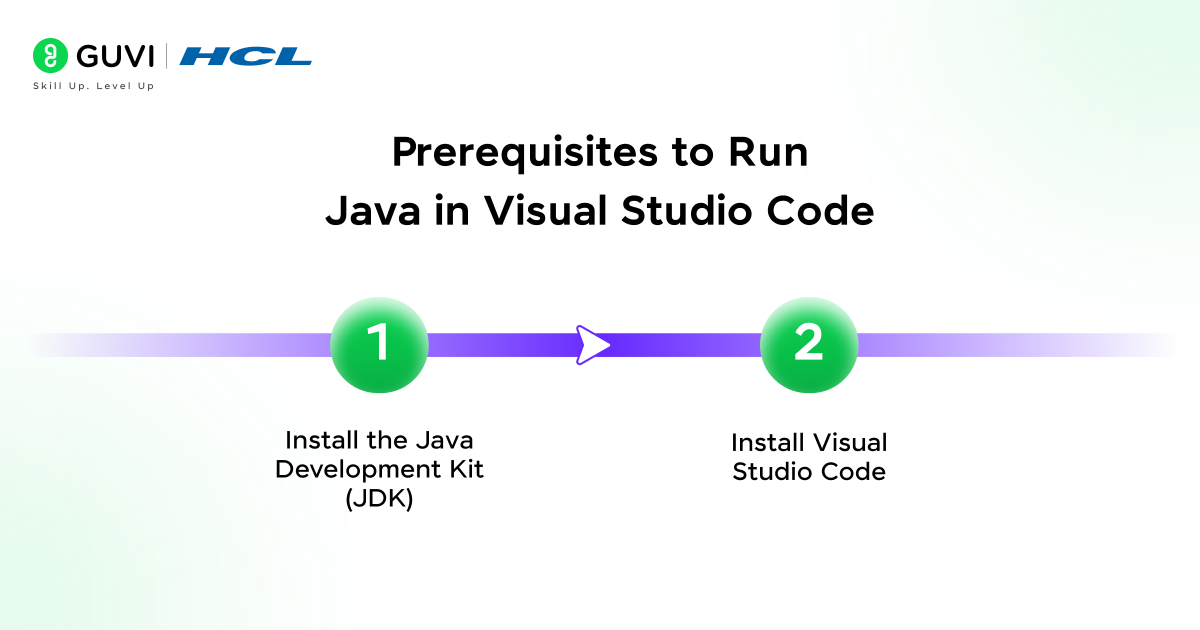
Running Java in Visual Studio Code requires three foundational components to work together correctly: the Java runtime, the editor, and system-level configuration. Each component directly affects compilation, execution, and debugging, which means even a small misconfiguration can prevent Java programs from running properly.
- Install the Java Development Kit (JDK)
The Java Development Kit provides the Java compiler, the Java Virtual Machine, and core standard libraries. Visual Studio Code relies on the JDK to compile source files and execute bytecode, so Java programs cannot run without it.
Steps
- Download a Long Term Support version of the JDK, such as Java 11 or Java 17, which offer stability and long-term tooling compatibility.
- Complete the installation using the operating system installer.
- Open a terminal or command prompt and verify the installation by running:
- java -version
- javac -version
These commands confirm that both the runtime and compiler are available.
- Ensure the JDK bin directory is included in the system PATH so Java commands can be executed from any location. Without this, the system will fail to recognize Java commands.
- Install Visual Studio Code
Visual Studio Code serves as the development environment where Java code is written, executed, and debugged. It provides editor features and integrates with Java tooling through extensions.
Steps
- Install Visual Studio Code for your operating system using the official installer.
- Launch the editor and confirm that the integrated terminal opens correctly, since it is used for running and compiling Java programs.
- Keep the default configuration during installation, as Java support is added later through extensions rather than built-in settings.
Once these prerequisites are in place, Visual Studio Code is ready to be configured with Java extensions and runtime settings for full Java development support.
Want to go beyond running code and truly understand how JavaScript works in real applications? Explore HCL GUVI’s JavaScript Hub to learn core concepts, practical examples, and real-world use cases that build strong programming fundamentals.
Setting Up Java in Visual Studio Code
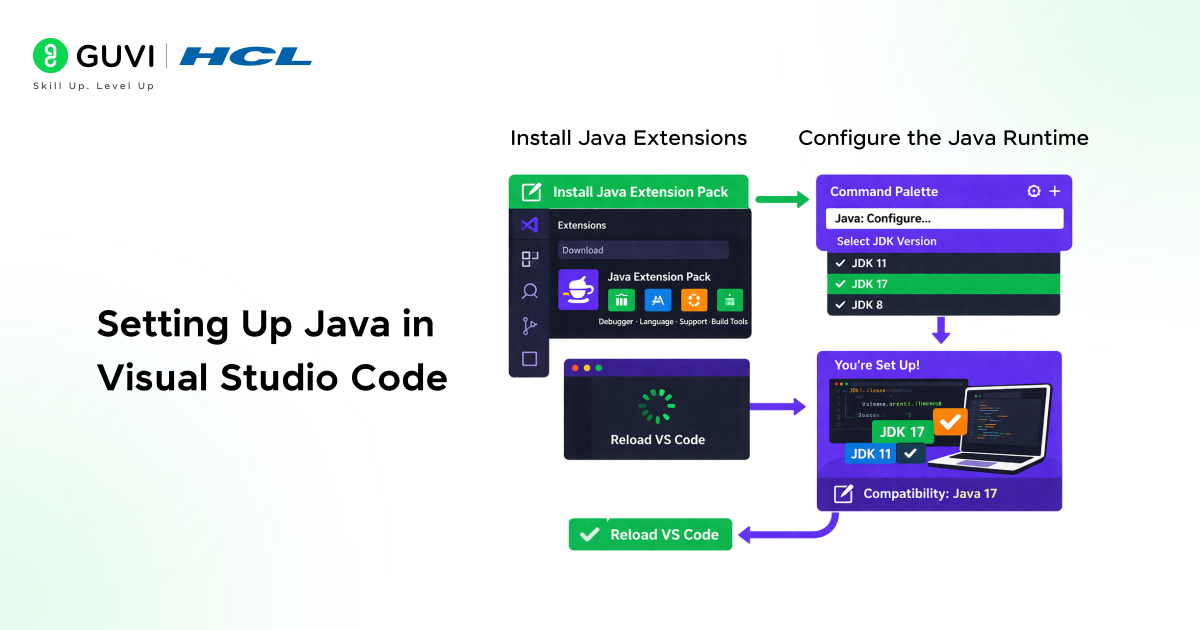
Once prerequisites are installed, VS Code must be configured to understand Java syntax, project structure, and runtime selection.
1. Install Java Extensions
Java support in VS Code depends on extensions that provide language services and tooling.
Steps
- Open the Extensions panel.
- Install the Java Extension Pack, which includes:
- Java language support
- Java debugger
- Project and build tool support
- Restart VS Code to activate features.
2. Configure the Java Runtime
VS Code automatically scans installed JDKs, but explicit configuration avoids version conflicts.
Steps
- Open the Command Palette.
- Select Java runtime configuration.
- Choose the correct JDK version for the workspace.
- Confirm that the selected runtime matches the project’s source compatibility.
Creating Your First Java Program in VS Code
Create a Java Project or Folder
Java programs in Visual Studio Code can be created using either a structured Java project or a simple folder-based setup. The choice affects how code is compiled, how dependencies are handled, and how easily the setup scales as the application grows.
- Difference Between Java Project and Folder Setup
A Java project includes build metadata that defines source directories, dependency resolution, build lifecycle phases, and testing configuration. Tools such as Maven or Gradle use this metadata to automate compilation, testing, and packaging. Visual Studio Code understands this structure and provides richer project-level features.
A folder setup contains standalone Java source files without any build configuration. Compilation and execution happen manually through the Java compiler and runtime commands. This setup exposes the raw Java workflow and avoids abstraction.
- When to Use Each Approach:
A folder setup works best for beginners learning Java syntax, class structure, and execution flow. It helps clarify how source files are compiled into bytecode and how the JVM runs programs.
A Java project setup works best for applications that require external libraries, testing frameworks, or automated builds. It also suits long-term development and team collaboration.
How to Create a Folder-Based Java Setup in VS Code?
- Open Visual Studio Code
- Create a new folder and open it as the workspace
- Inside the workspace, create a directory named src
- Place all Java source files inside the src directory
Recommended Folder Structure for Beginners
project-root
└── src
└── Main.java
This structure keeps source files organized, follows common Java conventions, and prepares learners for project-based development later.
2. Write a Simple Java Program
- Creating a Class File
Inside the src directory, create a file named Main.java. Java enforces a strict rule where the file name must match the public class name exactly. Any mismatch causes compilation errors.
- Understanding the Main Method
The main method is the execution entry point of a Java application. When a program starts, the Java Virtual Machine looks for a method with this exact signature to begin execution. Without it, the program cannot run.
- Writing a Basic Java Program:
public class Main {

    public static void main(String[] args) {

        System.out.println("Hello, Java in VS Code");

    }

}
This code defines a class, declares the main method, and prints output to the console using standard output.
- Saving and Preparing the Program for Execution
Saving the file allows Visual Studio Code to analyze the code, resolve symbols, highlight errors, and attach Java language features. This step prepares the program for compilation and execution.
What Happens Behind the Scenes:
During compilation, the Java compiler converts Main.java into Main.class. During execution, the JVM loads the compiled bytecode and starts running instructions from the main method. Understanding this flow helps diagnose errors and strengthens core Java fundamentals.
Ready to move from running Java in VS Code to building real-world Java applications? Get started with HCL GUVI’s Java Programming Course featuring globally recognised certification, 100% online self-paced learning, lifetime access, dedicated forum support, and 4 gamified practice platforms to strengthen hands-on skills.
How to Run a Java Program in Visual Studio Code?
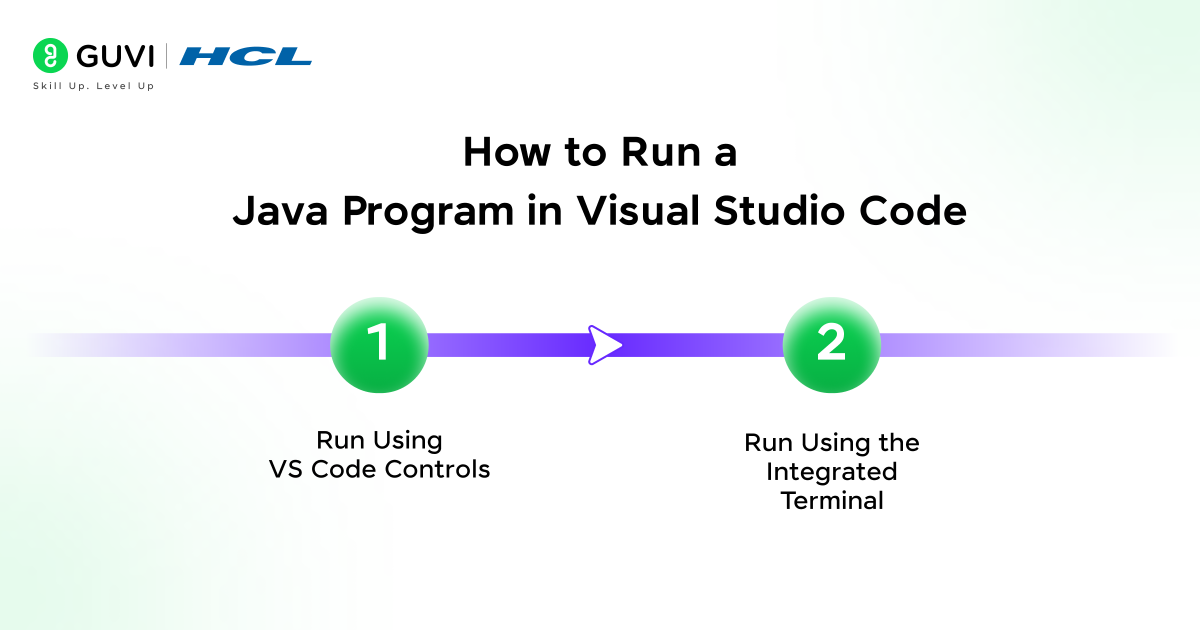
Java programs in Visual Studio Code can be executed either through built-in editor controls or by manually compiling and running code using the integrated terminal. Both methods rely on the same Java compilation process but differ in how much of that process is exposed to the developer.
Run Using VS Code Controls
This approach uses Visual Studio Code’s Java extensions to manage compilation and execution automatically, which simplifies the workflow.
Steps
- Open the Java file that contains the main method.
- Locate the Run option displayed above the main method declaration.
- Select the Run option to start execution.
- View the program output in the integrated terminal.
This method handles compilation in the background while preserving the correct execution sequence. It is useful for quick validation and repeated testing during development.
2. Run Using the Integrated Terminal
This approach exposes the full Java execution process and helps developers understand how compilation and execution work together.
Steps
- Open the integrated terminal in Visual Studio Code.
- Navigate to the directory that contains the Java source file.
- Compile the program using the Java compiler.
- Run the compiled class using the Java runtime.
This workflow reinforces the compile-then-run model that Java follows and helps identify configuration or classpath issues more clearly.
Debugging Java Programs in Visual Studio Code
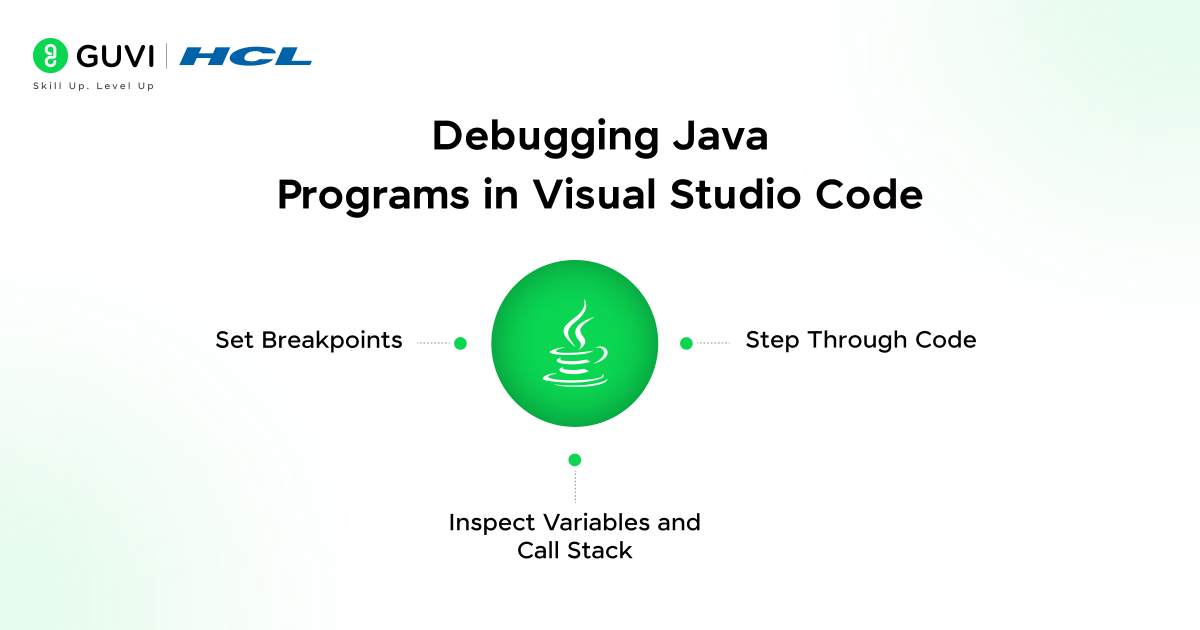
Debugging tools in Visual Studio Code allow inspection of execution flow, runtime state, and logic behavior during program execution.
- Set Breakpoints
Breakpoints pause program execution at specific lines, allowing examination of the program state at that moment.

Steps:
- Click beside the line number where execution should pause.
- Start the program in debug mode.
- Execution stops automatically at the breakpoint.
- Step Through Code
Stepping controls allow Java developers to follow execution line by line.
Steps:
- Step into methods to inspect internal logic.
- Step over lines to move through execution sequentially.
- Resume execution after inspection is complete.
This process helps trace control flow and identify logical issues.
- Inspect Variables and Call Stack
During a debug session, Visual Studio Code displays runtime information that explains how the program is executing.
What You Can Inspect:
- Current variable values at each execution point
- Active method calls in the call stack
- Execution context showing program flow
This visibility helps detect incorrect assumptions, unexpected values, and flow errors during execution.
Common Errors While Running Java in VS Code and How to Fix Them
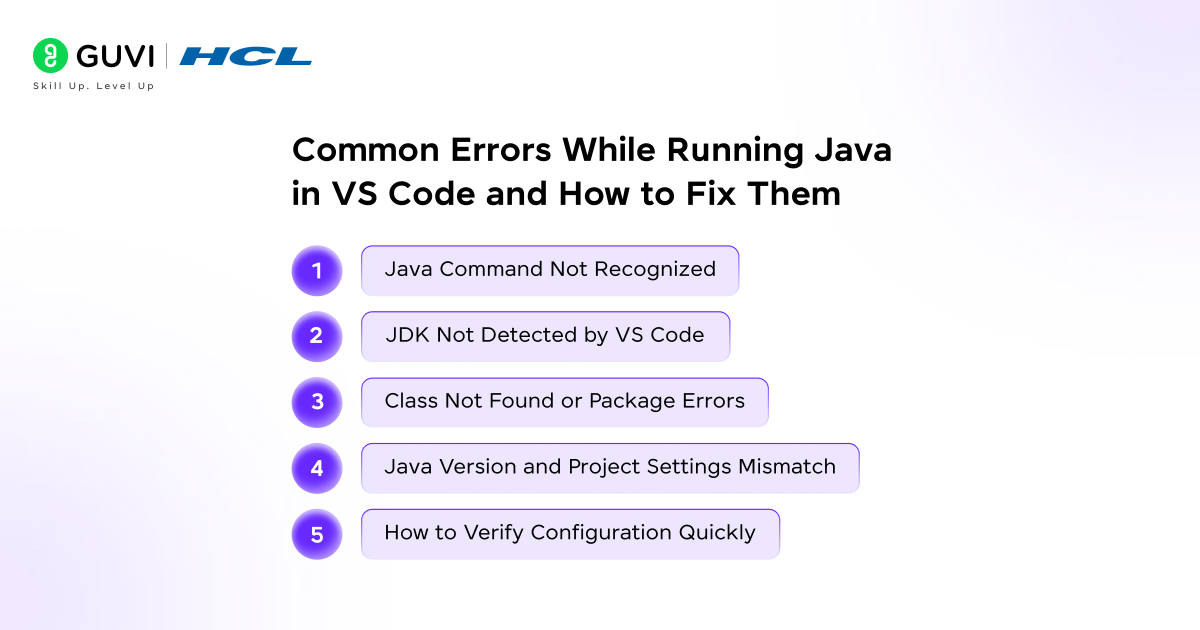
- Java command not recognized error: This error appears when the JDK is either missing or not added to the system PATH. The operating system cannot locate the java and javac executables. Installing a supported JDK and verifying that the bin directory is correctly referenced in environment variables resolves the issue.
- JDK not detected by VS Code: VS Code may fail to detect the installed JDK when multiple Java versions exist or when JAVA_HOME points to an invalid path. Selecting the correct Java runtime inside VS Code settings and confirming the configured JDK path fixes runtime detection problems.
- Class not found or package errors: These errors usually occur due to incorrect folder structure or mismatched package declarations. Java expects source files to follow a directory structure that mirrors the declared package name. Aligning folder paths with package definitions resolves class loading issues.
- Mismatch between Java version and project settings: Compilation failures often happen when the project targets a different Java version than the installed runtime. Updating the project’s source and target compatibility settings ensures alignment between code syntax and runtime behavior.
- How to verify configuration quickly: Running java -version and javac -version in the terminal confirms JDK installation. Checking the selected Java runtime inside VS Code verifies editor configuration. A simple test class validates the full compile and run flow.
Running Java Projects With Build Tools
- Running Maven Projects in VS Code
Visual Studio Code supports Maven projects through Java extensions that automatically detect the presence of a pom.xmlfile and initialize the project model. Source directories, dependencies, plugins, and build profiles are resolved based on the Maven configuration. The editor understands the standard Maven lifecycle phases such as compile, test, package, and install, which allows developers to execute these goals directly from the workspace.
Dependency changes in the pom.xmltrigger background synchronization so classpaths and imports remain accurate. VS Code also integrates Maven test execution and advanced debugging, which makes it easier to inspect build failures and unit test behavior without leaving the editor.
- Running Gradle Projects in VS Code
Gradle integration in VS Code activates when a build.gradle or build.gradle.kts file is detected. The editor reads the project structure and exposes Gradle tasks in an organized view based on defined build scripts. Tasks such as build, test, clean, and run can be executed with a single action, and custom tasks defined in the project become immediately available.
Gradle’s incremental build system works seamlessly within VS Code, which reduces build time during development. Console output streams directly into the integrated terminal, allowing developers to trace task execution, inspect errors, and iterate on build logic efficiently.
Tips for Writing Java Efficiently in Visual Studio Code
- Useful keyboard shortcuts for Java: Shortcuts speed up navigation, symbol search, and method access. Consistent use reduces context switching and improves development flow.
- Code formatting and auto-imports: Automatic formatting enforces consistent style across files. Auto-import suggestions reduce manual dependency management and prevent missing import errors.
- Refactoring and navigation features: Rename, extract, and move refactoring tools improve code organization. Symbol navigation and reference search simplify understanding large codebases.
- Improving productivity with extensions: Java-focused extensions enhance debugging, testing, and project management. Selecting only essential extensions keeps the editor responsive while extending functionality.
VS Code vs Traditional Java IDEs
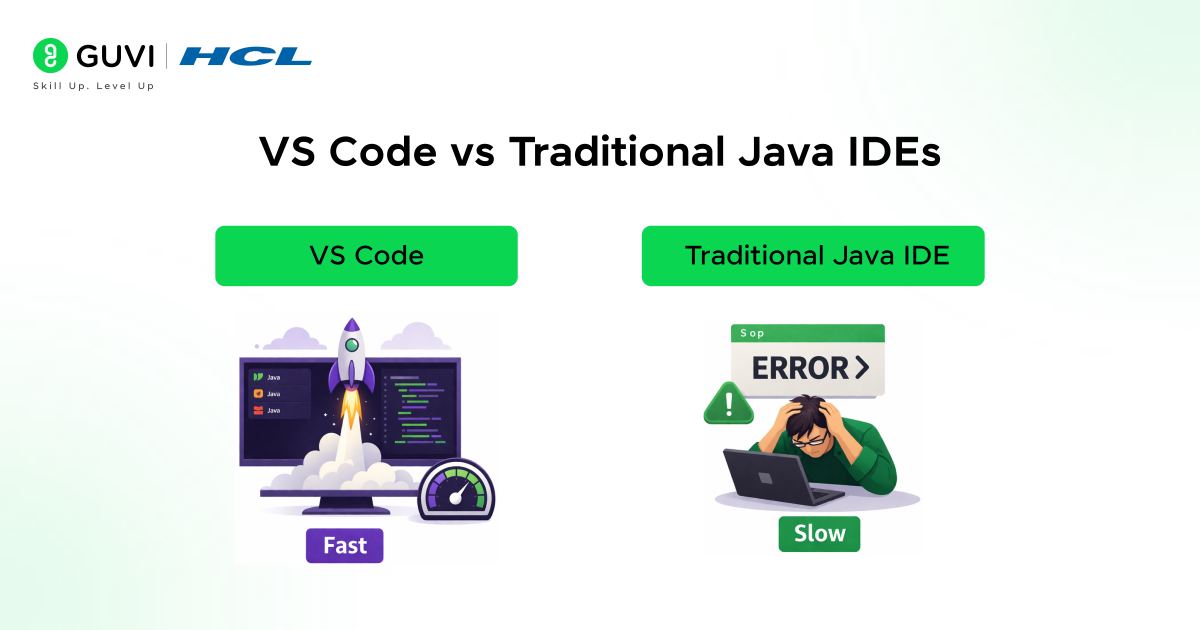
Visual Studio Code works best when lightweight setup, fast startup, and flexible tooling matter more than tightly coupled IDE features. Its lightweight setup, quick startup, and clean interface help developers stay focused on Java fundamentals instead of tooling overhead. Backend developers often gravitate toward VS Code for APIs and microservices because it fits naturally with Maven, Gradle, containers, and cloud workflows while staying editor-first.
Professionals who work across multiple languages gain even more value, with Java, JavaScript, Python, and DevOps tools living in one place. A full Java IDE makes more sense for very large enterprise codebases where advanced refactoring, deep static analysis, and complex dependency graphs are critical for long-term stability and large-scale navigation.
VS Code vs Traditional Java IDEs: Key Differences at a Glance
| Factor | Visual Studio Code | Traditional Java IDEs |
| Setup and startup | Lightweight setup with fast startup | Heavier setup with longer startup time |
| Interface | Minimal and editor-first | Feature-rich and tightly integrated |
| Learning experience | Keeps focus on Java fundamentals | Tooling complexity can distract beginners |
| Project creation | Quick and flexible | Structured but more rigid |
| Java support | Extension-based and modular | Built-in and deeply integrated |
| Build tools | Strong support for Maven and Gradle | Native and tightly coupled support |
| Microservices | Well suited for API and service development | Often heavier than required |
| Multi-language work | Excellent for switching across stacks | Primarily Java-focused |
| Refactoring depth | Basic to moderate | Advanced and comprehensive |
| Static analysis | Limited compared to full IDEs | Deep code analysis and inspections |
| Large codebases | Works with discipline and tooling | Designed for very large projects |
| Enterprise systems | Less suited for monolith-heavy systems | Preferred for legacy and monolithic apps |
| Best fit for | Students, backend devs, polyglot professionals | Enterprise Java teams and legacy systems |
Conclusion
Running Java in Visual Studio Code becomes straightforward once each layer of the setup is understood and aligned with Java basics. With the correct JDK installed, VS Code configured through Java extensions, and a clear project or folder structure in place, Java programs compile, run, and debug reliably. This guide covered every stage, from learning Java basics and creating the first program to execution, debugging, build tools, and common error resolution. VS Code proves to be a practical environment for learning and development, especially for beginners and backend developers who value clarity, flexibility, and modern tooling while working with Java.
FAQs
Can VS Code replace a full Java IDE?
VS Code can replace a full Java IDE for small to medium projects, API development, and learning purposes. It provides language support, debugging, and build tool integration, though very large enterprise projects may still benefit from specialized IDE features.
Is VS Code good for large Java projects?
VS Code supports large Java projects through Maven and Gradle integration, but performance and navigation depend on project complexity. Teams managing very large codebases often pair VS Code with disciplined project structure and build tooling.
Which Java version works best with VS Code?
VS Code works best with Long Term Support Java versions such as Java 11 or Java 17. These versions offer stability, broad tooling support, and compatibility with most Java libraries.
Can beginners learn Java using VS Code?
Beginners can learn Java using VS Code because the editor provides code completion, error highlighting, and debugging support. A lightweight interface also helps new learners focus on core Java concepts without unnecessary tooling complexity.
Success Stories

About the Author
Vaishali
I'm a seasoned writer with four years of experience across technical, non-technical, and just about every genre or niche you can imagine. Adaptable and curious, I enjoy exploring new topics and making information engaging and easy to understand. Fueled by a steady stream of tea, I approach each project with creativity, reliability, and genuine enthusiasm for storytelling.
View all posts by Vaishali
Connect with me @

















Did you enjoy this article?