


Full Stack Development Articles
Claude for Architecture and Engineering Documentation
Freelancing as a Python Developer: Getting Your First Client

Get In Touch For Details! Request More Information
Android Development Roadmap :10-Step Guide to Become an Android Developer
Jun 16, 2026 8 Min Read 2717 Views
(Last Updated)
Learning Android development can feel overwhelming. With so many tutorials, courses, and opinions out there, where do you even start? That’s why having a clear Android developer roadmap is so important when you’re beginning your journey.
Most people who try to learn Android give up. Not because it’s too hard, but because they don’t have a clear path forward. Without a proper Android developer roadmap, it’s easy to feel lost and jump between topics without real progress.
Whether you’re a complete beginner, a student looking for career options, or someone switching careers, this guide follows a proven Android developer roadmap that takes you from zero to job-ready.
By following these steps, you’ll learn exactly what companies expect in 2025. No fluff. No outdated advice. Just a proven path that works
Quick Answer
Start with programming basics and Kotlin, then set up Android Studio and learn core app components like Activities, Fragments, and UI design.
Progress to app architecture, data storage, API integration, and advanced topics like Work Manager and notifications, while building real projects to create a strong portfolio.
Table of contents
- Why Android Development Is Still a Top Career in 2026
- Android Market Share and Global Demand
- Android vs iOS vs Cross-Platform
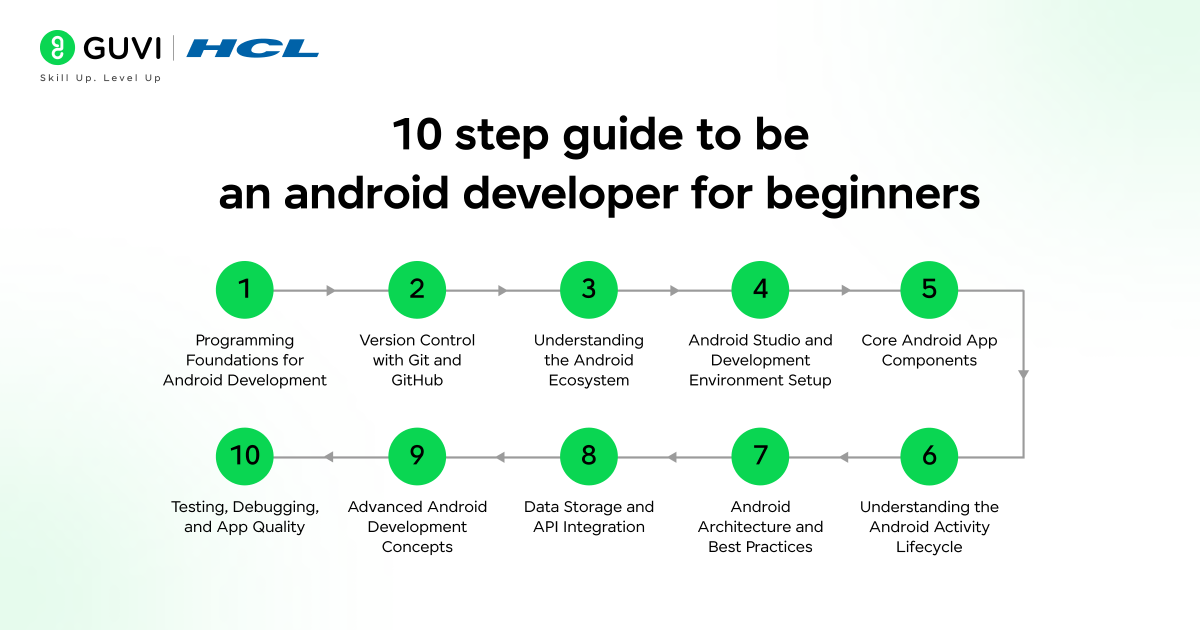
- Step 1 – Programming Foundations for Android Development
- Programming Logic and Problem-Solving Basics
- Object-Oriented Programming (OOP) Explained
- Kotlin vs Java: Best Language for Android Development
- Core Kotlin Concepts Every Android Developer Needs
- Null Safety and Data Classes in Kotlin
- Lambdas and Higher-Order Functions:
- Coroutines for Background Tasks
- Step 4 – Android Studio and Development Environment Setup
- Understanding Android Project Structure:
- Gradle Basics for Android Beginners
- Step 5 – Core Android App Components
- Activities and Fragments Explained
- Understanding the Android Activity Lifecycle
- Intents and Navigation Between Screens
- Services and Broadcast Receivers with Examples
- Android UI Development (XML and Jetpack Compose)
- XML Layouts vs Jetpack Compose
- Material Design Principles for Android Apps
- Responsive Layouts Using Constraint Layout
- Android Architecture and Best Practices
- Why Android App Architecture Matters
- Good architecture makes your code:
- MVVM Architecture Explained Simply
- ViewModel, LiveData, and StateFlow
- Step 8 – Data Storage and API Integration
- SharedPreferences vs DataStore
- Room Database for Offline Storage
- REST API Integration with Retrofit
- JSON Parsing and Error Handling
- Advanced Concepts in the Android Developer Roadmap
- Background Tasks with WorkManager:
- Notifications:
- Permissions:
- Performance Optimization:
- App Security Basics:
- Step 10 – Testing, Debugging, and App Quality
- Unit Testing Fundamentals:
- UI Testing with Espresso:
- Debugging Tools in Android Studio:
- Common Performance Issues:
- Publish Android Apps, Monetize, and Get Hired
- Publishing Apps on Google Play Store:
- App Signing & Release Process:
- Building a Strong Android Portfolio
- Freelancing vs Full-Time Jobs
- Interview Preparation Tips
- Android Developer Learning Timeline (0–12 Months)
- 0-3 Months: Beginner Phase
- 3-6 Months: Intermediate Phase
- 6-12 Months: Job-Ready Developer
- Conclusion
- Frequently Asked Questions
- How long does it take to learn Android development?
- Is Kotlin enough for Android development?
- Can beginners learn Android development without experience?
- Do I need a computer science degree?
- What computer specs do I need?
- Can I learn Android development for free?
- Is Android development still a good career in the future?
- Should I learn Jetpack Compose or XML first?
- What projects should beginners build to learn Android development?
- Is Flutter or native Android better for beginners?
- How do I get my first Android developer job?
Why Android Development Is Still a Top Career in 2026
Before we dive into the roadmap, let’s talk about why Android development matters. Understanding the career scope helps you follow this Android developer roadmap with clarity and long-term goals in mind.
Android Market Share and Global Demand
Android runs on over 70% of smartphones worldwide. That’s billions of devices. Every business needs mobile apps, and Android developers are in high demand.
Here’s what makes Android development a smart career choice:
- High demand, good pay – Entry-level Android developers earn ₹3L – ₹7L/yr per year in India.
- Build real products – Your apps can reach millions of users on the Google Play Store
Android vs iOS vs Cross-Platform
While iOS development pays well, too, Android has a bigger market share globally. Cross-platform tools like Flutter are popular, but native Android development still offers the best performance and deepest Android features.
Step 1 – Programming Foundations for Android Development
You can’t build Android apps without understanding basic programming first.
Programming Logic and Problem-Solving Basics
- Programming Logic – Learn how computers think. Understand variables, loops, and conditions. Think of it like learning the alphabet before writing sentences.
- Problem Solving – Programming is all about breaking big problems into smaller steps. Practice thinking logically.
This step forms the foundation of any successful Android developer roadmap, helping you think like a programmer before building apps.
Before diving deeper into IoT mobile app development, check out HCL GUVI’s Mobile Application Development Course. This course helps you master IoT fundamentals, build real-world mobile apps, work with Arduino and Android Studio, and earn a recognized certification to boost your career.
Object-Oriented Programming (OOP) Explained
This is how modern apps are built. Learn about:
- Classes and Objects – Think of a class as a blueprint and an object as the actual thing you build from it
- Inheritance – Reusing code to save time
- Encapsulation – Keeping your code organized and secure
Kotlin vs Java: Best Language for Android Development
Why Kotlin Is the Official Android Language
- Google made Kotlin the official language for Android in 2019
- Kotlin code is shorter and easier to read than Java
- It has modern features that prevent common bugs
- Most new Android projects use Kotlin
Java is older and still used in some companies, but if you’re starting fresh, go with Kotlin.
Now it’s time to get comfortable with Kotlin.
Core Kotlin Concepts Every Android Developer Needs
Kotlin Syntax, Variables, and Functions
- Basic Syntax – Variables, functions, and control flow. Kotlin reads almost like English, which makes it beginner-friendly.
Null Safety and Data Classes in Kotlin
- Null Safety – One of Kotlin’s superpowers. It helps you avoid app crashes caused by null values (empty data).
- Data Classes – A quick way to create classes that store data. Perfect for representing things like users, products, or messages.
Lambdas and Higher-Order Functions:
Lambdas – Short, anonymous functions that make your code cleaner. You’ll use these everywhere in Android.
Coroutines for Background Tasks
- Coroutines – This is how you handle tasks that take time, like downloading data from the internet. Coroutines let your app stay smooth and responsive.
- Learning Time: Give yourself 2-4 weeks to get comfortable with Kotlin basics.
Step 4 – Android Studio and Development Environment Setup
- Android Studio is where you’ll build all your apps. It’s free and made by Google.
- Install Android Studio – Download it from the official Android website. It’s available for Windows, Mac, and Linux.
- System Requirements: You’ll need at least 8GB of RAM and 10GB of free space. More is better.
Understanding Android Project Structure:
When you create a new project, you’ll see lots of folders. Don’t panic. Here’s what matters:
- app/src/main – Where your code lives
- res/ – Contains images, layouts, and other resources
- AndroidManifest.xml – Tells Android what your app can do
- build.gradle – Configuration files (you’ll learn these gradually)
Gradle Basics for Android Beginners
- Gradle is the build system for Android. Think of it as the tool that takes your code and turns it into an actual app.
You don’t need to master Gradle on day one. Just know it manages your app’s dependencies.
Step 5 – Core Android App Components
Every Android app is made up of four main components. Understanding these is crucial.
Activities and Fragments Explained
- Activities – Think of these as different screens in your app. Your login screen is one activity. Your home screen is another.
- Fragments – Smaller, reusable pieces of UI that live inside activities. Like building blocks you can mix and match.
Understanding the Android Activity Lifecycle
- Activities go through states: created, started, running, paused, stopped, destroyed. Your app needs to handle each state properly.
- Why does this matter? If a user gets a phone call while using your app, your activity gets paused. You need to save their progress.
Intents and Navigation Between Screens
Intents are messages that let different parts of your app (or other apps) talk to each other.
Want to open a new screen? Use an intent. Want to share something on Instagram? Use an intent.
Services and Broadcast Receivers with Examples
- Services – Run tasks in the background, like playing music or syncing data.
- Broadcast Receivers – Listen for system-wide events, like when the phone battery is low or WiFi connects.
- Real Use Case: A music app uses a service to keep playing songs even when you switch apps.
Android UI Development (XML and Jetpack Compose)
How your app looks matters. A good UI keeps users happy.
XML Layouts vs Jetpack Compose
- XML Layouts (Traditional) – You design screens using XML code. It’s been around since Android began.
- Jetpack Compose (Modern) – Google’s new way to build UI using Kotlin code instead of XML. It’s faster and more flexible.
- Which Should You Learn First? Start with XML to understand the basics, then move to Jetpack Compose. Many companies still use XML, but Compose is the future.
Material Design Principles for Android Apps
Material Design is Google’s design language. It gives your app a modern, professional look.
Key ideas:
- Use consistent colors and spacing
- Add smooth animations
- Make buttons and text easy to tap
- Follow Android’s style guidelines
Responsive Layouts Using Constraint Layout
Your app needs to work on small phones, big tablets, and everything in between.
ConstraintLayout is the best tool for this. It lets you position elements relative to each other, so your layout adapts to any screen size.
Android Architecture and Best Practices
When your app grows, messy code becomes a nightmare. Architecture keeps things organized.
As you move further along the Android developer roadmap, learning proper app architecture becomes crucial for building scalable apps.
Why Android App Architecture Matters
Without good architecture, your code becomes a tangled mess. Adding features gets harder. Fixing bugs takes forever.
Good architecture makes your code:
- Easy to test
- Easy to update
- Easy for other developers to understand
MVVM Architecture Explained Simply
- MVVM stands for Model-View-ViewModel. It’s the most popular architecture for Android apps.
- Model – Your data (like a list of users or products) View – What the user sees (your UI) ViewModel – The middleman that connects Model and View
Why separate these? Because when you change your UI, you don’t have to rewrite your data logic. Everything stays clean.
ViewModel, LiveData, and StateFlow
- ViewModel – Stores data that survives screen rotations and other lifecycle changes.
- LiveData & StateFlow – These let your UI automatically update when data changes. Like magic, but it’s just smart coding.
- Clean Architecture Overview for Android Apps
Clean Architecture takes things further by organizing code into layers. You don’t need this on day one, but it’s important for bigger apps.
Learning Tip: Build a simple app with MVVM first. Clean Architecture can wait until you’re comfortable.
Step 8 – Data Storage and API Integration
Data handling and APIs are advanced but necessary steps in the Android developer roadmap, especially for real-world applications. Apps need to save data and talk to the internet. Here’s how.
SharedPreferences vs DataStore
- SharedPreferences – Save simple data like user settings (dark mode on/off, username, etc.)
- DataStore – The modern replacement for SharedPreferences. It’s safer and more reliable.
Use these for small amounts of data you want to remember between app sessions.
Room Database for Offline Storage
When you need to store lots of data (like a to-do list or offline messages), use Room.
Room is a database that lives on the user’s phone. It’s fast, reliable, and works offline.
Example: A note-taking app uses Room to store all your notes locally.
REST API Integration with Retrofit
- Most apps get data from the internet. Retrofit makes this easy.
- API stands for Application Programming Interface. It’s how your app asks a server for data.
- Retrofit is a library that handles the complicated parts of making network requests. You just tell it what data you want, and it gets it for you.

JSON Parsing and Error Handling
- Data from APIs usually comes in JSON format (it looks like JavaScript code). Android can automatically convert this into Kotlin objects.
Error Handling: Always plan for internet failures. What happens if the user has no WiFi? Your app should handle this gracefully.
Advanced Concepts in the Android Developer Roadmap
Advanced topics mark the transition from beginner to professional in the Android developer roadmap. Once you’ve mastered the basics, these topics take you to the next level.
Background Tasks with WorkManager:
- Some tasks take time, like uploading photos or syncing data. WorkManager schedules these to run at the best time, even if the user closes your app.
Why Not Just Use a Service? Android kills services to save battery. WorkManager is smarter, it guarantees your task will run eventually.
Notifications:
Notifications remind users about important events. Done right, they’re helpful. Done wrong, they’re annoying.
Best Practice: Only send notifications users actually want. Let them control notification settings.
Permissions:
Android protects user privacy with permissions. Want to access the camera? You need permission. Want to read contacts? Ask first.
Runtime Permissions: Your app must ask for dangerous permissions while it’s running, not just during installation.
Performance Optimization:
Slow apps get uninstalled. Here’s how to keep yours fast:
- Load images efficiently (use libraries like Glide)
- Don’t do heavy work on the main thread
- Release resources you’re not using
- Profile your app with Android Studio tools
App Security Basics:
- Never store passwords in plain text
- Use HTTPS for all network requests
- Validate user input to prevent hacks
Step 10 – Testing, Debugging, and App Quality
Professional developers test their code. Here’s how.
Unit Testing Fundamentals:
- Unit tests check individual pieces of code to make sure they work correctly.
Example: If you have a function that adds two numbers, a unit test makes sure it always returns the right answer.
Learning Tip: Start with simple tests. Testing seems boring at first, but it saves you from embarrassing bugs later.
UI Testing with Espresso:
- Espresso tests your app’s UI automatically. It clicks buttons, fills in text, and checks if the right things appear.
- Think of it as a robot that uses your app and reports any problems.
Debugging Tools in Android Studio:
When your app crashes or behaves weirdly, debugging tools help you find why.
- Logcat – Shows messages from your app. Use it to see what’s happening behind the scenes.
- Debugger – Lets you pause your code and examine variables step by step.
- Profiler – Shows CPU, memory, and network usage to find performance problems.
Common Performance Issues:
- Memory leaks (your app keeps using more RAM until it crashes)
- Slow database queries
- Loading too much data at once
- Main thread blocked by heavy work
Publish Android Apps, Monetize, and Get Hired
You’ve built an app. Now what?
Publishing Apps on Google Play Store:
The Google Play Store is where users download Android apps. Publishing is easier than you think.
Steps:
- Create a developer account ($25 one-time fee)
- Prepare your app’s screenshots and description
- Sign your app with a release key
- Upload your app bundle
- Wait for Google’s review (usually 24-48 hours)
App Signing & Release Process:
Debug vs Release: Debug builds are for testing. Release builds are for real users. They’re signed with a secret key that proves you’re the real developer.
Important: Never lose your signing key. Without it, you can’t update your app.
Building a Strong Android Portfolio
Portfolio Tips:
- Build 3-5 solid apps that solve real problems
- Put them on GitHub so employers can see your code
- Publish at least one app on the Play Store
- Write clear README files explaining what each app does
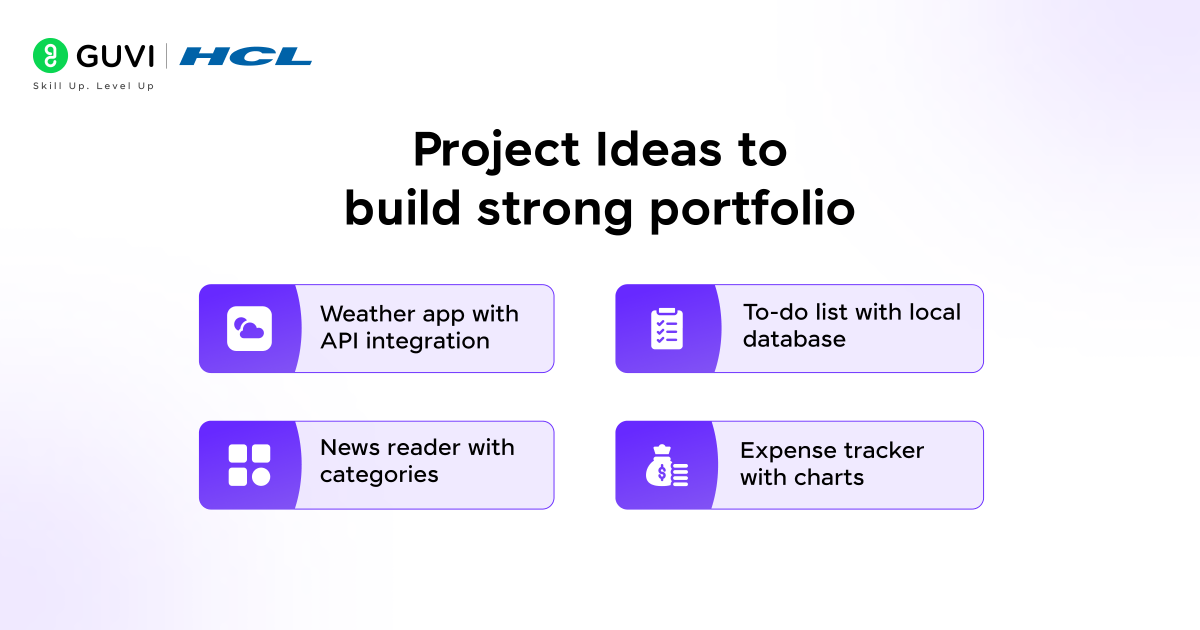
Project Ideas:
- Weather app with API integration
- To-do list with local database
- News reader with categories
- Expense tracker with charts
Freelancing vs Full-Time Jobs
- Freelancing – Work for multiple clients, set your own hours, higher income potential but less stable.
- Full-Time – Steady paycheck, benefits, team collaboration, and learning from experienced developers.
Most developers start full-time to gain experience, then freelance later.
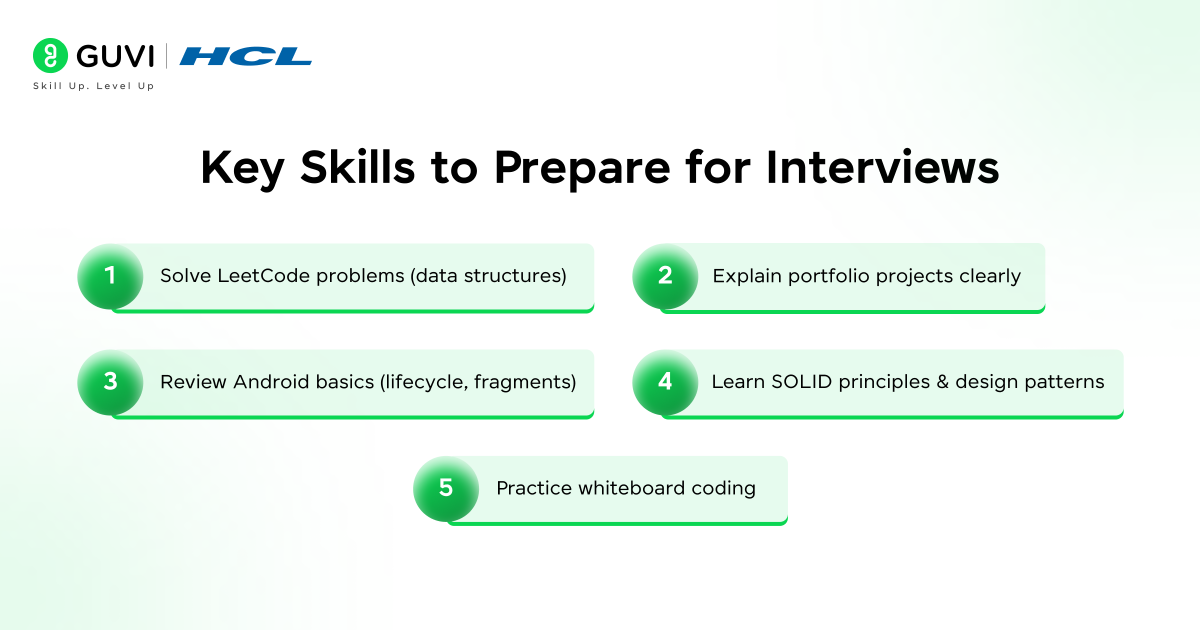
Interview Preparation Tips
- Practice coding problems on LeetCode (focus on data structures)
- Review Android basics (Activity lifecycle, fragments, etc.)
- Prepare to explain your portfolio projects in detail
- Learn about SOLID principles and design patterns
- Practice whiteboard coding
Common Interview Questions:
- What’s the difference between Activity and Fragment?
- Explain the Android lifecycle
- How do you handle screen rotation?
- What’s the difference between LiveData and StateFlow
Android Developer Learning Timeline (0–12 Months)
Everyone learns at different speeds, but here’s a realistic timeline:
0-3 Months: Beginner Phase
What You’ll Learn:
- Programming basics and Kotlin
- Android Studio setup
- Simple apps with basic UI
- Activities and fragments
Time Commitment: 10-15 hours per week
Milestone: Build a calculator app or simple game
3-6 Months: Intermediate Phase
What You’ll Learn:
- MVVM architecture
- Room database
- API integration with Retrofit
- More complex UI
Time Commitment: 15-20 hours per week
Milestone: Build a weather app or news reader
6-12 Months: Job-Ready Developer
What You’ll Learn:
- Advanced concepts (WorkManager, notifications)
- Testing and debugging
- Performance optimization
- Publishing apps
Time Commitment: 20+ hours per week
Milestone: 3-5 portfolio projects and 1-2 published apps
Can you learn faster? Yes, if you code full-time. Can it take longer? Absolutely, and that’s okay. Consistency matters more than speed.
Actionable Steps:
Android development is a valuable skill that can change your career and life. You now have a complete roadmap to follow.
Conclusion
Android development is a powerful, future-proof career with global demand. This roadmap gives you a clear, step-by-step path from beginner to job-ready developer. Focus on consistency, build real projects, and keep learning. With patience and practice, you can confidently become a successful Android developer.
Frequently Asked Questions
1. How long does it take to learn Android development?
If you study 10-15 hours per week, you can reach a job-ready level in 6-12 months. Complete beginners might need the full 12 months. People with programming experience can do it in 4-6 months.
2. Is Kotlin enough for Android development?
Yes. Kotlin is Google’s preferred language and is used in 95% of new Android projects. You might see some Java in older projects, but learning Kotlin first is the smart move.
3. Can beginners learn Android development without experience?
Absolutely. Many successful Android developers started with zero programming knowledge. You just need patience and dedication. Start with programming basics, then move to Android-specific concepts.
4. Do I need a computer science degree?
No. Many Android developers are self-taught or learned through boot camps. Companies care more about your skills and portfolio than your degree.
5. What computer specs do I need?
Minimum: 8GB RAM, 10GB free space, decent processor. Recommended: 16GB RAM, SSD drive, modern processor
6. Can I learn Android development for free?
Yes. Android Studio is free. Countless free tutorials exist on YouTube, documentation, and coding websites. You only pay $25 when you publish to the Play Store.
7. Is Android development still a good career in the future?
Yes. Android powers over 70% of smartphones worldwide, and demand for skilled Android developers remains strong across startups, enterprises, and remote roles. With ongoing platform updates and app innovation, Android development continues to offer long-term career stability.
8. Should I learn Jetpack Compose or XML first?
Beginners should start with XML to understand traditional Android UI fundamentals, then move to Jetpack Compose. Many existing projects still use XML, while Jetpack Compose is the future and increasingly required in modern Android development roles.
9. What projects should beginners build to learn Android development?
Good beginner projects include a calculator app, a to-do list, a weather app, a notes app, or an expense tracker. These projects help you practice UI design, data storage, APIs, and app architecture, skills employers look for.
10. Is Flutter or native Android better for beginners?
Native Android development with Kotlin is better for beginners who want deep Android knowledge and better job opportunities. Flutter is useful for cross-platform apps, but native Android offers better performance, platform features, and long-term career growth.
11. How do I get my first Android developer job?
Build 3–5 solid apps, publish at least one on the Google Play Store, maintain a GitHub portfolio, and practice Android interview questions. Entry-level roles value practical skills and real projects more than certifications or degrees.
Success Stories

About the Author
Salini Balasubramaniam
A curious, information-savvy writer loves to turn deep insights into authentic and engaging content that connects. With experience in writing for brands and driving audience engagement, I believe that words can make a powerful difference.
View all posts by Salini Balasubramaniam
Connect with me @
































Did you enjoy this article?