


Software Development Articles
My Google SDE Interview Experience: From Rejection to Selection [2026 Success Story]
Apple Interview Experience for Software Developers: What to Expect
Decoding Differences between Network OS and Distributed OS
Operating System Examples: Top OS Types, Features, and Uses Explained


Get In Touch For Details! Request More Information
Operating System Commands: The Ultimate Beginner’s Guide (2025)
Jan 06, 2026 3 Min Read 2908 Views
(Last Updated)
Operating systems enable effortless interaction between the user and the machine. Regardless of whether you use Windows, macOS, or Linux, the commands that the system provides will help you organise the machine’s files, processes, memory, and network management. The system commands will also allow you to automate actions, and move through your tasks more quickly and easily and help you resolve system troubles more quickly and easily, too.
In this blog, you will learn what system commands are and the types of system commands, regardless of which system you use.
Table of contents
- What Are Operating System Commands?
- Categories of Operating System Commands
- File and Directory Management Commands
- The System Information Commands
- Network Commands
- Disk Management Commands
- User Management Commands
- Common Operating System Commands in Windows
- Common Operating System Commands in Linux and macOS
- Advanced Operating System Commands
- Command Prompt vs Terminal
- Wrapping it up:
- FAQs
- What are operating system commands used for?
- Are operating system commands the same in Windows and Linux?
- Can I use operating system commands without admin rights?
- What's the best way to learn operating system commands?
What Are Operating System Commands?
Operating system commands are specific instructions to the system via a command-line interface (CLI) or terminal. These commands let users interact directly with the operating system, performing tasks more rapidly and efficiently than graphical user interfaces (GUIs).
For example, rather than deleting a file manually with the mouse, you simply input del (in Windows) or rm (in Linux), and it deletes that file immediately.
In short, these commands enable a user to perform complicated tasks such as configuring the system and managing files and users using basic text input.
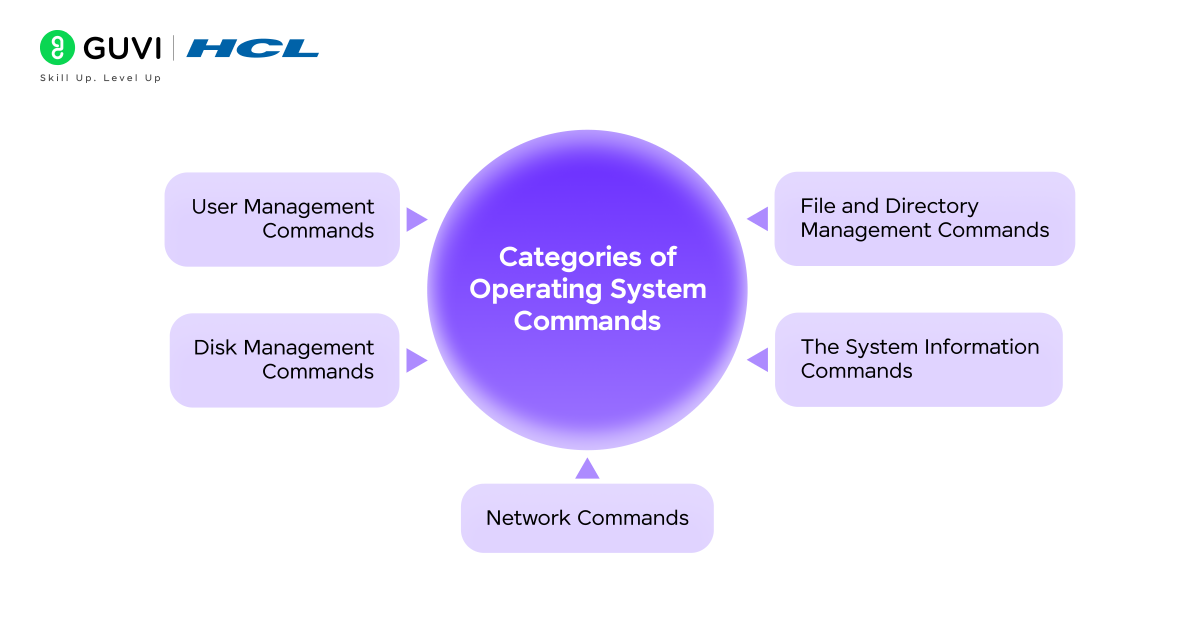
Categories of Operating System Commands
Various operating systems are accompanied by their own commands, yet they are all generally similar in that they are all designed to manage files, users and system processes. Some of the common categories are:
1. File and Directory Management Commands
These commands are useful in organizing the data of the user.
Windows:
- dir – The list of files and directories.
- copy – Replicates files between two destinations
- del – Deletes unwanted files.
Linux/macOS:
- ls – Displays files on a directory.
- cp – Makes copies of files and directories.
- rm – deletes directories or files.
These operating system instructions can be used to keep your file system clean easily.
Also read: Introduction to Operating Systems
2. The System Information Commands
Like to know the performance of your system? These commands give you the details.
Windows:
- systeminfo – Shows full system setup.
- tasklist – Displays all the processes in operation.
- hostname – Displays the computer name.
Linux/macOS:
- top – shows running processes and system load.
- uname -a – Provides system information.
- df -h Summary Disk space usage.
With these operating system commands, you are able to easily monitor the performance and are able to troubleshoot.
3. Network Commands
These commands are essential to any person handling servers or connections.
Windows:
- ping – Checks network connectivity.
- ipconfig – Prints IP configuration.
- netstat – Displays network statistics and connections
Linux/macOS:
- ifconfig – Changes or displays network interfaces.
- ping – Monitor the connection between two systems
- netstat – Tracks network performance.
Using these operating system commands, you are able to detect and resolve connectivity problems within a short time.
Also read: Components of an Operating System

4. Disk Management Commands
Management of disks is essential in order to have a healthy and well-organized storage system.
Windows:
- disk clean – Checks and repairs disk errors.
- diskpart – Disk administration.
- format – Formats a disk drive.
Linux/macOS:
- fdisk – Partitions tool.
- df – Shows free disk space.
- du – Displays directory size.
These operating system commands allow the user to manage the drives as well as ensure maximum performance.
5. User Management Commands
The operating systems can easily accommodate many users, particularly in servers and corporations.
Windows:
- net user – User account management.
- whoami – shows the current user who is logged in.
Also read: 3 Ways to Install Linux on a Windows Machine
Linux/macOS:
- adduser – Adds a user account.
- passwd – alters passwords of users.
- sudo – Provides administrative privileges.
These are operating system commands, which make it easy and safe to manage users and permissions.
Also read: Functions of Operating System: A Beginner’s Guide 2025
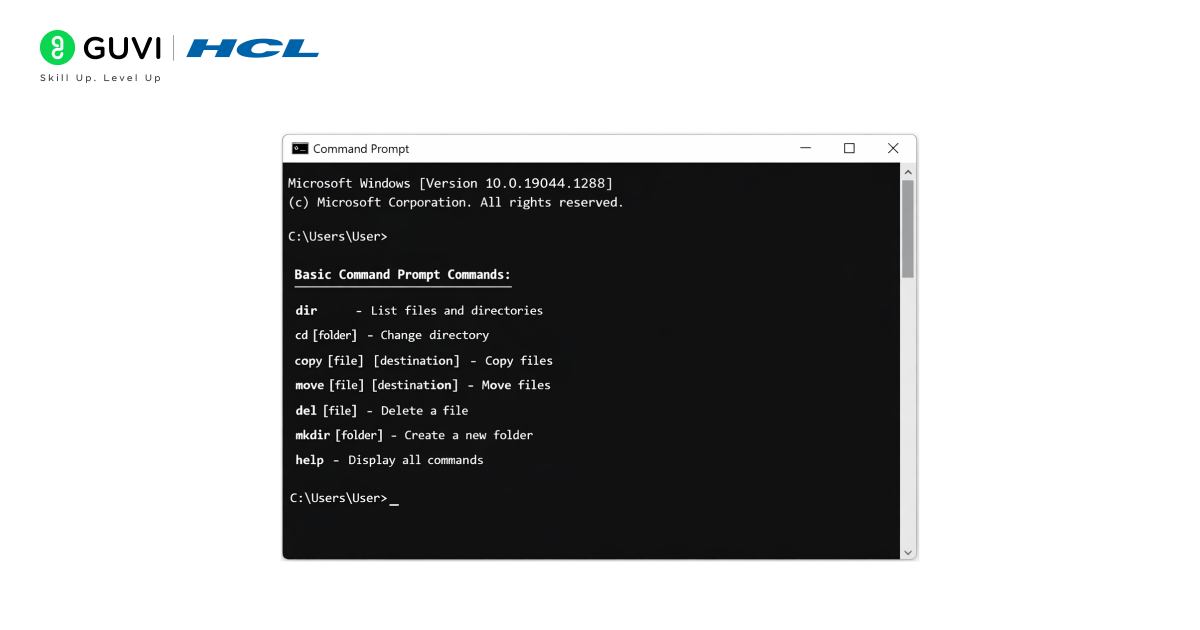
Common Operating System Commands in Windows
Here are some of the most common commands used in Windows:
| Command | Description |
| dir | Displays files and folders in the current directory. |
| cd | Change the directory. |
| copy | Copies one or more files to another location. |
| del | Deletes a specified file. |
| cls | Clears the screen. |
| ipconfig | Displays the system’s IP configuration. |
| tasklist | Lists all running processes. |
| ping | Test the connectivity between devices. |
| chkdsk | Scans and repairs disk errors. |
| shutdown | Shuts down or restarts the computer. |
Common Operating System Commands in Linux and macOS
Here are some of the most common commands used in Linux and macOS:
| Command | Description |
| ls | Lists directory contents. |
| cd | Changes the working directory. |
| pwd | Displays the current directory path. |
| cp | Copies files or directories. |
| mv | Moves or renames files. |
| rm | Removes files or directories. |
| touch | Creates an empty file. |
| cat | Displays file contents. |
| sudo | Executes commands with administrative privileges. |
| df -h | Shows available disk space in a readable format. |

Advanced Operating System Commands
If you are looking to enhance your command-line skills, here are some advanced commands you will want to learn:
Windows:
- sfc /scannow – Scans for corrupted files and repairs them if they are found.
- netstat -an – Displays all of the network connections that are currently active.
- powercfg /energy – Produces a report on energy efficiency.
Also read: How to Set Up Your Environment to Practice Linux Commands?
Linux/macOS:
- grep – Searches for patterns in files
- chmod – Changes file permissions.
- ps aux – Displays all the processes that are currently running.
- tar – Archives multiple files into a single file
For advanced users managing complex systems, these operating system commands are the best commands to learn. System Administrators, Developers, and Power Users will find extensive use for these advanced commands.
Command Prompt vs Terminal
Although both interfaces can be used to execute a command, there is a difference.
- Command Prompt (cmd): Is used in Windows OS, offering access to system utilities and batch scripting.
- Terminal: Is used in macOS and Linux, often paired with powerful shells like Bash or Zsh.
Learn to master operating system commands and build real-world projects with HCL GUVI’s AI Software Development Course co-designed by IITM Pravartak. Start your learning journey today and grow into a confident software developer!
Wrapping it up:
Learning operating system commands is one of the most useful skills you can have when working on a computer. In addition to improving your efficiency, you will also be better positioned to gain complete access and control of your system while performing tasks that a graphical user interface could constrain. You will find getting the most out of your system easier, whether you are troubleshooting files, inspecting network settings, or automating your daily routine. Understanding how operating system commands operate will help you do any of these tasks quickly and with more confidence.
With so many tutorials, online courses, and practice opportunities, learning operating system commands has never been easier. Just start with the Blog as it covers all the basics, practice with them frequently, and before you know will master the vast capabilities of your operating system one command at a time.
FAQs
1. What are operating system commands used for?
They are used to interact directly with the operating system for operations such as file management, network configuration, and process control.
2. Are operating system commands the same in Windows and Linux?
No, the function is similar between the two operating systems, but the commands and syntax vary.
3. Can I use operating system commands without admin rights?
Yes, but some commands require administrative access and some commands that change system properties require elevated access.
4. What’s the best way to learn operating system commands?
Start with basic commands, practice on a terminal, and start using scripts or automation once you’re comfortable.
Success Stories

About the Author
Vishalini Devarajan
An Aerospace Engineer turned content writer, I focus on making complex concepts easy to understand through well-structured, reader-friendly blogs. Whether it’s a technical topic or a non-technical one, I love creating content that is clear, engaging, and impactful.
View all posts by Vishalini Devarajan
Connect with me @













Did you enjoy this article?