


Software Development Articles
My Google SDE Interview Experience: From Rejection to Selection [2026 Success Story]
Apple Interview Experience for Software Developers: What to Expect
Decoding Differences between Network OS and Distributed OS
Operating System Examples: Top OS Types, Features, and Uses Explained


Get In Touch For Details! Request More Information
8 Different Types of Operating Systems You Should Know
Feb 26, 2026 7 Min Read 12941 Views
(Last Updated)
Have you ever wondered what actually makes your computer or phone work behind the scenes? Every tap, click, and scroll you make depends on something called an operating system (OS), the lesser-known hero that keeps your device alive and responsive.
No matter if you’re using Windows on a laptop, Android on a phone, or macOS on a desktop, the OS is the core that manages everything from memory to multitasking. But here’s the interesting part: not all operating systems are built the same. Different environments and devices demand different types of OS, each with its own strengths, purpose, and personality.
That’s why in this article, we will break down the main types of operating systems and see how each one powers the world of technology in its own way. So, without further ado, let us get started!
Table of contents
- What is an Operating System?
- Key Functions of an Operating System
- Process Management
- Memory Management
- File Management
- Device Management (I/O Control)
- Security and Access Control
- Types of Operating Systems
- Batch Operating System
- Multiprogramming Operating System
- Multitasking or Time-Sharing Operating System
- Multiprocessing Operating System
- Distributed Operating System
- Network Operating System (NOS)
- Real-Time Operating System (RTOS)
- Mobile Operating System
- Bringing It All Together
- Conclusion
- FAQs
- What are the main types of operating systems?
- How is a real-time operating system different from a regular OS?
- Why do we need a network operating system when we already have desktop OS?
- What is the difference between a distributed OS and a multiprocessor (or multiprocessing) OS?
- Can a mobile operating system be considered a type of regular OS?
What is an Operating System?
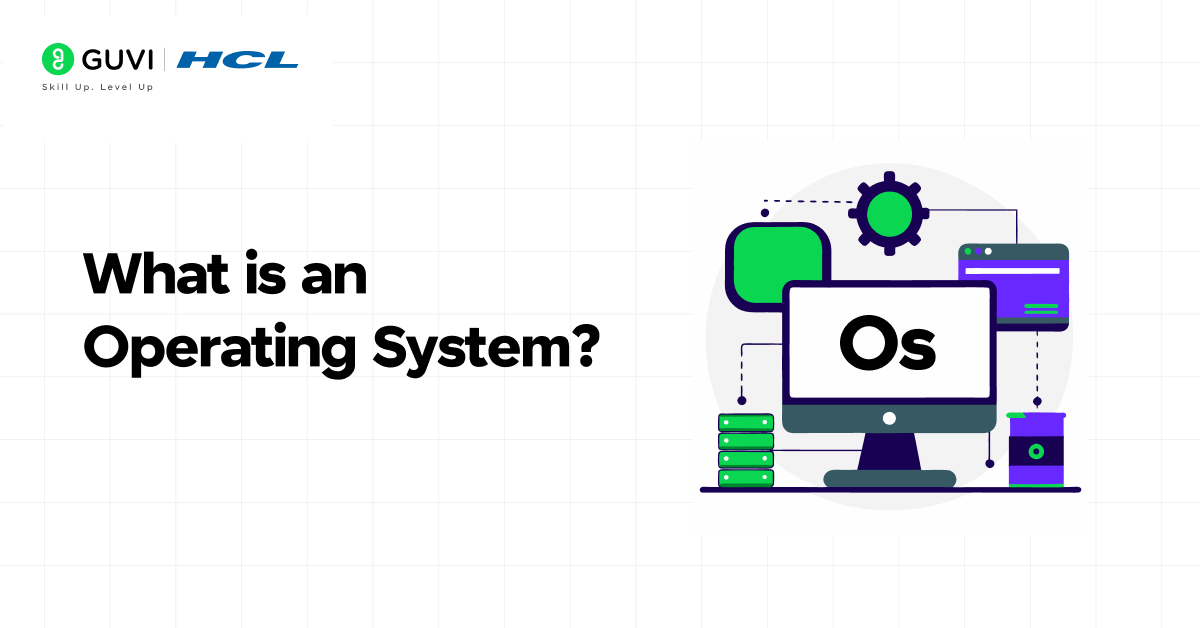
The operating system is the layer of software that sits between you (the user) and the hardware of your device. It manages hardware resources (like CPU, memory, storage, I/O), provides user interfaces (graphical or command-line), and gives applications a platform to run.
To put it simply, you don’t talk directly to your device’s hardware (the processor, memory, or disk). Instead, there’s a piece of software sitting right in the middle that handles all the talking for you. That software is the Operating System (OS).
Think of it like this:
- The hardware is the engine.
- The applications are the drivers.
- And the operating system? It’s the control system that connects the two, making sure everyone’s speaking the same language.
Without an operating system, your device is just a collection of circuits and components with no coordination. You could have the most powerful hardware in the world, but without an OS, it wouldn’t know what to do.
Looking to move beyond basic ChatGPT skills? Here’s your chance to be a part of Be part of the Bharat AI Initiative, a nationwide movement by HCL GUVI, in association with OpenAI, built to help India’s youth develop advanced ChatGPT skills absolutely free! Learn structured prompting, refine responses with clarity, and apply ChatGPT more effectively in projects, assignments, and everyday work. Learn in English, Hindi, Marathi, Tamil, or Telugu and start your free AI journey!
Key Functions of an Operating System
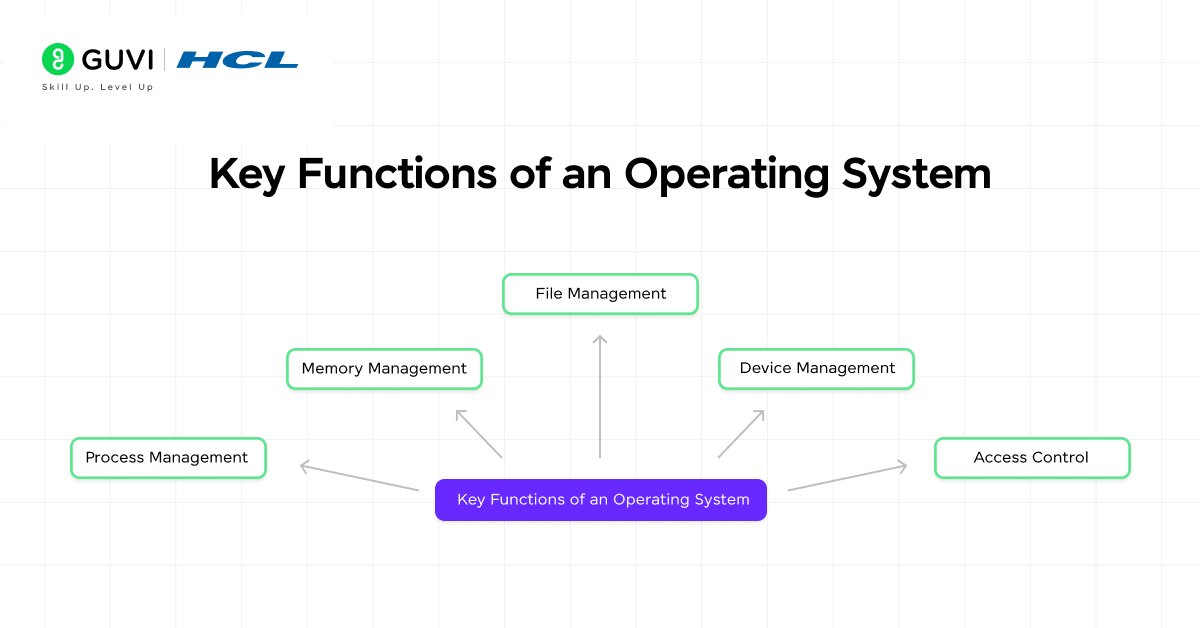
Alright, now that you get what an OS is, let’s unpack what it actually does, the everyday jobs it performs so that you don’t have to think about them.
You can think of an OS as a multitasking project manager. Here’s what that manager handles on your device:
1. Process Management
Every app or program you open, from your browser to your music player, is a “process.” The OS decides:
- Which process runs first?
- How much time each gets on the CPU, and
- When to pause or stop them.
If your OS didn’t manage this smartly, apps would fight over resources and your system would freeze. You know that smooth switching between tabs or tasks? That’s your OS quietly switching multiple processes in the background.

2. Memory Management
Your computer’s memory (RAM) is like a shared workspace. The OS decides who gets a desk (how much memory each program uses), makes sure they don’t overwrite each other’s work, and clears space when someone leaves (when you close an app).
Without memory management, your apps could crash, slow down, or simply fail to run. So the next time your system tells you it’s “low on memory,” that’s your OS waving a flag saying, “I’ve run out of workspace!”
3. File Management
Think about how you create folders, rename files, and move documents. That’s not your hard drive doing it on its own, it’s the OS managing how data is stored and retrieved.
It organizes everything using a file system, so you can access “Documents > Reports > Budget.xlsx” instead of memorizing file addresses like C:/user/data/132A/file9.tmp.
4. Device Management (I/O Control)
Ever plugged in a printer, USB, or headphones and it “just works”? That’s because your OS includes something called drivers, small programs that let the OS talk to external devices. The OS keeps track of all input/output devices, decides which apps can use them, and prevents conflicts.
5. Security and Access Control
Your OS is also your first line of defense. It controls who can access your files, what programs can run, and how data is protected.
From user logins and permissions to encryption and antivirus integration, it’s the OS keeping your digital world safe. If you’ve ever seen a “Permission denied” message, that’s your OS protecting you from potential chaos (or malware).
Here’s the big takeaway: Your Operating System isn’t just a background program, it’s the foundation that makes everything else possible.
Want to deepen your understanding of Operating Systems beyond theory?
Explore HCL GUVI’s Operating System Handbook to strengthen your fundamentals, revise key concepts, and build a solid foundation for interviews and real-world applications.
Types of Operating Systems
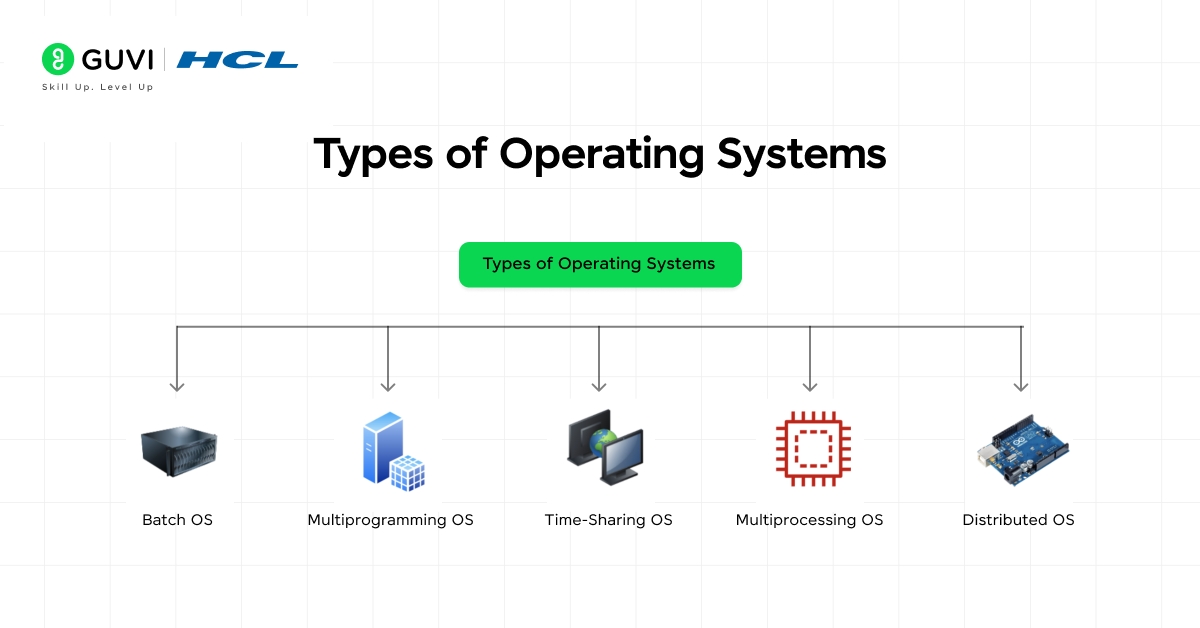
Not all computers are built for the same purpose. A smartwatch, a gaming PC, a hospital ventilator, and a data center all use operating systems, but the way those systems think and behave can be very different.
Let’s break them down.
1. Batch Operating System
A batch OS handles groups of similar jobs (tasks) submitted as a batch, without interactive user input during processing.
For example, imagine you’re an accountant in the 1960s. You give the mainframe a stack of punched cards containing payroll data. The computer runs the entire batch at night and hands you the results in the morning. That’s batch processing in a nutshell.
How it works:
- Users prepare jobs and submit them together (as a batch).
- The OS groups similar tasks and executes them in sequence.
- There’s no user interaction once the batch starts running.
Key advantages:
- Efficient for large, repetitive tasks.
- No need for constant user monitoring.
Limitations:
- You can’t stop midway or fix errors interactively.
- If one job fails, the rest might be delayed.
Where it’s used today: Even though it sounds old-school, batch processing is still around, in payroll systems, bank statement generation, and big data jobs that run overnight.
2. Multiprogramming Operating System
A Multiprogramming OS allows more than one program to reside in memory at the same time. The OS keeps multiple programs in memory simultaneously and switches between them, so that the CPU doesn’t stay idle.
Why is that useful? Because not all programs use the CPU continuously. Let’s say Program A is waiting for user input or for data from disk, the CPU would be sitting idle in a batch system. Multiprogramming solves this by giving that idle time to another program (Program B).
So, instead of waiting, the CPU switches between programs, keeping itself busy all the time.
Benefits:
- Better CPU utilization.
- More work gets done in less time.
Drawbacks:
- Complex to manage, programs must share memory safely.
- If one crashes, it can sometimes affect others.
Modern example: Almost every general-purpose computer uses some form of multiprogramming, including Windows, macOS, and Linux.
Looking to move beyond basic ChatGPT skills? Here’s your chance to be a part of Be part of the Bharat AI Initiative, a nationwide movement by HCL GUVI, in association with OpenAI, built to help India’s youth develop advanced ChatGPT skills absolutely free! Learn structured prompting, refine responses with clarity, and apply ChatGPT more effectively in projects, assignments, and everyday work. Learn in English, Hindi, Marathi, Tamil, or Telugu and start your free AI journey!
3. Multitasking or Time-Sharing Operating System
It is a type of operating system where many tasks (or many users) share computing time, so each appears to have a dedicated system. Now imagine extending multiprogramming to many users at once. That’s Time-Sharing, also known as Multitasking.
Here, multiple users (or applications) share the system simultaneously. The OS slices time into very small units (called time quanta) and rapidly switches between tasks.
Why it matters:
- It made computing interactive.
- It introduced the idea of multiple users sharing one system without interfering with each other.
Example in real life: Every modern desktop and smartphone OS is multitasking, from Windows letting you open 10 apps at once to Android switching between chat apps seamlessly.
4. Multiprocessing Operating System
It is an OS that works with more than one processor (CPU) at the same time for executing multiple processes in parallel.
Instead of one CPU doing all the work, tasks are divided and processed in parallel, which dramatically boosts performance.
Advantages:
- Increased throughput (more work done in less time).
- Better reliability, if one processor fails, others can take over.
Challenges:
- Synchronizing multiple processors can get tricky.
- Managing shared memory efficiently requires a smart OS.
You use this every day: Every modern laptop, smartphone, and server uses multicore processors, your OS constantly divides tasks between those cores.
5. Distributed Operating System
A type of OS where multiple autonomous computers appear to the user as a single coherent system, the computers communicate over a network and share resources. That’s a Distributed OS.
Here, several independent systems work together as one. The OS manages communication, coordination, and resource sharing between all the connected machines.
Example: Think of a streaming platform like Netflix. When you hit play, the data isn’t coming from a single computer, it’s coming from multiple servers distributed across the world, all coordinated behind the scenes.
How it works:
- Each node (computer) runs its own OS.
- The distributed OS manages resource sharing, load balancing, and communication between nodes.
Benefits:
- Scalability: You can easily add more machines.
- Reliability: If one node fails, others can handle the load.
Drawbacks:
- Complex design and maintenance.
- Dependent on stable network connections.
Where you’ll see it: Cloud computing, distributed databases, scientific simulations, and large-scale web services all rely on this concept.
6. Network Operating System (NOS)
A Network Operating System connects multiple computers through a network but treats them as separate entities. Unlike a distributed OS, which blends systems into one, a NOS provides centralized control while maintaining independence.
Think of it as a manager overseeing several employees, everyone does their own job, but the manager sets the rules and facilitates communication.
Functions:
- Manages network resources (files, printers, users).
- Controls access and permissions.
- Provides tools for data sharing and communication.
Advantages:
- Centralized administration (easy to manage users and devices).
- Supports shared resources like printers and drives.
Limitations:
- If the main server goes down, the network can grind to a halt.
- Setup and maintenance can be more expensive.
Examples: Windows Server, Linux-based NOS (like Ubuntu Server), Novell NetWare.
Don’t just understand how operating systems work… start building one yourself! Check out Best Operating System Project Ideas for Beginners and kickstart your hands-on journey with practical, resume-boosting projects that strengthen your core concepts and coding skills.
7. Real-Time Operating System (RTOS)
A Real-Time Operating System is built for tasks that must be executed exactly on time, no delays, no excuses. When you’re controlling a self-driving car, an airbag, or a robotic arm, a one-second delay could cause disaster. That’s why RTOS exists, to make sure tasks meet strict timing requirements.
Two types:
- Hard real-time: Missing a deadline is unacceptable (e.g., air traffic control, medical equipment).
- Soft real-time: Occasional delays are okay (e.g., video streaming, gaming systems).
Key features:
- Deterministic – the OS can predict exactly when a task will execute.
- Lightweight – minimal processing overhead.
- Prioritization – urgent tasks always run first.
Example: Automotive control systems, robotics, industrial automation, and IoT devices.
8. Mobile Operating System
This is the software that powers your phone, tablet, smartwatch, and other portable devices. It’s optimized for touch, connectivity, and battery life, and designed to keep apps running smoothly with limited resources.
Examples:
- Android (by Google)
- iOS (by Apple)
Key functions:
- Manage mobile hardware (sensors, cameras, radios).
- Support app ecosystems (Play Store, App Store).
- Handle real-time notifications and multitasking with minimal battery use.
Why it’s unique: Unlike traditional desktop OSes, mobile ones prioritize efficiency and user experience over raw power. Every touch, swipe, or voice command goes through layers of optimization before showing up on screen.
Bringing It All Together
Let’s recap in simple terms:
| Type | Core Idea | Typical Use | Key Trait |
| Batch OS | Executes grouped jobs | Data processing, payroll | No user interaction |
| Multiprogramming OS | Runs multiple programs in memory | PCs, mainframes | Keeps CPU busy |
| Multitasking OS | Shares CPU time among tasks | Desktops, phones | Interactive, responsive |
| Multiprocessing OS | Uses multiple processors | Servers, high-performance systems | Parallel execution |
| Distributed OS | Connects systems into one | Cloud, clusters | Resource sharing |
| Network OS | Centralized control of devices | Office LANs | User and resource management |
| Real-Time OS | Predictable timing | Embedded systems | Instant response |
| Mobile OS | Optimized for portable devices | Phones, tablets | Power-efficient, touch-based |
The key takeaway is this: There’s no “one-size-fits-all” operating system. The “best” OS depends entirely on what job needs to be done.
Looking to move beyond basic ChatGPT skills? Here’s your chance to be a part of Be part of the Bharat AI Initiative, a nationwide movement by HCL GUVI, in association with OpenAI, built to help India’s youth develop advanced ChatGPT skills absolutely free! Learn structured prompting, refine responses with clarity, and apply ChatGPT more effectively in projects, assignments, and everyday work. Learn in English, Hindi, Marathi, Tamil, or Telugu and start your free AI journey!
Did you know the very first operating systems didn’t even have screens? Back in the 1950s, programmers fed computers stacks of punched cards, and the results came out hours later on paper. Or that modern smartphones are more powerful than the computers NASA used to land on the Moon? The world around you, from your smartwatch to traffic lights, runs on different operating systems quietly making decisions in milliseconds.
If you’re serious about mastering software development along with AI and want to apply it in real-world scenarios, don’t miss the chance to enroll in HCL GUVI’s IITM Pravartak and MongoDB Certified Online AI Software Development Course. Endorsed with NSDC certification, this course adds a globally recognized credential to your resume, a powerful edge that sets you apart in the competitive job market.
Conclusion
In conclusion, an operating system is the silent conductor of every digital experience, guiding apps, managing hardware, and keeping everything running smoothly.
The next time you open your phone, stream a movie, or print a file at work, you’ll know there’s a carefully designed OS making that process effortless. Understanding these types doesn’t just make you tech-savvy, it helps you appreciate how deeply the operating system shapes the way we work, connect, and live.
FAQs
1. What are the main types of operating systems?
2. How is a real-time operating system different from a regular OS?
3. Why do we need a network operating system when we already have desktop OS?
A network OS centres on managing multiple machines and shared resources (files, printers, users) over a network, whereas a desktop OS is focused on a single device and user.
4. What is the difference between a distributed OS and a multiprocessor (or multiprocessing) OS?
5. Can a mobile operating system be considered a type of regular OS?
Success Stories

About the Author
Lukesh S
A professional content writer who has experience in freelancing and now working as a Technical Content Writer at GUVI. Google Certified Digital Marketer. Have a sound knowledge of SQL, Data Structures and Cloud Computing.
View all posts by Lukesh S
Connect with me @











Did you enjoy this article?