


Artificial Intelligence and Machine Learning Articles
AI/ML Skills Gap 2026: Why Companies Can't Find Job-Ready Talent
20 AI/ML Interview Questions Recruiters Can Use Without a Tech Background - Best Guide
How Industry-Backed AI/ML Bootcamps Are Changing the AI/ML Hiring Pipeline - Best Guide 2026
From IT Support to AI Engineer: A Realistic Career Switch Guide 2026


Get In Touch For Details! Request More Information
Customize Cowork Plugins: Step-by-Step Guide for Beginners
Jun 19, 2026 5 Min Read 1069 Views
(Last Updated)
Plugins are essential for modern workflows, extending functionality and automating repetitive tasks. However, most default plugin settings do not match what teams can achieve in their real-world circumstances.
By customising Cowork plugins, you can adapt workflows, boost productivity, and connect systems according to your specific requirements. This ranges from simple settings modification to the connection of external services and is crucial to the full potential of Cowork.
This article explains, step by step, how to customize plugins in Cowork, covers the various types of customization available, and gives best practices for optimizing your workflows, without any prior coding experience necessary.
TL;DR:
- Customising Cowork plugins involves altering plugin settings and behaviours to align them more closely with your workflows, rather than utilizing the default configuration.
- This customisation leads to improvements in automation, adaptability, and productivity because users are able to control how plugins function within their workspace.
- This process can be beginner-friendly by altering simpler configurations, conditions, or integrations and does not require any expert-level coding knowledge.
- Essentially, the typical process involves opening the plugin settings, tweaking options, adding logic, and testing prior to going live.
- Correctly customized plugins are able to streamline workflows and reduce manual tasks significantly, empowering Cowork to operate at peak efficiency and personalization.
Table of contents
- What Are Cowork Plugins?
- Why Customizing Cowork Plugins Matters?
- How Cowork Plugins Actually Work?
- Skills, Commands, and Connectors Explained
- Conditional Execution and Task Flow
- Types of Customization in Cowork Plugins
- Configuration-Level Customization
- Workflow and Logic Customization
- Integration-Based Customization
- Step-by-Step Guide to Customize Cowork Plugins
- Access and Set Up a Plugin
- Modify the Configuration of a Plugin
- Add Logic and Conditions
- Connect External Tools
- Test and Optimize the Plugin
- Real Use Cases of Customized Cowork Plugins
- How to Choose the Right Customization Approach?
- Tools That Enhance Cowork Plugin Customization
- Conclusion
- FAQs
- Do I need coding skills to customize Cowork plugins?
- What is the first step in customizing a Cowork plugin?
- How do I decide the level of customization needed?
- Can Cowork plugins integrate with external tools?
- How do I avoid overcomplicating my plugin?
- What are the main benefits of customizing Cowork plugins?
What Are Cowork Plugins?
Before delving into customization, it is imperative to grasp what Cowork plugins actually are and how they integrate into workflows.
Cowork plugins are modular parts of broader AI tools that allow them to function as specialized assistants capable of handling specific tasks. Instead of just responding to queries, these plugins follow structured workflows using defined actions, logic, and tool access.
Commands, logic conditions, and integrations combine to achieve specific multi-step actions such as automation or data manipulation. In short, Cowork plugins are user-configurable workflow units that describe how tasks are carried out.
For a broader understanding of how these workflows connect to real AI systems, this GenAI eBook can be a useful reference.
Why Customizing Cowork Plugins Matters?
The default plugin configurations are created for a general purpose, and as such, they don’t necessarily map to specific work processes. Through customization, you gain control over how a particular process or task runs, whether it’s by altering the underlying logic, the tool usage, or how a process progresses.
Better automation, reduced human effort, and higher accuracy are achieved through plugin customization. In other words, customization works on the principle of making the tool work for your workflow, rather than vice versa.
In most real-world Cowork setups, plugins are part of larger enterprise workflows where multiple tools and processes need to work together.
How Cowork Plugins Actually Work?
To customize plugins, you should first grasp the fundamental understanding of how they are implemented.
Cowork plugins are essentially pre-designed tasks that are executed in a logical sequence. Rather than responding with a single action, a plugin handles input, executes the specified logic, and progresses through multiple stages to autonomously perform an assigned task.
For instance, a plugin could be prompted for a specific query that it may break down, search for information using a tool, and execute based on predefined conditions. This multi-step workflow is how Cowork is able to handle complex tasks beyond a single prompt.
Customizing Cowork plugins enables workflows to adapt dynamically based on inputs, rather than following fixed steps.
This mirrors real-world AI systems that can automate decisions and adjust behavior without constant manual intervention.
Skills, Commands, and Connectors Explained
When customizing plugins, you need to understand their key components.
Skills indicate what a plugin is able to perform, whether it be producing output, processing information, or performing any action. It refers to the skill layer, which controls the type of task that can be executed by the plugin.
Commands signal when a task should be performed, and connectors link the plugin to external tools like CRMs or document management systems. This combination allows Cowork to form a structured task flow.
Conditional Execution and Task Flow
This defines the behavior of a plugin when processing a task according to specified inputs.
It specifies a sequence of conditions, decisions, and actions to be followed by the plugin. Rather than a rigid workflow, the plugin adapts its execution to the provided inputs.
For example, a plugin could be set to validate if the inputs comply with conditions before it decides to either send a notification or perform some kind of output action.
Types of Customization in Cowork Plugins
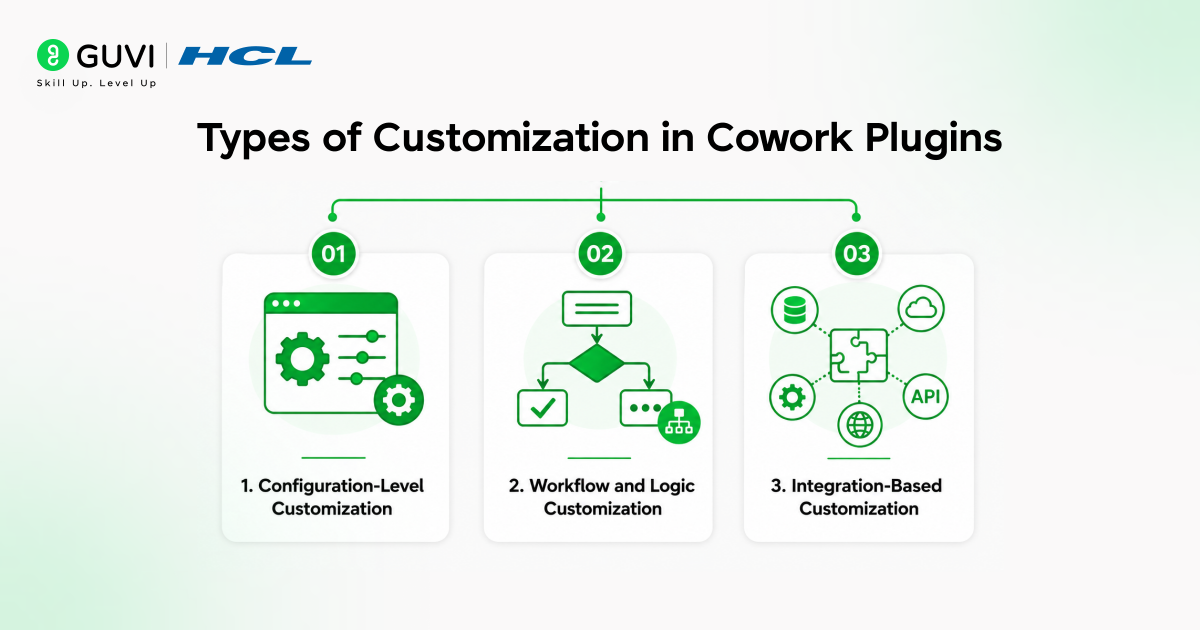
Cowork plugins allow different degrees of customization, depending on what level of workflow control you require.
It could simply be basic settings changes, or it could go further to influence how tasks execute or how the plugin interacts with external services. This allows users to move from simple configuration changes to deeper workflow control.
The customizations in Cowork are roughly categorized as configuration-level customization, workflow logic modification, and integration-based customization. Each form has a distinctive goal, serving different roles in customizing Cowork plugins.
Configuration-Level Customization
Configuration-level customization refers to modifying simple configuration values.
The tasks can involve fields, parameters, or simple rules that influence the behavior of the plugin. These customizations do not affect the core workflow but help tailor the plugin to specific situations.
For example, modifying default field values, setting input limitations, and configuring output formats based on requirements helps align the plugin with specific use cases.
Workflow and Logic Customization
Workflow and logic customization is all about determining the manner in which tasks are executed by the plugin.
It means that one can set conditions, branching, and step-by-step actions to be performed by the plugin at the time of its execution. Instead of a hard-coded sequence of events, the plugin can adapt based on inputs and predefined conditions.
For example, a plugin can identify and execute different tasks based on user inputs and conditions. This customization makes workflows more dynamic and automated.
Integration-Based Customization
Integration-based customization is all about linking or connecting the plugin to different tools and systems available on the internet.
It helps the plugin retrieve data, push updates, and execute tasks on other tools such as CRMs, databases, and collaboration platforms. Instead of working in isolation, the plugin becomes part of a larger workflow ecosystem.
This is commonly seen in Cowork finance workflows, where handling large volumes of data is part of the process.
Step-by-Step Guide to Customize Cowork Plugins
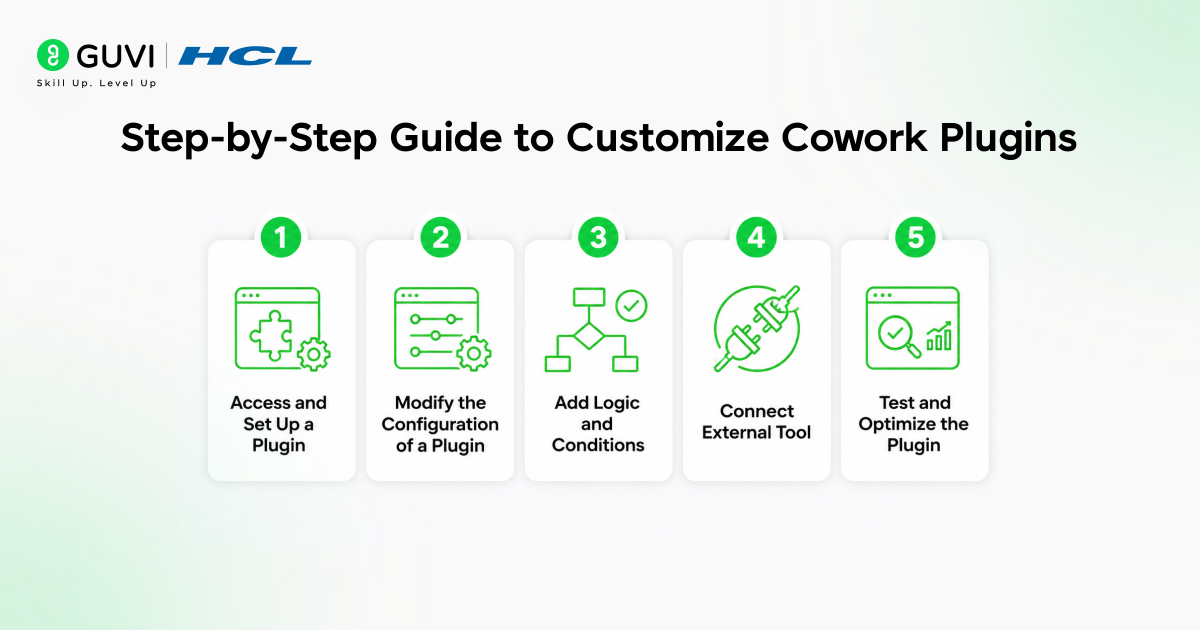
Customizing a Cowork plugin involves a well-defined procedure where each step builds on the previous one.
Essentially, selecting or building the plugin comes first, followed by custom configuration, adding logic, and connecting with outside tools to create a refined workflow.
This process is similar to working with no-code tools, where workflows can be built without deep technical expertise.
Access and Set Up a Plugin
This step involves choosing an existing plugin or developing one from the ground up to meet your needs.

Based on your specific use case, you may decide to use a pre-built template or custom-build the entire workflow from the start. This step helps establish the intended functions and basic outline of the plugin.
For example, to establish a content creation or task automation plugin, you might specify and define its inputs and expected outputs.
Modify the Configuration of a Plugin
Once a plugin is in place, you need to change its configuration.
This may include tweaking values for different parameters, deciding the input format, or determining how the plugin responds to specific instructions. Making these changes will help you achieve your goals for the plugin.
For example, you can provide default inputs, limit specific inputs, and the like, to guide plugin performance.
Add Logic and Conditions
Add logic to the plugin for better performance and execution decision-making.
Conditions and different pathways that affect workflow steps can be incorporated, enabling the plugin to react dynamically instead of following a fixed execution path.
For example, plugin conditions can be set to check user inputs and trigger actions based on various factors.
Connect External Tools
The plugin is capable of communicating with other systems as long as you connect these tools.
This enables seamless data transmission, automated processes, and task execution across platforms such as CRMs, databases, and collaboration systems.
For example, your plugin could retrieve data from one tool and push it into another automatically, creating a smooth workflow.
Test and Optimize the Plugin
Once everything is set, testing the plugin is necessary.
You should use sample inputs, check outputs, and ensure there are no errors or inefficient steps in your workflow.
Optimization may involve refining conditions, improving response accuracy, or streamlining processes for better performance.
Real Use Cases of Customized Cowork Plugins
Customized Cowork plugins can handle complete workflows rather than just individual tasks.
In content operations, a plugin can take a subject, generate a structured document, apply formatting, and publish it to a CMS. In customer support, a plugin can analyze queries and generate accurate responses based on available data.
In business workflows, plugins can integrate with CRMs or databases to track user activity, trigger follow-up actions, and generate reports. Examples include a sales plugin updating lead status, a reporting plugin generating summaries, and a notification plugin sending alerts based on conditions.
How to Choose the Right Customization Approach?
When selecting a customization approach, you should first understand the nature of the task you’re assigning to the plugin and the degree of control you want over the workflow process.
One helpful step toward finding the right customization approach is mapping out your task before building it. For instance:
- If you are looking to create a blog outline from a given topic, a configuration-level is sufficient.
- If you are looking to create, review, format, and publish, then you will need workflow logic.
- If your task is more complex, requiring you to pull data and then update another tool based on it, you will need integrations.
Another way to make sure you build correctly is by using a basic prompt-style logic as you design:
- Input: What kind of data should the workflow utilize?
- Process: What steps should take place?
- Output: What is the final result?
Starting from this design allows you to ensure that you don’t overbuild while also selecting the appropriate customization level based on the workflow task required.
Tools That Enhance Cowork Plugin Customization
It is possible to enhance the potential for Cowork plugins by using external tools.
When it comes to structured data and conditional workflows, tools such as Google Sheets can effectively handle the input and output of data and basic logic without overcomplicating the plugin itself. Other platforms allow plugins to communicate with applications and perform complex multi-step workflows efficiently.
- Google Sheets for structured data and simple logic
- Zapier for integrating applications and workflow automation
- Make for building complex multi-step workflows
- Airtable for database-level workflows
- Notion for organizing content and tracking workflows
- Slack for sending team alerts and notifications
These tools allow Cowork plugins to handle real workflow complexity by managing data, integrations, and multi-step execution more effectively.
Curious how these workflows scale beyond simple setups? This Artificial Intelligence and Machine Learning Course by HCL GUVI with IIT Madras Pravartak dives deeper into real-world automation and AI systems.
Conclusion
Customizing Cowork plugins isn’t just about tweaking a few settings; it’s about deciding how your work actually flows.
When you move away from fixed behavior and start building your own processes, the plugin begins to handle real tasks, decisions, and integrations in a way that fits how you work. That’s when Cowork stops feeling like just an assistant and starts working like a system.
The real value comes from choosing the right level of customization for what you actually need. Keep it simple where you can, scale it where necessary, and you’ll end up with workflows that are efficient, practical, and built around your way of working.
FAQs
1. Do I need coding skills to customize Cowork plugins?
No, most customizations can be done using built-in settings, logic, and integrations without advanced coding knowledge.
2. What is the first step in customizing a Cowork plugin?
Start by setting up the plugin and defining its inputs and outputs before adding any logic or integrations.
3. How do I decide the level of customization needed?
It depends on your task. Simple tasks need configuration, while complex workflows require logic and integrations.
4. Can Cowork plugins integrate with external tools?
Yes, they can connect with tools like Google Sheets, Zapier, and Make to automate workflows across platforms.
5. How do I avoid overcomplicating my plugin?
Begin with basic setup and gradually add logic only when needed instead of building complex workflows from the start.
6. What are the main benefits of customizing Cowork plugins?
Customization improves automation, reduces manual work, increases accuracy, and allows workflows to match specific needs.
Success Stories

About the Author
Vishalini Devarajan
An Aerospace Engineer turned content writer, I focus on making complex concepts easy to understand through well-structured, reader-friendly blogs. Whether it’s a technical topic or a non-technical one, I love creating content that is clear, engaging, and impactful.
View all posts by Vishalini Devarajan
Connect with me @











Did you enjoy this article?