


Artificial Intelligence and Machine Learning Articles
Finance Manager to Data Analytics: Career Growth, Salary and Seniority
How to Evaluate LLM Outputs in Production Deployments
AI/ML Skills Gap 2026: Why Companies Can't Find Job-Ready Talent
20 AI/ML Interview Questions Recruiters Can Use Without a Tech Background - Best Guide


Get In Touch For Details! Request More Information

How to Use Claude in Excel for Accounting: Revenue Model Validation
Jun 20, 2026 6 Min Read 673 Views
(Last Updated)
Claude in Excel works directly inside your spreadsheet through a sidebar, reading your data and making changes through conversation. In this tutorial, you will see how an accountant uses Claude Excel accounting to validate an ASC 606 revenue recognition model the kind of multi-tab workbook you might inherit during an audit or acquire in a transaction.
ASC 606 revenue models are notoriously difficult to hand off. They typically span multiple schedules contract summaries, deferred revenue rollforwards, journal entry logs and the relationships between tabs are rarely documented. When you are the person who did not build it, understanding the structure and finding errors are two separate, time-consuming problems.
This tutorial shows how Claude handles both. The same approach works for any multi-sheet model where you need to understand the structure, catch problems, or extend what is already built budgets, forecasts, audit workpapers.
Quick TL;DR Summary
- What you will learn: How to orient yourself in an unfamiliar model, surface reconciliation errors and missing entries, fix data with confirmation, add columns through conversation, and create charts by describing them.
- The model: A multi-tab ASC 606 revenue recognition workbook with reconciliation gaps, duplicate entries, a missing journal entry, and flagged items the kind of issues that appear in real audit and transaction work.
- How Claude reads the model: Claude reads all six sheets before responding, maps how schedules tie together, and retains that context for every follow-up prompt in the conversation.
- How changes work: Claude shows you what it found and what it recommends. It does not make changes until you confirm. Every edit is highlighted.
- Pattern recognition: When Claude adds new journal entries, it analyses existing entries, identifies the revenue split pattern (80% Platform / 12% Support / 8% Services), and applies that logic to new rows automatically.
- Where to start: Install Claude in Excel from Microsoft AppSource, open it with Ctrl+Option+C (Mac) or Ctrl+Alt+C (Windows), and start with ‘Walk me through this model’ on any workbook you have inherited.
Table of contents
- What You Will Learn
- Step 1: Get Oriented in an Unfamiliar Model
- Step 2: Let Claude Surface Issues for You
- Step 3: Fix Data With Confirmation
- Step 4: Add Columns Through Conversation
- Step 5: Create Charts by Describing Them
- Step 6: Return to Earlier Issues
- Conclusion
- FAQs
- What is ASC 606 and why is validating its revenue model complex?
- What kind of errors does Claude find in an ASC 606 model?
- Does Claude make changes automatically or do I need to confirm each one?
- How does Claude know the revenue split pattern when adding journal entries?
- Can I use this same approach on models other than ASC 606 revenue models?
What You Will Learn
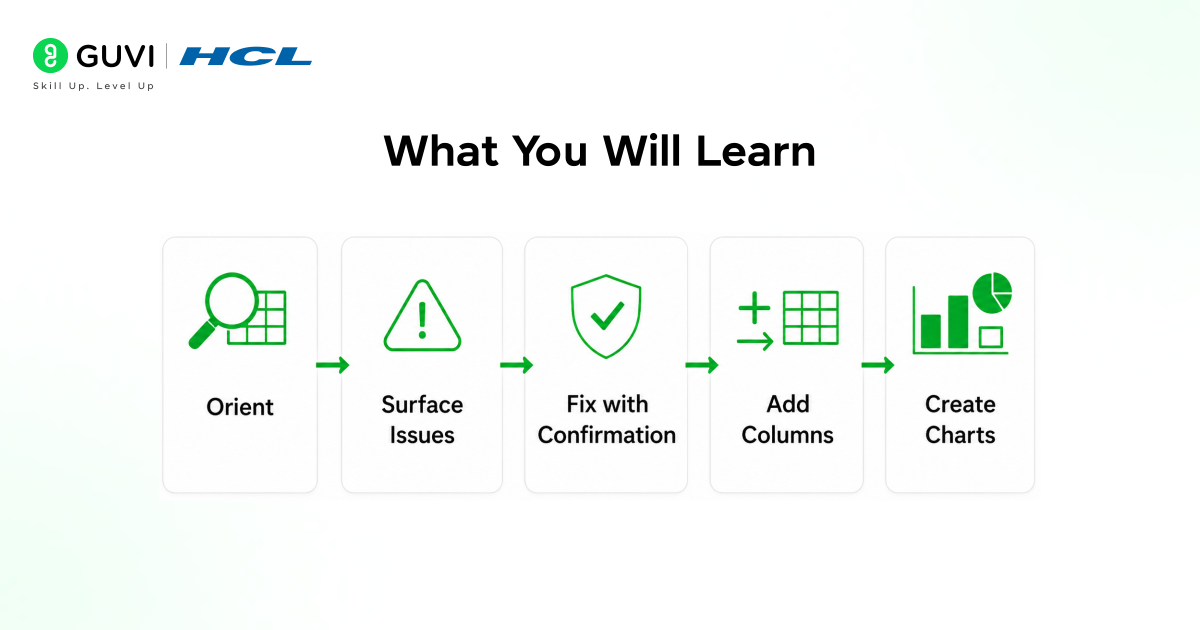
This tutorial covers five distinct capabilities of claude Excel accounting workflows, each demonstrated on the same ASC 606 model:
- Understand workbooks you did not build: Ask Claude to explain how tabs connect. It reads every sheet first, then maps the structure: how schedules tie together, where data flows, what feeds into what.
- Surface errors and inconsistencies: Claude catches reconciliation gaps, duplicate entries, and missing data across multiple sheets. Instead of clicking through tabs yourself, you see everything it found upfront and choose what to tackle first.
- Fix issues with confirmation: When Claude finds a problem, it shows you what is wrong, explains the recommended fix, and waits for your go-ahead. You stay in control of what changes.
- Add columns and formatting through conversation: Describe what you need, status indicators, legends, new calculations, and Claude builds it. It learns patterns from your existing data and applies them consistently.
- Create charts by describing them: Tell Claude what visualization you need. It creates helper tables when necessary, builds the chart, and will rebuild if the first version is not right.
ASC 606 (Revenue from Contracts with Customers) replaced the previous revenue recognition standard in 2018, introducing a five-step model that requires significantly more judgment and documentation. As a result, multi-tab ASC 606 workbooks — covering contract schedules, deferred revenue rollforwards, and journal entries — are among the most complex spreadsheets accountants handle during audits, due diligence, and period-end closes.
Step 1: Get Oriented in an Unfamiliar Model
The first thing to do with any workbook you did not build is to understand what is in it before you touch anything. Claude reads every tab before responding, giving it full context for every follow-up question in the session.
The prompt:
Walk me through this model. What’s on each tab and how does everything tie together?
Claude reads all six sheets, then returns a structured explanation of the workbook what each tab contains, how the schedules connect to each other, where data flows from inputs through to outputs, and which cells or ranges feed key calculations.
This is different from describing a model you built yourself. Claude has the actual file in context. Its explanation of tab structure and data flow is grounded in what the formulas and references actually say, not what someone thought they built.
After this first prompt, you have the baseline context you need for every subsequent question. You can ask about a specific cell, trace a calculation, or ask Claude to check for errors and Claude already knows the full structure of the model.
Step 2: Let Claude Surface Issues for You
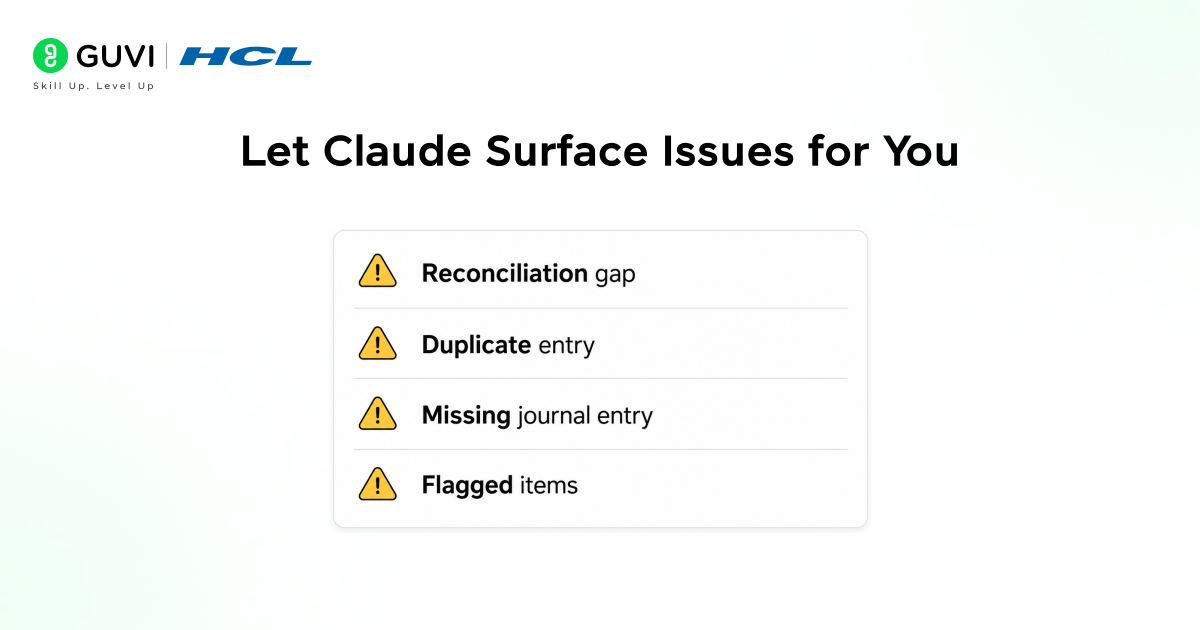
After reading the workbook, Claude proactively identifies problems. You do not need to ask it to look for errors; it surfaces everything it finds after the initial orientation and presents the list to you so you can decide what to tackle first.
In the ASC 606 model used in this tutorial, Claude identifies four issues after reading the workbook:
• A reconciliation gap between two tabs
• A duplicate entry in the contract schedule
• A missing September journal entry
• Additional flagged items across the sheets
You choose the order. Claude does not prioritise or make changes automatically it presents the full list and waits for direction.
The prompt to proceed:
Yes, please look at the reconciliation issue first.
Claude then focuses on the reconciliation gap, traces it to its source, and explains what is causing the discrepancy before proposing a fix.
In complex multi-tab financial models, reconciliation gaps rarely originate where they appear. The visible discrepancy is often downstream of the actual issue — which could stem from an input schedule, missing row, or an incorrect formula reference. Claude traces these gaps back to their root cause, ensuring fixes are durable rather than temporary patches that only make the numbers align.
Step 3: Fix Data With Confirmation
This is the part of the workflow where Claude’s behaviour matters most. When Claude finds a problem, it shows you what it found and what it recommends. It does not make any changes until you explicitly say so.
For the reconciliation gap, Claude explains the math — what the two tabs currently show, what the correct figure should be, and which cell or entry needs to change to resolve the discrepancy. You see exactly what is going to happen before anything is modified.
The confirmation prompt:
Yes, go ahead.
After confirmation, Claude makes the change, highlights the updated cell, and adds an explanatory comment so you can trace what was modified and why. The rest of the model is untouched.
This same pattern show the problem, explain the fix, wait for confirmation, make the change, highlight it applies to every edit Claude makes in the session. You never have to wonder what changed between the version you had and the version you saved.
Step 4: Add Columns Through Conversation
Once the reconciliation issue is resolved, the tutorial demonstrates how Claude handles new column requests specifically, adding a testing status tracker to the contract schedule.

The prompt:
Add a check mark column showing testing status for each contract. Use ✓ for tested, IP for in progress, and NP for not yet started. Add a legend at the bottom.
Claude adds the column, applies the status codes, and creates a legend at the bottom of the sheet all in one step. No back-and-forth to get the format right, no manual work on the legend.
This is also where Claude’s pattern recognition matters. When the tutorial later asks Claude to add September journal entries, Claude does not just create blank rows. It analyses the existing July and August entries, identifies that revenue is consistently split 80% Platform, 12% Support, and 8% Services, and applies that same logic to the new entries. The September entries match the established pattern without being told to.
If the first version of anything a column, a format, a calculation is not right, you describe what is off and Claude adjusts. You do not re-explain the whole request.
Step 5: Create Charts by Describing Them
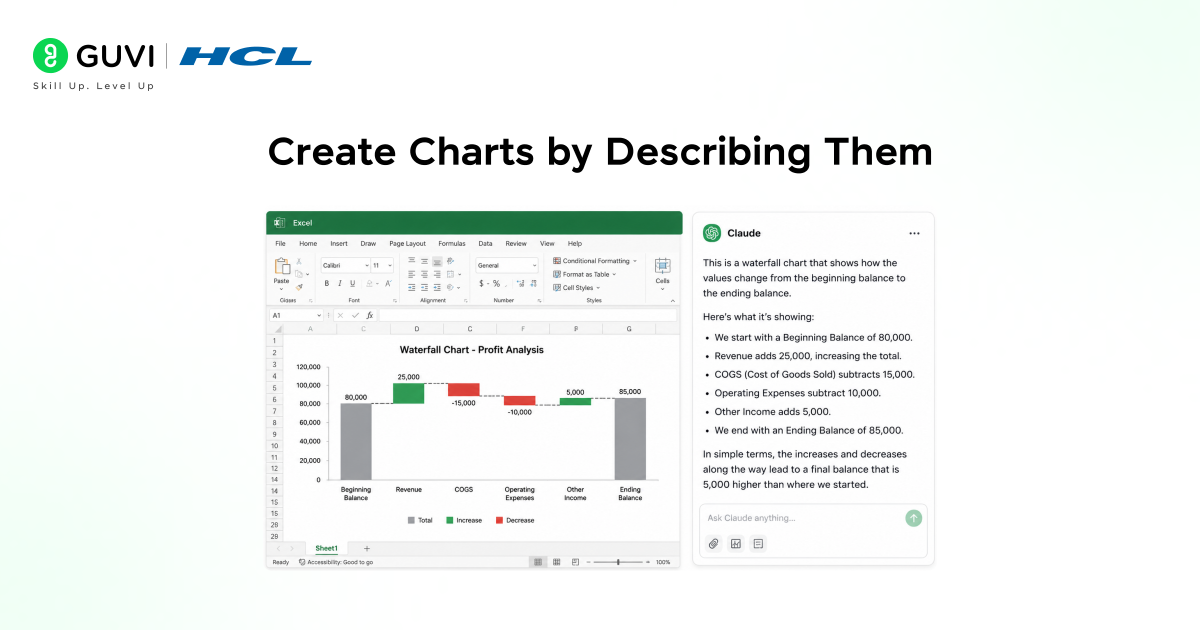
The tutorial ends with a chart creation prompt one of the more complex requests in the session because it requires Claude to understand both what data exists and how to structure it visually.
The prompt:
Create a waterfall chart showing the Q3 deferred revenue rollforward beginning balance, bookings, revenue recognized, adjustments, and ending balance.
Waterfall charts in Excel require a helper table that translates the rollforward data into the stacked bar format Excel uses to render waterfalls. Claude creates the helper table, builds the chart from it, and formats the segments correctly without you needing to know anything about how Excel handles waterfall chart data.
If the first version is not right — wrong colours, mislabelled segments, different scale than expected — you describe what to change and Claude rebuilds. The chart is created through conversation, not through the Excel chart wizard.
Step 6: Return to Earlier Issues
The session does not have to follow a linear path. Claude retains everything from the conversation every issue it flagged, every change it made, every explanation it gave. You can return to something from earlier without re-explaining the context.
The prompt:
Let’s go back to the issues you identified a missing journal entry and one other I think?
Claude picks up exactly where the earlier issues were left. It does not need the model re-read, does not need the list of issues re-stated. It recalls what it flagged, confirms the two remaining items, and proceeds with whichever one you choose to address.
This is what makes the Claude in Excel workflow different from working with a general-purpose AI chat tool. The conversation is grounded in a specific file that Claude read at the start. Context carries forward through every prompt.
If you want to learn more about building skills for Claude Code and automating your procedural knowledge, do not miss the chance to enroll in HCL GUVI’s Intel & IITM Pravartak Certified Artificial Intelligence & Machine Learning courses. Endorsed with Intel certification, this course adds a globally recognized credential to your resume, a powerful edge that sets you apart in the competitive AI job market
Conclusion
In conclusion, using Claude Excel accounting for revenue model validation changes how you approach inherited workbooks. Instead of clicking through tabs to understand the structure and hunting for errors one at a time, Claude reads the whole model first, maps it for you, and surfaces every issue it found before you have made a single change.
The workflow demonstrated here orient, surface, confirm, fix, extend is repeatable on any complex multi-tab model. The ASC 606 scenario is one example. The same five steps apply to any spreadsheet where the structure is unclear, the errors are spread across sheets, or the documentation is missing.
Start with a workbook you did not build. Ask Claude to walk you through it. See what it finds before you start making changes. That is where this workflow earns its place in accounting and audit workflows.
FAQs
1. What is ASC 606 and why is validating its revenue model complex?
ASC 606 is the US accounting standard for revenue recognition from contracts with customers. It replaced older, industry-specific guidance in 2018 and introduced a five-step model requiring significant judgement about when and how much revenue to recognise. The resulting workbooks typically span multiple schedules contract summaries, deferred revenue rollforwards, journal entry logs with complex cross-tab dependencies that make errors hard to find and structure hard to understand without having built the model yourself.
2. What kind of errors does Claude find in an ASC 606 model?
In the tutorial model, Claude identifies four issues after reading the workbook: a reconciliation gap between two tabs, a duplicate entry in the contract schedule, a missing September journal entry, and additional flagged items. These are exactly the types of errors that appear in real audit and transaction work gaps in schedules that do not agree, missing entries at period-end, and duplicates that inflate totals.
3. Does Claude make changes automatically or do I need to confirm each one?
Claude never makes changes automatically. For every issue it identifies, it explains what it found and what it recommends, then waits for your explicit confirmation before modifying anything. After you confirm, it makes the change, highlights the updated cell, and adds an explanatory comment. Every edit is visible and traceable.
4. How does Claude know the revenue split pattern when adding journal entries?
Claude analyses the existing journal entries in the model before adding new ones. In the tutorial, it reads the July and August entries, identifies that revenue is split 80% Platform, 12% Support, and 8% Services across all existing entries, and applies that same pattern to the September entries it adds. It does not need to be told the split — it infers it from the data already in the model.
5. Can I use this same approach on models other than ASC 606 revenue models?
Yes. The workflow orient, surface issues, confirm fixes, extend with new columns or calculations, create charts by description applies to any multi-sheet model where you need to understand structure, catch errors, or make controlled changes. This includes budget models, cash flow forecasts, audit workpapers, headcount plans, and transaction due diligence schedules.
Success Stories

About the Author
Vishalini Devarajan
An Aerospace Engineer turned content writer, I focus on making complex concepts easy to understand through well-structured, reader-friendly blogs. Whether it’s a technical topic or a non-technical one, I love creating content that is clear, engaging, and impactful.
View all posts by Vishalini Devarajan
Connect with me @










Did you enjoy this article?