


Artificial Intelligence and Machine Learning Articles
AI/ML Skills Gap 2026: Why Companies Can't Find Job-Ready Talent
20 AI/ML Interview Questions Recruiters Can Use Without a Tech Background - Best Guide
How Industry-Backed AI/ML Bootcamps Are Changing the AI/ML Hiring Pipeline - Best Guide 2026
From IT Support to AI Engineer: A Realistic Career Switch Guide 2026


Get In Touch For Details! Request More Information

Claude Code Auto Mode: Safe AI Coding Without Permission Fatigue
Jun 01, 2026 5 Min Read 1432 Views
(Last Updated)
If you are just starting out as a developer, you have probably heard of AI coding assistants. Tools like Claude Code are becoming very popular in the developer world because they can write files, run terminal commands, fix bugs, and even refactor entire codebases all on their own.
Claude Code already had a way for developers to skip manual approval prompts entirely using a flag called dangerously-skip-permissions. While that option works, the name alone should tell you it is not something you want to run casually on your laptop every day.
In this article, we will break down Claude Code Auto Mode, what it is, why Anthropic built it, how it works under the hood, how to turn it on, and when you should or should not use it. Whether you are a final-year engineering student or someone who just landed their first dev job, this guide is written for you.
TL;DR
- Auto Mode is Claude Code’s “middle path” between constant approvals and totally skipping them.
- It lets you run longer tasks without getting asked “yes/no” every few seconds.
- A background AI classifier checks each action before it runs, blocking risky stuff automatically.
- Low‑risk actions like reading files or running tests often go through instantly.
- High‑risk stuff like mass deletions or changes outside your project folder get blocked or flagged.
- It’s not 100% foolproof, so Anthropic still recommends using it in isolated or test-like environments.
Table of contents
- What is Claude Code and Why Do Permissions Matter?
- Understanding the Tool Before the Feature
- Old Bypass Flag Risks
- Claude Code Auto Mode: The Smart Middle Ground
- How Auto Mode Solves the Problem Differently
- How the Classifier Decides What Is Safe
- How to Enable Claude Code Auto Mode?
- A Step-by-Step Setup Guide for Beginners
- Limitations You Should Know About
- Why This Matters for Your Career as a Developer
- Conclusion
- FAQs
- What is Auto Mode?
- How do I enable it?
- What gets auto-approved?
- What gets flagged?
- Is it 100% safe?
What is Claude Code and Why Do Permissions Matter?

Understanding the Tool Before the Feature
- Claude Code is a command-line AI assistant built by Anthropic. You run it in your terminal and give it instructions like “add a login feature to my app” or “find and fix all failing tests.” It can then go through your codebase, edit files, run shell commands, install packages, and do complex multi-step work mostly on its own.
- Now here is the thing. Claude Code has access to your file system and your terminal. That means it can do things like create new files, overwrite existing ones, or run powerful shell commands. These are not bad things in fact, they are exactly what make it useful. But they also mean that if Claude misunderstands your request or does something unexpected, the results could range from annoying to actually harmful.
- To manage this, Claude Code by default asks for your approval before doing anything risky. Every file write, every shell command it stops and waits for you to say yes. This is safe, but it becomes very disruptive when you are trying to run a big task that involves dozens of steps. Imagine having to press “y” every few seconds for twenty minutes straight. That is what developers call “permission fatigue,” and it is a very real productivity problem.
Old Bypass Flag Risks
Why the Bypass Flag Exists
- Anthropic gave developers an escape hatch: a flag called dangerously-skip-permissions. When you use this, Claude Code stops asking for permission entirely. It just does whatever it needs to do, automatically.
- This is useful when Claude is running inside a Docker container during a CI/CD pipeline, an isolated, disposable environment where nothing critical can be damaged.
Why It Is Not for Everyday Use
- The problem is that some developers started using this flag during their normal day-to-day work just to avoid the constant prompts. That is risky because there is absolutely no safety logic running at all.
- A file deletion command gets treated the same as a simple file read. A command that accidentally wipes your project folder will execute just as silently as one that creates a new test file.
- There is no distinction, no judgment, and no way to catch something going wrong before it does.
- Think of it this way: -dangerously-skip-permissions is like giving someone the master key to your house and then leaving for a week. Auto Mode is more like hiring a trustworthy assistant who can handle most things on their own but always knocks before entering your home office.
Claude Code Auto Mode: The Smart Middle Ground
How Auto Mode Solves the Problem Differently
- Announced by Anthropic on March 24, 2026, Auto Mode is a brand-new permissions mode for Claude Code. Instead of either asking you about everything or asking you about nothing, it uses a background AI classifier to assess each action individually before it runs.
- The classifier looks at what Claude is about to do and decides whether it is safe to proceed automatically or whether a human should be involved.
- The core idea is really elegant. Rather than treating all actions as equally risky or equally harmless, Auto Mode creates a spectrum. Low-risk actions like reading files or running tests get auto-approved and happen instantly.
- High-risk actions like mass-deleting files, interacting with external services unexpectedly, or executing commands that reach outside your project directory get blocked or sent to you for review.
- The classifier is actually a separate instance of Claude Sonnet 4.6 running in the background it evaluates the full context of what has happened in the session and makes a judgment call.
- This is a fundamentally smarter approach than the old binary choice. You stop clicking “yes” every few seconds while still keeping the safety net in place for the actions that genuinely need it. If Claude keeps trying to do something the classifier keeps blocking, it will eventually surface a prompt to you so you can make the final call.
How the Classifier Decides What Is Safe
Key Factors It Checks
- It evaluates reversibility (can it be undone?), scope (stays in project folder?), and task alignment (matches your request?).
- Reading/creating files with version control is reversible; deletions without backup aren’t.It avoids sensitive system directories and irrelevant actions.
Actions That Get Auto-Approved
- Reading files, listing directories, git status/diff, creating/editing project files, running requested tests.
- Installing packages from dependency files like package.json or requirements.txt. All within project scope and task-related.
Actions That Get Flagged
- Deleting files/directories, reaching outside project folder, editing sensitive configs/env vars.
- Force-pushing Git, pushing to main/master, downloading/executing external code. Also watches for prompt injection risks in files/webpages.
Auto Mode is powered by another Claude model running in the background that evaluates every action before it runs. It focuses on three big ideas: can the action be undone, is it inside your project folder, and does it really match what you asked for. This means many routine tasks happen smoothly while genuinely risky moves are caught early. Even so, it’s still an AI judge, not a perfect one, so a bit of caution is always wise.

How to Enable Claude Code Auto Mode?
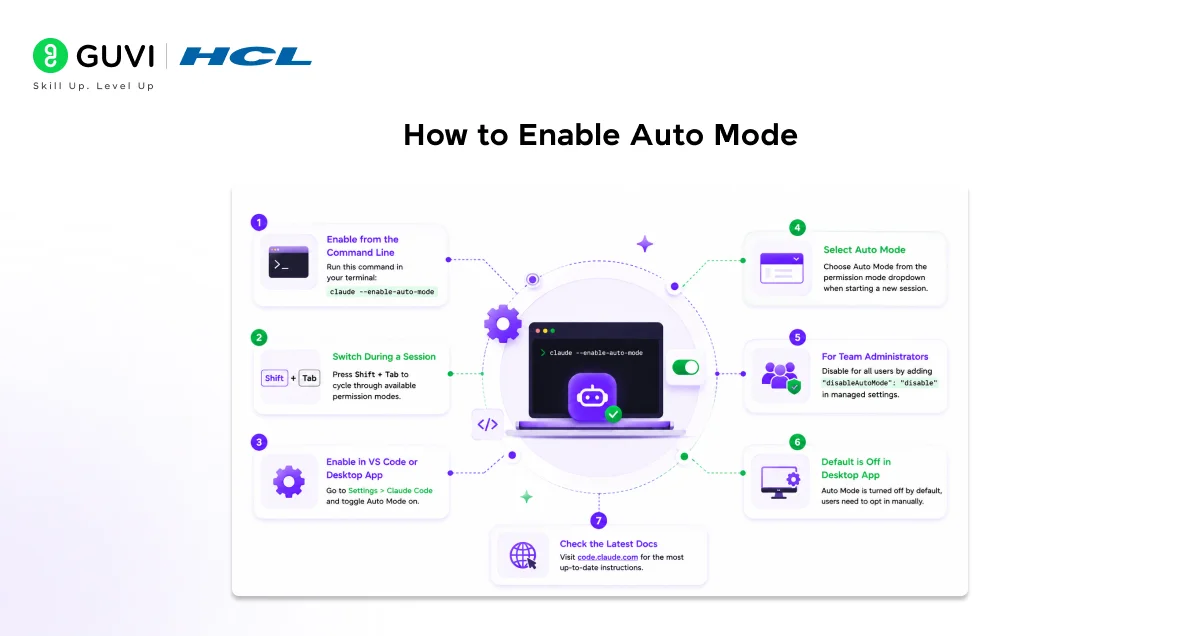
A Step-by-Step Setup Guide for Beginners
- Auto Mode is currently available as a research preview for Claude Team plan users, with rollout to Enterprise and API users happening in the days following the launch. It works with both Claude Sonnet 4.6 and Claude Opus 4.6.
- To turn it on from the command line, run this command in your terminal:
- claude –enable-auto-mode
- Once enabled, you can switch to Auto Mode during a session by pressing Shift+Tab to cycle through the available permission modes.
- If you are using the VS Code extension or the Claude desktop app, you need to first go into Settings, navigate to Claude Code, and toggle Auto Mode on. After that, you can select it from the permission mode dropdown at the start of a new session.
- For team administrators managing Claude Code across an organization, Auto Mode can be disabled for all users by adding “disableAutoMode”: “disable” to the managed settings configuration. It is worth knowing that Auto Mode is turned off by default in the Claude desktop app, so users need to opt in manually.
- The documentation at code.claude.com has the most up-to-date instructions as the feature continues to evolve out of research preview.
Limitations You Should Know About
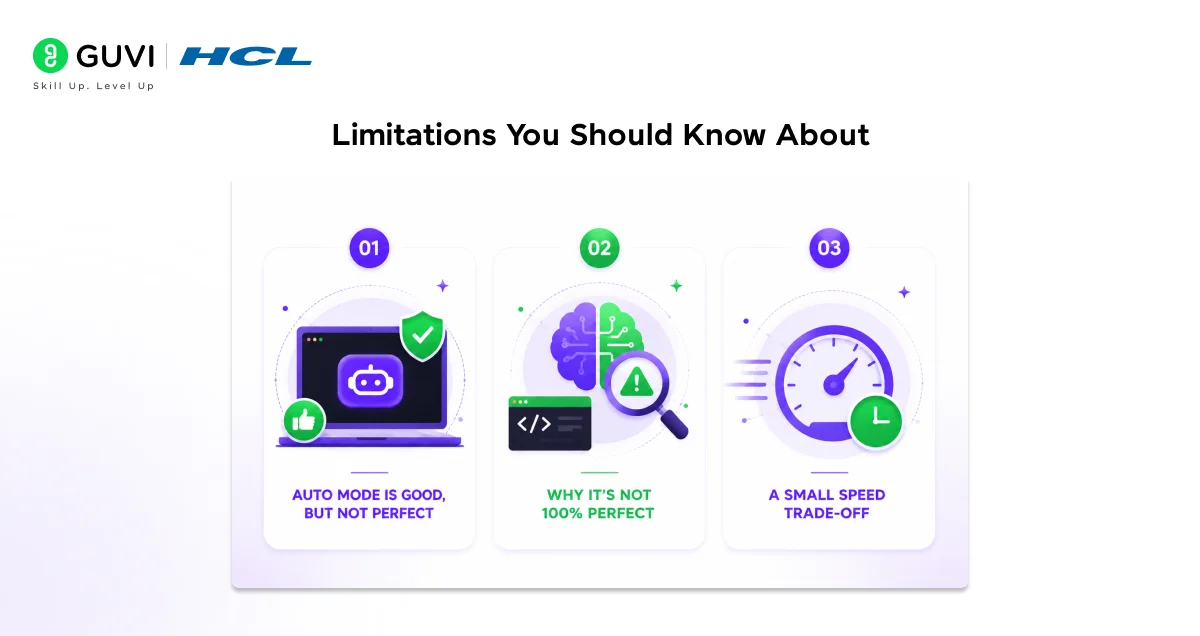
Auto Mode Is Good, But Not Perfect
- Anthropic is refreshingly honest about the fact that Auto Mode is not a silver bullet.
- The classifier may still occasionally allow actions that carry some risk, especially when your intent as a developer is ambiguous or when Claude does not have enough context about your specific environment to recognize a potential problem.
- It may also occasionally block benign actions that look suspicious on the surface but are actually fine.
Why It’s Not 100% Perfect
- Because the classifier is powered by AI rather than deterministic rules, its decisions are not 100% guaranteed every time.
- Security researchers have pointed out that prompt injection where harmful instructions are hidden in a file Claude reads could potentially trick the classifier if the attack is sophisticated enough.
- Anthropic has default filters for this, and users can add their own custom rules on top, but it is not a foolproof system.
- For that reason, Anthropic continues to recommend using Auto Mode inside isolated environments when possible, especially for long autonomous tasks.
A Small Speed Trade-Off
- There is also a small trade-off in performance. Since every tool call now goes through a classifier before executing, there is a slight impact on speed, token usage, and cost.
- For most everyday tasks this will be barely noticeable, but it is worth keeping in mind for very high-volume automated workflows.
Why This Matters for Your Career as a Developer
- If you are fresh out of college and entering the tech industry right now, AI coding tools are going to be part of your daily workflow faster than you might expect.
- Understanding how tools like Claude Code work including their permission systems, safety mechanisms, and limitations puts you ahead of most people who just treat AI as a black box.
- Auto Mode represents a broader shift happening across the industry: moving away from static, pre-configured access controls and toward dynamic, context-aware decisions made in real time. The same principle shows up in cloud security,
- DevOps pipelines, and enterprise software. The more comfortable you are thinking about concepts like privilege management, scope isolation, and reversible versus irreversible actions, the more valuable you become as a developer not just for working with AI tools, but for designing systems that are safe and reliable at scale.
- Claude Code with Auto Mode is a practical example of how AI development is maturing. It is not just about what the AI can do anymore. It is about how responsibly and safely it does it, and how much control developers retain in the process.
If you’re following this Auto mode for Claude Code guide, always review diffs before merging this catches agent errors even under pressure.Master AI agents like Claude Code: Enroll in HCL GUVI’s Artificial Intelligence & Machine Learning course for hands-on AI expertise!
Conclusion
Auto Mode for Claude Code is a genuine step forward in making AI-assisted development both more productive and more secure.
It removes the frustration of constant permission prompts without throwing away the safety reasoning that makes those prompts valuable in the first place. For beginners, it is a great feature to understand early because it teaches you something important: the best tools are not the most powerful ones. They are the ones that are powerful and thoughtful about when and how to use that power.
If you are using Claude Code or plan to start, enable Auto Mode, try it on a real project, and pay attention to what it flags and what it lets through. It is a great way to build your intuition for how AI agents make decisions and that intuition will serve you well throughout your career.
FAQs
What is Auto Mode?
A smart permission system that auto-approves low-risk actions and flags high-risk ones using an AI classifier no more constant “y” prompts.
How do I enable it?
Run claude –enable-auto-mode in terminal, or toggle in VS Code/Claude app settings. Cycle modes with Shift+Tab.
What gets auto-approved?
Safe tasks like reading files, git status, editing project files, running tests, or installing listed packages.
What gets flagged?
Deletions, external access, sensitive edits, force-pushes, or external code execution.
Is it 100% safe?
No AI isn’t foolproof (e.g., prompt injection risks), so use in isolated environments for big tasks.
Success Stories

About the Author
Lukesh S
A professional content writer who has experience in freelancing and now working as a Technical Content Writer at HCL GUVI having sound knowledge in Blog Writing and Creative Writing!
View all posts by Lukesh S
Connect with me @









Did you enjoy this article?